
Picture this: you settle in for a quiet evening movie, or focus on a big work project. Your Do Not Disturb mode sits active on the screen. Then a random spam call blasts through, shattering the calm. It happens too often. People turn on this feature for peace, but exceptions let calls sneak past.
Do Not Disturb blocks most notifications and rings on smartphones. It silences alerts from apps and contacts. Yet common settings like favorites lists or repeated calls from strangers create gaps. Unknown numbers ring if toggles stay on. These slip-ups affect both iPhone and Android users.
This guide walks you through fixes. Start with basics on how the mode works. Then tackle iPhone steps in detail. Follow with Android tweaks. End with extra checks for full silence. You will regain control with simple changes. Test each one right away for quiet nights ahead.
Key Ways Do Not Disturb Handles Calls on Phones
Do Not Disturb works much the same on iPhone and Android phones. It mutes incoming calls by default. The screen shows a moon icon when active. Most rings go quiet, but built-in exceptions allow some through.
Exceptions include starred or favorite contacts. These people ring even in the mode. Recent callers from the last 24 hours might break through too. Back-to-back calls, like two in three minutes, trigger the repeated call rule and sound an alert.
Random calls slip in for these top reasons:
- Allow lists stay set to favorites or everyone: Check who sits on these lists.
- Repeated calls toggle remains on: Strangers dial twice fast to ring.
- Unknown callers option runs active: Non-contacts in your phone book get through.
- Schedules or auto-rules fail: Mode turns off at wrong times.
Quick check first: swipe down to control center. Tap the moon icon to confirm it glows. On Android, pull down notifications and verify. If off, turn it on now. These facts come from standard phone behaviors across brands. You build solid ground before deep fixes.
Fix Do Not Disturb Allowing Calls on iPhone
On iPhone, Do Not Disturb lives under the Focus menu in Settings. Open the app. Scroll to Focus, then tap Do Not Disturb. Changes sync across linked Apple devices like iPad or Mac. Test fixes by calling yourself from a second phone.
Follow these steps:
- Go to Settings > Focus > Do Not Disturb.
- Tap People under Allowed Notifications.
- Set changes and toggle options off.
Test after each tweak. Call from another line. Silence confirms success.
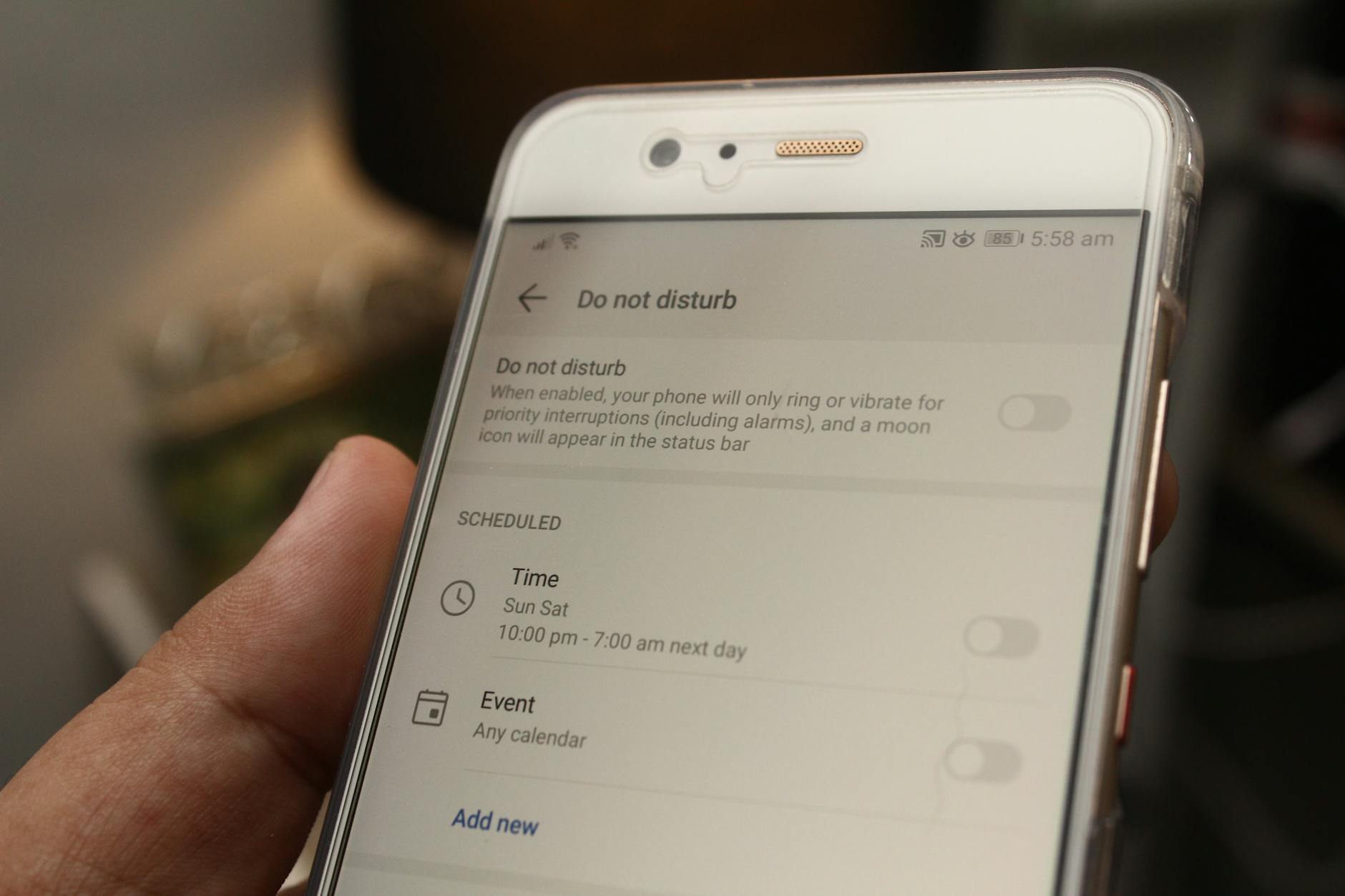
Photo by Daniel Moises Magulado
Set Allow Calls From to No One and Disable Repeated Calls
Random calls love open doors. Close them here.
- Open Settings.
- Tap Focus, then Do Not Disturb.
- Select People.
- Under Allow Calls From, pick No One. This blocks everyone, even favorites.
Next, kill the repeated calls loophole. It lets two calls within three minutes ring loud.
- Still in People section.
- Toggle off Allow Repeated Calls. The switch grays out when off.
The screen shows a list of options: Allow Calls From at top, with choices like Favorites, All, or No One. Below sits the Repeated Calls slider. Why does this matter? Spam apps dial fast to bypass silence. Strangers test this trick.
Test it. Ask a friend to call twice quick from an unknown number. No ring means win. If calls still come, double-check the toggle. This setup gives total block on iPhone.
Turn Off Silence Unknown Callers Exceptions
Another gap hides in Phone settings. Silence Unknown Callers mutes non-contacts by default. But it ties to Do Not Disturb and can let some ring.
- Open Settings.
- Scroll to Phone.
- Tap Silence Unknown Callers.
- Toggle it off if on. Wait, no: for full block, keep it on. Turn off only if known numbers fail.
Unknowns mean anyone not in contacts, recent calls, or Siri suggestions. Spam slips if exceptions stay. Toggle back on for strict mode. Screen shows a simple switch with a description.
Quick tip: check Recents in Phone app for patterns. Block repeat offenders there too. This pairs with Do Not Disturb for airtight quiet.
Troubleshoot Do Not Disturb on Android Phones
Android steps mirror iPhone but vary by brand. Samsung uses One UI; Pixel sticks to stock. Core path: Settings > Sound & Vibration > Do Not Disturb. Schedules auto-activate at night or work hours. Restart the phone after changes to apply fully.
- Pull down notification shade.
- Long-press Do Not Disturb tile or go to Settings.
- Check Exceptions under People or Calls.
Test like iPhone: use another phone to dial. Continuity from Apple fixes helps here.
Block All Calls in Do Not Disturb Exceptions
Exceptions let favorites ring. Clear them for silence.
- Open Settings > Sound & Vibration > Do Not Disturb.
- Tap People.
- Under Calls, select No one or Don’t allow calls.
- Toggle off starred contacts if listed.
Starred contacts act like favorites. Open Phone app, tap a contact, unstar extras. Random ones hide here from carrier apps.
Screen path: People section lists Calls, Messages, Alarms. Set Calls to No one. Steps suit beginners. Test: call from unknown line. Silence proves it works. This stops most breakthroughs.
Clear Conversations and Other Allow Lists
Lingering lists open doors.
- In Do Not Disturb > Exceptions > Conversations.
- Set to No one.
- Check Calls from anyone; turn off.
- Review recent or group allows; remove them.
Carrier apps or third-party tools add extras. Check those settings. Last resort: reset Do Not Disturb to defaults via menu.
Quick list:
- Conversations: No one.
- Starred: Clear all.
- Recent: None.
Phone quiets fast. Action beats frustration.
Extra Steps to Stop Calls in Do Not Disturb Mode
Basics fail sometimes. Dig deeper.
Restart first. Hold power button, slide to power off, wait 30 seconds, turn on. Clears glitches.
Check updates. Go to Settings > General (iPhone) or System > Updates (Android). Install if ready. Old software bugs let calls through.
Third-party apps override. Call blockers or messengers ring anyway. Disable in app settings or uninstall tests.
Toggle Airplane Mode: swipe control center, turn on 10 seconds, off. Resets connections.
Set custom schedules. iPhone: Focus > Do Not Disturb > Add Schedule. Android: Do Not Disturb > Schedules. Night mode from 10 PM to 7 AM blocks all.
- Review app permissions: Settings > Apps > special access > phone calls.
- Check linked devices: Bluetooth or accounts sync exceptions.
- Carrier settings: Dial ## codes or app for blocks.
When stuck, contact support. Apple: support.apple.com. Google: support.google.com/android. Carriers help spam filters.
These steps seal gaps on your smartphone. Peace returns quick.
Conclusion
Tighten allow lists to No One, disable repeated calls, and silence unknowns. Restart and update seal the deal. Test tonight with a spare line.
Share your fix in comments. Try these on a family phone too. Enjoy the quiet you deserve. Your smartphone works for you now, not interruptions. Silence brings back focus.