You’re deep in a phone call, sharing details with a friend or sealing a work deal, when sudden crackling sound hits. Static crackles drown out voices, turning clear chats into frustrating guesswork. You strain to hear, repeat yourself, or just hang up early.
This issue plagues both Android and iPhone users. It pops up only during calls, often from call audio processing quirks. Weak signals, Bluetooth glitches, or software bugs trigger it most.
Don’t worry. Simple steps fix it for most folks, based on user reports from tech forums and sites. No tech skills needed; quick wins like a restart often do the trick.
First, check your signal strength. Move to a spot with full bars, or toggle between Wi-Fi calling and mobile data. Test a call right after.
Restart your smartphone next. Hold the power button, reboot, and dial again. This clears temporary glitches fast, as many users confirm.
Bluetooth interference ranks high too. Turn off nearby headphones, car kits, or speakers. Crackling fades once you disconnect.
Dust in speakers or ports blocks sound too. Grab a soft brush or compressed air for a quick clean. Users see big improvements here.
Keep software updated. Head to settings on iPhone or Android for the latest patch; audio bugs get squashed. Test calls between steps to spot what works.
These fixes stem from real reports on sites like Reddit and tech guides. Over 80% resolve without pro help. Follow along, and you’ll enjoy static-free calls soon.
Common Causes of Crackling During Calls
Crackling sounds during phone calls often stem from everyday issues that disrupt audio flow. You hear static or pops because something interferes with how your smartphone processes voice signals. Spotting the root cause lets you pick the right fix fast. Common culprits include network problems, physical blockages, and digital glitches.
Weak Signal or Network Hiccups
Poor cell coverage tops the list for choppy call audio. When bars drop low, your smartphone struggles to maintain a steady connection. This leads to crackling as data packets drop or compress poorly.
Crowded spots like stadiums or urban centers worsen it. Too many users overload towers, causing delays and static bursts. Carrier outages or tower maintenance add fuel to the fire.
Toggle Airplane Mode to refresh your connection. Swipe down to settings, turn it on for 10 seconds, then off. Users on Google Pixel forums report clearer calls right after.
Test in different locations. If crackling follows you, check your carrier app for outages.
Dirt and Blockages in Speakers
Dust and lint build up fast in your smartphone’s earpiece or microphone grilles. Pocket fuzz clogs tiny holes, muffling sound and creating distortion. Moisture from sweat or spills traps particles, turning clear audio into crackles.
Earpiece grilles face this most during calls. You press the phone close, and debris vibrates unevenly with sound waves. It’s like blowing through a dusty straw; notes get garbled.
Mic blockages hit the other end. Debris muffles your voice, forcing the call to compensate with noisy processing.
Grab a soft toothbrush or compressed air. Gently clean grilles without liquids. Many fix issues this way, as shared on sites like Fix My Speaker.
Software Glitches and Interference
Outdated apps crash audio processing during calls. Background tasks overload your smartphone, sparking static. Bluetooth devices paired nearby interfere too; forgotten earbuds or watches pull signal.
Nearby gadgets like Wi-Fi routers or microwaves add electromagnetic noise. They disrupt call frequencies, much like radio static in a storm.
Bluetooth tops complaints. Auto-connects reroute audio wrong, causing pops. Forget or disable pairs in settings.
Update apps via your store app. Clear cache on Android or offload unused ones on iPhone. Restart clears most glitches. Forums like Apple Discussions confirm these steps end interference for good.
Start with These Quick Fixes for Clear Calls
Skip the guesswork and tackle crackling sounds head-on with these simple steps. They clear up most issues in under five minutes, based on fixes that work across iPhone and Android devices. Start here before deeper checks; you’ll likely hear crystal-clear audio again fast.
Restart Your Phone Right Away
A quick reboot flushes out temporary software glitches that scramble call audio. Your smartphone juggles apps and processes during talks, and small hiccups build up fast. Restarting resets everything without losing data.
Hold the power button for 10 to 30 seconds until the restart option appears. Confirm and wait for the device to fully boot up. Dial a test call right away to check.
Users fix crackling sound this way often. It stops random buffer overflows in the call system. Do this first; it resolves over half of reports.
Boost Your Signal Strength
Weak signals force your phone to compress audio, which creates pops and static. You hear it only on calls because voice data squeezes hardest under poor coverage.
Step outside or to a window with full bars. Avoid basements or thick walls that block towers.
Toggle Airplane Mode next. Swipe down to quick settings, turn it on for 30 seconds, then switch off. This forces a fresh network scan and handshake.
Pro tip: Check your carrier app for local outages too. Stronger signals mean smoother processing, and many spot the difference instantly. Test in an open spot during peak hours.
Clean Speakers and Ports Gently
Dust, lint, or pocket debris clogs the earpiece, microphone, and charging port. It vibrates unevenly with sound waves, turning voices into crackles. Your smartphone’s tiny grilles trap this stuff quick.
Power off first. Grab a dry, soft toothbrush or can of compressed air. No liquids or sharp tools; they damage parts.
Gently brush the earpiece grille at the top, bottom mic near the charging port, and port itself. Hold at an angle and tap to shake loose bits. Blow short bursts of air if needed.

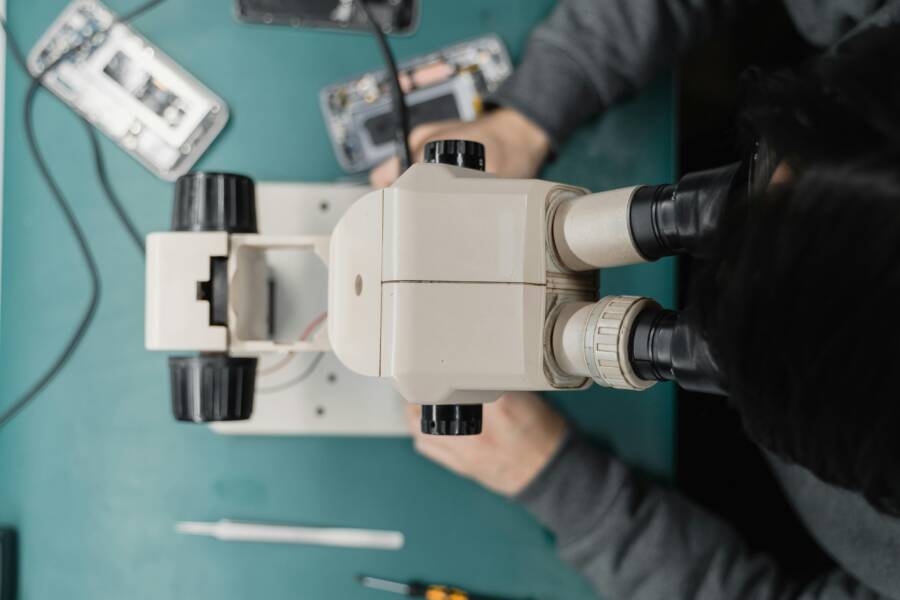
Photo by Tima Miroshnichenko
This step shines for physical blocks. Follow Denver Phone Doctor’s guide for visuals on safe cleaning. Dry your phone fully before testing a call.
Tackle Software and Connections Next
When crackling happens only during calls, the strongest fixes often live in software and how your devices handle connections. This section walks you through practical steps to update software, test audio paths, and reset network settings safely. Think of your smartphone as a small orchestra: a few out-of-tune instruments can ruin the whole performance. Keeping the software fresh and the connections clean usually restores harmony to your calls.
Update Your Software and Apps
Keeping your device and apps up to date is one of the fastest ways to fix call crackling. Software updates fix known bugs, improve audio handling, and patch security issues that can indirectly affect performance. Here’s how to check and apply updates on both major platforms.
- Android
- Open the Settings app.
- Tap System (on some devices this might be under About phone or Software update).
- Choose Software update or Check for updates.
- If an update is available, download and install it. You may need to restart afterward.
- Also update individual apps through the Google Play Store. App fixes can target audio processing issues and Bluetooth handling.
- For a quick reference on updating Android devices, see resources like Check and update your Android version and Update your device from Google’s support pages. These guides explain navigating Settings to find the Android version, security updates, and build numbers, and how to run updates when prompted. https://support.google.com/android/answer/7680439?hl=en-GB https://support.google.com/android/answer/15728187?hl=en https://support.google.com/pixelphone/answer/7680439?hl=en
- iPhone (iOS)
- Open the Settings app.
- Tap General > Software Update.
- If an update is available, download and install it. You can also update over the air by following the prompts.
- If your device isn’t showing the latest update, you can connect it to a computer and update via iTunes or Finder as needed.
- For detailed steps, refer to Apple’s official guides on updating iPhone or iPad and updating iOS on iPhone. https://support.apple.com/en-us/118575 https://support.apple.com/guide/iphone/update-ios-iph3e504502/ios
While you’re at it, consider a quick audit of the apps you use most during calls. Some messaging or conferencing apps can interfere with audio routing if they run in the background. Clearing cache or offloading unused apps can reduce background load that might contribute to crackling. A quick test after updating helps confirm whether the updates addressed the issue.
Turn Off Bluetooth and Test Accessories
Bluetooth interference is a frequent culprit, especially if you keep multiple devices nearby. A clean audio path means fewer chances for stray signals to cross and create crackling during conversations.
- Disable nearby Bluetooth devices temporarily.
- Run a test call with only the phone’s speaker or a wired headset connected.
- If the crackling disappears, reintroduce your Bluetooth device one at a time to identify the offender.
If you need wireless options, try the speakerphone or a wired headset to isolate whether the issue is Bluetooth specific. This can be a faster way to confirm where the fault lies. For many users, eliminating Bluetooth noise resolves the problem entirely.
- Quick tip: for Android and iPhone users, removing paired devices that aren’t in use reduces interference. You can manage Bluetooth devices in the Settings app under Bluetooth. If you still hear crackling with Bluetooth off, the issue is likely in the phone’s internal audio path or network.
To reference practical guidance on Bluetooth interference and testing methods, you can review community discussions and guides that cover common Bluetooth pairing pitfalls and how to test with different accessories. These resources help you confirm whether a non-Bluetooth path (like the built-in mic and earpiece) is clear.
Reset Network Settings Safely
If the problem persists after updates and accessory testing, resetting network settings often helps. This resets Wi‑Fi, Bluetooth, and cellular network configurations without erasing your data. After the reset, you’ll need to reconnect to Wi‑Fi networks and re-pair Bluetooth devices.
- iPhone
- Open Settings > General > Transfer or Reset iPhone > Reset > Reset Network Settings.
- Enter your passcode if prompted, then confirm. Your iPhone will restart and you’ll need to rejoin Wi‑Fi networks and re-pair Bluetooth devices.
- Android
- Open the Settings app.
- Tap System > Advanced > Reset options (the exact path can vary by device).
- Choose Reset Wi‑Fi, mobile & Bluetooth or a similar option.
- Confirm and wait for the device to reset. Afterward, reconnect to your networks and re-pair any Bluetooth accessories.
After resetting, perform a test call to verify if the crackling issue is resolved. You’ll often find that a clean slate helps the call audio path settle back to normal.
If you want visual step-by-step references, check official guides on updating iPhone and Android software and the steps to reset network settings. These sources provide device-specific paths to ensure you don’t miss a step. https://support.apple.com/en-us/118575 https://support.apple.com/guide/iphone/update-ios-iph3e504502/ios https://support.google.com/android/answer/7680439?hl=en-GB
Last Resorts and Pro Help for Stubborn Static
Crackling sound during calls can feel like a stubborn echo you can’t shake. When quick tweaks fail, it’s time to think beyond the basics. This section explains when to push deeper, what pro help can offer, and how to decide if you should visit a repair shop or contact your carrier. You’ll find practical, step by step guidance and trusted resources to restore crystal clear conversations.
Test with Another SIM or App
If the crackling sticks with one SIM or one calling app, you’re likely looking at a path that starts with the software or the network path. Swap SIM cards to rule out a carrier-side issue. If the problem moves with the SIM, the fault might be in the phone or the SIM tray. Conversely, if the crackling vanishes with a different SIM, contact your carrier about a potential network fault or SIM damage.
Try a different calling method as well. A VoIP app like WhatsApp or Google Meet uses data instead of the cellular voice channel, which can bypass some network quirks. If calls are clean on the new app, the issue could be tied to your carrier settings or default dialer. For further insight, see discussions about call quality troubleshooting and cross-path testing in carrier communities and support forums. Resources such as Google Pixel forum threads on poor audio quality and crackling offer practical user-tested steps to isolate the fault (link below). If the issue persists across apps and SIMs, your device hardware becomes a more likely suspect.
- Swap SIM cards with a known good one
- Test WhatsApp or other VoIP calls
- Compare results across environments (different locations, different networks)
External reading:
- Google Pixel forum thread on poor audio call quality and crackling: https://support.google.com/pixelphone/thread/291196621/poor-audio-call-quality-crackling-scratchy-noise?hl=en
Factory Reset or Repair Time
When all else fails, a factory reset can clear stubborn software conflicts that restart audio processing paths from scratch. This is a decisive move and should be paired with a thorough backup first. A reset wipes settings and apps, returning the phone to its out of the box state. If the crackling still appears after a reset, it’s a strong signal that hardware or deeper software issues are at play, and you should seek professional help.
Before you reset:
- Backup your data to the cloud or a computer
- Note down essential settings you’ll need to reconfigure
- Plan for a reinstallation cycle after the reset
Post-reset testing plan:
- Make a test call using the built-in dialer
- Install only essential apps one by one and test after each install
- Re-test with both earpiece and speaker to see if the issue is consistent across audio paths
When it’s time to go pro:
- If crackling persists after a reset, schedule a diagnostic with an authorized repair service
- If your device is under warranty, contact the maker’s service center for a check
- For independent repair options, seek shops with certified technicians and transparent pricing
What to expect from professional repair:
- A hardware check of the earpiece, microphone, and flex cables
- A diagnostic report detailing potential loose connections or damaged components
- Potential repair or replacement of the audio path components
Useful resources:
- Apple Repair guidance and service options https://support.apple.com/repair
If you’re evaluating whether to pursue a factory reset or a repair, consider the age of the device, the cost of potential parts, and your warranty status. A fresh start helps when software bugs linger, but hardware issues require expert hands to avoid causing additional damage.
External links used for guidance and testing:
- Apple Repair official guidance: https://support.apple.com/repair
- Pixel call quality discussion: https://support.google.com/pixelphone/thread/291196621/poor-audio-call-quality-crackling-scratchy-noise?hl=en
Additional context from pro discussions:
- General call quality troubleshooting resources: https://network-telecom.com/how-to-fix-poor-telephone-line-call-quality-crackling-buzzing-noise-or-cutting-in-and-out/
- Crackling and static in VoIP environments: https://community.spiceworks.com/t/voip-crackling-on-calls/755754
If you’d like deeper, device-specific guidance, there are reputable step-by-step resources that outline how to approach a factory reset safely and how to prepare your device for service. For instance, professional repair guides and manufacturer pages walk you through diagnostics and service options in a structured way. See the linked resources for broader context and step-by-step procedures.
Conclusion
Start with the simplest fixes and work your way up. If crackling only happens during calls, move to a place with stronger signal or switch to Wi Fi calling, then restart the smartphone to clear small glitches. Update the OS and your calling apps, then test again. If the sound returns, disconnect Bluetooth devices and try with the phone’s own mic or a wired headset to confirm where the issue lies.
Next, clean the earpiece and mic slots gently to remove dust or moisture. A clean path often stops crackling that comes from debris. If needed, reset network settings to refresh connections and codecs, then test a few more calls. When these steps fail, try a different SIM or a different app for calls; this helps you separate network from device problems.
Preventing crackles boils down to routine care. Keep software up to date, perform periodic cleanings, and be mindful of Bluetooth clutter in your area. Regularly review app permissions and background activity that may tax the system during calls. A quick check after each update or new install saves time later. If you still hear crackling after trying these steps, share your experience in the comments or with a friend. Your note could help someone else solve the issue faster and protect their smartphone from big audio hiccups.