Many Android users run into a familiar snag: the message that you cannot write to the SD card. This issue pops up when storage rules tighten, apps lack the right permissions, or the card itself has a hiccup. The fix isn’t flashy, but it’s usually quick and approachable for everyday smartphone users.
First, check the basics. Make sure the app you’re using has storage or file access permissions enabled, and consider granting full access if your device supports it. If you’re still stuck, try reformatting the card or testing it in another device to rule out a bad card. Simple steps like restarting the phone and cleaning the card’s contacts can make a surprising difference.
If problems persist, you’re not alone. Many phones now require explicit authorization for SD writes, so you may need to adjust a few settings or try a dedicated file manager that prompts for access. The good news is that most permission issues can be solved with a small set of steps, and you don’t need tech expertise to get back to saving photos and files on your card.
Understanding the ‘Cannot write to SD card’ error on Android
When your phone blocks writes to the SD card, it can feel like a mystery. The error often comes from how Android protects storage, plus a few device quirks. In this section, you’ll get a clear breakdown of what causes the issue, how storage works on Android, and why some brands behave differently. Each sub-section sticks to practical explanations you can act on right away.

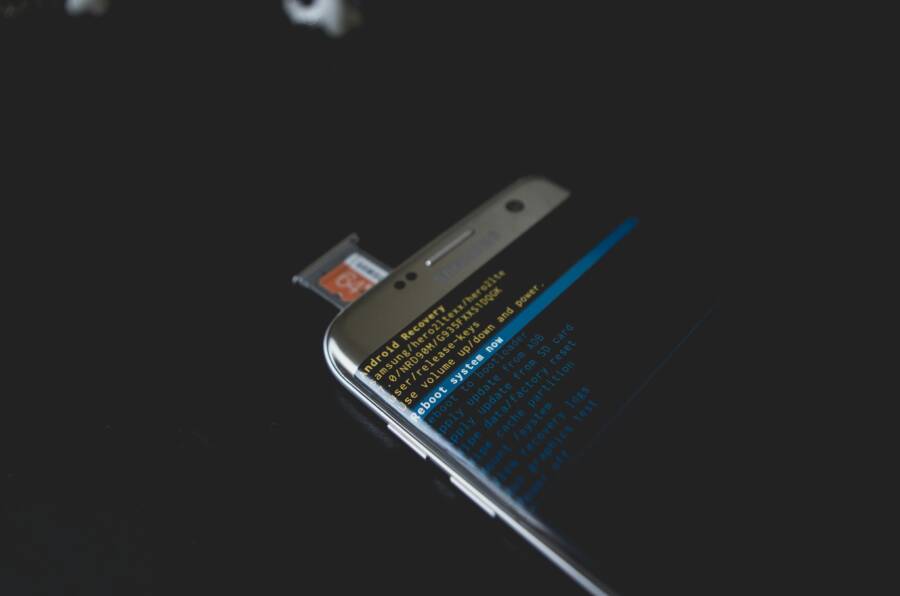
Photo by Kelvin Valerio
What causes permission denied on Android external storage
Permission denied on external storage usually isn’t one single problem. It happens when an app lacks a storage or files permission, when the SD card health is weak, or when the OS restricts access. For example, a camera app may need direct storage access to save a photo, and if that permission is blocked, you’ll see the denial message. A corrupted card or a write-locked switch can also block writes. In short, it’s a mix of app permissions, card condition, and system rules.
How Android storage works and what ‘scoped storage’ means
Android uses a model called scoped storage to protect data. Apps can access only their own designated folders, not the entire card. Think of it as a locked filing cabinet where each app has a specific drawer. This limits where writes can occur and forces apps to request permission for their folders. The result is safer devices, but you may need to move files to the app’s allowed areas or use a file manager that handles the prompts.
Why some brands behave differently
Device brands add tweaks that affect SD card permissions. For instance, some manufacturers surface extra settings to manage file access, or they modify how apps request storage rights. This means the same task can behave a bit differently on Samsung, Pixel, Xiaomi, or Oppo phones. The practical effect is that you may need to adjust a couple of settings or use a trusted file manager to grant the necessary access.
Step by step fixes you can try today
When you run into write permission issues on your SD card, a calm, methodical approach helps. Start with quick checks and simple resets, then move to permission tweaks and formatting if needed. These steps are designed to be followed by everyday users using an Android smartphone. Keep your data safe by backing up important files before making bigger changes.
Restart and reinsert the SD card to reset connections
A quick restart can clear temporary glitches that block writes. Power down, remove the SD card, wipe the contacts gently with a clean cloth, reinsert it firmly, and boot up. This reset often reestablishes a clean connection between the card and the phone. If the card still isn’t seen, try a different card reader or another device to confirm where the issue lies. Remember to power off before handling the card.
Check SD card visibility with a file manager
Verify whether the SD card is detected by your device. Open a built in or third party file manager and look for the SD card listed alongside internal storage. If the card shows up, you can inspect folders and try a small test file write. If it isn’t visible, proceed with the next fixes. A visible card means you’re closer to a permission solution rather than a hardware fault.
Grant per app storage permissions for your file manager
Android 11 and later limit how apps access external storage. Grant the file manager the necessary permissions so it can read and write to the SD card. On most devices:
- Settings > Apps > [Your file manager] > Permissions > Storage (or Files and media on Android 15)
- Choose Allow all files access or Allow for SD card
- When prompted in the app, select the SD card and confirm
If the prompt doesn’t appear, clear the app’s cache and retry. Granting explicit access helps many permission denied messages disappear.
Safely format the SD card to restore compatibility
If permissions stay blocked, formatting can restore compatibility. This wipes the card, so back up everything first. On the phone, Settings > Storage > SD card > Format, choose Quick format if offered. If you prefer a PC, remove the card and format it there as exFAT for large cards or FAT32 for smaller ones. After formatting, reinsert the card and set up your apps again. Formatting cures many stubborn issues, but data loss is permanent.
Use a PC as a workaround when the phone cannot write to the card
A computer can bypass mobile permissions entirely. Remove the SD card, connect it to a PC with a card reader, and manage files through File Explorer or Finder. Copy, move, or delete files directly on the computer, then reinsert the card into your Android device. This method is reliable when the phone refuses to write despite permissions. If the card remains problematic, test it in another device to confirm its condition.
Brand specific fixes for Samsung, Pixel, and more
If you’re fighting SD card write permissions, different brands tweak Android in ways that affect how you grant access. This section breaks down quick, practical fixes tailored to Samsung, Google Pixel, Xiaomi, Oppo and OnePlus devices, plus a note on rooting. Each subsection gives you targetted steps so you can move on to saving photos and files without frustration.
Samsung devices: quick permission fixes
Samsung phones often present a two step path for SD card access. First, check the card for physical write protection and reseat it. Then adjust per app permissions and set the card as portable storage if needed. Open My Files or your file manager, ensure Storage permissions are granted, and if you see “Can’t write,” switch the SD card to Portable storage in Storage settings. A quick restart after changes helps lock everything in.
Google Pixel and stock Android caution and steps
Pixel devices tighten file access with scoped storage. Grant the file manager full storage access and confirm prompts when you select the SD card. If you still hit a wall, enable Force allow apps on external (Developer options) and retry. Focus on using app specific folders on the SD card to avoid root permission prompts and test by creating a small file from the manager to verify write ability.
Xiaomi and other MIUI devices write permissions notes
MIUI often requires explicit permission paths. Begin by unlocking Developer Options, then enable write access for external storage. Give your file manager full storage permission and clear cache/data if needed. If you still see prompts, grant root-like access to the SD card within the app and use a trusted file manager. When all else fails, try a different manager such as Files by Google for smoother access.
Oppo, OnePlus and other brands quirks you should know
Brand variations mean you may see different permission prompts or storage settings names. Look for sections labeled storage, files, or all files access. If you encounter a denial, enable the app’s storage permission and, where available, allow management of all files on external storage. A quick check of the SD card status in the device’s storage menu often reveals whether the issue is permission based or card health.
Rooting and custom ROMs: risks and safer alternatives
Rooting to bypass SD card permissions carries real risks to security and stability. Most readers will benefit from safer paths such as using app specific folders, adopting the SD card as internal storage when supported, or using a reliable file manager with proper permission prompts. If you’re set on deeper changes, consult device-specific forums and opt for official updates or factory resets rather than rooting.
Prevention tips for long term SD card health and safe storage
Keeping an SD card healthy over the long term saves you from data loss and repeated troubleshooting. Use sturdy storage habits, choose reliable cards, and routinely verify your data. Think of the card as a small, portable archive that needs gentle handling and sensible management. By following practical steps, you can extend its life and keep your files safe across your smartphone and other devices.
Choosing the right SD card and formatting for reliability
When selecting an SD card, prioritize reliability and compatibility. Look for Class 10 or UHS speed ratings if you store large media files, and consider A1 or A2 if you run apps from the card in a pinch. For portability, format the card as exFAT for larger cards or FAT32 for smaller ones, and format it on the device you’ll use most. Always back up before formatting since formatting erases data.
Permissions hygiene for apps you trust
App permissions matter long term. Grant storage access only to apps that truly need it, and revoke rights when an app is finished with a task. Use file managers with clear prompts and avoid giving broad all files access unless necessary. Regularly review permissions in Settings to prevent rogue apps from writing to the card. This reduces the risk of accidental data loss or corruption.
Keep software up to date
Software updates often include storage and security fixes. OS updates can adjust how apps access external storage and fix permission quirks that block writes. Keeping your device up to date minimizes the chance of permission glitches that lead to data loss on the card. After an update, check that your file apps still have the access they need and test a small write.
Backups and data safety
Treat your SD card like a second hard drive for essential files. Regularly back up photos, videos, and documents to a cloud service or a computer. Create a simple routine, such as a weekly copy of new files. If you rely on the card for offline access, consider two backups so a single failure won’t wipe out everything.
Know when to replace the card
SD cards wear out. Look for signs like slow writes, frequent read errors, or files that disappear from the card. If you notice these issues, stop using the card for important data and migrate files to a new card or backup location. Use a reputable brand and perform a factory format on the old card only after securing a complete copy of its data.
Conclusion
Dealing with cannot write to SD card permission issues on a smartphone is usually about clear, step by step checks. Start with granting the file manager or trusted apps the right storage permissions, then test the card in a different device or with a PC to confirm card health. If permission prompts stall, a quick restart and reseating the card can fix many stubborn glitches.
Keep a habit of backing up data before bigger changes like formatting. If the card remains blocked, formatting the card on a PC or reformatting on the device often restores compatibility, but data loss is permanent. Remember that Android’s storage rules and brand tweaks can shift how you grant access, so you may need to adapt the steps to your smartphone model.
With proper care, most issues disappear after a few deliberate actions. Use a reliable file manager, manage all files access only for apps that need it, and keep your system updated to minimize future permission quirks. If you still face trouble, testing the card in another device helps you distinguish between software prompts and hardware faults.
Quick reference checklist
- Restart the phone and reinsert the SD card
- Verify card visibility in a file manager
- Grant per app storage permissions or all files access
- Back up data before formatting
- Format the card if needed, using exFAT for large cards or FAT32 for smaller ones
- Test card health in another device or PC
- Use a trusted file manager and avoid broad all files access unless necessary
If you follow these steps and test the card health, you’ll know whether you should replace the card or adjust permissions on your smartphone.