Why do blurry YouTube videos look bad on your phone the moment you press play?
This guide breaks down common causes and gives simple, step by step fixes that work on iOS and Android.
You’ll learn practical checks for video quality, app settings, and storage that take only minutes.
Follow along to see clearer playback without complicated tweaks.
Why YouTube videos look blurry on your phone
Blurry playback on a smartphone can be frustrating, especially when you’re trying to enjoy a quick clip, a tutorial, or a vlog. The good news is that most blur issues are fixable with a few quick checks. In this section, we’ll cover the common reasons you might see soft or fuzzy video on mobile, and what you can do about them.
Common causes of blur on mobile devices
- Low playback quality settings. YouTube often starts videos at a lower resolution to save data. If your phone has a small screen or a spotty connection, YouTube might stay in 360p or 480p even when higher options are available. For casual viewing, this is fine, but it becomes noticeable on a bright phone screen. If you’re watching a how-to video or a livestream, the dip in clarity can feel dramatic.
- Auto quality adjustments (adaptive bitrate). The platform uses adaptive streaming to balance image quality with current network conditions. On a busy train ride or in areas with weak signal, YouTube lowers the resolution to prevent buffering. The result is a blurry image that looks worse the moment you move to a faster network or a different location.
- Network speed and stability. A fast, stable connection makes it easy to stream high resolutions like 1080p or 4K. If your mobile data is slow or your Wi-Fi keeps dropping, YouTube switches to a lower tier. Even short hiccups in your connection can cause a blurry frame or a temporary drop in quality.
- Device performance and display size. Older phones or devices with limited GPU/CPU power may struggle with high-bitrate video decoding. On a small display, you might not notice the extra pixel detail, but when you compare to a larger screen or zoom in, the blurriness becomes more obvious. This is common when you’re multitasking or using other apps that tax the processor.
- App-related issues. Sometimes the problem isn’t the video at all but the app. Outdated YouTube versions, corrupted caches, or lingering data can cause videos to render poorly. Clearing the cache, updating the app, or reinstalling can clear up these issues.
- Video source quality. Some creators upload at lower resolutions or with compression that introduces soft edges. On bigger screens, that can be quite noticeable, but on a phone with a compact display the effect may feel less dramatic at first glance. When you zoom or crop, the imperfections stand out.
- Display settings and brightness. High brightness can exaggerate compression artifacts, while certain color profiles or HDR settings may not be perfectly balanced on every device. Tweak brightness and color controls to see if the image sharpens a bit.
- Browser vs app different experiences. If you’re watching in a mobile browser rather than the YouTube app, you might see different quality behavior. Browsers may impose their own caching and rendering quirks that affect sharpness.
Quick fixes you can try now
- Tap the video and open Settings, then choose a higher resolution if available.
- Move to a stronger network or wait for buffering to finish, then resume playback.
- Update the YouTube app or reinstall it to reset any misbehaving settings.
- Clear the app cache (on Android) or reset app preferences (on iOS) to remove any corrupted data.
- Check display brightness and avoid aggressive HDR or color enhancements that can affect perceived sharpness.
A note on real-world viewing
If you’re watching on a busy commute, you’ll likely notice more blur during peak times. The combination of limited bandwidth and device cooling can push the app toward lower quality modes. For frequent, on-the-go watching, consider enabling data saver settings within the app to maintain a balance between smooth playback and clarity.
Why this matters for casual viewers
Clear video improves comprehension and enjoyment, especially for how-to content, travel vlogs, and product reviews. When the image is crisp, you see details like text on-screen, small icons, or fine textures. If you rely on your phone for quick learning or decision making, addressing blur helps you get the information you need faster.
Related reads and further insights
- Learn how automatic quality adjustments work in practice and what you can do to influence them. Why YouTube Looks Blurry & How to Fix It
- If blur persists across devices, a look at common fixes for Android and iPhone can help. 10 Ways to Fix Blurry Videos on Android and iPhone
How YouTube compression affects mobile viewing
YouTube compresses videos to minimize file size and keep streaming smooth on many kinds of connections. This compression brings the file down from the original upload to something your phone can fetch quickly. On small screens, the impact is more noticeable because there are fewer pixels to convey detail. Think of it like printing a photo: if you upscale a small image too much, you start to see the grains and edges look soft. The same idea applies to video on your smartphone.
- Compression is a balancing act. YouTube reduces the bitrate and resolution to prevent buffering. When network speed fluctuates, the platform may lower quality even if your device could handle more. This adaptive approach favors a steadier stream over perfect sharpness.
- Small screens reveal more compression artifacts. On phones, the same amount of compression shows up more quickly because you’re viewing at a higher pixel density relative to the screen size. A 720p video might look fine on a large monitor but appear soft on a phone if the source was heavily compressed.
- Artifacts can mimic blur. Blockiness, ringing, and smeared edges can feel like blur even when the video isn’t technically out of focus. These artifacts come from aggressive compression or color subsampling during encoding.
If you want to explore the topic further, you can read about why videos look blurry and how to fix it from various guides and discussions online. For example, some resources discuss how YouTube’s auto quality setting can flip to a lower resolution during brief connectivity dips, which can leave you with a temporarily blurry image. You can check a practical overview here for context.
Fast fixes you can try right now
When your YouTube playback looks blurry on a phone, you want quick, practical steps that don’t require tech expertise. These fixes target common culprits like default quality, network conditions, and app glitches. Try them in order, and you’ll likely see crisper video within minutes. If you’re frequently on the move, prioritizing stability over perfection can still give you a noticeably sharper viewing experience on your smartphone.
Check video quality and network speed
Start by confirming the current playback quality and the strength of your connection. You can see the active resolution right on the video player, usually in the settings gear icon. If you notice 360p or 480p, you know your device is not rendering at its best. The fix is simple: switch to a higher resolution when the option is available, then monitor whether the video holds that quality without buffering.
Testing your network helps you understand what’s possible in the moment. A fast, stable connection makes 1080p or higher feasible. If you’re on mobile data, run a quick speed check in a browser or a speed test app. A handy rule of thumb for HD playback is to aim for at least 5 Mbps for reliable 1080p on a steady connection, and more if you want 4K on larger screens. If the test shows slower speeds, consider pausing the video to buffer, and then continue once the data flow stabilizes.
- How to view current quality: tap the video, open Settings, and note the number next to Quality (or Resolution). If you’re using auto mode, YouTube may drop quality during brief network dips.
- How to test speed: run a quick speed test on your smartphone and compare the result to the minimums above. If you’re consistently under the threshold, try moving closer to the router, switching to a stronger cell signal, or connecting to a different network.
For more context on how speed affects streaming, you can check YouTube’s guidance on system requirements and typical connection needs. This helps you set realistic expectations for HD and higher resolutions on a busy network. System requirements & supported devices for YouTube
Adjust playback quality on mobile
Setting a higher default or manual quality can prevent the blurry, auto-adjustment shuffle you sometimes see while watching on the go. There are two main approaches: force a higher quality when you’re connected to Wi‑Fi, or set a preferred resolution that stays consistent across conditions.
- On iPhone: while watching a video, tap the screen to reveal controls, tap the gear icon (Settings), then choose a higher resolution under Quality. If you want to keep a consistent setting, look for the option to set a default quality for Wi‑Fi and mobile data in YouTube’s settings.
- On Android: open the video, tap Settings, and select a higher Quality. If you use data saver or adaptive streaming, you can override auto mode by choosing a fixed resolution like 720p or 1080p. Some Android devices also let you set a global data usage preference that can influence the available quality options in apps.
If you prefer a more official guide, YouTube’s help articles explain how quality changes with viewing conditions and how to manually pick the right option on both iPhone and Android. Change the quality of your video – iPhone & iPad and Change the quality of your video – Android – YouTube Help
Restart the app or device to reset a glitch
Sometimes a simple reset does more than you expect. If you notice a sudden drop in clarity or the video stalls, a quick restart can clear temporary rendering glitches and free up memory.
- Fully close the YouTube app: on iPhone, swipe up from the bottom or double-click the home button to view recent apps, then swipe YouTube off the screen. On Android, use the recent apps button and swipe YouTube away.
- Reopen the app and try the video again. If the issue persists, perform a full device restart. This helps clear background processes that might interfere with video decoding.
A quick restart is especially helpful after a long streaming session or if you’ve updated the app recently. It clears caches and resets the app’s state, often restoring sharp playback quickly.
If you’re curious about more formal instructions or variations for common fixes, this YouTube Help article covers restarting the app in both major mobile ecosystems. Restart the YouTube App (Step by Step) 2025
Additional resources you might find useful for stubborn blur include guides on fixing blurry videos on Android and iPhone. They cover a range of scenarios from corrupted caches to codec issues. 10 Ways to Fix Blurry Videos on Android and iPhone [2025]
Tips for staying sharp on the go
- When you know you’ll be in a spot with spotty service, download videos for offline viewing when possible. This avoids constant re-buffering and keeps the picture crisp.
- If you frequently switch networks, consider enabling data saver modes that still allow stable HD playback. It’s a balance between data use and image clarity.
You don’t have to try every fix at once. Start with checking quality and speed, then adjust playback settings, and finally restart if needed. This sequence addresses the most common causes of blur on a smartphone.
Key takeaways
- Clear video depends on a solid combination of quality settings and network conditions.
- Manual quality control often beats auto mode for predictable results.
- A quick app or device reset can clear stubborn glitches and restore sharpness.
Phone and app settings to improve clarity
Improving YouTube video clarity on a mobile device is often about tuning the device and the app. Small changes can make a big difference in how crisp the picture looks during playback. The sections below cover practical steps you can take right now, without needing specialized equipment.
Update YouTube and your phone OS
Keeping both the YouTube app and your phone’s operating system current helps video rendering and playback stay smooth. New app versions fix bugs that can cause blur and improve how codecs are decoded on modern hardware. OS updates include refinements in graphics drivers and media pipelines that directly affect video clarity and stability.
- For Android: open the Google Play Store, tap your profile picture, choose “Manage apps & device,” then “Updates available.” Update YouTube first if it’s listed, then consider broader system updates after you finish with the app. A restart after updates can help finalize changes. For official guidance, see update instructions from YouTube for Android devices: https://support.google.com/youtube/answer/7341336?hl=en&co=GENIE.Platform%3DAndroid
- For iPhone and iPad: open the App Store, tap your profile picture, and scroll to pending updates. Update YouTube and YouTube Studio if they appear. If not, regular iOS updates provide important graphics and decoding improvements. See the iOS update guidance from YouTube: https://support.google.com/youtube/answer/7341336?hl=en&co=GENIE.Platform%3DiOS
To help you stay on track, check for updates weekly if you rely on high quality video playback during commutes or travel.
Clear cache and reset YouTube preferences
Clearing the app cache on Android removes temporary files that can become corrupted over time, sometimes causing blurry frames or stuttering. On iOS, resetting YouTube preferences can similarly restore expected behavior if settings have drifted. If you notice a change after clearing cache or resetting, it’s a good sign the issue was app-related rather than the video source.
- Android: go to Settings > Apps > YouTube > Storage > Clear Cache. If you don’t see a clear cache option, you can also clear cache via the app’s own settings panel within YouTube.
- iOS: there isn’t a direct “clear cache” switch in iOS, so a practical approach is to delete the YouTube app and reinstall it. This resets preferences and clears cached data. Be aware you’ll sign back in, so make sure you remember your account credentials.
A note about signed-in state: clearing cache or reinstalling may log you out. If you rely on personalized recommendations or saved playlists, make a quick note of your login details before performing these steps so you can sign back in without disruption. For additional guidance on updating and re-installing YouTube on Android and iOS, you can review: https://support.google.com/youtube/answer/7341336?hl=en&co=GENIE.Platform%3DAndroid and https://support.google.com/youtube/answer/7341336?hl=en&co=GENIE.Platform%3DiOS
Tweak display settings and brightness for sharpness
Display settings have a surprising impact on perceived clarity. Brightness, color balance, and HDR/Color profiles can influence how crisp edges appear on the same video. Small adjustments can reduce perceived blur caused by compression artifacts or over-sharpening elsewhere in the pipeline.
- Brightness: enable a comfortable brightness level for the environment. Too bright can wash out details; too dim can hide fine texture. Use auto brightness if your environment changes frequently, but test both modes to see which yields crisper edges on YouTube.
- Color and balance: some devices offer a “natural” or “gamma” color mode. Experiment with these modes to see whether they make text and textures pop more clearly on video content without oversaturating skin tones or blues.
- HDR and video enhancements: on some devices, turning off certain HDR or color enhancement features can improve perceived sharpness because it reduces aggressive processing that can soften edges.
Simple on-device steps to try:
- iPhone: Settings > Display & Brightness, adjust brightness, and try the True Tone and Night Shift settings off and on to compare sharpness during video playback. Apple’s guidance on brightness and color balance can be a helpful reference: https://support.apple.com/guide/iphone/adjust-screen-brightness-color-balance-iph60ba71065/ios
- Android: Settings > Display, adjust Brightness and Contrast, and toggle Auto brightness to test. For color calibration, many manufacturers offer a color mode or display calibration options; explore these to find a mode that sharpens YouTube video without oversaturation. Quick tips and examples are available from Android-focused guides like this one: https://en.androidsis.com/How-to-adjust-the-perfect-color-and-brightness-on-your-Android-screen
Limit background apps to free system resources
Background apps can quietly steal RAM and GPU cycles, which reduces the headroom available for decoding high bitrate video. Closing unused apps frees up memory and can improve how YouTube renders each frame, especially when you’re watching high resolution content or on a device with limited resources.
- iOS: double-click the Home/Swipe Up to reveal the app switcher, then swipe apps off the top to close them. You don’t need to close every app all the time, but air-thin memory pressure from multiple active apps can slow down video decoding.
- Android: open the Recent Apps view and swipe away apps you aren’t using. Some devices offer a “Low Power” or “Background process limit” setting that can reduce background activity for more consistent playback.
- Quick reference videos and guides can help you master closing background apps efficiently: https://www.youtube.com/watch?v=aiOce06J9Lo and general background management tips: https://www.androidauthority.com/stop-android-background-apps-664842/
By keeping only the essential apps running while you view, you give the YouTube player more breathing room to decode high quality streams, which often translates to crisper video and fewer frame drops.
What to monitor after making changes
- Watch a short clip at 1080p (or higher if available) and see if edges look sharper.
- Note if the problem only appears when switching networks. If so, you might want to adjust YouTube’s quality settings or enable a stable offline option when you know you’ll be in a spot with poor reception.
- If you notice no improvement after these steps, consider the source video quality. A low resolution upload will look blurry regardless of device, but you can often find higher quality versions of tutorials and reviews on the same channel.
External references for deeper dives
- Update guidance for Android devices and the YouTube app: https://support.google.com/youtube/answer/7341336?hl=en&co=GENIE.Platform%3DAndroid
- Update guidance for iPhone and iPad: https://support.google.com/youtube/answer/7341336?hl=en&co=GENIE.Platform%3DiOS
- Adjusting brightness and color balance for iPhone: https://support.apple.com/guide/iphone/adjust-screen-brightness-color-balance-iph60ba71065/ios
- Quick Android display color and brightness adjustments: https://en.androidsis.com/How-to-adjust-the-perfect-color-and-brightness-on-your-Android-screen
Tips for staying sharp on the go
- When you know you’ll be in a spot with spotty service, download videos for offline viewing when possible. This avoids constant re-buffering and keeps the picture crisp.
- If you frequently switch networks, consider enabling data saver modes that still allow stable HD playback. It’s a balance between data use and image clarity.
Key takeaways
- Software updates and display tuning are often the simplest ways to boost clarity.
- Clear cache or reinstall can remove hidden glitches that blur frames.
- Managing background activity frees up the device to render video more cleanly.
Deeper checks for persistent blur
Even after trying the quick fixes, some blur trails you from video to video. This deeper checks section helps you isolate stubborn issues and confirm whether the problem lies with the video itself, the network, or the app. Think of it as a methodical cleanup pass for crisper YouTube playback on your smartphone.
Test on another network or device
If blur sticks around, the best next move is to rule out the network or your current device. Switch to a different WiFi network or use mobile data for a while. If the video sharpens, the culprit was your connection or network conditions rather than the video or the app. If you still see blur, try a different phone. This helps you confirm whether the issue is device-specific, network-related, or something else entirely.
- Why this helps: YouTube adapts quality based on real-time network conditions. A stable, fast network may allow higher resolutions that reveal more detail. A different device uses a different video decoding path and cache, which can yield a noticeably crisper image.
- Quick landmarks to watch for: compare the same video on two networks or two devices at similar screen sizes. If one environment shows 1080p or higher while the other stays at 480p, you’ve pinpointed the bottleneck.
If you want a deeper understanding of how YouTube processes video quality, you can review YouTube’s system requirements and typical connection needs. This helps set expectations for HD playback across devices and networks: https://support.google.com/youtube/answer/78358?hl=en
Verify the video itself is not low quality
Sometimes the blur traces back to the video file itself. Creators upload at various resolutions, and some versions are heavily compressed. A low-res source on a bright smartphone screen can look blurry even when the network and app are behaving perfectly.
- Look for resolution indicators: many YouTube players show the current playback resolution in the settings menu. If you consistently see 360p or 480p on videos that should look sharp, the upload quality is likely the issue.
- Test with other videos: try a few videos from the same channel and from different creators. If all videos play crisp at the highest available resolution on your device, the problem is user-side. If many videos look soft, compression or the uploader’s settings may be at fault.
- Consider the upload workflow: some creators compress aggressively to reduce file size for mobile viewers. In these cases, you’ll see more softness in edges and fine textures, especially on larger screens or when zooming in.
For a practical reference, YouTube notes that videos are processed in stages, and higher qualities can take longer to become available after upload. If you’re troubleshooting a recently uploaded video, give it some time and check back later for higher quality options: https://support.google.com/youtube/answer/71674?hl=en
Try alternative viewing options within YouTube
Sometimes a quick change in how you view the video can reveal where the blur is coming from and help you bypass it. Theater mode, full screen, or captions can all affect perceived sharpness, and cross-checking on a desktop can provide a reliable baseline.
- Theater mode or full screen: these modes resize the video presentation and can interact differently with your device’s scaling. Compare the same clip in theater mode against standard full screen to see if one looks crisper.
- Use captions as a sharpness gauge: if captions appear jagged or blurry, it can signal that the rendering path is smoothing edges aggressively. This isn’t a perfect test, but it helps you gauge relative sharpness quickly.
- Desktop cross-check: occasionally playback on a desktop browser reveals a different compression path or caching behavior. If a video looks notably clearer on desktop, you know the issue may be mobile-specific.
If you want more context on why video quality can vary after upload or across devices, see a comprehensive guide on how YouTube handles compression and processing. It helps you interpret what you’re seeing on your phone: https://support.google.com/youtube/answer/71674?hl=en
External tips you can apply now
- Keep theater mode off if you’re testing sharpness, then switch back to your preferred viewing mode.
- Temporarily disable any aggressive battery saver modes that throttle performance during playback.
- If you’re testing on desktop as a cross check, ensure the same video quality is selected there as on mobile.
Key takeaways
- Persistent blur often breaks down into network behavior, source quality, or device rendering paths.
- Testing across networks and devices quickly reveals where to focus fixes.
- Cross-checking with theater mode, captions, and desktop playback helps confirm the root cause.
Best practices to avoid blur on mobile in the future
Blurry video on mobile can be a stubborn issue, but you can prevent it with a proactive approach. This section lays out practical, future-proof strategies for creators and casual viewers alike. By investing in higher capture quality, understanding YouTube’s processing, and planning for mobile screening during editing, you’ll reduce blur and enjoy crisper playback on any device.
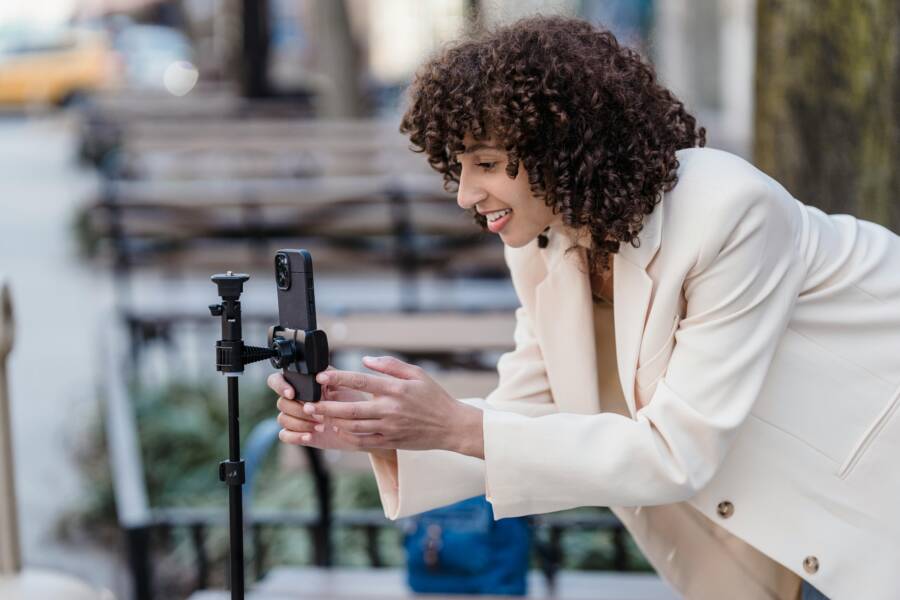
 Photo by Blue Bird
Record and upload in higher resolution
For content creators, shooting in 4K or at least 1080p with a solid bitrate is the first line of defense against blur on mobile. Higher resolution preserves more detail when YouTube compresses the footage for delivery. A sharp source makes edges crisper, especially on small screens where compression artifacts become more visible.
- Shoot in 4K if your camera or smartphone supports it. If 4K isn’t possible, target 1080p with a high bitrate to maintain detail.
- Export with a high, stable bitrate and an efficient codec. Bitrate choices vary by resolution, so follow production guidelines from reputable sources to preserve clarity while keeping file sizes manageable.
- Upload at the highest resolution you recorded. YouTube will process the video in stages, and higher initial quality yields better end results once processing completes.
As a viewer, remember that uploads at higher quality reduce the chance of blur during adaptive streaming. When a creator consistently posts in higher quality, your phone has more data to work with and can render sharper images on mobile screens. For practical export and upload guidance, explore official recommendations on 4K and high bitrate settings from YouTube help resources.
- Related reference: Learn how to create and upload 4K videos and what to expect during processing. https://support.google.com/youtube/answer/16597617?hl=en-GB
- Additional reading on optimal bitrate for different resolutions: The Optimal YouTube Bitrate guidance. https://www.obsbot.com/blog/youtube/youtube-bitrate
Understand YouTube processing and when it finishes
YouTube processes videos after upload in stages. Initially, viewers may see a lower quality as the system prepares higher resolutions. Knowing how this works helps you time watching in sharpest quality.
- Right after upload, your video is often available in lower resolutions first. Higher options like 1080p, 4K may appear later as processing completes.
- You can monitor progress by watching the quality menu in the player. If higher qualities aren’t available yet, give YouTube a bit of time and check back.
- Processing time varies with file size, resolution, and server load. For longer videos or 4K, it can take longer, sometimes several hours.
Tips to optimize the waiting period:
- Maintain patience after upload, especially for 4K content.
- If you need crisp playback immediately, upload at 1080p with a strong bitrate as a safer middle ground and check processing status later.
- If you’re sharing a time-sensitive video, consider publishing in a lower resolution first and following up with a higher-quality version once processing finishes.
- Useful official guidance on processing stages and waiting for higher qualities: https://support.google.com/youtube/answer/71674?hl=en
Plan for mobile viewing during recording and editing
A mobile-first mindset during recording and editing saves you from last-minute surprises when you render final video for phones.
- Preview on small screens during edits. Use a smartphone or a compact device as your main preview tool to catch how content will look on a real phone.
- Choose editing apps that support high-fidelity export. Look for apps that preserve color and sharpness through the final render.
- Test early and often. Render a short test clip at target resolutions (1080p or 4K) and view it on a smartphone to verify sharp edges, legible text, and natural motion.
Recommended workflows and tools:
- Devices for preview: modern smartphones with solid displays.
- Apps for preview and editing: reputable mobile editors that support 4K or 1080p exports and color-grading previews on-device.
- Early testing: render 30–60 seconds of your final edit and check sharpness, motion, and audio sync on your phone as you refine the project.
In practice, testing early prevents a lot of post-production rewrites. It helps you catch issues like over-sharpening, aggressive compression, or color shifts that only become obvious on mobile. If you want extra guidance on mobile-friendly editing, see reviews of top mobile editors and their export options. For example, a roundup of the best mobile video editing apps can help you pick tools that fit your workflow. https://www.techradar.com/best/best-video-editing-apps
Image credits and further reading:
- A quick look at how to preview edits on a phone using common editing apps: https://www.pcmag.com/picks/the-best-mobile-video-editing-apps-2025
Photo by Blue Bird
For the next sections, keep focusing on practical steps that readers can apply today and in future shoots. Use real-world examples and short, scannable paragraphs to maintain clarity.
Conclusion
Clear YouTube playback on your smartphone comes from a simple mix of higher quality settings, stable networks, and clean app performance. When blur shows up, start by checking the current quality, testing your network, and updating the app and OS. A quick restart, cache reset, or brightness tweak can remove stubborn rendering glitches and reveal crisper edges. Save this guide for offline reference, and share your own tips in the comments so others can benefit from your experience.