Missing Instagram alerts can be frustrating, especially when you’re waiting for likes, DMs, or comments. If you’ve missed a ping or two, you’re not alone. This guide will help you reset and reclaim your alerts without the guesswork.
It walks through simple troubleshooting steps you can try on both iPhones and Android devices. You’ll see a clear, step by step process that covers the app itself, the phone’s notification settings, and quick checks on your account. For smartphone users, the goal is to get reliable alerts back so you don’t miss important interactions.
We’ll start with the easiest fixes and move to slightly deeper checks. By the end, you’ll know exactly where to look if alerts still don’t arrive, and you’ll have a solid routine to keep notifications working. This approach saves time, reduces guesswork, and helps you stay in the loop with your Instagram community.
Step One: Checking In App Settings First
When Instagram notifications still misbehave, the fastest path to clarity is to start inside the app itself. This step isolates app-level settings from your phone’s system alerts and helps you confirm that Instagram is allowed to push updates to your device. Think of it as the first diagnostic move you make before diving into OS configurations or network checks. By ensuring the in-app controls are correct, you reduce the chance of missing alerts due to a misconfigured setting.
Verifying Notification Controls Inside Instagram
Begin with the core notification controls inside the app. Follow this exact path: Profile > Menu (three lines) > Settings and Privacy > Notifications. Here you can verify that either “All Activity” or the specific categories you care about are turned on. For most users, the primary setting should be to receive notifications from everyone for major actions, or to enable precise categories like “Likes and Following” to ensure you don’t miss important engagement. If you see that these options are disabled or set to a restricted audience, flip them on and test by asking a friend to interact with your post or profile.
While you’re in this menu, look for any muted or disabled categories and re-enable them as needed. If you still don’t see the alerts you expect after adjusting these settings, cross-check the Help Center article on Notification Settings for guidance on how push alerts appear on your device and how to mute or unmute specific accounts. For a quick reference on how to manage what you receive, see the official guidance here: Notification Settings and Manage push notifications you receive. If you want a deeper dive into troubleshooting overall notification behavior, the general Troubleshooting page is a good next stop: Troubleshooting.
Tip: If you’ve recently updated Instagram, a settings reset can sometimes be necessary. After you adjust within the app, it’s worth restarting the app or the phone to ensure changes take effect. This keeps your workflow smooth and minimizes the back-and-forth between app and device settings.
Managing Direct Message (DM) Notification Preferences
Direct messages often have their own control layer separate from standard post notifications. Start by returning to the main Notifications menu and look for DM related options. Check that message requests and message notifications are enabled so new conversations can alert you even if the sender isn’t in your friends list. It’s easy to mute or silence DMs by accident, so a quick review helps you rule out a simple user error.
In addition to the general DM alerts, verify that any filters for message requests are not hiding new conversations. If you have multiple message threads, test by sending a test DM from a secondary account and confirm you receive the alert. For authoritative guidance on DM specific settings and broader notification controls, you can consult the Instagram help references: Notification Settings and Manage push notifications you receive. If you still face issues, consider a quick read through the community discussions or troubleshooting pages for DM related alerts: Troubleshooting.
Hands-on checklists you can use right away:
- Open Instagram > Profile > Menu > Settings and Privacy > Notifications
- Confirm DM and message request settings are enabled
- Send a test DM to verify you receive the alert
- If needed, re-assign or re-enable muted DM categories
- Restart Instagram or your device to apply changes
By confirming these in-app controls, you establish a solid baseline. From there, you can move on to device-level checks, knowing where the problem originates. If you want to see how these settings look in official help articles, these links are a reliable starting point: Notification Settings, Manage push notifications you receive, and the general Troubleshooting page. For broader context on what Instagram notifications cover, you can also explore related guidance here: Notification Settings.
Troubleshooting Your Smartphone System Settings
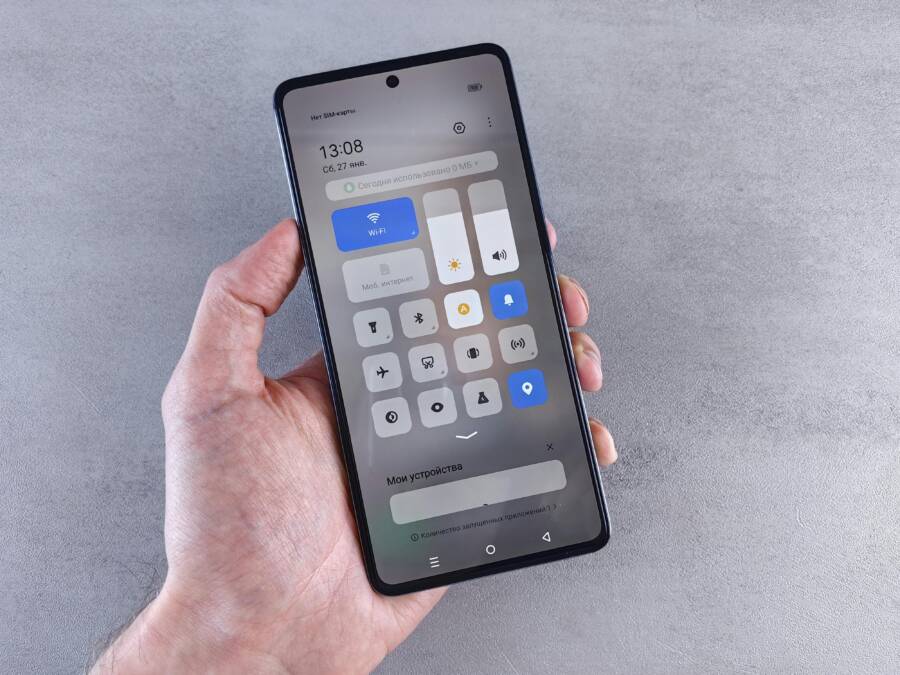
When notifications still refuse to land on your device, the issue is often not the app itself but the way your phone handles alerts. This section walks you through quick, practical checks at the system level for both Android and iPhone users. Think of it as the safety net that catches problems before they reach Instagram. By confirming each layer—Android permissions, iOS alerts, and any Do Not Disturb or Focus mode interactions—you’ll gain reliable, timely notifications again.
 Photo by Andrey Matveev
Confirming Android Notification Permissions
On Android, you must grant Instagram explicit permission to post notifications. Start by checking the app-level settings and ensure the master toggle is on. If the toggle is off, you’ll miss alerts no matter what you configure inside the app.
- Navigate to: Settings > Apps (or Applications) > Instagram > Notifications
- Verify the master toggle is turned on
- Confirm that the specific notification categories you care about are enabled (for example, “Likes,” “Comments,” “Direct messages”)
- Check for any Do Not Disturb interference
- Do Not Disturb can mute all alerts, including Instagram. If it’s active, either turn it off or create an exception that whitelists Instagram notifications
- If you recently updated Android or Instagram, rebooting the phone can help changes take effect
For deeper guidance, you can review official steps from Android Help on controlling notifications and app permissions:
- Change site settings permissions on Android: https://support.google.com/chrome/answer/114662?hl=en&co=GENIE.Platform%3DAndroid
- Control notifications on Android: https://support.google.com/android/answer/9079661
If you want more concrete troubleshooting, consider the Android-focused community discussions on Do Not Disturb behavior and app-specific exceptions:
- How to create Do Not Disturb exceptions on Android: https://theintelligence.com/40215/android-do-not-disturb-exceptions/
- Do Not Disturb app-level guidance: https://forums.androidcentral.com/threads/how-to-allow-or-disable-app-notifications-in-do-not-disturb.1067963/
Fixing Notification Blocks on iPhone (iOS)
iPhone users should ensure Instagram is allowed to send notifications and that the alert style matches your preference. Incorrect settings here can block even the best in-app controls from delivering alerts.
- Go to: Settings > Notifications > Instagram
- Ensure Allow Notifications is enabled
- Confirm your preferred alert style: Banners, Sounds, and Badges are configured to your liking
- Check Lock Screen visibility to ensure alerts appear when the phone is locked
- If notifications show on screen but aren’t actionable, verify the alert style and lock screen visibility again
Apple’s official guidance covers configuring notifications for each app and can help troubleshoot stubborn cases:
- Turn notifications on or off for a specific app on your iPhone: https://support.apple.com/en-us/120681
- Use notifications on your iPhone or iPad: https://support.apple.com/en-us/108781 If you use Focus modes, note that they can override some notification settings. The next subsection covers that interaction in detail.
How Do Not Disturb or Focus Modes Silence Alerts
Both Android and iPhone offer system-wide modes that mute alerts across apps, including Instagram. A misconfigured/overly broad mode is a common culprit when you suddenly stop receiving notifications.
- Do Not Disturb on Android and Focus on iPhone can mute alerts even when Instagram is set to notify
- To fix:
- Disable the mode temporarily to verify alerts arrive
- If you need to keep the mode on, create an exception list that includes Instagram
- On iPhone, Focus modes let you tailor which apps can break through. You can allow Instagram while others stay silent
- On Android, Do Not Disturb exceptions let you specify apps that should still push alerts
To learn more about Focus and Do Not Disturb behavior on Apple devices, see:
- Allow or silence notifications for a Focus on iPhone: https://support.apple.com/guide/iphone/allow-or-silence-notifications-for-a-focus-iph21d43af5b/ios
For Android-specific guidance, Apple’s counterpart provides a broader view of notification control and how to manage it across devices:
- Do Not Disturb and exceptions on Android: https://support.google.com/android/answer/9079661
If you’re troubleshooting across platforms, a practical approach is to toggle these modes off, test a notification, then re-enable with a whitelist for Instagram. This quick check often reveals whether the issue is the mode itself or a separate setting.
Tips to keep notifications reliable:
- Regularly review notification settings after OS updates
- Keep Instagram updated to ensure compatibility with system controls
- Test with a friend’s post or message to confirm delivery
In summary, your smartphone’s system settings play a critical role in message delivery. By confirming Android permissions, validating iOS notification settings, and managing Do Not Disturb or Focus modes, you position yourself to receive Instagram alerts promptly again. If you’d like more official references for quick checks, these Apple and Google support pages are solid starting points:
- Turn notifications on or off for a specific app on your iPhone: https://support.apple.com/en-us/120681
- Use notifications on your iPhone or iPad: https://support.apple.com/en-us/108781
- Control notifications on Android: https://support.google.com/android/answer/9079661
Remember, small misconfigurations add up. A steady, methodical check keeps your Instagram alerts reliable and ready when you need them.
The App and Device Refresh: Force Stopping and Updating
When notifications still misbehave after checking in-app settings, a quick refresh of the app and the device can clear stubborn glitches. This section covers force closing Instagram on both major platforms and getting back to a clean start with updates. A brief reset often fixes temporary communication hiccups between the app and your smartphone, letting alerts flow again.
Force Stopping and Reopening Instagram
Sometimes the simplest fix is the most effective. Force closing Instagram stops all processes and clears any stuck tasks that might be blocking normal notifications. Here’s how to do it on each platform:
- Android: Open the Recent Apps view, locate Instagram, and swipe it away to close. Then reopen the app from your home screen or app drawer. This action resets the app’s background activity and can resolve missed or delayed alerts. If you want an official touchpoint, you can review general guidance on closing apps on Android from reputable sources and help centers: force closing apps on Android and related tips.
- iPhone: On iPhone, swipe up from the bottom (or double-click the Home button on older models) to reveal the app switcher. Swipe Instagram off the screen to force close, then reopen it from your home screen. This mirrors the Android approach and helps clear temporary hiccups that can block push notifications.
After reopening, test a notification by asking a friend to engage with your account or by sending a quick DM. If the alerts return, you know the issue was a temporary hiccup rather than a broader problem. If they don’t, move on to updating Instagram and your device, then clear caches if needed.
Useful references for force closing and related app behavior:
- Close an app on your iPhone or iPod touch: https://support.apple.com/en-us/109359
- How to force close apps on Android: https://www.digitaltrends.com/phones/how-to-force-close-apps-android/
Updating Instagram and Your Phone’s OS
Running the latest versions is essential for reliable notifications. App updates bring fixes that improve how Instagram talks to your device, while OS updates patch underlying services that handle alerts.
- Update Instagram: Open the App Store (iOS) or Google Play Store (Android) and check for updates. Install any available Instagram update to ensure you have the newest features and bug fixes.
- Check for OS updates: On Android, go to Settings > System > Software Update. On iPhone, go to Settings > General > Software Update. If an update is available, install it. Outdated OS versions can break how notification services work, so keeping the system current helps a lot.
If you’re unsure how to proceed, official guidance from platform support can be a reliable compass. You’ll find step-by-step instructions for updating apps and OS versions in their help centers and support pages. For example, resources on updating apps and managing notifications are commonly linked from Instagram Help and platform support pages.
Why this matters: new app builds often require updated OS services to deliver timely alerts. Even a small OS change can affect how notifications are delivered or displayed. After updating, restart your device to ensure all changes take effect and test again with a quick notification.
Relevant resources you may consult for updates and compatibility:
- How to update Instagram on iPhone and Android tutorial pages
- How to update the Instagram app on iOS and Android tutorial videos
Clearing the App Cache for Smoother Performance
Cache can accumulate and slow down how apps communicate with your device. Clearing it is a quick way to improve responsiveness and fix odd notification behavior, especially on Android where the option is explicit in the settings. On iOS, cache management differs and often requires a full reinstall to refresh temporary data.
- Android: Clearing Instagram’s cache is done via Settings > Apps > Instagram > Storage > Clear Cache. This removes temporary files that can interfere with push notifications and app performance.
- iOS: There is no direct “clear cache” toggle. If issues persist, uninstalling and reinstalling Instagram is the practical equivalent to refresh cached data.
After clearing the cache or reinstalling, open Instagram again and test notifications to confirm improvements. If problems persist, revisiting the earlier steps or trying a fresh device restart can help.
Practical notes and quick steps:
- Android: Settings > Apps > Instagram > Storage > Clear Cache, then reopen the app and test
- iOS: Delete Instagram from the home screen, reinstall from the App Store, then test notifications
- If you want extra confidence, you can review official guidance on app cache and related best practices from Android support and Apple help resources
Useful references on cache and app refresh:
- How to clear cache on Android devices: https://www.android.com/articles/clear-cache-and-cookies/
- Edit Instagram’s in-app browser settings and related tips: https://help.instagram.com/1255727395294269
By refreshing the app, keeping software current, and clearing cached data when needed, you build a solid foundation for reliable notifications. If you still don’t see alerts after these steps, it’s time to review device-level permissions and any mode like Do Not Disturb or Focus that might mute notices. The next sections will guide you through those checks with practical, step-by-step instructions.
Account Integrity and Advanced Solutions
When notifications still misbehave after the basics, it’s time to check account integrity and apply a few advanced fixes. A fresh login can reestablish the connection between your account, the server, and the device’s notification registration. It’s a simple move that often clears stubborn delays or missing alerts. Before you log out, save your passwords so you can sign back in quickly and securely.
Logging Out and Logging Back In
A fresh login can rebind the app to the server and refresh your device’s push registration. This is an easy, low-effort step that often resolves missed or delayed alerts. Here’s a quick, practical approach:
- Save your passwords first. If you use a password manager, lock in the credentials for both your account and email recovery options.
- Log out of Instagram on all devices where you’re signed in. Then sign back in from your primary phone.
- After signing in, test notifications by having a friend interact with your account or by sending a quick DM.
If the problem persists, consider checking for account security prompts. Sometimes a security verification can interrupt normal notification delivery. For additional guidance, you can review official Instagram help articles on notification behavior and general troubleshooting: Notification Settings and Troubleshooting. These references can help you confirm that alert delivery matches what you see in-app. If you want broader context on notification management, see the general guidance here: Manage push notifications you receive.
Checking Power Saving Modes That Limit Background Activity
Battery saver modes often sit between your app and the air, quietly limiting background refreshes and pushing when the app isn’t active. This is especially true on Android, but low power mode on iOS can have a similar effect. If Instagram isn’t refreshing data or delivering push notifications, power saving could be the culprit.
Key checks to perform:
- Android: Disable battery saver for Instagram or add it to the exceptions list. Some devices also have a separate “Background restrictions” setting that can block background data.
- iOS: Check that Low Power Mode is off while you’re testing notifications. If you must keep it on, ensure Instagram is allowed to refresh in the background under Settings > General > Background App Refresh.
- Reboot after changing these settings. A quick restart helps the new rules take effect.
If you want deeper context, plenty of guides explain how power management interacts with apps. For a broader read, see articles discussing Android battery management and iOS background activity:
- It’s official, Android users: Instagram is draining your battery, but there’s a fix: https://www.techradar.com/phones/its-official-android-users-instagram-is-draining-your-battery-but-theres-now-a-fix
- The impact of background apps on battery life: https://www.zdnet.com/article/own-an-android-phone-12-settings-i-changed-to-greatly-extend-its-battery-life/
If you notice rapid battery drain after an update, recheck your app permissions and disable any aggressive background limits temporarily while testing notifications. This quick iteration helps you confirm whether the issue is energy saving or something else.
Reinstalling Instagram as a Last Resort
If every other fix fails, a clean reinstall can clear corrupted local files that block notifications from arriving. This is a safe, last resort step. Before you delete, back up anything you might need offline, such as draft posts or saved media. Deleting the app clears out broken caches and data that might be hiding behind a persistent notification issue.
What to do:
- Back up important offline content. Save drafts or media you don’t want to lose.
- Uninstall Instagram from your device, then download and reinstall it from the official store.
- Sign back in and test notifications with a friend’s engagement or a quick DM.
A fresh install often resolves quirks caused by corrupted files and app glitches. If you’d like to see how this approach is described by others, these resources cover reinstalling and related troubleshooting:
- Instagram notifications not working 2025 (How to Fix): https://www.socialboosting.com/blog/instagram-notifications-not-working
- How to fix Instagram notifications not working: https://www.teqiq.com/2024/08/07/how-to-fix-instagram-notifications/
- [Solved] Why the Instagram Not Notify on my iPhone/Android: https://www.apeaksoft.com/ios-problems/instagram-notifications-not-working/
By keeping this as a last resort, you preserve the important data on your device and maximize the chance of restoring reliable alerts quickly. If you still see gaps after reinstalling, there may be broader account integrity checks or device-level interactions at play, which we cover in upcoming sections. For continuing guidance, you can explore official support and troubleshooting pages linked above.
Conclusion
Fixing Instagram notifications comes down to three solid areas: App Settings, Phone Settings, and App Health checks. When you start with in app controls, you confirm what the app is allowed to push to your device. If alerts still miss the mark, move to system permissions and focus modes on your smartphone. Finally, a quick health check of the app and device clears stubborn glitches.
Within App Settings, verify that notifications are enabled for all the categories you care about, especially DMs and direct activity. In Phone Settings, confirm that the Instagram permission is on, Do Not Disturb or Focus modes aren’t blocking alerts, and the device can receive background updates. App Health checks cover updates, force closes, clearing cache, and a clean reinstall if needed. These steps together form a reliable routine that stops missed alerts before they start.
You can feel confident one of these steps will resolve the problem. If you still see gaps, revisit the three areas in sequence and test again. To lock in results, test immediately by having a friend send a quick DM or like a post. This quick test helps you verify that your smartphone and account are delivering notifications reliably.