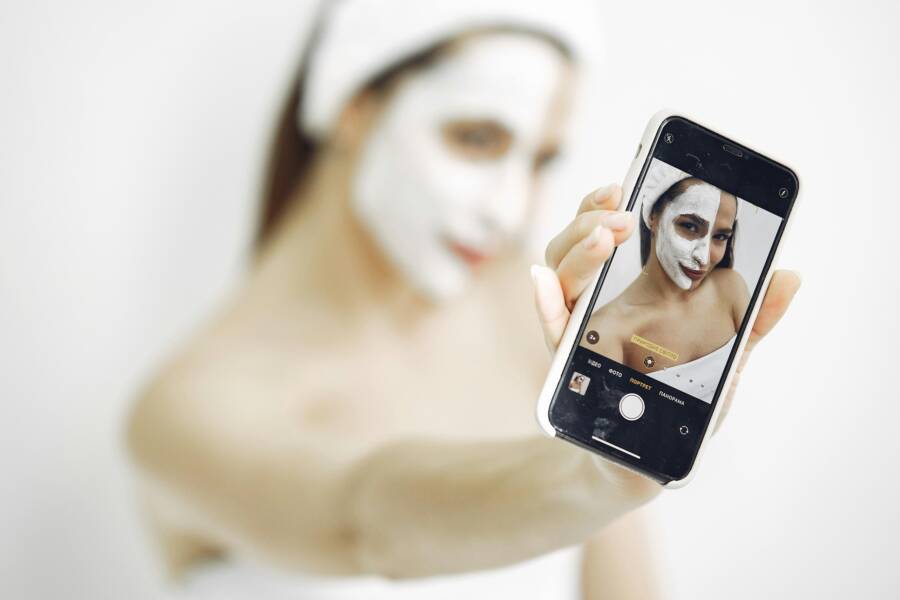
Better selfies come from good light, the right camera settings, and a few simple pose tweaks. Most people don’t need a new phone, they need cleaner setup habits, better placement near a window, and a repeatable way to shoot on a smartphone.
If your selfies look flat, grainy, or washed out, the fix usually starts before you press the shutter. Small changes in lighting, exposure, timer settings, and lens choice can make a bigger difference than filters ever will.
This guide keeps it practical, so you can get sharper, more natural-looking shots without guesswork. First, you’ll see how to use light the right way, then how to set up your phone for better results, and finally how to fix the most common selfie problems fast.
Why Most Selfies Look Flat, Blurry, or Unflattering
Most bad selfies come down to three things: soft focus, poor light, and awkward camera angles. Fix those first, and your phone selfies will look sharper, brighter, and more natural without any heavy editing.
A selfie can look fine on the screen, then fall apart later. Skin looks dull, faces lose shape, and details turn mushy. That usually happens because the camera, the light, and the framing are working against you.
The three biggest selfie problems to fix first
Soft focus is one of the biggest reasons selfies look blurry. Your phone may focus on the background, or the lens may be too close to your face. Even a small hand shake can soften the image, so the final photo looks less crisp than you expected.
Bad lighting makes faces look flat or harsh. Strong overhead light can create dark eye sockets, while dim indoor light adds grain and wipes out detail. Good light gives your face shape, clean color, and clear skin texture without making the shot feel overprocessed.
Unhelpful angles can change your face in ways you do not want. A low angle can widen the chin or nose, while a camera held too close can distort features. A slight lift, cleaner framing, and a little distance usually make the selfie look more balanced.
A quick way to judge the problem is this:
- If the photo looks fuzzy, focus is the issue.
- If the photo looks dull or noisy, lighting is the issue.
- If the face looks odd or unbalanced, the angle is the issue.
Once you can spot which one is failing, fixing selfies gets much easier.
Why the front camera needs extra help
Front cameras usually do less work than rear cameras, so they need better setup to look their best. They often have smaller sensors and simpler lenses, which means they pick up less detail and struggle more in low light. That is why a selfie can look fine in person, then come out soft or grainy on a smartphone.
Cleaner framing helps too. The front camera sees everything in front of you, so clutter, bright windows, and messy backgrounds can pull attention away from your face. A simple background and steady hand give the camera less noise to deal with.
The good news is that a smartphone front camera can still take excellent photos. With enough light, a stable position, and a better angle, it can produce sharp selfies that look natural rather than forced.
Good selfies usually come from better setup, not better filters.
If your selfies keep missing the mark, start with the camera, the light, and the angle before you change anything else. Those three fixes solve most of the common problems fast.
Use light that flatters your face, not light that fights it
Good selfie light is soft, even, and aimed at your face from a flattering angle. When light wraps gently across your features, skin looks smoother, shadows soften, and your face keeps its shape without looking harsh.
The easiest win is to choose light that does less work on your face. You want gentle contrast, clean color, and enough brightness to keep detail. Once you focus on that, a smartphone selfie looks more natural with less editing.
Find the best natural light near a window or outside shade
Window light is one of the best options because it is bright, soft, and easy to control. Open shade works the same way outdoors, since buildings, trees, or a covered area block direct sun and spread the light more evenly across your face.
Place yourself near the light source, then turn your face slightly toward it. That angle gives your features shape without throwing one side into deep shadow. If the light comes from one side, you get a clean highlight and a softer falloff, which often looks better than straight-on light.
Avoid standing with a bright window directly behind you unless you want a silhouette. Instead, face the window or stand at a slight angle so the light reaches your eyes and cheeks. Morning and late afternoon are especially easy times to shoot, because the sun is softer and the color looks warmer.
A few simple setups work well:
- Window side light: Stand beside a window and turn your face toward it.
- Window front light: Face the window for an even, bright look.
- Open shade: Step under a tree, awning, or building shadow for soft outdoor light.
Soft natural light usually hides small skin texture better than hard indoor lighting.
Avoid harsh overhead light, direct sun, and mixed lighting
Overhead light can make your face look tired fast. Bathroom lights, restaurant ceiling lights, and kitchen fixtures often cast deep shadows under the eyes and nose, while also making skin look shiny in the wrong spots.
Direct midday sun is even harsher. It can wash out your face, squint your eyes, and create strong contrast that the front camera struggles to balance. If the sun is high and bright, move into shade or wait for softer light.
Mixed lighting causes another problem. For example, a room with warm lamps and cool window light can create strange color tones that make skin look yellow, blue, or dull. The phone tries to balance both sources at once, and the result often looks off.
When a selfie looks odd, check the room first. If one light is warm and another is cool, turn one off or move to a cleaner setup. A single light source is usually easier for your phone to handle.
Use simple tools when natural light is not enough
When the room is dim, a small light can help a lot. A ring light, a compact LED, or even a white wall that bounces light back onto your face can soften shadows and brighten the shot without making it harsh.
The goal is better light, not more light. Brightness alone can flatten your face and blow out details, so keep the source close, soft, and slightly above eye level. If the light is too strong, move it farther away or lower the intensity.
A white wall, ceiling, or reflector can also fill in shadow on the dark side of your face. That tiny change can make a smartphone selfie look cleaner right away, especially if your room light is uneven.
A simple rule helps here: one soft light is better than several bright ones. If your face looks smoother and your eyes look clearer, the setup is working.
Small light adjustments often make the biggest difference. Move one step, turn one lamp off, or angle yourself toward a window, and the selfie usually improves before you touch any filter or setting.
Choose camera settings that make selfies sharper and cleaner
The right phone settings can clean up a selfie before you edit anything. A few small changes, like better framing, correct focus, and smarter use of flash or HDR, can make your face look sharper and your skin look more even on a smartphone.
Turn on grid lines and use them to improve framing
Grid lines help you place your face in a cleaner spot on the screen. They make it easier to keep the camera level, avoid crooked shots, and leave the right amount of space above your head.
The simplest rule is to keep your eyes near the upper third of the frame. That idea comes from the rule of thirds, which means the image often looks more balanced when the main subject sits a little off-center. For selfies, that usually means your face feels more natural when it is not jammed into the middle of the screen.
Grid lines also help with head placement. If you leave too much space above your head, the selfie can feel empty. If you cut too close, it feels cramped. The grid gives you a quick guide so you can adjust before you shoot.
A few habits make this easier:
- Keep your eyes close to the top horizontal line.
- Hold the phone straight so the frame does not tilt.
- Leave a small amount of space above your hairline.
- Center your face slightly, instead of locking it in the exact middle.
When the grid is on, you spend less time guessing. The selfie looks cleaner because the framing feels intentional, not random.
Check focus and exposure before you hit the shutter
Tap on your face before you take the shot. That tells the phone where to focus, and it often sharpens your eyes and skin more than leaving focus on auto. If your phone lets you hold or slide after tapping, use that to fine-tune the brightness on screen.
Exposure matters just as much as focus. If the preview looks too bright, slide the exposure down a little so your face does not lose detail. Blown-out highlights, especially on foreheads, cheeks, or bright clothing, can make a selfie look flat and hard to fix later.
Keep an eye on the preview before you shoot. If the screen looks washed out, the photo usually will too. A small drop in brightness often brings back texture and gives the face better shape.
If your face looks pale on the screen, lower the exposure a little before taking the shot.
The best habit is simple: tap your face, check the brightness, and retake if the preview looks off. That quick pause saves a lot of weak selfies.
Use the front camera timer, HDR, and flash the right way
The front camera timer helps when you want a steadier shot. It gives you time to hold still, fix your face angle, and avoid the tiny shake that happens when you tap the shutter. A short delay works well for selfies because your hand is not pressing the screen at the last second.
HDR can help in bright light, especially when the background is much brighter than your face. It keeps more detail in both the highlights and shadows, so your skin and surroundings stay more balanced. Still, HDR can slow the shot a bit, so it works best when you are standing still.
Front flash needs more care. In dark rooms, it can brighten your face enough to make the selfie usable, but it can also look harsh and unnatural. Use it only when there is no better light nearby, and keep it off when natural light or a soft lamp is available.
A quick guide helps:
These settings work best when you use them with purpose. A timer steadies the shot, HDR saves detail in harsh light, and flash stays a backup option, not the default.
Make Small Pose and Angle Changes That Instantly Improve the Shot
Small pose shifts can change a selfie more than a new filter ever will. A slight lift of the camera, a softer face turn, and a cleaner background often make the photo look more relaxed and balanced right away.
These changes work because the front camera reads shape, light, and distance very clearly. When you adjust your position by a little, the phone captures a face that looks more natural and less forced. That is especially true on a smartphone, where tiny angle changes can have a big visual effect.
Raise the camera slightly above eye level
A slightly higher camera angle is often the most flattering choice for selfies. It helps open up the face, defines the jawline, and keeps the shot from feeling heavy or flat. When the phone sits too low, the camera can exaggerate the chin and nostrils, which makes the face look wider or less balanced.
Hold the phone just above eye level, then tilt it down only a little. That small shift usually gives your eyes a cleaner shape and reduces the chance of unflattering nose distortion. The result looks more polished without looking stiff or overly posed.
A good starting point is simple:
- Keep the phone a little higher than your eyes.
- Angle it down just enough to see your face clearly.
- Avoid extreme high angles, which can make the head look too small.
A small lift in camera height often improves the selfie more than any editing step.
Turn your face a little instead of facing the lens straight on
Straight-on shots can work, but a slight turn usually looks softer and more natural. When you rotate your face just a little, one side catches more light and the features look less flat. That small shift gives the photo depth without making it feel staged.
Relaxed shoulders help too. If your shoulders stay tense or square to the lens, the selfie can look rigid. Ease one shoulder forward, soften your jaw, and let your expression settle into something calm. A gentle smile or neutral look often reads better than forcing a big grin.
A few quick pose changes can help:
- Turn your face a few degrees to the left or right.
- Drop your shoulders so your posture looks easy.
- Keep your chin relaxed instead of pushing it forward.
These tiny adjustments matter because the camera picks up tension fast. A slight face turn and a softer expression usually make the shot look more alive.
Clean the lens and keep the background simple
This is the fastest fix of all. A dirty lens can blur the image, add haze, or make the entire selfie look dull, even if the pose and light are good. Wipe the lens with a soft cloth before you shoot, because a clear lens gives you sharper skin detail and cleaner color.
The background matters just as much. Busy shelves, clutter, and bright objects pull attention away from your face. A plain wall, a window, or outdoor shade gives the eye somewhere calm to rest, so your face stays the main focus.
Simple background choices work best when they stay quiet and clean:
- A plain wall for a minimal look.
- A window for soft natural light.
- Outdoor shade for even light and less clutter.
A clean lens and simple backdrop do not add style on their own, but they remove distractions. That often makes the selfie look better before you even change the pose.
A Simple Selfie Checklist You Can Use Every Time
A good selfie usually comes from a quick routine, not luck. If you use the same setup each time, your phone selfies get more consistent, sharper, and easier to repeat on a smartphone.
The fastest way to improve is to check the basics before you shoot, then review the first frame with a clear eye. That saves time and cuts down on awkward retakes later.
The five-step setup before you shoot
Start with the lens. A smudged lens can soften detail and add haze, so wipe it with a soft cloth before you lift the phone. After that, face the light so your features are lit evenly, then turn on grid lines to keep the frame straight and your eyes in a better spot.
Next, simplify the background. A plain wall, window light, or clean outdoor shade keeps the focus on your face. Finally, take one test shot and look at it before you settle into a pose. That one photo tells you more than guessing ever will.
Use this sequence every time:
- Clean the lens.
- Face the best light source.
- Turn on grid lines.
- Pick a simple background.
- Take a test shot.
If the test shot looks good, keep going. If it looks off, fix the light or angle first, then shoot again.
How to review and retake a selfie fast
After the first shot, zoom in a little and check the parts that matter most. Look at the eyes for sharpness, the cheeks and forehead for shadows, and the edges of the frame for awkward cuts or tilted lines. Also check for glare on glasses, shiny skin from harsh light, and blur from hand movement.
If one thing looks wrong, retake right away. A small shift in angle, a step closer to the window, or a tiny drop in exposure can fix the problem fast. Do not keep a photo just because it is close enough, because almost-good selfies usually stay that way.
A quick review habit helps you move faster:
- Shadows should look soft, not heavy under the eyes or nose.
- Blur should be absent around the eyes and hairline.
- Glare should not wash out skin, glasses, or bright spots.
- Framing should leave a little space above the head and avoid cutting off the chin.
The best selfie is usually the second or third one, not the first. Once you know what to spot, you can correct it in seconds and keep the best shot.
Conclusion
Better selfies come from better light, smarter settings, and small pose changes. Once those three parts work together, your phone can take cleaner, sharper photos without heavy editing or fancy gear.
The strongest fix is usually light. Start there, then adjust focus, exposure, and angle until your face looks natural on screen. A smartphone can do a lot when the setup is simple and the light is kind.
Keep it simple: test one change at a time, start with light, and build from there. Good selfies are usually made, not found, and the best setup is the one you can repeat.