
If your phone seems to sip power even when Background App Refresh is off, you’re not imagining things. Apps can keep waking the device, pull data, or use location services without you realizing it. The result is faster battery drain and a phone that never quite feels reliably charged. This guide cuts through the confusion and gives you practical steps to stop the drain while keeping essential functions running.
Background refresh off should mean steady power, but several factors can keep your battery on a short leash. A few apps may still fetch data, your OS may push notifications aggressively, and even system tasks can run in the background. By checking usage, tightening permissions, and adjusting settings, you can reclaim several hours of screen life without losing the features you rely on.
Understanding what actually uses energy helps you decide what to tweak. Start with a quick audit of battery usage, then methodically adjust app behavior and system features. The goal is a phone that stays responsive without guzzling power between charges.
Understand why battery drain can persist
Background App Refresh is only part of the equation. Even with it disabled on iOS, or with background restrictions on Android, other processes still run:
- Push notifications and fetch intervals keep data flowing in.
- Location services can run in the background for maps, fitness apps, or social media.
- System tasks such as indexing, backup, and security checks run without your direct input.
- Apps may have wake locks that prevent the CPU from sleeping, especially after a software update.
- WiFi and cellular radios continue to search for signals or load content in the background.
If you see abnormal drain after a recent app update, a bug or a bad update could be at fault. The good news is you can verify and fix most issues with a structured approach.
Identify the real culprits: how to read battery usage
A targeted fix starts with a clear view of which apps and services sip energy. Here’s how to spot trouble, with OS-specific steps.
iPhone users
- Open Settings and tap Battery.
- Scroll to Battery Usage by App to see which apps used the most energy in the last 24 hours or the last 10 days.
- Look for apps with high activity even when you didn’t open them. They may refresh in the background or request data frequently.
- Check if any system features, like Spotlight Suggestions or Messages, appear high on the list.
Android users
- Open Settings, then Battery.
- Tap Battery usage to view recent activity by app.
- Note apps with high “Background activity” or a large share of battery use while idle.
- If you see a new app rising in energy use after an update, investigate its permissions and background behavior.
Image: A quick visual reminder can help.
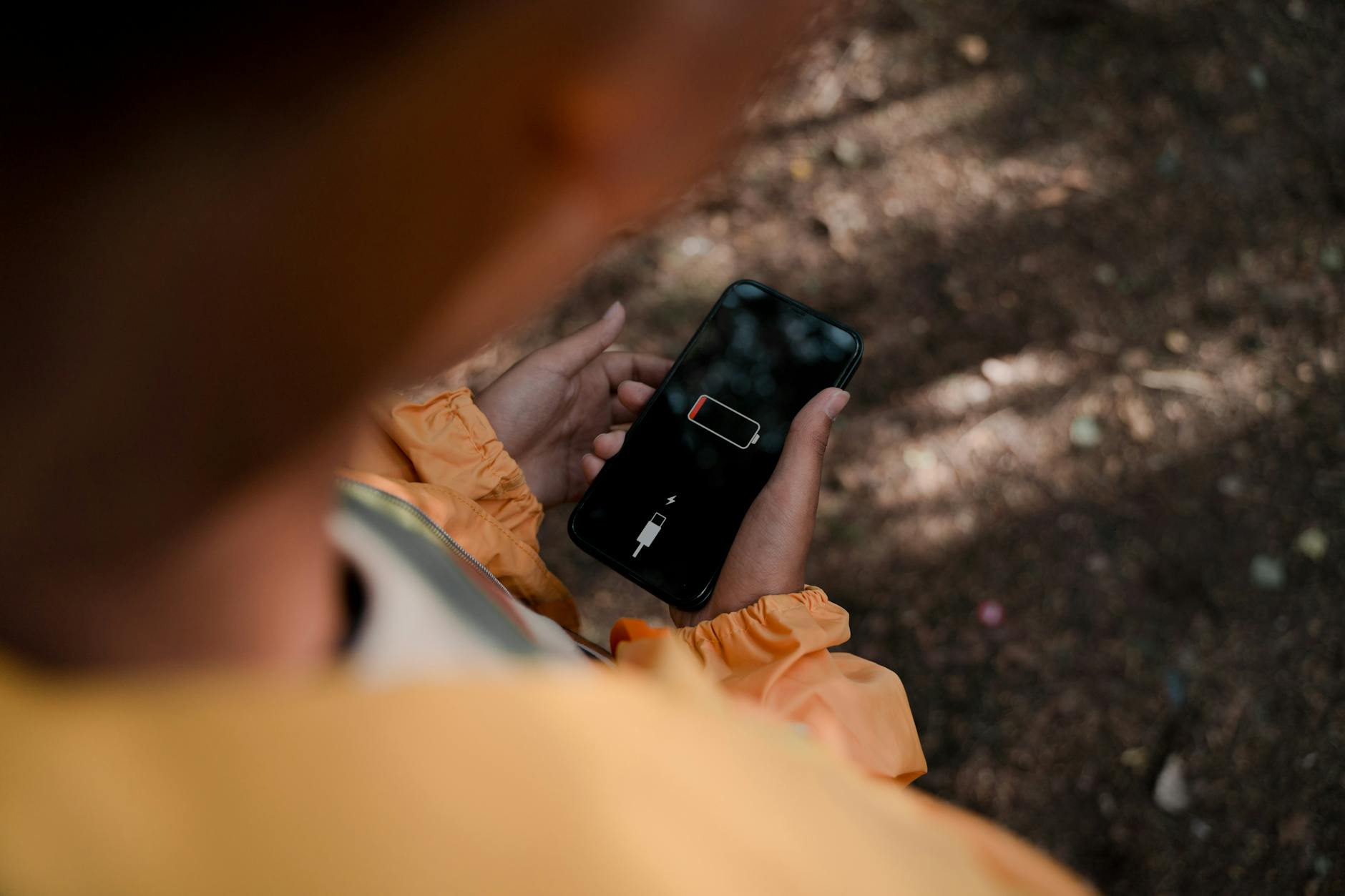
Photo by Ron Lach
Tighten permissions and refresh settings
Most battery drain comes from apps that have more access than they need. Adjusting permissions can cut background activity without killing features you actually use.
iOS: per app background refresh and permissions
- Go to Settings > General > Background App Refresh.
- Turn it off for apps that don’t need to refresh in the background. You can leave it on for essential apps such as weather or messaging.
- Review each app’s permissions: Settings > Privacy > Location Services. Set location access to While Using the App or Never for apps that don’t need it in the background.
- Disable Background App Refresh for extra apps if you’re not using them regularly.
Android: limit background activity and data use
- Go to Settings > Apps & notifications > See all apps.
- Select an app and choose Battery > Background activity. Restrict when the app can run in the background.
- If you want broad control, enable Battery saver or Battery optimization for apps that frequently refresh. This reduces energy use while keeping major functions intact.
- For apps that need alerts, allow them to run in the background but limit data usage over mobile networks.
Update apps and OS for stability
Bugs in apps or the OS can cause unexpected battery drain. Developers push fixes that tighten background behavior and reduce wake times.
- Check for app updates regularly in your app store.
- Install the latest OS updates when available. They often include efficiency improvements and bug fixes that affect background activity.
- If a recent update started the drain, you can temporarily roll back a problematic app version or wait for a patch, but always test after updates.
Turn off or tune energy-hungry features
Some features are useful but heavy on power if left on all day. A few targeted adjustments can help a lot.
- Push notifications and fetch intervals: If an app sends frequent alerts, consider lowering the frequency or changing to a manual refresh for less critical apps.
- Location services: Turn off precise location for apps that don’t need it in real time. Use approximate location where possible to cut power use.
- Widgets and live wallpapers: Remove or limit widgets that constantly refresh data or display live content.
- Auto-sync for email and social apps: Reduce the cadence of automatic checks or switch to manual syncing.
When to consider a deeper reset
If the battery still drains rapidly after you’ve trimmed background activity, a deeper reset can clear stubborn issues. Before you reset, back up important data.
- Reset network settings on iOS to fix errant network wakeups that waste power.
- On Android, clear the cache for problematic apps or perform a device reset if recommended by the manufacturer after trying other steps.
- If battery capacity has degraded, consider a battery replacement. A weak battery can drain quickly even with normal use.
Visual and practical tips you can apply today
- Schedule downtime: Enable Do Not Disturb overnight for nonessential apps. This reduces wakeups while you sleep.
- Use Low Power or Battery Saver modes when you expect long stretches away from a charger. They limit background activity and adjust performance to extend life.
- Keep your device cool. Heat accelerates battery drain and can cause the system to work harder to stay responsive.
A practical checklist you can follow
- Check battery usage by app and identify high-drain offenders.
- Disable background refresh per app on iOS and restrict background activity on Android.
- Review and limit location and notification settings for nonessential apps.
- Update all apps and the OS to the latest versions.
- Turn on Battery Saver or Low Power Mode when you expect heavy screen time away from power.
A closer look at tricky cases
Some apps quietly keep data flowing. Messaging apps with media previews, news apps with auto refresh, and social apps with background fetch can be culprits. If you can’t identify a single offender, consider a staged approach: disable all nonessential apps, then re-enable them one by one while monitoring battery impact. This method can reveal hidden wakelocks that you might not notice otherwise.
Smartphone health checks and long-term planning
Battery health matters. If your device shows a “battery health” metric that is well below peak capacity, the battery itself could be the bottleneck. Both iOS and Android devices provide tools to gauge battery health and estimate remaining capacity. If the battery is aging, a replacement might be the most effective solution to restore usable life.
In addition, storage and memory issues can indirectly affect battery life. A nearly full storage or a clogged memory can slow the device, causing more work for the processor and more power use. Keeping storage a comfortable margin and closing unused apps reduces this strain.
A quick real-world example
A user noticed their iPhone 13 Pro drained quickly after updating to the latest OS. They checked Settings > Battery and saw one game app using background activity despite Background App Refresh being off. They disabled refresh for that one app and turned on Low Power Mode during the day. Over a week, daily screen time extended by several hours, and the battery held a charge longer between charges. The fix was simple, targeted, and preserved essential features.
Bringing it all together
Fixing a background refresh issue that still drains battery takes a methodical approach. Start by identifying the culprits through battery usage data. Then tighten permissions and per-app settings, update software, and adjust energy hungry features. If needed, reset network settings or perform a deeper refresh of the device. Finally, monitor the impact over several days to ensure the improvements stick.
Conclusion
Battery life should feel predictable, not a daily guessing game. By understanding how background activity works and applying targeted tweaks, you can stop needless drain without sacrificing the features you rely on. Start with a quick audit, apply precise changes, and keep your software up to date. A calmer, longer-lasting phone is well within reach.
Photo by Ron Lach