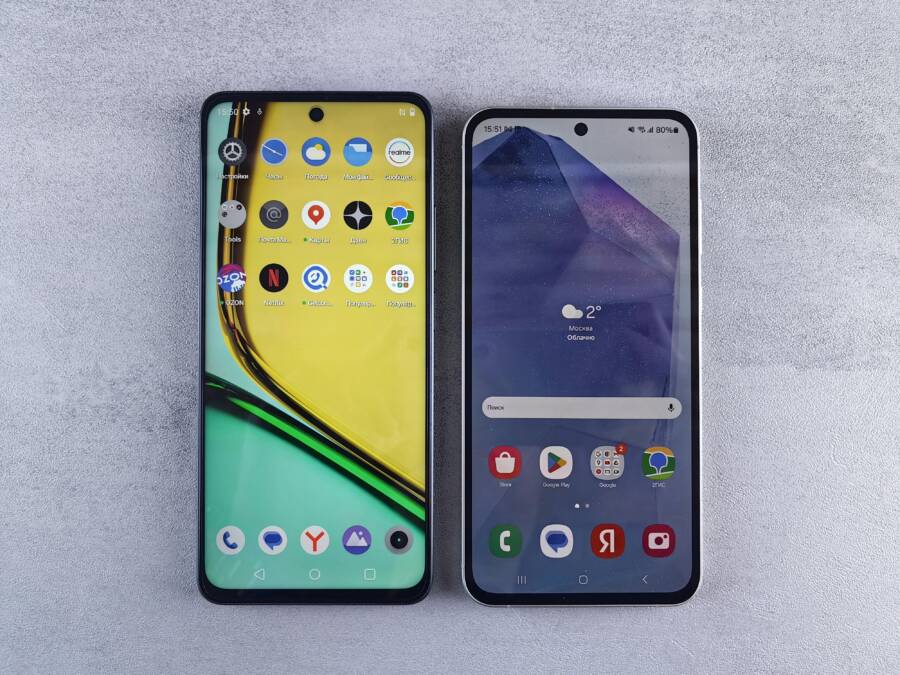
Shortcuts on Android can be helpful until they aren’t. When a home screen shortcut opens the wrong screen, it can be frustrating and confusing. This guide explains why that happens and how to fix it quickly.
You’ll learn the common causes behind the misfiring shortcuts, including launcher quirks and intent misconfigurations. We’ll cover quick, practical fixes you can try right away, plus device specific steps for popular phones. By the end, you’ll know when a deeper fix is needed and how to reduce future problems.
If you’ve ever wondered why an app shortcuts link lands you in the wrong activity, you’re not alone. This post walks you through a simple checklist to restore accurate shortcuts across most Android launchers and helps you keep your smartphone experience smooth.
Why app shortcuts open the wrong activity
Shortcuts should speed up your day by taking you exactly where you want to go. When a shortcut lands you on the wrong screen, it’s not just annoying; it can break your workflow. In this section we unpack the most common situations that cause shortcuts to misfire on Android and how to spot them quickly. You’ll learn concrete checks and fixes you can apply today, with simple examples you can relate to on a typical smartphone.
App updates and changed activities
Apps evolve, and updates often reorganize how the app is built. A new version might rename an activity, relocate it to a different section of the app, or remove it altogether. When this happens, a shortcut that points to the old screen becomes outdated. You might see a stale shortcut icon on your home screen, but tapping it opens a different screen or even throws an error.
To avoid surprise, treat shortcuts as living links that need occasional reassessment after updates. After a major update, check the app’s changelog or features list to confirm what has changed. If the shortcut targets a specific screen, verify whether that screen still exists and hasn’t been moved to another module. For example, a shortcut meant to open “My Tasks” could end up launching the “Archived Tasks” view if the app restructured its navigation. In that case, recreate the shortcut from the current app menu to point to the correct activity.
Practical steps you can take now:
- Open the app and review the latest features or sections touched in the update.
- Look for any mentions of renamed or relocated screens.
- Delete the old shortcut and create a new one from the updated app path.
- If you share shortcuts with others, remind teammates to refresh theirs after big updates.
If you want additional context on how Android manages shortcuts, you can explore the official guidance on app shortcuts and how to adapt them during the app’s lifetime. The docs emphasize that shortcuts are tied to your app’s current state and may need reconfiguration as the app evolves. For a deeper dive, see the Android Developers overview on shortcuts. https://developer.android.com/docs/core/display/app-shortcuts
Encountering a failed shortcut is common when the app’s internal navigation changes. In many cases, a quick re-creation fixes the issue. If you rely on a launcher that caches shortcuts, you may need to also refresh that cache after updating the app. A fresh setup minimizes the chance of the launcher misdirecting you to the wrong activity.
Work profiles, secure folders, and multi-user setups
On devices with work profiles or secure folders, shortcuts can become misaligned if they’re created in one profile and the app is used in another. Shortcuts are often tied to a particular user context. When the app is moved or accessed from a different profile, the shortcut may still point to an activity that isn’t available in that profile.
In practice, this often shows up in two ways:
- A shortcut placed in a work profile tries to launch an activity that exists only in the personal profile.
- A shortcut created inside Secure Folder is not accessible from the main workspace, or vice versa.
Practical notes to avoid cross-profile issues:
- Always recreate shortcuts from within the same profile where the app is installed and active.
- If you must use shortcuts across profiles, expect some to fail and plan to recreate them per profile.
- When possible, keep shortcuts within their native workspace and avoid cross-profile linking.
If you use Secure Folder or a work profile, take a moment to verify that the shortcut you rely on is valid in that specific environment. Some devices treat work profiles as a separate space with its own launcher state, which means shortcuts are not portable between spaces. A quick test is to delete and recreate the shortcut inside Secure Folder or the work profile after any device or app changes. For more on how work profiles interact with shortcuts, see guidance about work mode and Secure Folder in Android discussions. https://us.community.samsung.com/t5/Discussions/Secure-Folder-and-Android-Work-Mode/td-p/2432128
A helpful reminder: avoid cross-profile shortcuts whenever possible. They’re fragile and often the first to break when profile boundaries shift.
Launcher cache and stale mappings
Launchers save shortcut data locally to load screens quickly. That cache is normally fast, but it can become stale after app updates, moves to a new location, or a profile change. When the launcher uses an old mapping, tapping a shortcut can open the wrong screen or fail to launch altogether.
What to try when a shortcut misbehaves because of cache:
- Do a quick test by removing the old shortcut and creating a brand-new one from the current app path.
- If misbehavior persists, clear the launcher’s cache or data. This forces the launcher to rebuild the mapping from the app’s current structure.
- After clearing cache, re-add your shortcuts to ensure they point to the correct activities.
If you’re curious how a launcher handles shortcut data, the launcher’s behavior is documented in general terms by Android and by launcher developers. The core idea is that shortcuts reference the app’s components, and when those components shift, the launcher must rebuild its own map. A practical example of this dynamic can be seen in discussions around shortcut stability and cache handling. https://developer.android.com/docs/core/display/app-shortcuts
Keeping your launcher cache fresh reduces misfires. If you notice patterns like “every update breaks this shortcut until I recreate it,” you’re seeing exactly the cache catching up with changes.
Exported vs non-exported activities and permissions
Shortcuts interact with the app at the component level. Some activities are marked as exported, meaning external apps or the launcher can start them. Others are private to the app and cannot be launched from outside. If a target activity isn’t exported, a shortcut that points to it can fail or open a different screen.
In plain terms:
- Exported activities are accessible from outside the app, including your launcher.
- Non-exported activities stay inside the app’s own flow and aren’t directly invocable from shortcuts.
This distinction matters because some shortcuts rely on external launching. If an activity was recently marked non-exported during an update or if there’s a manifest change, the shortcut may stop working or behave unexpectedly. The quick takeaway is to verify that the shortcut’s target activity remains exported and accessible from outside the app.
For readers who want a quick primer on the concept, the Android documentation on exported components is a good starting point. It explains why some components must be exported and how external apps can or cannot interact with them. https://developer.android.com/privacy-and-security/risks/android-exported
If you’re troubleshooting, look for error messages related to “exported” settings or ActivityNotFoundException. These messages often point to a target that can no longer be started from outside the app. In many cases, updating the manifest to reflect the current app architecture or simply recreating the shortcut to point to a different, exported activity resolves the issue. Understanding this basic distinction helps you quickly identify whether the problem is a permissions or a navigation change.
To broaden your troubleshooting knowledge, you can explore how exported components relate to app permissions and the launcher ecosystem. This context helps you decide when to adjust the app’s manifest or when to implement a safer, user-friendly workaround in the launcher. https://support.google.com/pixelphone/thread/75789913/all-my-home-screen-shortcuts-disappeared?hl=en
If you want a practical rule of thumb: when in doubt, aim for shortcuts that open clearly exported entry points. That reduces the chance of hitting a private activity that isn’t intended to be launched from outside the app.
Tips to keep shortcuts reliable over time
- Regularly review the app’s update notes and changelog.
- Re-create shortcuts after major app changes.
- Avoid cross-profile shortcuts and use per-profile setups where possible.
- Clear launcher caches if shortcuts begin to misbehave after updates.
- Prefer exported activities for shortcuts when you design or reconfigure them.
If you’d like to read more on common causes and fixes for shortcuts, these sources offer practical guidance and real-world examples:
- Manage shortcuts on Android: https://developer.android.com/docs/core/display/app-shortcuts
- App behavior in work profiles and Secure Folder contexts: https://us.community.samsung.com/t5/Discussions/Secure-Folder-and-Android-Work-Mode/td-p/2432128
- Quick primer on exported components on Android: https://developer.android.com/privacy-and-security/risks/android-exported
- Troubleshooting shortcut behavior and stale mappings: https://stackoverflow.com/questions/22798491/shortcut-launches-incorrect-activity-in-android
If you’re dealing with a specific device or launcher, check the launcher’s own support pages as well. Some manufacturers provide extra steps for refreshing shortcuts in their custom skins, which can save you a lot of time.
Smartphone owners often rely on a handful of trusted shortcuts. Keeping them accurate saves taps and frustration, so make it a habit to verify them after updates or changes to the app or device setup.
A practical, step by step fix sequence
When shortcuts start opening the wrong activity, a calm, methodical approach saves time. Below is a straightforward sequence you can follow to diagnose and fix misfiring Android shortcuts. Each step builds on the last, so you can stop once the problem is solved or move on to a deeper fix if needed.
Recreate the shortcut from within the app
Start by removing the broken shortcut and adding a fresh one from the app itself. If the app offers a direct shortcut option in its menu, use that path. If not, long-press the app icon and choose Add to Home, then select the correct shortcut if prompted. Recreating from the current app flow ensures the shortcut target is aligned with the app’s latest navigation structure. This approach often fixes stale or mismatched mappings that result from updates.
- Delete the broken shortcut.
- Open the app and locate the built-in shortcut option, if available.
- If there isn’t a direct option, long-press the app icon and choose Add to Home.
- Pin the new shortcut to the home screen and test.
If you’ve ever wondered how Android handles shortcuts then you’ll want to review the official guidance on app shortcuts. Shortcuts are tied to the app’s present state and may need reconfiguration as the app changes. For a deeper look, see the Android Developers overview on shortcuts. https://developer.android.com/docs/core/display/app-shortcuts
A quick reminder: after you recreate, test the new shortcut to confirm it opens the intended activity. If you share shortcuts with others, have them refresh theirs too after big updates.
Restart the phone and update software
A simple reboot clears temporary launcher data that can linger and misdirect shortcuts. After the restart, check for updates for both the app and the system. Apps update their internal navigation, and the launcher itself gets improvements that can fix misrouting.
- Restart the device.
- Open the Play Store and check for app updates.
- Check for system updates in Settings > System > Software update.
- Install any available updates and re-test the shortcut.
Software updates frequently address known shortcut bugs and improve compatibility with launcher components. If you’re running a custom skin or a specific launcher, also check for updates to that launcher.
For more on how Android handles shortcuts over time, explore the official management guidance. It explains how shortcuts can change as the app evolves and why updates matter for long-term reliability. https://developer.android.com/develop/ui/views/launch/shortcuts/managing-shortcuts
If you notice a recurring issue after updates, a reboot and updates can quickly restore expected behavior and reduce frustration.
Clear launcher cache and reset if needed
Launchers keep a cache of shortcut mappings to speed up loading. When the app structure or profile changes, this cache can become stale and lead to wrong targets. Clearing the launcher cache forces the launcher to rebuild mappings from the app’s current layout.
Steps you can follow:
- On most devices: Settings > Apps > Launcher > Storage > Clear Cache.
- If the problem persists, Clear Data for the launcher and reset your home screen layout.
- After clearing, re-add your favorites and shortcuts from the app’s current path.
Important: back up your home screen layout if possible before clearing data. A reset will restore correct mappings but return your home screen to a default look.
If you’re curious about how clearing cache affects launcher behavior, you can read up on general Android launcher caching and how these caches influence shortcuts. This helps you understand why a fresh map often fixes misdirected shortcuts. https://www.quora.com/What-will-happen-if-I-clear-all-of-the-data-of-a-launcher-on-my-Android-phone
Keep in mind that launcher behavior can vary between devices. Pixel, Samsung, One UI, and third-party launchers all manage their caches a bit differently, but the principle remains the same: a clean slate often resolves stale mappings.
Test with a different launcher
If the misbehavior persists, try a different launcher to determine if the issue is launcher-specific. Install a well-known alternative and set it as the default temporarily. If the new launcher opens the correct activity, the problem lies with the original launcher’s mapping.
Good options include:
- Pixel Launcher
- Samsung One UI Home
- Nova Launcher
To switch launchers:
- Install the new launcher from the Play Store.
- Set it as the default launcher in Settings > Apps > Default apps > Home app.
- Recreate important shortcuts in the new launcher and test their behavior.
If the new launcher behaves normally, you’ll know the fix is launcher related. You can then decide whether to keep using the new launcher or troubleshoot the original one more deeply.
For further context, see discussions about launcher behavior and alternatives. You can read reviews and guides on popular launchers to pick a fit that aligns with your smartphone usage. https://www.androidauthority.com/nova-launcher-alternatives-3597206/ https://www.tomsguide.com/round-up/best-android-launchers
Reinstall the app if necessary
If nothing else fixes the problem, reinstalling the app can refresh its manifest and shortcuts. This step can resolve issues where the app’s internal wiring has become inconsistent with the launcher’s mappings.
- Back up any essential app data if the app stores local data you don’t want to lose.
- Uninstall the app, then reinstall it from Google Play.
- Reconfigure any preferences, log in again if required, and recreate the shortcut from the app.
Note that some apps store critical data locally. If you rely on that data, verify backup options before uninstalling. After reinstalling, test the shortcut immediately to confirm it now opens the correct activity.
If you want a quick reference on reinstalling apps and re-enabling them across devices, Google’s support articles provide practical steps. https://support.google.com/googleplay/answer/113410?hl=en&co=GENIE.Platform%3DAndroid#hcfe-content
If you’re unsure what data is stored locally by a particular app, check the app’s own help or support page. A clean reinstall often gives you a reliable baseline for shortcuts.
External factors can still affect shortcuts after a reinstall, such as profile or launcher changes. If you continue to experience issues, consider combining this step with a launcher swap or a cache reset for a comprehensive fix.
Tips to keep shortcuts reliable over time
- Regularly review the app’s update notes and changelog.
- Re-create shortcuts after major app changes.
- Avoid cross-profile shortcuts and use per-profile setups where possible.
- Clear launcher caches if shortcuts begin to misbehave after updates.
- Prefer exported activities for shortcuts when you design or reconfigure them.
If you’d like to read more on common causes and fixes for shortcuts, these sources offer practical guidance and real-world examples:
- Manage shortcuts on Android: https://developer.android.com/docs/core/display/app-shortcuts
- App behavior in work profiles and Secure Folder contexts: https://us.community.samsung.com/t5/Discussions/Secure-Folder-and-Android-Work-Mode/td-p/2432128
- Quick primer on exported components on Android: https://developer.android.com/privacy-and-security/risks/android-exported
- Troubleshooting shortcut behavior and stale mappings: https://stackoverflow.com/questions/22798491/shortcut-launches-incorrect-activity-in-android
If you’re dealing with a specific device or launcher, check the launcher’s own support pages as well. Some manufacturers provide extra steps for refreshing shortcuts in their custom skins, which can save you a lot of time.
Smartphone owners often rely on a handful of trusted shortcuts. Keeping them accurate saves taps and frustration, so make it a habit to verify them after updates or changes to the app or device setup.
Device and launcher specific guides
Shortcuts on Android can misfire in many ways. The behavior you see depends a lot on the device you use and the launcher you rely on. This section breaks down practical, device specific checks and fixes. You’ll learn quick wins you can apply right away, plus how to verify that your shortcuts point to the right activity across popular launchers.
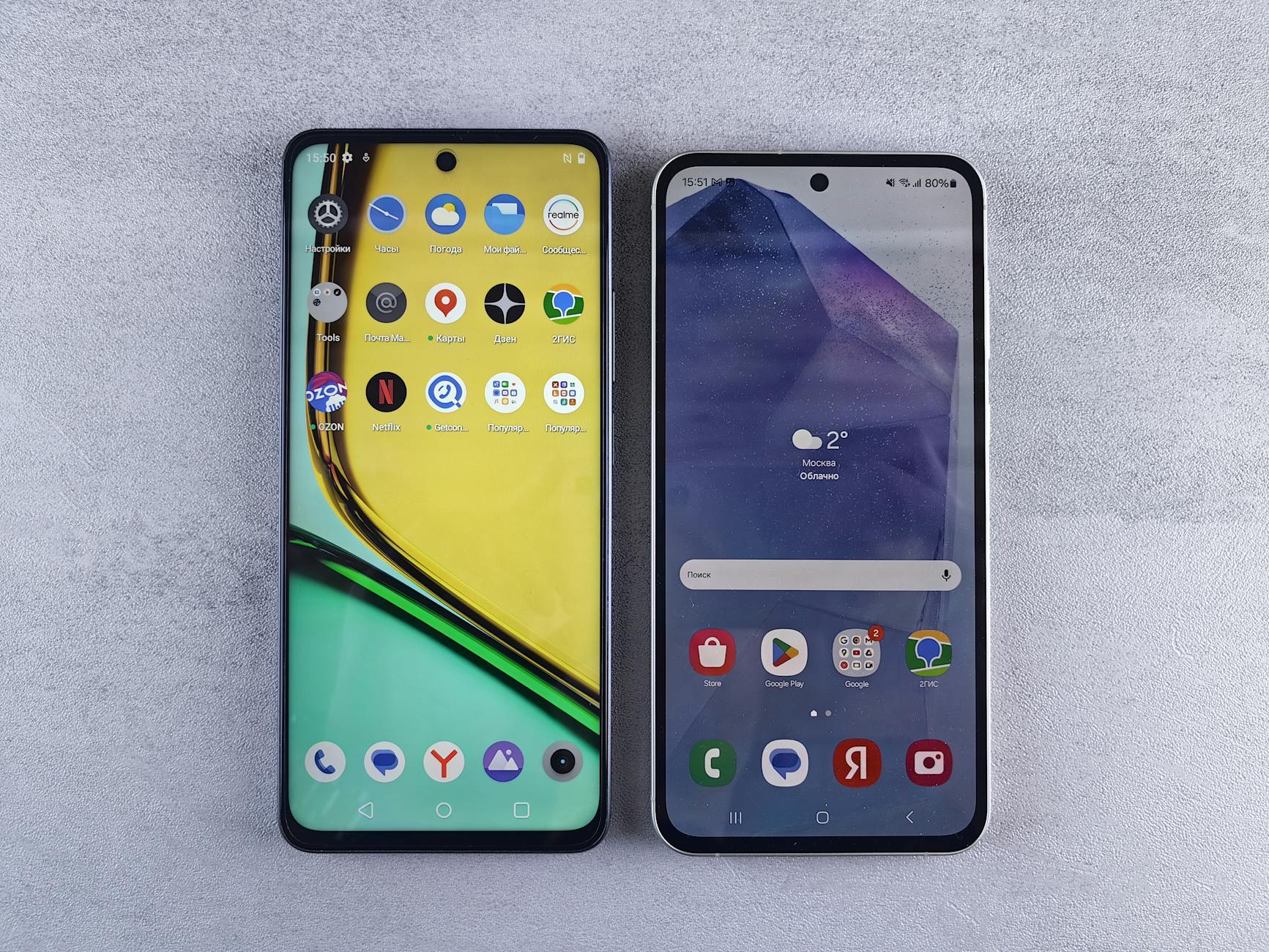 Photo by Andrey Matveev
Stock Android and Pixel devices
On stock Android and Pixel devices, shortcuts can be affected by profiles and work accounts. Start with simple checks and then move to cache and profile verification. The goal is to ensure the shortcut is created from the active app path and that the correct user profile is in use.
- Remove and re-add the shortcut from the current app path. This aligns the target with the app’s latest navigation.
- Clear Pixel Launcher cache to refresh mappings. You can do this via Settings > Apps > Pixel Launcher > Storage > Clear Cache.
- Verify the active profile. Work profiles or secondary accounts can hide or relocate screens. Switch profiles if needed so you’re testing under the same context as the shortcut’s target.
- If a shortcut still misfires, recreate it from within the app’s own shortcut option, if available, or by long-pressing the app icon and choosing Add to Home.
Practical tip: after major app updates, recheck that the shortcut still points to the right screen. Profiles matter here; a shortcut created under your personal profile may not work as expected when you’re using a work profile.
For more context on how Android handles shortcuts in different user contexts, see the official Android shortcuts overview. https://developer.android.com/docs/core/display/app-shortcuts
If you want a deeper understanding of Pixel launcher behavior, check Pixel community discussions about icon and shortcut changes after updates. https://support.google.com/pixelphone/thread/176783268/icon-opens-wrong-app?hl=en
Samsung One UI and other OEM launchers
OEM launchers often store extra settings or create separate environments, such as Secure Folder or Dual Messenger, which can affect shortcuts. If a shortcut lands in the wrong place, the culprit is usually launcher caching or a profile-like environment.
- Clear the launcher cache in Settings for the main launcher. Then re-add shortcuts from the primary user path.
- Recreate shortcuts from the main user instead of places like Secure Folder. Shortcuts created inside Secure Folder or a dual messenger environment can point to private or inaccessible targets.
- Test Dual Messenger scenarios by placing a shortcut in each messenger profile and confirming which activity opens. If behavior differs between profiles, you’ll know where the misdirection happens.
- If you rely on Secure Folder, verify whether the app is accessible from the main workspace and avoid cross-folder shortcuts when possible.
Note: Dual Messenger features are common on Samsung devices. Testing with and without Dual Messenger helps you confirm where the misrouting occurs. See Samsung’s Secure Folder guidance for how to manage apps in Secure Folder. https://docs.samsungknox.com/secure-folder/get-started/add-apps-to-secure-folder/
A practical reminder: avoid cross-environment shortcuts. They tend to break when the device or app reshuffles its environments.
Nova Launcher and other third party launchers
Third party launchers like Nova provide granular control to select the exact target activity. Use the launcher’s built-in Activity or Deep Link tools to pick the precise destination.
- Open the launcher and locate the shortcut or create a new one using the Activities or Deep Links option.
- Use the Activities selector to choose the exact activity you want launched. This helps avoid misdirection caused by internal app navigation changes.
- If available, clear the launcher cache and test after refreshing the activity selection.
- Be aware some activities may not be exportable without root access. In such cases, point the shortcut to a clearly exported entry point rather than a private activity.
When choosing a third party launcher, look for strong activity targeting features and reliable updates. If you’re curious about alternatives and how they compare, this overview covers popular options and what they offer. https://www.androidauthority.com/nova-launcher-alternatives-3597206/
If you prefer a broader guide on how to handle deep links in launchers, this resource explains the concept and practical steps. https://www.androidpolice.com/pixel-app-launch-bug/
Images and hands-on testing with the Activities selector can make the fix feel straightforward. After you set the exact target, test several shortcuts to confirm consistency across your typical smartphone workflows.
A quick note on exportable activities: some deep links rely on exported components. If an activity isn’t exported, the launcher cannot start it externally. When designing or reconfiguring shortcuts, aim for exported entry points to reduce instability. You can read more about exported components here. https://developer.android.com/privacy-and-security/risks/android-exported
If you’re evaluating a launcher for stability, consider how often it updates its Activity targeting features. Stable targeting saves time and reduces misfires over the long term.
Images in this section explore the idea of using a launcher’s Activity tool to pick the right destination and illustrate how the deep link path looks in practice. Photo by Andrey Matveev
End of device-specific guides. The next section covers a practical, step-by-step sequence to diagnose and fix misfiring shortcuts across all launchers. You’ll find a repeatable workflow you can apply whether you use stock Android, Samsung One UI, or a third party launcher.
External references used for practical context:
- Pixel app behavior and shortcuts: https://support.google.com/pixelphone/thread/176783268/icon-opens-wrong-app?hl=en
- Pixel launcher behavior discussion: https://support.google.com/pixelphone/thread/259268967/pixel-launcher-behavior-changed?hl=en
- General Android shortcuts management: https://developer.android.com/docs/core/display/app-shortcuts
Developer tips and prevention for robust shortcuts
Building reliable shortcuts means designing with how Android launches screens in mind. The goal is to ensure taps on home screen icons always land on the intended screen, even as apps update or devices change. Below, you’ll find practical, reader-friendly guidance for crafting robust shortcuts and preventing misfires. The emphasis is on outcomes you can verify quickly, with simple steps you can follow on a typical smartphone.
Make shortcuts resilient with proper intents
Shortcuts rely on intents to reach the right activity. The key is to point each shortcut at a clearly exported entry point and to keep the target up to date with the app’s navigation. When you export an activity, you allow the launcher or other apps to start it. If the target isn’t exported or the intent filter is misconfigured, the shortcut can fail or open the wrong screen.
A practical approach is to define a straightforward trampoline path: an exported, stable entry point that then routes to the actual UI inside the app. This keeps the user focused on the outcome rather than the internal navigation. To design robust shortcuts, first verify that the activity you intend to open is still present and publicly accessible. If the app structure changes, recreate the shortcut from the current app path so it points to the updated entry point.
- Use explicit intents that clearly identify the destination activity.
- Ensure the target activity remains exported and accessible from the launcher.
- Consider a small trampoline activity that safely redirects to the correct in-app screen, reducing risk if internal navigation changes.
For a concise primer on intents and filters, see the Android Developers guide on intents and intent filters. It explains how to start activities and structure your navigation so shortcuts stay predictable. https://developer.android.com/guide/components/intents-filters
If you want a quick frame of reference on managing shortcuts over the app lifetime, the Android documentation on managing shortcuts is a solid starting point. It covers visibility, display, and how to handle changes in the app. https://developer.android.com/docs/core/display/app-shortcuts
Handle dynamic shortcuts and locale changes
Dynamic and pinned shortcuts should reflect your current content and user preferences. When your app content changes, or when a user changes their locale, stale shortcuts can mislead users or point to irrelevant screens. A clear, readable update process helps keep shortcuts accurate without surprising readers.
High level approach:
- Dynamically refresh pinned and dynamic shortcuts after meaningful content updates. This ensures the shortcut targets stay aligned with what the user sees in the app.
- Rebuild the shortcut list when the locale changes so labels and destinations match the user’s language. This avoids confusion and improves accessibility.
- Test shortcuts against common flows in two or three typical locales to confirm consistency.
Think of it as keeping a travel map current. If the map shows yesterday’s routes, you’ll end up at the wrong place. Your shortcuts should always point to the correct, localized destination. After a content update, open the app’s shortcut editor if available, and adjust the target screens accordingly. When locale changes occur, prompt users to refresh shortcuts or automatically rebuild them in the background to reflect new labels and paths.
For a deeper dive into how to manage shortcuts programmatically, the Android developers guide on managing shortcuts offers concrete guidance on updating and ranking shortcuts, including how to handle visibility and user actions. https://developer.android.com/docs/core/display/app-shortcuts
External shortcuts can also be impacted by language and locale. Keeping labels and destinations in sync with the user’s selected language helps prevent misdirection and improves the overall experience on a smartphone.
Security and user safety considerations
Exposing exported activities carries security implications. If a shortcut opens an activity that should remain internal, your app risks leaking data or enabling unintended navigation. The safest approach is to expose only well-documented, public entry points that clearly describe what they do.
Key practical takeaways:
- Prefer clearly exported entry points with stable, documented behavior.
- Avoid exposing private activities that aren’t intended for external launch.
- Stay away from risky workarounds that bypass standard Android security models.
If you encounter errors referencing exported components, review the manifest to confirm which activities, services, or receivers are intended for external use. The Android documentation on exported components provides a useful framework for understanding when and why to export certain components. https://developer.android.com/privacy-and-security/risks/android-exported
For readers who want quick context on how exported components intersect with permissions, you can explore related guidance and community discussions. This can help you decide when to adjust an entry point or implement a safer alternative in the launcher. https://support.google.com/pixelphone/thread/75789913/all-my-home-screen-shortcuts-disappeared?hl=en
A practical rule of thumb: design shortcuts around clearly exported entry points. That reduces the chance of pointing to a private activity that isn’t designed for external launching and helps keep user trust intact.
If you’re curious about broader security considerations for app components, the linked resource on exported components is a solid starting point. It explains how external apps can interact with your app and why careful exposure matters. https://developer.android.com/privacy-and-security/risks/android-exported
Tips to keep shortcuts reliable over time
- Regularly review the app’s update notes and changelog.
- Re-create shortcuts after major app changes.
- Avoid cross-profile shortcuts and use per-profile setups where possible.
- Clear launcher caches if shortcuts begin to misbehave after updates.
- Prefer exported activities for shortcuts when you design or reconfigure them.
If you’d like to read more on common causes and fixes for shortcuts, these sources offer practical guidance and real-world examples:
- Manage shortcuts on Android: https://developer.android.com/docs/core/display/app-shortcuts
- App behavior in work profiles and Secure Folder contexts: https://us.community.samsung.com/t5/Discussions/Secure-Folder-and-Android-Work-Mode/td-p/2432128
- Quick primer on exported components on Android: https://developer.android.com/privacy-and-security/risks/android-exported
- Troubleshooting shortcut behavior and stale mappings: https://stackoverflow.com/questions/22798491/shortcut-launches-incorrect-activity-in-android
If you’re dealing with a specific device or launcher, check the launcher’s own support pages as well. Some manufacturers provide extra steps for refreshing shortcuts in their custom skins, which can save you a lot of time.
Smartphone owners often rely on a handful of trusted shortcuts. Keeping them accurate saves taps and frustration, so make it a habit to verify them after updates or changes to the app or device setup.
Conclusion
Most misfiring shortcuts boil down to two quick fixes: recreate the shortcut from the current app path and clear the launcher data. These steps align the target with the app’s latest navigation and reset any stale mappings the launcher cached. If issues persist, test with a different launcher or reinstall the app to start fresh. Share your device specifics in the comments so we can tailor guidance to your smartphone and launcher, and check for updates to keep everything running smoothly. If you found this guide helpful, please share it and revisit for any new tips as Android and launcher updates roll out.