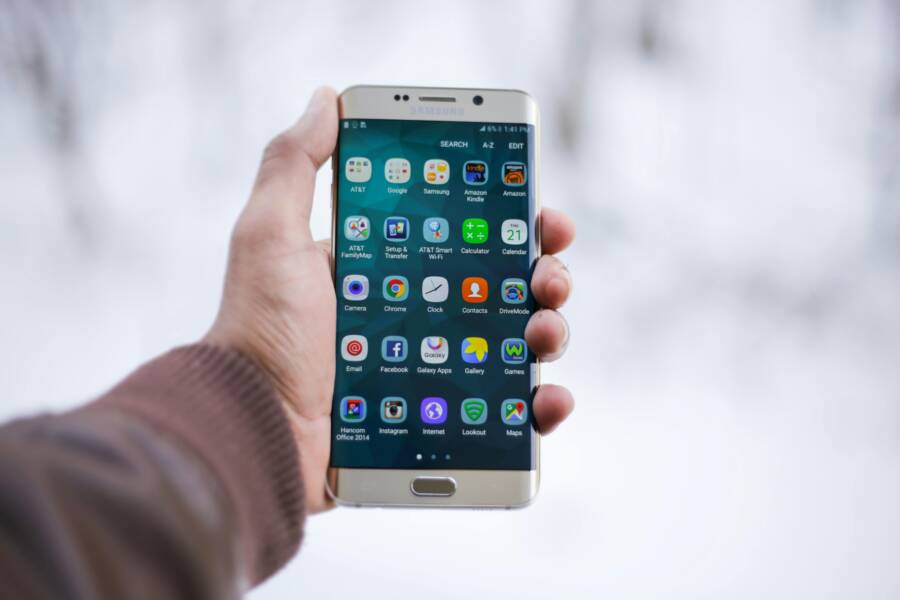
Picture this: you unlock your phone, ready to check messages or scroll social media, and your favorite app icons have vanished from the home screen. It’s a common frustration that hits iPhone and Android users alike. These disappearances often stem from simple glitches, recent updates, or accidental swipes during use. Don’t worry. Millions face this issue each year on their smartphones, but you can fix it fast with straightforward steps. No data loss required.
This guide walks you through proven methods, starting with quick searches and building to advanced tweaks. You’ll learn to spot hidden icons, restart your device, update software, and more. By the end, your home screen looks just like before. Follow along in order for the best results. Let’s get those apps back where they belong.
Quick Checks to Find and Restore Missing App Icons on Your Phone
Most missing icons hide in plain sight. Users often overlook basic spots on their phone. These first steps solve about 70% of cases without any restarts or updates. They work on both iPhone and Android, but gestures differ slightly.
Start with your phone’s built-in search. It pulls up apps instantly, even if icons moved. Then check folders or library areas. You’ll drag icons back to the home screen in seconds.
Photo by Artem Podrez
Search and Swipe to Spot Hidden Icons
Swipe down on your iPhone home screen to open Spotlight search. Type the app name, like “Instagram.” Long-press the result and tap Add to Home Screen. Drag it back if needed.
On Android, swipe down once or twice on the home screen for Google search. Enter the app name. Tap the icon, then drag it to your desired spot. This reveals apps buried in drawers or folders.
These moves take under a minute. They bypass visual clutter.
Check Folders, Dock, and App Library or Drawer
Icons slip into folders by accident. Swipe through home screens and tap any folder to expand it. Look for the missing app inside. Drag it out to the home screen.
Check the dock at the bottom. Some apps stay pinned there. On iPhone, swipe left past the last home screen to reach the App Library. Apps sort by category. Find yours, long-press, and drag to home.
Android users swipe up from the home screen for the app drawer. Scroll lists or use the search at top. Drag any icon back. To prevent hides, avoid quick swipes while editing screens. Customize slowly.
These spots catch overlooked moves. Your smartphone stays organized this way.
Restart Your Phone and Force-Close Apps to Fix Glitches
Glitches make icons vanish after heavy use or minor bugs. A simple restart clears temporary files and refreshes the home screen layout. It’s a safe first fix that works on most phones.
Force-closing apps resets their processes too. No need to delete anything. Test after each step. Icons often reappear right away.
Step-by-Step Restart Guide for iPhone and Android
For iPhone:
- Press and release volume up, then volume down quickly.
- Hold the side button until the power off slider appears.
- Slide to shut down, wait 30 seconds, then hold side button to restart.
If frozen, plug in a charger first. Force restart holds volume down and side button together for 10 seconds.
For Android (varies by model):
- Hold the power button until the power menu shows.
- Tap Restart.
- Confirm if prompted.
Samsung or Pixel? Long-press power and volume down for 10-20 seconds if stuck. Reboot wipes glitches clean.
Force-Close and Relaunch Problem Apps
Open the app switcher. On iPhone, double-click Home or swipe up from bottom and pause. Swipe up on app cards to close.
Android: swipe up from bottom and hold, or tap recent apps button. Swipe away suspects.
Relaunch from search if icons stay gone. Background crashes cause many hides.
Update Apps, OS, and Reinstall to Bring Icons Back
Outdated apps or system versions cause icon bugs, especially after big releases. Check stores first. Updates patch these issues.
Reinstalling refreshes files without much hassle. Back up data via iCloud or Google first. It syncs notes or logins.
Check for App and System Updates
iPhone App Store:
- Open App Store, tap profile icon.
- Scroll to Available Updates.
- Tap Update All or pick apps.
Android Play Store:
- Open Play Store, tap profile.
- Select Manage apps & device.
- Update all or specifics.
For OS: iPhone Settings > General > Software Update. Android Settings > System > System Update. Install over Wi-Fi. Batch updates save time. Restart after to lock in fixes.
Delete and Reinstall Missing Apps Safely
Steps for both:
- Search the app in App Store or Play Store.
- Tap the app, select Delete or offload (iPhone).
- Confirm, then Get or Install again.
iPhone offload keeps data: Settings > General > iPhone Storage > select app > Offload App. Reinstall restores icon.
Data syncs if linked to accounts. Test login post-install. Icons return fresh.
Advanced Fixes When Basic Steps Fail
Stubborn cases need deeper cleans. Android users clear app cache: Settings > Apps > select app > Storage > Clear Cache. Avoid clear data unless backed up.
Reset home screen on iPhone: Settings > General > Transfer or Reset iPhone > Reset > Reset Home Screen Layout. Icons snap to default spots.
Check restrictions. iPhone: Settings > Screen Time > Content & Privacy. Turn off app limits. Android: Settings > Digital Wellbeing > turn off focus modes.
Free space if low: Delete old photos or offload apps. Full storage hides icons.
Last resort: Reset All Settings (Settings > General > Transfer or Reset > Reset All Settings on iPhone; similar on Android). No data loss, but re-pair Wi-Fi.
Contact Apple Support or Google if persists. Prevent with weekly restarts. Your smartphone runs smooth longer.
Conclusion
You now hold the tools to fix missing app icons. Key takeaways include:
- Search and swipe to uncover hidden spots.
- Restart and force-close for glitch clears.
- Update apps and OS for software patches.
- Reinstall or reset layouts as needed.
Try steps in sequence. Most users see results in minutes. Customize your home screen freely, but edit one page at a time.
Regain control today. Share in comments: which fix worked for you? Your story helps others.