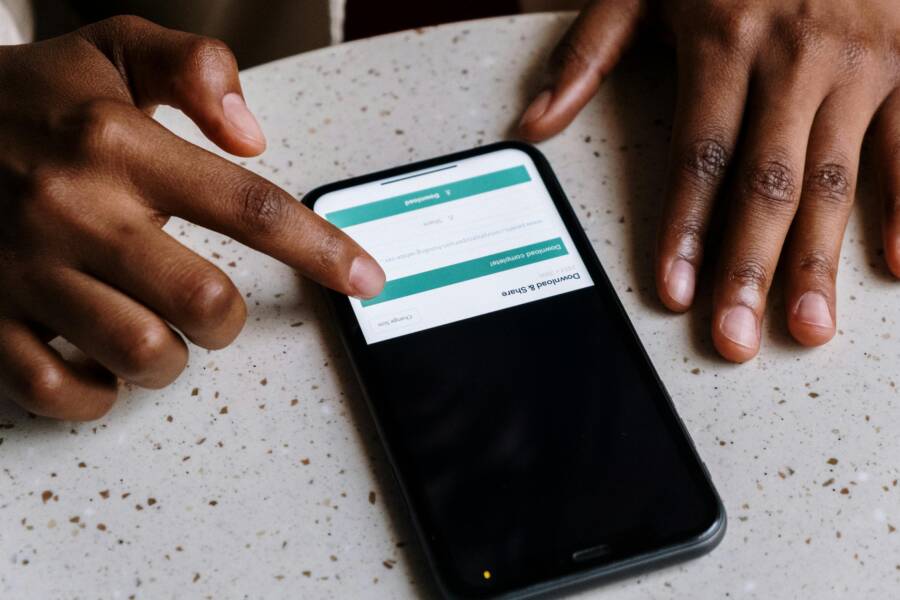
If you’ve ever tapped a photo button inside an app and nothing happened, you’re not alone. The message that asks for permission to access your photos may pop up, but sometimes it never appears. This can stop you from saving, sharing, or uploading images from the app. The good news is that it’s usually a quick fix. Below you’ll find practical steps to troubleshoot and resolve the problem on both major mobile platforms.
Introduction
Permissions govern what apps can see on your device. When an app tries to access photos, it should trigger a prompt asking for access. If that prompt never comes, the app can’t reach your photo library and you may encounter errors or failed uploads. The fix is often a matter of checking settings, updating software, and reinstalling when needed. Follow these steps in order, and you’ll likely regain smooth photo access in no time.
Understanding why the prompt disappears
There are several reasons why you might not see the request to access photos. A simple mis-tap in settings can block the prompt. A system update can change permission behavior. Some apps update and change their permissions workflow. A restricted account or parental controls may also hide prompts. If you’re using a managed device, the administrator might block certain app permissions. In most cases, the issue is not permanent and can be corrected with a few quick checks.
Quick checks you can do now
Before diving into platform specific steps, try these fast checks:
- Restart your phone. A short reboot can clear small glitches that block prompts.
- Update the app and the device software. New versions fix bugs that hide permission prompts.
- Remove and reinsert the permission request. For example, try performing an action in the app that needs photos access again after updating.
- Check for any privacy or screen time restrictions. A blocker can stop prompts from appearing.
If you notice the problem only with one app, focus on that app. If it’s happening across many apps, the issue is more likely with the device settings or OS.
Checking permissions on iPhone or iPad (iOS)
Where to look
On iOS devices you control app access to photos from the Privacy settings. The app’s permissions are tied to the Photos library. If the app isn’t listed, that usually means iOS hasn’t asked for permission yet, or something in the OS is blocking prompts.
Step-by-step guide
- Open Settings on your iPhone or iPad.
- Tap Privacy.
- Tap Photos. You’ll see a list of apps that have requested access.
- Find the app in question. If it’s listed, confirm that it has the right level of access. Options you might see include: Never, Read only, or Read and Write. Choose the level you need.
- If the app isn’t listed, go back and open the app and try the action that requires photos. If the prompt still doesn’t appear, reinstall the app and try again.
- If you use Screen Time or content restrictions, check those settings as well. Sometimes these controls block new permissions.
What to do if the app still won’t show the prompt
- Update the app. A newer version may fix a permission prompt bug.
- Reinstall the app. A fresh install can trigger the permission flow again.
- Reset app permissions. On some devices you can reset all app permissions and start over.
- Contact the app’s support if the issue persists. There may be a known problem with that particular version.
Android permissions and how to fix
Where to look
Android handles permissions a bit differently. Depending on the version and the app, you might see options labeled as Photos, Media, and Files, or simply Storage. The goal is to ensure the app can access your photo library.
Step-by-step guide
- Open Settings on your Android device.
- Tap Apps or Apps & notifications.
- Find and select the app that won’t show the prompt.
- Tap Permissions. Look for a permission related to Photos, Media, or Files and media. The exact label varies by device and version.
- Grant the needed permission. If you see multiple options, choose All photos and media or Allow all the time if you trust the app.
- If you don’t see a Photos permission, the app might request access through Storage or Media instead. Grant whichever option is shown.
- Some devices also offer a switch for “Allow access to media” or a toggle for “Modify system settings” that can influence prompts. Leave those at default unless you know you need them.
What to do if the prompt still won’t appear on Android
- Clear the app’s cache or data. Then restart the app and try again.
- Clear all permission settings and re-grant. This is usually found under Reset app preferences in the Android settings.
- Update the OS and the app. Compatibility fixes are common in updates.
- If the device is managed by a workplace profile, check with IT. Some policies disable or hide permission prompts.
Common issues and simple remedies
App bugs and delayed prompts
Sometimes a bug keeps the prompt from showing. The simplest fix is to update the app to the latest version. If that fails, a clean reinstall often resolves the issue.
Background processes and battery saving
Battery saver modes can restrict background tasks that trigger permission prompts. Make sure battery optimization isn’t preventing the app from requesting access. Temporarily disabling battery saver while testing can confirm if this is the culprit.
Parental controls and device restrictions
If a child’s account or a shared device has restrictions, the prompt may not appear. Check for Screen Time on iOS or Family Link on Android. Adjust the controls or use a different user profile for testing.
App behavior and permission timing
Some apps don’t require you to grant immediate access until you actually perform an action that needs photos. If you’ve enabled “Only while using the app,” the prompt should appear the next time you take that action. If it doesn’t, the app’s internal handling might be to blame and reinstalling can force a fresh permission request.
When to expect prompts and how to respond
In most cases, you’ll see a dialog asking for permission the first time the app needs access to photos. The prompt lets you choose among options like “Allow Once,” “Allow While Using the App,” or “Allow All the Time.” If you choose “Deny,” you should still be able to use the app for other features, but you’ll need to revisit the permission request later.
If you’re unsure which option to pick, consider your use case. If you want quick access for photo uploads, “Allow While Using the App” is a sensible default. If you frequently add photos from the app, “Allow All the Time” may be more convenient.
Edge cases worth noting
- Some apps store photos in a separate sandbox. If the app doesn’t appear in your photo album, check whether it uses its own file picker or cloud storage feature.
- Devices with multiple user profiles may not show prompts on the primary profile. Test on a different profile to confirm.
- When moving from one phone to another, permissions don’t always transfer. You’ll need to re-authorize after migration.
Practical tips to prevent future issues
- Review permission prompts as soon as you install a new app. Decide what access it truly needs and set the level accordingly.
- Keep your device and apps up to date. Software updates fix many permission quirks.
- Use a single trusted app store source. Installing from unknown sources can cause unexpected permission behavior.
- If you use a cleanup or optimization app, be cautious. Some tools mismanage permissions and cause prompts to disappear.
A quick checklist you can follow
- Update the app and OS to the latest versions.
- Restart the device to clear minor glitches.
- Check privacy settings on iOS or permission settings on Android.
- Reinstall the app if necessary.
- Verify there are no parental controls or enterprise policies blocking prompts.
Real world example
A user on an Android smartphone wanted to upload a photo to a social app. The app repeatedly asked for storage access but never showed a direct photo permission prompt. They updated both the app and the system, then cleared the app cache. After a fresh install, the app requested photo access correctly. The user granted the permission, and the upload feature worked again. The fix was straightforward, with no data loss or long downtime.
How to test after applying fixes
- Open the app and perform the action that requires photo access.
- If the prompt appears, choose your preferred option and complete the action.
- If the prompt does not appear, try again after a device restart.
- If you still have trouble, try a different app to see if the issue is isolated or widespread.
A better user experience with proper permissions
When you manage photo access wisely, you gain better control over your privacy and app functionality. The right permission level helps you share moments quickly without compromising security. The process is mostly about keeping your device and apps in sync with updates and settings.
Conclusion
The missing run of the “allow access to photos” prompt is usually a small puzzle with a clear fix. Start with quick checks like updating software and rebooting, then move through the app and system permissions for either iOS or Android. If the prompt still won’t appear, reinstall the app or test on another profile to determine if the issue is device wide or app specific. With the steps above, you can restore smooth photo sharing from any app you trust.
If you’ve walked through these steps and still face trouble, leaving a note with the app name and your device model can help the support team pinpoint the problem faster. And if you’ve found another reliable workaround, share it in the comments so others can benefit. Your smartphone is a powerful tool, and getting the right permission flow makes it that much more capable.