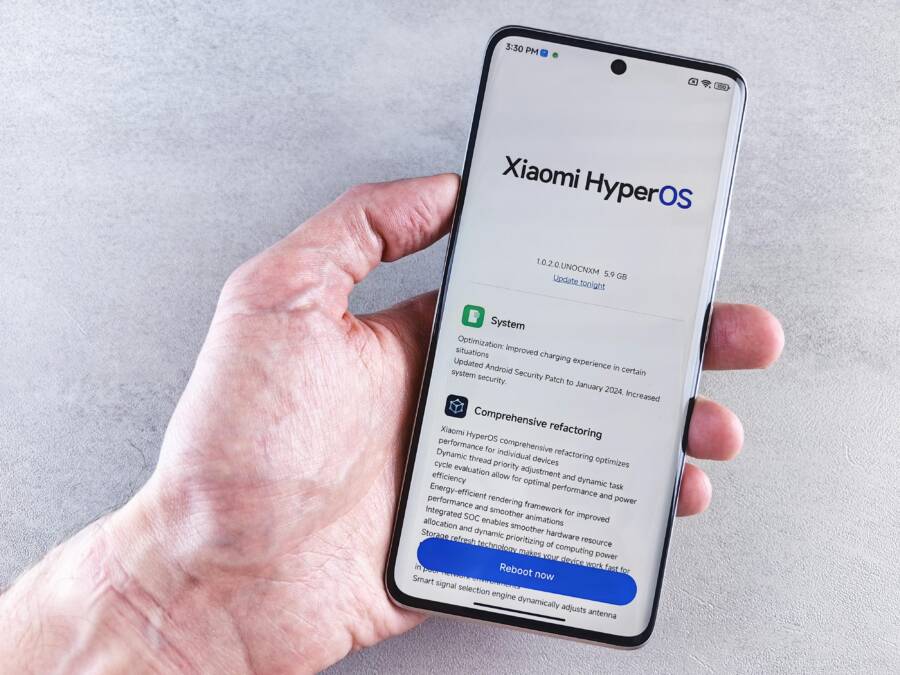
Have you noticed your phone slowing down after a recent system update? You’re not alone, and the slowdown is usually temporary as the device reindexes data and optimizes settings. This guide walks you through quick checks and safe fixes to restore speed without risking your data.
First, back up your important information on both Android and iPhone. A quick precaution can save you from a lost photo, contact, or note if you need to reset or refresh your system. Once you’re backed up, you’ll know you can try fixes with confidence.
We’ll cover practical steps you can take today, from lightweight tweaks to deeper optimizations. You’ll learn what to adjust, how to clear space, and when a backup and reset might be worth it. By the end, you’ll know how to get your smartphone running smoothly again without unnecessary risk.
Why updates can slow phones after a system update
After a big system update, your phone may feel slower for a short period. The delay usually fades as the device completes background tasks and a few optimizations settle in. Understanding what’s happening helps you decide which fixes to try first and which to skip. Below, you’ll find two focused subsections that explain how updates can affect speed and what to watch for in the days after you update.
 Photo by Andrey Matveev
httpshttps://www.pexels.com/@zeleboba
Photo by Andrey Matveev
httpshttps://www.pexels.com/@zeleboba
What changes during an update that can affect speed
Updates run a series of behind-the-scenes tasks that can make the phone feel slower at first. Here’s what typically happens in plain language:
- Indexing and rechecking data: The system may re-index files, photos, and app data so searches and app launches become faster later. That reorganization can temporarily use CPU power and memory.
- Calibrating system services: Core services adjust their routines for new features, security, and battery management. This can mean small delays as services re-sync with the refreshed OS.
- Adjusting visual effects and animations: Some updates tweak transitions to feel smoother or more consistent. While the changes improve the experience over time, they may require extra processing when you first start using the phone after the update.
- Rebuilding caches and app data: Apps may rebuild caches to align with new code paths. This can temporarily slow app launches as the caches get rebuilt.
A simple example helps illustrate this: after updating, you may notice longer app launches the first time you open an app, followed by smoother, but heavier, UI animations during that first run. The system is catching up, and once it completes these background tasks, the device often returns to normal speed or even feels snappier.
To keep things moving while this happens, avoid piling on new tasks. Try not to install a flood of new apps at once, and give the device some breathing room for a few hours to a couple of days if you can. If you want more context on why updates slow devices, this useful overview can help you set expectations: Why Your Phone Slows Down After an Update (and How to Fix It).
Common slow down signs to watch for
After a system update, some slowdown signs are easy to spot. Keeping an eye on these helps you decide if you should wait it out or start troubleshooting sooner:
- Slow app launches: Apps take longer to start than before the update.
- Lag when scrolling: Lists and feeds don’t glide smoothly, especially in media-heavy apps.
- Stutter when typing: Typing delays or delayed character input can occur as the system processes new UI changes.
- Quick battery drain: The update may alter power management, causing faster battery usage during normal use.
- Device gets warm: Prolonged processing during background tasks can cause the phone to feel warmer than usual.
If you notice these symptoms persist beyond a few days, it’s worth trying targeted fixes. In many cases, normal performance returns once indexing, caching, and recalibration complete. If you’re looking for practical steps to address this, you can refer to this detailed guide on how to fix slow phone performance after software updates: Why Your Phone Slows Down After an Update.
Images and visuals can help readers quickly grasp the concept of a device recalibrating post update. A photo showing a user interacting with a smartphone during the reindexing phase can be a helpful visual anchor. Photo credits should accompany the image as shown above.
Quick checks and prep before you fix slow phones
Before you jump into fixes, a quick prep pass can save you time and protect your data. These checks set a solid foundation and help you pick the right approach. Think of this as the warmup you do before a workout: it primes the device, clarifies what’s going on, and reduces the risk of doing the wrong thing. You’ll see three focused subsections that cover backing up, assessing storage and battery health, and noting your current OS and app versions. Each step is practical, actionable, and designed for both Android and iPhone users.
Back up your data before changes
Backing up creates a safety net so you can try fixes with confidence. There are two reliable paths: cloud backups and local copies. Here are simple, repeatable steps you can follow today.
- Cloud backups
- For iPhone: Use iCloud or iTunes/Finder on a computer. In Settings, turn on iCloud Backup, then run a manual backup to ensure the latest photos, messages, and app data are stored in the cloud.
- For Android: Use Google Backup or your device maker’s cloud service. Ensure backups are enabled, then trigger a manual backup so photos, contacts, and app data are preserved in the cloud.
- Quick tip: Check your latest backup date before making changes so you know you’re protected.
- Local copies
- iPhone: Connect to a computer and copy the iPhone’s backup folder or use Finder/iTunes to create a local backup. Local copies add an extra layer of safety beyond cloud storage.
- Android: Connect to a computer and copy the device’s DCIM and important folders, or use a backup app that stores a local file you can keep on external storage.
- Quick tip: Keep at least one recent local backup on an external drive as a fallback.
- What to back up
- Photos and videos, messages, contacts, documents, and app data that you can’t replace easily.
- Passwords and sensitive notes stored in apps or password managers.
- If you use two-factor authentication, have backup codes or a trusted method handy, in case you need to reset.
Backing up first makes it safer to reset, clear caches, or perform larger maintenance tasks if the slowdown persists. For a deeper dive into backup strategies across platforms, you can consult a practical guide like The Beginner’s Guide to Backing Up Your Phone for a step-by-step approach.
Links you may find useful:
- The Beginner’s Guide to Backing Up Your Phone
Check storage space and battery health
Low storage and degraded battery health are common culprits behind sluggish performance. A quick check helps you decide whether you should free space or address hardware aging.
- Why storage matters
- When storage is almost full, the system can’t cache data, prefetch content, or create temporary files efficiently. This slows app launches and overall responsiveness.
- A healthy buffer of free space gives the OS room to operate, especially during updates and background tasks.
- How to check storage and battery health
- Android: Open Settings > Storage to see used vs. free space. If free space is under 10–15%, start by moving photos off the device, deleting unused apps, or transferring large files to the cloud or a computer.
- iPhone: Go to Settings > General > iPhone Storage to view a breakdown and recommendations. You’ll see which apps consume space and can offload unused apps or offload photos to the cloud.
- Battery health: On Android, some devices include a built-in battery health section in Settings, or you can use a trusted battery health app for a more detailed report. On iPhone, check Settings > Battery > Battery Health to see the maximum capacity and peak performance capability.
- Quick space-saving tips
- Offload photos and videos to the cloud or a computer, then delete local copies.
- Remove unused apps and clear app caches where possible.
- Disable or limit live wallpapers and background data for apps that aren’t essential.
- Consider moving large files to a memory card if your device supports it (not all Androids do).
- If battery health is degraded
- Reduce screen brightness and shorten screen timeout.
- Use a low power mode when available.
- Turn off power-hungry features like always-on display, background app refresh, and location services for nonessential apps.
- If the battery capacity is significantly reduced, plan for a battery replacement. This can restore peak performance and extend device life.
Readers who want a deeper look at diagnosing battery health on Android devices can reference a practical guide on checking battery capacity and health. For iPhone users, a reputable guide on battery health helps interpret the numbers shown in Settings.
Links you may find useful:
- How to check battery capacity on your Android phone
- How to Check Your iPhone’s Battery Health
- How to check mobile health on Android, iPhone
Note the OS version and app versions
Knowing the exact OS and app versions helps you pick the right fixes. Some slowdowns are caused by compatibility issues or buggy updates, and others are simply the result of old software that needs a polish. Here’s how to locate those versions and why it matters.
- How to find the OS version
- Android: Settings > About phone > Software information. Some devices place this under Settings > System > About phone. Note the Android version and security patch level.
- iPhone: Settings > General > About. Record the iOS version and the build number if shown.
- How to check key apps and their versions
- On both platforms, you can open each app and look for a Settings or About section that lists the version number.
- Alternatively, you can check the app store listing for the latest version and compare it with what you have installed.
- For iPhone, you can also view app versions through Settings > General > iPhone Storage and tapping an app to see its version and storage impact.
- Why this matters
- If you recently updated and notice slowdowns, the issue might be tied to a buggy OS build or a misbehaving app version.
- Some fixes hint at an app-specific problem, like a recent update that clashes with system services.
- If you see an available OS update or a recent app update, applying updates can resolve compatibility issues quickly.
- Quick next steps
- If you’re close to a major OS upgrade, consider delaying nonessential app updates until you confirm stability.
- If a specific app version is known to cause issues, try updating to the latest version or rolling back to a previous version if possible.
- For guidance on checking app versions across iPhone and Android, a practical guide covers the exact steps and places to look.
If you want a deeper breakdown of how to verify versions and why it matters for fixes, you can review a practical guide like 3 Ways to Check App Version on iPhone and Android, which walks you through common paths to confirm versions and plan fixes accordingly.
Links you may find useful:
- 3 Ways to Check App Version on iPhone and Android
- How can I check what version of Android I have on my device
- Check & update your Android version
- How to See What Version of an iPhone App You Have
By performing these quick prep steps—backing up, confirming storage and battery health, and noting OS and app versions—you set a clear path for effective, targeted fixes. You avoid guesswork and reduce the risk of losing data or applying the wrong solution. If the device still crawls after these checks, you’ll be ready to move into specific performance improvements with confidence.
Simple fixes you can try right away
If your phone slowed after an update, you don’t have to dive into deep maintenance right away. Start with quick, low-risk fixes that address common culprits like background tasks, motion effects, and stale caches. These steps can yield noticeable improvements without risking your data. Think of them as the warm-up before more involved tweaks.
Restart the phone to clear temporary data
A full restart is different from a quick refresh. A full restart turns the device off, then back on, giving the system a complete reset of running processes. A quick refresh, or soft restart, simply reboots the user interface by briefly cycling power, which helps clear some temporary data but may leave a few background tasks running.
Why this helps: a restart stops background services that may be stuck after an update. It clears memory that’s holding onto old temporary files and finished tasks. When the system restarts, it re-allocates memory more efficiently and restarts essential processes with a clean slate. This can reduce lag, improve app launches, and make navigation feel more responsive.
How to perform it
- On Android: hold the power button, then select Restart. If your device is unresponsive, you may need a hard reboot by holding the power button for about 10 seconds. For devices with a nonresponsive screen, you can press and hold the power button and volume down button together for about 10 seconds to force a restart.
- On iPhone: press and release the volume up button, press and release the volume down button, then press and hold the side button until the Apple logo appears.
If you want a deeper dive into restart methods for Android, a practical guide explains hard versus soft restarts and when to use each option. For iPhone users, it’s worth reviewing Apple’s guidance on how to perform a safe reboot when devices act up.
Tip: after a restart, give the phone a little time to rebuild caches in the background. If you notice ongoing slowness, move to the next steps rather than piling on new tasks right away.
Limit animations and motion for a quicker UI
Motion effects add polish, but they can also tax CPU and GPU, especially after a large OS update. Reducing motion speeds up the user interface and can make scrolling feel snappier. This is particularly helpful if you frequently switch between apps, open long feeds, or use a device in one hand.
How reduced motion helps: when the system reduces or disables extra animations, it spends less time rendering transitions. That means quicker screen changes, fewer perceived lags, and smoother input feedback. It’s a simple setting that can have a big impact on perceived speed.
Easy steps to turn off animations
- iPhone
- Go to Settings > Accessibility > Motion.
- Turn on Reduce Motion. This lowers or eliminates most transitions and parallax effects, speeding up navigation without altering core functions.
- Android
- Open Settings > About phone > Build number and tap it seven times to unlock Developer options (you may skip this step on some devices and go straight to Developer options in Settings).
- Go to Developer options and adjust Window animation scale, Transition animation scale, and Animator duration scale to 0.5x or 0.0x as desired.
- If you don’t see Developer options, look for Accessibility or Accessibility > Remove animations, or search for “reduce motion” in Settings.
If you’d like visual guidance, there are quick tutorials and walkthroughs that compare Android and iPhone approaches to reducing motion. Reducing motion is generally safe and doesn’t erase data, but it does alter how some apps feel during use, so you may want to toggle back if you miss certain visuals.
Key takeaway: a lighter UI can feel faster, especially on devices with aging hardware or after a major update.
Clear cache and reduce background activity
Cache data and background tasks can build up over time and after updates. Clearing caches and trimming background activity releases space and frees resources, which can deliver a noticeable speed boost. It’s also a safe way to remove corrupted temporary files that might be causing glitches.
What to clear and what to avoid
- Clear app caches selectively
- Android: Settings > Apps > [App name] > Storage > Clear cache. Clearing cache for a few apps that you use frequently can restore responsiveness without touching personal data.
- iPhone: Clearing cache is often app-specific. In some apps you can clear cache from within the app’s settings; in others, offloading the app or deleting and reinstalling can remove cache data.
- Clear browser caches
- Both Android and iPhone benefit from clearing browser cache periodically. This helps when web apps or embedded content feel sluggish.
- Safeguards
- Do not delete data you rely on, like app logs you need for troubleshooting, or login credentials stored in apps. If you’re unsure, start with a small set of apps you notice slowest.
- Background activity
- Review which apps are allowed to run in the background. On Android, Settings > Apps > [App] > Battery > Background restriction can help limit persistent background tasks.
- On iPhone, Settings > General > Background App Refresh lets you disable it for nonessential apps.
A quick note on safety: clearing data that’s essential for app operation can cause you to log back in or reconfigure preferences. If you’re unsure, start with cache clearing for a few high-use apps instead of broad data wipes.
If you’re after a deeper how-to, several reputable guides walk you through safe cache-clearing practices for both platforms. For Android users, it’s helpful to understand how to clear cache without wiping personal data, while iPhone users can benefit from official guidance on offloading apps as a lightweight alternative to full resets.
In this section, the aim is practical speed improvements without risking important information. If you want structured steps for a targeted phone cleanup, a detailed guide on clearing caches and reducing background load can be a solid reference.
External resources to consider:
- How to clear your Android phone cache (and say goodbye to slow performance)
- How to clear app cache on your phone
Additional suggestions and related reading:
- For iPhone users seeking motion reduction and accessibility options, see Reduce screen motion on your iPhone, iPad, or iPod touch
- A quick comparison of Android animation settings and reduced motion concepts, including practical tips
By applying these quick fixes, you can often restore a noticeable amount of responsiveness. If the slowdown persists after trying the above, you’re ready to move into more targeted checks, such as verifying OS and app versions or considering a reset with backups. A well-tacticed approach keeps your smartphone performing at its best without unnecessary risk.
Deeper optimization steps to reclaim speed
After the quick wins, a few deeper, targeted adjustments can reclaim significant speed. This section dives into practical, repeatable steps you can apply to both Android and iPhone. Each sub-section focuses on a specific lever that often slows devices after updates, from freeing space to trimming background activity. Use these steps in order, but if something feels risky to your setup, move to the next item and come back later.
Free up storage by deleting unused files and moving photos
A lean storage footprint helps the system cache and operate more efficiently. Start by moving photos and videos off the device and removing duplicates. Then establish a simple rule for free space that keeps your device consistently responsive.
- Move photos and videos off the device
- Cloud first: enable automatic backups to iCloud, Google Photos, or your preferred cloud service. After confirming uploads, delete local copies to free space without losing memories.
- PC backup: connect your device to a computer and copy the DCIM folder and other large media; keep a local archive as a safety net.
- Remove duplicates and clutter
- Duplicates waste space and can slow indexing. Use a trusted tool or built-in features to identify and remove duplicates.
- Periodically scan for large, unused files and old app data that can be archived.
- Simple free space rule
- Aim to keep at least 15–20% of total storage free. If you’re below that, prioritize freeing space first, then reassess performance.
Why this helps: with more headroom, the OS can cache data, prefetch content, and manage background tasks more effectively. You’ll notice quicker app launches and smoother navigation as the system has room to breathe.
Image: 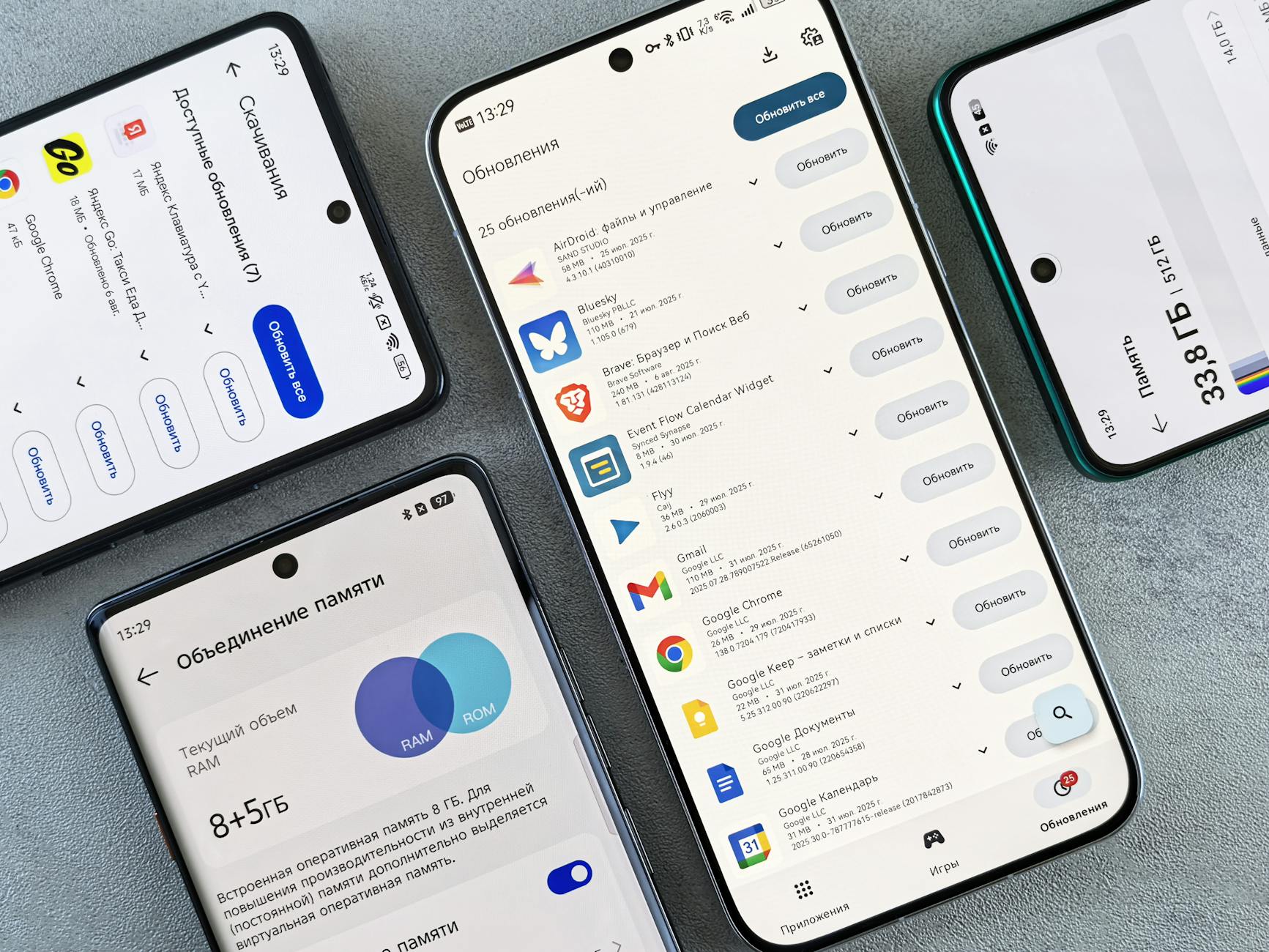 Photo by Andrey Matveev
- Extra tip: cleaning duplicates on iPhone can reclaim a lot of space without losing any originals. For practical steps, see how to delete duplicate photos on iPhone and free up storage.
Link: https://www.idropnews.com/how-to/delete-duplicate-photos-to-free-up-storage-on-your-iphone-heres-how/231128/
Manage apps and disable unused ones
Each unused app that stays active can quietly drain memory and CPU, especially in the background. A quick audit helps you reclaim speed without losing essential functionality.
- Review installed apps
- Go through your app list and identify ones you never use. Uninstall them if you won’t need them again.
- If you don’t want to delete, disable or pause them so they don’t run in the background or show notifications.
- Disable or limit permissions
- Revoke background data, location, and notification access for apps that don’t need them. This reduces wakeups and slowdowns.
- Platform-specific tips
- Android: use Settings > Apps > [App] to disable or uninstall. On Android 13+, you can manage “Unused apps” to auto-revoke permissions and stop background activity.
- iPhone: in Settings, review each app’s permissions and Background App Refresh. Offload or remove apps that aren’t essential.
- Why this matters: fewer background tasks mean less CPU load, less memory churn, and fewer background network requests that can slow the device.
- Quick reference steps
- Android: Settings > Apps > [App] > Disable or Uninstall; then Settings > Apps > Special access to restrict background activity.
- iPhone: Settings > General > iPhone Storage to see usage; offload unused apps or delete them as needed.
- Related reading: for a detailed walkthrough on removing or hiding unused apps on Android, see Delete, disable & manage unused apps on Android.
Link: https://support.google.com/android/answer/2521768?hl=en
Image: Optional supporting image can be inserted here if desired.
Reset network settings and tweak sync options
Network behavior and sync activity can quietly chew through battery and CPU. A reset helps clear stale connections and misconfigurations, while selectively adjusting sync keeps critical services running without constant background chatter.
- Resetting network settings
- This step clears saved Wi-Fi networks, Bluetooth pairings, and cellular settings. It often resolves slow connections, intermittent drops, and erratic data speeds.
- After resetting, you’ll need to rejoin networks and re-pair Bluetooth devices.
- Tuning background sync
- Mail and cloud services: set fetch to manual or interval-based rather than always on. This reduces wakeups.
- Social apps: limit background activity and disable auto-downloads for media unless connected to Wi-Fi.
- Cloud services: adjust sync frequency and file on-demand options to balance freshness with battery use.
- Why it helps: fewer background sync events and cleaner network configurations improve both speed and battery life.
- Quick setup steps
- Android: Settings > System > Reset options > Reset Wi-Fi, mobile & Bluetooth; then adjust Accounts > [Email/Cloud] > Sync frequency or fetch settings.
- iPhone: Settings > General > Reset > Reset Network Settings; then Preferences like Mail, Contacts, and Calendars > Fetch New Data set to manual or 15 minutes or longer; disable Push for nonessential accounts.
- External insights
- For a practical, step by step approach to resetting network settings on iPhone and Android, check out the guide How to Reset Network Settings on Android and iOS devices.
Link: https://timesofindia.indiatimes.com/gadgets-news/reset-network-settings-on-android-and-ios-devices-a-step-by-step-guide/articleshow/95453400.cms - How to Reset Network Settings On iPhone (And What Happens When You Do)
Link: https://slashgear.com/1629100/how-to-reset-network-settings-iphone
- For a practical, step by step approach to resetting network settings on iPhone and Android, check out the guide How to Reset Network Settings on Android and iOS devices.
- Quick note: after a network reset, reconfigure your essential Wi-Fi networks and trusted devices. You’ll notice cleaner connections and steadier background tasks.
Image: Optional image can be placed here if it fits naturally with network and sync content.
In this section, the aim is steady, maintainable improvements. If you still notice slow behavior after these steps, consider pairing these optimizations with a broader review of OS and app versions, or a clean backup and reset as a last resort. For readers who want a deeper dive into confirming app and OS versions before applying fixes, explore practical guides on verifying versions and compatibility across devices.
- 3 Ways to Check App Version on iPhone and Android
Link: https://www.example.com/3-ways-check-app-version - How can I check what version of Android I have on my device
Link: https://www.example.com/check-android-version - Check & update your Android version
Link: https://www.example.com/update-android-version
If you’d like more context on how network behavior affects battery and speed, a detailed overview can be helpful. For example, searching for a practical guide that explains network settings and performance can offer hands-on steps tailored to your device.
Photo credits and image usage note
- When using visuals, ensure each image supports the accompanying text and carries proper attribution as shown. The provided image is suitable for sections discussing updates and app behavior, and the photo credit would follow each image accordingly.
Preventing slowdowns after future updates
Updates are essential for security and new features, but they can also lay down a temporary slowdown as the system reindexes data and calibrates services. With a practical plan, you can head off performance dips before they bite and keep your device feeling responsive long after the update lands. This section covers two focused areas: keeping storage headroom and planning updates while monitoring performance.
 Photo by Andrey Matveev
Keep storage headroom and use lighter app versions
A healthy amount of free space helps your device manage background tasks, caches, and prefetching more efficiently. When storage gets tight, the OS struggles to create temp files and smooth panel transitions, which in turn slows everything down.
- Free space matters
- Aim to keep at least 15–20% of total storage free. This buffer allows the system to cache data, prefetch content, and perform background tasks without constantly chasing space.
- If you’re near full, you’ll notice longer app launches and slower navigation after updates.
- Lighter app versions
- Where possible, use lighter or web-based variants of apps. These versions use less background data and memory, reducing constant indexing and background processing.
- For example, consider using light mode in social apps or opting for the “lite” version when available.
- Practical steps
- Offload or move large items to the cloud or a computer, then delete local copies.
- Delete duplicates and purge unused files to reclaim space.
- Disable live wallpapers and restrict background data for nonessential apps.
- Quick checks after freeing space
- Restart the device to let the system reallocate resources.
- Open a few apps and gauge whether launches feel noticeably quicker.
- When to consider this a priority
- If you updated recently and a few apps feel sluggish, slowdowns are often most noticeable when the storage headroom is limited.
- If you rely on heavy apps for work or media, keeping space free helps sustain performance longer.
For a broader perspective on optimizing storage and app sizing, you can consult guidance on lite app strategies. You may also find value in resources that discuss planning for OS and app updates to minimize friction in the long run.
- How to plan for updates and keep devices smooth: How Do I Plan For iOS And Android Updates Affecting My App
- Practical ideas for future proofing mobile apps and devices
Links:
- https://thisisglance.com/learning-centre/how-do-i-plan-for-ios-and-android-updates-affecting-my-app
- https://www.dogtownmedia.com/future%E2%80%91proofing-your-app-how-we-plan-for-ios-and-android-updates/
- https://www.cnet.com/tech/mobile/make-your-iphone-android-last-years-longer-with-my-easy-tips/
Plan updates and monitor performance after updating
A smart approach is to pace updates and watch how the device behaves in the first days after install. Delaying nonessential changes gives you a chance to catch any odd app behavior early and act quickly.
- Delay nonessential updates
- If your device isn’t relying on the latest features, hold off on apps that have recently updated until you confirm stability.
- Limit automatic updates for noncritical apps during the first 48 to 72 hours after a major OS update.
- Monitor performance
- After updating, give the system a window to complete indexing and caching. Check for lingering symptoms like slower app launches or scrolling stutter.
- Track which apps or services behave oddly. If an app becomes noticeably laggy or crashes, you’ll know where to focus first.
- Quick checks you can perform
- Compare battery drain and temperature with a typical day. Unexpected spikes may indicate a background task pulling more resources post-update.
- Test a few common workflows: opening an app, sending a message, or playing a video. If delays appear, note the app and version.
- When to take action
- If performance does not improve within a few days, start targeted fixes such as clearing caches, reducing background activity, or checking app versions for compatibility issues.
For deeper context on how to plan for updates and maintain performance, you can explore guides on future-proofing mobile apps and planning OS updates. These resources provide structured approaches that align with real-world device usage.
- How Do I Plan For iOS And Android Updates Affecting My App
- Future-Proof Your Mobile App: iOS & Android Updates
Links:
- https://thisisglance.com/learning-centre/how-do-i-plan-for-ios-and-android-updates-affecting-my-app
- https://www.dogtownmedia.com/future%E2%80%91proofing-your-app-how-we-plan-for-ios-and-android-updates/
Additional tip: keeping a simple log helps you act quickly. Note the date of each update, the OS version, the app versions, and any performance notes. If you see a repeat pattern, you’ll know which fixes to try first next time.
By aligning storage headroom with a measured update plan, you reduce the likelihood of slowdowns after future updates. This approach makes performance more predictable and keeps your device responsive longer. If you want more practical steps for concrete scenarios, refer to the linked guides on update planning and performance monitoring.
Conclusion
Most slowdowns after a system update are temporary or reversible with safe, low-risk fixes. Start with quick checks like a full restart, reducing motion, clearing selective caches, and trimming background activity. These steps often restore responsiveness without touching your data or apps.
If the device still lags, move to deeper tweaks such as freeing storage, reviewing app versions, and tuning sync settings. A well-planned approach keeps a smartphone running smoothly and helps you avoid a full reset. Remember, keeping some storage headroom and using lighter app versions can make a big difference over time.
Save this guide for future updates and use it as a checklist. If you have questions or want to share your results, drop a comment or send a note. Your experience can help others in the community troubleshoot faster and keep their devices performing at their best.