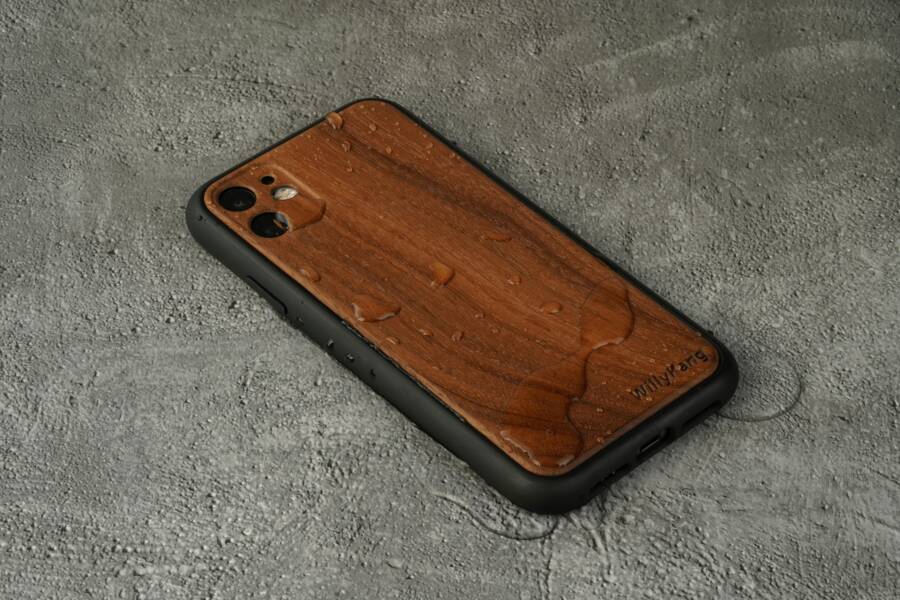
Spilling water on your phone is stressful, but the right steps can save it. In this guide, you’ll learn practical, tested phone drying steps you can follow in minutes after a spill, with safety as the first priority and clear actions that address water damage. We’ll call out common mistakes like using rice or applying heat, and show quick wins plus when to seek professional help.
Act Fast After a Phone Gets Wet
When a phone gets drenched, every minute counts. Quick, calm actions can mean the difference between a salvage and a total loss. This section focuses on the essential first steps you should take the moment you realize water exposure has happened. By acting fast and following proven precautions, you improve your chances of a successful recovery without causing further harm.
Power off and remove external components
Power down the device as soon as you can. If the screen is responsive, use the usual method to shut it off. If the screen is unresponsive, hold the power button for several seconds until the phone powers down. Do not press buttons repeatedly or try to force a reboot. Avoid plugging in a charger or accessory while the phone is wet. Then, carefully detach any external parts to improve air flow and reduce moisture entrapment:
- Remove the protective case to allow air to reach the device more effectively.
- Eject the SIM card and microSD card if present, unless you need them to stay in place for a moment.
- Take out any removable battery if your model supports it and you can do so safely.
If you want a quick checklist you can follow in the moment, here’s a compact version: power off, remove case, SIM, microSD, and any accessories, then set the phone in a dry area to start air drying. For more practical tips and a reference from trusted sources, you can read guidance from consumer tech experts and repair specialists. How to fix your water-damaged phone in 8 steps offers a fast, structured approach to this critical first stage.
What not to do right away
Certain actions can make water damage worse or push a phone past the point of recovery. Avoid these immediate missteps:
- Do not charge the phone. Power and liquid together can cause short circuits and corrosion.
- Do not shake the device to remove water. Shaking can drive moisture deeper into ports and components.
- Do not use a hair dryer on high heat or air flow. Excess heat can warp plastics and damage internal parts.
- Do not place the phone in rice. Rice is ineffective at absorbing moisture quickly and can leave dust and debris behind.
- Do not expose the phone to direct sunlight, ovens, or other heat sources. High heat accelerates corrosion and can deform parts.
Following these cautions protects the phone from further internal damage while you prepare for safer drying steps. For a broader perspective on why rice is not a good solution and what to do instead, see coverage from reputable outlets such as AP News and Consumer Reports.
Initial quick checks (after power off)
After you’ve powered down and removed external components, perform a rapid, careful assessment to identify obvious moisture or liquid ingress:
- If the device is removable, take out the battery if your model allows safe removal.
- Inspect the SIM tray area and charging port for visible moisture or water droplets.
- Look for moisture indicators or water damage indicators inside ports or on the SIM tray. Many devices have small color-changing indicators that reveal moisture exposure.
These quick checks help you decide whether you can safely continue air drying at home or if you should seek professional help. If you want a concise reference on what to do next and why these checks matter, Consumer Reports offers practical guidance on steps to take after a phone gets wet.
Drying Methods That Actually Work
When a phone gets wet, choosing the right drying method can make the difference between a quick recovery and a long, costly repair. This section focuses on practical, proven approaches you can apply at home. You’ll learn how air drying works, why humidity matters, and how to use desiccants effectively. We’ll also separate myths from solid options so you don’t waste time on ineffective fixes.
Air drying and desiccants explained
Air drying relies on moving moisture out of the phone and out of the air around it. The key is creating a dry environment where humidity is low and air can circulate. Desiccants like silica gel packets actively pull moisture from the device and its surroundings. When you place the phone in a dry space with desiccants nearby, moisture migrates from the phone into the surrounding packets, helping to reduce moisture inside ports and cavities.
Practical steps to maximize effectiveness:
- Keep the phone upright in a protected, well-ventilated area.
- Surround it with desiccants on all sides without blocking vents or openings.
- Avoid blocking airflow by stacking desiccants or placing the phone in a sealed container only if you also ensure there is adequate air exchange.
If you don’t have desiccants on hand, a purpose built drying bag or kit can speed up the process and yield better results than rice. For trusted options, consider silica gel-based drying kits and indicating packets that change color as they absorb moisture. You can read more about reliable desiccants and how they work in consumer guides and drying kit recommendations.
- For a quick overview of desiccant options and how they compare, see the iRecovery Drying Kit information and related silica gel products. iRecovery Drying Kit – Perfect For Cell Phones, iPods, Digital Cameras, MP3 Players, and more
Why humidity matters: moisture in the air competes with the phone for desiccants. In a humid environment, the desiccant’s job becomes harder, so it helps to place the device in the driest possible small area you can manage. If you’re unsure about the environment, a sealed, desiccant-filled container can still be effective, as long as you don’t block moisture transfer entirely and you monitor the indicators.
For additional context on how silica gel works and how to use it effectively with electronics, see silica gel resources and tutorial videos from reputable sources.
- Learn about using silica gel with electronics in practical demonstrations and product guidance. How to Use Silica Gel For Phone? – Chemistry For Everyone
Rice myths debunked and better options
Rice has long been touted as a miracle at-home fix, but it’s not ideal for drying a wet phone. Rice is slow to absorb moisture, can leave dust behind, and may trap moisture inside tiny ports. In many cases it does more harm than good.
Why rice falls short:
- It absorbs moisture slowly compared to desiccants, delaying critical drying time.
- It can leave starch dust inside speakers and ports, creating new problems.
- It can give a false sense of safety, causing people to delay proper drying steps.
Better options that actually work:
- Silica gel packets or beads: Fast, targeted moisture absorption with less mess.
- Silica gel drying bags: Designed for electronics, they spread desiccant power evenly around the device.
- Purpose built phone drying kits: Combine desiccants with guidance and indicators to monitor progress.
If silica gel isn’t available, you can still use a dry, sealed container with desiccants. Place the phone in the container with several packets, ensuring there’s space around the device for air to circulate. This method is more reliable than rice in most scenarios and reduces the risk of debris entering ports.
For context on why rice is not recommended, major outlets have weighed in. You’ll find clear explanations and alternate methods from credible sources discussing why rice should not be relied on for water damage.
- Read about why using rice is a poor approach and what to try instead from CNET. Why Using Rice to Save Your Wet Phone Is a Horrible Idea
- Another perspective from CNET on drying methods that actually work for iPhone and Android devices. Here’s the Truth About Putting Your iPhone or Android in Rice to Dry It Out
- A practical take from iFixit on why rice is not repair material and what to use instead. Rice Is for Dinner, Not Repair | iFixit News
If you’d like a step-by-step rescue mindset, read a consumer-focused rescue guide that outlines moisture removal strategies and when to seek professional help.
- A step-by-step rescue guide from Phonez Xpert discusses moisture removal and decision points for salvage. Water Damage: Can Your Phone Be Saved? (Step-by-Step Rescue Guide) – Phonez Xpert
What not to do during drying
Avoid actions that can worsen moisture intrusion or cause heat damage:
- Don’t apply heat sources such as hair dryers, ovens, or space heaters. Heat can warp plastics and push moisture deeper into the device.
- Don’t shake the phone to expel water. Shaking can drive liquid further into ports and connectors.
- Don’t power the phone up while any sign of moisture remains. Electricity and water are a dangerous combination.
- Don’t rely on rice as the primary drying method. It’s slow and can introduce debris.
Long drying times are common with many methods. If your phone shows signs of continued moisture after a full day, consider extending the drying period and rechecking indicators. For a broader sense of what to expect and how to judge when to move to professional repair, you can refer to general guidance on safe drying practices.
- Emergency guidance on water removal and drying steps can provide a quick, structured approach. Emergency Water Removal: What to Do When Your Phone Gets Wet
Step-by-step drying protocol
Here is a concise protocol that combines air drying with desiccants. It’s designed to be practical and safe, with clear timing so you know what to expect.
- 0–60 minutes: Power off and remove external parts. If possible, take out the SIM card and microSD card.
- 1–24 hours: Place the phone in a dry environment and surround with desiccants. Keep the device upright and in a protected area.
- 24 hours: Check moisture indicators if available. If indicators show moisture or if the device remains wet, extend the drying window to 48 hours.
- 24–48 hours: Continue air drying with desiccants in place. Avoid opening the device or charging during this period.
- Optional checks after drying: Reinsert removable components and test basic functionality slowly. If you still observe moisture indicators or a malfunction, seek professional evaluation.
- If indicators remain dry and the device powers on, perform a careful functionality test covering charging, audio, screen responsiveness, and camera.
Practical tip: while you wait, avoid introducing more moisture. Keep humidity low and do not place the phone in direct sunlight or hot spots. A well controlled drying environment improves your odds of a successful recovery. If you want a quick, authoritative checklist, consult consumer guidance on post-damage steps and timing.
- For a consolidated set of steps and checks after water exposure, see reputable consumer guidance. Apple and Samsung warnings on rice and drying methods
Know the Damage: How to Tell If Your Phone Survived
After a spill, a quick, informed check can save you time and money. This section helps you identify visible and internal signs of water exposure, so you can decide on the right next steps. You’ll learn what to look for on the screen, inside ports, and how moisture indicators work. Think of it as your first-dight triage for a potentially soaked device.
Visual and port indicators
Water exposure leaves telltale signs that you can spot without opening the phone. On the screen, look for discoloration, flickering, or unresponsive areas, especially near the edges and around any punch holes. If the touch screen behaves erratically or shows ghost images, that can point to moisture in the display assembly or beneath the glass.
Outside ports are equally revealing. Check the charging port, headphone jack (if present), and SIM/microSD tray for visible moisture, droplets, or condensation. Water damage indicators inside these areas are usually small stickers or color-changing strips. Many devices place a Liquid Damage Indicator (LDI) in the SIM tray or within the dock area; when exposed to liquid, these indicators change color from white to red or pink. This change is a reliable, at-a-glance cue that moisture has reached internal components. For example, Samsung and Apple devices commonly feature LCIs or LDIs that you can verify with a quick tray check or under a flashlight. If you see a color change, treat the device as water-damaged and proceed cautiously with drying and testing. For reference, see guides on how LDIs and LCIs are located and interpreted by manufacturers.
- If you suspect moisture in the SIM tray area, a simple tray check can reveal a lot about exposure. Check the liquid damage indicator on the phone
- Apple devices also employ LCIs; you can verify exposure details in official guidance. Water and other liquid damage to iPhone or iPod isn’t …
Color changes aren’t a perfect guarantee, but they’re a strong signal. If the indicator shows moisture or you notice screen anomalies, avoid charging the device and start a careful drying process. Even if the indicator looks fine, internal moisture can linger, so use the indicators as part of a larger assessment, not the sole test.
Data risk and recovery options
Water can corrupt data in surprising ways. A brief splash may not erase everything, but corrosion and short circuits can quietly damage storage, memory, or the logic board. Before you start any repair attempts, consider your data risk and the recovery options.
- Cloud backups: If you’ve been backing up automatically to the cloud, you may already have a good copy of your contacts, photos, and documents. Review your cloud status and confirm recent backups were completed before the incident. If you haven’t backed up recently, this is a reminder to prioritize backups moving forward.
- Professional data recovery: When water damage seems severe or the device won’t power on, data recovery specialists can salvage photos, messages, and other files. This service can be expensive, but it’s often worth it for valuable memories or irreplaceable work files. Reputable providers offer evaluations with no data, no fee policies in many cases.
- Backups before attempting repairs: The safest plan is to assume data loss could occur during any repair. If the data is critical, secure a backup first from a cloud service or a professional recovery quote before you proceed with repairs. This approach minimizes regret if the device can’t be revived.
If you want a broader view on data recovery services and what they typically cover, consider sources from established repair and data recovery providers. For example, dedicated guides on water damaged phone data recovery outline typical success rates and what affects outcomes. Water Damaged Mobile Phone Data Recovery provides an overview of what to expect from a data recovery specialist. For Android and iPhone scenarios, firms that handle no-power or water-damaged devices often publish case studies and pricing ranges to help you plan.
When to repair or replace
Deciding whether to repair or replace hinges on several practical factors. Understanding these helps you avoid scrapes of cash and frustration.
- Cost versus device value: If a repair quote approaches or exceeds the phone’s current market value, replacement often makes more sense. A clean, up-to-date device can deliver better performance and longer support than a costly fix.
- Age and warranty: If the phone is older and out of warranty, repairs might be more trouble than they’re worth. If you have warranty coverage for water damage (rare but possible for certain plans), weigh that against the pricing for replacement.
- Severity of exposure: A quick splash may respond to careful drying and component checks, but a full submersion that affected the motherboard or battery typically requires a more cautious approach. Visible corrosion, swollen battery, or charging issues are strong signals to replace.
- Data considerations: If data recovery is essential and the device remains unreliable, you may want to secure data first through cloud backups or a professional service before attempting to power it back on.
If you want a concise framework for these decisions, reputable repair guides lay out typical price ranges, age thresholds, and decision trees to help you choose wisely. For example, industry guides compare repair costs versus replacement value and list common breakpoints to watch. Water Damage iPhone Repair Cost Breakdown offers a practical look at when a repair makes sense and when a replacement is the smarter move.
Quick safety and sanity checks
- Don’t power the phone up after a spill if you still see moisture or if the indicator shows moisture. Electricity plus liquid is a dangerous mix.
- Don’t attempt DIY fixes that require disassembly unless you’re confident in static-safe handling and safe battery removal. A misstep can void warranties and increase damage.
- Do document the incident. Photos of the indicator, ports, and any corrosion help if you pursue a warranty claim or professional repair.
If you’re deciding on the next steps and want guidance on timing, a brief, reliable overview can help you set expectations. For broader guidance, Apple and Samsung both provide official notes on how moisture indicators work and what to expect after exposure. LCI and LDI indicators | Water and other liquid damage to iPhone or iPod isn’t covered by warranty
When to seek professional help
If indicators show moisture or you’ve tried a careful drying cycle with desiccants and the device still won’t function, professional help is the prudent path. A repair technician can inspect for corrosion, test the board, and replace failing parts if feasible. In many cases, data recovery specialists can salvage photos, messages, and important documents even when the phone itself remains non-operational. For a sense of what professional services offer, explore a few established sources:
- Data recovery specialists with a track record in water damage, such as those described in industry roundups and service pages. A sample overview is here: Phone Data Recovery Services – Gillware.
- Comprehensive data recovery options that handle water damage across brands. For example, providers detailing Android data recovery for water damaged devices: Android Phone Data Recovery – File Savers Data Recovery.
- iPhone specific recovery options and certifications, as a reference point for expectations: iPhone Data Recovery – DriveSavers.
If you’d like a quick, credible summary of when professional help is worth it, you can consult general guidance that outlines typical triggers, costs, and outcomes. For instance, repair cost discussions and decision factors are covered in multiple consumer guides and repair network resources. When To Repair vs. Replace Your Phone
This section provides a structured approach to identifying and understanding water damage signs, data risk, and the practical decision points that follow. Use the indicators, backups, and professional help paths to guide your next steps with confidence.
Prevent Future Water Damage: Best Practices and Gear
You handled the immediate crisis, but stopping water exposure before it starts saves time and money. Smart choices in gear and routines keep your phone safe from spills, splashes, and storms. These steps build a strong defense without much effort.
Protective accessories that really help
Gear like cases and pouches adds real protection against everyday water risks. A good waterproof case seals ports and covers the screen to block splashes and brief dips. Screen protectors with hydrophobic coatings repel water drops, so rain slides off instead of seeping in. Waterproof pouches work for beach or pool use; they float and keep touch access while blocking full submersion. Lanyards attach to cases so you don’t drop the phone near sinks or tubs.
Look for the IP rating on any accessory or smartphone. It shows dust and water resistance levels. The first digit covers dust (6 means total protection). The second rates water: 7 handles 1 meter immersion for 30 minutes, while 8 survives deeper or longer dips. In real life, IP68 lets you use your phone in rain or light splashes, but it won’t save a dropped device in a pool for hours. Saltwater or chemicals can wear down seals faster, so rinse after exposure. For a clear breakdown of IP ratings and their limits, check this guide from Android Authority.
Consumer Reports tested pouches and cases for leaks. Reliable picks held up in pressurized tanks, far better than cheap options. Their waterproof case reviews highlight top performers.

Photo by 仕旻 康
Pick accessories that match your phone model for a snug fit. Replace them yearly or after heavy use to maintain seals.
Smart daily habits for rain and pool days
Simple changes in how you handle your phone cut water risks sharp. Keep it pocketed during rain; don’t pull it out to check texts mid-storm. Near pools or lakes, set it on a dry towel far from edges. At the beach, avoid sandy spots where waves creep up.
Use a waterproof bag for outings. These roll-top pouches protect against splashes and floats if dropped. Touch works through clear windows, so you stay connected. For hikes or kayaking, clip one to your pack. Always dry the bag after use to prevent mold.
Leave the phone at home or in the car during heavy water activities. Why risk a slip when a quick photo later works fine? Travel + Leisure tested pouches for pool and adventure use. Their top picks stayed dry in real tests.
Quick habit list to lock in:
- Stash it away in sudden rain.
- Use bags near water edges.
- Wipe dry after any mist.
These moves add up. Your smartphone stays functional longer.
Maintenance and moisture monitoring
Regular checks spot trouble early. Inspect moisture indicators monthly, especially in humid areas. These stickers in ports or SIM trays turn color if wet. A white one means dry; red signals past exposure.
Clean ports gently with a soft brush or compressed air. Dust mixed with humidity fools sensors into false alerts. Skip toothpicks or metal; they scratch pins. Dry environments help too, so store away from steamy bathrooms.
Set phone reminders for checks after rain or sweat-heavy workouts. Wipe seals on cases clean. Avoid pockets with wet clothes.
Samsung and Android phones often show “moisture detected” warnings from debris, not just water. This fix guide covers safe cleaning steps.
Stay consistent. A dry phone lasts years without drama.
If Your Phone Boots After Drying: Troubleshooting and Next Steps
If your phone powers on after drying but still shows problems, you’re not out of the woods yet. A device that starts up can hide lurking damage in the audio path, touch sensors, cameras, or battery. The goal now is to confirm core function, safeguard your data, and decide on the right next move. Use this section as your quick, practical guide to triage and action.
What to do if it powers on but has issues
When the screen responds imperfectly or sounds crackle, it points to moisture or corrosion lingering inside. Start with targeted checks to map out the scope of the fault.
- Test the essentials in sequence: touchscreen responsiveness across all regions, speaker output (music or call audio), microphone clarity, camera autofocus and capture, and sensor accuracy (proximity, ambient light, fingerprint or face ID if applicable).
- Monitor battery life and charging behavior. If it drains rapidly or fails to charge consistently, there may be damage to the charging circuit or battery.
- Listen for unusual sounds. Hissing, buzzing, or static during calls can indicate moisture near the speaker grill or microphone.
- Look for visual cues. Screen flicker, dead zones, ghost touches, or color shifts can signal display or digitizer issues caused by moisture.
If you notice persistent issues after these checks, it’s wise to back up immediately and prepare for a professional assessment. For a concise, practical workflow on this phase, you can consult guidance from repair experts who outline step by step triage after a drying period. How to Safely Handle a Water Damaged Phone
Running diagnostics and backups
Running diagnostics helps you quantify what’s functioning and what isn’t. Use built in tools or trusted apps to run checks, then back up your data to cloud storage or a computer. This protects your information should the device worsen or fail.
- Use built in diagnostics: most smartphones include hardware tests for screen, speakers, mic, sensors, and battery. Run a full suite to catch subtle issues you might miss with casual tapping.
- Back up data now: cloud backups are fast and convenient, but you can also copy files to a computer for extra security. Prioritize photos, contacts, documents, and app data.
- Document findings: note which features pass and which fail, plus any error messages or abnormal battery behavior. This helps a repair tech diagnose faster.
- Consider a factory reset only if you’ve secured a reliable backup. A reset won’t fix hardware faults but can clear software glitches that mimic hardware issues.
If you’re uncertain about which diagnostic tools to trust, look for guides that discuss practical testing routines for both iPhone and Android devices. For a trusted overview of recovery steps and data protection, refer to consumer guidance on post-damage checks and backups. How to Fix a Water-Damaged Phone: A Complete Guide
When to replace or seek professional help
Even a phone that boots can benefit from a professional inspection. The decision to repair or replace hinges on cost, age, and data risk. Here’s a practical framework to guide your choice:
- Cost versus device value: If a repair quote nears or exceeds the phone’s current market value, replacement often makes more sense.
- Age and warranty: An older device with no warranty may not be worth costly repairs. If you have coverage for water damage, weigh the savings against a newer model.
- Severity of exposure: Partial moisture may dry out with time, but corrosion, a swollen battery, or multiple failed components usually means a higher repair bill.
- Data considerations: If data is critical and the device is unreliable, prioritize data recovery and backup before any further testing.
Professional help can range from a diagnostic assessment to board-level repairs and data recovery. If you’re facing a data-heavy scenario, discussions with data recovery specialists are worthwhile. For examples of services and expectations, explore reputable providers that handle water damaged devices. Phone Data Recovery Services – Gillware
Beyond repair, consider a no-power recovery option from firms that publish case studies and pricing ranges to help you plan. iPhone Data Recovery – DriveSavers
If you’re weighing repair versus replacement, you’ll find practical cost breakdowns useful. Compare typical repair costs to replacement value to avoid overspending. Water Damage iPhone Repair Cost
Quick safety and sanity checks
- Don’t power the phone up if moisture is still present or if the indicator shows moisture. Electricity plus liquid is a dangerous mix.
- Don’t attempt any disassembly DIY fixes unless you’re confident in static-safe handling and safe battery removal.
- Do document the incident with photos of indicators, ports, and any corrosion. This helps with warranty claims or professional repairs.
For official guidance on moisture indicators and what to expect after exposure, see manufacturer resources that explain how LDIs and LCIs work. LCI and LDI indicators | Water and other liquid damage to iPhone or iPod isn’t covered by warranty
Data risk and recovery options
Water exposure can bite your data in ways that aren’t obvious at first. Before you try any repair, consider the data risk and your options.
- Cloud backups: Check if your cloud backups captured the latest photos, messages, and documents. If not recently backed up, act quickly to secure data from remaining sources.
- Professional data recovery: If the device won’t power on or shows significant corrosion, data recovery specialists may salvage files. This service can be pricey but is often worth it for priceless memories or critical work files.
- Backups before repairs: Assume data loss could occur during repair. Create a fresh backup or obtain a recovery quote before proceeding.
For a broader view on data recovery services and what they cover, you can explore guides from established providers. Water Damaged Mobile Phone Data Recovery
When to seek professional help (again, with clarity)
If moisture indicators persist or the device remains unresponsive after a careful drying cycle, a professional evaluation becomes the prudent path. A skilled technician can inspect for corrosion, test the logic board, and replace components as needed. In many cases, data recovery specialists can salvage photos and documents even if the phone itself won’t power on. For reliable references on what professional services offer, review sources from well-known repair and data recovery providers. Phone Data Recovery Services – Gillware DriveSavers iPhone data recovery No-power data recovery options for Android devices
If you’d like a quick takeaway, remember: a cautious drying path and a clear plan for data protection are your best bets. When in doubt, professional evaluation helps you avoid costly mistakes and maximize your chances of saving both the device and your information. For practical, real-world guidance on deciding between repair and replacement, consult industry resources that compare costs and outcomes. Water Damage iPhone Repair Cost Breakdown
This section equips you with a structured approach to identify lingering issues after a phone boots post-drying, protect your data, and make smart decisions about repair or replacement. The goal is to keep your smartphone functioning and your information safe, even after an unexpected splash.
Conclusion
Drying a wet smartphone the right way hinges on quick, calm action and good habits. Power off immediately, remove external parts, and keep the device in a dry, well ventilated spot while you use desiccants to pull moisture out. Avoid rice and heat, and run careful checks on moisture indicators and basic functions before you power up again. Back up your data and consider professional help if moisture persists or if you rely on irreplaceable files. Keep this guide handy, subscribe for more practical tips, and save it for emergencies so you can act fast when a splash happens.