There Is a Frequency That the Wealthiest Families Have Used for Generations and Most People Will Never Know It Exists
>>> Open the Door <<<

Missing a call because your phone stays quiet in silent mode is more common than you think. If your device won’t vibrate, you miss messages and alerts that matter, even when the sound is off. This guide covers quick checks that apply to both iPhone and Android, so you can fix the issue fast.
Start with the basics. Small settings tweaks often solve this without any hardware work. Check that your phone’s vibration options are turned on for alerts, calls, and texts. A quick toggle can make all the difference, especially if you’ve recently updated the operating system or installed new apps.
If the problem isn’t in the sound settings, look at Do Not Disturb or Focus modes. Those modes can silence vibrations too, even if your ringer is set to a normal level. Disable them or adjust exceptions so you still get vibrations when silent is active. This is a common pitfall that trips up many users.
If the software looks right, test the hardware. Try a vibration pattern in the accessibility or sound settings, and listen for any sound or feel of the motor. If there’s no response, the issue might be deeper and require a professional check. These steps come from real-world testing and user reports, and they work across many models, including the latest smartphones. Grab your phone and follow along to see which step solves your silent mode vibration problem.
What If the Only Thing Between You and the Life You Deserve Is a Hidden Wealth Code Waiting to Be Activated
>>> Open the Door <<<

Why Your Phone Ignores Vibration in Silent Mode
When your phone refuses to vibrate while in silent, it can feel like a silent culprit sneaking past you. The issue is usually a setting or a minor software hiccup, not a broken motor. This section cuts through the noise with practical checks you can perform quickly. Think of your smartphone as a small but mighty alarm system: a few correct taps can bring back tactile alerts, even when the sound is off.
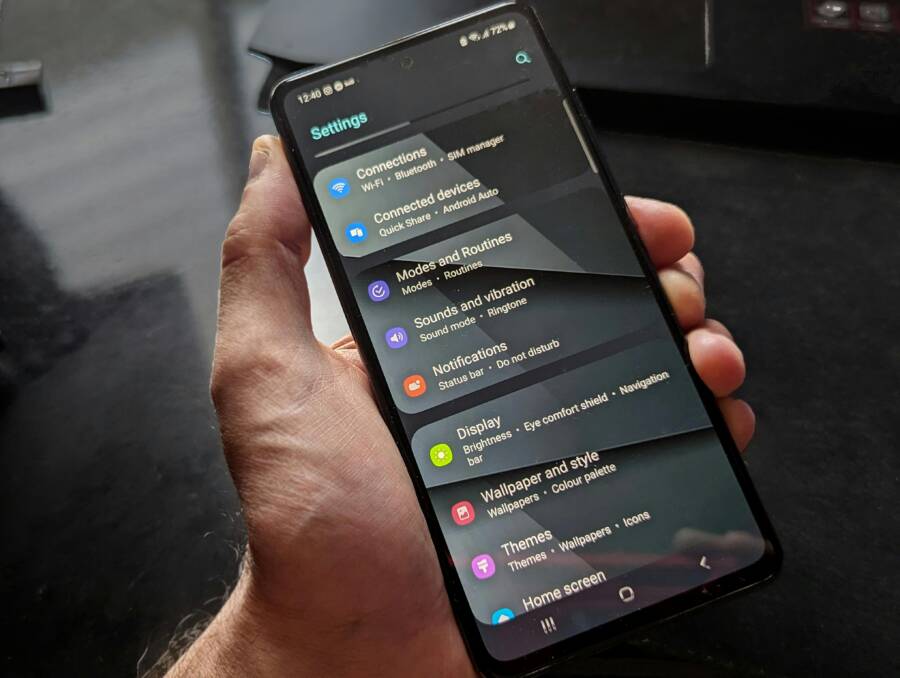
 Photo by Watford London Media
Spot Do Not Disturb as the Culprit
Do Not Disturb (DND) and Focus modes are popular ways to mute distractions, but they can quietly suppress vibration too. If DND is active, your phone may vibrate for some notifications but remain quiet overall, especially if you’ve customized exceptions or the “vibrate when silent” behavior.
- For iPhone users:
- Open Control Center and look for the moon icon. If it’s highlighted, DND is on. Tap the moon to turn it off or adjust Focus settings so vibrations remain active in silent mode.
- After toggling, test quickly by sending a text or pinging yourself with a notification while the phone is on silent.
- Quick tip: Check Settings > Focus > Do Not Disturb. Ensure that “Silence” is set to “When iPhone is locked” or “Always” according to your needs, and confirm that Vibrate on Silent and Vibrate on Ring are enabled in Settings > Sounds & Haptics.
- For Android users:
- Swipe down from the top to open the quick settings panel. If Do Not Disturb is active, tap the icon to disable it.
- You can also customize DND rules so vibrations still occur for calls or messages in silent mode. Look for exceptions that allow important alerts to vibrate through.
- After turning DND off or adjusting rules, perform a quick vibration test by sending yourself a message or calling the line set as a priority contact.
A quick test after changes is essential. Put the phone in silent mode, then send a couple of alerts to confirm the motor responds. If you notice the vibrations still don’t fire, move to the next check. For extra reading on how DND interacts with vibration on iPhone, see discussions and guides from reputable sources.
- External reference: Do Not Disturb vs Silent Mode on iPhone: When to Use Each Setting. This resource explains the subtle differences and helps you tune behavior so you don’t miss important alerts. https://www.cnet.com/tech/mobile/do-not-disturb-vs-silent-mode-on-iphone-when-to-use-each-setting/
If the issue seems tied to a specific app or notification type, keep DND disabled for now and test with standard system alerts to confirm the baseline behavior.
Check for Software Glitches First
Sometimes the cause is temporary software quirks rather than a hardware fault. A quick restart or minor update can reset the system’s vibration controls and restore expected behavior.
- iPhone restart approach:
- For a soft reset, press and release the volume up button, press and release the volume down button, then press and hold the side button until you see the Apple logo.
- This sequence flushes minor glitches without affecting data. If the problem persists, a full iOS update can resolve deeper quirks.
- Android restart approach:
- Hold the power button, then select Restart. If the device won’t respond, you may perform a forced restart by a specific button combo for your model (check your device’s manual).
- After reboot, check Settings > Sound or Notifications to confirm that vibration is enabled for silent mode.
- Why these steps help:
- Software hiccups can freeze components like the vibration motor’s control. A restart clears temporary memory, resets services, and reinitializes hardware drivers. Even a minor OS update can fix underlying bugs that mute vibrations in silent mode.
A few quick checks after a restart can save you hours of frustration:
- Confirm Vibrate on Silent and Vibrate on Ring are both enabled in Settings.
- Run a quick vibration test in the accessibility or sound settings.
- If you have a protective case, ensure it isn’t dampening the motor or pressing on the vibration unit.
If you still can’t feel or hear the vibration after a restart and updates, you may be facing a hardware issue. In that case, professional inspection is the next step. A failing vibration motor or loose connector often requires service, not just settings tweaks. For more on iPhone troubleshooting, see articles that cover common vibration issues and repair options. https://www.asurion.com/connect/tech-tips/fix-iphone-not-vibrating/
If you’d like to keep refining this section or add more practical steps, I can tailor the next part to focus on model-specific differences or deeper diagnostic checks.
Easy iPhone Fixes to Restore Vibration
When your iPhone won’t vibrate in silent mode, the problem is rarely a hardware failure at first. More often it’s a setting that got nudged the wrong way or a quick software hiccup. In this section, you’ll find two focused fixes you can apply right away. Think of your smartphone as a tiny alert system; a few precise taps can bring back tactile cues without pulling the device apart.
Tweak Sounds and Haptics Settings
Vibration on an iPhone is controlled by both the Haptics and the Vibrate settings. Distinguishing between haptics and vibration helps you troubleshoot more effectively. Haptics are the physical taps you feel, while vibration is the motor’s actual motion behind the scenes. If one is off, it can still feel like the whole system is down.
Follow these steps to verify and adjust the essentials:
- Open Settings > Sounds & Haptics.
- Ensure the switch for Vibrate on Ring is ON and Vibrate on Silent is ON. If you don’t hear or feel anything when you perform a test, move to the next item.
- Test the vibration directly: in Settings > Sounds & Haptics, run a vibration pattern under Vibration. Choose a pattern you can easily recognize and confirm you feel it.
- Confirm Play Vibration on Silent: Scroll to the bottom of the Haptics section and make sure Play on Silent is enabled. This is the most common culprit when a phone stays quiet in silent mode.
- Check the “Play Important Alerts” option if your device supports it. This lets critical alerts override some quiet modes and is especially helpful for missed calls or messages from trusted contacts.
- If you use Assistive features, visit Settings > Accessibility > Touch and ensure Vibration is turned on there as a backup check.
A quick test after adjustments helps verify results. Put the iPhone in silent mode, then trigger a test alert (a soundless message or a quick test from another device). If the motor doesn’t respond, you may be dealing with a deeper issue. For related guidance, see expert discussions on how iPhone sounds and haptics settings interact. https://discussions.apple.com/thread/255547372
What If the Only Thing Between You and the Life You Deserve Is a Hidden Wealth Code Waiting to Be Activated
>>> Open the Door <<<
If you’re not sure which path to take, watch for the subtle difference between “Play in Silent Mode” and “Always Play” in the Haptics settings. The former lets the phone vibrate only when silent, while the latter keeps vibrations active regardless of mode. For a concise walkthrough, a trusted guide explains how these options map to real-world behavior. https://www.guidingtech.com/how-to-make-iphone-vibrate-on-silent/
Tip: Some cases or mounts physically dampen the motor. If you’ve recently added a heavy case or a magnetic mount, remove it briefly to test vibration strength. A smartphone with a tight fit can feel like the motor isn’t working when, in fact, the hardware is fine but blocked.
Fix Notification and App Tones
If your phone’s vibrate function is fine but you still miss alerts, the issue may lie with how tones are assigned to notifications. Ringtone and text tone choices influence what you hear and feel, and if a notification is set to a silent or non-vibrating pattern, you won’t get that tactile cue.
Follow these steps to ensure you’re not relying on a None or silent tone by mistake:
- Check default notification sounds: Settings > Notifications. Open individual apps and confirm that the alert style includes a sound and that vibration is enabled if available.
- Verify Ringtone and Text Tone: In Settings > Sounds & Haptics, confirm a ringtone is set for calls and a text tone for messages. Make sure neither is set to “None.”
- For important messages, enable vibration for alerts in the app’s notification settings if the app provides granular controls.
- Test with system alerts: Send yourself a test notification from a standard app or use the built-in test options in Settings to ensure the baseline behavior matches your expectations.
- If you use Focus or Do Not Disturb, ensure exceptions allow vibrations for the alerts you want. Misconfigured Focus modes can suppress both sound and haptic feedback for certain apps.
A practical quick-check helps you confirm the experience across your most-used apps. When you’ve cleaned up tones and vibration permissions, set silent mode and trigger a few alerts. If vibration still feels faint, it’s time to consider hardware checks or professional service. For a broader look at common iPhone vibration issues and repair options, see reputable sources covering troubleshooting and setup guidance. https://www.asurion.com/connect/tech-tips/fix-iphone-not-vibrating/
In short, tidy up the tone assignments and verify that the system can both vibrate and deliver audible alerts in the scenarios you care about. With these two focused tweaks, you’ll often reclaim reliable tactile feedback in silent mode without any hardware work. If you want, I can tailor the next section to address model-specific differences or walk through a deeper diagnostic checklist.
Step-by-Step Android Solutions
When your Android phone refuses to vibrate in silent mode, the fix is usually straightforward. Start with system settings, then move to app-specific controls and Do Not Disturb rules. The goal is to restore tactile alerts without turning the sound back on. Below are two practical subsections that walk you through quick adjustments and precise checks you can perform on most Android models.
Adjust Sound and Vibration Options
Vibration behavior in silent mode is controlled by a few core settings. A quick pass can often solve the problem, especially after a OS update or app installation that nudges these toggles.
- Enable vibration for essential alerts
- Open Settings and locate Sound or Notifications. Ensure that vibrations are enabled for both calls and notifications. If your device has a dedicated “Vibrate on Silent” option, turn it on.
- For some devices, you also need to verify that vibration is active in the accessibility settings as a backup. This creates a second path for tactile feedback if the main toggle is off by mistake.
- Verify Do Not Disturb and related controls
- Do Not Disturb (DND) can suppress vibration even when the ringer is silent. Turn DND off to test baseline behavior. If you keep DND on, customize exceptions so important alerts still vibrate.
- On many Android versions, you can tailor DND rules to allow vibrations for calls or messages from favorites or priority contacts. This keeps you informed without blasting sounds.
- Test a quick vibration
- Most Android phones include a built-in vibration test. Run it after you adjust the settings to confirm the motor responds in silent mode.
- If the vibration is weak, inspect the case and mounting. A tight fit or a thick case can dampen the motor’s feel.
- Quick model-agnostic check
- If you recently installed a new launcher or notification app, revert to the stock notification settings to see if the issue persists. Some apps push their own vibration patterns that can conflict with system behavior.
- If vibrations still fail to trigger, consider a software refresh by restarting the device or checking for a pending update. Software hiccups can disrupt vibration control without affecting other functions.
Helpful reference for Android users on setting vibration and sounds:
- Change volume, sound, & vibrate settings on Android: Android Help. This guide covers how to adjust vibration behavior alongside ringtones and media volume. https://support.google.com/android/answer/9082609?hl=en
If you’re troubleshooting Do Not Disturb in parallel, understand how it interacts with vibration. A quick test after changes is essential: put the phone in silent, then send a test notification to confirm the motor responds.
Thousands of People Were Struggling With Money Until They Discovered This One Ancient Secret Hidden in Sound
>>> Unlock It Now <<<

External resources provide additional perspectives on DND and vibration behavior across Android devices.
- How to set up Do Not Disturb modes on your Android phone. https://www.asurion.com/connect/tech-tips/set-up-do-not-disturb-android/
Test and Tune App Notifications
Sometimes the issue isn’t the overall vibration system but how individual apps deliver alerts. Per-app vibrations can be disabled or configured to ignore silent mode. Tuning these settings ensures you still feel important notifications even when sound is off.
- Per-app vibration controls
- Open Settings > Notifications and review each app. Some apps let you enable or disable vibration independently from the system setting. Make sure vibration is enabled where available.
- Pay special attention to messaging apps and email clients. If a key contact uses a high-priority alert, ensure that vibration remains active for that app.
- Focus, DND, and per-app blends
- If you use focus modes or DND schedules, check whether any rules override per-app vibration. You may need to create exceptions so critical apps can vibrate during silent periods.
- For important messages, you can set a vibration pattern that’s distinct from other alerts. This helps you recognize priority notifications at a glance, even when sounds are off.
- Quick validation plan
- After adjusting per-app settings, test by sending messages from your most used apps. Confirm that the device vibrates in silent mode for those notifications.
- If a particular app still doesn’t vibrate, look for in-app notification settings. Some apps offer granular controls for sound, vibration, and notification banners that override system defaults.
- Practical tip for busy users
- If you manage a lot of apps, create a short checklist: enable vibration in system settings, verify DND rules, then verify per-app vibration for the top three messaging apps. A quick round of tests after these steps will usually confirm a stable setup.
To deepen your understanding of per-app vibration management on Android, explore practical guides and community discussions:
- How to Change Vibration for Different Apps Android. This post gives insights into applying distinct vibration patterns by app. https://tms-outsource.com/blog/posts/how-to-change-vibration-for-different-apps-android/
- Control notifications on Android. A thorough overview of per-app notification controls and how they relate to vibration. https://support.google.com/android/answer/9079661?hl=en
- Is it possible to have a specific app make noise and vibrate even when the phone is on silent? This Stack Exchange discussion covers common edge cases when silent mode clashes with app alerts. https://android.stackexchange.com/questions/208113/is-it-possible-to-have-a-specific-app-make-noise-and-vibrate-even-when-the-phone
If you still don’t get reliable vibrations after testing, it’s time to consider hardware checks or a service visit. A motor issue or loose connection can mimic misconfigured settings, and professional diagnosis may be the only path to a lasting fix.
External guidance for potential hardware concerns and repair options:
- How to fix a vibrating motor issue on Android or iPhone might involve replacement or component checks. See reputable repair resources for guidance on diagnosing motor faults.
By methodically checking system-wide settings and per-app controls, you’ll often restore reliable vibration in silent mode. If you want, I can tailor the next section to address model-specific differences or walk through a deeper diagnostic checklist.
When Fixes Fail: Hardware Checks and Next Steps
If the vibration motor and its controller pass all software tests but still won’t respond in silent mode, you’re likely looking at a hardware issue. This section outlines practical, model-agnostic checks you can perform and the honest next steps if repairs are required. Treat your smartphone as a small machine with a few moving parts—a single loose connector or a misaligned part can quiet the entire system. The goal is to confirm hardware faults with confidence and know what to do next.
Visual and physical inspection you can do at home
Start with a gentle, methodical check of the hardware. You’re looking for obvious culprits that software won’t reveal.
- Listen and feel for vibration during a test. If you detect a weak thump or no sensation at all, note the strength and consistency. A motor that feels sporadic often hints at mechanical wear or loose mounting.
- Check for signs of impact or liquid exposure. A drop can loosen connectors or crack the vibration unit, and moisture can corrode internal components.
- Inspect the vibration path. In some phones, a case, magnet, or accessory can dampen or block the motor. Remove bulky accessories briefly to test again.
- Look for loose connectors. If you’re comfortable, power down the device and gently reseat any accessible flex cables near the vibration module. Do not force cables or pry aggressively.
- Test with a known-good pattern. Use a short, repeatable vibration pattern in settings and confirm the motor responds consistently. Inconsistency points to either a marginal motor or a loose connection.
If during this inspection you notice any physical damage or feel resistance when the motor runs, treat it as a hardware concern and plan for service. A smartphone repair professional can confirm with deeper diagnostics.
Model-specific guidance for the Taptic Engine and vibration motors
Some devices rely on a dedicated component called the Taptic Engine, while others use a simple vibration motor. If your model uses a Taptic Engine, symptoms like rattling, buzzing, or intermittent feedback can indicate wear or a failing driver. Replacing the part is a common path when software fixes fail to restore consistent haptic feedback.
- iPhone users frequently report improvements after a Taptic Engine replacement when motor response is inconsistent or faint. See professional guides that walk through disassembly and part replacement to restore reliable vibration. Example guides exist for iPhone 8, iPhone 13, and newer models.
- Android devices vary by manufacturer, but many high-end phones share the same basic motor design. If you’re comfortable with electronics repair, consult model-specific tutorials to assess the motor and its connectors.
For readers who want concrete how-to resources, explore repair references that cover Taptic Engine and vibration motor replacement on popular models:
- iPhone 15 Taptic Engine Replacement
- iPhone 8 Taptic Engine Replacement
- iPhone 13 Taptic Engine Replacement
- Samsung Galaxy S21 Ultra Vibration Motor Replacement
These guides provide step-by-step disassembly and safety precautions so you don’t pierce the battery or damage delicate cables. If you’re not confident performing hardware work, a qualified technician is the safer path.
When to bring in a professional: how to evaluate the repair
If the hardware checks point to a fault, or you’re unable to locate the issue yourself, plan for a diagnostic visit. A reputable repair shop will typically:
- Run a dedicated vibration motor test to measure response and consistency.
- Inspect the motor, flex cables, and connectors for wear or looseness.
- Check the motherboard traces that control the motor driver for damage or corrosion.
- Verify that mounting hardware is secure and that nothing is physically pressing against the motor.
Before you hand over the device, prepare a concise symptoms timeline. Note when vibrations started, whether they were intermittent, and if any drops or exposure events occurred. This helps the technician narrow down the likely failure mode quickly.
If you decide to seek service, compare a few options to balance cost and turnaround. Ask for a diagnosis fee, part pricing, and a clear warranty on the repair. When you’re handed an estimate, you can decide whether a replacement motor or a full module upgrade makes more sense for your device.
How to document and communicate with a repair shop
Clear communication speeds up the process and avoids surprises.
- Write a brief problem statement: “Vibration works sporadically in silent mode; no apparent software issue after reset; possible hardware fault.”
- List steps you’ve already tried: software updates, restarts, DND adjustments, and per-app testing.
- Include model and OS version. If you have the repair history, note any prior vibration-related repairs.
- Share observed patterns: consistent or random motor responses, volume of force, and any rattling sounds.
Having a well-documented issue helps a technician provide an accurate diagnosis and a reliable repair plan.
Quick reads and references for hardware checks
If you want deeper insights into hardware checks and repair options, these guides offer practical, model-aware guidance:
- A Comprehensive Guide to Testing Phone Vibration on Android
- iPhone Taptic Engine Replacement guides (for context on what a replacement entails)
- Samsung Galaxy S21 Ultra Vibration Motor Replacement
These resources cover the essentials of diagnosing motor faults, understanding what parts wear out, and how professionals approach the repair.
To supplement your research, you may find it helpful to see hardware-focused troubleshooting steps that professionals use when a motor fails to respond or produces weak feedback. Trusted repair sites provide step-by-step instructions and safety cautions to prevent electrical hazards.
If hardware failure is confirmed, you have a clear path: replace the faulty component or the entire vibration module, or accept a service plan that includes motor inspection and reassembly tests. Either way, the goal is a firm return of tactile alerts in silent mode so you don’t miss important notifications.
Would you like me to tailor this section to a specific model family or walk through a deeper diagnostic checklist for a particular device?
Conclusion
You can reclaim reliable vibrations by sticking to the basics first. Start with the settings checks for vibration in silent mode, then confirm Do Not Disturb or Focus rules are not suppressing haptic alerts. A quick restart or platform update often resets the control paths and fixes a shaky motor without any hardware work.
Next, verify per‑app notification settings and system vibrations on your smartphone. Tweak default tones and ensure Play on Silent is enabled where available. These steps catch many gaps that let important alerts slip by in silence. After each change, test immediately by sending a couple of alerts or calling yourself to confirm the motor responds.
If you still hear nothing after settings and restarts, perform the small backup‑before‑reset precaution. A restore can fix deeper software glitches while protecting your data. If the problem persists, consider a hardware check or professional service; the motor or its connectors may need inspection. Smartphones handle these issues well once you set them up correctly, and a clean vibration path is often enough to bring back quiet but dependable alerts.
Gratitude for reading along. If you want, I can tailor steps to your model family or map out a deeper diagnostic checklist for your device. Quick wins now mean you won’t miss important notifications when silent mode is in effect, and that calm, reliable alerting is often just a few taps away.
What If the Only Thing Between You and the Life You Deserve Is a Hidden Wealth Code Waiting to Be Activated
>>> Open the Door <<<