If you’ve ever snapped a great photo only to see it vanish from your gallery, you’re not alone. Many smartphone users on iPhone and Android face this frustrating snag due to simple causes like full storage, permission gaps, or a flaky camera app. This guide walks you through quick, practical fixes that address the most common culprits and get your photos saving again—fast, with steps you can follow without losing data. A quick backup tip to start: enable automatic cloud backup or sync your photos to a trusted service so you don’t lose memories while you troubleshoot.
Free Up Storage Space – Fix the Top Cause of Photo Save Fails
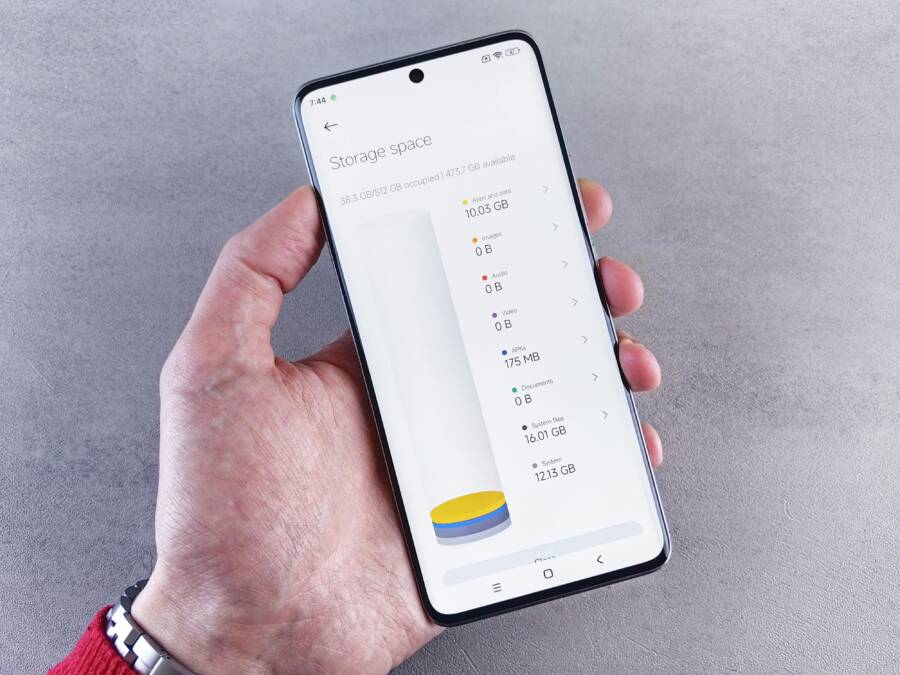
Full storage is the top culprit behind photos not saving. When your device runs out of space, the camera app can’t write new files, and you may see warnings or failed saves. This section walks you through practical steps to reclaim space quickly while keeping your memories safe. We’ll cover quick checks, smart offloading, and proven cleanup routines you can apply right away.
 Photo by Andrey Matveev
Check current storage usage and identify big space hogs
Start with a fast inventory of what’s consuming space. On iPhone, go to Settings > General > iPhone Storage to see a color-coded breakdown and recommendations. On most Android devices, open Settings > Storage to view what’s using the most space and which apps are the largest. This quick snapshot tells you where to focus your cleanup efforts.
- Look for large photo and video folders, unused apps, and cached data.
- Note any apps that back up data to the cloud; sometimes local copies still linger.
- Pay attention to system files and app caches that can balloon over time.
If you’re unsure where to begin, use the storage view to prioritize items you can delete or offload without losing important data. For iPhone users, enabling optimization options like iCloud Photos and Optimize iPhone Storage can free up space while keeping your memories accessible. See Apple’s guidance on managing storage for more details. https://support.apple.com/guide/iphone/manage-storage-on-iphone-iph47c931112/ios
Offload or delete content you don’t need
Offloading refers to keeping the app while removing its temporary data and unused files. This approach works well on both platforms. It’s faster than deleting the app and reinstalling later.
- Offload apps you rarely use on iPhone. Go to the app’s detail in storage and choose “Offload App.”
- Delete duplicate or blurred photos, screenshots, and videos you don’t need.
- Clear caches for apps that accumulate data, such as social media or navigation apps.
- For photos, enable cloud backup and then remove local copies if backups are complete.
If you’re unsure how to reclaim space without losing important files, Apple’s and Google’s official guides walk you through the process step by step. Apple: https://support.apple.com/en-us/108429. Android: https://support.google.com/android/answer/7431795?hl=en
Clean up large media and old conversations
Media files tend to be the quickest way to reclaim gigabytes. Focus on high-resolution videos and long chat histories with large attachments.
- Transfer videos to a computer or cloud storage before deleting from the device.
- Use a “recently deleted” or “trash” folder and empty it to free space immediately.
- Review messaging apps for large attachments and delete or archive as needed.
Android users can also use built-in tools to detect and remove large files from chats, photos, and apps. See Google’s guidance to clear up space. https://support.google.com/android/answer/15728899?hl=en
Set up cloud backup and automatic syncing
Backing up before you clean gives you a safety net. When photos are safely in the cloud, you can free space on the device with confidence.
- Enable automatic backups in your photo app or cloud service.
- Use a synchronized library so new captures are stored remotely and not just on the device.
- Periodically review backups to ensure they’re complete and accessible from other devices.
Apple users can enable iCloud Photos and optimize storage to keep a lightweight local copy while the full-resolution versions live in the cloud. Learn more from Apple’s storage guide. https://support.apple.com/guide/iphone/manage-storage-on-iphone-iph47c931112/ios
Prevent future photo save failures with simple habits
Once you reclaim space, adopt a couple of routines to prevent repeats.
- Schedule a quarterly storage check to catch growing folders early.
- Regularly back up and purge duplicates or blurry shots.
- Consider a dedicated storage plan for media if you shoot a lot in 4K or 8K.
For Android users, routine cleanup can be as simple as monthly checks of large files and app caches. See Android’s free up space guidance for ongoing strategies. https://support.google.com/android/answer/7431795?hl=en
Quick wins you can implement today
If you’re facing a photo save fail right now, try these steps in sequence:
- Check storage usage and identify two to three biggest space hogs.
- Back up photos to the cloud or computer, then delete local copies.
- Offload rarely used apps and clear unnecessary caches.
- Review and purge duplicate or blurry images.
- Enable cloud syncing to protect new photos automatically.
If you want to see a concrete walkthrough, there are practical, official guides from Apple and Google that walk you through the exact steps on both platforms. Apple storage guide: https://support.apple.com/guide/iphone/manage-storage-on-iphone-iph47c931112/ios. Android storage guide: https://support.google.com/android/answer/7431795?hl=en
By reclaiming storage and setting up reliable backups, you remove the top barrier to saving photos. When space is available, your camera app can write files reliably again, and you’ll never miss a memory because your device ran out of room.
Restart Your Phone for an Instant Glitch Reset
Sometimes a quick reboot is all it takes to clear out a stubborn glitch that stops photos from saving. A restart resets processes, frees up memory, and can reinitialize the camera app’s access to storage. If your device feels slow, or you notice odd behavior when saving shots, a fresh start often works better than chasing software quirks. Think of it as a quick morale check for your phone. After the restart, try saving a photo again to confirm the issue is resolved.
Update Your Phone’s Software to Stop Save Errors
Keeping your iPhone or Android up to date is one of the simplest and most effective fixes for save errors. Outdated software can cause permission checks to fail, storage indexing to misbehave, or camera services to crash. Updates patch these glitches and improve overall reliability, especially for the camera and gallery functions. Before you update, back up your data so you don’t risk losing anything during the process.
- iOS: Settings > General > Software Update. Update to the latest iOS version and follow the on-screen prompts. A wireless update is usually sufficient, but you can also update via a computer if needed. Apple’s guidance on updating iPhone devices is helpful to follow. https://support.apple.com/guide/iphone/update-ios-iph3e504502/ios
- Android: Settings > System > System Update. If an update is available, install it and restart if prompted. Google’s official support walks you through establishing your device’s update status and applying the latest Android version. https://support.google.com/android/answer/7680439
Why updates help you save photos more reliably: they fix bugs, tighten permission controls, and improve how the camera writes files to storage. If you’re unsure about a specific version, the official support pages for Apple and Google provide version-by-version guidance to ensure you’re aligned with your device model. Apple Update guide: https://support.apple.com/en-us/118575; Android update guide: https://support.google.com/android/answer/15728187?hl=en
Check App Permissions So Camera Can Save Photos
If your camera can take pictures but not save them, the culprit is often permissions. When an app lacks storage or camera access, it can silently fail to write new files. This section breaks down how to verify and repair permissions so your camera and gallery work in harmony again. We’ll cover Android and iPhone specifics, and how to confirm that the camera app has the right access to save each shot.
 Photo by ready made
Clear Camera App Cache and Data on Android
On Android, a stuck cache can block the camera from writing files even when storage is available. Clearing the cache and data resets the app to a fresh state without deleting your photos. Keep in mind this logs you out of apps that require a login, so have passwords handy.
- Android: Settings > Apps > Camera > Storage > Clear Cache, then Clear Data. Do the same for Google Photos if you use it as a backup and viewing companion.
- After clearing, reopen the camera and retake a test photo to confirm saving works again.
If you want to confirm the permission framework behind these steps, you can review how Android handles app permissions in runtime prompts. This helps ensure the camera app can request and obtain the necessary access when needed. Android’s official guidance on requesting permissions and explaining access is a solid resource to consult for any app you trust with your photos.
- Official guidance: https://developer.android.com/training/permissions/requesting
- Change app permissions on your Android phone: https://support.google.com/android/answer/9431959?hl=en
- Explain access to more sensitive information: https://developer.android.com/training/permissions/explaining-access
iPhone equivalent: Offload the camera or related apps to reset their local state without removing the app itself. Offloading can free up space and reset permissions in one clean step. When you’re ready, re-enable the app and test saving a photo again.
- iPhone offload option overview: https://support.apple.com/guide/iphone/manage-storage-on-iphone-iph47c931112/ios
- Control access to hardware features on iPhone: https://support.apple.com/guide/iphone/control-access-to-hardware-features-iph168c4bbd5/ios
- Allow apps to use your photos (if you’re troubleshooting photo imports or edits): https://support.apple.com/guide/mac-help/allow-apps-to-use-your-photos-mchl325bd573/mac
Beyond clearing caches, ensure the apps themselves have the correct permissions enabled. On Android, you can see and adjust permissions per app in Settings > Apps > Camera > Permissions. On iPhone, head to Settings > Privacy > Photos or Settings > Privacy > Camera to confirm access is allowed for the camera and any backup apps you rely on.
- Quick checkpoint: If Google Photos backs up in the background, make sure it has permission to access photos as well as storage. See Android help on changing app permissions for guidance: https://support.google.com/android/answer/9431959?hl=en
- For iPhone users, ensure the Camera app and Photos have access under Privacy settings: https://support.apple.com/guide/iphone/control-access-to-hardware-features-iph168c4bbd5/ios
If you’re dealing with repeated save failures, consider pairing this with a quick reboot and a test shot. Sometimes permissions that seemed set vanish after an update or a cache reset, and a fresh start makes the configuration stick.
- Example workflow: clear camera cache, verify permissions, reboot, then test saving a photo.
By ensuring both the camera and any backup apps have the right permissions and a clean app state, you reduce the chance of save errors. If you want a deeper dive into permission management on Android or iPhone, the linked official guides provide step-by-step instructions tailored to your device.
iPhone-Specific Fixes to Restore Photo Saving
When your iPhone stops saving new photos, it usually boils down to a few predictable culprits: storage space, app permissions, or a flaky camera/Photos workflow. This section focuses on fixes tailored to iPhone behavior, with quick checks you can perform and explanations of why they matter. You’ll learn how to verify storage health, reset or refresh app states, and ensure iCloud and local storage work in harmony. Use the practical steps here to get back to capturing memories without interruption.
Handle SD Card Problems on Android
Android devices rely on the SD card for extra storage, but when the card misbehaves, it can look like the camera isn’t saving photos. Start by ejecting and remounting the card to reinitialize the connection. If the card has become corrupted, format it after backing up important files, then save photos to internal storage until you’re sure the card is healthy again. Keep an eye on available space, as a full card can block new saves. If the problem persists, the SD card may be failing and need replacement. For deeper troubleshooting, check guides and tools that cover SD card mounting and recovery, such as six common solutions to keep Android SD cards reliable, or professional recovery options. Useful references include: 6 Easy Solutions to SD Card Keeps Unmounting Android Phone, SD Card Not Showing Up on Android, and related discussions on forums. See: https://www.rescuedigitalmedia.com/fix-sd-card-keeps-unmounting-error, https://www.easeus.com/partition-manager-software/fix-micro-sd-card-wont-mount.html, https://forums.androidcentral.com/threads/methods-known-to-fix-sd-card-issue-problem, https://www.cleverfiles.com/howto/fix-sd-card-not-showing-up.html.
Advanced Troubleshooting When Basic Fixes Fail
When the common steps don’t solve the problem, you need a more targeted approach that narrows down software glitches, permission gaps, or storage quirks. This section walks you through deeper diagnostics and practical, safe procedures to restore reliable photo saving without risking data. Think of it as the next level of troubleshooting you can trust when the basics don’t hold.
Pinpoint whether the issue is device-wide or app-specific
Start by separating scope. If every app that saves photos behaves the same way, the issue is likely at the system level. If only one camera or gallery app misbehaves, the fault is probably within that app’s permissions, cache, or data.
- Test with the built-in camera and the stock Photos app on iPhone or Android.
- Try a third-party camera app to see if it saves correctly.
- If another app saves fine, focus on that app’s permissions and data.
For a structured review, run a quick diagnostic test using the device’s built-in tools or reputable third-party diagnostics. PCMag provides guidance on running diagnostics to assess overall health on iPhone or Android. https://www.pcmag.com/how-to/run-diagnostics-on-your-iphone-or-android-phone
Use safe mode or a clean boot to rule out software conflicts
Software conflicts can block saving photos even when storage is available. Booting in a minimal environment helps identify if a third-party app is the culprit.
- On Android, you can enter Safe Mode by holding power, then tapping and holding “Restart” to reboot in Safe Mode. In this mode, third-party apps are disabled temporarily.
- On iPhone, you don’t have a classic Safe Mode, but you can simulate a clean state by turning off background photo apps, logging out of cloud backup apps, and performing a forced restart if your model supports it.
If the issue disappears in Safe Mode, gradually reintroduce apps to find the offender. Once you spot the faulty app, update or uninstall it, or reset its permissions.
Check storage health beyond free space
Even when there is apparent space, a corrupt file system or a failing storage block can cause writes to fail.
- Run a storage check to confirm there are no corrupted sectors or filesystem issues.
- Consider backing up all photos, then performing a storage health check or a factory reset if the device offers this option as a last resort.
- If you have an SD card, test by removing it and saving directly to internal storage to see if the card is the bottleneck.
Reliable guides on diagnosing storage and filesystem issues are available from reputable sources. For example, various Android troubleshooting guides cover how to properly manage storage and verify integrity. https://lifewire.com/fix-camera-not-working-android-7106063
Inspect cloud backup settings and online sync status
Sometimes the camera saves locally but the upload to cloud fails, which can give the impression that saving failed when it actually did save but didn’t sync.
- Confirm cloud backup is enabled and that the library is syncing correctly.
- Check backup permissions for the Photos or Gallery app and any cloud companion app.
- Verify you have network access sufficient for syncing, especially on cellular data.
If you rely on cloud backups, verify you can access your photos remotely, which confirms the cloud side is healthy. Apple’s iCloud Photos guide offers detailed steps for managing backups and storage behavior. https://support.apple.com/guide/iphone/manage-storage-on-iphone-iph47c931112/ios
Rebuild the storage index and refresh media databases
A stale media database can misreport what exists on disk, causing saves to appear to fail even when there is space.
- Clear media databases or refresh the media library if your OS provides a safe option.
- On Android, clearing the data for the camera and gallery apps often refreshes the media store without deleting your photos.
- On iPhone, a combination of reindexing by a reboot and toggling iCloud Photos can refresh how the library is indexed.
If you’re unsure how to trigger a safe reindex, consult official guidance for your device model. In many cases, a simple reboot followed by a test save will reinitialize the media database.
Evaluate hardware health and camera module integrity
Rarely, a hardware issue with the camera module or storage controller can cause writes to fail. Look for:
- Physical damage or camera lens misalignment.
- Overheating after long sessions of shooting.
- Sudden performance drops when saving or viewing photos.
If you suspect hardware trouble, a professional diagnostic or repair service is the prudent next step. PCMag’s diagnostic run guidance can help you decide whether a hardware check is warranted. https://www.pcmag.com/how-to/run-diagnostics-on-your-iphone-or-android-phone
Plan a controlled reset to factory settings (as a last resort)
If every software route fails, a factory reset may be necessary. This action wipes all data, so back up first.
- On iPhone, use Settings > General > Reset > Erase All Content and Settings. Prepare for a complete setup afterward.
- On Android, use Settings > System > Reset options > Erase all data (factory reset). Back up first and be mindful of OEM-specific steps.
After reset, configure the device as new and test photo saving before restoring data. If the problem returns with a clean slate, the likelihood of a hardware fault increases and repair is advisable.
When to seek professional help
If you’ve exhausted these advanced steps and still can’t save photos, you’re likely facing either a stubborn software quirk or a hardware issue that needs hands-on support. Before you go, gather:
- Your device model and OS version.
- A clear timeline of when the issue started.
- A list of apps that have saved or failed to save recent photos.
With this information, a technician can more quickly reproduce the issue and determine whether a repair or replacement is warranted. For more on diagnosing typical phone problems, this practical guide outlines how to approach common failures across devices. https://imobiledenver.com/fix-phone-reboots-when-opening-camera/
Quick reference checklist for rapid triage
- Confirm if the problem is app-specific or device-wide.
- Test in Safe Mode or a clean boot to expose conflicts.
- Inspect storage health, not just free space.
- Verify cloud backup and sync status.
- Refresh media databases and reboot after each change.
- Consider a factory reset only after backing up data.
If you want a deeper dive into advanced Android and iPhone troubleshooting practices, these resources provide structured, step-by-step instructions that align with real-world scenarios. Android: https://www.howtogeek.com/android-camera-not-working/ Apple: https://discussions.apple.com/thread/255251840
By systematically ruling out software conflicts, storage issues, and cloud sync failures, you’ll pinpoint the underlying cause faster. This approach reduces guesswork and helps you get back to saving precious moments with confidence.
Conclusion
If your phone still won’t save photos, start with the basics in this order: reclaim storage, restart the device, and verify permissions. Clearing space first removes the top barrier that stops camera writes. A quick reboot clears glitches and reinitializes services that handle photo saving. Check camera and gallery permissions next, and make sure cloud backup apps have access to your photos. This simple sequence is the fastest path back to reliable saves.
Keep your phone healthy with a few easy habits. Regularly update apps and system software to close bugs that block saving. Aim to keep free space above a safe threshold each week, so you never run into become-critical shortages during a shoot. If you rely on cloud backups, confirm they run smoothly and that syncing isn’t paused by a permission or network issue.
If you still face trouble after these steps, consider deeper checks on storage health or a controlled reset, but back up first. A failing storage card or corrupted database can mimic a save error, so address hardware or software faults promptly. Your photos deserve to stick around.
Have you found a fix that worked for you? Share your method in the comments so others can benefit. For more practical smartphone tips and step by step guides, subscribe and stay in the loop. Your photos deserve to stick around.