He Was Drowning in Bills and Burnout Until a Simple Daily Ritual Rewired His Brain for Wealth in Less Than a Week
>>> Start Your Shift Today <<<

Struggling to get replies because your phone isn’t receiving texts is frustrating, whether you’re on Android or iPhone. This guide shows simple, step by step fixes that can get messages flowing again fast. You’ll learn the common causes, from weak signal to misconfigured settings, and how to tackle them with easy wins you can try tonight. How to fix a phone that does not receive text messages centers on quick checks, practical tweaks, and when to call the carrier.
Check Your Signal and Do a Quick Refresh
Your phone needs a solid cellular connection to receive texts. Start by checking the signal bars in the top corner of your screen. If they show one bar or less, step outside, move near a window, or go to an open area. Weak coverage blocks messages from reaching your device. Once the signal strengthens, test by asking a friend to send a text.
These basic checks fix most issues fast. If texts still don’t arrive, refresh your smartphone’s network with two simple moves. Both work on iPhone and Android.
Toggle Airplane Mode to Reset Network
Airplane mode cuts all wireless connections, including cellular. Turn it on and off to force a fresh network link. This clears glitches without losing data. Reports show it solves text problems for many users right away.
There Is a Frequency That the Wealthiest Families Have Used for Generations and Most People Will Never Know It Exists
>>> Open the Door <<<

Follow these steps on your device:
For iPhone:
- Swipe down from the top-right corner to open Control Center.
- Tap the airplane icon to turn it orange (on).
- Wait 30 seconds.
- Tap the icon again to turn it off (gray).
- Ask someone to send a test text and check if it arrives.
For Android:
- Swipe down twice from the top of the screen to expand quick settings.
- Tap the airplane icon to enable it.
- Wait 30 seconds.
- Tap it again to disable.
- Send a test message to confirm.
If you switched from iPhone to Android recently, this step pairs well with disabling iMessage on the old device. For more details on cross-platform fixes, see this Android troubleshooting guide.
Restart Your Phone the Right Way
A restart wipes temporary software bugs that block texts. Skip force restarts at first; try a soft one. It takes under a minute and reboots your system clean.
Here’s how to do it properly:
For Android:
- Press and hold the power button and volume down button together.
- When the power menu appears, select Restart.
- Wait for the phone to reboot fully.
- Test incoming texts.
For iPhone:
- Press and hold the side button (with volume down on newer models).
- Slide the “Slide to power off” bar when it shows.
- Wait 30 seconds, then press and hold the side button until the Apple logo appears.
- Once it restarts, check for new messages.
This method refreshes your smartphone’s memory and network stack. Users report it fixes delayed or missing SMS in seconds. If problems persist after these steps, move to app settings next.
Unblock Numbers and Clear Spam Filters
When text messages slow to arrive or vanish, blocked numbers and spam filters are often culprits. This section shows you how to identify and unblock blocked contacts on both iPhone and Android, and how to empty spam or filtered folders so legitimate messages come through. It’s a quick, practical guide you can apply tonight to reset your messaging flow.
Find and Review Blocked Contacts
If a contact’s messages aren’t getting through, they might be blocked. Start by reviewing your blocked lists on your device. On iPhone, you can block a caller from the Phone, Messages, or FaceTime apps, and you can reverse it at any time. On Android, the exact path varies by manufacturer and messaging app, but you’ll typically find blocked numbers under the Messages app settings or Call settings.
- iPhone workflow: Open the Phone app, go to Recents or Contacts, select the number or contact, and choose Block Caller. You can unblock later from the same screen if you’ve changed your mind. If you’re unsure whether a block is the cause, test with a message from a different number after unblocking.
- Android workflow: In Google Messages or your carrier’s Messages app, look for Blocked or Spam settings. Tap the number, then choose Unblock. Some devices label it as “Allow” or “Mark as Not Spam.” After unblocking, send a test text to confirm.
Why this matters: a blocked contact can silently prevents inbound texts even though your network is fine. If you recently switched devices or carriers, blocks may have carried over or been misconfigured during setup. For iPhone users, you can also manage unknown senders to reduce spam while keeping important folks reachable. See Apple’s official guidance on blocking and filtering to verify the exact steps for your version: Block a phone number, contact, or email within your apps. If you’re looking for hands-on visuals, this Apple support page walks you through the process with screenshots. Block phone numbers, contacts, and emails on your iPhone or iPad
If you use Android and want a concise reference, Google’s support guide covers blocking and unblocking steps in Messages. It also explains how blocking interacts with spam filtering. You can unblock from the same conversation thread or from the blocked list in Settings. Block senders & report spam in Google Messages – Android
Pro tip: after unblocking, always test by sending a message from another phone. If the original sender still can’t reach you, expand the test to a different contact to rule out network issues.
Empty the Spam or Filtered Folder
Spam filters and filtered folders can hide legitimate texts from view. Emptying these folders and marking messages as not spam ensures future messages land in your inbox. Here’s how to do it across the two most common platforms.
- iPhone Messages: On iPhone, spam and filtering rules are integrated into Messages and unknown sender filtering. You may find suspected junk messages in a separate tab or folder depending on your iOS version. Open the Messages app, go to the Spam or Junk tab if present, scan the messages, and mark the ones from real contacts as not junk. This action helps the filter learn your preferences and improves delivery for future texts. For precise steps, Apple’s guide explains how to Screen, filter, report, and block text messages on iPhone across versions. Screen, filter, report, and block text messages on iPhone
- Android Google Messages: Android users often encounter a Spam and Blocked folder within Google Messages. To clear it, open Messages, navigate to the Spam or Blocked section, and delete or bulk-delete messages as needed. If you see legitimate messages there, move them back to the inbox or mark them as not spam. Google’s help articles provide steps for bulk deleting or emptying the spam folder, and they explain how to keep future messages out of that folder. How to BULK Delete google text messages from the Spam & Blocked folder
Why this matters: spam filters learn from your actions. Clearing out the folder and marking legitimate messages as not spam helps reduce false positives and ensures you don’t miss important texts. If you’ve recently migrated from one platform to another, checking these folders is a simple but crucial step to reestablish reliable delivery. For Android users, a quick check of the spam folder can save hours of missed messages and frustration. If you need a quick walkthrough, a Google support thread explains how to empty the spam folder on Pixel devices. How do I empty the spam folder in messaging
Short recap of the practical moves you can make now:
- Review blocked lists on both iPhone and Android.
- Unblock any contact you recognize as a legitimate sender.
- Open your spam or filtered folders and mark genuine messages as not spam.
- Test by sending and receiving texts to confirm the fix.
For more context on cross-platform blocking and spam handling, you might find these resources helpful:
- Apple blocking and filtering guidance
- Google Messages spam and blocking help
If you’re dealing with a stubborn case, there may be a deeper network or carrier setting at play. In that scenario, you’ll want to work through the troubleshooting steps in the adjacent sections. And if you need a quick external reference while you’re reading, you can browse the linked guides above to confirm the exact steps on your device.
Fix Messaging Settings on iPhone and Android
If messages aren’t coming through, the problem often sits in the settings rather than the network. This section walks you through the essential messaging tweaks on both iPhone and Android. You’ll learn how to enable SMS and MMS, and how to handle iMessage when you’ve switched phones. These steps are quick wins you can apply tonight to restore reliable texting.
Enable SMS and MMS on iPhone
Most text delivery issues on iPhone boil down to MMS or SMS being disabled or misconfigured. Enabling these features ensures your iPhone can send and receive standard text messages as well as picture messages.
- Open Settings and tap Messages.
- Make sure iMessage is turned on if you still want iMessage for other Apple devices, but for SMS/MMS delivery, ensure the following are active:
- Send as SMS is enabled. This lets your iPhone fall back to cellular messaging when iMessage is unavailable.
- MMS Messaging is enabled so group messages and picture messages are delivered.
- If you recently switched from an iPhone to another platform, keeping iMessage enabled can create hiccups. Consider temporarily turning off iMessage to avoid delays with non-Apple contacts, then test with a regular SMS from a trusted contact.
- Restart your iPhone after adjusting these settings to ensure changes take full effect.
- If you’re troubleshooting cross-platform issues, a quick check of carrier settings can help. Look for any carrier software updates in Settings > General > About.
For readers transitioning from iPhone to Android, a clean start helps. You may want to deregister iMessage to prevent messages from being stuck in the Apple ecosystem. Apple provides clear steps to deregister iMessage either from your iPhone or online if you no longer have the device handy. If you still have access to an iPhone, follow these steps to turn off iMessage, then see the online option if needed. Learn more about deregistering iMessage from Apple’s official support pages:
- Deregister iMessage on your iPhone or online
If you want a quick read on getting group texts working and ensuring iMessages switch correctly, Apple also covers common issues with Messages after you set up a new device. This can help if your iPhone is showing green bubbles or separate threads after a switch. See:
- Deregister iMessage on your iPhone or online
Additionally, if you suspect spam filtering or blocked numbers might be interfering with delivery, review Apple’s guidance on blocking and filtering to verify the exact steps for your version. The article linked below provides visual steps and options that apply across iOS versions:
- Block phone numbers, contacts, and emails on your iPhone or iPad
Why it matters: correct SMS and MMS settings ensure your iPhone can receive basic texts and media, even when iMessage isn’t available. It’s a simple, reliable way to restore text flow without deep troubleshooting.
Handle iMessage If You Switched Phones
Switching from iPhone to a non-Apple phone often leaves messages in limbo if iMessage remains active on your old device. The fix is to deregister iMessage so Android or other devices receive regular SMS instead of trying to route through iMessage. This section covers deregistration steps you can take whether you still have your iPhone handy or not.
- If you still have your iPhone, remove iMessage by turning it off and then disabling iMessage in the FaceTime settings as well. Here’s a quick checklist:
- Ensure your SIM card is in the iPhone and that cellular data is active.
- Go to Settings > Messages and turn off iMessage.
- Go to Settings > FaceTime and turn off FaceTime.
- If you no longer have access to the iPhone, you can deregister iMessage online. This helps ensure friends with iPhones send regular SMS instead of iMessage. Access the online tool and follow the prompts to complete deregistration.
- Online deregistration: Deregister iMessage online
- Official guidance on turning off iMessage: Deregister and Turn Off iMessage
If you’re still unsure, a quick test from a contact using an iPhone after completing the deregistration steps can confirm the change. If text delivery improves but there are still issues, it may be worth reviewing the recipient’s settings as well, since problems can stem from the sender’s side.
Pro tip: after you deregister, ask a trusted contact with an iPhone to send a quick text. If you receive it as an SMS instead of iMessage, you’ve likely cleared the barrier. If problems persist, you may want to check carrier settings or test with a different Android device to rule out device-specific quirks.
For deeper context on cross-platform messaging, you can explore additional guidance from reputable sources:
- Apple’s official iMessage deregistration guidance
- Apple’s support page for turning off iMessage and related steps
If you’re dealing with stubborn behavior, remember that the smallest setting can block messages. Take a moment to recheck each toggle, restart your device, and then test with multiple contacts. A smartphone’s messaging system is resilient when its settings are aligned with how you actually use text messaging day to day.
Reset Network Settings and Update Software
When text messages stop arriving, a quick reset of network settings and a software refresh can solve many issues. This section walks you through a practical, step by step approach to reset network settings on iPhone and Android, plus how to update your device’s software to ensure you have the latest fixes. Think of it as a road map: you’re re-establishing the lines the phone uses to receive messages, then installing the latest improvements that keep messaging smooth.

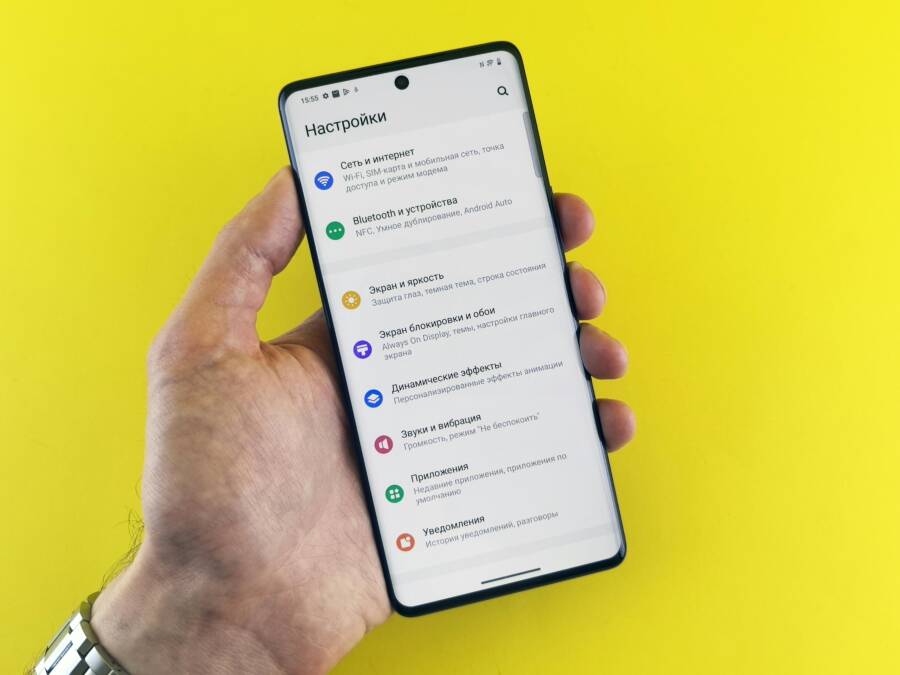
Photo by Andrey Matveev
Reset Network on iPhone Step by Step
Resetting network settings on iPhone returns all network configurations to their factory state. This can clear misconfigured APN, VPN, or cellular settings that block inbound texts. It does not erase your data, but you will need to rejoin Wi-Fi networks and re-enter passwords afterward. If you recently changed carriers or swapped SIM cards, this reset often resolves stubborn messaging issues.
There Is a Frequency That the Wealthiest Families Have Used for Generations and Most People Will Never Know It Exists
>>> Open the Door <<<
- What it does and when to use it
- Replaces cellular, Wi-Fi, and VPN settings with the defaults.
- Clears saved networks and passwords, along with paired Bluetooth devices in some cases.
- Useful when you see no service, frequent disconnections, or a failure to receive texts after a change in service.
- How to perform the reset
- Open the Settings app.
- Tap General.
- Scroll to Reset (or Transfer or Reset iPhone on newer iOS versions) and select Reset Network Settings.
- Enter your passcode if prompted, then confirm.
- The iPhone will restart automatically. After it boots, reconnect to Wi-Fi and rejoin any Bluetooth devices.
- Post-reset tips
- Recheck cellular reception and test texting with a trusted contact.
- Re-enter your Wi-Fi passwords and reconfigure any VPN or APN settings you needed.
- If you see Wi-Fi related issues again, verify router settings or try a different network.
If you’d like a direct reference to the official steps for iPhone, Apple’s guidance covers how to reset network settings and what to expect after the reset. This can be especially helpful if you’re managing multiple iOS devices or have added carrier-specific tweaks. Read more about resetting network settings on iPhone here: Apple support: Reset Network Settings.
For extra reassurance, a trusted carrier guide also walks through network resets and why they work, including common pitfalls after a reset. If you’re uneven on options, this Verizon resource provides a clear path for iPhone users: Apple iPhone – Reset Network Settings.
Tips from real users show a reset often pairs well with a quick check of iMessage status if you still send messages to other iPhones. If you’ve turned off iMessage or are moving to Android, consider deregistering iMessage to avoid delays, see the official guidance here: Deregister iMessage on your iPhone or online.
Image-focused takeaway: a network reset is a fast way to wipe away the “mystery” settings that block inbound texts. It’s non-destructive, simple, and often results in immediate improvement.
Update Your Phone’s Software
Keeping your phone’s software current is one of the most reliable fixes for messaging issues. Software updates include performance boosts, bug fixes, and security patches that can specifically address problems receiving texts. Both iPhone and Android systems push updates that improve how messaging works, including handling of new protocols like RCS and SMS/MMS delivery quirks.
- Why updating matters
- Addresses known bugs that can block incoming messages or cause delays.
- Improves compatibility with carrier networks and with other devices.
- Brings new features that stabilize messaging delivery and reduce spam-related filtering mistakes.
- How to check for updates on iPhone
- Open Settings.
- Tap General.
- Tap Software Update.
- If an update is available, tap Download and Install.
- Enter your passcode if prompted and follow the on-screen instructions. After the update finishes, restart your iPhone.
- Note: If you’re in a mixed ecosystem with Android devices, keep iMessage settings in mind. If you’ve recently moved away from iPhone, ensure iMessage is properly deregistered to avoid misrouted messages. See Apple’s guides on iMessage deregistration for more detail: Deregister iMessage on your iPhone or online and Deregister and Turn Off iMessage.
- How to check for updates on Android
- Open Settings.
- Tap System (or About phone) depending on your device.
- Tap Software Update (or System Update).
- If an update is available, follow the prompts to install.
- Reboot if required.
- Android updates vary by manufacturer. For Pixel devices, you’ll often see updates under Settings > System > Advanced > System update. If you need a broader overview, Google’s support guide explains how to check and update your Android version: Check & update your Android version.
- What to do after updating
- Test by sending a text to and from multiple contacts.
- If you rely on rich messaging features like RCS, confirm that these are functioning as expected after the update.
- If you notice new settings after update, take a moment to review them. Some updates change default messaging behaviors.
Latest real-world context shows ongoing improvements in both platforms. For Android, updates often emphasize better media handling and stronger spam controls within Google Messages. For iPhone, iOS updates increasingly refine how messages are filtered and delivered, especially when messages cross platforms between iOS and Android. If you want a quick reference on current updates and fixes, the latest guidance from Apple and Google can be found in their official update resources, which are linked in the sections above.
Practical note: after any software update, a quick restart helps ensure all new code starts cleanly. If you’ve just updated and still have issues, re-test with multiple contacts and consider a network settings reset as a complementary step.
Recommended resources for software updates and related messaging fixes
- Apple: Update iOS on iPhone. This official guide covers how to install the latest iOS version and what to do if the update fails. Update iOS on iPhone
- Google: Check & update your Android version. Learn how to verify your Android version and apply the latest patches. Check & update your Android version
- Apple iMessage and deregistration: How to properly disable iMessage if you switch away from iPhone. Deregister iMessage on your iPhone or online
Key practical takeaway: staying current with software updates is a straightforward way to fix many text delivery issues. It’s like keeping a road map updated so your messaging apps can find the fastest route to reach contacts.
External references you may find helpful
- For iPhone network resets and general connectivity guidance, Apple’s support article on reset network settings provides the official steps and context: If you can’t connect to Wi-Fi on your iPhone or iPad
- For Android users, Google’s guide on checking and updating Android versions helps ensure your device receives essential fixes: Check & update your Android version
- If you need hands-on help with iPhone and iMessage specific flows, Asurion and other support providers offer practical steps and visuals:
- How to reset network settings on your iPhone
- Block phone numbers, contacts, and emails on your iPhone or iPad
Final quick checklist
- Reset network settings on iPhone if you’ve changed networks or carriers recently.
- Update iPhone and Android software to the latest versions.
- After updates, reboot and re-test messaging with multiple contacts.
- If problems persist, combine these steps with checking blocked numbers and spam folders, then test again.
This section is designed to slot neatly into your broader article. It delivers concrete steps, trusted references, and actionable tips you can apply tonight. The aim is to restore reliable texting quickly while keeping you informed about what each action does and why it helps.
Contact Your Carrier or Try Advanced Fixes
If basics like signal and settings haven’t resolved the problem, it’s time to involve your carrier and try more advanced checks. A carrier can have outages, provisioning errors, or account-level blocks that only they can fix. At the same time, some deeper device-level adjustments can push your messaging back to normal. This section walks you through practical, proven steps you can take tonight.
Confirm there’s no carrier-wide issue
Before you dive into fixes on your device, check if your carrier is having an outage in your area. Large outages are rare, but they happen and can affect SMS delivery for many users at once. Start with a quick check of status pages or trusted outage trackers, then corroborate with fellow customers in your area. If you find an outage, you’ll simply wait it out while keeping an eye on status updates. For a quick sanity check, you can also look at sources like Downdetector to see if others report problems with mobile text services. If the problem appears localized to your account or number, move to the next steps to contact support.
- Verizon: Check network status and outages in your area.
- AT&T: Outage information and steps to verify if service is affected in your location.
- T-Mobile: Service outage status and guidance for affected customers.
If you’re already seeing signs of an outage, you don’t need to tinker with your phone endlessly. You can still gather information to speed up a fix, such as note-taking about when messages stop arriving and which contacts are affected. This helps the carrier diagnose whether it’s a network issue or a device-specific quirk.
Contact the carrier’s support channels
When you reach out, have these details handy to speed up the process:
- Your phone model and OS version
- Your SIM card status and whether you recently swapped SIMs
- A couple of test numbers (including a contact who is on a different carrier)
- The exact time and pattern of the missing messages
Support options vary by carrier, but most offer multiple ways to get help. If you’re in the US, these resources can guide you through common carrier-specific steps:
- Verizon’s guidance for text message delivery issues and how to reach support
- AT&T’s service outage information and troubleshooting tips
- AT&T’s self-service tools to verify your account and network status
- Carrier outage information pages for quick status checks
These official resources help you confirm if the issue is on the provider side or specific to your account. If the carrier confirms a provisioning or account problem, follow their instructions for reactivating SMS services or re provisioning your line. If you’re told to swap settings on the carrier side, you can implement the steps on your device after the carrier completes their part.
Thousands of People Were Struggling With Money Until They Discovered This One Ancient Secret Hidden in Sound
>>> Unlock It Now <<<

Anchor texts you can use in your own notes or on-page references: “Verizon service outage information,” “AT&T outages status,” “Carrier troubleshooting for SMS not delivering.”
Check SIM card and carrier provisioning
A misbehaving SIM card can block inbound texts even when the network is healthy. If you recently swapped SIMs or upgraded hardware, it’s worth rechecking the SIM and its alignment with your carrier’s provisioning.
- Remove and reseat the SIM: Power off the phone, eject the SIM tray, reseat the card, and power the device back on.
- Test with another SIM: If possible, try a known-good SIM from the same carrier in your phone. If texts arrive, the issue is likely with the original SIM or its provisioning.
- Inspect for damage: A scratched or bent SIM can cause flaky service. If you notice damage, a replacement SIM from your carrier is a quick fix.
If you’re on an eSIM, ensure the activation profile is current. A quick re-provision from the carrier can resolve issues that look like SIM failure but stem from an outdated profile. For iPhone users, rechecking the eSIM setup in Settings > Cellular can catch mismatches. Android devices with eSIM support have similar paths under Network & Internet settings.
In a pinch, you can search for your carrier’s official steps to verify SIM status and re-provisioning. For example, carrier troubleshooting guides often outline how to validate a working SIM and refresh the connection without a full reset.
Review account status and plan features
Sometimes messages fail to arrive due to plan limits, messaging features, or account holds. Check:
- Your current plan includes SMS/MMS and is not throttled
- There are no blocks on international messages if you’re texting from abroad
- Your number hasn’t been temporarily suspended for nonpayment or other account flags
If you recently updated or changed plans, confirm the new features align with your texting needs. Some carriers also restrict certain types of messages (for example, service codes or short codes) if a feature is temporarily disabled or misconfigured.
Advanced fixes you can try with carrier guidance
If the basics are solid but messages still don’t come through, some advanced steps may help. These are more technical but still straightforward when guided by carrier support.
- Re-provision the line: Your carrier can push a fresh messaging configuration to your SIM or eSIM, which can fix issues tied to the provisioning of SMS and MMS.
- Verify carrier settings updates: Some networks require carrier-initiated updates. Check for any carrier software updates in your device settings. On iPhone, you can find these under Settings > General > About. On Android, look for Carrier Services or similar entries in the system updates area.
- Confirm RCS compatibility: If you rely on RCS features, ensure your messaging app and carrier support RCS in your area. Misconfigurations here can appear as inbound SMS issues, especially when switching devices. The Google Messages help page covers default app settings and RCS considerations to keep in mind. Fix problems sending or receiving messages
When in doubt, let the carrier take the reins on provisioning and network-side settings. You can apply any device-focused tweaks later, once the carrier confirms the account and network paths are clean.
Cross-carrier context: what real-time data shows
Recent context from live monitoring shows major US carriers Verizon, AT&T, and T-Mobile generally do not report wide outages for text messaging. Some delays can occur during peak times or due to traffic spikes, and regional issues may affect a subset of users. If you see a message delay rather than a total failure, you’re more likely dealing with network congestion, not a complete outage. For readers who depend on reliable messaging for verification codes and important alerts, staying aware of local conditions helps you triage faster. If you’re troubleshooting on the go, common carrier status pages remain the fastest source for updates. You can also review third-party status trackers for broader visibility, though official carrier notices are the most trustworthy for your specific line.
When to escalate to a formal carrier ticket
If you’ve worked through the steps above and still can’t receive texts, open a carrier ticket. Collect logs or screenshots showing:
- Test messages sent to and from several numbers
- Time stamps for when messages fail to arrive
- The device model, OS version, and SIM status
- Any recent carrier message about outages or maintenance
Escalation often uncovers issues like provisioning delays, SIM misassignments, or system-wide SMS routing problems. Be persistent but patient; carrier queues can take a little time to resolve. In most cases, you’ll receive an acknowledgment and a resolution plan within a business day or two.
Quick reference: where to find official guidance
- Apple support pages for iMessage deregistration and message handling on iPhone
- Google Messages support for default texting apps and SMS/MMS behavior
- Carrier-specific help centers for outage status, SIM provisioning, and account flags
- Third-party outage trackers for real-time monitoring, used to corroborate what you’re seeing with your carrier’s status
Examples of official guidance you may want to bookmark as you troubleshoot:
- Apple: Block phone numbers, contacts, and emails on your iPhone or iPad
- Apple: Deregister iMessage on your iPhone or online
- Google: Fix problems sending or receiving messages
- Verizon: Troubleshooting text delivery and outages in your area
- AT&T: Service outage information
External links are included to provide precise steps and authoritative context. Use them to confirm the exact steps for your device and carrier.
Anchored steps you can take now
- Check for a carrier outage in your area and across services
- Contact customer support and have your device and test numbers ready
- Re-provision or update your SIM/eSIM if the carrier recommends it
- Verify plan features and any blocks that could affect SMS/MMS
- Use official guidance to reconfigure messaging settings after resets
This approach keeps you moving forward, whether you’re communicating with a family member, a coworker, or a service that uses text-based verification. A smartphone is usually fast to react once the network path is clean, and you’ll often see results within a few hours after you and your carrier align on the fix. If you’re comfortable, you can combine these carrier-focused steps with the more device-centered tweaks discussed in the rest of this guide for a complete recovery.
Conclusion
If your messages aren’t arriving, start with the basics and work through the quick checks. Most issues clear up in under 10 minutes by refreshing network connections, confirming settings, and ruling out blocks or spam filters.
Key steps to try now
- Recheck signal strength and toggle Airplane mode to refresh the link.
- Verify SMS and MMS are enabled on your iPhone or Android.
- Review blocked numbers and empty spam or filtered folders.
- Update software on both devices and the messaging apps you use.
- If you switched platforms, deregister iMessage and test with a friend to confirm SMS delivery.
Tip: test with a friend you know uses a different carrier. If the test arrives as SMS, you’re likely back to normal texting. If not, move through the carrier focused steps next.
Take action now and share your fixes in the comments, so readers can spot quick wins faster. Subscribe for more smartphone tips and practical guides that help you stay connected with confidence.
She Pressed Play on a Strange Audio Track and Within Days Her Financial Reality Started Shifting in Ways She Could Not Explain
>>> See How It Works <<<
