He Was Drowning in Bills and Burnout Until a Simple Daily Ritual Rewired His Brain for Wealth in Less Than a Week
>>> Start Your Shift Today <<<

Getting a student portal to load on a phone can feel like chasing a moving target. The page may refuse to load, time out, or simply say access is blocked. The good news is most issues are solvable with a clear, step by step plan. This guide walks you through practical checks, quick fixes, and reliable strategies to get back into the portal fast.
An outage at the school can be part of the problem, but often the cause lies on the device or the network. By testing a few reliable steps, you can pinpoint where the snag is and fix it without tech support. If you follow these steps, you’ll improve your chances to connect whether you’re on a smartphone, tablet, or laptop.
Start with the basics: can the phone reach the internet?
Before chasing the portal, confirm the phone has a solid internet connection. Without data or WiFi, nothing will load.
- Check other sites or apps. If everything loads slowly or fails, the issue is network related. If other sites work but the portal does not, the problem is more specific.
- Switch networks briefly. Try a different WiFi network or switch to mobile data. If the portal loads on one network but not another, the network or its settings are to blame.
- Disable airplane mode and re connect. Sometimes a quick toggle fixes a stubborn connection.
If your phone shows full signal and data is present but the portal still won’t load, move to the next steps. The portal may rely on secure connections or specific configurations that browsers or devices handle differently.
Thousands of People Were Struggling With Money Until They Discovered This One Ancient Secret Hidden in Sound
>>> Unlock It Now <<<

Verify the school portal access details
The problem may be a wrong URL, a moved page, or outdated login information.
- Double check the portal address. Save a trusted bookmark to avoid typos in the future.
- Confirm login credentials. If your school sent updates, use the new username or password. If you use password managers, make sure the stored data is current.
- Look for notices from the school. Some portals change the access path for maintenance windows. A quick check of the school’s IT alerts can save time.
If you confirm the URL and credentials are correct, proceed to browser and app checks. A mismatch here can block access even when the network is fine.
Clear the browser data and check browser settings
The portal may block scripts or cookies from older sessions. Clearing data can remove conflicts without losing essential information.
- Clear cache and cookies. This is often enough to restore access.
- Check JavaScript is enabled. Most portals rely on JavaScript to load forms and content. If it’s disabled, enable it in the browser settings.
- Disable ad blockers or privacy extensions temporarily. Some tools block scripts that portals need to load.
If clearing data doesn’t fix the issue, try a different browser. A fresh installation of a well known browser can resolve stubborn problems.
Update or switch the browser
Outdated software can fail to render modern web pages correctly.
- Update the browser to the latest version. Updates fix compatibility issues and security flaws.
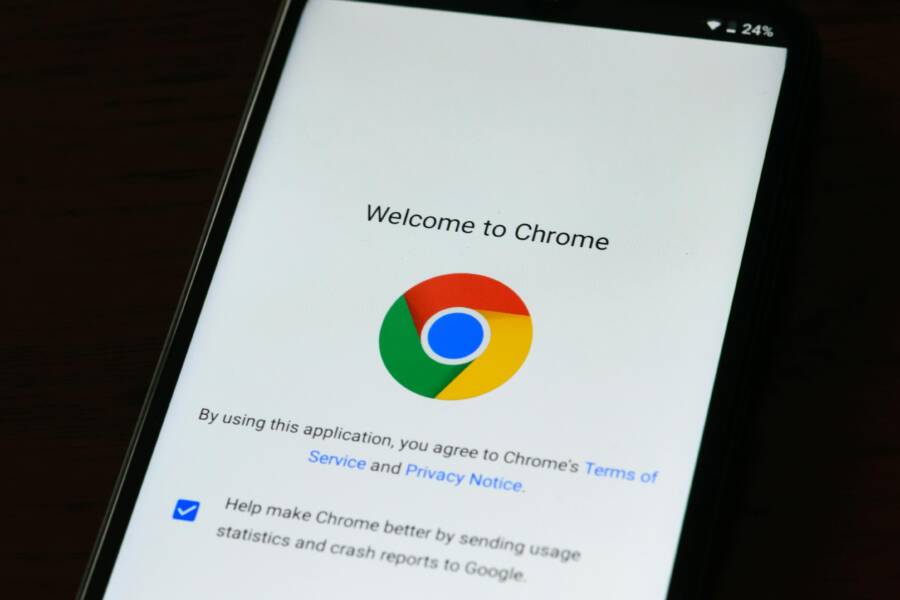
- Try a different browser if you normally stay with one. Popular choices include Chrome, Safari, Firefox, and Edge.
- Ensure cookies and site data are allowed only for trusted sites. Configurations that block site data can prevent login states from saving.
If the portal works in one browser and not another, this points to a browser setting rather than a device problem.
Check for a dedicated school portal app
Some schools offer a mobile app for access in addition to a web portal. An app can provide a smoother experience and fewer caching issues.
She Pressed Play on a Strange Audio Track and Within Days Her Financial Reality Started Shifting in Ways She Could Not Explain
>>> See How It Works <<<

- Look for a portal app in the app store or Google Play. Install it and sign in with the same credentials you use on the web.
- Grant necessary permissions. The app may need storage, notifications, or access to your device’s time settings.
- Compare results. If the app works while the web portal does not, you’ve narrowed the issue to the browser layer.
If there’s no app available, keep using the web portal and focus on the remaining device and network checks.
He Was Drowning in Bills and Burnout Until a Simple Daily Ritual Rewired His Brain for Wealth in Less Than a Week
>>> Start Your Shift Today <<<
Tidy up device and software settings
A phone that is up to date and properly configured reduces the chance of glitches.
- Update the phone’s operating system. Security and compatibility improvements can fix access problems.
- Update installed apps, especially the browser and any school related applications.
- Check the date and time settings. An incorrect clock can trigger certificate errors that block secure sites.
- Disable VPNs or privacy tools during school access. They can interfere with secure connections or block certain domains.
If you use work profiles or guest accounts, ensure the correct profile is active for school access. A mismatched profile can carry over protections that block the portal.
Try some deeper network fixes
If basic checks fail, you can reset network settings or reinstall components to ensure clean, working configurations.
- Reset network settings. This clears saved networks, passwords, and preferred networks. It can fix stubborn issues caused by a bad network profile. Note that you will need to re enter WiFi passwords after this step.
- Reinstall the portal app. If you have the app installed, uninstall it and reinstall. A fresh install can clear out corrupted data that blocks login.
- Clear app data for the portal app. In some cases the app stores bad data locally; clearing it resets the app to first run status.
If you followed these steps and the portal still won’t load, it is time to contact the school IT team. They can check if the portal server sees your device and if there is a block tied to your account.
When to contact school IT or use alternatives
If the problem persists after all the basic and advanced steps, reach out to the school IT department.
- Explain the steps you have already tried. This saves time and helps them diagnose faster.
- Ask about known outages or maintenance windows. Sometimes portals are temporarily unavailable.
- Request an alternate access method. Some schools provide a temporary login page or a temporary access code for emergencies.
If your school offers a helpline or chat support, use it. The quickest fix often comes from someone who can verify the portal status from the server side.
Best practices to prevent future access issues
Preventing problems is easier than fixing them later. A few habits can keep the portal working smoothly.
- Use a dedicated browser profile for school access. Separation reduces the risk of personal data conflicts that affect login pages.
- Store credentials securely. A password manager makes it easy to enter correct data without errors.
- Keep a backup access method. Save the portal URL in a secure note or offline document so you can reach it even if your internet is unreliable.
- Confirm access when networks change. If you switch from home WiFi to a campus network, run a quick test to confirm the portal is reachable.
Smartphone users may rely on data roaming in some situations. If you travel or switch networks often, test the portal whenever you connect to a new network. A small habit now prevents a big delay later.
A practical troubleshooting checklist you can follow
- Check your internet connection. If other sites load slowly, fix the network first.
- Verify the portal URL and your login details. A simple typo can block access.
- Clear browser data and re enable JavaScript. This resolves many loading issues.
- Update the browser and the phone OS. Compatibility matters.
- Disable VPNs and privacy tools for portal access. Re enable them afterward if needed.
- Try the portal app if one exists. Apps can bypass some web issues.
- If necessary, reset network settings and reinstall the portal app. Last resort steps often solve persistent problems.
- Contact school IT if the issue remains unresolved. Provide a concise description of the steps you took.
Real world example: a quick fix sequence
A parent notices the portal would not open on their phone while syncing grades for a child. They try the simplest steps first: switch from WiFi to mobile data, then clear cache, update the browser, and ensure the date was correct. After that, they try a different browser and finally test the portal in app form. With each step, the error message changes and eventually disappears. The lesson is straightforward: address network first, then move through browser settings, and only then escalate.
Conclusion
Accessing a school portal from a phone should be a straightforward task, but it can stall for several reasons. The most reliable approach is a methodical one: verify connectivity, confirm your login details, clear data, and confirm the device is up to date. If problems persist, test on another network and consider the school app as an alternative. When you involve the school IT team, be prepared with a short summary of what you tested and what you observed.
With patience and a clear plan, you can restore access quickly. Whether you’re checking attendance, submitting assignments, or reviewing grades, a solid connection lets you stay on top of your responsibilities. If you have a tip that helped you solve a portal access issue, share it with others in the comments. Your experience could help a fellow student or parent facing the same hurdle.
There Is a Frequency That the Wealthiest Families Have Used for Generations and Most People Will Never Know It Exists
>>> Open the Door <<<
