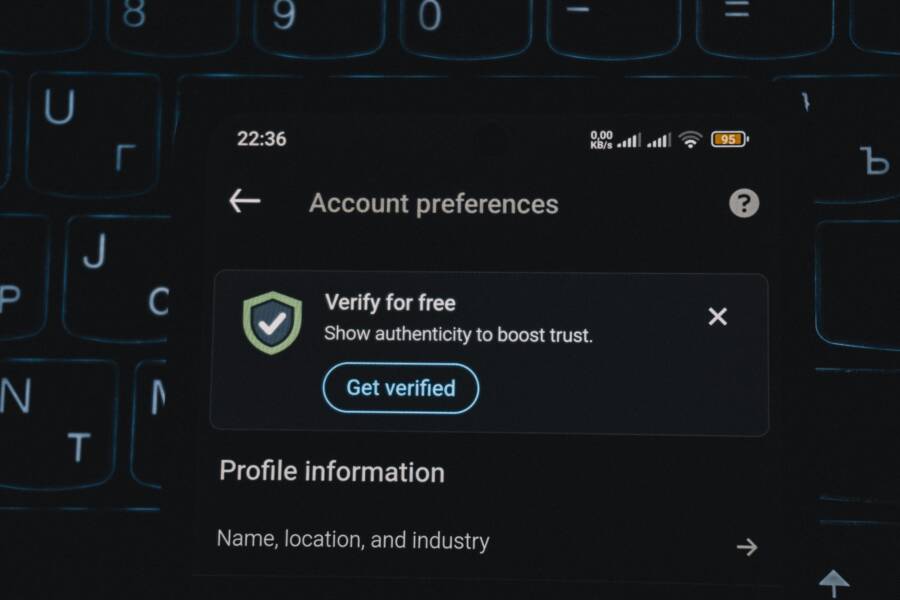
Start with quick checks to rule out common causes
When your phone is stuck on verifying your account, the fastest path to a fix is often a few simple checks. These quick tests help you rule out the most common culprits before diving into deeper troubleshooting. Think of it as a quick triage that saves time and frustration.
 Photo by Zulfugar Karimov
Ensure a stable internet connection
A weak or unstable connection is one of the top reasons verification stalls. If the device can’t reach the servers reliably, the process may time out or fail to complete.
- Test connectivity quickly: open a browser and load a few pages, then try a different app that uses the internet to confirm it’s functioning.
- Try another network: switch to a different Wi-Fi network or enable mobile data if you’re on Wi-Fi.
- Toggle airplane mode: turn it on for 15 seconds, then off to reset network radios.
- Reconnect: forget the current network and reconnect, or reboot your router if you’re on a home network.
If you want to verify service status for major platforms, you can check Apple System Status to see if any services are down. See more at the official page: the Apple System Status page provides real time updates on iCloud, App Store, and other services that might affect verification. Apple System Status
Check date and time settings
Verification can fail if your device’s clock is wrong. A skewed date or time creates mismatches with security tokens and server deadlines.
- Use automatic date and time: go to Settings > Date & time, and enable “Set automatically.”
- If you must adjust manually: set the correct time zone first, then the date and time precisely.
- Re-sync after changes: give the phone a minute to synchronize with the network.
Incorrect time can also affect other services you rely on during setup. If you’re using multiple devices for verification, ensure all clocks are aligned or set to automatic.
Look for service outages or account status
Outages on the platform you’re trying to verify with can stall or block the process. It’s worth checking official status pages before changing device settings.
- Apple users: check Apple’s System Status page for ongoing issues with iCloud, Sign In, or App Store. If you see a reported incident, wait it out and retry later. You can find updates here: Apple System Status
- Google users: the Google Workspace Status Dashboard shows the current health of core services that could affect verification. If a service is down, wait for Google to resolve it. See: Google Workspace Status Dashboard
Temporary holds can appear if the platform detects unusual activity or if your account has protections in place. If you see a hold, follow the page directions and try again after the indicated time.
Disable VPN or firewall that might block verification
Security tools on the device can interfere with the verification flow. A VPN or firewall may route traffic in a way that the verification service doesn’t like.
- Temporarily disable VPNs: turn off the VPN app or switch off the built-in VPN in Settings.
- Pause security apps: disable any security or firewall apps briefly to test if verification proceeds.
- Retry the process: after testing connectivity with protections off, re-enable security features and try again to ensure you don’t leave your device exposed longer than necessary.
If you’re on Android or Google services, you may encounter verification prompts that rely on your device’s identity. For reference, Google provides guidance on verifying your account and managing identity checks via their support pages. For example, you can confirm your identity using your Android device here: Confirm your identity using your Android device
Additional official guidance on account verification, including how to verify and what to expect, is available here: Verify your account – Google Account Help
If you’re troubleshooting and none of the quick checks help, you may want to review the latest status updates for relevant services. Google also provides a status dashboard you can monitor for outages and incident updates: Google Workspace Status Dashboard
If you’d like, I can tailor this section further to match your preferred tone or add more platform-specific steps for iPhone or Android.
Core fixes that usually work
When a phone gets stuck verifying your account, you want fixes that are simple, reliable, and quick. The goal of these core fixes is to reset the verification flow just enough to let the servers and your device align again. Think of them as the essential tune-ups you perform before diving into deeper troubleshooting. They apply whether you’re using an iPhone or an Android smartphone, and they set a solid foundation for a smooth verification restart.
 Photo by Tima Miroshnichenko
Sign out of your accounts, then sign back in
Re Signing out of Apple ID or Google account and then signing back in can refresh the verification flow. It clears token caches and prompts the service to re-validate your identity from scratch. On iPhone, sign out of iCloud and then sign back in; on Android, sign out of your Google account and re-add it. The exact steps vary by platform, but the idea is simple: a fresh sign-in triggers a clean authentication handshake.
- iPhone/Apple: Settings > [your name] > Sign Out, then sign back in with your Apple ID. If you have two-factor authentication enabled, you may need a passcode or verification code. For a quick check, you can review Apple’s guidance on signing out and signing back in to ensure you follow the latest path: Sign out of iCloud on your devices.
- Learn more: https://support.apple.com/en-us/104958
- Android/Google: Settings > Accounts > Google > Remove account, then add the account again. This prompts Google to re-verify your identity as part of the setup process.
- Learn more: https://support.google.com/accounts/answer/6046815?hl=en
Why this helps: your device stores tokens for fast access. If a token is stale or mismatched, re-authenticating clears the problem and often resolves the stall.
Restart the device fully
A full restart clears out temporary glitches that block verification. It’s like giving the device a fresh start so services can reconnect cleanly.
- iPhone: Hold the side button and either volume button until the power-off slider appears. Drag the slider to turn off, wait 30 seconds, then press the side button again to turn on. If the device is unresponsive, perform a force restart following Apple’s guidance.
- Restart guide: Restart your iPhone
- Android: Hold the power button and choose Restart. If the device is frozen, you may need a hard reboot by holding the power button until it restarts, or using the specific combination listed by your manufacturer.
- For example, some Samsung devices use a combination of Power + Volume Down for more than seven seconds.
Why it helps: a complete reboot clears memory caches and resets network daemons that can interfere with the verification handshake.
Update the OS and essential apps
Keeping iOS, Android, and the key apps up to date reduces the chance of compatibility hiccups during verification. Updates fix bugs, improve security, and ensure your device can communicate with verification servers effectively.
Checklist for updates:
- Check for OS updates: Settings > General (iOS) or Settings > System > Software Update (Android). Install any available updates.
- Check app updates: App Store (iOS) or Google Play (Android). Update critical apps like the account and security apps first.
- Enable automatic updates: On iOS, Settings > App Store > Automatic Updates. On Android, Google Play settings > Network preferences > Auto-update apps.
- Reboot after updates: a quick restart ensures updates are properly applied.
Why it matters: older OS versions or mismatched app versions can cause token validation to fail or time out during the verification process. For iOS updates, you can manually update apps from the App Store if automatic updates aren’t turning up the latest versions.
Where to learn more:
- How to update apps on Android: How to update apps on Android – Google Play Help
- Restart your iPhone: Restart your iPhone
- How to manually update apps on iPhone: How to manually update apps from the App Store
Reset network settings
Resetting network settings can clear misconfigurations that block verification, especially if the problem stems from DNS, proxy, or VPN quirks. This step is safe, but it resets saved Wi-Fi networks and passwords, so you’ll need to rejoin networks afterward.
Step-by-step for iPhone:
- Open Settings > General > Transfer or Reset iPhone > Reset > Reset Network Settings.
- Enter your passcode if prompted.
- Confirm. The device will restart and you’ll need to reconnect to Wi-Fi networks.
Step-by-step for Android:
- Open Settings > System > Reset options > Reset Wi-Fi, mobile & Bluetooth.
- Confirm the reset, then reconnect to your networks.
- Re-enter Wi-Fi passwords and re-pair Bluetooth devices as needed.
Notes:
- After the reset, your saved Wi-Fi networks will disappear, as will any stored Bluetooth connections. You’ll need to reconfigure them.
- If you still can’t connect after a reset, double-check router settings and consider a router reboot.
Why it helps: network misconfigurations can block access to verification servers. A clean network setup often resolves the issue.
Free up storage space and retry activation
Low storage can stall verification because the device needs room to process tokens, cache data, and download necessary assets. Freeing space and retrying the activation can make the difference.
What to do:
- Clear app caches: Some apps accumulate large caches. On Android, you can clear cache per app in Settings > Apps. On iPhone, you can offload unused apps or clear Safari cache.
- Delete unused apps: Remove apps you no longer use to reclaim space.
- Move photos and videos to the cloud: Use iCloud, Google Photos, or another cloud service to free local storage.
- Try activation again: After freeing space, run through the verification steps again and monitor the progress.
Why it helps: more available storage reduces the chances of timeouts and improves overall device responsiveness during the verification flow.
Additional guidance and references:
- Clearing cache and cookies on Android: How to Clear Cache and Delete Cookies on Your Phone
- Free up space on Android: Free up space – Android Help
- Update and restore apps on iPhone: Restart your iPhone, How to manually update apps from the App Store
If you’re unsure where to start, begin with signing out and back in, then perform a full device reboot. These two steps alone fix a large share of verification hiccups. If the issue persists after trying these core fixes, you can proceed to deeper checks or consult official status pages for service outages.
External status and help pages you may find useful:
- Apple System Status for service health: Apple System Status
- Google Workspace Status Dashboard for core services: Google Workspace Status Dashboard
- Apple’s iCloud and Sign In assistance: Sign in to your Apple Account on the web or in your device
- Google account verification guidance: Confirm your identity using your Android device
Would you like me to tailor this section to a specific audience segment, such as first-time iPhone users or long-time Android users, or add step-by-step quick-checklists tailored to each platform?
Platform specific steps for Apple devices and Google accounts
If your phone is stuck on verifying your account, platform-specific steps can quickly nudge the process forward. Below, you’ll find targeted guidance for Apple devices and Google accounts that walk you through concrete actions you can take right away. These steps are designed to be simple, action-oriented, and easy to follow on busy days.
Apple devices: fix Apple ID verification on iPhone
Apple ID verification can stall for several reasons, from token issues to two-factor authentication prompts. Start with a quick status check and then move through signing out and back in, updating software, and confirming two-factor authentication is functioning as it should.
- Check Apple ID status and trust signals: verify that Apple’s services are up and running. If there’s a temporary outage, wait a bit and retry. You can view the current service status at Apple System Status.
- Sign out and sign back in: sign out of iCloud on your iPhone and then sign back in with your Apple ID. This refreshes tokens and can resolve stuck verification.
- Update iOS: install any available iOS updates. Newer versions fix known verification hiccups and improve compatibility with security measures.
- Verify two-factor authentication: if prompted, ensure you complete the two-factor flow. If you don’t receive codes, check your trusted devices and phone numbers, or review Apple’s guidance on two-factor authentication.
- Use recovery options if access is blocked: if you can’t reset your password, account recovery can be a path back in. This process can take time but protects your data while you regain access.
Helpful resources to support these steps:
- How to use account recovery when you can’t reset your Apple ID password – Apple Support
- Two-factor authentication for Apple Account
- Get a verification code and sign in with two-factor authentication
While you work through these steps, keep an eye on any prompts that ask for verification codes. If a code lands on a device you don’t recognize, don’t approve it. You can review Apple’s instructions on signing in and managing your Apple ID to align with the latest guidance. For direct guidance on account recovery and verification, you can visit Apple’s official support pages.
External references you may find useful:
- How to use account recovery when you can’t reset your Apple ID password – Apple Support
- Two-factor authentication for Apple Account
- Get a verification code and sign in with two-factor authentication
Android devices: fix Google account verification
On Android, Google account verification can stall for reasons that include data sync issues, outdated services, or blocks tied to identity checks. The following steps are designed to reset the flow with minimal friction.
- Check Google account status: confirm the account is active and not locked or restricted. If there’s an ongoing sign-in issue, Google’s status pages can confirm service health.
- Remove and re-add the Google account: this forces Google to re-verify your identity during the setup. It’s a quick reset that clears token mismatches.
- Update Google Play Services: ensure Google Play Services is up to date since it handles authentication tokens and sign-in processes across apps.
- Ensure Play Protect runs smoothly: keep Play Protect enabled and run a quick scan to rule out security conflicts that might block verification.
- Complete the verification flow with a fresh attempt: after re-authenticating, retry the verification steps and watch for prompts that request additional security checks.
Useful resources to support these steps:
- Troubleshoot login challenges, 2-Step Verification, & sign-in issues from Google Workspace Admin Help (for reference)
- Verify your account – Google Account Help
If you encounter persistent prompts or failures, check for updates to Google Play Services and consider temporarily disabling VPNs or security apps that could block identity checks. You can also review Google’s official guidance on verifying your account and handling identity checks to ensure you follow current recommendations.
External references you may find useful:
- Verify your account – Google Account Help
- Troubleshoot login challenges, 2-Step Verification, & sign-in issues
- Keep your device & apps working with Google Play services
By following these platform-specific steps, you can clear common blockers and get the verification process moving again. If you still see a stall after trying both Apple and Google guidance, it’s worth checking service status dashboards for any reported outages and returning to the steps with fresh eyes.
When to contact support and what to prepare
When your phone is stuck on verifying your account, there are moments you can handle on your own and moments when a support pro is the fastest path to a fix. This section helps you decide when to reach out and what you should have ready so the call or chat goes smoothly. A little preparation saves time and reduces back-and-forth with a representative.
What to gather before you call or chat
Having the right information at hand makes the troubleshooting faster and more precise. Before you reach out, assemble these essentials so the agent can reproduce and diagnose the issue quickly.
- Device model and serial or IMEI if required
- Operating system version (iOS or Android) and build number
- Exact error message or screen wording
- Screenshots or screen recording of the verification prompt
- Recent changes or events (new apps installed, OS updates, password changes)
- Account email or primary identifier used for verification
- Any steps you already tried and their outcomes
- Your current network type (Wi‑Fi or mobile data) and, if possible, router model and firmware
If you’re unsure what to grab, start with a quick screen capture of the error and a note of the time you first noticed the stall. This helps the support team pinpoint whether a service outage or a device-specific glitch is at fault.
How to contact support and what to expect
There are multiple ways to reach help, and each path has its own rhythm. Choose the option that fits your situation, then follow the prompts. Here’s what you can expect from the most common channels and what a representative may ask you to try next.
- Official support pages and self-help guides: these pages walk you through platform-specific steps and usually offer a guided path to live help if needed. Use them first for quick wins and to understand what information you’ll need when you contact support. For Apple, start at the official support hub; for Google, the Google Account Help center is a solid starting point. You can find reliable entry points here: Contact Apple Support and Verify your account
- Phone support: calling gives you real-time guidance and the ability to share your screen through a remote session if the agent offers it. Expect questions about your account, device, recent changes, and your network. If you’re in the US, have your account email handy and be ready to verify ownership with codes or security questions.
- Live chat: a quick text chat can be convenient if you’re near your device or need to paste error messages. A rep will typically ask you to perform a few standard checks again, such as re-signing into your account, rebooting the device, or temporarily disabling VPNs to test the flow.
- Email or support tickets: good for non-urgent issues or when you need to attach files like screenshots. Response times vary, but you’ll usually get a guidance path outlining next steps and a timeline for updates.
What the support process often looks like
- Verification of the device and account details you provided
- Reproduction of the error on the agent’s end or a guided walk-through on your device
- Targeted suggestions, such as re-authenticating, updating software, or adjusting network settings
- If needed, escalation to a higher tier or a service-status check for outages
Tips for faster resolution
- Start with the fastest checks first, like confirming network stability and clock accuracy.
- Have your essential items ready; you’ll reduce back-and-forth questions.
- Be clear, concise, and specific about when the stall started and what you’ve tried.
- If you’re using a VPN or firewall, mention it up front as it can be a common blocker.
Helpful resources if you want to browse on your own
- Apple’s official support ecosystem often provides direct pathways to live help and account recovery options
- Google’s account help center covers verification steps, 2‑step prompts, and common blockers you might encounter
Engaging with support is a two-way street. The clearer you are about what you’re seeing and what you’ve tried, the faster you’ll move past the stall. If you prefer a guided path, you can start with Apple’s and Google’s official support hubs to locate the right contact option for your situation.
Would you like tailored guidance for your specific device and carrier, or a ready-to-use contact script you can copy and paste into chat?
Preventive tips to avoid future verification problems
Staying ahead of verification issues means building solid habits that keep your accounts and devices in good shape. Think of these tips as a preventive toolkit you can use before a problem arises. When you keep software updated, secure your accounts, and use trusted networks, you reduce the chances of stalls during sign in. This section breaks down practical steps you can apply now.
Keep software up to date
Regular updates patch security gaps and fix bugs that can disrupt verification flows. Enabling automatic updates means your device stays current without you having to chase patches, which lowers the risk of token mismatches or server timeouts during sign in.
- Enable automatic updates on your device: this ensures critical security and compatibility changes are installed as soon as they’re available.
- Check for updates routinely: set a monthly reminder to review OS and essential apps. Update the apps you rely on for verification first.
- Understand the impact: newer versions often tighten security checks that can prevent suspicious sign in attempts from failing to verify.
Proactive updating matters because delays leave you exposed to known risks. For Apple users, you can learn about how to install and enforce software updates on Apple devices to keep devices in good standing. See: Apple’s guidance on software updates. For broader guidelines, see resources on keeping devices and software up to date from trusted security authorities. External references: Apple System Status and reputable security guidance.
External links for further learning:
- Apple System Status for service health
- Keeping devices and software up to date – NCSC.GOV.UK
- How do I enable auto updates on your mobile device (Samsung and Apple devices)
Manage accounts and security
Strong account hygiene is the best shield against verification problems. Enabling two factor authentication (2FA), reviewing connected devices, and keeping recovery options current make it much harder for an attacker to disrupt your sign in.
- Turn on two factor authentication: add a second form of verification so a stolen password alone won’t unlock your account.
- Review connected devices and apps: remove any that you don’t recognize or no longer use.
- Update recovery options: ensure your recovery email and phone number are current, and add a trusted backup method if offered.
Two-factor authentication is a cornerstone of protection. For Apple accounts, enabling 2FA strengthens access controls. For Google accounts, 2-Step Verification adds another layer during sign in. Useful resources: official guides on turning on 2FA for Apple and Google accounts.
External links for quick setup:
- Two-factor authentication for Apple Account
- Turn on 2-Step Verification – iPhone & iPad
- How to Set Up Two-Factor Authentication (2FA) on Your Apple ID
Use trusted networks and avoid risky setups during verification
Network security plays a big role in a smooth verification process. Public Wi-Fi and unsecured networks introduce risks that can trigger verification holds or token mismatches.
- Prefer trusted Wi-Fi or cellular data when verifying accounts. If you must use public networks, limit sensitive sign-ins and use a VPN with caution.
- Avoid saving passwords or completing critical sign-ins over public networks.
- If you suspect a network issue, switch to a different trusted network and retry.
Public networks can expose your data to eavesdropping or man-in-the-middle attacks. It’s wise to stay off public Wi-Fi for verification tasks and rely on your home network or mobile data whenever possible. For more on staying safe with public networks, see trusted resources on public Wi-Fi risks and best practices.
External links with practical guidance:
- Tips for safely using public Wi-Fi
- Public Wi-Fi: A guide to the risks and how to stay safe
- Are Public Wi-Fi Networks Safe? What You Need To Know
Additional note: if you’re testing verification on a smartphone while traveling, switching networks between checks can reveal whether the issue is network-related or device-related.
Links to reliable status resources:
- Apple System Status
- Google Workspace Status Dashboard
Remember to keep this section in perspective: the goal is to minimize friction while keeping your data secure. By combining up to date software, strong account security, and smart network choices, you significantly reduce the odds of future verification problems. If you want, I can tailor these tips to a specific device or carrier profile.
Conclusion
Most phone verification stalls clear up with a simple, methodical set of steps. By running through quick checks, signing in anew, and applying platform specific actions, you can reset the verification flow and regain normal access on your smartphone. Keep the core fixes handy as a reliable fallback before calling support.
Save this checklist for future use and tackle the issue with confidence. If you have a quick tip that helped you, share it in the comments so others can benefit, and consider revisiting the steps if you ever run into a similar prompt again.