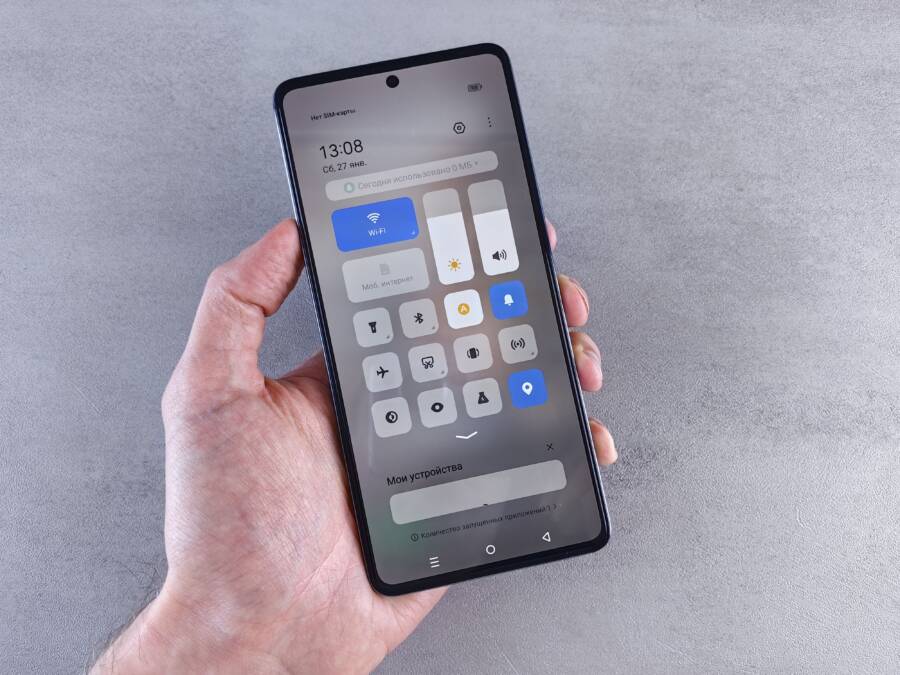
Bluetooth signal range on your smartphone typically reaches about 30 feet, but physical walls, electronic interference, or software glitches often shrink this distance. When your connection drops or audio stutters just a few feet away, it is usually a minor technical hiccup rather than a hardware failure.
Most connectivity problems disappear after you run through a few basic troubleshooting steps. These simple fixes often restore your full signal strength and stabilize your wireless audio or data transfers.
Check your device settings to start optimizing your connection range.
Why Your Bluetooth Connection Suddenly Drops
Bluetooth range depends on the clear path between your smartphone and the connected accessory. While manufacturers often claim a range of 30 feet, this distance assumes a perfect environment without any obstructions. Real-world usage frequently falls short of this ideal because radio waves struggle to penetrate solid objects. When your connection drops, it usually means your signal path is blocked or the distance between devices is simply too far.
Common Physical Obstacles Affecting Signal
Your body acts as a significant barrier to Bluetooth signals. Because your smartphone relies on low-power radio frequencies, the water and density in human tissue absorb signal energy before it reaches your headphones or speaker. If you keep your device in a back pocket or a thick leather case, your own body effectively shields the antenna. This blocking often causes stuttering audio or complete connection loss when you turn away from the accessory.
Household materials also disrupt the signal. Walls containing metal studs, heavy appliances, or even thick concrete floors reflect and dissipate the radio waves. You can verify if placement is the cause by conducting a simple test. Move your smartphone into an open space with a direct line of sight to the accessory. If the audio becomes stable again, you know that physical density is the primary culprit.
- Avoid carrying your device in dense pockets or bags when using high-fidelity audio gear.
- Keep your phone on a table or a flat surface instead of inside a drawer to maintain a clear connection path.
- Remove bulky metal cases if you experience frequent drops, as these covers often reflect the signal back into the phone rather than allowing it to broadcast outward.
Electronic Interference Explained
Bluetooth technology operates on the 2.4GHz frequency band. This is the same spectrum used by most home Wi-Fi routers, cordless phones, and even microwave ovens. When too many devices operate on this channel in one room, the signals collide and create noise. Your smartphone must then work harder to maintain a stable link, which often leads to shorter usable range or dropped connections.
A crowded signal environment is common in modern homes or busy office spaces. If you live in an apartment with several nearby Wi-Fi networks, the airwaves are likely saturated with competing data. This congestion forces your Bluetooth device to resend data packets constantly. As the background noise increases, the effective reach of your Bluetooth signal shrinks because the device cannot distinguish the intended data from the interference.
You can often improve the situation by shifting your Wi-Fi router to the 5GHz band. This removes a major source of 2.4GHz traffic from the immediate area. Another effective strategy is to move away from other wireless transmitters, such as baby monitors or smart home hubs, which often contribute to the invisible traffic jam disrupting your smartphone signal.
Quick Software Fixes for iPhone and Android
Software glitches often trigger range limitations that mimic hardware damage. If you ruled out physical obstructions and interference, your smartphone likely needs a simple digital refresh. These procedures clear out corrupted cache files or stuck processes that prevent your device from maintaining a strong wireless link.
Resetting Your Wireless Connections
Bluetooth connections store specific handshaking data to speed up future pairings. Sometimes this data becomes outdated or corrupted after an update, causing your smartphone to hold onto a weak signal. Forgetting the device forces your phone to establish a clean, new connection from scratch.
To remove a device on your phone, follow these steps:
- Open your settings menu and locate the Bluetooth section.
- Find your specific accessory in the list of connected or paired devices.
- Tap the icon or gear symbol next to the name to view its properties.
- Select the option that says “Forget This Device” or “Unpair.”
- Restart your smartphone to ensure the memory clears completely.
- Put your accessory back into pairing mode and link it as if it were a new product.
Sometimes, a single device fix is not enough. If you experience range issues across multiple headphones or speakers, your entire network stack may need a reset. A Network Settings Reset wipes all saved Wi-Fi networks, cellular preferences, and Bluetooth configurations. It does not erase your photos or apps, but you will need to reconnect to your home Wi-Fi and pair your wireless accessories again. Use this as a final step when you suspect a deeper software conflict is suppressing your Bluetooth signal.
Keeping Your Operating System Updated
Manufacturers constantly release firmware updates to address bugs within the Bluetooth stack. A minor coding error in your operating system might limit your antenna power or cause dropped packets at distances that should be stable. These updates frequently contain patches that improve the efficiency of your wireless radio.
Always check for pending updates in your system settings. If a newer version of your operating system is available, install it promptly. These updates often fix compatibility issues between your smartphone and newer Bluetooth protocols. By staying current, you maintain the software stability required for optimal signal range and data throughput.
When your phone runs an outdated version of the operating system, it may struggle to negotiate signal strength with modern accessories. Manufacturers test their latest firmware against the newest Bluetooth standards to ensure reliable performance. Keeping your software updated is a basic requirement for protecting the performance and range of your wireless connections.
Checking Your Bluetooth Accessories
Your smartphone depends on a stable handshake with your peripheral devices to maintain a consistent signal range. When your headphones or speaker perform poorly, the fault often lies within the accessory itself rather than your phone. Checking your hardware status helps you identify if the issue is a simple power drain or a deeper internal conflict.
Testing Battery Levels and Firmware
A low battery in your Bluetooth peripheral significantly reduces its antenna power. Bluetooth radio chips require a steady voltage to broadcast signals over long distances effectively. When your accessory enters a low-power state, it automatically lowers its transmission output to conserve energy. This reduction makes the connection sensitive to minor obstacles and decreases your functional range. Always keep your peripherals charged above 30 percent to ensure the antenna operates at full capacity.
Many modern accessories also rely on specific software instructions, known as firmware, to manage wireless communication. If these instructions are outdated, your device may struggle with efficient signal handshaking. Manufacturers often release updates to fix bugs that specifically cause connection drops or range limitations. You should install the official companion app provided by the brand to check for these updates.
Follow these steps to ensure your gear is ready:
- Launch the manufacturer’s official app on your smartphone to view your device status.
- Navigate to the settings or device information menu inside the app.
- Look for a section labeled firmware or software update.
- If an update is available, keep your device plugged into a power source during the installation process.
- Restart your accessory once the update finishes to apply the new connection protocols.
Frequent updates ensure your smartphone communicates correctly with the hardware. If your headset lacks a companion app, consult the manufacturer website for a firmware tool or a manual reset procedure. Maintaining current firmware helps your accessories handle signal interference more effectively, which often solves persistent range issues.
When to Contact Support
Contacting professional support is necessary if you have completed all troubleshooting steps without success. If your smartphone continues to struggle with short-range connectivity after a network reset and firmware update, a hardware issue likely exists. Support teams can help you verify if your device requires a repair or if a specific warranty policy covers the fault.
Signs of Hardware Damage
Wireless hardware inside a mobile device is durable, but it can suffer damage from drops, liquid exposure, or extreme heat. If the Bluetooth antenna inside your smartphone is cracked or disconnected, no amount of software configuration will restore the range. Sudden physical impacts often cause internal hardware failure.
Look for these indicators that suggest your hardware needs professional attention:
- The Bluetooth toggle in your settings menu is grayed out or unresponsive.
- Your phone fails to detect any nearby devices, even those you know are in pairing mode.
- The connection drops immediately after you move the phone just a few inches away from the accessory.
- Physical damage, such as a dented frame or cracked screen, appeared near the top or bottom of the phone where antennas reside.
If you notice these patterns, your smartphone may have an internal antenna malfunction. Contacting the manufacturer is the best path forward because they can run diagnostic tests to confirm hardware integrity.
Preparing for Your Support Request
Before you speak with a technician, gather all relevant information to speed up the process. Providing clear details helps them skip basic troubleshooting and move directly to an advanced resolution. Have your device model, current operating system version, and a list of the accessories you use ready.
When you reach out, explain the specific steps you already finished. This prevents the agent from suggesting fixes that you already attempted. Mentioning that you performed a factory reset or a network settings reset is particularly helpful. Providing these facts saves time and demonstrates that the issue persists despite your best efforts to resolve the conflict at home.
You should also check your warranty status through the manufacturer website before starting a support chat or call. Most smartphone makers provide an online portal where you enter your device serial number to see if your hardware coverage remains active. Knowing your warranty status ahead of time gives you a clear expectation regarding potential repair costs or replacement options.
Conclusion
Most Bluetooth range limitations on your smartphone stem from temporary software glitches or environmental interference. You can often restore a stable connection by unpairing your devices, clearing cached data, or updating your operating system.
Check your surroundings for physical obstructions or competing wireless signals if your connection continues to drop. Keeping your device firmware current also prevents many common communication errors between your phone and your accessories.
You now possess the tools to troubleshoot and resolve these wireless conflicts on your own. Reliability remains within reach if you stay mindful of your signal environment.