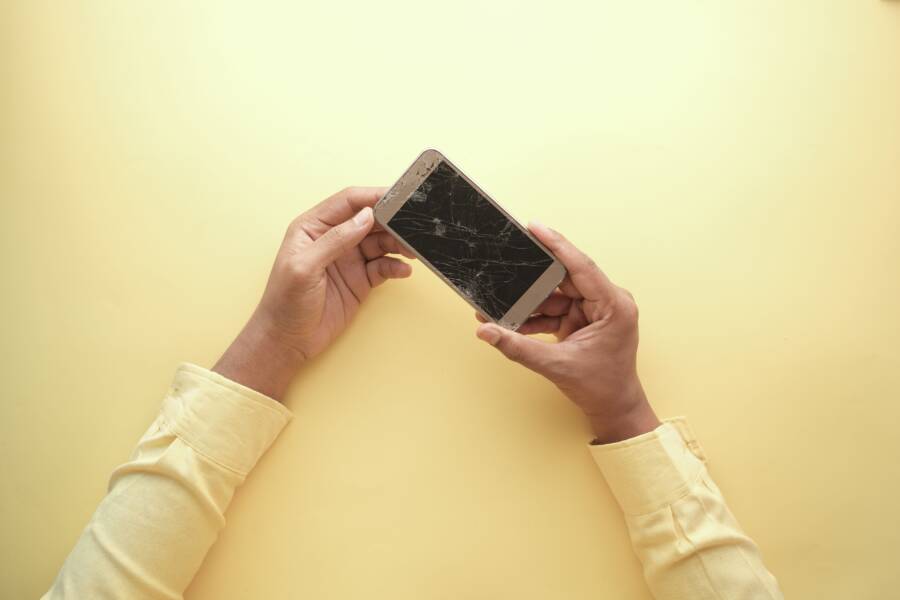
When your smartphone suddenly loses service and displays a “SIM Card Not Detected” error, it is usually a minor software glitch or a loose physical connection. You don’t need to visit a repair shop immediately because most of these issues disappear after a few simple troubleshooting steps.
Restarting your device or reinserting the card often restores your cellular connection in seconds. If the error persists, you can try these practical fixes to get your phone back online.
Why Your Smartphone Suddenly Loses SIM Connection
A sudden loss of signal occurs when the hardware or software inside your device fails to communicate with the small chip provided by your carrier. Most users assume the worst, but the issue often stems from a simple, temporary disconnection between the internal contact pins and the card itself. Your smartphone relies on a specific sequence of electronic signals to verify your identity on the network, and any interruption in this process triggers an immediate error message.
Physical Damage to the SIM Card or Tray
Over time, daily wear can affect the physical integrity of your SIM card. Small scratches on the gold contact points prevent the reader inside your phone from verifying your subscription details. You should remove the tray to check for visible debris, dust, or moisture that might block these contacts. Even a slightly bent card can lose its precise alignment within the slot, which causes intermittent connection failures during phone movement.
Corrosion is another silent factor if your device has been exposed to humidity or spills. Inspect the metal surface of the card for any dull or dark spots that suggest oxidation. If you notice signs of damage, you should contact your carrier to request a replacement. Modern carriers can often activate a new card in minutes, restoring your connection without requiring a full device repair.
Internal Software Conflicts
Sometimes the error appears because the operating system stops communicating correctly with the cellular modem. This happens after a software update or if the system cache contains corrupted data related to network settings. Your smartphone stores configuration files that manage how the hardware talks to local towers. If these files become outdated or corrupted, the system fails to recognize the valid SIM card already inside the tray.
You can often resolve this by resetting the network settings in your device menu. This action clears saved Wi-Fi passwords, paired Bluetooth devices, and cellular configurations to their original state. Many users find that this process forces the device to re-scan for the SIM card correctly. Remember that you will need to reconnect to your wireless networks after performing this reset.
Loose Connections from Physical Impact
Accidental drops or heavy pressure can jar the internal components of a smartphone just enough to break the connection. While the phone appears fine on the outside, the internal reader pins might lose contact with the card tray. If you recently dropped your phone, this physical misalignment is a likely culprit for your service issues.
Testing for this requires a simple process of elimination. You can insert your SIM card into another working phone to see if it reads correctly. If the other device recognizes your card, the problem lies with your own reader pins or the internal tray mechanism. If the other phone also fails to detect the card, the issue is almost certainly the card itself. This distinction saves time by helping you identify exactly which part needs attention or replacement.
Quick Physical Checks to Try First
Before you jump into complex software resets or contact your cellular provider, start by examining the hardware. A smartphone often fails to detect a SIM card simply because the connection between the card and the internal reader is physically interrupted. Small amounts of dust or minor vibrations can shift the card out of position, preventing the device from establishing a stable link to the network.
Removing and Cleaning the SIM Card Tray
The most direct way to resolve a connection error is to physically remove the SIM card tray. Locate the tiny pinhole on the side of your smartphone, which is typically near the volume or power buttons. Insert the provided ejector tool or a small paperclip into the hole with firm, straight pressure until the tray pops out slightly.
Once the tray slides out, carefully remove the SIM card and inspect the gold contacts on its underside. If you see fingerprints, oil, or dust, wipe the surface with a clean, dry microfiber cloth. Avoid using water or liquid cleaners, as moisture can damage the delicate internal components of your smartphone. Check the tray slot itself for lint or debris by peering inside with a flashlight. If you spot anything, use a burst of compressed air to dislodge the particles.
When you finish cleaning, place the SIM card back into the tray precisely, ensuring it sits flat within the designated cutout. Slide the tray back into the phone firmly until it sits flush with the frame. If the alignment is slightly off, the pins inside the device may not touch the gold contact points, which will keep the error message on your screen.
Testing for Physical Damage to the Card
If cleaning the contacts does not solve the issue, the card itself might be damaged. Look closely at the plastic edges of the SIM card for signs of warping, cracks, or deep scratches across the gold plating. Even a tiny bend can prevent the card from making consistent contact with the internal reader.
If you have access to another compatible phone, insert your SIM card into that device to see if it works. This simple test confirms if the fault lies with the card or the smartphone. Follow these results to decide your next move:
- If the second phone detects the card, the issue is with your original device’s reader pins.
- If the second phone also displays a “No SIM” error, the card is likely faulty or expired.
When a card is clearly bent or shows visible damage, contact your carrier to request a replacement. Most providers will issue a new card quickly, which often resolves connectivity problems immediately without requiring a expensive repair on your actual phone.
Troubleshooting Software Issues on Your Device
Most “SIM Card Not Detected” errors are temporary software glitches rather than permanent hardware failures. When your smartphone fails to recognize the card, the internal communication between the cellular modem and the operating system often needs a refresh. These software-based troubleshooting steps provide a simple way to restore your connection without needing professional repair services.
Toggling Airplane Mode to Reset Connections
Switching Airplane Mode on and off is the fastest way to force your device to re-scan for nearby cellular networks. This action interrupts all radio frequency transmissions, including cellular, Wi-Fi, and Bluetooth, and clears the current signal handshake. When you disable this mode, the smartphone performs a fresh search for the local network.
The process effectively acts as a soft reset for your antenna and modem software. Many users report that this simple toggle allows the phone to identify the SIM card again once it attempts to re-authenticate with the carrier tower. If the error message remains after a few seconds, wait for a full minute with Airplane Mode active before disabling it again to ensure the modem fully cycles.
Restarting or Updating Your Operating System
A standard power cycle often resolves hidden software conflicts that prevent the phone from reading your SIM card. When you turn off your smartphone, the system clears temporary cache files and terminates background processes that might interfere with modem communication. Shutting the device down completely and waiting for thirty seconds before restarting it can often fix these minor operational errors.
You should also check for pending system updates in your settings menu. Manufacturers frequently release software patches that improve modem stability or fix known issues with network recognition. Additionally, look for carrier settings updates under your network information menu. These small, background updates provide the latest protocols for your specific provider, which can often bridge the gap between your hardware and the network.
Resetting Network Settings Safely
If other troubleshooting steps fail, a network settings reset is a powerful option for deep-level connectivity issues. This process restores your cellular, Wi-Fi, and Bluetooth configurations to their factory default values. It effectively clears out corrupt files or misconfigured settings that might be blocking the SIM card detection process.
Keep in mind that this step will remove all your saved Wi-Fi passwords and disconnect any paired Bluetooth devices. You will need to sign back into your wireless networks and re-pair your smartwatches or headphones afterward. To perform this reset:
- Open the Settings app on your smartphone.
- Navigate to the System or General Management menu.
- Select the Reset option and choose the setting specifically labeled Reset Network Settings.
- Confirm your choice by entering your device PIN or password if prompted.
The phone will restart automatically after the reset completes. Once it boots back up, wait a moment for the device to initialize the SIM card tray, which often resolves the persistent error.
When to Contact Your Carrier for Professional Help
Most SIM card issues resolve with simple at-home troubleshooting. However, some situations require direct support from your service provider. Contacting your carrier is necessary when your hardware remains unresponsive despite your best efforts to fix the connection.
Identifying Permanent SIM Card Failure
You should reach out to your provider if you suspect the card itself is broken. This often happens if the gold contact points show heavy scratching, corrosion, or physical warping. If you tested the card in another smartphone and the error persists, the chip has likely reached the end of its life.
Replacement is the only fix for a damaged card. Most providers will ship a new SIM card to your home or allow you to pick one up at a local store. They handle the activation process, which ensures your phone number and service plan migrate to the new chip without interruption.
Solving Account-Level Restrictions
Sometimes the “No SIM” error is actually a placeholder for an account status issue. Your service provider might have suspended your line due to a billing error, a past-due balance, or an expired prepaid plan. When an account is inactive, the network will refuse to authenticate your device even if the SIM card is perfectly healthy.
Log in to your carrier mobile app or website to verify your account status. If you see a notification about suspended service or an invalid plan, call customer support to clear the hurdle. They can restore your access once you resolve the account discrepancy, which often makes the error message disappear immediately.
Requesting Advanced Network Support
You might need professional assistance if your smartphone software refuses to register on the tower even with a functioning SIM card. Certain devices require carrier-specific provisioning files to communicate with the network. If these files become corrupted or fail to download automatically, your device will display persistent connection errors.
Carrier support agents can push a manual update to your device to refresh these network credentials. They can also check the local tower status to see if an outage is affecting your specific area. If you live in a region with known tower maintenance, waiting for the repairs to finish is the only way to restore your signal.
Knowing When to Visit a Repair Shop
If your carrier confirms that your SIM card and account are both in good standing, the issue likely sits with the hardware inside your phone. You should contact a professional repair service if you notice these signs:
- The SIM card tray feels loose, wobbly, or does not click shut.
- Internal metal pins inside the SIM slot appear bent, flattened, or missing.
- The device recently suffered impact damage or liquid exposure that might affect the internal modem.
Professional technicians can inspect the internal components and determine if the SIM reader module requires a physical replacement. While you might want to attempt a repair yourself, opening a modern smartphone is risky and often voids your warranty. Getting an expert opinion prevents you from causing additional damage during the repair process.
Conclusion
Most SIM card errors on a smartphone stem from simple physical misalignments or minor software glitches. You can usually restore your service by cleaning the card contacts or performing a basic network settings reset.
If these steps fail to resolve the issue, contact your carrier to rule out account restrictions or a faulty SIM card. Persistent errors despite a clean, working card often point to a hardware fault that requires professional repair.