Finding out which app is restarting your phone can feel like detective work, but it’s usually a solvable puzzle. A phone that restarts on its own often points to a troublesome app rather than a hardware fault. By following a simple, step by step approach, you can identify the culprit and keep your smartphone running smoothly.
First, know what to look for. Restarts that happen only when you use certain apps or right after an update are strong signs an app is the trigger. You’ll also notice mentions of overheating, rapid battery drain, or freezes that line up with specific software. These clues help you separate app trouble from a deeper system issue. If the phone restarts even in safe mode, the problem might be more complex and could involve the device itself.
This guide shows how to test suspects safely and effectively on both Android and iOS. You’ll learn how to use safe mode equivalents, how to update or uninstall likely culprits, and how to monitor resource use to spot a runaway process. We’ll cover practical steps you can take with confidence, from clearing cache to limiting background activity. You’ll also get tips on maintaining storage and keeping apps from piling up in the background.
By the end, you’ll have a clear plan to pinpoint the app responsible for restarts, plus a path to fix it or replace it if needed. If you reach a point where the phone still restarts after trying the guides, you’ll know when to seek professional help. This is practical, no fluff advice for a common smartphone problem.
Android: Step by Step to Find Which App Is Restarting Your Phone
If your Android phone restarts on its own, you want a practical plan that zeros in on the culprit without guesswork. This section walks you through a clear, repeatable process. You’ll learn how to isolate third party apps, verify updates, and confirm a culprit with controlled tests. The goal is to turn restarts from a mystery into a solvable problem you can fix quickly.
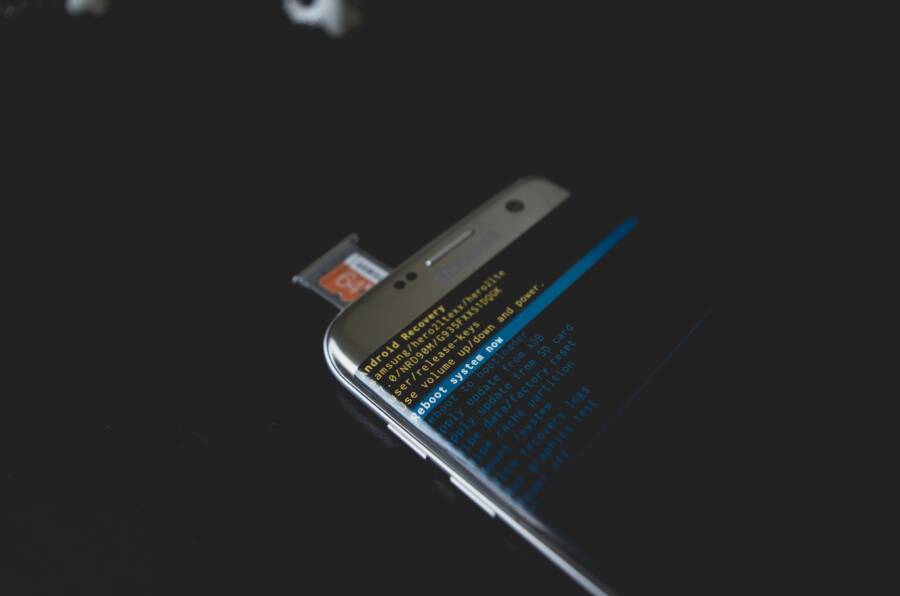
 Photo by Kelvin Valerio
Enter Safe Mode to isolate third party apps
Safe Mode is your first, easiest diagnostic step. In Safe Mode, the phone runs only the core system software, which means third party apps are not active. If the restarts stop in Safe Mode, a third party app is likely behind the problem. If restarts continue even in Safe Mode, the issue could be deeper, possibly a system or hardware problem.
To boot into Safe Mode on common devices, follow these steps:
- Power off the device.
- Press and hold the Power button until the power options appear.
- Tap and hold Power off (or Restart) until you see the Safe Mode prompt.
- Confirm to restart in Safe Mode.
- When the device restarts, you should see a “Safe Mode” watermark at the bottom of the screen.
- Use the phone normally and note whether restarts occur.
Interpreting the results is straightforward. If the phone no longer restarts in Safe Mode, you can start testing apps in small groups. If restarts keep happening, the issue may be with the OS or hardware, and you should try additional steps such as updating software or checking hardware basics.
For device-specific Safe Mode guidance, these resources can help:
- Power on your Galaxy phone or tablet in Safe mode
- Find problem apps by rebooting to safe mode for Google Pixel
- Android Safe Mode: How to Turn On and Disable Safe mode
If you’d like a quick visual guide, this YouTube short offers a quick walkthrough on entering Safe Mode on various Android devices.
Update OS and apps, then test apps in sequence
Keeping the device software current is essential. Start with a fresh update of Android itself, then update every installed app. Updates fix bugs, patch security flaws, and can stop restarts caused by known issues.
Testing plan after updates:
- Update Android OS to the latest stable version available for your device.
- Update all apps from the Play Store. If an app has pending updates, install them and restart as needed.
- Reboot the device and observe whether restarts occur.
Now test apps in sequence to identify culprits:
- Re-enable apps in small batches, such as 3–5 at a time.
- Use the phone for a day or two with the batch active and note any restart events.
- If a restart happens, remove the last batch and test with a smaller group or single app to narrow down the suspect.
- Keep a simple log with dates, batch groups, and restart occurrences.
Practical tips:
- Maintain a simple notebook or a note in your phone to capture the testing timeline.
- If updates don’t fix the issue, consider rolling back a recent app update if the problem started after an update.
- If you suspect a driver or system process, check for any device-specific updates from the manufacturer.
Relevant resources on OS and app updates include guidance from major Android support spaces and general maintenance tips to help you stay on track.
Test suspects by force stopping, clearing cache, and uninstalling
When you have a suspect set, proceed with controlled actions to confirm the culprit. Perform these steps one at a time, with a controlled test period after each action.
- Force stop the suspect app
- Go to Settings > Apps > [App name] > Force Stop.
- Use the device for several hours to observe stability.
- Clear the app’s cache
- Open Settings > Apps > [App name] > Storage > Clear Cache.
- Monitor for any change in restart behavior.
- Clear all app data (as a last resort for one suspect)
- Settings > Apps > [App name] > Storage > Clear All Data.
- Note that this resets the app to its default state, so you may need to reconfigure it.
- Uninstall recent or suspicious apps
- Settings > Apps > [App name] > Uninstall.
- After uninstallation, test the device for restarts over a few days.
Tracking results is key. If a restart stops after force stopping, clearing cache, or uninstalling, you’ve identified the culprit. If multiple actions affect stability, repeat the tests with another suspect, following the same controlled approach.
Helpful reference points:
- Guidance on clearing Android cache and maintaining device performance
- Tips for managing app data and optimizing storage to reduce restarts
Check battery and storage health to spot systemic issues
Battery health and storage pressure can trigger unexpected restarts. A device that runs hot or runs out of storage may reboot to protect itself.
How to review these areas:
- Battery usage: Settings > Battery > Battery usage. Look for apps consuming unusual power.
- High drain apps: Identify apps with a disproportionate share of battery usage.
- Storage: Settings > Storage. Check available space. If storage is near full, performance can suffer and restarts may occur.
- Overheating: If the device feels unusually warm, pause heavy tasks and close resource-heavy apps.
Warnings to watch for:
- A single app that drains battery quickly in the background
- Low storage leading to system instability
- Charging issues that correlate with restarts
If you notice a pattern, address the root causes. Free up storage by removing unused apps and media, or move data to the cloud. Keep the device cool during intensive tasks, such as gaming or video editing.
Check hardware basics like charging port and battery health
Hardware issues can masquerade as software problems. A dirty charging port, swollen battery, or aging components can trigger restarts.
Quick checks you can perform:
- Inspect the charging port: Look for dust, lint, or debris. Use a small, non-metal tool to gently clean if you see buildup.
- Wobble test: Connect a charger and gently wiggle the cable. If power delivery is unstable, the port or cable might be faulty.
- Battery health: Some devices show battery health in Settings or under diagnostics. If the battery reports poor health, consider replacement.
- Screen and thermal behavior: Notice if restarts happen during heavy use or while the device is charging. This can indicate charging or thermal issues.
When to seek service:
- Visible battery swelling
- Persistent restarts after hardware checks
- Inconsistent charging behavior that doesn’t improve with simple fixes
If you need professional help, your carrier or the device manufacturer often provides diagnostic options and service centers. A prompt check can prevent further damage and extend the device’s life.
Get more on hardware checks and battery care:
- Battery life tips from Google support
- Android hardware troubleshooting guides
- Manufacturer service resources for persistent restart issues
By following these steps, you’ll turn a mystery into a clear path to a reliable Android phone. Take a methodical approach, document your findings, and you’ll know whether the issue is an app, the OS, or a hardware problem. If you want to explore more hands-on tutorials, you can dive into in-depth Android troubleshooting guides that cover similar scenarios in detail.
iOS: How to identify apps that restart your iPhone
If your iPhone or iPad restarts unexpectedly, the culprit is often a misbehaving app. The goal of this section is to give you a practical, step by step approach to isolate the app, confirm causes, and restore stability. You’ll test updates, adjust notification behavior, and use targeted resets without losing control of your data. Think of it as a focused health check for your smartphone.
Update iOS and apps
Keeping iOS and every installed app current is the simplest, most effective way to stop restarts caused by bugs. Start with a system update, then bring all apps up to date, and finally test for changes.
- Check for iOS updates: open Settings, go to General, then Software Update. If an update is available, download and install it. Apple provides wireless options and guidance for updating a device, as well as how to move to a computer update if needed. For a quick reference, Apple’s official update guidance walks you through the wireless method and alternative update paths.
- Update apps on the App Store: open the App Store, view your account, and install any pending app updates. You can update all at once or pick individual apps, depending on the release notes and your needs. Apple’s instructions cover manual updates if you prefer to control when apps update.
- After updates, reboot and observe: use your iPhone normally for a day or two and note whether restarts occur. If the issue persists, proceed with testing suspects in controlled steps.
Practical takeaway: keeping software current fixes many restart-causing issues tied to known bugs, compatibility gaps, or security patches. If you want a guided update workflow, you can reference Apple’s documentation on updating iPhone and iPad software and apps.
Further reading:
- Update apps from the App Store on iPhone
- Update your iPhone or iPad
Isolate apps by turning off notifications and deleting recent apps
A sudden restart can be triggered by a misbehaving app or a notification storm. Isolating apps by temporarily turning off notifications and removing recently used apps helps you identify the culprit without reinstalling everything.
- Turn off notifications for a trial period: Settings > Notifications > [App] > Allow Notifications off. Keep this setting for a few days to gauge stability, then reintroduce notifications one app at a time.
- Remove recently used apps to test stability: press and hold an app icon, then choose Remove App or offload it if you want to preserve data. After removal, monitor the device for restarts over several days.
- Reintroduce apps in small groups: add back 3–5 apps at a time, using the phone normally. If a restart occurs, narrow to a smaller batch or a single app to pinpoint the offender.
- Track results: log dates, active groups, and any restart events. A simple notebook or note on the device works well.
Real-world tip: turning off notifications can reveal if background alerts are sparking a restart loop. If you need specific steps, Apple’s guide on changing notification settings for individual apps is a solid reference.
Helpful resources:
- Change notification settings on iPhone
- Turn notifications on or off for a specific app – Apple Support
Offload unused apps and reset settings if needed
If you’re still chasing the cause, offloading unused apps can free space while preserving data. Resetting settings is a stronger move, reserved for situations where software settings have become tangled.
- Offload unused apps: this feature removes the app itself but keeps its documents and data. You can re-download the app later without losing important information. Use Settings > General > iPhone Storage, then enable Offload Unused Apps or offload individual apps as needed. Check storage health and available space as you go.
- When to offload: use this when storage pressure is high or you notice performance dips that coincide with restarts. It helps reduce background activity tied to idle apps.
- Resetting settings vs. Reset All Content and Settings:
- Reset All Settings: returns system settings to default without erasing data. This can clear misconfigurations that trigger restarts without affecting your photos or apps.
- Reset All Content and Settings: erases all data and restores the device to factory state. Back up first, then proceed if problems persist after other steps.
- After a reset, reconfigure essential settings and update again if needed. Then repeat stability tests to see if restarts reappear.
Practical note: offloading and resets are not punishment, they are last steps that give the system a clean slate while preserving as much user data as possible. For official guidance on these options, reference Apple’s factory reset and device storage articles as you plan.
Relevant guidance:
- How to check the storage on your iPhone and iPad
- Setting for offloading unused apps
- How to factory reset your iPhone, iPad, or iPod touch
- Reset iPhone settings to their defaults
What to do if the problem persists
If restarts continue after you have isolated apps and adjusted settings, you need a longer, targeted investigation on your iPhone. This plan keeps you in control and avoids broad, unproductive tests.
- Review crash data and logs: Collect data from stable periods and failed periods to spot patterns. If you have access to crash reports, use them to identify problematic app behavior or system processes. Apple’s crash report resources and third party tools can help you interpret the data.
- Reproduce with a clean test environment: disable all nonessential apps, then reintroduce essential ones one by one. If a restart happens, you’ve found a conflict between a specific app and system resources.
- Consider a deeper OS check: ensure the device has a clean iOS install with the latest security and bug fixes. If none of the above resolves the issue, you may need to perform a full device reset after backing up data.
- Contact Apple Support or an authorized service provider: if restarts occur despite thorough software checks, you could be facing hardware issues or a deeper OS problem. Apple Support can guide you through diagnostics and potential service options.
When you reach this stage, you’ll have a clear path forward. If the restarts persist after all steps, professional assistance is the right move. You can rely on Apple’s official support channels for diagnostics and repair options that suit your device.
External resources to assist your investigation:
- Apple Support: Restart your iPhone
- Apple Support: Update your iPhone or iPad
- Apple Support: Update apps from the App Store on iPhone
- App crash analysis resources and crash reporting guides
By following these steps, you turn a confusing restart issue into a structured, solvable problem. Your smartphone should feel like a dependable tool again, not a puzzle you can’t solve. If you’re curious about advanced diagnostics, there are more in-depth resources that cover crash reports, device logs, and how to interpret them for iOS devices.
Cross platform checks and tools
When you’re chasing down the app that restarts your phone, a cross platform approach saves time. Android and iOS share core ideas—check battery and background activity, review recent installs and permissions, inspect logs, and use safe mode or resets as a last resort. This section gives you a practical, platform-aware playbook you can apply to both systems. Think of it as a toolkit you can pull from when your smartphone acts up, no matter which side of the fence you’re on.
Use built in health and battery tools
On both platforms, built in tools help you see which apps are stealing power, hogging background resources, or running when you don’t expect them to. Interpreting these indicators is key to spotting culprits rather than chasing wild guesses.
- Android:
- Battery usage: Settings > Battery > Battery usage shows a list of apps and their power draw. Tap an app to see more details like foreground vs background activity and the time since last use.
- Background activity indicators: Some devices expose a separate section for “Background activity” or “Background usage” in the same Battery menu. Look for apps that run in the background without a clear need.
- Screen time equivalents: While Android doesn’t label “Screen Time” the way iOS does, you can gauge usage by viewing screen on time and app activity from the Battery or Digital Wellbeing sections.
- Reading the signs: If an app not in regular use suddenly shows high battery drain, or restarts cluster with long wake times, it’s a strong red flag.
- iOS:
- Battery usage: Settings > Battery displays a seven day view of battery activity and a breakdown by app. Tap “Show Activity” to see which apps used battery in the last 24 hours or eight days.
- Screen time cues: iOS keeps a clear picture of how long apps run in the foreground and in the background, which helps you see runaway processes.
- Interpreting the data: A single app showing unusual drain while you aren’t actively using it warrants testing, especially if restarts happen after that app is active.
Practical tip: keep an eye on apps that update in the background after a recent install. A typical culprit is an app that starts syncing or monitoring location in the background right after you install or update it. For a deeper look at background activity on Android, see resources that cover how to manage background apps and battery usage. For iPhone users, Apple’s guidance on checking battery usage helps you read the same signals in a familiar format.
Images to illustrate this step are optional but can improve scannability. For example, a screenshot of the Battery usage screen on either platform can help readers identify where to look.
Photo by Kelvin Valerio on Pexels
Check recent app installs and permissions
New apps or recent updates can introduce background work that spills into restarts. Reviewing what you recently installed and what permissions they request helps you connect the dots.
- How to review recently installed apps on Android: Open the Google Play Store, go to your profile, and view “My apps & games.” Sort by “Installed” or check your device’s app list in Settings > Apps. On devices with a digital wellbeing focus, you can also see recent activity by app.
- How to review recent apps on iOS: Settings > General > iPhone Storage shows when apps were installed or updated. Offloading or deleting recently installed apps can test whether they’re the trigger.
Permissions are the other key piece. Some apps request access that isn’t strictly necessary for their core function, like location, background fetch, or exact notifications. Granting unnecessary permissions can enable persistent background activity that leads to restarts.
- Android permissions to inspect: Location, Background service access, and System or device permissions that let an app run in the background.
- iOS permissions to inspect: Background App Refresh, Location, Push Notifications, and Access to Photos or Contacts.
Why this matters: a recently installed app that has broad permissions is a common restart culprit. If you find a match, you can disable the permission, update the app, or remove it to test the impact.
Helpful resources to deepen your understanding:
- Why I Always Check App Permissions Before Hitting Install (and How to Do It)
- Android app permissions explained and how to use them
- Change notification settings for iPhone apps
Images to illustrate this step can include a collage showing how to view app permissions on Android and iOS. If you include images, credit the photographer as shown in the image caption.
Photo by Harry Tucker on Pexels
Review crash reports and logs
Crash reports and system logs tell you what happened just before a restart. Access them in ways that match each platform’s ecosystem, then read the evidence to decide whether the issue is app driven or deeper in the OS.
- Android:
- Crash reports: Use Crashlytics if you’re a developer, or rely on device logs via ADB when you’re diagnosing a rooted or developer-friendly device. For consumer troubleshooting, look for crash information in the Android system log, or in apps that offer crash reports.
- Logs to spot trouble: Look for repeated errors tied to a specific app or service before a restart. Focus on exceptions, fatal errors, or watchdog timeouts.
- iOS:
- Crash reports: Apple makes crash logs available in Settings > Privacy & Security > Analytics & Improvements, then “Analytics Data.” You may see entries labeled with the app name or system component.
- What to read: Look for recurring crash signatures that align with restarts, such as memory pressure events or watchdog terminations.
Practical approach: reproduce the issue in a controlled window and capture logs during the stable periods and the restarts. If you’re not sure how to read the data, you can share crash reports with a technician or use official documentation to interpret common error codes. Firebase Crashlytics offers robust cross platform crash reporting for developers and can help you understand crash patterns when you’re testing apps at scale. Learn more about Crashlytics and related tooling to understand how crash data is organized.
External resources:
- Firebase Crashlytics
- Get readable crash reports in the Crashlytics dashboard (Apple platforms)
- Crashlytics bigquery export
Images to illustrate this step can be included if they clearly show a crash log or dashboard. Use them sparingly to keep the article clean.
Photo by Harold Treadwell on Pexels (if you opt to include this kind of visual)
When to reset network or do a factory reset as last resort
Sometimes the line between app behavior and device behavior blurs. If you exhaust targeted checks and the restarts persist, you may need a network reset or a factory reset as a last resort. This step is not a default action; back up first and proceed with caution.
- Back up data first:
- Android: Use Google Photos for media, Google Drive for documents, and a local backup if your device offers it.
- iOS: Use iCloud or a full iTunes/Finder backup to secure photos, messages, and app data.
- Reset network settings (Android and iOS):
- Android: Settings > System > Reset options > Reset Wi-Fi, mobile & Bluetooth settings. This clears saved networks and paired devices.
- iOS: Settings > General > Reset > Reset Network Settings. Reconnect to networks after the reset.
- Factory reset as a last resort:
- Android: Settings > System > Reset options > Erase all data (factory reset).
- iOS: Settings > General > Reset > Erase All Content and Settings. Confirm the backup and understand that apps will be reinstalled from scratch.
What to expect after a reset: you’ll start with a clean slate. Reinstall only essential apps first, then test your device for restarts before bringing back the rest. If the problem returns after a reset, the issue could be hardware related or rooted in the firmware, and a professional diagnostic is warranted.
Helpful and safe references:
- How to reset your Android or iOS network settings to fix connectivity issues
- Start Fresh: How to Factory Reset an iPhone or Android Device
- How to factory reset your iPhone, iPad, or iPod touch
- How to check the storage on your iPhone and iPad
Images: If you include an image here, a photo showing a reset screen can help readers recognize the UI they’ll encounter. Caption with a credit.
Photo by Kelvin Valerio on Pexels
What to do next if restarts persist after all steps
If restarts continue despite following these checks, you’ll want a deeper, device level investigation. Collect logs from stable periods and failed periods, reproduce in a clean test environment by disabling nonessential apps, and reintroduce apps one by one. If you still see the restart pattern, consider a deeper OS check or talk to the device manufacturer’s support team. You don’t have to go it alone. Manufacturer and carrier support can guide you through diagnostics and service options tailored to your model.
External links for further guidance:
- Apple Support: Restart your iPhone
- Apple Support: Update your iPhone or iPad
- Android support: Android device maintenance and troubleshooting
- Android hardware troubleshooting and service options
Images: A final image showing a calm, organized troubleshooting checklist can help readers wrap up this section with a clear, actionable takeaway.
Photo by Harry Tucker on Pexels
If you’re curious about more hands-on walkthroughs, there are in-depth guides that step through crash reports, device logs, and how to interpret them for both Android and iOS devices. These resources can be especially helpful when you’re working with multiple devices or a fleet of smartphones in a family or small business setting.
Next steps after identifying the culprit
Once you’ve pinpointed the app behind the restarts, the next moves should be deliberate and reversible. The aim is to restore stability quickly, without losing essential data. Below you’ll find practical actions you can take on both Android and iOS, followed by guidance on when to escalate to developers or repair services. Think of this as a playbook your smartphone can trust.
Uninstall or update the culprit app
Removing or replacing a faulty app often resolves the problem. If you suspect a recent update, you can test by updating to the latest version or rolling back to a previous one, if available. Here are platform-specific steps to guide you.
- Android
- Uninstall the app: Open the Google Play Store, tap your profile icon, go to “Manage apps & devices,” select the offending app, and choose Uninstall. If you can’t uninstall directly, you may need to disable the app first. For more details, see Google’s guidance on deleting apps on Android devices.
- Update or reinstall: After removing the culprit, reinstall a fresh copy from the Play Store. If the issue recurs, consider trying an older version of the app if that option is available through the developer or a trusted repository.
- If you’re still unsure, check for any OS updates, as some problems are caused by incompatibilities between a new app version and the current system.
- iOS
- Update or remove: Press and hold the app, then choose Remove App to uninstall. Reinstall from the App Store if you want to start fresh.
- Update the app: Open the App Store, go to your account, and install any pending updates for the suspect app.
- Test after changes: Restart your iPhone and use the device normally for a day or two to confirm whether restarts stop.
Tip: If the culprit is tied to a recent update, you may prefer to wait for an official fix from the developer. In parallel, you can explore alternative apps with similar features to avoid a repeat in the future.
Helpful resources:
- Delete apps on your Android device
- Update apps from the App Store on iPhone
- Fix an installed Android app that isn’t working
Report the issue to the developer and device maker
When a persistent restart traces back to a specific app, reporting the bug helps the entire ecosystem. Provide a clear, reproducible trail so engineers can verify and fix the bug faster.
What to gather before you reach out:
- Reproduction steps: Exact actions that reliably trigger the restart.
- Device details: Model, OS version, app version, and any recent changes.
- Logs or crash reports: If you’ve captured any, share them. Screenshots of the exact timing can help.
How to report:
- Android
- Use the Play Store listing to report a policy or bug, and capture bug details for the developer. If you’re a developer, you can use Crashlytics or system logs to document the issue.
- Contact the app developer directly from the app page or developer website.
- iOS
- Use Apple’s Bug Reporting process for issues that involve iOS or apps from the App Store. The Developer Bug Reporting channel is the fastest way to get tech support and escalation.
Why it helps: clear, structured feedback speeds up diagnosis and fixes. It also creates a traceable record if the issue affects multiple users.
Useful starting points:
- Bug Reporting – Apple Developer
- Report an app that violates developer policies
- Bug reporting guidance for Android and iOS developers
Backup data and consider alternatives
Before making major changes, back up your data. Then weigh alternatives in case the culprit proves stubborn or unsafe to keep.
- Back up your data
- Android: Use Google Drive or a local backup to secure essential media and documents. This protects you if a factory reset becomes necessary.
- iOS: Use iCloud or a full device backup via Finder/iTunes to capture photos, messages, and app data.
- Consider alternatives and migration
- If the culprit belongs to a paid or critical-app category, look for well-reviewed alternatives with strong update cadences.
- Migrating data can be straightforward for many apps, but verify that chats, notes, and documents transfer cleanly before you delete the original.
- Plan a safe transition
- Install the alternative app first, then port data in small chunks.
- Keep the original app on hand until you’re sure the new option works reliably.
Helpful resources:
- Back up or restore data on your Android device
- How to check storage on your iPhone and iPad
- How to remove data from iPhone or Android
If the problem persists, seek professional help
If the restart stubbornly returns even after uninstalling the suspect, you likely need hands-on help. Here’s how to decide when to seek it and what kind of professional to approach.
- When to consider professional help
- Restarts occur despite updating OS and apps, and logs show no single app as the clear culprit.
- The device overheats, battery health declines rapidly, or charging behavior is erratic.
- You notice hardware symptoms like screen flicker, warped housing, or a port that misbehaves.
- Who to contact
- For Android devices: a certified repair shop or the device manufacturer’s service center. Carrier tech support can also help schedule diagnostics.
- For iPhones: an Apple Authorized Service Provider or Apple Support. They can run device diagnostics and offer hardware repairs if needed.
- What to bring
- A timeline of restarts, the suspected app(s), recent updates, and any crash reports.
- Your backup status and a plan for data restoration after service.
This stage often reveals hardware issues or firmware faults that software fixes cannot fix. A prompt diagnosis saves further damage and preserves your device’s life.
External resources for professional help:
- When your tech stops working, we start (repair services overview)
- How to start repair services for iPhone or Android devices
Wrapping up
After you identify the culprit, the path to a stable smartphone becomes clearer. Uninstall or update the suspect, report the issue with precise details, back up your data, and stay open to alternatives. If the device still restarts after targeted tests, professional help is the right move. You’ll gain a reliable, responsive phone again, with fewer mysteries and more confidence in your digital life.
Conclusion
Pinpointing the app behind restarts boils down to a simple, repeatable plan: use safe mode to rule out third party software, update OS and apps, test suspects in small groups, and log outcomes for comparison. If the phone stays steady in safe mode but restarts resume after a group is enabled, you’ve likely found the culprit; you can then force stop, clear cache, or uninstall to verify. Always back up data before major changes and consider a factory reset only as a last resort. Share your results or questions in the comments to help others tackle similar issues with their smartphone.