If you’re thinking about changing your phone’s system language, you’re not alone. For most people, the switch is smooth and apps keep working, with only a few exceptions. This guide explains how to update language settings on both Android and iOS without breaking your apps.
Most apps automatically switch to the new language if they support it, or stay in their original language. If an app doesn’t offer that language yet, you’ll still be able to use it, it just won’t be localized. We’ll cover quick checks to minimize disruption and what to do if something doesn’t switch as expected.
You’ll find a simple, step by step approach for both platforms, plus safety tips and troubleshooting. By the end you’ll know how to change the system language safely, understand app compatibility, and keep your smartphone running smoothly.
Why changing your phone language safely matters
Switching your phone’s system language can be a simple way to learn a new language, improve accessibility, or tailor your device to different environments. But making the change carelessly can cause hiccups with apps, keyboards, and date formats. The goal is to switch without losing functionality or data. With a straightforward plan, you can test critical apps first and catch issues early. This section explains what changes when you switch language, the common issues you might encounter, and a quick, safe path to make the switch.
What changes when you switch language
When you change the system language, several parts of the device typically update at once. System menus and on-screen prompts usually switch to the new language. Keyboards adapt to the new layout, so spelling and autocorrect shift accordingly. Date and time formats may update as well; for example, a date that used to appear as M/D/Y might become D/M/Y in another region. Some apps switch language immediately if they support the new setting, while others keep displaying in the old language until they refresh or restart. In practice, you’ll see a mix of behavior across apps. That variance comes from language packs, app localization work, and how each app handles dynamic language changes. For a clearer picture, think of it like updating a household switchboard: the main language changes can ripple through the phone, but not every connected app reacts in the same instant. If you want to see how this plays out in real life, you can read about how to manage language settings across platforms in practical guides like Apple’s official guidance for iPhone language changes and Android support articles. For example, Android apps can be influenced by per-app language settings on some devices, while others follow the global system language. You can explore more on Android and iPhone language behavior here: https://support.google.com/android/answer/12395118?hl=en and https://support.apple.com/guide/iphone/change-the-language-and-region-iphce20717a3/ios. If you’re curious about cross-device testing and how language packs behave on different environments, a concise overview is available here: https://www.browserstack.com/guide/how-to-change-language-on-phone. This is especially useful for ensuring your essential apps work on a new language setting.
As you test, you may notice the exact changes vary by device and OS version. Some devices allow per-app language customization, which means you can keep certain apps in one language while the rest of the phone uses another. If you’re curious about that capability, there are step-by-step guides you can consult. And if you want a practical example of how a language change looks in an everyday smartphone, a quick read on how these changes affect in-device text and settings can be helpful. For deeper, platform-specific insights, Apple’s and Google’s official help resources are solid references.
Note: the accuracy of language changes can vary, and not every app will localize perfectly. The important thing is to understand the general pattern and plan accordingly.
Common issues apps face
When you switch languages, apps react in different ways. Here are common problems you might encounter and why they happen, in plain terms:
- Text rendering glitches. Some apps don’t lay out translated text perfectly. You may see awkward line breaks or clipped words. This happens because the app uses a fixed layout or fonts that don’t perfectly adapt to the new language length.
- Autocomplete in the wrong language. The keyboard changes, but the app’s own text suggestions might still come from the old language pack. This is common in apps that only refresh their language data on a restart.
- Prompts in a different language. You might see dialog boxes or prompts in the previous language, especially in older apps that don’t listen for live language changes.
- Apps not switching languages at all. Some apps lock to their original language, either due to app design or limited localization support. This is more likely with older or less-used games and niche apps.
- Mixed content. A game or app may display some text in the new language and some in the old one. That can feel jarring but usually isn’t dangerous to use.
- Display and date format mismatches. If an app uses its own date and number formats, it may not align with the new system settings right away.
These issues are common, but they have simple fixes. Most apps will switch with a quick refresh or restart, and many problems clear up after a short period of use. It’s also reassuring to know that changing language typically doesn’t risk data loss or major settings, especially if you follow a careful switching plan.
To get a quick sense of how language changes are handled on your platform, you can see practical guidance from Apple and Google, including how language and region settings affect apps and prompts. These official resources accompany real-world usage and can help you plan a smoother transition. For reference, see Apple’s guide on changing language and region for iPhone and Google’s Android help article on changing app language. You can also compare general language handling across devices with a language change guide from BrowserStack. Links: https://support.apple.com/guide/iphone/change-the-language-and-region-iphce20717a3/ios, https://support.google.com/android/answer/12395118?hl=en, and https://www.browserstack.com/guide/how-to-change-language-on-phone.
A quick plan to switch safely
A small preparation goes a long way. Use this short plan to switch language without surprises:
- Back up important data. Create a fresh backup of photos, contacts, and any notes you don’t want to lose.
- Record a few essential apps to test. Pick 3–5 apps you rely on daily and know how they behave with language changes. This helps you spot issues early.
- Decide which language to switch to. Choose a language you’re comfortable with and that’s useful for your daily tasks.
- Plan a short test window after the change. Give the system an hour or two to refresh apps, then check the test apps. If something looks off, you can revert quickly.
- Keep a quick reference on hand. A short note with steps to revert or adjust can save time if you need to switch back. It’s handy to have on another device or in a saved note.
- Have an alternate device ready. If you have a second phone or tablet, you can compare behavior and confirm that essential apps work as expected.
- Be patient with updates. Some apps require a restart to reflect the new language. Your phone may also loop through language checks in the background.
Following these steps helps you switch with confidence and minimizes disruption. If you want a practical starter checklist, you can compare it with official language change guides for iPhone and Android. For a broader look at cross-device language handling, see the related guides linked earlier.
Android language change guide: update settings without breaking apps
Changing your Android phone’s language can open new learning possibilities and improve accessibility. This guide focuses on updating the system language without causing chaos in your apps. You’ll learn practical steps, how to handle apps that don’t switch language smoothly, and a quick troubleshooting plan. Think of it as tuning a smartphone for your daily tasks rather than a blind switch.
Prerequisites and best practices
Before you start, gather a few basics to keep disruption minimal. Have the latest system update installed, or at least confirm you’re on a supported OS version. Know how to access Settings quickly, because a momentary misstep can send you wandering through menus. Remember that steps can vary by brand like Pixel, Samsung, or OnePlus, so adapt as needed. Some devices offer offline language packs; downloading these ahead of travel can save you from connectivity issues abroad.
To set yourself up for success, do a quick readiness check:
- Confirm you can access the Settings app and System or General Management sections.
- Decide on the target language and ensure you’re comfortable with the keyboard layout that comes with it.
- Consider creating a backup or a quick data snapshot in case you want to revert.
- If you rely on critical apps, pick 3–5 to test first and note how they respond.
Pro tip: if you travel often, download offline language packs when available. This makes a language switch less dependent on a stable internet connection and reduces the chance of partial localization mid-trip. For reference, see how Pixel and Samsung users manage language settings and app behavior in official guides and support articles. For quick background, you can explore general Android language guidance here: https://support.google.com/android/answer/12395118?hl=en and Pixel-specific steps here: https://support.google.com/pixelphone/answer/12571227?hl=en. If you want a broader view, BrowserStack offers a concise overview of language handling across devices: https://www.browserstack.com/guide/how-to-change-language-on-phone.
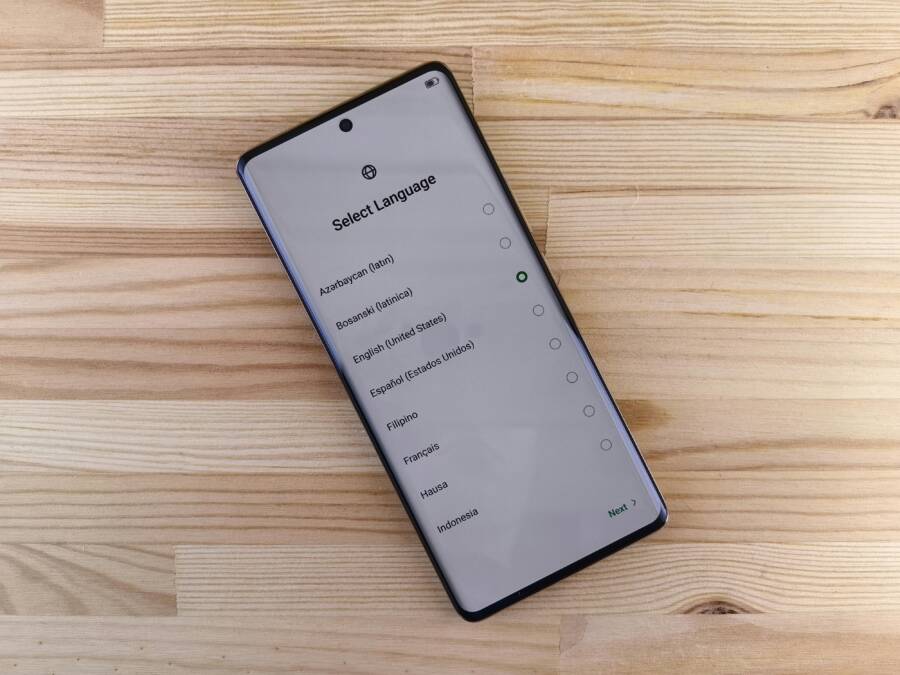
Images can help you visualize the change. If you’re including visuals in your post, consider a close-up of a language selector like this one (photo credit below).
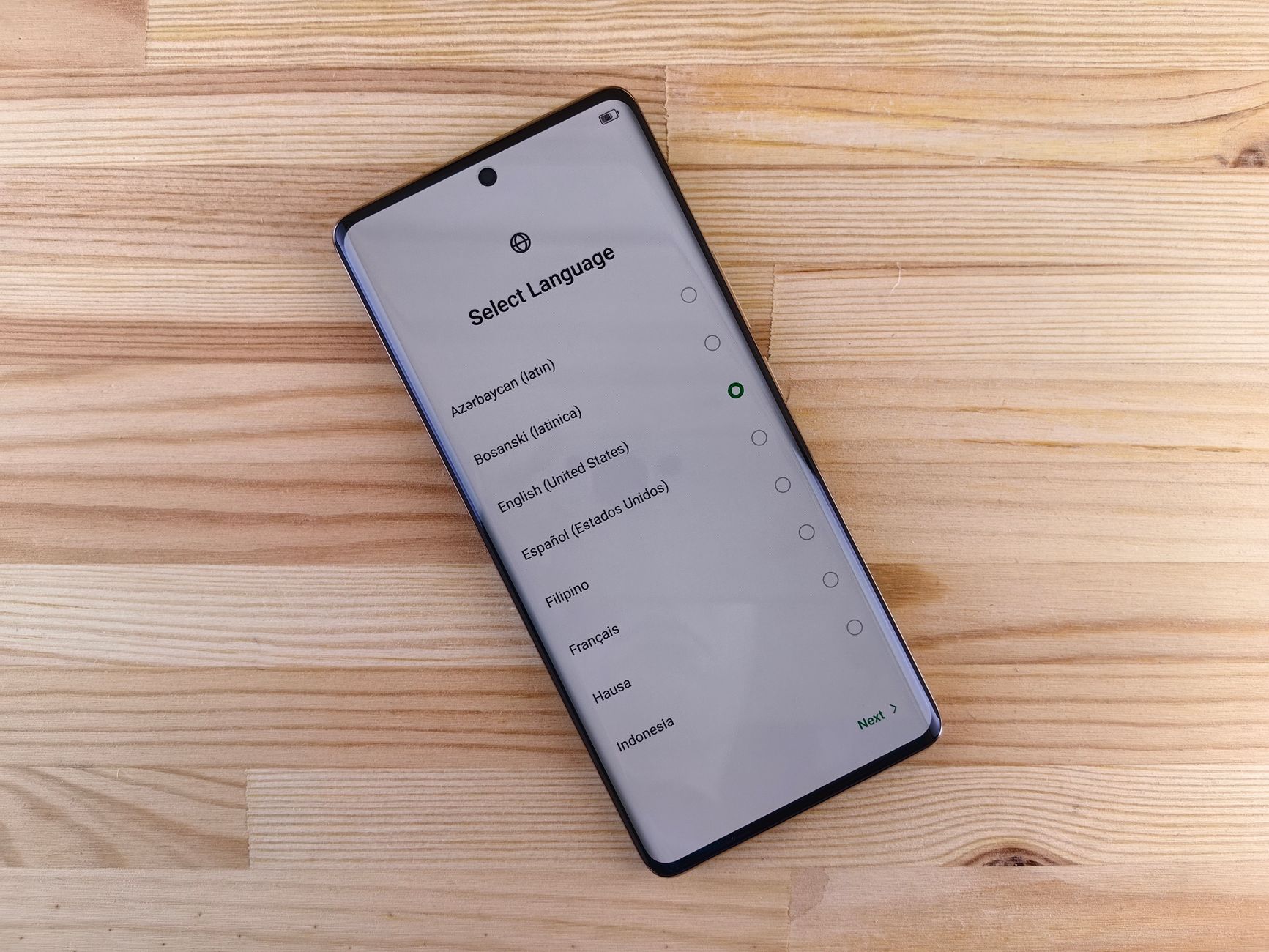 Photo by Andrey Matveev
Credit: https://www.pexels.com/@zeleboba
Photo by Andrey Matveev
Credit: https://www.pexels.com/@zeleboba
Step-by-step quick start
Follow these steps to switch your Android system language quickly while keeping apps intact. The goal is a smooth transition with a predictable outcome.
- Open Settings.
- Go to System (or General Management on some brands).
- Tap Languages & input (or Language).
- Add a language and choose the target language you want.
- Drag the new language to the top of the list or set it as default.
- Confirm the switch and monitor the immediate changes in the interface.
- If needed, restart the device or individual apps to ensure all elements refresh.
- If you’re using a device like Pixel, you may see faster language propagation; Samsung devices often show a per-app option as well.
Notes for Pixel and Samsung users: Pixel devices tend to apply language changes across the system quickly, but some apps may still need a refresh. Samsung users on One UI 5 and later can use per-app language controls, which lets you tailor language settings for specific apps without altering the whole phone. If you rely on offline usability, download the language pack before switching so you have a seamless experience even without a data connection. For official guidance on app language changes on Android, see Google’s support article here: https://support.google.com/android/answer/12395118?hl=en. For Samsung’s per-app language options, you can reference Samsung’s guidance here: https://www.samsung.com/latin_en/support/mobile-devices/how-to-change-the-language-settings-of-each-app-in-your-galaxy-device/.
If you want a quick sense of app behavior after a language switch, test a few core apps as you proceed. In many cases you’ll notice the switch happens automatically, while others may need a restart or a per-app setting adjustment. For a deeper dive on per-app language support, check out resources like A Beginner’s Guide to System and Per-App Language Settings: https://accessibleandroid.com/a-beginners-guide-to-system-and-per-app-language-settings/.
Managing apps that don’t switch languages
Some apps keep their own language regardless of the system setting. This can feel inconsistent, but there are practical ways to regain harmony.
- Per-app language controls: On many Samsung Galaxy devices, you can set different languages for individual apps. This feature is most reliable on devices running One UI 5 or newer, but not all apps support per-app language. If you’re on Samsung, navigate to Settings > General management > App languages to see available options. For broader Android guidance, Google’s Android Help explains how to change app language on your Android phone: https://support.google.com/android/answer/12395118?hl=en.
- In-app language settings: Some apps include their own language selector inside the app’s settings. If the app supports it, switch there to maintain consistency with your desired language while leaving system text unchanged.
- Quick workaround: If an app stubbornly remains in the old language, force a restart of the app or the device. In many cases, a refresh prompts it to pick up the new system language.
Most apps adapt automatically once the language switch propagates. If you notice a mismatch, check both the system and the app’s own language preferences. For example, per-app language controls are widely documented for Samsung devices, and you can explore more on their support pages. You can also look at a practical overview of per-app language settings here: https://www.makeuseof.com/change-language-individual-apps-samsung/.
Per-app language control and troubleshooting
Isolating issues after a language switch helps you act decisively. Here’s a straightforward approach to testing key apps and solving stubborn cases.
- Test essential apps first: email, messaging, and banking apps. These are critical for daily routines and financial security.
- Note which apps adapt and which don’t. If an app fails to switch, look for an in-app language option or per-app setting.
- Apply per-app language when needed: Samsung devices offer per-app language controls; other brands may or may not support this feature.
- Reboot if problems linger: a simple restart often resolves lingering display or prompt language mismatches.
A practical quick test after switching language: open three representative apps and verify their language alignment. If an app remains in the old language, check its internal settings. If the issue persists, a reboot usually clears it. For additional guidance on per-app language settings across devices, you can consult sources like Samsung’s per-app language guide and Google’s Android Help page on app language changes: Samsung guide here https://www.samsung.com/latin_en/support/mobile-devices/how-to-change-the-language-settings-of-each-app-in-your-galaxy-device/ and Android Help here https://support.google.com/android/answer/12395118?hl=en.
If you run into recurring issues, consider a staggered approach. Change the system language first, then gradually test critical apps over the next few hours. If an app still doesn’t switch, you might need to keep it in the original language or use per-app language controls where available. A practical mindset helps you stay productive while your phone adjusts.
Images can illustrate how to test apps after switching. A photo showing a language settings screen can help readers visualize the process and reduce confusion. If you add visuals, place them near the step-by-step notes for easy reference.
iPhone language change guide: keep apps stable
Changing your iPhone’s system language can be a quick win for accessibility, learning a new language, or adapting to a multi-user environment. The key is to switch with a plan, test critical apps first, and know what to do if something misbehaves. This section walks you through system wide steps, app-specific behavior, region and accessibility considerations, and what to do when issues pop up. You’ll finish with a practical checklist to keep your essential apps humming along.
System wide steps
Begin with the simplest, most reliable path. Open Settings, then General, then Language & Region. Tap iPhone Language, pick your new language, and confirm. In most cases, you won’t need a full device restart; the phone will refresh in place as you continue using it. Some languages may require a brief in-place refresh of on-screen text and keyboards.
Before you commit, verify the chosen language is supported by the OS. If the language isn’t fully supported, you may still use the device, but your experience will vary. Apple’s official guidance details the exact flow and confirms what happens during the switch: open Settings, General, Language & Region, then select your language and confirm. See the step-by-step in Apple’s guide: https://support.apple.com/guide/iphone/change-the-language-and-region-iphce20717a3/ios and the broader description at https://support.apple.com/en-us/109358. When selecting a language, also review any regional settings that might impact date formats and keyboard layouts.
A quick practical note: after you change the language, give the phone a moment to refresh. You may notice menus, prompts, and even some app text flip to the new language without a reboot. If you need to confirm behavior across apps, test a few core tasks like messaging, email, and map search on your “smartphone” to ensure everything remains usable.
Per app language behavior on iOS
On iOS, most apps mirror the system language. Some apps, however, offer their own language setting inside the app. This can help keep critical apps in your preferred language even if the system language changes. If you’re lucky, you’ll find per-app options under the app’s own settings or within iOS in the per-app language area.
To check, open the app and look for language or region controls in its settings. If a per-app option exists, set it to your desired language while leaving the rest of the phone on the new system language. This approach is particularly useful for apps that provide better localization in one language or for keeping essential services consistent.
If you want a quick reference, Apple and third-party guides cover per-app language behavior. For example, per-app language controls and related steps are discussed in various tutorials and official resources. You can explore general guidance and community examples via sources like YouTube and iGeeksBlog, which illustrate how to manage language settings within individual apps. A practical overview of per-app language choices on iPhone can be found here: https://www.igeeksblog.com/how-to-change-language-of-specific-apps-on-iphone-ipad/ and a broader look at per-app language options is discussed in this Samsung-focused corridor for Android, which is useful for cross-platform understanding: https://www.samsung.com/latin_en/support/mobile-devices/how-to-change-the-language-settings-of-each-app-in-your-galaxy-device/. If you want a quick method without leaving the home screen, many iOS users also discover that some apps simply don’t honor per-app changes and rely on the system language.
In practice, expect most apps to update automatically as the system language settles. If you notice a mismatch, first check the app’s own settings, then consider a quick restart of the app or the device to prompt a fresh language load.
Region, keyboards, and accessibility
Region settings influence more than language; they shape the way content is formatted and displayed. Date and time formats, number conventions, and even currency presentation can shift based on the region you select. If your daily tasks rely on precise formatting, double-check these regional choices after the switch.
Keyboards also play a big role. When you change the language, the keyboard layout and autocorrect will adapt. This can affect typing speed and accuracy, so give yourself a short window to adjust. You may want to add multiple keyboards for quick switching, especially if you type in more than one language.
Accessibility features deserve special attention. VoiceOver, Zoom, larger text, and other accommodations can behave differently when the language changes. For users who depend on assistive features, test these settings right after the switch and during the first hour of use. If you rely on a specific reading or navigation experience, verify it remains consistent across the new language and any regional adjustments.
A few quick tips for a smooth transition:
- Review the region settings after changing language, focusing on date, time, and number formats.
- Ensure your preferred keyboards are enabled and easily accessible from the keyboard bar.
- Revisit accessibility options to confirm font sizes and spoken prompts still feel natural in the new language.
- If you travel, consider downloading offline language support where available to avoid connectivity hiccups.
For further reading on iPhone language and region handling, Apple’s official guide remains a solid reference: https://support.apple.com/guide/iphone/change-the-language-and-region-iphce20717a3/ios. If you want a broader view of cross-device language handling, BrowserStack offers a concise overview: https://www.browserstack.com/guide/how-to-change-language-on-phone.
What to do if apps misbehave
If an app acts up after a language change, take a calm, methodical approach. Start with the simplest fixes and move to more involved steps only if needed. The goal is to restore function without risking data.
Concrete steps to try:
- Test critical apps first. Open email, messaging, banking, and navigation apps to see how they respond.
- Update apps and the OS. Install any available updates to ensure localization data is current.
- Clear app cache or reset app preferences if applicable. Some apps store language data locally and may need a refresh.
- If issues persist, revert to the previous language temporarily. This minimizes disruption while you troubleshoot or wait for an app update.
- Back up before major changes. A quick backup ensures you won’t lose important data if you need to revert or reset.
If a problem seems tied to a particular app, check its internal settings. Some apps include their own language toggles independent of the system. A practical check list for Apple devices: test three core apps, verify settings, and apply a quick restart if needed. For Android, you’ll find per-app language controls on certain devices, which can be used as a counterpoint when you compare experiences across platforms. See Apple’s language guide for reference and a cross-platform comparison with Android behavior here: https://support.apple.com/guide/iphone/change-the-language-and-region-iphce20717a3/ios and https://support.google.com/android/answer/12395118?hl=en.
If you still see trouble after trying these steps, the best move is to keep a clear backup plan and a staged approach. Change the system language first, then monitor core apps over the next few hours. If an app stubbornly won’t switch, it may be best to keep it in the original language or use per-app language controls where available. A calm, measured approach keeps you productive while your device adjusts.
Images can help readers visualize the process. If you include visuals, place them near the relevant steps to reduce confusion. For quick reference, an image of the language selection screen provides a mental anchor for readers as they follow along.
Cross platform tips and best practices
Changing your phone’s system language across Android and iOS needs a careful approach. This section distills practical, platform-agnostic tips you can apply whether you’re on a Pixel, Galaxy, iPhone, or a newer model. The goal is to keep essential apps usable and reduce friction during the transition. Read through the highlights, then use the concrete steps to guide your own language switch with confidence.
Backup and testing plan
Before you touch any language settings, lock in a robust backup and a focused test plan. A quick, reliable backup protects your photos, contacts, notes, and app data, so you can revert without worry if something goes offline with the change.
- Create a fresh backup of core data. Use cloud backups for photos and documents, and export important lists or chats if you can.
- Pick 3–5 critical apps to test first. Focus on email, messaging, banking, and maps, plus any business tools you rely on daily. This gives you a clear signal of how well localization is translating in real time.
- Decide on the target language and confirm you’re comfortable with the keyboard layout that comes with it.
- Schedule a short test window. After switching, give the device an hour or two to propagate the change. Then verify your test apps.
- Keep a quick revert plan handy. Note the exact steps to return to the old language if you need to backtrack.
- Use a second device if possible. A spare phone or tablet helps you compare behavior and confirm essential apps work as expected.
- Be patient with updates. Some apps need a restart to reflect the new language.
A simple starter checklist you can adapt:
- Back up all critical data
- Test 3–5 core apps after the switch
- Confirm keyboard and region settings align with your language
- Observe for 1–2 hours, then re-test
- Revert quickly if major issues appear
For solid guidance on how language changes affect apps and prompts, consult official resources from Apple and Google. Apple’s guide on changing language and region for iPhone provides a reliable baseline, while Google’s Android help covers app language behavior across devices. See Apple’s guide here and Google’s support article here:
- https://support.apple.com/guide/iphone/change-the-language-and-region-iphce20717a3/ios
- https://support.google.com/android/answer/12395118?hl=en
If you want a broad, cross-device view on language handling, BrowserStack offers a concise overview that’s useful when you’re testing on multiple devices:
Update and maintenance
Keeping both the OS and apps up to date is the simplest defense against language related glitches. Updates often fix localization bugs and improve compatibility, which reduces surprises after you switch.
- Turn on automatic updates when possible. This helps ensure you get the latest translations and fixes without extra steps.
- Check for critical app updates right after the language change. Some apps cache language data and need a refresh to reflect new text.
- Review per-app settings if your device supports them. Some brands offer per-app language controls that let you tailor behavior without changing the entire device language.
- Don’t skip OS updates. System updates frequently include localization improvements and better support for right-to-left languages, region formats, and new keyboards.
- Keep region and keyboard settings aligned with your language choice. Misalignments can lead to mismatched prompts or awkward autocorrect.
If you want deeper context on localization best practices for mobile apps, check out sources on app localization and Android localization:
- https://lokalise.com/blog/best-practices-to-remember-when-localizing-mobile-apps/
- https://developer.android.com/training/basics/supporting-devices/languages
- https://developer.android.com/guide/topics/resources/localization
For general cross-platform testing guidance on language behavior, refer to resources like how to test your app in different languages and regions:
A practical note: per-app language controls can help keep essential apps in a language you trust while the rest of the system switches. If your device supports this feature, consider enabling it for mission-critical apps so you don’t lose accessibility mid-transition.
Common mistakes to avoid
Steering clear of a few common missteps can save you time and frustration. These mistakes are easy to make but straightforward to bypass with simple habits.
- Changing language twice in a short span. If you’re unsure about the final choice, set a temporary language first and test for a few hours before committing to a permanent switch.
- Skipping backups. A quick data snapshot now saves headaches later if you need to revert or reset.
- Assuming all apps adapt instantly. Some apps lag or require a restart to pick up the new language, especially niche games or older software.
- Ignoring per-app settings. Some apps don’t reflect the system language and need their own language toggle.
- Expecting perfect localization on day one. Localization improves over time with app updates, regional packs, and user feedback.
If you want a safer path, follow a staggered approach: switch system language, then test key apps over the next several hours, and only proceed with additional changes once you’re confident everything stays usable. For reference, Android’s language guidance and per-app language notes can help you plan a smoother transition:
- https://support.google.com/android/answer/12395118?hl=en
- https://www.samsung.com/latin_en/support/mobile-devices/how-to-change-the-language-settings-of-each-app-in-your-galaxy-device/
If you hit trouble, revert to the previous language temporarily and continue testing. A calm, measured approach keeps you productive while your devices sort out the localization updates.
Images and visuals can help readers grasp the process. One close-up image of a language selector can anchor readers as they follow along. If you add visuals, place them near the relevant steps.
External links are integrated to support readers who want deeper dives. For example, you can explore Android per-app language behavior and cross-device testing guidance to complement the steps above:
- https://support.google.com/android/answer/12395118?hl=en
- https://www.browserstack.com/guide/how-to-change-language-on-phone
Fast, practical language switching checklist
Changing your phone’s system language can be quick, but it helps to have a fast, proven checklist. This section gives you a concise, hands-on approach you can apply on Android or iOS. It’s designed to minimize disruption while you verify core functions and essential apps keep working. Think of it as a safety net you can follow step by step, like a quick preflight before a flight in your smartphone’s daily life.
Before you start
Prepare, then proceed with confidence. Do a light but thorough setup so you can test smoothly after the switch.
- Back up data: photos, contacts, messages, and notes. Use cloud backups or local exports to create a restore point.
- Note essential apps: pick 3–5 apps you rely on most and know how they behave with language changes.
- Choose target language: pick one you can read with ease for daily tasks and that’s useful in your routine.
- Ensure reliable internet: a stable connection helps the language packs and app updates download without hiccups.
- Prepare to test after switch: decide what you will check in the first hour and the test window you’ll use.
If you want a quick, official reference, see how Apple and Google describe language changes on their platforms. For Android, the guidance covers how app language can behave across devices, and for iPhone, the guidance explains the general flow of changing language and region. Read more here: https://support.google.com/android/answer/12395118?hl=en and https://support.apple.com/guide/iphone/change-the-language-and-region-iphce20717a3/ios. For a broader, cross-device perspective, BrowserStack’s overview is helpful: https://www.browserstack.com/guide/how-to-change-language-on-phone.
Image suggestion: close-up of a language selector on a smartphone in use outdoors. Photo by Andrey Matveev.
Photo URL: https://images.pexels.com/photos/18904598/pexels-photo-18904598.jpeg?auto=compress&cs=tinysrgb&dpr=2&h=650&w=940
During the switch
Keep the switch tight and observe how your device and apps respond in real time. This is where you confirm that the change is propagating as expected and catch any stragglers early.
- Android quick steps (concise): Settings > System > Languages & input > Languages > Add language > Move to top. Then confirm and watch for immediate changes in menus and keyboards.
- iPhone quick steps (concise): Settings > General > Language & Region > iPhone Language > choose language > Confirm. The device typically refreshes without a full reboot.
- Verify language updates: check system menus, a few app menus, and the keyboard layout. Switch between keyboards if you use multiple languages.
- Watch for odd prompts: look for prompts in the old language or any messages that look out of place. Some apps may show a brief mismatch during the transition.
- Be mindful of app behavior: some apps update instantly, others need a refresh or restart to fetch new localization data.
If you want deeper, platform-specific guidance, see Android’s language handling article (Change app language on your Android phone) and Apple’s guide on changing language on iPhone. These official resources align with the practical steps above: https://support.google.com/android/answer/12395118?hl=en and https://support.apple.com/guide/iphone/change-the-language-and-region-iphce20717a3/ios. For quick cross-device context, BrowserStack offers a useful summary: https://www.browserstack.com/guide/how-to-change-language-on-phone.
After you switch
The first test window matters. You want to confirm basic functionality is intact and identify any apps that need a tweak.
- Immediate checks: open Mail, Messages, and a banking app to confirm the language switch is reflected. Navigate settings and try a quick search in the new language.
- Short test window: spend the next 1–2 hours intermittently testing core apps and features. If something looks off, you can revert or apply per-app language controls where available.
- Common apps to test: email, messaging, banking, camera, maps, and a social app. Note which ones update automatically and which need a restart.
- Manual language adjustment: some apps require you to switch language inside the app settings. If you notice a mismatch, check the app’s own language controls.
- Communication and time formats: verify date, time, and number formats align with the new language region.
For extra confidence, you can reference Apple’s iPhone language guide and Android guidance on app language behavior as you test. See https://support.apple.com/guide/iphone/change-the-language-and-region-iphce20717a3/ios and https://support.google.com/android/answer/12395118?hl=en. If you’re testing across devices, BrowserStack’s overview can be a good companion: https://www.browserstack.com/guide/how-to-change-language-on-phone.
Image idea: a screenshot of a language settings screen viewed on a phone. Include near this section’s testing notes.
When to revert
Reverting is the safe move if issues persist or frustration grows. Look for persistent glitches, incorrect text, or persistent prompts from apps that ruin the experience.
- Signs to revert: repeated app glitches, incorrect characters or prompts, major typing issues, or a drop in productivity.
- Simple revert path: reselect the previous language in Settings, confirm, and give the system a moment to restore. Then re-test critical apps to confirm stability.
- Re-test after revert: check mail, messages, banking, and a few essential apps again to ensure you’re back to a stable baseline.
If you need quick reference, Apple’s guide and Google’s Android language help provide clear revert considerations: https://support.apple.com/guide/iphone/change-the-language-and-region-iphce20717a3/ios and https://support.google.com/android/answer/12395118?hl=en. BrowserStack also offers a concise cross-device view if you’re weighing cross-platform behavior: https://www.browserstack.com/guide/how-to-change-language-on-phone.
To keep your reader’s momentum, you can end with a practical revert checklist: confirm the old language appears everywhere, test 3–5 core apps, and ensure your keyboard behaves as before. If you’re unsure, lean on the backup you created before you started.
Images help readers grasp the revert flow. A visual showing the language re-selection step can anchor readers during the revert.
External links used in this section provide deeper dives if you want to explore platform specifics:
- Android app language change: https://support.google.com/android/answer/12395118?hl=en
- iPhone language and region guide: https://support.apple.com/guide/iphone/change-the-language-and-region-iphce20717a3/ios
- Cross-device testing overview: https://www.browserstack.com/guide/how-to-change-language-on-phone
Notes on language switching compatibility and quick testing practices can be found in official guides and cross-platform resources. For practical, device-specific insights on per-app language controls, see Samsung’s language controls for individual apps and related Android guidance:
- Samsung per-app language controls: https://www.samsung.com/latin_en/support/mobile-devices/how-to-change-the-language-settings-of-each-app-in-your-galaxy-device/
End of this section.
Conclusion
Changing your phone language can be quiet and practical when you follow a careful plan. Back up first, test a small set of core apps, and switch language gradually to see how things respond on your smartphone. If an app misbehaves, check in-app language settings or use a per-app option where available, then test again for a stable result. Keep a quick revert path ready and don’t rush past the testing window.
In short, a staged approach keeps essential apps usable and minimizes disruption. After you switch, review system region, keyboard layouts, and accessibility settings to ensure things stay comfortable. Bookmark this guide so you have a reliable reference for future changes, and share your own tips or questions in the comments to help others.