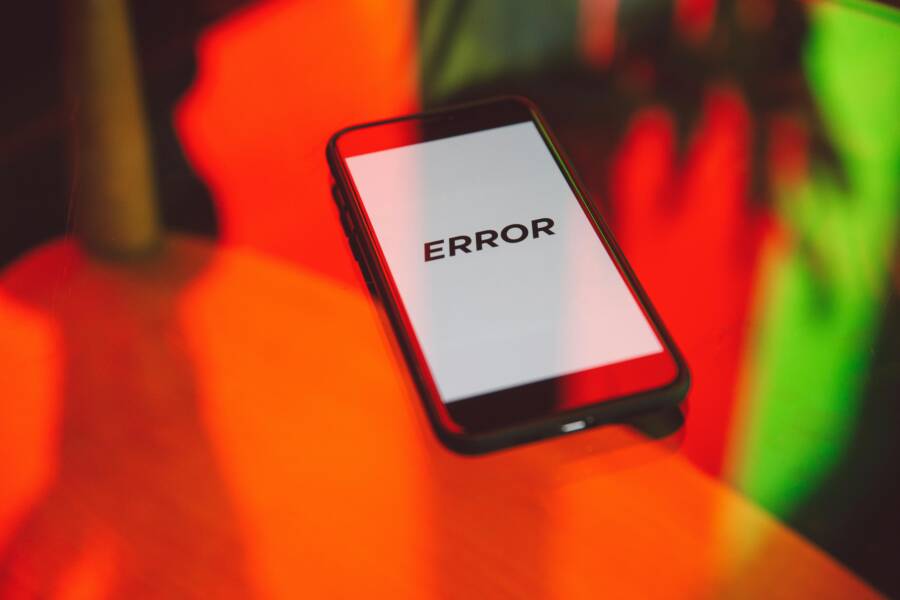
If you’ve ever seen the message “camera in use by another app,” you’re not alone. This warning pops up on both Android and iPhone when the camera is already taken by a different app or when the system can’t release it properly. The result is a freeze or a failure to open the camera when you need it most.
In this guide, we’ll keep things practical and quick. You’ll learn what this error means in everyday terms, why it happens on both major platforms, and how to identify the real culprit. Most fixes are simple and don’t require a tech degree, and they work whether you’re taking a quick selfie, recording a video, or starting a live stream.
We’ll focus on two main platforms, Android and iPhone, and the goal is clear: pinpoint the app or setting behind the issue, reset camera permissions, and prevent future trouble. You’ll find step by step actions you can perform in minutes, plus tips to keep your device camera-ready.
By the end, you’ll have a reliable routine to resolve the error fast and avoid repeat occurrences. Expect practical, tested fixes you can trust when you need to use your camera again.
What the error means and why it happens
When you see the message “camera in use by another app” it means the camera hardware is momentarily held by a different process or app, and the app you’re trying to use can’t gain access. This can happen on both Android and iPhone, and it often lasts only a few seconds. Understanding the underlying idea helps you spot the real culprit faster and apply the right fix. Below, we break down what this error signals, how cameras are managed by the OS, and why you might see it at inopportune moments.
 Photo by Polina Zimmerman
Common causes on Android and iPhone
- Permission conflicts. When apps request camera access, the OS grants it in a controlled way. If two apps try to access the camera at the same time, or if one app has an inconsistent permission state after an update, the system may block the new request.
- Background apps using the camera. Some apps keep the camera active even when you switch away. A video call in the background, a social app that still has a live story capture running, or a browser page that uses your webcam can prevent new apps from using the camera.
- Software glitches. Temporary bugs in the camera stack or the operating system can leave the camera in a locked state. A quick reboot or closing all camera-related apps often clears the lock.
- Low storage or memory pressure. If the device is short on free storage or RAM, the system may throttle services, including camera access. This can lead to the camera not releasing properly or failing to start for a new app.
- Odd behavior after updates. Updates can change how permissions are granted or how background processes are managed. If an update misaligns the camera permissions, you may see the error until the settings are corrected.
- Camera API quirks. Some apps use advanced features like portrait mode or 4K capture that demand more from the camera driver. If another app grabs the higher setting, a second app may be blocked from switching on the camera.
- Multiple user profiles or work profiles. In some devices, a work profile or guest profile can hold its own camera session, causing conflicts with apps you normally use.
How background apps use the camera
When an app wants to capture or stream video, it asks for permission and a session is established with the camera driver. Some apps keep that session alive longer than you expect. For example, a video chat app may maintain a live feed to reduce startup delay, while a social app might auto-capture a quick video for a story. If another app tries to start a camera session while that session is still open, the system will deny access to the new request. In practical terms, think of the camera as a hallway that only one app can pass through at a time. If someone is in the hall, others have to wait, or the door has to be reset.
- Android: The OS may keep a camera session active for a foreground activity but also allow background services to hold the camera in certain circumstances. If a background app latches onto the camera, you can’t open it in a new app until that session ends.
- iPhone: iOS uses strict session management. Background tasks like a running live filter or a VoIP call may hold the camera until the OS decides to release it, which can lead to the error when you try to switch apps.
To prevent surprises, check for apps that might be quietly using the camera in the background. Common culprits include video messaging, live streaming apps, and certain web-based camera interfaces. If you’ve recently updated an app or installed a new one, revisit camera permissions and review recent activity that may have started a background session.
For further reading on how to troubleshoot this issue across platforms, you can explore practical guides like this overview from a comprehensive tech resource. Camera is being used by another application on Android and Apple community discussions on background camera usage can offer platform-specific tips as well. Another good reference is a video that demonstrates the error and common fixes, which can help you visualize the exact steps to take. It looks like another app is using the camera already
Why this happens across devices and OS versions
- Both platforms rely on a shared camera framework to manage access. When one app holds the camera for a live feed or a high-resolution capture, the framework blocks others to prevent garbled video or crashes.
- Updates can alter the flow of permissions and background processing rules. A setting that used to allow a quick switch may now require a manual release of the camera session.
- User habits matter. Running several camera-heavy tasks in a short time increases the odds of conflicts, especially if one task is still buffering or saving a file when you start another.
Quick checks you can do now
- Review recently opened camera apps and force close those you’re not actively using.
- Restart the device to reset all camera sessions cleanly.
- Check for app updates that might fix permission or background-task issues.
- Inspect camera permissions in the OS settings and revoke access for apps you rarely use.
- Ensure there is adequate storage and free RAM by closing background apps or clearing cache.
If you’d like more targeted steps for Android or iPhone, see the next subsection. It explains how background activity can block camera use and what to do about it, in simple terms.
Source-friendly insights and further reading
- For a practical Android oriented approach to solving camera conflicts, this guide lays out top fixes and common scenarios. Camera is being used by another application on Android
- A broader discussion on camera conflict scenarios and troubleshooting along with community feedback can be helpful for iPhone users. Camera in use by another app on iPhone
- A quick visual guide showing the error and real-world symptoms can aid understanding. It looks like another app is using the camera already
SECTION_0
Common causes on Android and iPhone
- Permission conflicts: Two apps request camera access at once or an app updates change permission state.
- Background apps using the camera: Video calls or live filters left running can block new access.
- Software glitches: Temporary bugs in camera services or OS can lock the camera.
- Low storage: Not enough space or RAM pressure can cause camera sessions to fail.
- Updates: Post-update behavior changes in how permissions and sessions are handled.
SECTION_1
How background apps use the camera
Background camera use happens when an app maintains a session to avoid startup delays, but this can block others from starting a new camera session. On Android, a background service may hold the camera during a live stream or video capture. On iPhone, iOS tends to tightly manage sessions and may keep the camera active until the OS releases it. In practice, a background chat or a tab with a camera feed can keep the door closed for the next app trying to use the camera. If this occurs, closing or force quitting the offending app often frees the camera quickly, letting you resume your task without a reboot.
Quick fixes you can try right away
When the camera shows the message “camera in use by another app,” you usually just need a quick reset of what’s holding the camera. These fixes are fast, low effort, and work whether you’re snapping a selfie, recording a video, or joining a live stream. Try them in order and you’ll likely get your camera back in minutes.
 Photo by Helena Lopes
Close conflicting apps and restart the camera
If a different app is holding the camera, closing those apps and reopening the camera usually clears the lock. Here’s a simple approach:
- Close all camera-related apps: swipe away or force stop anything that might be capturing video or photos.
- If you opened a photo or social app first, try launching the camera again.
- Check the notifications tray for apps that are using the camera. If you see something active, deny camera access or force stop that app.
- Reopen your camera app and test. If the problem persists, move to the next fix.
Tips to spot culprits quickly:
- Look for apps with ongoing video calls or live filters.
- If you recently updated an app, recheck its camera permissions in the OS settings.
Useful reads:
- Android and iPhone camera issues often stem from background activity. See practical steps here: https://mobileinternist.com/camera-is-being-used-by-another-application
- For iPhone specific discussions on background camera usage, this thread can help you spot platform nuances: https://discussions.apple.com/thread/251821539
Force close apps and clear cache
A force close stops any lingering camera session that might be stuck in the background. Clearing cache can also remove temporary data that interferes with the camera app.
- On Android:
- Open Settings > Apps > See all apps. Find camera apps and tap Force Stop.
- To clear cache, go to Storage > Clear Cache (repeat for other camera apps if needed).
- On iPhone:
- Double press the Home button or swipe up from the bottom to view the app switcher. Swipe up on camera apps to close.
- iOS typically manages cache automatically, but a quick restart after closing apps helps reset the state.
Simple checklists you can follow:
- Ensure no camera-heavy apps are running in the background.
- Clear cache only for apps that store large temporary files, such as camera or editing apps.
- After clearing, launch the camera app and test with a quick photo or short video.
If you want a deeper dive into Android cache behavior, this Stack Overflow discussion covers what gets cleared when you force close apps: https://stackoverflow.com/questions/8895327/is-the-android-app-cache-cleared-after-app-force-close-by-os
Restart the device and check for updates
A plain restart often clears quick glitches that block the camera from starting. It resets sessions and releases stuck locks.
- Restart steps:
- Hold the power button, choose Restart, and wait for the device to come back.
- Check for updates:
- OS updates can fix camera permission quirks and background task handling.
- Also review updates for camera apps you use most. Install any available fixes.
A quick reference for keeping devices aligned:
- If you’re troubleshooting across platforms, keeping the OS up to date is a reliable step. For iPhone specifics, consider reading Apple community threads on camera usage after updates: https://discussions.apple.com/thread/256108028
- Android users can also benefit from official help articles about camera not working and related fixes: https://help.backmarket.com/hc/en-us/articles/5675950866716-My-camera-doesn-t-work-and-or-has-a-black-screen
Implementing these steps helps restore normal camera behavior without digging into settings. If the issue still shows up after a restart and updates, there may be a deeper app permission or device setting problem that warrants more targeted checks.
Android specific step by step fixes
When the camera is busy on Android, you don’t have to shrug and wait. A few targeted actions can free up the sensor quickly and keep your workflow moving. In this section, you’ll find practical, bite-sized fixes that address permission issues, background processes, and boot-time troubleshooting. Use them in order to isolate the culprit and restore smooth camera access across apps.
Reset camera permissions and app access
Sometimes the problem is as simple as a permissions mismatch after an update or a clash between apps that expect different access levels. Resetting camera permissions lets you start fresh and grant only what you truly need.
- How to reset:
- Go to Settings > Apps.
- Tap the app named Camera, then select Permissions.
- Regrant only the permissions you actually need for the current task. After testing, revoke any permissions that aren’t essential.
- Why this helps:
- It clears stale permission states that can block new camera requests.
- It reduces the chance of conflicts when multiple apps request access in quick succession.
Tips for smoother permission management:
- Review apps that you don’t use often and revoke their camera access. Fewer permissions mean fewer potential conflicts.
- If a particular app repeatedly prompts for permission, consider disabling it or using an alternative with more conservative access practices.
If you want additional guidance on managing camera permissions across Android, you can explore a practical walkthrough here: https://support.google.com/android/answer/9431959?hl=en
Identify and close background processes
Background activity is the main culprit behind the “camera is in use” warning. A video call, a live filter, or a quick clip can keep the camera session active, blocking a new app from starting a session.
- How to spot and stop culprits:
- View recent apps and swipe away or force stop anything you’re not actively using.
- Watch the memory usage to see if a background camera app is consuming a lot of RAM.
- Look for lingering camera services in the notification shade and disable them if possible.
- Steps to close:
- Open your recent apps view, locate camera-related tasks, and swipe them off or choose Force Stop.
- If a background service lingers, go to Settings > Apps, select the suspect app, and force stop or disable background activity.
- Why this matters:
- By ending the session, you release the hardware so the next app can access it immediately.
- It also helps you identify the real offender when several apps seem to be active.
Practical note: if you notice the same app repeatedly hogging the camera after updates or restarts, consider adjusting its background activity settings or replacing the app with a lighter alternative.
For broader context on how background camera usage works on Android, you can read this overview: https://mobileinternist.com/camera-is-being-used-by-another-application
Safe Mode and clean boot troubleshooting
If the camera problem persists, Safe Mode lets you determine whether a third-party app is to blame. In Safe Mode, only the system apps run, so you can test the camera in a clean environment.
- How to enter Safe Mode on most Android devices:
- Press and hold the power button.
- Tap and hold Power off until you see the option to reboot into Safe Mode, then confirm.
- Your device restarts with third-party apps disabled.
- Test the camera:
- Open the camera app and try a quick photo or video. If it works, a rogue app is likely causing the issue.
- If Safe Mode fixes the problem:
- Reboot to normal mode and review recently installed or updated apps.
- Uninstall or disable suspect apps one by one, starting with those that have camera permissions or those that recently updated.
- If Safe Mode does not help:
- The issue may be deeper in the system or hardware related. Consider further diagnostics or a factory reset as a last resort after data backup.
For Android specific guidance and scenarios, you can consult resources like this Samsung-focused article on camera failures and Safe Mode testing: https://thecellphonehospital.com/fix-camera-failed-error-samsung/
In cases where you need a quick path to disable boot-time extensions or third-party services, a clean boot can help you isolate persistent conflicts without a full reset. While steps vary by device, the principle remains the same: minimize the number of active services during test runs.
If you’d like ongoing tips on maintaining healthy camera permissions and keeping the Android camera stack smooth, consider reading Google’s official support on changing app permissions as you manage your devices: https://support.google.com/android/answer/9431959?hl=en
Common troubleshooting approach across Android versions emphasizes two goals: reduce background noise and verify that the camera hardware itself isn’t blocked by another app. Pair these steps with a quick check of storage and memory to ensure the system has the headroom it needs to operate the camera reliably. For real-world scenarios and user Q&As, the community discussions linked above offer practical, time-tested insights you can apply today.
iPhone specific step by step fixes
When the message “camera in use by another app” pops up on an iPhone, it usually means another app is holding the camera session or the system hasn’t released the hardware yet. These fixes focus on iPhone behavior, especially with iOS 18 and later, where permissions and background activity can change how the camera is accessed. You’ll find practical, no-nonsense steps you can follow in minutes. The goal is to identify the culprit, reset permissions, and restore a smooth camera experience for photos, videos, or live streams.
Check camera permissions and privacy settings
Camera access is controlled by privacy settings. If an app you rarely use retains access, or if another app updated its permission state, you can get conflicts when you try to switch tasks. Start by verifying which apps are allowed to use the camera and prune any that aren’t essential.
- How to check:
- Open Settings, then Privacy & Security.
- Tap Camera and review the list of apps with access.
- Revoke access for apps you don’t actively use or trust.
- What to do after changes:
- Open the camera app and test quickly.
- If needed, re-grant access for a specific app and confirm the behavior.
If you’re dealing with a broader permission issue after an update, a good practical reference covers common iPhone permission hiccups and how to fix them on iOS: Apps can’t access camera and photos after iOS 18 update. You’ll see how to adjust Screen Time restrictions and re-enable camera access for affected apps.
For more context on iPhone camera permissions in iOS 18, you can also explore discussions where users share steps that helped them regain access after updates: Apps have no access to camera and photos after iOS 18. This can give you a sense of how tweaks in the privacy settings play out in real life.
If you want a quick visual guide to permission prompts and how they disappear when you grant or deny access, a helpful YouTube walkthrough demonstrates typical permission dialogs and the outcomes of accepting or denying them: iPhone Not Allowing Camera Access To Apps (FIXED). Use these as a cross-check to confirm you followed the right prompts on your device.
External references:
- Apple discussions on camera and photos access after iOS 18 update
- https://discussions.apple.com/thread/255648991
- Quick UI walkthrough for apps and permissions
- https://www.youtube.com/watch?v=Ml8MB5ZGoc8
- How to give apps permission to access camera on iPhone
- https://gagonfamilymedicine.com/how-to-give-an-app-permission-to-use-your-camera-on-your-iphone/
Force close and review background apps
Background activity can keep the camera session open, blocking new apps from starting a camera session. On iPhone, it’s common for an app to run a live effect, accept a FaceTime feed, or keep a camera window active in the background. The fix is to identify and clear those background activities, then test the camera again.
- How to force close apps:
- On iPhone with Face ID, swipe up from the bottom and pause to reveal the app switcher. Swipe up on camera-related apps or any app you suspect might be using the camera.
- On iPhone with a Home button, double-press the Home button and swipe away apps.
- How to spot hidden culprits:
- Look for apps with active video feeds, live filters, or camera-based features running in the background (such as a live social story or a video call in the background).
- Check the Control Center for any active camera feeds or quick camera shortcuts and disable them if needed.
- Extra tip: background app refresh can keep some apps awake. If you suspect it, consider turning off background refresh for apps that don’t need it, then test the camera again.
If you want deeper guidance on background activity and camera behavior on iPhone, Apple’s support articles explain how to quit and reopen apps and how iOS manages background processes. For example, Quit and reopen an app on iPhone shows the recommended approach to clearing stuck sessions, which often resolves camera handoffs where the system believes another app is still using the camera.
External references:
- Quit and reopen an app on iPhone
- https://support.apple.com/guide/iphone/quit-and-reopen-an-app-iph83bfec492/ios
- Background app refresh overview
- https://www.asurion.com/connect/tech-tips/conserve-phone-data-by-turning-off-the-background-refresh/
Manage storage and OS updates
A lack of free storage or an outdated OS can lead to camera hiccups. When the system needs space for a quick photo or video processing, it may throttle features or fail to initialize the camera properly. Clearing space and keeping iOS up to date often resolves most camera start issues.
- Check available storage:
- Go to Settings > General > iPhone Storage. Review large apps, old media, and unused data.
- Delete or offload apps you don’t use often, and remove unused videos or photos from the gallery.
- Update iOS:
- If a software update is pending, install it. Updates often fix camera permission quirks and improve session handling.
- Freeing space quickly:
- Offload photos to iCloud or a computer, then delete local copies.
- Remove cached data from apps that store large temporary files, like video editors or camera apps.
- After freeing space and updating:
- Reboot the iPhone and launch the camera to verify normal behavior.
If you’re looking for official guidance on OS updates and app permission management, Apple’s support resources provide step-by-step instructions to keep your device current and secure. For broader contexts on camera performance post-update, you can review the iPhone camera issues reported after OS updates and the recommended fixes.
External references:
- iPhone storage management guide
- https://discussions.apple.com/thread/256122405
- iPhone camera not working and how to fix it
- https://www.asurion.com/connect/tech-tips/iphone-camera-not-working/
- How to update iOS and manage camera permissions
- https://www.quora.com/My-camera-is-not-working-and-is-telling-me-to-close-other-applications-What-should-I-do
Putting it into practice
- Start with permissions. If an app recently updated or you installed a new one, re-check camera access for that app. A quick toggle can clear stale states.
- Clean up background activity. Close anything that could be using the camera in the background, then test with a simple photo.
- Do a quick reboot after changes. A fresh boot releases lingering sessions and resets temporary states.
- Monitor storage and updates. Free space, then keep iOS and camera apps up to date.
If the issue persists after trying all these steps, the problem might be more complex, involving a specific app interaction or a hardware fault. In that case, consider contacting Apple Support or visiting an Apple Store for targeted diagnostics. You can also explore community discussions for device-specific quirks and solutions.
When to reset, repair, or seek help
When camera issues feel persistent or unpredictable, it helps to know exactly when a reset is enough and when you should call in a pro. This section breaks down practical decision points, so you can decide quickly and avoid wasting time on the wrong fix. You’ll learn which scenarios call for a simple reset, which require deeper repair, and where to turn for official support. Think of it as a quick decision guide to keep you moving, whether you’re using a smartphone for a quick shot or a live stream for work.
Back up and reset options
Before you reset, decide what data you must protect and what you can let go. A reset can mean different things depending on the goal and the device. Here’s a practical way to approach it.
- What to back up before a reset
- Photos and videos stored in the camera roll
- Contacts, messages, and any app data you rely on
- WhatsApp or messaging app chats if you don’t use cloud backup
- Documents, notes, and offline camera presets or captured RAW files
- Passwords and login tokens saved in password managers
- Soft reset vs factory reset
- Soft reset (restart): Closes all running apps, clears temporary states, and restarts system services. It’s quick and low risk. Try this first.
- Factory reset: Wipes all data and returns the device to its out-of-the-box state. This is a last resort for persistent or deep-rooted issues.
- Cautions about data loss
- A factory reset erases everything not stored in the cloud or on external storage. Make sure you’ve backed up critical items.
- After a reset, you’ll need to reinstall apps and reconfigure settings. Expect a short setup time.
- Some app data may not be recoverable if it wasn’t backed up or synced.
If you’re after a guided reset path, a factory reset can be a last-resort option when all else fails. For Android users, official guidance emphasizes trying other solutions first, then proceeding with a reset if needed. For Pixel devices, there is a self-help flow that can save time before a full reset. You can explore official Android and Pixel resources for a safe reset process:
- Reset your Android device to factory settings
- Fix your Camera app on your Pixel phone
 Photo by Dan Cristian Pădureț
Contact support and service options
If a reset feels too heavy or it doesn’t fix the problem, reaching out to the right support channel saves time. Here’s how to access official help and what information to have ready.
- Device maker and carrier support
- Apple Support: Contact Apple for device-specific camera issues, with options for chat, phone, or in-store help. Start here to connect with the right agent. [Contact Apple Support]
- Samsung Support: Use the official contact tools to describe the camera problem and get step-by-step guidance or service options. [Contact Us | Official Samsung Support US]
- Google or Pixel support: If you’re using a Pixel or Android phone, Pixel camera issues can often be resolved with guided help or official troubleshooting. [Fix your Camera app on your Pixel phone]
- Service center options
- Authorized service centers can diagnose hardware faults. If you’ve ruled out software causes, a hands-on check may be necessary.
- Insurance or warranty coverage may apply for hardware defects. Check your policy details before scheduling a repair.
- What to have ready when you reach out
- Device model and serial number
- OS version and recent app updates
- A clear description of when the problem occurs (app, timing, camera mode)
- Steps you already tried (restarts, permissions changes, app updates)
Pro tip: document the issue with a quick video or screenshots showing the error. This helps the support pro reproduce the issue quickly. For quick access to official support pages, you can consult Apple and Samsung resources:
- Contact Apple Support
- Contact Us | Official Samsung Support US
Preventive tips to avoid future errors
The best way to stay camera-ready is to build habits that minimize conflicts and keep the software clean. Small, consistent actions save you time when you need the camera most.
- Keep apps updated
- Regular updates fix bugs, improve permissions handling, and refine background behavior.
- Use auto-update settings for critical apps, but review permissions after major updates.
- Manage permissions wisely
- Grant camera access only to apps you trust and use regularly.
- Periodically review which apps have camera access and revoke for those you don’t rely on.
- Minimize heavy background activity while shooting
- Close apps that use the camera in the background, such as video messengers or live streaming tools, before you start recording.
- Avoid keeping multiple camera-heavy apps open at once.
- Free up storage and memory
- Delete or offload old media and unused apps to maintain headroom for video capture.
- Restart occasionally to clear stuck sessions and refresh RAM.
- Be mindful after updates
- New OS versions can alter permission behavior. Recheck camera settings after major OS updates.
- If you notice new prompts or changes after an update, reconfigure permissions to suit your typical workflow.
For independent reading on keeping camera permissions tidy and reducing background activity, these resources can help:
- How to prevent apps from accessing your iPhone camera and how to disable them
- Completely prevent apps from accessing your camera and microphone on Android
- My camera is not working and is telling me to close other applications, what should I do
External references and practical reads:
- How to find which apps have camera access on iPhone and disable them
- Android permission management and background activity basics
Stock image note:
- When you want to illustrate device permissions or a quick reset procedure, a clean photo showing a user interacting with their phone can reinforce the idea of small, deliberate steps.
Photo credits
- Photo by Dan Cristian Pădureț
If you’d like, I can tailor these subsections further to match your preferred tone or add device-specific steps for popular models in the US market.
Conclusion
When a phone shows “camera in use by another app,” a quick reset of sessions usually fixes the problem. Start by closing background camera apps, then restart the camera app to release the lock and refresh permissions. A short reboot or safe mode check can reveal if a rogue app is the culprit, and updating OS and camera software often cures stubborn conflicts.
Keep camera permissions lean and clean. Revoke access for apps you rarely use, and regrant only what you need for your current task. Regularly review background activity on your smartphone, close lingering video or live-streaming tabs, and free up storage to prevent slowdowns that block camera access.
A simple, repeatable routine works best. Clear conflicts, test with a quick photo or clip, and reboot after changes. This approach minimizes downtime and keeps your smartphone ready for high quality photos, videos, or live sessions.
Save this checklist for future reference and share your own tips or questions in the comments. Your quick wins can help others avoid downtime during important moments.