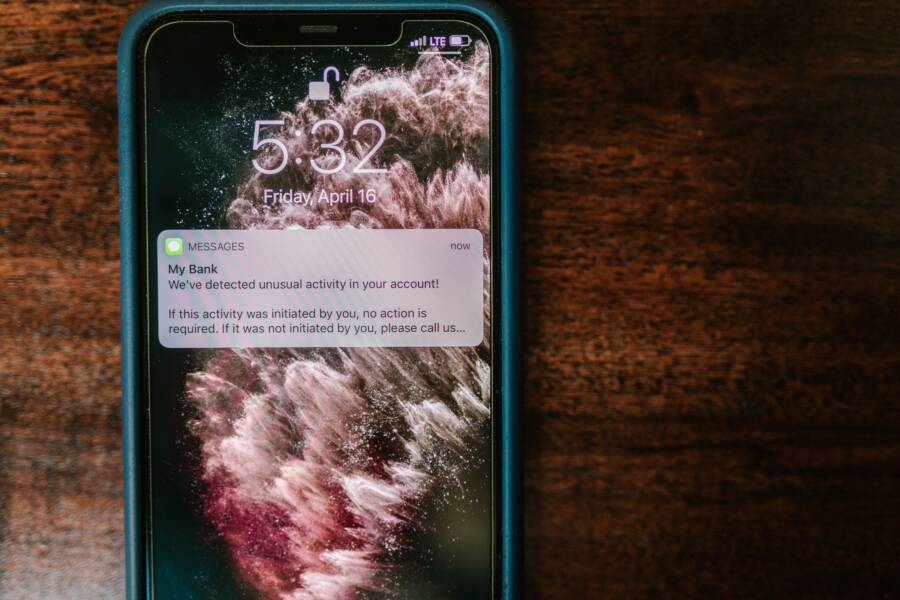
You can enable emergency and weather alerts by adjusting the notification or safety settings on your smartphone. These alerts are vital for staying informed during dangerous events like floods, wildfires, or severe storms.
Both Android and iOS include these features to help you remain safe when time is short. Activating them takes only a moment, but it provides peace of mind throughout the year.
Follow these steps to configure your alerts and stay prepared for unexpected emergencies.
Understanding How Emergency Alerts Work on Your Smartphone
Emergency alerts use a specialized system that broadcasts messages directly to mobile devices within a specific geographic area. Your smartphone acts as a radio receiver, picking up signals sent by local cell towers during crises. This process happens independently of your cellular data plan or internet connection. Because these messages travel over a dedicated broadcast channel, your device receives them even if your local network experiences heavy traffic or outages.
The Cell Broadcast System
The technology behind these notifications is called Cell Broadcast. Unlike a standard text message, which travels from one phone number to another, a broadcast signal transmits information to every device connected to a specific tower. This method is efficient because it reaches thousands of users in seconds. Your smartphone monitors for these incoming signals in the background without draining your battery significantly.
When a government agency issues an alert, they send it to the wireless providers. The providers then push the notification to the cell towers covering the affected region. Your phone recognizes the broadcast as a priority message and displays it immediately. This allows officials to warn people about events like flash floods, AMBER alerts, or evacuation orders instantly.
Why Alerts Reach Your Device
Your location determines which alerts you receive. The system relies on the cell tower currently handling your device signal to decide if you are inside the danger zone. If you travel into an area with an active alert, your smartphone will likely trigger the notification as it registers with new towers. This ensures that you stay informed as you move through different regions, which is especially important during wildfire or storm evacuations.
The system categorizes alerts into distinct levels of urgency:
- Extreme threats: Immediate risks to life or property, such as major weather events or tsunamis.
- Severe threats: Significant risks where conditions might change rapidly, requiring you to take precautions.
- AMBER alerts: Specific messages meant to assist in locating abducted children.
- Presidential alerts: Messages issued by national authorities during a public emergency.
You cannot opt out of the most critical national alerts on most devices. However, you can toggle other notification categories through your settings menu. Keeping these enabled is the best way to maintain situational awareness. Because these alerts rely on your physical location, they provide better context than a standard news broadcast or a web search ever could.
Step-by-Step Guide for iPhone Users
Configuring your iPhone to receive emergency alerts is a quick process that keeps you prepared for local threats. Apple integrates these settings directly into the iOS notification system, which ensures you receive government-issued warnings without needing extra applications. Follow these steps to verify your device is ready.
Checking Notification Settings
The primary control center for emergency alerts resides in your main notification menu. By default, most of these settings are active, but confirming their status prevents accidental deactivation.
- Open the Settings app from your home screen.
- Select the Notifications menu.
- Scroll to the very bottom of the page.
- Locate the section labeled Emergency Alerts.
Under this section, you will see toggles for Extreme Alerts, Severe Alerts, and AMBER Alerts. Ensure these switches show green, which indicates they are currently enabled. If you need to disable a specific type of warning, simply tap the switch to turn it off. Keep in mind that some government alerts, such as those sent by the President, cannot be manually toggled off in many regions.
Managing Government Alerts
Beyond standard safety warnings, your smartphone manages regional alerts based on current cell tower data. These settings are sometimes grouped under a secondary sub-menu depending on your carrier or region.
- Tap the specific alert category to see if your phone offers additional customization options.
- Some carriers include a Test Alerts option, which helps you verify that your device sounds an alarm during a scheduled drill.
- Verify that your Sound and Haptics settings are set to a volume level you can hear easily, as emergency notifications often trigger a distinct, high-priority vibration or tone.
Reviewing these settings every few months is a good practice. Software updates occasionally reset preferences or add new categories for regional alerts, so checking back after major iOS updates ensures you remain protected.
Troubleshooting Common Alert Issues
If you fail to receive a test alert or a known warning, check your physical connection status first. Emergency alerts require a stable connection to a local cell tower to reach your device.
- Enable location services for system processes to ensure the phone tracks your movement through different warning zones.
- Check that your phone is not set to Do Not Disturb or Silent mode if you are concerned about missing high-priority notifications.
- Confirm your cellular signal is active, as your device cannot receive cell broadcasts without a registered connection to a tower.
If you still face issues, restart your smartphone to refresh your connection with the nearest tower. You can also contact your wireless provider if you believe you are in a coverage gap that prevents these broadcasts from reaching your specific location.
Setting Up Critical Alerts on Android Devices
You can manage how your smartphone delivers emergency notifications through the Wireless Emergency Alerts menu. Adjusting these settings helps you balance the need for safety with your personal comfort level during the day or night. While you cannot disable government-mandated warnings, you have full control over how your device alerts you when a message arrives.
Customizing Your Notification Preferences
Your smartphone allows you to decide how the device behaves when a high-priority alert hits your screen. You can choose whether the alert triggers a loud sound, a distinct vibration, or both. Access these controls by visiting the Settings app, then selecting Notifications and Wireless Emergency Alerts. Within this menu, you can toggle specific alert categories and modify their behavior to suit your environment.
If you often work in quiet settings, you might prefer a strong vibration instead of a high-decibel alarm. You can modify these preferences to include:
- Alert vibration: A toggle to enable or disable the physical feedback when an alert arrives.
- Alert sounds: A setting that dictates whether the phone plays a loud notification tone for each broadcast.
- Reminder frequency: An option to silence the notification once you have acknowledged it, which prevents the alert from repeating.
Testing these settings is a smart move for your peace of mind. You can often find a “Test Alerts” or “State-Local Test Alerts” option inside your notification settings menu. Running a test allows you to hear the specific volume level and vibration pattern before a real emergency occurs. You will learn exactly how your device grabs your attention, which helps you react quickly when a genuine alert flashes on the screen. Always keep these alerts enabled during severe weather seasons, as they are the most reliable method to receive warnings when your data connection is unstable.
Beyond Built-in Alerts: Using Weather Apps for Extra Protection
Government alerts provide a safety net for major threats, but they do not cover every localized weather concern. A dedicated weather app on your smartphone offers a higher level of detail for your daily routine. These applications track hyper-local conditions and deliver notifications tailored to your specific interests, such as pollen counts or sudden temperature drops.
Choosing the Right Weather Application
Most smartphone users find value in apps that go beyond simple temperature readings. Reliable weather tools integrate radar data, real-time wind speed, and precipitation alerts for your exact street address. When selecting an app, look for features that allow you to customize your notification threshold. You might prefer alerts for light rain, whereas others only want notifications for severe storms or lightning strikes.
A high-quality weather app provides visual context that a text-based emergency alert lacks. You can view weather maps to see storm cells moving toward your neighborhood in real time. This added layer of data helps you make better decisions about your commute, outdoor activities, or home preparation. Many reputable apps even feature community reporting where users share current local conditions to verify what radar predicts.
Benefits of Third-Party Weather Notifications
Third-party apps often provide lead time that government systems do not include. If you live in an area prone to microclimates, a general regional alert might miss your specific location entirely. Specialized weather apps monitor these smaller gaps by pulling data from private weather stations and hyper-local sensors.
Consider these advantages of adding a secondary weather tool to your device:
- Granular control over which alerts you receive, such as high wind or heavy snow warnings.
- Access to long-term forecasts that help you plan your week based on shifting weather patterns.
- Visual radar tools that show precisely when precipitation will start or end at your front door.
- Integration with smart home devices, allowing your lights or thermostats to adjust based on outside conditions.
Integrating Apps with Your Safety Routine
You should treat these extra apps as a supplement to your device system settings rather than a replacement. The government alert system remains the most reliable method for life-threatening emergencies. However, third-party apps fill the gaps by providing daily utility and more specific, non-emergency data.
To maintain an effective safety routine, verify that your chosen weather app has permission to access your location at all times. This setting ensures the app provides accurate updates as you move between work, home, and travel destinations. Keep your notifications balanced to avoid fatigue, and focus on alerts that impact your immediate safety or daily schedule. By combining built-in emergency broadcasts with precise personal apps, you gain a complete picture of the conditions around you.
Frequently Asked Questions About Emergency Alerts
Most users have specific concerns when managing safety notifications on their smartphone. You might wonder if these alerts impact battery life or if they track your private data. The emergency alert system works independently of your personal privacy settings because it relies on broadcast signals rather than direct tracking.
Do emergency alerts use my cellular data?
No, these notifications do not consume your cellular data. They transmit through a dedicated channel within the cellular network that operates separately from the web traffic your apps generate. Because of this, you receive warnings even if you have no data plan or have exceeded your monthly usage limits. Your smartphone functions as a radio receiver for these specific frequencies, so your data plan remains untouched during any emergency event.
Can I turn off all emergency notifications?
You can disable most optional warnings, but some government-mandated alerts remain active by design. Your smartphone settings allow you to toggle categories like severe weather or public safety updates to suit your needs. However, most regions require devices to receive Presidential alerts or other life-safety broadcasts that national authorities issue. Check your notification menu to see which categories you can modify based on your local regulations.
Will these alerts wake me up at night?
Emergency notifications often trigger a distinct, high-volume tone designed to bypass your silent or Do Not Disturb settings. This design ensures you receive immediate information about urgent threats, such as flash floods or approaching wildfires. While you can reduce the alert volume on some devices, turning them off completely is not recommended if you live in an area prone to severe weather. You can often adjust the alert frequency or vibration patterns in your settings if you find the default volume too disruptive for your sleep.
What happens if I move to a different city?
Your smartphone registers with local cell towers as you travel. When you enter a new geographic zone covered by a different set of alert transmitters, your device automatically receives warnings for that specific location. You do not need to update any settings when you visit another state or region. The broadcast system connects your device to the local grid, which provides relevant information based on your current physical proximity to a potential threat.
Why did my phone beep if there was no emergency?
Sometimes you may receive a test alert, which local authorities schedule to ensure the system functions correctly. These tests verify that cell towers and mobile devices communicate without errors. If you see a notification labeled as a test, you do not need to take any action. Some smartphones also list a specific history menu where you can view recent alerts to confirm if they were official warnings or routine system checks.
Conclusion
Verify your emergency and weather alert settings today instead of waiting for a sudden storm. These notifications provide a reliable layer of protection that keeps you informed when local conditions change rapidly.
Check the settings on your smartphone to confirm your preferences are active and accurate. Help family members, especially older adults or children, perform the same verification on their own devices. Modern technology is a primary tool for your personal safety, and keeping your alerts configured ensures you stay prepared for the unexpected.