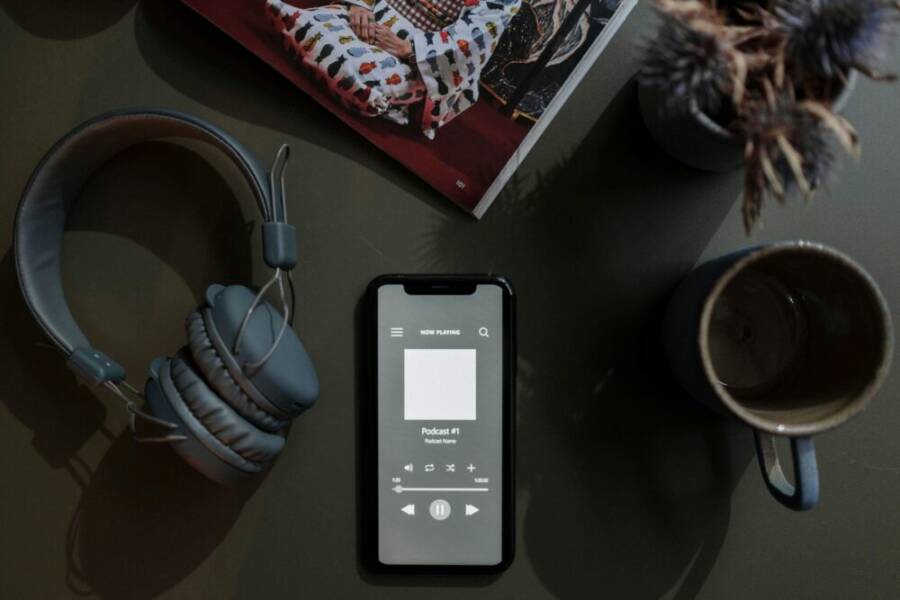
I launched my first podcast last year using just my smartphone. No computer, no fancy software. I recorded episodes on the go and hit publish. Listeners found it right away.
Your podcast cover art makes that first impression. Platforms like Spotify and Apple Podcasts show it front and center. Weak designs get scrolled past; bold ones pull people in and boost plays.
Good cover art follows simple rules. Use a square 1400×1400 pixel size. Add bold visuals and clear text that pops.
Your smartphone changes everything. Design pro-level art anytime, anywhere. No steep learning curve or big costs.
This guide walks you through it step by step. Pick the best free apps. Build standout designs with easy tools. Export and upload fast.
You’ll create eye-catching covers that match your show’s vibe. Podcasters swear by this phone-only method. Ready to stand out? Let’s get started.
Why Design Podcast Cover Art on Your Phone
Great podcast cover art grabs attention fast. You can build it right on your phone without extra gear. This approach fits busy lives and keeps costs low. Your smartphone puts pro tools in your pocket. Ideas flow when you sketch them on the spot.
Photo by cottonbro studio
Work from Anywhere
You design covers during downtime. Wait for coffee? Open an app and tweak colors. Commute home? Adjust fonts in seconds. No need to wait for a computer setup. This freedom sparks creativity. Your phone stays with you, so progress never stops.
Podcasters often brainstorm episodes on the move. Cover art follows suit. Match visuals to your latest idea without delay. Platforms demand quick uploads. Phone designs let you meet those needs. Listeners spot fresh shows right away.
Cut Costs to Zero
Skip paid software and subscriptions. Free apps handle layers, effects, and exports. Your smartphone runs them smoothly. No upgrades required. Save hundreds compared to desktop suites.
Key savings include:
- Zero app fees for basics.
- Built-in photo edits.
- Instant file sharing.
This setup works for new podcasters. Test ideas without risk. Strong covers build brands, as noted in this podcast cover art guide. Phones make those tips easy to apply.
Start Fast with Simple Tools
Phone apps offer drag-and-drop ease. Pick templates, add text, done. No tutorials needed at first. Touch controls feel natural. Beginners create bold designs in minutes.
Your smartphone camera supplies custom photos. Snap a host shot or logo mockup. Edit brightness or crop tight. Results look sharp at 1400×1400 pixels. Iterate until it pops.
Iterate and Test Quickly
Change a background? Tap twice. Preview on small screens matches real use. Platforms show covers tiny. Phone views nail that scale.
Share drafts with friends via text. Get feedback live. Tweak based on input. Desktop workflows take hours. Phones shrink that to moments. Refine until listeners click play.
This method boosts plays. Eye-catching art stands out in feeds. Your phone turns you into a designer overnight.
Best Free Apps to Create Podcast Covers on Your Phone
Your smartphone packs powerful apps to design podcast covers without spending a dime. These tools offer templates, edits, and exports tailored for square formats like 1400×1400 pixels. Pick one based on your style: quick setups or pro touches. They all run smooth on iOS and Android, so you create on the go.
Master Canva for Quick Podcast Designs
Canva tops the list for beginners. Its mobile app feels intuitive, like flipping through a photo album. You start with zero skills and end with sharp covers in under 10 minutes.
Open the app and tap the search bar. Type “podcast cover” to pull up hundreds of free templates. Scroll for themes that match your show, from true crime shadows to business blues. Pick one and resize to 1400×1400 pixels right away; the app snaps it to podcast specs.
Customize fast with the free elements library. Drag in icons, gradients, or fonts that scream your niche. Swap colors to fit your brand, add your podcast name in bold sans-serif text, and layer a host photo. Everything stays editable with simple taps.
Why Canva wins on phones: Touch controls beat mouse clicks for precision. No steep menus; just swipe and drop. Check out Canva’s podcast cover templates for ready ideas. Beginners love the undo button and preview mode that shows how it looks tiny on feeds.
Follow these steps for your first design:
- Search templates and select a base.
- Adjust size and add text overlays.
- Pull free elements like microphones or waves.
- Export as PNG for crisp upload.
Your cover pops without hassle. Save drafts to tweak later during breaks.
Use Adobe Express for Pro-Looking Results
Adobe Express steps up for polished looks. This free app packs desktop-level tools in a mobile shell. It handles complex edits that make covers stand out in crowded playlists.
Start with a blank canvas or template. Set to square 1400×1400, then upload your photo. Use the background remover tool; one tap strips it clean for pro composites. Add text with drop shadows or glows for depth.
Animations work if your platform supports them; layer subtle moves like pulsing logos. Free version covers basics: filters, shapes, and fonts galore. Premium unlocks stock photos and more effects, but you don’t need it for solid results.
On smartphone screens, it shines with pinch-to-zoom accuracy. Gestures feel natural for layering. Resize elements without blur, and preview scales match real podcast displays.
Free vs. premium quick take: Stick to free for 90% of needs. Upgrade only for rare fonts or removes beyond the quota. Test it yourself; exports stay high-res.
Your designs gain that agency edge. Hosts use it to blend photos and graphics seamlessly.
Explore Picsart and Other Free Options
Picsart brings fun to edits with stickers and effects. Open the app, choose a square canvas, and dive into tools. Add stickers like retro mics or neon text for vibe. Effects such as glitch or vaporwave amp up bold shows.
Apply one-tap filters to photos, then blend with overlays. Export stays crisp at full size. It suits creative types who want personality over polish.
For backups, try Desygner. It mirrors Canva with templates but adds quick collages. Over works well for text-heavy covers; its font library impresses.
Keep it simple: Picsart for effects, Desygner for layouts, Over for typography. All free tiers export podcast-ready files. Switch based on mood.
These apps fit any workflow. Your smartphone turns sketches into scroll-stoppers.
Step-by-Step Guide to Building Your Cover Art
Your smartphone holds all the tools to craft podcast cover art that stands out. Follow these steps in apps like Canva or Adobe Express. Start with a new 1400×1400 pixel canvas. Build layer by layer for a clean, bold result. Each move takes taps, not hours.
Step 1: Pick Your Background and Theme
Match your background to the podcast niche right away. True crime? Go dark with reds or blacks. Business talk? Pick crisp blues and grays. These colors set the mood and draw eyes.
Add a gradient for smooth depth, or drop in a photo. Use your smartphone camera for personal shots, like a mic on a desk. Need stock options? Grab free images from Unsplash podcast photos or Freepik podcast backgrounds. Download them straight to your phone.
Tap to fill the canvas. Stretch or crop to fit square edges. Keep it simple; busy backs distract from text.
Step 2: Add Bold Text for Your Podcast Name
Text rules the cover. Make your podcast name the star. Choose thick sans-serif fonts like Impact or Montserrat. They hold up on tiny thumbnails.
Bump sizes to 100pt or more. Center it big across the top or middle. Adjust kerning, the space between letters, for tight readability. Pinch on your smartphone screen to spread them out; aim for even gaps that avoid crowding.
Test on small views. Does it read clear at half size? Add a subtitle below in 40pt if needed. White or black text pops best first. Your name should hit listeners like a hook in an episode.
Here are quick font picks by niche:
- Comedy: Fun scripts like Comic Sans alternatives.
- News: Clean slabs like Roboto Slab.
- Health: Modern sans like Open Sans.
Lock it in place once it shines.
Step 3: Layer Images, Icons, and Logo
Icons add punch without clutter. Search free libraries in your app for mics, waves, or headphones. Align them center or offset for balance. Scale to one-third canvas size.
Crop tight on your smartphone touchscreen. Swipe edges to trim fat; focus on the key shape. Layer your logo last, small in a corner. Drop shadows keep it from blending into the back.
Overlap smartly. Place an icon behind text for depth. Free icon sites in apps cover most needs. Your cover tells your story at a glance.
Step 4: Tweak Colors, Effects, and Layout
Pull from your brand palette now. Swap hues to match logos or episode themes. Use the color picker on existing elements. Boost saturation for true crime reds; tone down for calm wellness vibes.
Add subtle shadows or glows to text and icons. They create pop on flat screens. Check contrast with built-in tools. Black text on light? Good. Run a quick accessibility scan if your app offers it.
Rearrange layers with drag taps. Move text forward, backs behind. Zoom your smartphone view to spot issues. Thumbnails demand high punch, so test small often.
Step 5: Preview and Make Final Changes
Zoom out full screen. Does it grab you in one second? Platforms shrink covers, so mimic that scale on your phone.
Share to messages for real feedback. Send to a friend: “Does this pop?” Tweak based on notes, like brighter text. Export as PNG at full 1400×1400 for sharp upload.
Save versions. Pick the winner. Your smartphone just built pro art ready for Spotify or Apple. Upload and watch plays climb.
Pro Tips for Eye-Catching Podcast Cover Art
Crafting a cover that stops thumbs and sparks clicks starts with a few proven strategies. This section packs practical, phone-friendly tips you can apply today. Think clean visuals, bold typography, and color that communicates your show’s tone in an instant. Below you’ll find actionable guidance you can implement with no special equipment.
Start with a Clear Visual Hierarchy
Your cover art should communicate its message at a glance. Establish a simple hierarchy so the most important elements stand out:
- Primary element: your show name in a bold, legible font.
- Secondary element: a short descriptor or your logo to convey genre or vibe.
- Supporting graphics: a small, unobtrusive icon or graphic that reinforces the theme.
Keep clutter to a minimum. A busy image crawls on small screens and hides your key text. Aim for a single focal point that draws the eye immediately. If you’re unsure, test two or three variants and compare which one reads best when scaled down to thumbnail size.
For inspiration, explore templates designed for podcast art and notice how top shows balance name, icon, and color. This balance is what makes a cover feel intentional rather than incidental. For additional best-practice ideas, see the comprehensive guide on eye-catching podcast artwork. You can also check a practical roundup of tips from industry experts.
Design for Small Screens
Most listeners will see your cover on a tiny screen, so optimize for legibility:
- Use a bold, high-contrast color pair for text and background.
- Favor thicker fonts with strong letterforms; thin fonts lose readability in small sizes.
- Avoid long names or long subtitles that wrap in awkward places.
Always preview your design at a thumbnail size. Many design apps let you toggle a small-screen preview; use it to confirm readability. A design that looks solid on a phone often translates well to larger displays, but never assume. Regular checks on 2x or 3x zoom help you catch issues early.
If you want a quick benchmark, test your cover against common backgrounds from podcast feeds you admire. A simple test is to view your artwork on a dark background, a white background, and a colored background to ensure it still pops.
Color and Contrast That Signal Your Brand
Color is the first cue listeners use to gauge your show. Use it to establish mood and brand consistency:
- Choose a limited palette that reflects your topic. For example, deep blues and grays for business, warm yellows for comedy, or moody reds for true crime.
- Ensure there’s strong contrast between text and background. Black or white text on a bright background often works best.
- Use a single accent color to highlight the show name or logo.
A cohesive color system helps your podcast stand out in feeds and strengthens brand recall. If you already have a logo or brand colors, apply them consistently across all art variants. When testing colors, view your cover at multiple sizes to confirm legibility.
Typography That Reads at Thumbnail Size
Typography is the voice of your cover. The right font makes your show name legible and memorable:
- Pick a strong sans serif font for clarity in small sizes.
- Limit yourself to one or two typefaces to avoid visual noise.
- Avoid decorative fonts that lose legibility when scaled down.
Size matters. Aim for your primary text to be readable at 20–28 points on mobile previews and still clear when scaled to 1000×1000 pixels. If you include a subtitle, keep it noticeably smaller and only if necessary for context.
Experiment with letter spacing (kerning) to tighten or loosen the text. A well-kerned wordmark can feel more premium and easier to parse at a glance. Always run a quick readability check on dark and light backgrounds to confirm contrast.
Layer Images, Icons, and Logo with Purpose
A strong icon or symbol quickly communicates your niche. Use layering to create depth without clutter:
- Place a bold, central element (your show name or an emblem) as the focal point.
- Add a secondary graphic behind or beside it to reinforce the theme without competing for attention.
- Keep logos small and unobtrusive unless your brand is the centerpiece.
Avoid overloading the canvas with multiple icons. If you use stock imagery, crop tightly to emphasize shape over detail. Subtle shadows and gentle glows help separate layers on busy backgrounds while preserving readability.
If you have a logo, position it in a corner or along an edge to preserve headline emphasis. A restrained approach signals professionalism and keeps the art clean on crowded feeds.
Quick Template Strategies You Can Start Today
Templates speed up production and ensure consistency across episodes. Try these practical approaches:
- Template A: Dark gradient background, bold white title, small symbol behind the title.
- Template B: Light background with a bold colored block behind the title, subtle icon to the side.
- Template C: Full-bleed photo with a semi-opaque color overlay and strong typography over it.
Always resize and export at 1400×1400 pixels to align with platform requirements. If you’re unsure which template fits best, use a simple A/B test by sharing two variants with friends or feedback groups and asking which pops more on mobile.
For reference, the field leans toward clean, simple art with clear typography and minimal clutter. Helpful tips from industry guides emphasize the importance of simplicity and legibility in cover art. See sources sharing proven practices from professional designers and podcast marketers.
Preview, Test, and Iterate
Testing is how you turn good art into great art:
- Preview on multiple devices and screen sizes to confirm readability.
- Get quick feedback from collaborators or potential listeners.
- Iterate on one aspect at a time (color, typography, or composition) to isolate what works.
Keep a small library of drafts and label them by concept. This makes it easy to revisit ideas that didn’t land initially but could shine with a minor tweak. Regular iteration keeps your cover fresh as your show evolves.
You don’t need heavy software for this step. A few minutes of testing can dramatically improve click-throughs and listen rates. For more perspective on proven design approaches, explore articles that compile best practices and case studies on podcast cover art.
Quick Launch Checklist
Before you publish, run through this brief checklist to ensure your art is ready:
- 1400×1400 pixel square, high resolution PNG or JPG.
- Bold title with strong contrast and legible typography.
- One main focal element plus a subtle supporting graphic.
- Brand colors applied consistently across the design.
- Preview on small screens and adjust as needed.
- Final export and a quick, friendly caption for your show page.
Following these steps helps you produce professional art from your phone. When you keep your designs aligned with your show’s tone, listeners feel the connection even before they press play. For further reading on practical typography and layout ideas, you might enjoy the design-focused guide from the podcast art experts.
Export, Upload, and Update Your Cover Art
Once your cover art looks right on your phone, the next steps are export, upload, and keep it current. This section breaks down the practical process so you can publish quickly and confidently. You’ll learn file specs, platform nuances, and how to manage future updates without losing brand consistency.
Get the Right Export Settings
Export quality affects how your art renders across feeds. Aim for a crisp, platform-ready file that preserves text readability and color. In most apps, the standard export is a PNG or JPG at 1400×1400 pixels. If you can push higher, some platforms support up to 3000×3000 pixels, which can look sharper on large displays.
- File type: PNG or JPEG
- Color space: RGB
- Resolution: 72 dpi is usually fine for web, but higher is okay if the app provides it
- File size: Try to stay under 512 KB for faster uploads on slower connections
If you’re unsure, start with PNG for sharp text edges and download a small, high-quality JPG as a backup. Always verify the exported file on your phone by viewing it at a reduced size to simulate thumbnail display.
For reference on platform expectations, see guidelines from Apple Podcasts and other major platforms. These sources confirm the common ground: 1400×1400 as a minimum, up to 3000×3000 for best results, and the RGB color space for online use. You can review the official specs here: Apple Podcasts show cover guidelines and Spotify’s formatting notes.
Upload to Major Platforms
Uploading is usually a straightforward process, but a quick checklist helps prevent delays:
- Confirm the final size is square and exactly 1400×1400 or 3000×3000 if you chose the higher option
- Ensure the file name is simple and descriptive, not buried in folders
- Use a strong, legible title with high contrast against the background
- Preview the cover in the platform’s uploader to see how it appears in thumbnails
Common destinations include Apple Podcasts and Spotify, plus any hosting service you use. Apple’s guidelines emphasize a wide size range but prefer larger images when possible. Spotify and other platforms also require clean, legible artwork that scales down well. If you want an authoritative reference on several platforms, check the official specs for Apple Podcasts and Spotify.
- Apple Podcasts: Show Cover template and size guidance
- Spotify: Cover art requirements and best practices
- Your hosting platform: Upload flow and file size limits
When you upload, some platforms offer a live preview. Always use that preview to confirm legibility on small screens. If something reads vaguely or looks muddy, revisit your typography or contrast before final submission.
Update and Reuse Existing Artwork
Brands evolve, and your cover art should evolve with them. Updates should be consistent with your existing visual identity to avoid confusing your audience. Consider these best practices:
- Keep core elements: maintain the same show name placement, color accents, and primary icon
- Introduce a subtle refresh: tweak the background gradient, adjust typography weight, or swap a small graphic while keeping the overall look
- Version control: save at least two variants labeled with the version or date to track changes
Make updates during off-peak listening times when your audience is less likely to notice a sudden shift. Notify listeners about the refresh in show notes or through a brief social post to minimize confusion and reinforce brand continuity.
When to Consider a Redesign
A redesign should feel like a natural evolution, not a complete rewrite. Consider a refresh if:
- Your show pivots in topic or tone significantly
- Your current art looks dated compared with competitors
- Readability drops on mobile thumbnails in a quick scan
- Your branding assets (logo, color palette) have changed
If you decide to redesign, plan a staged rollout. Create two or three variants, test them with friends or early listeners, and pick the one with the strongest immediate impact. A well-timed update can reinvigorate interest and attract new listeners.
Practical Quick-Launch Checklist
Before you publish or republish, run this compact checklist:
- 1400×1400 pixel square, export as PNG or JPG
- High contrast, bold typography, and a clear focal point
- One main element plus a subtle supporting graphic
- Brand colors consistently applied
- Thumbnail preview checked on multiple devices
- Clear, friendly caption for your show page
Keeping the process tight saves time and reduces the risk of upload errors. When your cover looks right in small pockets of attention, listeners are more likely to press play.
Helpful Resources and Templates
If you want extra guidance, explore templates and official guidance from credible sources. For example, templates and guidelines from reputable design resources can improve your results without adding complexity. Check out design guides that summarize best practices for podcast artwork and the recommended export settings for each platform. You’ll find practical tips, including file type, size, and color recommendations, which align with the workflow you use on your phone.
- Apple Podcasts support page on show cover templates
- Spreaker guide on creating podcast cover art
- Blush design blog with practical podcast art tips
These resources reinforce a simple truth: clean, readable art travels well from your phone to every listening device. Keeping export, upload, and update steps tight ensures your show stays visually strong as it grows.
External references and in-depth ideas can be found through the linked resources above, which provide concrete guidance for maintaining consistency across your podcast branding.
Conclusion
Designing podcast cover art on your phone puts you in control of every first impression. You learned a simple path: pick a clear theme, use bold typography, layer a few graphics with thoughtful color, and export at 1400×1400 for reliable platform displays. The payoff is real — faster iterations, lower costs, and a cover that travels well from thumbnail to large screens. Your phone becomes a creative hub that protects your brand while you test ideas in real time. Try a quick draft today, share it with friends, and compare two variants to see what pops. If you stay curious, your podcast will grow with visuals that spark clicks and builds trust. Your journey to bigger audience momentum starts with one smart move: capture attention with a sharp cover, right from your smartphone.