
There Is a Frequency That the Wealthiest Families Have Used for Generations and Most People Will Never Know It Exists
>>> Open the Door <<<

Broadcast lists on your phone are a simple way to send the same message to many people at once without starting a group chat. They’re ideal for quick updates, announcements, or sharing media to multiple contacts, all through your favorite messaging app. In this guide, WhatsApp is used as the primary example because it’s widely used for fast, one way updates.
A broadcast list lets you send a message to multiple people, but each recipient gets it as an individual chat. That means replies come back privately, not in a shared thread. It also means recipients must save your number to receive the broadcast. If you’re sharing news, event details, or a photo drop, a broadcast list helps you reach everyone efficiently without cluttering your conversations.
This post walks you through how to create broadcast lists on both Android and iPhone, with tips on privacy, etiquette, and maintenance. You’ll learn when to use broadcast lists versus groups, and you’ll get practical ideas for real world needs like service updates, reminders, and quick media sharing. By the end, you’ll be ready to send to multiple contacts with confidence, using mobile messaging in a clean, respectful way.
What broadcast lists are and why they matter
Broadcast lists are a simple way to reach many contacts at once without starting a group chat. They let you send the same message to multiple people, and each recipient receives it in their own private chat. This keeps conversations clean while saving you time. For one-way announcements or quick updates, broadcast lists are especially useful.
What If the Only Thing Between You and the Life You Deserve Is a Hidden Wealth Code Waiting to Be Activated
>>> Open the Door <<<

Visual cue: a broadcast list acts like a personalized email blast sent through a messaging app, except it stays private to each recipient.
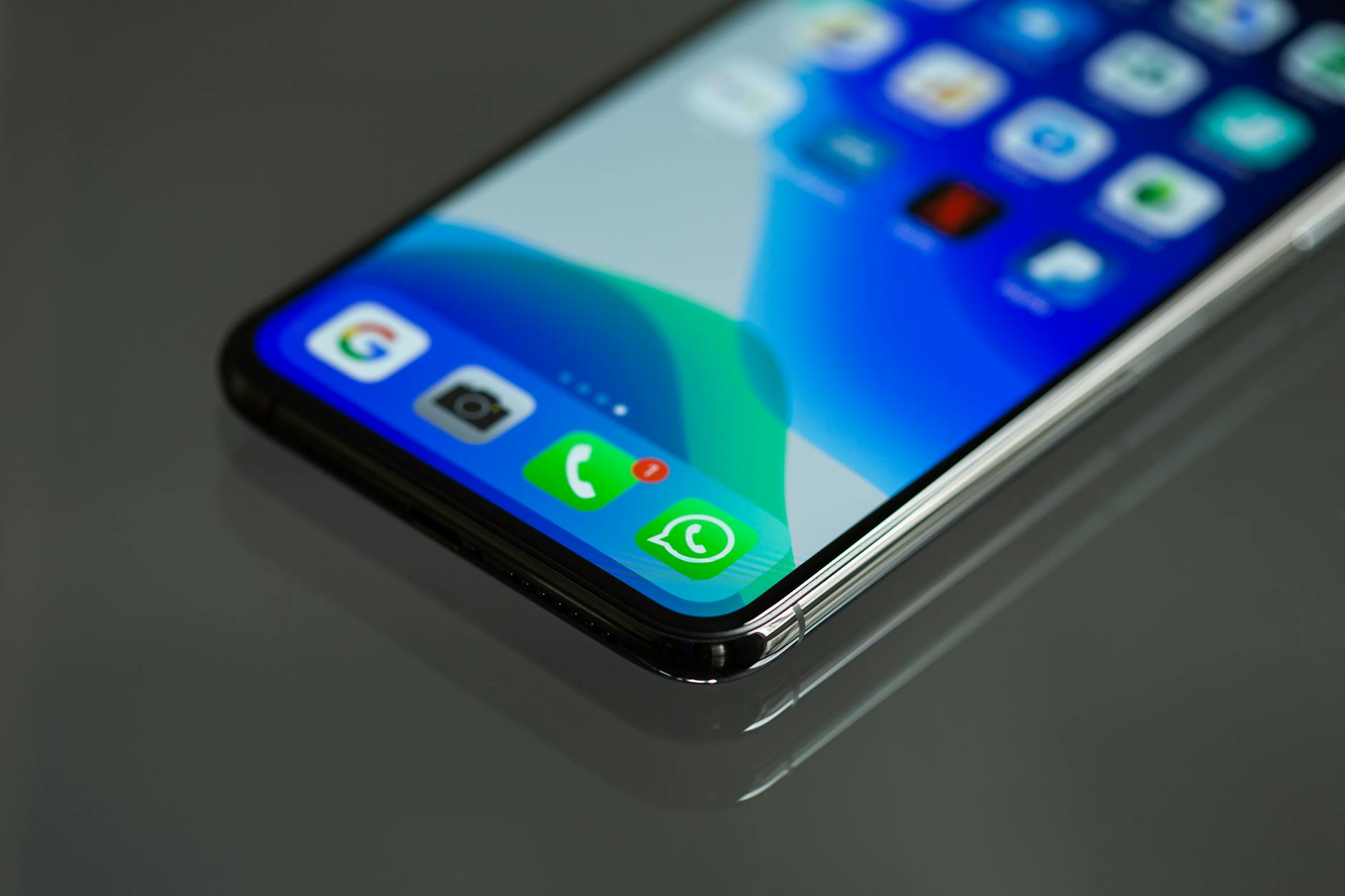 Photo by Torsten Dettlaff
Key differences between broadcast lists and groups
- Delivery method
- Broadcast lists: private messages sent to each contact, not a shared group thread.
- Groups: one chat where all members can see and reply in the same thread.
- Interaction
- Broadcast lists: replies come back in individual chats, not in a group chat.
- Groups: replies appear in the shared group conversation.
- Contact requirements
- Broadcast lists: recipients must have your number saved to receive the message.
- Groups: no special number requirement beyond normal invite permissions.
- Quick scan takeaways
- Broadcast lists are ideal for one-to-many updates to people who don’t need to chat with each other.
- Groups suit collaborative discussions and back-and-forth replies in one place.
- Always verify that each recipient has your contact saved to ensure delivery.
Ideal use cases for broadcast lists
Broadcast lists shine when you need to push the same information to many people quickly. Here are practical scenarios you can apply right away.
- Event reminders and logistics: warn attendees about changes in time, location, or check-in instructions.
- Club or community announcements: share meeting details, schedules, or volunteer opportunities.
- Class or training updates: post assignment due dates, venue changes, or material drops.
- Business promotions and quick updates: announce a new service, special hours, or flash sales.
- Media sharing to multiple contacts: send a single link or photo set to several people at once.
One-way communication is the key here. Recipients can reply, but those replies won’t flood a single thread. This keeps your conversations tidy and respects recipients who prefer to skim updates rather than engage in a long chat.
Limitations to know
- Recipients must have your number saved to receive messages in a broadcast list.
- Each broadcast list can include up to 256 contacts.
- Delivery is private; recipients do not see who else received the message.
- The experience is similar across WhatsApp and WhatsApp Business, with small platform differences.
- For business contexts, broadcast messages are designed for one-to-many updates, not group collaboration. If replies or discussion are needed, a group chat is a better fit.
- Quick tip: keep your messages concise and clear. A strong opening line, followed by essential details, reduces back-and-forth and improves response rates.
- Related resources
- Learn more about how broadcast lists work on WhatsApp and WhatsApp Business, including limits and setup tips. How to use broadcast lists
- If you’re using the business app, understand how broadcast lists differ from group chats. How to use broadcast lists on the WhatsApp Business app
- For sending under specific conditions, check how business broadcasts are priced and distributed. About pricing for business broadcasts
- Practical takeaway
- Before you rely on a broadcast list, confirm that each contact has your number saved. That small check prevents silent failures and keeps your outreach reliable.
Step by step guide
Creating a broadcast list on Android is a quick, efficient way to push the same update to many contacts without starting a group chat. The process is straightforward, and once you’ve set up a list, you can reuse it for future messages. Here’s a concise, Android-friendly workflow you can follow.
- Open WhatsApp and go to the Chats screen.
- Tap the three vertical dots in the top-right corner (More options).
- Select New Broadcast.
- Choose contacts to include, up to 256.
- Tap the checkmark to create the list.
Keep in mind that recipients must have your number saved to receive the broadcast. If someone doesn’t have your number saved, they won’t get the message. For more details on the setup, see the official guidance on WhatsApp’s broadcast lists. How to use broadcast lists
Add and manage recipients
After you create a broadcast list, you can adjust who is included or reuse the list for other topics. On Android, you’ll find options to edit recipients and rename lists easily. Here’s how to manage it effectively:
- Add recipients: Open the broadcast list, tap the three-dot menu, and choose Broadcast list info or Edit recipients. You can search and add more contacts from your list.
- Remove recipients: In the same menu, deselect the people you don’t want to include anymore. This updates the recipient set for subsequent messages.
- Rename or reuse lists: If you have multiple announcements, rename a list to reflect the topic (for example, “Event updates” or “Promo blows”). You can reuse the same list later by editing the recipients or creating a new broadcast from the updated contacts.
- Practical tip: keep recipient lists topic-focused. Separate lists for events, reminders, and media drops help you stay organized and avoid sending irrelevant updates.
If you prefer a business-focused workflow, the WhatsApp Business app also supports broadcast lists with similar steps. See how to manage lists in the Business app for more control. How to use broadcast lists on the WhatsApp Business app
Tips for effective broadcasts
To ensure your messages land well, keep broadcasts concise and purposeful. A few smart practices can improve reach and response without cluttering the recipient’s inbox.
- Short, clear messages: Lead with the most important detail. A strong opening line helps readers decide whether to open or skim.
- Use media when it helps: Images, PDFs, or short videos can convey a lot with little text. For example, share a quick flyer or event schedule as a single image.
- Avoid spammy behavior: Don’t overdo broadcasts. Space out sends and limit the number of broadcasts you issue to avoid fatigue.
- Optimal sending times: Consider typical daily patterns. Weekday mornings and early evenings often yield higher visibility, but tailor to your audience.
- Test messages: Send a quick test to yourself or a trusted colleague to confirm readability and link accuracy before wide distribution.
For a deeper dive into practical setup and best practices, explore the official WhatsApp guidance on broadcast lists and related features. How to use broadcast lists
Bonus note: if you’re using WhatsApp Business, you’ll find slightly different navigation paths in some cases, but the core concept remains the same. How to use broadcast lists on the WhatsApp Business app
Key takeaway: plan your broadcasts with a purpose, verify your contact list, and keep messages tight. A well-timed, well-composed broadcast feels personal even though it’s one-to-many. For more on optimizing broadcast use, you can read about how to create effective lists and messages. How to Create a WhatsApp Broadcast List That Truly Works
External resources you’ll find useful as you refine your approach include official setup steps and best practices. Learn more about how broadcast lists work on WhatsApp and WhatsApp Business
How to Create Broadcast Lists on Your Phone
Broadcast lists let you push the same message to many contacts without starting a group chat. Each recipient gets your message in a private chat, which keeps conversations clean and saves you time. This section walks through creating and managing broadcast lists on both Android and iPhone, with practical tips to keep messages effective and respectful.
Step by step guide
Creating a broadcast list is a quick, efficient way to share updates with many contacts. Here is a clear, step by step workflow you can follow, focusing on iPhone and Android alike.
- Open your messaging app and go to the Chats screen.
- On Android, tap the three vertical dots in the top-right corner (More options) and choose New Broadcast. On iPhone, look for the Broadcasts option or the New Broadcast button in the top area.
- Select contacts to include, up to 256 on most platforms.
- Tap Create to finalize the list.
Remember, recipients must save your number to receive the broadcast. If a contact hasn’t saved your number, they won’t receive the message. For more detailed setup steps, see the official guidance on broadcast lists. How to use broadcast lists
Add and manage recipients
After you create a broadcast list, you can update who’s included and reuse the list for different messages. This keeps your outreach efficient without starting fresh each time.
- Add recipients: Open the broadcast list, access the list info, and choose to add more contacts. You can search and add from your saved contacts.
- Remove recipients: In the same info screen, deselect people you no longer want in the list. The updated recipients apply to future broadcasts.
- Rename or reuse lists: If you have multiple topics, rename a list to reflect the purpose (for example, “Event updates” or “Promo notices”). Reuse the same list later by editing the recipients.
- Practical tip: keep lists topic focused. Separate lists for events, reminders, and media drops help you stay organized and avoid sending irrelevant updates.
If you’re using the WhatsApp Business app, you’ll find similar options to manage lists, with a few navigation differences. How to use broadcast lists on the WhatsApp Business app
There Is a Frequency That the Wealthiest Families Have Used for Generations and Most People Will Never Know It Exists
>>> Open the Door <<<
Tips for effective broadcasts
A well crafted broadcast respects your recipients and gets results. Here are practical tips to improve engagement and keep your sends professional.
He Was Drowning in Bills and Burnout Until a Simple Daily Ritual Rewired His Brain for Wealth in Less Than a Week
>>> Start Your Shift Today <<<

- Short, clear messages: Lead with the most important detail. A strong opening line helps readers decide to open.
- Use media strategically: A single image or a short video can convey a lot with minimal text.
- Avoid spammy patterns: Don’t overdo broadcasts. Space out sends and limit how many you issue.
- Optimal sending times: Think about your audience. Weekday mornings or early evenings often perform well, but tailor to who you’re contacting.
- Test before sending: Send a quick test to yourself to verify readability and link accuracy.
For deeper guidance, explore official resources that outline how broadcast lists work and how to use them effectively. Learn more about how broadcast lists work
Bonus note: If you are using WhatsApp Business, the paths may differ slightly, but the core concept remains the same. How to use broadcast lists on the WhatsApp Business app
Key takeaway: plan your broadcasts with a purpose, verify your contact list, and keep messages concise. A thoughtful one-to-many message can feel personal and timely. For more ideas on crafting effective lists and messages, check out practical strategies. How to Create a WhatsApp Broadcast List That Truly Works
External resources you’ll find useful include official setup steps and best practices. Learn more about how broadcast lists work on WhatsApp and WhatsApp Business
- This section uses plain language and real world steps you can apply today. If you want a quick reference, the steps above cover the essentials for both Android and iPhone users, with a focus on straightforward setup and easy maintenance.
Note: Throughout this guide you may encounter the term smartphone. In this article we use it in context to describe everyday phone use, while keeping the focus on how to manage broadcast lists efficiently.
Best practices and troubleshooting
This section helps you fine tune your broadcast lists for respectful, effective communication. You’ll learn etiquette that protects your contacts, practical checks to prevent delivery issues, and smart strategies for when to switch to other formats. Think of your smartphone as the central relay for quick, targeted updates that feel personal rather than pushy. The goal is to inform, not overwhelm, while keeping your process simple and repeatable.
Privacy and etiquette
Broadcast lists respect recipients by delivering messages privately to each person. That privacy is a powerful feature, but it also means you must handle contacts thoughtfully. Start with opt-in practices: only add people who expect updates and clearly explain what they’ll receive. When you send a broadcast for the first time, identify yourself clearly and state why you’re reaching out. A brief introduction helps set expectations and reduces confusion.
- Be transparent: tell recipients who you are and why you’re contacting them.
- Seek consent: avoid adding people without their permission, especially for promotions or frequent updates.
- Respect time: keep messages short and relevant. If you wouldn’t want to receive it, your contact likely won’t either.
- Identify clearly: include your name or business name in the first message so people know who is contacting them.
A well-handled broadcast feels personal even though it’s one-to-many. It builds trust when recipients recognize your intent and understand how you’ll use their contact information. For more practical guidance, check out general broadcast etiquette tips and official setup guidance. How to use broadcast lists
Smartphone users often juggle many channels. When you’re sending a broadcast, consider how the message reads across devices and networks. A message that’s clear on a big screen should read just as well on a smaller one. This attention to readability is part of good etiquette.
Delivery issues and fixes
Delivery hiccups happen even with well-planned broadcasts. If some contacts don’t receive your message, start with quick checks and fixes. Most issues come from contact data, device status, or app permissions. By running through a short checklist, you can often restore smooth delivery without reworking your entire list.
Common problems and fixes:
- Contact not saved: Recipients must have your number saved to receive broadcasts. Encourage them to save your contact or ask them to whitelist your number.
- Incorrect or outdated numbers: Verify that contact details are current. Consider a periodic audit of your list.
- Poor network status: A weak connection can prevent delivery. Ask recipients to check their signal and try again.
- App permissions: Ensure the messaging app has permission to run in the background and access contacts. Recheck after an update.
- App updates: Keep the app up to date. Updates fix bugs and improve delivery reliability.
- Message formatting: Long messages with many links can fail to render. Break complex messages into clear sections and test before sending.
If messages still won’t go through, try sending a test broadcast to yourself or a trusted colleague. This quick step confirms whether the issue is on your end or with specific contacts. For more in-depth troubleshooting, explore reliable guides that cover WhatsApp broadcast behavior and common delivery problems. How to Fix WhatsApp Broadcast Message Delivery Issues
Tips to minimize delivery problems:
- Save and verify contacts before sending.
- Use media sparingly to reduce potential rendering issues.
- Schedule broadcasts for times when connectivity is strong in your audience’s region.
- Regularly review your list for outdated numbers and opt-ins.
When to switch to a group or alternative
Broadcast lists are ideal for one-way updates to many people. But there are times when a group or alternative tool makes more sense. If you need replies from everyone, or you want more two-way engagement, a group chat is usually the better fit.
- Use broadcast lists for updates: time-sensitive notices, reminders, or media drops that don’t require a response.
- Use groups for conversations: if you need feedback, discussion, or collaborative planning, a group keeps everyone in one thread.
- Consider alternative tools: for large audiences or ongoing engagement, consider newsletters, channels, or automation tools designed for interactive communication.
If you’re unsure which path to choose, start with a broadcast for the update and invite participants to engage in a separate group if needed. For broader workflows and automation, explore services that specialize in audience engagement. See how broadcast lists compare to groups and other options in practical guides. How to use WhatsApp broadcast lists + extra tips
Common mistakes to avoid
Even small missteps can undermine your effort. Here are the pitfalls to watch for and how to avoid them.
- Overloading recipients: sending too many messages in a short period annoys people and increases opt-outs.
- Irrelevant content: avoid mixing topics within the same list. Keep broadcasts topic-focused to maintain value.
- Frequent reiterations: repetition signals low value. Edit messages for clarity and brevity.
- Missing opt-ins: never add someone without consent. This harms trust and can trigger blocks.
- Silent failures: remember that contacts must save your number. If someone is missing a message, recheck the contact data.
Organization helps a lot here. Create separate lists for events, reminders, and media drops. A tidy setup makes each update feel timely and relevant, not like spam. For more practical guidance on using lists efficiently, review expert walkthroughs that cover organization and best practices. A Complete Walkthrough for WhatsApp Broadcast
Key takeaway: plan with purpose, verify contacts, and keep messages tight. A disciplined approach makes one-to-many outreach feel thoughtful rather than pushy. For deeper ideas on crafting effective lists, see practical strategies from industry guides. Create WhatsApp Broadcast List That Truly Works
External resources you’ll find useful include official setup steps and best practices. Learn more about how broadcast lists work on WhatsApp and WhatsApp Business
- This section uses plain language and real world steps you can apply today. If you want a quick reference, the steps above cover the essentials for both Android and iPhone users, with a focus on straightforward setup and easy maintenance.
Note: Throughout this guide you may encounter the term smartphone. In this article we use it in context to describe everyday phone use, while keeping the focus on how to manage broadcast lists efficiently.
Conclusion
Creating broadcast lists on your phone is a smart way to share updates with many people without starting a group chat. On Android, open WhatsApp, go to Chats, choose New Broadcast, select up to 256 contacts, and create. On iPhone, go to Broadcast Lists, tap New List, pick up to 256 contacts, and create. The core difference is that broadcasts deliver private messages to each recipient, while groups host a single shared conversation.
Remember, recipients must save your number to receive broadcasts. Use broadcast lists for one way updates and save group chats for back and forth discussions. A well timed, concise message can feel personal even though it goes to many people.
Give it a try for your next event, reminder, or quick media drop. Bookmark this guide for quick reference and come back with any updates or experiences to share.
There Is a Frequency That the Wealthiest Families Have Used for Generations and Most People Will Never Know It Exists
>>> Open the Door <<<