
Ever wonder when your phone battery really needs a replacement. This guide breaks down clear signs to watch for and simple checks you can do at home. A healthy battery means steadier performance and more reliable on the go.
If your phone drains quickly, shuts down at 50 percent, or heats up during normal use, those are strong signals something is off. You don’t need to wait for a dramatic failure to act; timely checks protect data and extend the life of your smartphone.
We’ll cover practical steps to test battery health and how to decide between replacing the battery or upgrading your device. With the right timing, you’ll keep calling, texting, navigation, and daily tasks dependable wherever you are.
Battery health matters because it affects real tasks, from maps to apps. Keep an eye on charging cycles, capacity estimates, and performance when you run demanding apps. This quick guide helps you spot issues early and act with confidence.
Recognize common signs your phone battery needs replacing
A healthy battery keeps your day flowing smoothly. If your phone starts acting unpredictably, it can be a sign that the battery is wearing out. Below are the most common, easy-to-check indicators that your battery may need replacement. Use these signs as practical guidance to decide whether to replace the battery or consider other options.
 Photo by Ron Lach
Rapid drain and unexpected shutdowns
When a battery is aging, you’ll notice a mismatch between how long a full charge should last and how long it actually lasts. The phone may feel normal for a while, then suddenly run flat much sooner than expected. In some cases the device will shut down even when the percentage shows there’s still charge left. This happens because the battery’s ability to deliver consistent voltage dips below the phone’s minimum requirement at various charge levels.
To get a quick read, monitor how long you typically get from a full charge versus how long the screen stays on. If you notice a big gap between screen time and charge time, or if a few apps suddenly become power hogs without a clear reason, the battery could be the root cause. Keep an eye on apps that consistently drain power, such as navigation, camera, or social apps, and compare their usage to baseline days.
What you can do now:
- Check battery statistics in Settings to see which apps consume the most power.
- Observe if the phone autopilots from high to low without loading heavy tasks.
- Run a quick battery health test if your device offers one in the system settings or use a reputable diagnostics app.
If rapid drain continues even after you close background tasks and update software, it’s a strong signal the battery should be evaluated by a technician or considered for replacement.
Overheating while charging
A phone that gets noticeably hot while charging is signaling that the battery may be stressed. Prolonged heat can accelerate capacity loss, degrade the battery’s chemistry, and raise safety concerns. If you notice warmth during charging, pause charging, and let the device cool down in a well-ventilated space.
Tips to test safely:
- Use a certified charger and cable. Inferior accessories can trigger excess current and heat.
- Avoid using the phone while charging if it becomes hot, especially for extended periods.
- If the device remains hot after several minutes, disconnect and seek professional assessment.
Regular overheating during charging isn’t normal. If it happens consistently, it’s time to check the battery health and consider replacement. For extra guidance, you can review tips from trusted sources on this topic, such as resources that outline how to know when to replace your Android phone battery. Learn more.
Swollen battery or screen issues
A swollen battery is a serious safety hazard. Signs include the screen lifting away from the chassis, the back or sides of the phone bulging, or visible gaps around the screen. Even if the device still works, swelling indicates gas formation inside the battery, which can lead to leakage, fires, or explosions.
If you detect swelling, stop using the device and seek a professional replacement immediately. Do not press on the screen or try to force the device open. Replacement should be performed by a qualified technician in a controlled environment.
Practical steps to handle swelling:
- Power off the device and avoid charging it.
- Visit an authorized service center or a trusted repair shop for a battery replacement.
- Consider data backup options during the service process to prevent data loss.
Swollen batteries are rare but dangerous. Treat this as a priority issue and act promptly to ensure your safety.
Additional insights and checklists can help you stay ahead of problems. For more about signs of a bad battery and when to replace, you can consult reputable guides that discuss overheating, swelling, and practical maintenance. See more and Is Your Phone Battery Dying.
Know When to Replace Your Phone Battery: Signs and Health Checks
Understanding battery health helps you avoid unexpected outages and plan repairs or upgrades with confidence. In this section, you’ll learn how to read battery health indicators on both iPhone and Android, what the numbers mean in practical terms, and how to translate those signals into smart decisions about charging habits and when to replace.
iPhone battery health feature and what it tells you
Finding the Battery Health information on your iPhone is straightforward. Open the Settings app, then tap Battery, and select Battery Health & Charging. Here you’ll see two key numbers that matter most for day-to-day use:
- Maximum Capacity: This percentage reflects how much of the original battery capacity remains. A higher percentage means your battery can hold a charge closer to when the device was new. A lower number indicates you’ll reach the end of a charge faster.
- Peak Performance Capability: This tells you whether your iPhone can run at its best. If your battery is healthy enough to support normal operation, you’ll see the message that performance is peak. If the system detects the battery is aging to the point where it can’t handle peak loads, you may see throttling or a warning that performance management has been applied to prevent unexpected shutdowns.
What counts as good versus poor numbers is context driven. For most users, a Maximum Capacity above 85 percent means you’ll get solid daily performance with infrequent charging surprises. Between 70 and 85 percent, you’ll still be fine for regular tasks, but you might notice shorter screen-on time and more frequent charging. If Maximum Capacity falls below 70 percent, expect noticeable battery life drops and potential performance management. When Peak Performance Capability shows it’s operating at normal levels, your device is handling tasks with ease. If you see a message about reduced performance due to battery health, it’s time to consider a battery replacement or a device upgrade. For official guidance, Apple’s support articles cover how battery health relates to performance and charging, and they offer practical steps if you notice degraded behavior. Read more on Apple’s guidance here: iPhone battery and performance.
If you want a quick, plain-language walkthrough of what you’ll see and how to respond, PCMag provides a concise how-to as well: How to Check Your iPhone’s Battery Health.
Practical tips:
- Regularly check Battery Health after major iOS updates; some updates can temporarily affect performance while the system recalibrates.
- If Maximum Capacity is dropping steadily, plan for a replacement window before you experience noticeable downtime.
Android diagnostics and how to read the numbers
Android devices vary by brand, so the exact path to battery health information can differ. The common approach is to start in Settings and navigate to Battery. Look for sections labeled Battery Health, Battery Health & Charging, or similar. If your device includes built-in diagnostics, a dedicated test or health report may appear under an Apps or System Diagnostics menu.
Key concepts to understand:
- Capacity estimates: Unlike iOS, Android devices may present a range or approximate figure for battery health. Treat these as directional, not exact. A shrinking capacity trend over several cycles signals aging.
- Charging behavior and cycle count: Some devices display how many charge cycles you’ve used and how the battery performs at different charge levels. A higher cycle count usually correlates with shorter life between charges.
- Performance mode or throttling indicators: If the battery health is declining, your device might throttle processor performance to prevent unexpected shutdowns. This can manifest as slower app launches, lag during games, or longer app switching times.
Because Android tooling differs by manufacturer, you may need to rely on third-party diagnostic apps for deeper insights. When using any third-party tool, choose reputable options with high ratings and clear data transparency to avoid misleading readings.
If you’re unsure where to start, the general idea is to monitor capacity trends and observe whether charging becomes noticeably more frequent or the device feels slower under normal workloads. For readers who want a specific how-to, look up your brand’s guidance on battery health and diagnostics, or consult a trusted tech guide that covers Android battery health. You can also explore general guidance from reputable outlets that discuss how to read Android battery health and what the numbers mean in practice.
Helpful context about Android diagnostics and interpretation can be found in trusted guides that walk through common paths and interpretation. See practical explanations here: How to read Android battery health and diagnostics and expanding guidance on Android battery health and aging from a reputable source: Understanding Android battery health.
Tips to act on Android readings:
- If capacity appears to be dropping quickly, reduce background activity by restricting apps that run in the background.
- Use battery saver modes during the workday to extend life while you plan a replacement.
- If diagnostics warn of potential failure or if the device becomes unstable, consult a service center for a check.
Understanding maximum capacity and performance
Maximum Capacity is the clearest signal of how much life your battery has left. When this number is high, you can go longer between charges. As this number declines, you’ll notice two practical effects:
- Shorter battery life: You’ll hit 20 percent sooner in the day, or you’ll need to top up more often during travel or busy days.
- More frequent charging: You’ll find yourself charging more often to maintain the same level of uptime.
Performance is closely tied to capacity. When the battery ages, the phone’s power management system may throttle certain tasks to prevent unexpected shutdowns. This throttling can affect how quickly apps open, how smoothly you can run games, and how fast you can switch between tasks. The change isn’t always dramatic, but it is noticeable over time, especially if you push the device with demanding apps or long video sessions.
What to do if performance slows:
- Check for software updates that may improve energy efficiency or fix battery-related issues.
- Review battery usage details to identify any apps that suddenly become power hogs, and adjust settings or usage accordingly.
- If the device frequently throttles or shuts down under load, plan for a battery replacement or consider upgrading to a model with a larger battery or more efficient hardware.
A simple rule of thumb: a healthy battery keeps you moving without constant planning around charging. If Capacity drifts down into the mid-60s or lower and performance hints at throttling, that’s a strong signal to evaluate a replacement or consult a technician. For further context on how these indicators look in real devices, see Apple’s official battery guidance and third-party overviews that translate the numbers into everyday experience: iPhone battery and performance and practical checks such as How to check battery health on iPhone.
When to replace now or wait
Deciding whether to replace your phone battery now or wait a bit longer can save you money and downtime. This section lays out practical guidelines to help you judge the right moment. You’ll learn how to weigh factors like age, cost, performance, and your personal needs so you make a confident call.
Age of the device and cost considerations
Most smartphone batteries feel their age after about two to three years of regular use. The maximum capacity tends to slip by small amounts year after year, but the real concern is whether that loss translates into daily friction. If your device is older, the value of a replacement battery should be weighed against the price of a newer model.
Think in simple terms: if a battery replacement costs a fraction of the price of a new phone and you’re otherwise happy with the device, replacing makes sense. If the cost approaches or exceeds half the price of a new handset with better efficiency and features, upgrading might be the wiser move. A practical way to assess this is to compare the current phone’s remaining value with the total cost of a replacement battery plus the expected extra months or years of useful life. For many devices, a battery that holds less than about 70% of its original capacity is a strong signal that performance gaps will grow and a replacement is worth considering. If you’re thinking about upgrading anyway, you can view typical lifespans and the impact on resale value across several models to inform your choice. See how long batteries last in real use from reputable sources like a vendor’s battery longevity guide: How Long Does a Phone Battery Last? Uncover Answer.
If you want a quick, budget-focused rule of thumb, consider this: a replacement battery is often worth it when it costs 15–25% of a comparable new phone’s price and leaves you with at least 12–18 months of solid performance. If the repair bill pushes higher or you’re planning to upgrade anyway, delaying replacement can be sensible. For further context on battery lifespans and cycles, you can explore general guidance that breaks down cycle counts and how they relate to aging: How long do cell phone batteries last? A quick guide.
When weighing these numbers, also factor in your personal needs. If you rely on your phone for long trips, workdays with heavy GPS use, or constant photo sessions, a quicker replacement may deliver more reliable service and fewer surprises. A newer device can also bring efficiency gains that compound over time, including better energy management and faster charging.
Impact on daily use and app experience
A tired battery shows up in everyday tasks in clear ways. You may notice shorter screen time, slower app launches, or apps that suddenly seem to drain more power. Navigation maps can lag as the battery fights to stay within safe voltage ranges, and the camera may take longer to open or to save high-resolution photos. Gaming and video streaming often reveal stutters or frame drops when the battery can’t supply peak power.
As a rule of thumb, if you find yourself charging more than once mid day, or if your phone frequently drops to critical levels during routine tasks, it’s time to consider a replacement. Look for these concrete signals:
- Quick power drops during use, even after a full charge
- Unexplained slowdowns in launching apps or switching tasks
- The device becoming noticeably warm during tasks that used to be light
- Frequent battery saver activations that don’t seem to help much
What to do now if you notice sluggish performance:
- Check battery usage in settings to identify power-hungry apps and update or replace them as needed.
- Update the device to the latest software, which can improve energy efficiency.
- If the device throttles or shuts down under load, plan for a battery replacement or a device upgrade. For practical guidance on iPhone specific indicators and actions, Apple’s battery guidance is helpful: iPhone battery and performance.
If you’re on Android, the path varies by brand, but you’ll typically find battery health and charging data in the Settings menu. Look for sections labeled Battery Health, Battery Health & Charging, or Diagnostics. When in doubt, consult brand-specific guides or trusted tech outlets that translate readings into real-life steps. For a broader look at Android battery health, see guides such as How to read Android battery health and diagnostics.
Choose replacement vs. upgrade path
Here’s a practical framework to decide between replacing the battery or upgrading the device. Start with the numbers, then weigh your needs and timing.
- Repair cost: If a battery replacement is low cost and you’re otherwise happy with the phone, replacement is often the best move.
- Remaining resale value: If your phone still holds reasonable resale value, a battery swap can extend that value and delay the need for a full upgrade.
- Personal needs: If you require top efficiency for work, travel, or gaming, upgrading to a newer model with a larger battery and improved energy management can pay off in the long run.
- Age and reliability: For devices older than three years, a replacement might be a short-term fix, but an upgrade could deliver better long-term reliability and compatibility with new software.
A simple decision flow helps you decide quickly:
- Is the battery capacity above 80% and the phone meets your needs with normal performance? Keep using it and monitor.
- Is capacity between 60% and 80% with occasional slowdowns? Consider a replacement, especially if the price is reasonable.
- Is capacity below 60% or performance consistently throttled? Replacement or upgrade is typically warranted.
- Do you plan to keep the phone for another 2 years? A replacement battery is worth it if you’re maximizing remaining value; otherwise, upgrading may be better.
If you want external context on typical replacement timing and cost, reputable sources offer practical benchmarks. For a perspective on overall smartphone lifespans and when people choose to upgrade, you can refer to industry insights: What is the average smartphone lifespan?.
When you compare these paths, consider the total cost of ownership. A battery replacement might add months of reliable use at a modest price, while upgrading brings benefits like improved camera, faster performance, and better efficiency. If you’re curious how that math plays out, run a quick scenario: a $60 battery swap extends a two-year-old phone by 18 months. If a new model costs $700 but offers a similar experience with less charging, that difference can be justified by better longevity and features. Real-world numbers vary, but the method stays the same: weigh cost, value, and your plan for the next phone. For further reading on practical battery aging and decision making, you can explore guides that translate readings into action, plus industry benchmarks: How long does a phone battery last? Uncover Answer and How long do cell phone batteries last? A quick guide.
By keeping a clear view of the battery health, you can time your replacement or upgrade so you stay productive on the go. A battery that still holds up well can stretch the life of your current phone, while a planned upgrade can reduce downtime and data risk. If you want a broader view of battery aging on different platforms, check reliable guidance that compares iPhone and Android experiences, and practical checks you can perform at home: iPhone battery and performance.
Extend life before replacing
Keeping your current phone running well longer is about practical habits, smart maintenance, and knowing where to cut losses. This section provides clear, doable steps to extend battery life and overall usability without jumping to a new device. Think of it as a playbook for getting the most out of your smartphone before you consider replacement.
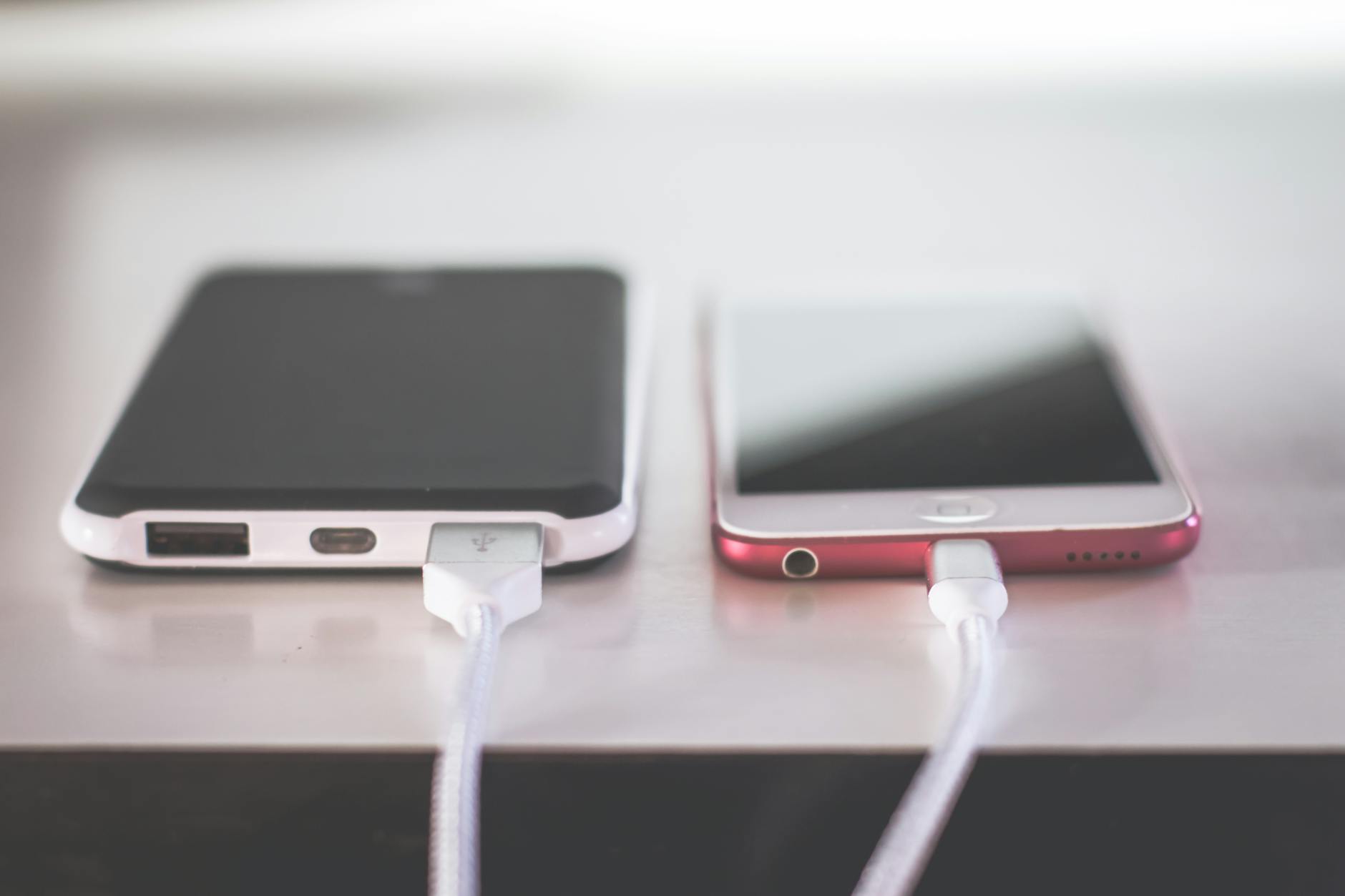 Photo by Steve Johnson
Smart charging habits and heat management
Smart charging is more than just plugging in. It’s about keeping the battery within its comfort zone and avoiding stress that speeds wear. A few practical habits make a big difference:
- Avoid overnight charging when possible. Charge to about 80 percent and unplug, or use charging features that cap at a safe level. This reduces time the battery sits near full, which can accelerate capacity loss.
- Don’t keep the battery at 100 percent for long periods. If your device supports optimized charging, enable it. It learns your routine and finishes charging just before you wake up.
- Keep the phone out of direct sun and away from high heat sources. Heat accelerates chemical aging and lowers capacity over time.
- Use certified chargers and cables. Cheap accessories can cause inefficient charging and extra heat.
- If the device feels warm while charging, pause, let it cool, then resume. Consistent heat is a sign to adjust charging habits.
To reinforce good practice, look for official guidance from trusted sources on charging behavior and heat management. For additional tips, see practical guides on safe charging and battery care. Learn more.
Reduce background activity and screen brightness
A less hungry phone runs longer between charges. Apply these adjustments to cut unnecessary drain:
- Turn off unused apps and disable background refresh for seldom-used programs. This reduces constant background activity that saps power.
- Limit background data and notifications for apps that don’t need to stay current all the time.
- Lower screen brightness or enable adaptive brightness. A bright screen is a fast killer of battery life, especially on older displays.
- Use dark mode if available. For OLED screens, dark UI often saves a meaningful amount of energy.
- Enable battery saver modes during long days or travel. They limit background tasks and throttle performance just enough to extend uptime.
A quick check is to review battery usage in Settings. You’ll spot power-hungry apps and can adjust or uninstall them as needed. For more context on Android and iPhone differences, see broader battery health guidance and diagnostics. How to read Android battery health and diagnostics.
Keep software updated and avoid extremes
Software updates often bring efficiency gains, better power management, and fixes for battery-related issues. Keep your device current and monitor how updates affect day-to-day use:
- Install updates promptly. They can improve energy efficiency and fix bugs that cause rapid drain.
- Avoid extreme temperatures. Cold and heat both stress the battery and reduce capacity more quickly.
- Be cautious with uncertified accessories. Nonstandard chargers can deliver unstable power and shorten battery life.
- If you notice new battery quirks after an update, check for known issues and available fixes from the manufacturer.
Software health matters for every phone. Regular updates keep your system lean and your app behavior predictable, which in turn helps the battery last longer. For broader reading on how software influences battery life, check trusted sources with practical guidance. iPhone battery and performance.
If you want a quick reference on timing and cost, consider industry benchmarks that compare upgrade vs replacement decisions in light of software efficiency and hardware gains. What is the average smartphone lifespan?
Images and other media can support these tips in your post. If you add visuals, ensure they illustrate charging, settings, or screen management to keep readers engaged.
What to expect during a battery replacement
A battery replacement is a practical way to extend the life of your phone, but the process can vary by device and service provider. In this section, you’ll get a clear view of what happens from start to finish, what you should prepare, and how to judge the outcome. A well-handled replacement should restore reliable uptime without compromising data or device safety.
 Photo by Harry Tucker
DIY vs professional service
Replacing a phone battery yourself can be tempting, especially if you want to save money. However, this path carries real risks that can outweigh the savings for most users. Batteries are not just components you swap; they’re part of a sealed system designed to operate safely with precise adhesives, seals, and thermal management. A small mistake can puncture a cell, cause swelling, or create heat that damages internal circuits. Additionally, opening the device often voids the manufacturer’s warranty, leaving you uncovered if something goes wrong later.
Benefits of professional service:
- Proper safety protocols and trained handling reduce fire and chemical hazards.
- Certified technicians use the correct tools and replacement parts that meet device specifications.
- Warranty coverage on the battery and service can provide peace of mind.
Risks of DIY:
- Accidental damage to delicate connectors, screens, or logic boards.
- Use of non OEM parts may affect performance and battery health readings.
- Voiding warranty can lock you out of future official support.
If you’re curious about real-world considerations, reputable guides outline why DIY replacements can be risky and may void warranties. See expert perspectives here: Why DIY Phone Battery Replacement is a Risk and guidance on safety concerns from repair communities: Is it safe to replace my IPhone’s battery with a non-original and broader DIY repair cautions: DIY Phone Repairs That Could Damage Your Phone.
What to expect at a professional shop:
- A diagnostic check to confirm the battery is the root cause.
- Confirmation of battery model, capacity, and expected output.
- A test run after installation to verify charging, heat, and performance.
- A brief data preservation check and documentation of the service.
If you want a quick read on typical costs and timing, you can browse industry guidance that compares battery replacement timing with device upgrades: What is the average smartphone lifespan?.
Data safety and backups
Before any replacement, back up your data. A service session should protect your information, but it is wise to safeguard photos, messages, contacts, and app data. Rely on both cloud and local backups so you have multiple recovery points.
Cloud backups:
- iCloud for iPhone users or Google One for Android devices provide seamless wireless backups.
- Cloud backups protect you if the device needs to be reset or if something goes wrong during replacement.
Local backups:
- Transfer essential files to a computer or an external drive.
- Use wired backups for faster, offline reliability.
What to back up and how:
- Photos, videos, contacts, and app data. Some apps store data locally; check each app’s backup options.
- Messages and call history if you want to preserve conversation records.
- Wallet items, authentication codes, and any stored credentials. Consider temporarily removing sensitive items if you’re unsure about the service procedure.
After the replacement, verify data integrity:
- Check key apps for recent data synchronization.
- Open a few photos, videos, and documents to confirm they’re intact.
- Re-sync any cloud apps if needed.
If you’re unsure how to back up, follow device-specific guides from reputable sources. For iPhone users, Apple’s guidance on iCloud backups is a good starting point, and for Android users, trusted outlets provide brand-specific steps.
Choosing a trusted service and warranty
A reliable battery replacement should come with clear terms on parts, labor, and the warranty. Here are practical steps to pick a shop or official service with confidence.
What to look for:
- Official or authorized service options when possible. These shops use genuine parts and follow the manufacturer’s repair standards.
- A warranty on the battery and on workmanship. A typical warranty spans 90 days to 1 year, depending on the provider.
- Transparent pricing and a written estimate. Avoid shops that promise instant, unusually low prices or skip a diagnostic.
- Clear explanations of parts quality. Ask about OEM vs compatibility-patented components and ensure the battery has a compatible chemistry and capacity for your model.
Questions to ask before you proceed:
- What is the warranty period for the new battery and the service?
- Are OEM or certified replacement parts used? If not, what level of compatibility and safety checks do you perform?
- Will the service include a post-install test and a report detailing the results?
- What happens if the new battery fails or causes new issues?
To supplement your decision, consider external guidance on when to trust a repair shop and how warranties work in practice. For broader context, see resources discussing the limits of DIY repairs and warranty implications: Why DIY Phone Repairs Fail: Inside the Risks of Fixing and What is the average smartphone lifespan?.
If you want verified recommendations, seek reviews from local consumers and check the shop’s accreditation with major manufacturers. A well-chosen service minimizes risk and helps you stay productive with minimal downtime.
Conclusion
Knowing when to replace your battery comes down to a few clear signs and practical checks. Watch for rapid drain, unexpected shutdowns, overheating, or a swollen battery, and confirm with battery health readings on your iPhone or Android device. Back up your data now so you’re ready if a replacement is needed. When signs appear, take action: replace the battery or plan a careful upgrade to stay reliable on the go, and use smartphone habits that stretch life until you can make a firm decision. Finally, a well-timed replacement keeps you productive and confident, no matter where your next trip or assignment takes you.