Have you ever dropped your phone and watched the screen crack while your photos, messages, and contacts feel like they might vanish with it? The panic is real, but backing up now can save you from a nightmare of data loss.
In this guide, you’ll learn practical ways to back up a phone with a broken screen, whether you’re using an iPhone or an Android device. You’ll see why a quick backup matters and what tools you can rely on when the screen won’t cooperate.
We’ll walk you through simple, step by step methods you can follow today. Expect clear options that don’t require fancy tech skills, plus tips for devices that won’t respond to touch. By the end, you’ll have a solid plan to protect your important data and regain peace of mind.
First Steps: Check What You Can Access Quickly
When a screen is cracked, the first move is often the simplest: check what data you can reach right away through online backups. Being able to confirm that your photos, notes, contacts, and app data have already been saved can save you a lot of stress. If the data was backed up automatically, you may not need to do anything else on the broken device. Below are two quick avenues to check. First, see if cloud backups exist for your iPhone or Android phone. If not, you can still recover many essentials by connecting a computer and exporting data. If you’re unsure whether a backup captured everything, this section will help you verify and plan your next steps.
See If Cloud Backup Saved Your Data Already
Sign into your cloud backup account from a different device to view recent backups. On iPhone, open iCloud on a computer or another iPhone and look for your device backups under iCloud settings. You’ll typically see what gets saved, including photos, contacts, messages, and app data. On Android, sign into your Google Account on a computer or another device and check Google Drive or the Backup section to see what was saved. Common items saved by cloud backups include photos and videos, contact lists, calendar events, messages, and app data. If you need to restore on a new phone, you’ll see options such as “Restore from iCloud Backup” on iPhone or “Restore data from your Google backup” on Android. It’s worth noting that not every app or piece of data backs up perfectly; some apps keep data locally only or require re-authentication after restore. If you want a quick snapshot, take simple screenshots of your backup status pages so you have a record of what exists. For more guidance, see: View and manage iCloud device backups, Manage your iCloud storage on your Apple device, and Back up or restore data on your Android device.
- Apple support: https://support.apple.com/guide/icloud/view-and-manage-backups-mm122d3ef202/icloud
- Apple support: https://support.apple.com/en-us/108922
- Google support: https://support.google.com/android/answer/2819582
Test Touch and Power with Voice Commands
If the screen still responds to touch in places or you can access physical buttons, try voice commands to confirm the device is alive and partially controllable. On an iPhone with Siri working, you can wake Siri and perform basic actions or prompts to verify responsiveness. On Android devices, use Google Assistant to perform simple tasks or check battery status. These voice checks can reveal whether you can at least power the device on, unlock certain features, or trigger screen reading functions, which helps you decide whether to rely on the phone itself or move straight to a computer-based backup. If the device is completely unresponsive to touch, you’ll want to pivot to computer methods for data access and backup. For related guidance on accessing data and backups, see: Back up or restore data on your Android device.
- Android backup and restore guide: https://support.google.com/android/answer/2819582
If you prefer a quick hardware workaround for Android or iPhone when the screen is unresponsive, you can explore third-party options and specialized guides. Just be mindful of security and data privacy when using tools from outside sources. For a deeper dive into unlocking or bypassing screen limitations, you’ll find practical tutorials and reviews in trusted resources.
- How to unlock iPhone with broken screen: https://www.tuneskit.com/unlock-ios/unlock-iphone-with-broken-screen.html
- Video guide for Siri on a cracked iPhone: https://www.youtube.com/watch?v=EGw75OhJgrQ
This quick validation step sets the stage for a safe transition to computer-based backups or direct device-based recovery, ensuring you don’t miss critical data while the screen remains unreliable.
Backup Your iPhone Using a Computer or Voice Controls
If your iPhone screen is glassy and unresponsive, you still have solid options to back up your data. You can use a computer with Finder or iTunes for a fast, local backup, or you can rely on voice controls and accessory tricks to unlock the device enough to start the backup. In this section, you’ll learn practical, step-by-step paths that don’t require perfect touchscreen input. The goal is to protect photos, messages, contacts, and app data before you pursue a screen repair or replacement.
Connect to Computer for Fast Backup
A direct connection to a computer is usually the most reliable way to back up an iPhone with a damaged screen. Here’s a concise, step-by-step path you can follow today:
- Install the latest version of Finder (macOS) or iTunes (Windows or older macOS). Keeping these apps up to date matters because new features and bug fixes improve device recognition.
- Use a clean USB or USB-C cable to connect your iPhone to the computer. If the computer doesn’t recognize the device at first, try a different port and check the cable for wear.
- In Finder or iTunes, select your device from the sidebar or the top device menu. Confirm you want to back up, then choose “Back Up Now.” If you want to preserve Health and Activity data on iOS, enable encrypted backups and store a password you can remember.
- Wait for the backup to complete. If the backup stalls or the device isn’t listed, run through common troubleshooting steps: replug the cable, trust the computer on the iPhone when prompted, and ensure the device isn’t in Low Power Mode during the backup.
- If the device isn’t recognized, reset the connection by restarting both the computer and the iPhone, then try again. You can also reference Apple’s guidance for devices that won’t show up in Finder or iTunes to troubleshoot further. For quick reference, see If your computer doesn’t recognize your iPhone or iPad.
Backing up to a computer gives you a local copy you can restore later without relying on wireless networks. It’s the most dependable fallback when the screen is out of service. If you need more context on how Apple handles device recognition and backups, you can check Apple Support articles about backups and device trust in Windows or Mac environments. And if you want a broader view on common backup workflows, a quick read through trusted guides can help you plan ahead for other devices as well.
- Apple support: If your computer doesn’t recognize your iPhone or iPad
- Apple support: If your computer doesn’t recognize your iPhone or iPad (QA)
- Google support: Android backup and restore guide
If you’re exploring other tools to accelerate the process, you’ll also encounter third party software that promises one-click backups. Use these with caution and always verify privacy guarantees before granting access to your data. For hands-on tips about unlocking or bypassing screen limitations, reliable guides exist, but ensure you’re following reputable sources and not exposing your device to unnecessary risk.
Unlock with Keyboard and VoiceOver Trick
When the screen is largely unresponsive, a keyboard plus VoiceOver can help you reach a point where you can unlock the iPhone and initiate a backup. Here’s a practical approach you can try, using a Lightning to USB adapter to connect a physical keyboard and trigger VoiceOver:
- Acquire a Lightning to USB adapter and connect a compatible keyboard to your iPhone. This setup lets you navigate the lock screen with arrow keys and shortcuts if touch input is limited.
- On the lock screen, press the Siri trigger or hold the appropriate buttons to wake Siri. Use voice prompts to enable VoiceOver if you can, or to perform simple actions that help you reach the Trust This Computer prompt.
- Use a known set of iPhone keyboard shortcuts to move through the password field, then trigger the necessary actions to unlock. If you can enable VoiceOver, navigate to the Trust dialog and accept, allowing the computer to access your data.
- From there, you can proceed with a backup through Finder or iTunes. If you need to unlock via accessibility options, a few guides show how to work with VoiceOver on broken screens to execute essential steps.
- If VoiceOver or keyboard routing becomes unreliable, consider a secondary method such as using Siri to confirm device status or to guide you toward a backup start point. For quick tips on unlocking with VoiceOver, you can consult dedicated guides that explain how to unlock an iPhone with a broken screen using VoiceOver.
A keyboard-based route can buy you valuable time and access when the touchscreen won’t cooperate. If you want to verify the technique, look up how to unlock iPhone with broken screen using VoiceOver and keyboard shortcuts. For more details on practical unlocking and backup workflows, explore dedicated tutorials and reviews from reputable sources.
- TunesKit: How to Unlock iPhone with Broken Screen
- YouTube: Unlock iPhone with cracked screen using Siri
Keep in mind that this method requires careful navigation. If the screen is too damaged to progress, switch back to a computer-based backup strategy as soon as possible to prevent data gaps. The goal is to regain enough control to start the backup without risking further data loss.
Wireless iCloud Option If Touch Works a Bit
If parts of the screen still respond to touch, you can wire up a wireless backup path using iCloud. This option is handy when you want to avoid cables, but it can be slower and dependent on a Wi-Fi connection. Here’s how to proceed:
- Open Settings on the iPhone. If the screen has any touch responsiveness, you can navigate to the Settings app and move to your Apple ID area to access iCloud backups. If touch input is extremely limited, VoiceOver can assist in reaching the right options.
- In Settings, enable iCloud Backup and start a manual backup. Ensure the device is connected to a stable Wi-Fi network. A typical backup includes photos, messages, app data, and device settings, though some apps may store data locally or on their own servers.
- If you can access the backup settings, monitor the backup progress on the same screen or via the iCloud backup status in your Apple ID profile. You can also verify on another device by signing into iCloud and checking the backup status.
- Pros of iCloud backups include wireless convenience and automatic updates when connected to power and Wi-Fi. Cons include slower backup times on large data sets and potential limits from iCloud storage plans. If your goal is speed and control, a local computer backup is often faster and more comprehensive.
- When comparing iCloud vs computer backups, weigh convenience against control. If you can access a strong Wi-Fi connection and minimal data restrictions, iCloud provides a straightforward path for incremental backups. If you want a complete snapshot, a computer-based backup remains the gold standard.
If the touch input remains workable in limited areas, VoiceOver can help you navigate Settings and start iCloud backups. For a broader look at backing up with iCloud and alternative approaches, see articles focused on iCloud backup workflows and VoiceOver navigation tips during setup.
- How to Back Up an iPhone with a Broken Screen: 7 Steps (wikiHow)
- How to Unlock iPhone with VoiceOver On? Real Fix
This wireless option gives you a viable fallback when a cable-based backup is impractical. It also helps you preserve recent camera rolls and messages in the cloud while you plan a screen repair or replacement.
Links herein pull from trusted sources and practical guides that walk you through the intricacies of backing up a device with a damaged display. If you’re facing a stubborn backup issue, consult Apple Support or known, reputable how-to guides to identify the best path for your specific iPhone model and iOS version.
How to Back Up a Phone with a Broken Screen (Quick Guide) — Save Android Data from a Broken Screen Easily
When a screen breaks, the data on your Android device can feel out of reach. Fear not. With a few practical setups, you can pull your photos, messages, and app data to a safe place without waiting for a screen repair. The sections below offer quick, actionable paths to save your data using an external display and mouse, SD card or cloud backups, and Samsung-specific tools. Each method is explained concisely so you can apply it today, even if your phone has limited touch input.
Pull Files with External Display and Mouse
If your Android phone supports external video output, you can mirror the screen to a TV or monitor and control the device with a USB mouse or keyboard. This approach lets you navigate menus, unlock the device, and copy files to a drive or cloud storage. Here’s a practical path:
- Check for compatibility: many recent devices support HDMI output via USB-C or micro HDMI, so you can connect a TV or monitor. If your model supports Alt Mode, you can mirror the screen without relying on touch input.
- Set up hardware: connect the phone to the display with a suitable adapter, then attach a USB hub for a mouse and keyboard. If you run into power issues, use a powered hub to ensure stable operation.
- Unlock and back up: once you have a visible interface, unlock the device and start a local backup to an attached USB drive or to the cloud. For quick transfer, enable file transfer mode and copy essential folders (DCIM, Pictures, Downloads) to the external storage.
- Confirm and secure: after copying, verify the files on the drive or in the cloud. Follow up by rotating backups to ensure you always have a recent copy. If you need a quick checklist, keep this flow in mind: mirror display → connect input devices → unlock → copy → verify.
- Models to check: many flagship and midrange Androids offer some form of USB-C output with external display support; older devices may require specific adapters or “deX” style modes. If you’re unsure, consult your device’s support page or a reliable review for your exact model.
Tip: If you want to restore later, you can reduce friction by organizing copied files into clearly labeled folders and uploading to a cloud service like Google Drive or OneDrive. For more on cloud backups, see Google’s Android backup guidance.
- Google backup overview: https://support.google.com/android/answer/2819582
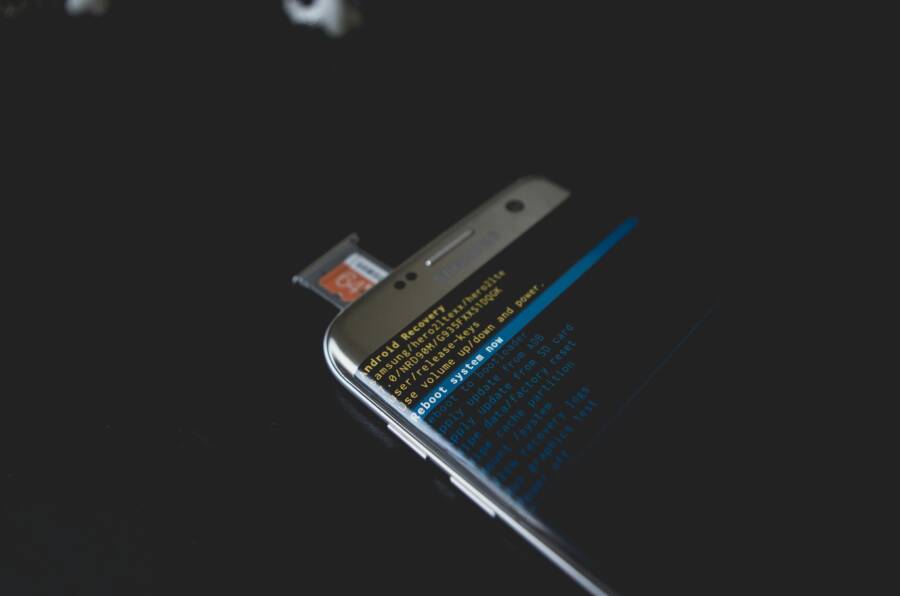
Images can help you visualize the setup. [Photo: Close-up of an Android recovery view with an SD card in place]
Photo by Kelvin Valerio — https://www.pexels.com/@kelvin809
Use SD Card or Google Backup Restore
Removing the SD card safely and copying files directly is a straightforward option for many devices. If your phone uses an internal storage solution, a cloud backup is your next best bet. Here’s how to proceed:
- Remove and copy: power down safely, remove the SD card if present, and copy important media and documents to the card or to a connected computer.
- Check cloud backups: sign in to your Google account from a web browser and inspect Google Drive and the Backup section to see what data is saved. Photos and videos often back up automatically, along with some app data and settings.
- Restore on a new phone: when you move to a new device, you’ll usually see prompts to restore from your Google backup. If you’re using an SD card, insert it into the new phone and pull off the files you need.
- What to expect: not every app data or game progress is included in cloud backups. Re-authentication may be required for some apps after restore, and some data may stay on the device. Having both an SD card and cloud backup offers the best coverage.
- Quick checks: verify that your Google backups include the items you care about. If you need step-by-step guidance, check Google’s support page on backing up and restoring data on Android.
This method is fast, reliable, and easy to perform with minimal extra hardware. If you want a broader view on Android backup options, PCMag covers how to back up and restore your Android device.
- How to Back Up and Restore Your Android Device: https://www.pcmag.com/how-to/how-to-back-up-restore-your-android-device
- Google Backup and Restore guide: https://support.google.com/android/answer/2819582
Use your SD card as a temporary bridge, then upload the files to cloud storage. If you want to verify cloud status from a computer, you can sign into your Google account and confirm the latest backup dates. This approach keeps your most important media accessible while you plan a full device replacement.
Images: (Optional) A photo illustrating SD card recovery from an Android device can help readers visualize the process.
Photo by Kelvin Valerio — https://www.pexels.com/@kelvin809
Samsung Users: Smart Switch and Find My Mobile
Samsung devices offer domain-specific tools that work even when the screen is damaged. Smart Switch can back up data to a PC, while Find My Mobile can unlock and help with remote access for data transfer. Here’s how to use these options effectively:
- Smart Switch backup via PC: connect your Galaxy phone to a computer and run Smart Switch. If the screen is non-responsive, you may still be able to trigger a backup by using the phone’s hardware buttons or a connected keyboard, depending on model. This creates a local copy you can restore to a new Samsung device or a compatible Android phone.
- Remote unlock with Find My Mobile: if Find My Mobile was enabled before the screen broke, you can locate and unlock your device remotely. Once unlocked, you can initiate a backup or transfer data to a new phone. This is especially helpful when touch input is limited.
- Setup requirements: you’ll need a Samsung account and an internet connection. On some models, Maintenance Mode or a PC-based recovery path can also help you reach essential data without touching the broken screen.
- Practical flow: verify that your Samsung account is linked to the device, then use Smart Switch for a local backup or Find My Mobile for remote access. If you encounter blocks, Samsung’s support pages offer model-specific steps and troubleshooting.
- What to expect: these tools provide solid avenues for data recovery, especially for contacts, messages, photos, and settings. If you’re transferring to a non-Samsung device, you may need additional steps for app data and notifications.
For readers seeking guidance tailored to Samsung, official resources explain how to back up a Galaxy device with a damaged screen and how to use Find My Mobile for data access.
- Backup your Galaxy device with a broken or damaged screen using Maintenance mode: https://www.samsung.com/ca/support/mobile-devices/backup-your-galaxy-device-with-a-broken-or-damaged-screen-using-maintenance-mode/
- Access your Galaxy phone’s data if the screen does not respond: https://www.samsung.com/us/support/answer/ANS10002919/
If you’re exploring a quick remote option, iDatApp and similar tools are often highlighted in guides for Samsung data recovery. Always prioritize privacy and use trusted sources when choosing extra software.
- Samsung data recovery discussion and options: https://techcommunity.microsoft.com/discussions/windows11/need-help-recover-data-from-samsung-phone-with-broken-screen-on-pc/4108315
Images: None required for this subsection. If you want to illustrate Samsung backup, a photo showing a connected phone and PC can add visual clarity.
External resources cited throughout this section provide practical guidance for real-world scenarios. When in doubt, consult official support pages for your device model and OS version to ensure you follow the latest steps.
- Google Learn: Back up or restore data on your Android device: https://support.google.com/android/answer/2819582
- Android Authority: How to recover data from a broken Android phone: https://www.androidauthority.com/extract-data-broken-android-phone-819324/
Top Tools to Recover Data No Matter the Phone
When a screen breaks, your data is still within reach. The right recovery tools can pull photos, messages, and app data from devices that won’t cooperate with touch. In this section, you’ll see two focused paths: solid options for iPhone users with broken screens and reliable Android recovery tools that work across brands. Each approach emphasizes simplicity and safety, so you can act quickly without risking more data loss.
Best Picks for iPhone Broken Screens
If your iPhone screen is cracked or unresponsive, you still have dependable routes to secure your data. Tools like AnyTrans, iMazing, and Dr.Fone are designed to help you back up or extract essential files even when the display isn’t fully functional. Start by connecting your iPhone to a computer and launching the backup or data recovery option in these programs. You can typically scan the device, then choose to export or back up items such as photos, messages, contacts, and app data. For muitos users, encrypted backups add an extra layer of security during the transfer. If the screen is only partially usable, you can often navigate with external input or voice prompts to start the process. For detailed guidance, see official backup guides for broken-screen scenarios from reputable providers.
- AnyTrans and iPhone backup guides show how to back up data when the screen is damaged. A solid starting point is the official backup-with-broken-screen instructions. See: How to Backup iPhone with Broken Screen. https://www.imobie.com/iphone-manager/backup-iphone-with-broken-screen.htm
- Dr.Fone offers data recovery paths from broken iPhone screens with step-by-step recovery flows. See: How to Recover Data from a Broken iPhone. https://drfone.wondershare.com/iphone-recovery/recover-data-from-broken-iphone.html
- Additional context on extracting data from broken iPhone backups can be found in iMazing resources. https://imobie.com/iphone-manager/backup-iphone-with-broken-screen.htm
Tip: If you can trigger a trusted connection, encrypted backups ensure you can restore later with essential health and activity data. When a display fails completely, your best bet is a computer-based recovery that doesn’t rely on the touchscreen.
Image:  Photo by Kelvin Valerio — https://www.pexels.com/@kelvin809
Top Android Recovery Software
Android devices present a wider range of recovery paths thanks to flexible file systems and manufacturer tools. Strong options like DroidKit and MobiKin cover many scenarios, from broken screens to data extraction from devices that won’t boot. Start by connecting the Android phone to a computer and running the chosen recovery tool. Scan the device, then select the data you want to restore—photos, messages, contacts, or app data. These tools often support brand-specific paths, including Samsung devices, which can simplify the process when the screen is unresponsive. If you’re moving to a new phone, you can export data to a computer or cloud storage for a smooth transfer.
- DroidKit provides a range of recovery features for broken Android devices, including data extraction from Samsung and other brands. See: Save Data from System Crashed Samsung Device. https://www.imobie.com/droidkit/broken-samsung-data-extraction.htm
- MobiKin covers Android backups and broken-screen recovery with practical guides and step-by-step methods. See: 3 Ways: How to Back Up Android Phone with Broken Screen. https://www.mobikin.com/android-backup/backup-data-from-broken-android.html
- For broader Android backup and restore guidance, Google’s official backup resources remain a solid reference. See: Google Backup and Restore guide. https://support.google.com/android/answer/2819582
Beyond these, you can explore manufacturer-specific tools and third-party recovery utilities that emphasize privacy and transparent data handling. When selecting a tool, read reviews focused on data security and user experience to avoid surprises during a stressful moment.
Image: Optional visual of a laptop connected to an Android phone during a data transfer.
Photo by Kelvin Valerio — https://www.pexels.com/@kelvin809
If you want to tailor the approach to a Samsung device, Smart Switch and Find My Mobile offer reliable paths for remote access and local backups, especially when the screen is not responsive. See official Samsung guidance for the best steps on a damaged device. https://www.samsung.com/us/support/answer/ANS10002919/
External resources cited here provide practical guidance for real-world scenarios. When in doubt, consult official support pages for your device model and OS version to ensure you follow the latest steps.
- Google Learn: Back up or restore data on your Android device. https://support.google.com/android/answer/2819582
- Android Authority: How to recover data from a broken Android phone. https://www.androidauthority.com/extract-data-broken-android-phone-819324/
Images are a powerful way to illustrate the recovery flow. If you include visuals, pick ones that show data transfer, backup interfaces, or recovery dashboards to help readers visualize the steps.
Conclusion
Backing up a phone with a broken screen is not a lost cause. This guide walked you through quick checks, computer based backups for iPhone and Android, and practical recovery paths using external displays, SD cards, or trusted software. The core idea is simple: get a copy of your data now, then plan a repair or swap so your files stay safe.
Remember the main methods you can rely on. Start with any existing cloud backups you already have, then move to a computer based backup for a complete snapshot. If the screen stays touch responsive in parts, iCloud or Google Backup can keep new photos and messages protected. For tougher cases, use dedicated recovery tools or peripheral setups to extract data without guessing at what’s stored locally. If you can, mirror the phone’s data to a USB drive or cloud storage for extra security.
Turn on auto backups today. Enabling ongoing cloud or local backups makes future accidents less painful and speeds up recovery when you need it. Protect your screen with a good screen protector and a sturdy case, so a future drop won’t turn into a data scare.
If you’ve followed these steps, you’re well on your way to a smooth recovery. Try a backup method from the guide, or share your story so others can learn from your experience. Your data deserves a safe home, and with the right habits you can achieve easy recovery even after a broken screen.