There Is a Frequency That the Wealthiest Families Have Used for Generations and Most People Will Never Know It Exists
>>> Open the Door <<<

Worry about losing precious photos, messages, and contacts when the screen goes black can feel overwhelming. If your phone’s display is unresponsive, backing up becomes the first line of defense, so your memories and essentials stay safe.
This guide covers practical options that work even with a broken screen. You can back up with a computer using backup software, use voice commands with Siri or VoiceOver plus a keyboard, or rely on cloud services like iCloud. Each method has simple steps you can follow to protect your data without a touchscreen.
Whether you’re preparing for a repair or switching to a new device, you’ll also learn how to verify that your backups are complete. By the end, you’ll know which path fits your setup and what to do next, so you can move forward with confidence.
Back up with a computer or backup software
When the screen is broken, your first priority is to secure your data. A reliable backup gives you peace of mind and a clear path to restoring photos, messages, and app data to a new device. This section covers two practical routes: using Finder or iTunes for a local backup, and turning to third party backup apps for a guided, data‑selective process. Both approaches work even if the touchscreen is mostly unresponsive, provided you can connect the device and follow prompts with a keyboard or accessibility features.
She Pressed Play on a Strange Audio Track and Within Days Her Financial Reality Started Shifting in Ways She Could Not Explain
>>> See How It Works <<<

 Photo by Pixabay
Connect to Finder or iTunes and make a local backup
If you’re on a Mac running macOS Catalina or later, Finder handles backups. On Windows or older Macs, iTunes remains the go to tool. The goal is a complete local copy stored on your computer, which you can later restore to a new iPhone or another device.
Key steps to follow, in order:
- Connect your iPhone to the computer using a USB cable. If the device prompts you to “Trust This Computer,” tap or press the corresponding option using any available physical controls or via accessibility features, such as VoiceOver or AssistiveTouch.
- Open Finder on macOS or iTunes on Windows/macOS (older macOS versions). Your device should appear in the sidebar or the top bar.
- Choose the backup option. For a full backup, select “Back Up Now” on macOS Finder or in iTunes. If you want a more private copy, you can encrypt the backup so passwords and health data are included.
- Confirm the backup completes. Look for a timestamp and verify that the backup file exists on your computer. If the screen remains largely unresponsive, you may need to disable or enable guided access, or rely on keyboard shortcuts to navigate prompts.
- Keep the backup safe. Store it in a dedicated folder and consider labeling it with the device model and date. If you’re planning a repair or moving to a new phone, you’ll reuse this backup during setup.
Accessibility note: if step navigation is difficult because the screen is unresponsive, use built in accessibility features to operate the computer, such as keyboard navigation, voice control, or screen reader options. You can also connect a USB keyboard or an external mouse to simplify the process.
Helpful references:
- Apple Support: How to back up your iPhone, iPad, or iPod touch with Finder or iTunes. https://support.apple.com/en-us/108967
- Apple Community discussions on backing up a device with a broken screen. https://discussions.apple.com/thread/5839619
This approach gives you a straightforward, offline copy of your data, which is essential for cases where your cloud backups are incomplete or unavailable. It also means you control when and where the backup happens, reducing the risk of data loss during a repair window or device switch.
Use third party backup apps for easier backup
If you want more flexibility or if the built in tools feel limited, third party solutions can simplify the process, especially when the screen is damaged. Apps like AnyTrans and iMazing guide you through the backup without requiring you to tap every prompt on the phone. They can perform selective backups, which means you don’t have to copy every single item if you only need photos, messages, or contacts.
What these apps typically offer:
- Step by step backup guidance. They show you what to do next on the computer screen, which is a big help when your phone’s display isn’t cooperating.
- Data selection. Choose exactly what to back up, such as photos, WhatsApp attachments, or app data, saving time and space.
- Easier data extraction. Restoring individual items to a new device is often simpler than restoring a full, raw backup.
- Compatibility and updates. These tools stay current with iOS updates, helping you avoid compatibility hiccups during the transfer.
Practical options to consider:
- AnyTrans offers a direct backup route and allows selective backups, which is handy if you only need certain data. Official guide: https://www.imobie.com/iphone-manager/backup-iphone-with-broken-screen.htm?srsltid=AfmBOooR8IIilXq_HUm2Yf6VZhJlXobSh2h63QAJbJGsMEjPLKVlNn7g
- iMazing provides a robust backup suite that works with damaged screens and supports per item restoration. Official guide: https://www.imobie.com/iphone-manager/backup-iphone-with-broken-screen.htm?srsltid=AfmBOooR8IIilXq_HUm2Yf6VZhJlXobSh2h63QAJbJGsMEjPLKVlNn7g
When choosing a third party tool, look for these cues: a clear on screen workflow on your computer, the ability to preview data before backup, and a straightforward restore path. If your screen is damaged but still somewhat functional, these apps can walk you through prompts using the computer, reducing the need to touch the phone.
Real world tip: if you can’t view on the phone, connect a Bluetooth keyboard to navigate and accept prompts on the computer screen. This setup can dramatically speed up the backup process and minimize the risk of missing items you care about.
External resources:
- iMazing backup guide for iPhone with broken screen: https://www.imobie.com/iphone-manager/backup-iphone-with-broken-screen.htm?srsltid=AfmBOooR8IIilXq_HUm2Yf6VZhJlXobSh2h63QAJbJGsMEjPLKVlNn7g
- AnyTrans overview and backup features: https://www.imobie.com/iphone-manager/backup-iphone-with-broken-screen.htm?srsltid=AfmBOooR8IIilXq_HUm2Yf6VZhJlXobSh2h63QAJbJGsMEjPLKVlNn7g
Why use third party tools? They often provide clearer progress indicators and allow targeted backups. For many users, this translates into less time spent fumbling through prompts and more time securing critical data. It also reduces the complexity of later data extraction if you need to move to a new device quickly.
Image placement and credits:
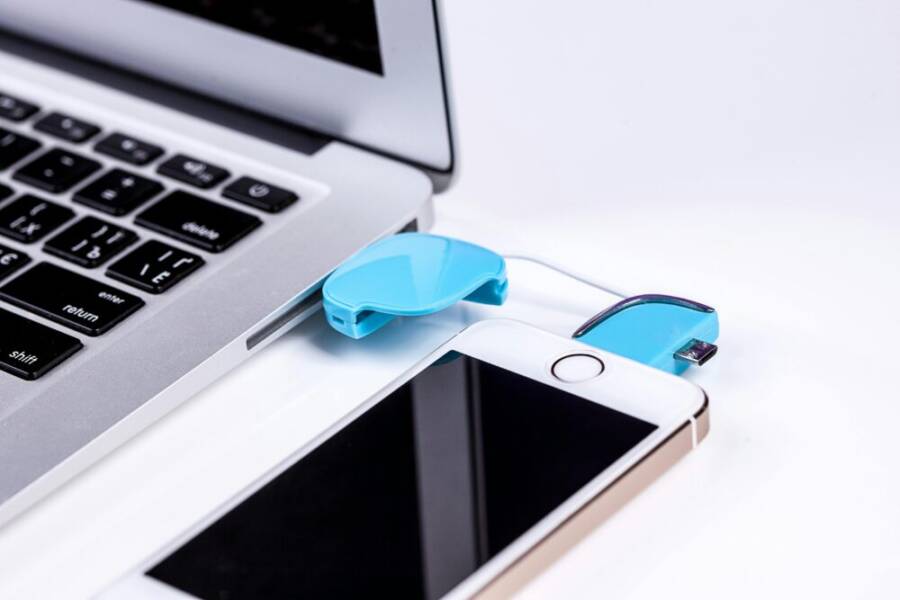
- Included image above aligns with the idea of data transfer between devices, reinforcing the backup process. Photo by Pixabay.
Important note on backups:
- Always verify the backup after the process completes. Check that the most important data sets — photos, messages, contacts — are present.
- If you rely on iCloud or other cloud services, a local backup does not replace those copies. Use both methods when possible to create redundancy.
Next, we’ll explore how to prepare for a screen repair or a device swap, including how to verify data integrity and what you should do if you encounter issues during the backup process.
Control your phone without touching the screen
When the screen is broken, you can still back up and manage your device using voice commands or a physical keyboard. These methods reduce the need to touch the display and can speed up the process. Below are two practical approaches you can try right away.
Turn on Siri and use VoiceOver to guide the backup
VoiceOver and Siri together let you control the iPhone hands-free or with minimal tapping. If the screen is unresponsive, you can still fire up backup options with voice commands and have VoiceOver read what’s on the screen as you navigate with the computer or a connected accessory.
- Enable Siri first: say “Hey Siri, turn on VoiceOver.” If Siri hasn’t already been activated, press and hold the side button (or the Home button on older models) to trigger Siri and issue the command.
- Use VoiceOver prompts: once VoiceOver is on, your iPhone will speak items you tap or focus on. You can request actions like opening iCloud, starting a backup, or accessing Finder/iTunes on your computer.
- Start a backup verbally: with VoiceOver active, you can say commands such as “Back up now” or direct Siri to start the backup workflow. If the screen is too damaged to see prompts, rely on keyboard navigation or a connected computer to confirm steps.
- Prepare for the backup: you can ask Siri to turn on iCloud backup or verify that a local backup is queued in Finder or iTunes on your computer.
If you want to explore real-world steps people use in this scenario, you can refer to discussions about backing up a device with a broken screen and guidance from Apple communities. For practical tips on VoiceOver and Siri coordination during a backup, see discussions and guides like these:
- https://discussions.apple.com/thread/5839619
- https://www.reddit.com/r/LifeProTips/comments/1lmvwww/lpt_if_nothing_is_visible_on_an_iphone_display/
A quick tip: if you can’t view prompts on the phone, keep a Bluetooth keyboard nearby. You can use the keyboard to navigate prompts shown on the computer screen or to respond to on-screen confirmations that VoiceOver reads aloud.
Why this approach works well: you don’t need a working touchscreen to start a backup. Voice commands reduce the number of taps, and VoiceOver helps you confirm each step without peeking at the display.
External resources for deeper guidance:
- Apple Support: backup options with Finder or iTunes
- Apple Community: backup with a broken screen
This path gives you a voice-guided route to a backup, minimizing the risk of missing items when the display is hurt or unresponsive. It also keeps you in control without forcing a screen tap.
Connect a keyboard and navigate with shortcuts
A wired USB keyboard or a Bluetooth keyboard can be a fast, reliable way to move through backup settings when the screen is damaged. A Lightning adapter lets a USB keyboard work with iPhones, and Bluetooth keyboards can pair directly if the phone is still discoverable.
- Choose your connection: use a USB keyboard through a Lightning-to-USB adapter or pair a Bluetooth keyboard to the iPhone. In many cases, a keyboard is enough to press the right keys to reach the backup menu.
- Basic navigation on the iPhone with keyboard: use the Tab key to move focus, the Arrow keys to move through options, and the Spacebar to select. If you’re in settings, you can use the Tab key to reach iCloud Backup and press Space to choose it.
- Start the backup: once you reach the backup option, press Enter or Space to confirm. If encryption is offered, you can use the keyboard to enter a password and confirm.
- Verify progress: watch for a confirmation on the computer screen or listen for verbal confirmation if VoiceOver is enabled. If the phone is stubborn about prompts, keeping a steady rhythm with the keyboard helps prevent missed steps.
Supportive notes from experienced users show that a keyboard can unlock the backup process when the touchscreen is not reliable. For additional keyboard navigation references, see discussions and guides that cover unlocking and backing up with a broken screen:
- https://discussions.apple.com/thread/8003967
- https://www.imobie.com/iphone-manager/backup-iphone-with-broken-screen.htm?srsltid=AfmBOoqIk8iV9B5WcyLylovajQAPufGU9hhpTHnFTqIF52ERsKvMtPFZ
Real-world tip: if the screen is only partially responsive, you can use a Bluetooth keyboard to navigate prompts displayed on the computer. This method speeds up the backup and reduces the chance of missing data you care about.
Practical guidance for smooth navigation:
- Keep the computer nearby and ready to confirm prompts read by VoiceOver or shown on Finder/iTunes.
- If you need a guided workflow, third-party backup tools can display clear on-screen steps on the computer, making it easier to follow without touching the phone.
External references you can consult for keyboard-based backups:
- Guidelines on backing up with a USB keyboard and iCloud settings
- Step-by-step overview of using external keyboards to control a device with a broken screen
Both methods above keep you in control when the display fails. They help you secure important data before sending the device for repair or starting a transfer to a new phone. As with any backup plan, verify that your data includes the essentials you rely on, such as photos, messages, and contacts.
If you’re looking for a broader context or case studies, you can explore community discussions about using a keyboard to back up a device with a broken screen and official guidance on connecting external accessories.
Back up to iCloud with a broken screen
When the screen is cracked or unresponsive, iCloud can still protect your data if you turned it on before the damage. This section covers how to verify what data is included in your iCloud backup and how to trigger a backup without touching the device. You’ll learn practical checks from another device or via iCloud.com, keeping photos, messages, settings, and apps safely backed up.
Check if iCloud Backup is enabled and what data is included
iCloud backups can cover a wide range of data, including your photos, messages, device settings, and app data, as long as the feature was enabled before the screen broke. To confirm what’s being backed up, you have a couple of reliable routes.
- On another iPhone, iPad, or Mac with iCloud access: open the Settings app, tap your name, then iCloud, and look for iCloud Backup. If it shows a recent backup, you’re good to go. You can also check which apps are included in the backup under iCloud Drive or iCloud Backup settings.
- On a computer or via iCloud.com: sign in to iCloud.com, go to Settings, and review the list of backups. You’ll see the last backup date and a summary of data types included. This helps you verify that photos, messages, and other essential data are covered.
If you’ve never enabled iCloud Backup, or you’re unsure what data is included, this quick check helps you decide whether you need a local backup as a supplement. For many users, photos, messages, and contacts are the most important items, followed by device settings and app data. Keeping both a local and cloud copy provides redundancy if one source isn’t accessible during a repair.
Helpful reminders:
What If the Only Thing Between You and the Life You Deserve Is a Hidden Wealth Code Waiting to Be Activated
>>> Open the Door <<<

- iCloud backups require WiFi and sufficient battery life to complete. Ensure you have a stable connection before starting.
- Some apps store data locally or in their own cloud services. Check each app’s settings to confirm whether data is included in the iCloud backup.
External references for further reading:
- Restore your iPhone from a backup on iCloud: https://support.apple.com/en-us/118105
- How to view iPhone backups on iCloud: https://support.apple.com/library/content/dam/edam/applecare/images/en_US/itunes/HT1390-macfinder.png
Start or trigger a manual iCloud backup without touch
With the screen not responding, you can still initiate a manual iCloud backup by using VoiceOver with a connected keyboard and navigating via non-touch inputs. This approach minimizes taps on the device and relies on accessible controls and the computer screen for guidance.
- Turn on Accessibility and VoiceOver with a connected keyboard: if you can access Siri, say “Hey Siri, turn on VoiceOver.” VoiceOver will read items aloud as you navigate using the keyboard.
- Navigate to iCloud Backup: use the keyboard to reach Settings, then your Apple ID, then iCloud, and finally iCloud Backup. If you locate the option, use the keyboard to select Back Up Now.
- Start the backup and monitor status: confirm the backup starts and watch the computer screen or listen for VoiceOver confirmations. If encryption is offered, you can enter a password to protect sensitive data.
- Common issues and quick fixes:
- Weak Wi Fi: pause and reconnect to a stronger network, or try a different network if available.
- Low battery: plug the device into power before starting, as backup processes can be lengthy.
- Interrupted backup: if the connection drops, pause and resume the backup when the network stabilizes.
If your screen can’t display prompts, you can still rely on the computer to guide the process. The key is to have a stable Wi Fi connection and a charged device, then use VoiceOver and keyboard shortcuts to start and monitor the backup. For practical pointers on this workflow, see discussions about backing up a device with a broken screen and guides that cover VoiceOver and keyboard coordination, such as:
There Is a Frequency That the Wealthiest Families Have Used for Generations and Most People Will Never Know It Exists
>>> Open the Door <<<
- Backup your iPhone with a broken screen: https://discussions.apple.com/thread/5839619
- How to backup iPhone with broken screen using keyboard: https://www.imobie.com/iphone-manager/backup-iphone-with-broken-screen.htm?srsltid=AfmBOoq58v_mMu3nVFegx88gCMztFMPV8dhzdLB61dL1X_P1LtF8zm_j
Real-world tip: keep a Bluetooth keyboard nearby. It can speed up navigation and help you confirm prompts shown on the computer screen if the phone’s display remains unreadable.
What to expect:
- The backup progress will appear on the computer, not the phone, so you can stay in control even with a damaged screen.
- If you have a newer Mac or iPhone, you may see faster progress with a direct iCloud backup rather than a long local transfer.
- If your device cannot complete a backup due to hardware failure, you can still rely on the last successful backup date on iCloud or a local copy on your computer.
External resources you can consult:
- Apple Support: Back up with Finder or iTunes
- Apple Community: backup with a broken screen
This approach gives you a reliable way to create a cloud copy without touching the screen, while keeping you in control of the backup timeline. If your goal is to queue a backup before a repair or transition to a new phone, this method provides a practical, hands-free option.
Access, verify, and restore backups from another device
When the screen is broken, your best defense is to verify you can access backups from another device and restore data when needed. This section explains how to view and export iCloud data on a different device, and how to set yourself up for a smooth restore or transfer in the future. You’ll learn what data can be restored automatically and what may require manual transfer, so you can plan with confidence.
View and export data from iCloud on another device
iCloud keeps a lot of your essential data in sync, but not everything transfers seamlessly by default. On another iPhone, iPad, Mac, or even a Windows PC, you can confirm what data is included in iCloud backups and export items when needed.
- Photos and videos: If you enable iCloud Photos, your media can be accessed from iCloud on another device or via iCloud.com. You can download copies or keep access through the Photos app on a different device.
- Contacts, calendars, and notes: These appear in iCloud and can be viewed, exported, or shared from iCloud.com or apps that read iCloud data. Exporting may involve exporting as vCard for contacts or using the Notes app on a connected device.
- App data and settings: Many apps store settings and data in iCloud. Some of this can be restored automatically during device setup, while others may require reconfiguration after a restore.
- What to export or transfer manually: If you rely on apps that store data locally or in their own cloud, you may need to log into those apps on the new device and re-download data or re-authorize services.
If you want to inspect backups or export data, start from icloud.com or the iCloud settings on another Apple device. For a quick check of backups, you can view recent activity and data types included by navigating to Settings > [your name] > iCloud on an iPhone or iPad, or Settings > iCloud on a Mac. To export contacts or other items, Apple provides guidance on using iCloud.com to manage and export content, including printing or saving files when needed.
- For a broader view of what iCloud backs up, see: https://support.apple.com/guide/icloud/view-and-manage-backups-mm122d3ef202/icloud
- To export or print contacts directly from iCloud, visit: https://support.apple.com/guide/icloud/import-export-and-print-contacts-mmfba748b2/icloud
External references you may find helpful:
- Manage web access to your iCloud data: https://support.apple.com/en-us/102630
- Set up Notes on all devices with iCloud: https://support.apple.com/guide/icloud/set-up-notes-mm8685520792/icloud
- Access third-party app data on all devices via iCloud Drive: https://support.apple.com/guide/icloud/icloud-party-apps-mm62d92d6b3e/icloud
- View iCloud backups on iPhone and iPad: https://support.apple.com/guide/icloud/view-and-manage-backups-mm122d3ef202/icloud
Tip: If you’re using a smartphone camera roll or a mix of devices, consider keeping a secondary export of critical data in a shared folder on your computer. This reduces reliance on one single backup path and makes data retrieval easier if you need to restore to a different brand or model.
Why this matters: viewing data on another device confirms what’s actually stored in iCloud and helps you plan which items still need manual migration. It also shows where a local backup or alternative cloud service might be required for full coverage.
Prepare for a future restore or transfer to a new phone
A clean, predictable restore is easier when you prepare now. These practical tips help you stay ahead of future device changes and keep data safe across devices.
- Keep iCloud backups up to date: enable automatic backups and confirm they complete when you’re on WiFi and charging. A routine backup habit removes last minute panic before a device swap.
- Note data not in iCloud: some apps store data locally or in separate clouds. List these apps and plan to re-sign in or re-sync after a restore.
- Plan a clean transfer to a new device: decide whether you’ll start from iCloud or perform a local backup first. If you anticipate switching platforms or devices, a local backup can speed up the transition.
- Verify data integrity after backup: check key categories like photos, messages, and contacts on the new device or in iCloud. If anything is missing, look for it in the app’s own cloud or export options.
- Keep a simple recovery checklist: write down critical steps and login credentials you might need during setup. This reduces friction during the actual restore.
Having a straightforward plan makes a big difference when you finally set up a new phone or replace a broken screen. It keeps your important information accessible and minimizes downtime. For reference on restoring from iCloud backups, Apple provides step by step guidance tailored to your device model. See: https://support.apple.com/en-us/118105
Practical considerations:
- If you’re moving to a new iPhone, start with the Apps & Data screen and choose Restore from iCloud Backup. You’ll see options that match your last backup date and size. See: https://support.apple.com/en-us/118105
- If you’re using a Windows PC, iCloud for Windows lets you access photos and files stored in iCloud Drive on a computer. Learn more at: https://support.apple.com/guide/icloud-windows/download-and-view-photos-and-videos-icw2ed20ffd1/icloud
- Don’t rely on a single backup path. Use both iCloud and a local backup when possible to cover scenarios where one source isn’t accessible.
In short, preparing for a future restore means keeping data organized, confirming what’s included in backups, and planning a clear, step by step transfer path. If you’re planning to switch to a new device soon, this foresight saves time and frustration.
External resources for best practices:
- Restore your iPhone, iPad, or iPod touch from a backup: https://support.apple.com/en-us/118105
- Restore all content to iPhone from a backup: https://support.apple.com/guide/iphone/restore-all-content-from-a-backup-iph1624229a/ios
- Get temporary iCloud storage when you buy a new iPhone: https://support.apple.com/en-us/104980
This section is aimed at keeping your data safe and easily transferable, even if the screen is not cooperating. If you want, you can review Apple’s official setup and restore paths to tailor this plan to your exact device and OS version.
Create a simple data protection plan for the future
You just backed up your phone despite the broken screen. Now build habits that keep your data safe long-term. A basic plan uses automatic backups, extra copies, and quick checks. It takes little time each week but saves headaches later. Think of it as insurance for your photos, messages, and contacts.
Set up automatic iCloud backups
Start with iCloud for hands-off protection. Your iPhone backs up daily when locked, on Wi-Fi, and charging.
Follow these steps once:
- Go to Settings, tap your name, then iCloud.
- Turn on iCloud Backup.
- Check storage space and buy more if needed.
This covers apps, settings, messages, and device data. iCloud encrypts everything, so your info stays private. Free up space by deleting old backups in iCloud settings if storage runs low. For details on iCloud security, check Apple’s iCloud data security overview.
Your smartphone stays protected without daily effort. Test it by reviewing the last backup date in settings.
Add local backups to your computer
Don’t rely on cloud alone. Local backups give you full control and work offline.
Connect your iPhone to a Mac or PC weekly:
- Open Finder (Mac) or iTunes (Windows).
- Select your device.
- Click Back Up Now and encrypt the backup with a password.
Store copies on an external drive. Encryption includes health data and passwords. Recent tips stress this for complete coverage, as some app data skips iCloud.
This setup creates redundancy. If iCloud fails, your local copy steps in.
Enable extra security layers
Boost protection with built-in features. Turn on Advanced Data Protection for end-to-end encryption on iCloud backups, photos, and notes.
Go to Settings > [your name] > iCloud > Advanced Data Protection and follow prompts. It covers your whole Apple ecosystem.
Key benefits:
- Stronger privacy against access attempts.
- Recovery keys for your control.
Pair it with two-factor authentication on your Apple ID. Tools like Consumer Reports’ backup planner offer quick quizzes to customize your plan.
Schedule regular checks
Review your plan monthly to stay ahead. Spend five minutes:
- Confirm iCloud Backup ran recently.
- Test restoring a contact or photo from backup.
- Update iOS and clear junk apps for faster backups.
List must-save items like family photos or work files. If you travel often, back up before trips. This habit keeps your smartphone data ready for any issue, like a drop or software glitch.
Stick to the plan, and you’ll avoid data loss next time. Local and cloud copies together make recovery simple.
Conclusion
Backing up a smartphone with a broken screen is entirely doable when you have a plan. You can secure a local copy with Finder or iTunes, use trusted third party backup tools for guided, selective saves, or trigger an iCloud backup with accessibility tools and a connected keyboard. Each path keeps your photos, messages, and contacts safe and ready for a restore on a new device.
Choose one or two methods and practice them now so you aren’t faced with pressure later. Regular checks ensure backups are current and easily accessible from another device, reducing downtime if you need to switch devices. If you found this helpful, share your experience or a quick tip in the comments.
There Is a Frequency That the Wealthiest Families Have Used for Generations and Most People Will Never Know It Exists
>>> Open the Door <<<