Ever opened your phone and felt buried under a tangle of old project files, notes, and media? If you’ve got projects spread across apps, photos, and cloud links, it’s easy to lose track and waste time searching. This guide shows you how to clean it up on a smartphone, so you can find everything fast.
You’ll learn a simple, cross‑platform approach that works on both iPhone and Android. The goal is to turn clutter into a clear system you can trust. By the end, you’ll finish with a ready‑to‑use archiving plan that keeps every project in one safe, easy to access place.
We’ll cover practical steps you can take today, from choosing a home for completed work to naming conventions and quick export tips. You’ll see how to consolidate materials, tag important items, and create a routine so cleanup stays automatic. Think of this as a practical shortcut to keeping your past projects organized and ready for reuse.
Why archiving old projects from your phone saves space and reduces clutter
If your phone is a floating locker of old projects, notes, and media, archiving those items can feel like a breath of fresh air. It creates a leaner device, faster access to current work, and less mental noise when you open your apps. In this section, you’ll discover practical reasons why archiving matters, plus concrete ways to approach it so you don’t lose anything you might need later.
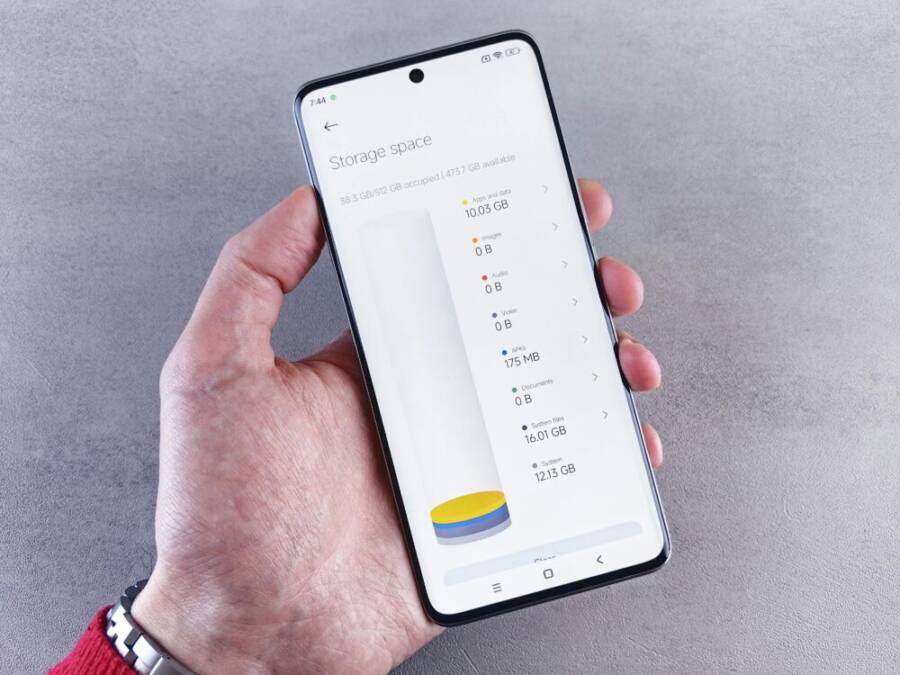
 Photo by Andrey Matveev
Boost storage and device performance
A cluttered phone slows down in subtle ways. Apps take longer to launch, photos load with lag, and you might notice worse battery life when the system works overtime to manage files you rarely use. Archiving old projects helps reclaim that space in a targeted, low-risk way. By moving completed work and infrequently accessed materials into an archive, you free up storage for active projects, recent photos, and essential apps.
The real payoff is not just more free space. When your device has room to breathe, system processes run smoother, which translates to snappier navigation, quicker app switches, and fewer moments of waiting. Think of archiving as giving your phone a gentle tune-up rather than a full reset. For Android users, simple steps like clearing caches and exporting files to a computer or cloud backup can free substantial space without uninstalling anything. For iOS users, moving older work into iCloud Drive and off the main device store maintains access while reducing the local footprint. If you want a practical starting point, consider exporting completed projects in a single folder and removing duplicates or near-identical versions. This tiny cleanup can yield noticeable improvements in performance and responsiveness.
- Quick win: identify the five largest project folders and archive the oldest items first.
- Long-term benefit: sustained device agility as you continue to prune quarterly.
For more on freeing space and understanding how archiving can improve performance, see resources from Android Help and Wired. Android Help explains how to Free up space and manage apps, while Wired discusses offloading and archiving apps to save space on your phone. Free up space – Android Help | Save Space on Your Phone by Offloading and Archiving Apps to Save Space on Your Phone
Easier project retrieval in the future
When you archive, you’re not deleting. You’re tagging and relocating. The result is a cleaner, more predictable file system where active work sits front and center and old projects are stored in a well-organized archive. This makes it easier to locate a specific project later, whether you’re preparing a portfolio, revisiting a design concept, or pulling a reference for a new project. A simple folder structure can do wonders: create a top-level “Archive” folder, then nest by year, client, or type of project. For example, you might have Archive > 2024 > Brand ID Projects > Logo Concepts. This kind of hierarchy helps you answer questions like “Where is that concept skin PDF from last quarter?” in seconds, not minutes.
In practice, you can implement a lightweight tag system during archiving. Add keywords to file names or metadata such as project type, client name, or status. If your workflow evolves, you can adapt the tags without re-sorting everything. The key is consistency: a small, repeatable scheme yields big time savings over months and years. To illustrate, imagine needing a past project for a client meeting. A quick search through your Archive with relevant keywords returns a tight set of results, avoiding a noisy dive through your entire device. A well-maintained archive saves time and reduces stress when deadlines loom.
For further guidance on archiving strategies and fastest retrieval, consider this practical resource on archiving and app offloading. You’ll find actionable tips that align with both Android and iOS devices, plus ideas for cross-platform workflows.
- Quick tip: name files with a consistent pattern, e.g., YYYY-MM-DD_ProjectName_Version.
- Bonus: keep a short index file in the Archive root listing where projects live and any special notes.
Protect important data from loss
Archiving provides a safety net for your most important files. By moving older projects off the primary storage, you reduce the chance of accidental deletion when you clean up or troubleshoot issues. It also makes backup routines more reliable. When your archive sits in a dedicated location—whether in cloud storage, an external drive, or a dedicated partition on your device—you have a clear plan for what to back up and what to keep local.
A robust approach combines three elements: redundancy, accessibility, and curation. Redundancy means keeping copies in more than one place, so a single drive failure or cloud glitch won’t erase your work. Accessibility ensures you can reach the archive from your phone, tablet, or computer without jumping through hoops. Curation helps you avoid bloated backups by only archiving what you truly need for future reference. If you’re unsure what to keep, start with completed projects and reference materials, then gradually include drafts or near-final versions as needed. For inspiration on clean-up and data protection, you can consult credible guides that discuss safe storage practices and archiving workflows.
- Redundancy matters: two copies in different locations provide safety.
- Regular checks: periodically verify that archived items remain accessible and intact.
To deepen your understanding of archiving workflows and preserving data integrity, check out authoritative guidance on how to manage storage and protect data. Links below offer practical, real-world steps you can implement today.
- Helpful guide on archiving and offloading practices.
- Clear steps for protecting data through backups and organized archives.
In addition to the practical steps above, remember that archiving is not a one-off task. Set a cadence that fits your pace—monthly or quarterly reviews can prevent your archive from becoming a distant, dusty folder. By treating your archive as a living part of your workflow, you protect valuable work while keeping your everyday use smooth and stress-free.
To reinforce this, consider how a well‑maintained archive supports long-term projects, portfolios, and collaborative work. When collaborators need a past version or a reference, a clean archive makes it easier for everyone to stay on the same page. And if you ever switch devices or move to a new platform, a solid archive translates into a painless transition.
If you’d like more perspectives on data protection and archiving practices, you can explore industry viewpoints that discuss the benefits of archiving and offloading. These resources provide practical, step‑by‑step advice that translates well to both Android and iOS workflows.
- Archiving workflows and data protection.
- Practical steps for safeguarding digital work.
In practice, archiving old projects from your phone becomes a small daily habit with wide payoff. It reduces clutter, speeds up your device, and keeps your important work readily accessible when you need it most. Start with a single project or folder, then expand your archive as you grow more confident in the process. As you build a dependable system, you’ll find your phone feels lighter, your search times drop, and your workflow more predictable.
For readers who want a quick external reference on maintaining performance through archiving, explore resources that discuss freeing up space and saving time. These sources offer concrete tips you can apply right away, whether you’re using a smartphone or a computer to manage your archive.
- Quick guidance on freeing up space and performance.
- Practical tips for saving time through better file management.
Want to see how this looks in real life? Check out a practical example of offloading and archiving apps to free space on your phone, which mirrors the approach you can apply to projects and files. This helps connect the theory to everyday use, making the process feel approachable rather than daunting.
- Real-world example of offloading and archiving apps for space savings.
If you’d like, I can tailor this section further to align with your exact target keywords or add more links from reputable sources.
What you need before you start
Before you dive into archiving old projects from your phone, gather a small set of essentials. A little planning here saves you time later and prevents accidental data loss. Think of this as laying the groundwork for a clean, reliable archive you can grow with. You’ll want clarity on scope, the right tools, and a simple naming system you can apply across platforms.
Audit your projects and decide what to keep
Start with a quick, honest inventory of everything tied to past projects. This includes files, notes, images, design assets, PDFs, emails, and cloud links. The goal is to separate the truly useful items from duplicates, drafts that never matured, and anything clearly obsolete. A practical approach:
- Create a single workspace: open a new folder named “Archive” on your phone, then subfolders by year or project type.
- Tag items with a simple set of keywords like project name, client, status, and year.
- Identify nonessential items to discard or consolidate into a single reference file.
If you’re unsure what to keep, use the 80/20 rule: keep items that were used in last two projects or that likely serve as references for future work. For Android and iOS users, learning basic file management habits will pay off quickly. For more on organizing and managing files on mobile devices, see practical overviews like Android file management guides and easy-to-follow Android and iOS file practices. For example, resources such as Android file management and easy-to-follow guides can help you decide what to move, what to delete, and how to align your archive with your current workflow.
- Quick tip: aim for a core set of files you’d need to reproduce or reference later.
- Long-term benefit: a lean archive that grows intentionally rather than bloats over time.
Recommended reads to support your audit mindset:
- Android file management essentials that cover how to organize and locate files on your device.
- A straightforward guide to finding and managing files on both Android and iOS smartphones.
Choose file formats for archiving
The formats you pick determine how future-proof your archive is. Favor universal, non-proprietary formats that are likely to be accessible years from now. This reduces the risk of future software gaps locking you out of your own data. Key choices include:
- Documents: PDF for finished reports, CSV for datasets, and widely supported office formats like DOCX or XLSX when you need editability.
- Media: lossless or near-lossless formats for images (PNG or TIFF) and videos (MP4 with H.264 or H.265), plus a simple thumbnail catalog.
- Metadata: include a short accompanying text file with project context, versioning notes, and any licensing or usage rights.
A practical rule is to convert any fragile formats you encounter into stable, widely supported equivalents during the audit. If you’re using a mix of Android and iOS apps, ensure both ecosystems can open the chosen formats. When in doubt, start with PDF for documents, MP4 for media, and a CSV or TXT index file for project summaries. You can also reference general file management resources that explain format pros and cons for mobile archiving. For instance, a practical overview of file management on Android and cross‑platform practices can guide your format decisions on both devices.
- Quick tip: name output files with a consistent pattern like YYYY-MM-DD_ProjectName_Version.
- Bonus: keep a short readme in the Archive root that explains the chosen formats and the rationale behind them.
If you’d like, you can explore credible guides that outline safe, future-ready archiving formats and cross‑platform considerations. They provide concrete guidance you can apply while you audit.
Pick a safe storage location and create a simple folder plan
Where you store archived work matters as much as what you keep. A solid storage plan reduces risk and makes retrieval effortless. Start with three simple pillars: redundancy, accessibility, and organization.
- Redundancy: keep copies in two separate places. For example, local phone storage plus a cloud backup or an external drive.
- Accessibility: ensure you can reach the archive from your phone, tablet, or computer without extra steps. Use widely supported apps and standard folders.
- Organization: a predictable folder structure helps you locate items fast. A straightforward scheme might be Archive/Year/Client/Project or Archive/Type/Project.
On Android and iOS, you can implement a reliable plan with a couple of moves. For instance, move finished projects to an Archive folder on the device, then back them up to cloud storage. If you prefer a desktop backup, set up a scheduled sync to a computer or network drive. For more on finding and managing files on both Android and iOS smartphones, see practical, platform-spanning guidance that outlines how to use the Files app on iPhone and Android’s file managers. A well-chosen storage location keeps your active work uncluttered while preserving access to the past.
To help you implement a durable folder plan, consider a starter structure like:
- Archive
- 2025
- BrandNAME_ProjectA
- BrandNAME_ProjectB
- 2024
- ClientX_Concepts
- Sketches
- Final
- ClientX_Concepts
- 2025
A clean index file at Archive root can list each project, its location, and any notes about licensing or version history. This small addition pays off when you need to present a portfolio or pull a reference quickly.
Additional resources on safe storage practices and cross-platform workflows can offer practical steps that fit both Android and iOS. They cover how to offload apps, manage backups, and maintain easy access to archived materials.
By laying out your audit, format choices, and storage plan now, you create a clear path for your archive. The next steps will guide you through a practical, repeatable process you can repeat quarterly or monthly, keeping your phone lean and your projects ready for reuse. For readers seeking deeper guidance on file management across devices, see credible guides on archiving and offloading practices. They provide actionable steps you can apply right away to both Android and iOS workflows.
Archiving on iPhone and Android: step by step
Archiving on a phone means turning scattered notes, files, and media into a tidy, retrievable system. In this section, you’ll learn practical, step by step methods for iPhone and Android, plus cross platform options that keep your workflow smooth no matter which device you use. Think of it as creating a dedicated, easy to navigate attic for your past projects.
Archiving on iPhone using Files and iCloud Drive
iPhone users have a strong built in ecosystem that makes archiving straightforward. The Files app ties together local storage and iCloud Drive, so you can move finished work off the main device with minimal friction. Here’s a practical workflow you can follow.
- Create a clear archive folder: open the Files app, choose iCloud Drive or On My iPhone, and create a top level folder named “Archive.”
- Organize with a simple hierarchy: Archives by year, then by project type or client. For example Archive > 2025 > ClientA > BrandConcepts. This keeps related files together and easy to locate later.
- Move or copy completed projects: select files and folders, then use the Move or Copy option to place them inside your Archive structure. Use Copy if you want to keep a local duplicate while also storing in the cloud.
- Export and compress when needed: if a project has many files, zip the folder to simplify sharing or backup. In the Files app, you can create and unzip ZIP archives without third party apps.
- Attach useful context: add a short text file inside each project folder with notes about licensing, versions, or references. This tiny step saves time during revisits.
To further support iPhone users, Apple’s official guidance covers archiving and sharing in iCloud Drive, including how to copy files within iCloud Drive and manage shared folders. See the official steps for archiving or copying information stored in iCloud.
- Apple support: “Archive or make copies of the information you store in iCloud”
- Apple support: “Share files and folders in iCloud Drive on iPhone”
For handling ZIP archives on iPhone, you can rely on built in capabilities to create and unzip files directly in the Files app. This keeps a compact archive without extra apps.
- Apple support: “Create or open ZIP files on your iPhone or iPad”
Tips for making this approach stick:
- Name projects with a consistent pattern, like YYYYMMDD_ProjectName_Version.
- Keep a short index at Archive root listing project names and locations.
- Review the Archive quarterly to prune duplicates and outdated drafts.
If you want a quick visual reference on using Files and iCloud Drive for archiving, check Apple’s guidance linked above and use it as a checklist while you set up your first Archive folder.
Archiving on Android using Google Drive and local storage
Android users have powerful, flexible options that blend local storage with cloud backups. The goal is to move finished work into a dependable archive that you can access from any device, not just your phone. Here is a practical, no fluff approach.
- Establish a consistent folder system: in Google Drive, create an Archive folder with subfolders by year and project type. Example: Archive/2025/BrandProjects.
- Mirror your on device structure: replicate the same folder hierarchy on your phone. This makes it easy to drag and drop items from local storage to Drive without guessing where they live.
- Use Google Drive for cloud backup: upload complete projects to the corresponding Drive folders. This protects you from device failures and keeps access it from any device.
- Keep a local copy for quick access: maintain a lightweight local Archive on the device in a dedicated folder. When you have time, batch upload to Drive to keep both copies aligned.
- Add metadata with file names: include project name, client, and year in the file name. For example, 2025-BrandA-LogoConcept-v2.png. This helps when you search later.
In addition to Drive, Android’s file managers can help you create a predictable archive on the device itself. A well organized local Archive minimizes delays when you need immediate access without network connectivity. You can also back up Drive content to a computer or external drive on a scheduled basis. For guidance on Android file management and cross platform practices, consider authoritative overviews that explain how to organize files and use cloud storage effectively.
Practical tips to improve retrieval:
- Use a short project readme file inside each folder describing licensing, status, and key references.
- Create a simple index file in the Archive root that lists each project and its location.
- Schedule a monthly review to keep the archive tidy and up to date.
If you want step by step support, Google’s help articles on Free up space and manage apps can complement a practical archiving routine on Android. They show how to offload apps and manage space in tandem with your archiving efforts.
- Google support: Free up space and manage apps
When you combine Drive with local copies, you get resilience with minimal friction. This hybrid approach works especially well for cross platform workflows, letting you move between Android and iPhone with confidence.
Cross platform options that work for both phones
A cross platform approach ensures your archiving system remains intact even if you switch devices or share work across teams using different ecosystems. Here are practical, device agnostic strategies that stay reliable on both iPhone and Android.
- Centralized cloud archive with a universal folder structure: choose a cloud service you trust and mirror a consistent folder layout across devices. The Cloud acts as the single source of truth.
- Use universal formats for long term access: PDFs for documents, MP4 for videos, PNG or TIFF for images, and CSV or TXT for project summaries. These formats are widely supported and future friendly.
- Maintain a compact local cache on each device: keep only recent or frequently accessed projects on the device. Move older work to the cloud rather than leaving it on the device.
- Standardized naming conventions: YYYYMMDD_ProjectName_Version makes searches fast and predictable across platforms.
- Lightweight index and notes: include an index file at the Archive root with project names, locations, and notes about licensing or versions. This keeps everyone on the same page and speeds up retrieval.
For cross platform workflows, a practical setup might look like this: create Archive in a cloud service, replicate the structure on both devices, and back up to a computer or external drive on a schedule. This ensures you can access your past work from any device, without reworking your system every time you upgrade phones or switch platforms.
Useful external resources to reinforce cross platform consistency:
- Archiving and offloading practices for mobile workflows
- Cross platform file management guidance that works on both Android and iOS
In practice, the right cross platform approach reduces friction when you need a past project for a portfolio, a client presentation, or a design reference. It makes it easy to search by year, project type, or client, and keeps your active work uncluttered.
A quick example to illustrate the cross platform approach:
- Cloud Archive
- 2025
- BrandA_LogoConcepts
- BrandB_PackageDesign
- 2025
- Local Archive on each device
- External backup to computer or network drive
By following these patterns, you create a robust, easy to sustain archive that works whether you’re on an iPhone, an Android phone, or a laptop. The goal is consistent structure, reliable access, and a plan you can repeat on a regular basis.
What to do next
- Pick one archiving method to start with this week, then expand to the others gradually.
- Build a simple index and practice a quarterly clean up to keep things current.
- Reference official guides as you implement the steps on your devices to ensure you’re following best practices.
If you’d like, I can tailor this section further to align with your exact target keywords or add more links from reputable sources.
Best practices for organizing your archives
A strong archive rests on a simple, repeatable system. When you lock in a clean folder structure, clear naming, and a quick way to find what you need, you turn a pile of old files into a reliable resource. Whether you’re on iPhone or Android, the goal is to keep your past work accessible without slowing down your current projects. Use a practical mix of folders, codes, and a lightweight index to stay organized over time.
Create a simple folder structure
Start with a straightforward top level that can scale. A two to three level hierarchy is usually enough for most projects. A practical blueprint: Archive > Year > Project Type or Client, then subfolders for drafts, final assets, and references. This eliminates clutter and makes it obvious where to add new materials.
- Keep the structure consistent across devices. If you mirror the same layout on cloud storage and on-device storage, searches stay fast no matter how you access your files.
- Use meaningful top-level categories. For example, you might choose Archive > 2025 > BrandProjects and Archive > 2025 > PersonalProjects.
- Reserve a readable naming approach for folders and files. A simple rule like Year-Client-Project helps you sort by date and find items quickly.
If you want a visual cue for a strong baseline, follow proven folder patterns discussed by file management experts. This mirrors best practices that help both Android and iPhone users keep projects tidy and searchable. For further context on folder strategies, you can explore articles about systematic project folder structures and how to organize a mobile archive across platforms.
- Quick tip: apply three levels only, to avoid overcomplication.
- Bonus: keep a short index at Archive root listing each project and its location.
Use clear naming conventions
Names are your first search signal. A consistent naming convention reduces guesswork and speeds up retrieval. Where possible, embed key details like date, project name, version, and status in the file name. A simple pattern to start with is: YYYYMMDD_ProjectName_Version. This makes chronological searching effortless and helps you sort by date at a glance.
- Be consistent across apps and devices. If you adopt a pattern on Android, apply the same pattern on iPhone and any cloud storage you use.
- Include status indicators if helpful, such as Draft, Final, or Approved. This signals whether you can reuse or need to revisit.
- Avoid spaces in long file names if your workflow includes older systems or cross-platform transfers. Use underscores or hyphens to separate elements.
Clear naming shines in cross-device workflows. For more practical advice on naming for quick retrieval, see resources that cover how to organize your phone and manage files across platforms.
- Quick win: rename legacy files that don’t follow the standard pattern.
- Long-term benefit: a predictable archive you can navigate in seconds rather than minutes.
Add a master index or README
A master index or README file at the Archive root becomes a quick reference guide for you and anyone else who might access the archive. Include the folder structure, a summary of each project, location tips, and any licensing notes. A short README helps you stay consistent as the archive grows.
- Include fields like Project Name, Year, Folder Path, Key Files, and Version History.
- Update the index during quarterly cleanups to reflect new additions or retirements.
- Keep it lightweight. A simple text file or Markdown file works well and stays platform friendly.
A well drafted index reduces cognitive load during a frantic deadline and makes handoffs smoother for teammates. If you’re unsure what to include, start with these essentials: project name, year, location, and a note about licensing or usage. For inspiration on how to structure a master index, review best practices from digital file management guides that emphasize clear documentation alongside a folder system.
- Quick tip: place the README in the Archive root, not inside individual projects.
- Bonus: maintain a brief update log in the index to track changes over time.
Tag files for quick search
Tags or keywords embedded in file names or metadata speed up a search across devices and services. A lightweight tag system can live in the file name itself or as a separate metadata note inside each project folder. Choose a small set of universal tags you apply consistently, such as: client name, project type, year, status, and deliverable.
- File name tagging: YYYYMMDD_ProjectName_Version_Client-Status.
- Metadata notes: a short text file inside each project folder with licensing, references, and last updated date.
- Keep tags stable. If your workflow evolves, adjust tags in a controlled way rather than re tagging everything.
Tagging pays off when you search on a mix of devices. It helps you locate a specific asset even if it’s deep within nested folders. For cross platform workflows, rely on consistent naming patterns and lightweight metadata that both iOS and Android ecosystems can handle.
- Quick tip: keep a separate tag reference list in the master index to remind yourself of the tag set you use.
- Bonus: run a quarterly tag cleanup to prune duplicates and align with current needs.
Here are practical examples to illustrate the approach: a file named 2025-LogoConcept_v2_ACME-Approved.png pairs date, project, and status in one glance. A readme inside the project folder can note licensing and usage rights, preventing confusion during client reviews or portfolio updates. To reinforce cross platform consistency, reference guides on cross platform file management and archiving workflows.
- Useful cross platform guidance: archiving practices that cover both Android and iOS.
- Practical checks: confirm that the tags you rely on appear in both cloud storage and local copies.
By adopting a simple, consistent tagging system, you enable fast retrieval even as the archive grows. It also reduces the time you spend hunting for a single file during a presentation or a client meeting.
To reinforce your approach, you can look at accessible resources that walk through practical archiving and offloading practices. They provide actionable steps you can apply today, whether you’re on iPhone or Android.
- Archiving and offloading practices for mobile workflows.
- Cross platform file management guidance for both Android and iOS.
These practices help ensure your archive remains usable years from now, not just a temporary folder on your device. You’ll be able to find the exact asset you need, when you need it, without extra digging.
References and practical examples give you a concrete way to apply these ideas. Start with a simple folder structure, adopt a clear naming convention, add a master index, and tag files consistently. With a steady rhythm, your archive stays lean, fast, and reliable.
If you’d like, I can tailor this section further to align with your exact target keywords or add more links from reputable sources.
Safety, privacy, and maintenance
Keeping old projects on your phone safe and easy to find is not just about storage space. It’s about protecting sensitive information, preserving access, and maintaining a routine that stops clutter from creeping back in. In this section, you’ll learn practical, enforceable steps to encrypt, back up, and regularly check your archive. The ideas work on both iPhone and Android, and they translate well to cross‑platform workflows.
Encrypt sensitive files
Encryption is your first line of defense against casual snooping if your device is lost or stolen, or if your phone shares a workspace with others. The goal is simple: render important files unreadable without the proper key or password. You don’t need to be a tech expert to start.
- Use built‑in device encryption whenever possible. On iPhone, encryption is automatic when a passcode is set. On many Android devices, you’ll find an option to enable device encryption in the security settings. If you’re unsure, a quick check in your device’s security panel confirms whether encryption is active.
- Consider file‑level encryption for sensitive items. Apps like Cryptomator or OpenKeychain can provide encrypted folders that stay locked unless you unlock them with a passphrase. This is especially useful for project assets that you don’t want easily readable, even if someone gains access to your cloud storage.
- Keep a strong, separate password. Use a password manager to manage encryption keys and avoid reusing passwords across tools. Strong, unique keys for each archive component make a real difference if one account is compromised.
When you pick tools, balance convenience with security. If you’re evaluating options, look for reputable products with transparent reviews and clear data handling policies. For a quick starting point, see resources that outline practical file encryption practices for both Android and iOS. For example, guidance on encrypting files on multiple devices can show you how to protect vital documents without slowing you down. How to encrypt a file on any device in a few easy steps offers a clear overview, while AxCrypt’s approach provides another practical path for mobile users. And if you want a basic, broad check, you’ll find a step‑by‑step outline in guides about encrypting a phone or tablet. How To Encrypt a Cell Phone or Tablet (iOS and Android) can help you verify that your device is truly protected.
- Quick action: enable a passcode or biometric lock if you haven’t already, then enable device encryption.
- For extra security: store the encrypted folder in a cloud service with two‑factor authentication and a separate password.
Example: You’ve finished a sensitive project, such as a client proposal with pricing. Place the entire project folder inside an encrypted vault or a password‑protected archive. This extra step prevents casual access if your phone is left unattended.
Key takeaway: encryption protects your work without changing how you access it day to day. It’s a small habit that pays off in real peace of mind.
Back up regularly and keep copies in the cloud
Backups are the insurance policy for your archive. A solid strategy uses multiple copies in different places so a single failure doesn’t wipe out your hard work. The aim is to have a dependable path to recover files quickly, no matter what happens to your device.
- Create a simple backup routine. Set a reminder to review and back up your archive at regular intervals. Quarterly backups work well for most people, but if you move faster, monthly checks are perfectly fine.
- Use a cloud backup with cross‑device access. Storing copies in the cloud means you can recover from a different device or a broken hard drive. Choose a service that you trust and that integrates smoothly with both iPhone and Android.
- Mirror your folder structure. Keep the same Archive structure in the cloud that you use on the device. This minimizes confusion during recovery and helps you locate files fast.
- Maintain local copies for quick access. A lightweight local Archive on your device ensures you can work offline and avoid waiting for a cloud fetch. When you’re online, batch upload to the cloud to keep both copies aligned.
- Add contextual metadata. A short README or index file at the Archive root that notes project names, locations, and licensing helps during handoffs or audits.
If you’re evaluating cloud options, read up on trusted sources that compare cloud storage reliability and cross‑platform compatibility. For practical guidance, look at official or well‑regarded help articles on cloud backups and file management across iOS and Android. For instance, a practical overview of freeing up space and managing backups can illuminate how to keep backups current without slowing down your day. Useful references include guides from credible tech sites and device manufacturers that walk through backup workflows across platforms. When you choose a service, keep your backup cadence consistent and simple.
- Quick tip: name backup files with a consistent pattern like ArchiveName_YYYYMMDD.
- Bonus: keep a small backup log in the Archive root noting date and location.
Why this matters: cloud backups protect you from device failure, loss, or theft. They also simplify future migrations if you switch devices or platforms. If you ever need to restore, you’ll already have a ready‑to‑go copy.
Schedule quick checks to update the archive
A live archive stays useful only if you prune and refresh it. Set aside a few minutes every so often to audit what’s in your archive. The goal is to keep the system lean and accurate, so you can trust it when you need a file in a hurry.
- Quick quarterly audits work well for most teams and individuals. During these checks, prune duplicates, remove outdated drafts, and confirm that all important items have up‑to‑date metadata.
- Verify accessibility and integrity. Open a few random files to ensure they still load, and confirm that encrypted items remain decryptable with the right key. If you rely on cloud storage, verify that the folder structure matches your on‑device plan.
- Refresh your naming and tagging. If you add new tags or rename projects, make sure the updates are reflected in the master index or README.
- Update backups after the audit. If you’ve moved or renamed files, re‑run backups to keep all copies accurate and current.
- Document changes. Use a simple change log in the Archive root to note what was updated and why. This helps during reviews or handoffs.
A steady rhythm keeps your archive usable. It also makes it easier to present past work to clients or colleagues. When you know exactly where something lives, you cut down on backtracking and save precious minutes in busy weeks.
To support ongoing hygiene, consider credible resources that explain how to maintain an archive across devices. Practical guides on archiving workflows and cross‑platform file management can reinforce your routine, especially as your library grows. These resources offer actionable steps you can apply today, whether you’re on iPhone or Android. For example, you can explore approaches to consistent folder structures, clear naming conventions, and lightweight indices that keep search times short.
- Practical tip: keep a short index file at Archive root listing projects and locations.
- Quick follow‑up: run a quarterly tag cleanup to prune duplicates and align with current needs.
In short, these maintenance steps prevent your archive from becoming a dusty folder. They ensure you can find past work fast and reuse it when it matters most.
External resources you might consult for cross‑device maintenance and archiving practices help you stay current with best practices in data protection and file management. They supplement your own routine with practical, real‑world steps you can apply today.
- Archiving and offloading practices for mobile workflows.
- Cross platform file management guidance for both Android and iOS.
If you’d like, I can tailor this section further to align with your exact target keywords or add more links from reputable sources.
Conclusion
Archiving old projects from your phone turns a cluttered device into a reliable workspace. Start with a quick audit, pick stable formats, and build a simple Archive folder plan that works on both iPhone and Android. Keep a lightweight index and use a consistent naming pattern so you can find anything in seconds. Take a small first step this week, such as creating an Archive folder and moving a single project, then set a reminder to review your archive in a few months to stay on track. Consistency is the key to a lean, fast, and future ready library of work.