She Pressed Play on a Strange Audio Track and Within Days Her Financial Reality Started Shifting in Ways She Could Not Explain
>>> See How It Works <<<

Moving from an old phone to a new one can feel like a big switch, but it doesn’t have to be complicated. This guide keeps things simple and practical, with a focus on privacy and speed. If you’re upgrading, you’ll learn how to move your essential data without losing anything.
Your data includes contacts, photos, messages, apps, and device settings, all stored in your smartphone. Each item matters, because your phone holds personal memories and work data. The goal is a secure transfer that preserves what you rely on every day while keeping your information private.
You’ll get a clear, step by step plan you can follow right away. We’ll cover platform specific tips and universal tricks, plus a quick checklist to verify nothing is left behind. By the end, you’ll be ready to switch phones with confidence and peace of mind, knowing your privacy stays intact during the move.
Plan and prepare for a safe phone transfer
Moving data to a new device starts with a clear plan. This section helps you lock in backups, prune what you actually need, and set up a secure path for signing back in on the new phone. Follow these steps to keep your information private and ready for a smooth switch.
She Pressed Play on a Strange Audio Track and Within Days Her Financial Reality Started Shifting in Ways She Could Not Explain
>>> See How It Works <<<
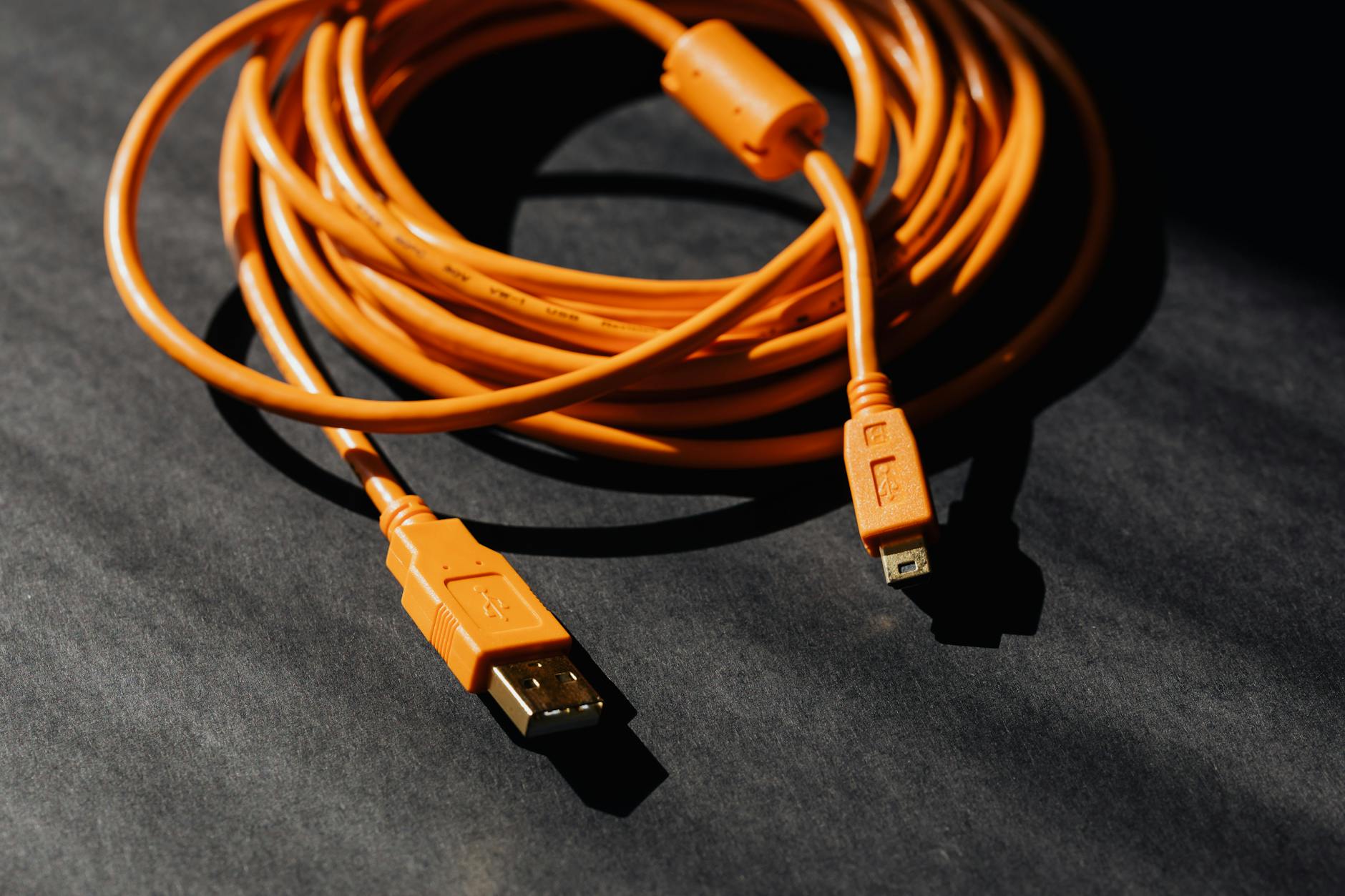
Photo by Karola G
Back up your old phone before you start
Backups are your safety net. They protect your photos, messages, contacts, app data, and settings if something goes wrong during the transfer. If your phone is lost, damaged, or you misplace a cable, you can restore what you need on the new device exactly as it was.
- What to back up. Aim to include contacts, photos and videos, messages, app data, and device settings. If you use a lot of custom app configurations, back up those settings where possible.
- iOS backups. Use iCloud or a local backup via iTunes/Finder. On iPhone, go to Settings > [your name] > iCloud > iCloud Backup and turn it on, then tap Back Up Now. For a local backup, connect to a computer and use Finder (Mac) or iTunes (Windows).
- Android backups. You can back up to Google Drive automatically. On most devices this is under Settings > Google > Backup. Ensure “Back up to Google Drive” is on and that you’re signed into the right Google Account. You can also perform a local backup using your device’s file manager or a computer.
- How to confirm a successful backup. Check the backup timestamp in the backup settings, then open a sample file or photo library on the target account to confirm data is present. For Android, you can also review the Drive backup page to verify size and last backup date. For iOS, go to Settings > [your name] > iCloud > iCloud Backup and verify the date and time of the last successful backup.
For a deeper dive into Android backups, see the Google support guidance and related articles. Back up or restore data on your Android device and Back up your device – Android – Google One Help. If you’re switching between ecosystems, plan a plan B for cross-platform transfer so nothing slips through the cracks.
Tidy up and organize what you really need
Decluttering before the move saves time and reduces the chance of moving junk you’ll regret later. A lean setup on the new phone makes it easier to find what matters and keeps privacy tight.
- Remove unused apps. Go through your installed apps and delete those you never use. This reduces clutter and makes the data you actually want to move more obvious.
- Delete duplicates. Look for duplicate photos, files, or chats. Keep the best version and remove the rest.
- Move essential data only. Identify core items such as contacts, key messages, critical documents, and important photos. Consider what you’ll need right away on the new device.
- Create simple folders. In your current phone, organize data into a few clear folders like “Photos – Family,” “Work Docs,” and “Messages – Important.” This discipline helps you restore only what you truly need.
- Note what should be restored. Make a quick list of items that must be on the new phone, such as banking apps, email, and messaging apps. Having a short checklist helps you avoid oversharing data you don’t need on the new device.
A practical checklist to keep handy
- Remove unused apps
- Delete duplicate files and photos
- Back up contacts, messages, photos, and essential app data
- Label and group files into a few folders
- Mark items to restore on the new phone
For a practical guide on organizing data before moving, you can consult a summary of safe and easy transfer practices. Safe and Easy Ways to Transfer Data to a New Phone.
Check accounts, passwords, and security
A secure transfer means you won’t be locked out of crucial accounts after you switch. Prepare now so sign in on the new device goes smoothly and your data stays protected.
- Update security methods. Enable or update two factor authentication on accounts that support it. This adds a layer of protection during the move and afterward.
- Review saved passwords. Audit saved passwords in your browser and password manager. Update any that are weak or reused across sites.
- Note where you’ll sign in after the move. List the accounts you must re-authenticate on the new device, such as your email, banking, and social apps.
- Check app permissions. Some apps require fresh login or re-confirmation of permissions after a transfer. Make a quick pass to review what each app can access.
- Prepare for a fresh login on the new phone. Expect prompts to re-enter passwords and verify devices. Have your authentication methods ready.
If you want a quick path to secure backups and transfers, start with the Android guidance for back up and device switch, and keep your authentication steps in mind as you proceed. You can review the official guidance on switching to a new Android device for concrete steps. Switch to a new Android device. This helps ensure you start fresh with a secure login on your new phone.
Notes:
- This section aligns with your existing article tone and structure while providing concise, actionable guidance.
- External links are integrated to support backup and security steps, ensuring readers have reliable references.
- The image is placed to visually anchor the plan and preparation concept, credited to Karola G.
Choose the best move method for your devices
Moving data between phones is easier when you pick the method that fits your setup. You can transfer directly from one device to another, restore from a cloud backup, or use official transfer apps designed by the manufacturers. Each approach has its own advantages and limitations, so the right choice depends on your devices, your data, and how you want to set up the new phone. Here’s how to evaluate and apply the best option for you, with practical steps you can follow now.
Direct device-to-device transfer
Direct transfers use built in setup flows that move data directly from your old device to the new one. This method works wirelessly over Wi Fi or through a wired connection, depending on the phone models involved. It’s fast, keeps data intact in many cases, and avoids the extra step of uploading to the cloud first.
- What data moves: Contacts, messages, photos and videos, some app data, and device settings. The exact items depend on the platforms and versions, but you usually get core content without needing third party tools.
- How it works: During the initial setup of your new device, you’ll be prompted to transfer data from the old device. You can choose a wireless transfer, which relies on your Wi Fi network, or a cable transfer when cables and compatible ports are available.
- Compatibility notes:
- iPhone to Android transfers often use a dedicated flow or app. For example, Google’s guidance covers moving data from an iPhone to a new Android device and highlights the role of a network connection and, in some cases, a cable transfer during setup. See how this works in practice with the official guidance on switching to Android. Switch to a new Android device and the article about copying apps & data from an iPhone to a new Android device. Copy apps & data from an iPhone to a new Android device
- Samsung Galaxy devices support Smart Switch for transfers from iOS and other platforms. If you’re moving to Samsung, Smart Switch can handle many data types over USB, Wi Fi, or a computer. Learn more about Smart Switch and compatibility with your device. Samsung Smart Switch and Smart Switch app page
- Move to iOS handles moving from Android to iPhone or iPad, including a cable option for a faster transfer. If you’re switching to Apple, this is a reliable first step. Move from Android to iPhone or iPad
- Limitations to watch for:
- Version requirements: some transfers require recent OS versions on both devices. For Android, switching guidelines specify what Android version is needed for certain features. Switch to a new Android device
- App data varies: not every app can transfer its data, and some apps may require re-authentication or reconfiguration after the move.
- Cross platform nuances: data types like app data or certain account settings may not carry over exactly the same way when moving between iOS and Android. It’s wise to plan a post transfer check for critical apps.
- Tips for a smooth direct transfer:
- Charge both devices and connect them to power during the process.
- Keep both devices near your Wi Fi router to avoid drops during wireless transfers.
- If your devices support it, a wired transfer can be faster and more reliable than Wi Fi.
- Have your passwords ready. Some apps will prompt you to sign back in after the transfer.
If you want a quick reference to the direct transfer flow across ecosystems, see the official guides for moving data between iPhone and Android devices and the dedicated switch tools from major brands. For starters, explore the built in paths here: Copy apps & data from an iPhone to a new Android device and Move from Android to iPhone or iPad.
Cloud based migration and backups
Cloud based migration uses your existing backups in iCloud, Google Drive, or another cloud service. This method is ideal if you want a point in time restore and don’t mind reconfiguring some apps after the move.
- What you back up: photos and videos, contacts, messages, calendar events, app data where supported, and device settings. Cloud backups are convenient if you’re starting fresh and want to restore a broad slice of your previous setup.
- What may not transfer automatically:
- Some app data may be tied to the specific device or OS and may require you to sign back into services or reconfigure permissions.
- Certain content purchased or stored locally on the old device might not automatically migrate unless the app has cloud syncing enabled.
- Data for apps that don’t use cloud backups will require manual restoration or reinstallation followed by sign in.
- How to restore on the new phone:
- iCloud on iPhone: sign in with your Apple ID during setup and choose to restore from iCloud Backup. You can review what a backup includes and verify the restore status in iCloud settings. Use iCloud to transfer data from your previous iOS or iPadOS device to your new iPhone or iPad
- Google Drive on Android: during setup, you’ll be prompted to restore from a Google Drive backup. Ensure you’re signed into the correct Google Account and that backups are enabled on your old device. If issues arise, check Google support threads about backup restoration and device compatibility. Back up or restore data on your Android device
- Post-restore steps:
- Re sign into accounts and re grant necessary permissions.
- Reinstall apps that didn’t restore data automatically and verify settings like notifications and privacy controls.
- Reconfigure widgets, home screens, and preferences to match your usual workflow.
- Common pitfalls and how to avoid them:
- Missing data from apps that don’t back up. Enable cloud syncing for apps you care about before moving.
- Incomplete backups. Always verify the backup date and size after the backup completes.
- Storage limits. If you lack cloud storage, you may need to upgrade or perform selective restores.
Useful cloud backup references include Apple’s guidance on what to expect after restoring from iCloud backups and Google’s back up and restore resources. See: About missing information after you restore your iPhone, iPad, or iPod touch with iCloud Backup and Back up or restore data on your Android device.
If you’re moving between ecosystems, a cloud based plan can still work, but you’ll want to plan for re authentication and re installation. Consider a hybrid approach: use cloud backups for core data while performing a direct transfer for contacts and media that you value most.
Using official transfer apps and tools
Official transfer apps and vendor tools simplify the move by guiding you through the steps and handling many data types automatically. These tools are often the most reliable option when crossing brands or upgrading within a family of devices.
- Why these tools are reliable: these apps are designed for cross device moves, they minimize missing data, and they’re tuned to handle the quirks of each platform. When used correctly, they reduce the risk of leaving important items behind.
- What to watch for in privacy and permissions: read the permissions requested by the tool, and confirm that it only accesses what’s necessary to complete the transfer. If you’re concerned about privacy, review what data the tool can access and how it’s stored or transmitted.
- Key official options you might use:
- Apple’s Move to iOS for moving data from Android to iPhone or iPad. It’s a formal path that guides the setup process and transfers compatible content. Move from Android to iPhone or iPad
- Samsung’s Smart Switch for Galaxy to Galaxy or cross brand moves. It supports USB, Wi Fi, and computer based transfers. Switch to Galaxy and get it all
- Google’s Android Switch and related data transfer tooling for Pixel and other Android devices. This is especially helpful for moving data between Android devices or from iPhone to Android in many cases. Switch to a new Android device and Copy apps and data from an Android to a new Android device
- What to expect during the transfer:
- The tool will walk you through selecting data to transfer, and it will often prompt you to sign back into accounts after the move.
- You may still have to re-authorize some apps or services after the transfer, especially those with strong security settings or two factor authentication.
- If you’re moving between platforms, verify what remains cloud-synced and what is device specific so you don’t miss anything important.
If you want to start with official tools right away, here are a few links to guide you through the process. For Android to iOS, use Move to iOS, and for Galaxy devices, Smart Switch makes cross device data moves straightforward. Move from Android to iPhone or iPad and Samsung Smart Switch.
External sources and guides you can consult as you decide the best path include Apple support and Google support pages for cloud backups and device switches, along with brand specific transfer apps. For a broader view of transfer apps across ecosystems, see manufacturer pages and trusted tech guides. For example, Apple’s transfer guidance and Google’s backup articles provide a solid baseline to compare options. Apple reference: Use iCloud to transfer data from your previous iOS or iPadOS device to your new iPhone or iPad and Google reference: Back up or restore data on your Android device.
If you’re unsure which method to choose, a practical approach is to start with direct device-to-device transfer for a quick, seamless move of core data. Then, complete the setup with a cloud backup restore to capture anything you might have missed and refresh app configurations. Finally, use official transfer apps to fill any gaps and to ensure the data migration aligns with your devices’ ecosystems.
External links used in this section are chosen to support the practical steps you’ll take and to provide official guidance you can trust. For more context on cross brand moves and the latest transfer options, you can explore the official guides from Apple, Google, and major brands such as Samsung.
Transfer steps by platform pair
Moving data between phones is easier when you tailor the method to the pairing of devices you’re using. Below are practical, step by step paths for each pairing. Pick the route that fits your setup, then follow the actions to move data securely and efficiently. You’ll get core content like contacts, messages, photos, and settings, plus reminders about apps and sign ins. The goal is a smooth transition with minimal reauthentication and a clear plan for post-transfer setup.
Photo by Karola G
iPhone to iPhone: simple, reliable move
The quickest path is using iCloud or the built in Quick Start flow. This approach preserves most data and keeps you moving without fumbling through multiple apps.
- Quick Start overview. When you set up the new iPhone, you’ll be offered to transfer data from your old device. Bluetooth and Wi Fi keep the connection, and you can proceed during the initial setup. This method transfers most content directly, including contacts, messages, photos, apps, and device settings.
- iCloud backups. If you prefer cloud based restoration, sign into your Apple ID during setup and choose to restore from iCloud Backup. This streamlines moving data like photos, messages, and settings. You can verify what a backup contains and confirm the restore status in iCloud settings.
- What moves and what might require re sign in. Contacts, messages, photos, apps, and most settings typically transfer. Some services or app data may require you to sign back into accounts after the move, especially if two factor authentication is enabled.
- Post move quick checks. Open Messages to confirm conversations appear, launch Mail to verify accounts, and review app logins. If you use any banking or financial apps, re authenticate as prompted.
Key references to guide the official flow include: “Transfer data from your previous iOS or iPadOS device to your new iPhone or iPad” and “Use Quick Start to transfer data to a new iPhone or iPad.” You’ll also find guidance on how iCloud backups work and how to restore from them:
- Transfer data from your previous iOS or iPadOS device to your new iPhone or iPad. https://support.apple.com/en-us/119967
- Use Quick Start to transfer data to a new iPhone or iPad. https://support.apple.com/en-us/102659
- Use iCloud to transfer data from your previous iOS or iPadOS device to your new iPhone or iPad. https://support.apple.com/en-us/108344
Smartphone users who want a seamless start often begin with Quick Start, then finish with a fresh sign in for apps that require it. If you’re upgrading without nearby old device, restoring from iCloud is a solid path.
Thousands of People Were Struggling With Money Until They Discovered This One Ancient Secret Hidden in Sound
>>> Unlock It Now <<<

Android to Android: smooth transfer
For Android to Android, Google’s backup and the device transfer flow make it straightforward. You’ll move core data and most app data, with notes on apps that require re authentication after move.
- Google Backup basics. Ensure Backup to Google Drive is on and you’re signed into the right account. This preserves contacts, messages, photos, and most app data. A local backup on the device can supplement cloud backups.
- Direct device transfer vs cloud restore. You can start with a direct transfer during setup, or use a Google Drive backup to restore data on the new device. This often covers contacts, messages, photos, and apps.
- App data caveats. Some apps store data on their own servers or require re authentication after transfer. Be prepared to sign into those services again.
- Post transfer steps. Re sign into banking and email apps, review notifications, and rearrange home screens to your liking.
Official guidance and steps to follow include Google’s instructions for backing up and transferring data, plus Android specific switch guidance:
- Back up or restore data on your Android device. https://support.google.com/android/answer/2819582
- Switch to a new Android device. https://support.google.com/android/answer/6193424
Smartphone users switching within Android will appreciate the clarity of this flow, especially since photos and messages usually come through with little friction.
iPhone to Android: crossing platforms
Cross platform transfers need a bit more attention to data compatibility. You’ll see what moves automatically and what needs a fresh setup or re authentication.
- What moves and what doesn’t. Contacts usually transfer, as do photos and messages in many cases. Apps themselves and some app data may require re installation or re signing in. Email accounts can be reconfigured after you set up the new Android device.
- Emails and contacts. If you used iCloud for contacts, you’ll want to export or sync them to your Google account or directly to the new Android device during setup.
- Photos and media. Photos can migrate through Google Photos or direct transfer when supported by the setup flow. Local media may need manual migration if it isn’t backed up to cloud storage.
- Apps and app data. You’ll often need to reinstall apps from the Google Play Store. App data might not transfer if the app relies on its own cloud storage or uses iCloud only.
- Tips for a smooth transition. Have your Google account ready, enable cloud sync where possible, and be ready to sign back into essential services after the move.
Guidance and tools you can use for a successful cross platform move include official Apple and Google resources, plus third party transfer apps when needed:
- Move from Android to iPhone or iPad. https://support.apple.com/en-us/118670
- Copy apps & data from an iPhone to a new Android device. https://support.google.com/android/answer/13626960
In practice, you can begin with the direct transfer if you have both devices handy. If not, set up the Android device and restore from a cloud backup afterwards to capture data that doesn’t move automatically.
Android to iPhone: crossing platforms
Moving from Android to iPhone focuses on essential data like contacts, photos, and messages. Some apps and app data may not cross over, so plan to re install and re authenticate key services on the iPhone.
Thousands of People Were Struggling With Money Until They Discovered This One Ancient Secret Hidden in Sound
>>> Unlock It Now <<<
- Contacts and messages. Import contacts via Google or export them to a vCard file and import on iPhone. Messages can often be migrated if you use a cross platform transfer method during setup, or you may need to forward important messages manually.
- Photos and videos. Google Photos or other cloud backups can help you move media to the iPhone. You can also use a direct transfer flow when available.
- Accounts and apps. Banking apps, email, and social apps usually require re signing in. Prepare to re authorize permissions and re configure notifications.
- Setup on the iPhone. After you finish the transfer, sign in with your Apple ID, enable iCloud backups if you want ongoing protection, and reinstall any essential apps. You may need to re grant permissions for location, notifications, and background data.
For cross platform moves, the official guides provide clear paths:
- Move from Android to iPhone or iPad. https://support.apple.com/en-us/118670
- Back up or restore data on your Android device. https://support.google.com/android/answer/2819582
Smartphone users who prefer a clean, organized start will appreciate beginning with the core relationships—contacts, messages, and photos—and then finishing with cloud based restores for apps and settings. This ensures a stable, predictable transition.
Images and references
- Image usage follows the article’s flow to visually anchor the transfer plan. If you want a quick visual cue for “plan and prepare,” you can reference the earlier image in the article showing a setup cable. Credit: Karola G.
External resources
- Transfer data from your previous iOS or iPadOS device to your new iPhone or iPad. https://support.apple.com/en-us/119967
- Use Quick Start to transfer data to a new iPhone or iPad. https://support.apple.com/en-us/102659
- Use iCloud to transfer data from your previous iOS or iPadOS device to your new iPhone or iPad. https://support.apple.com/en-us/108344
- Back up or restore data on your Android device. https://support.google.com/android/answer/2819582
- Switch to a new Android device. https://support.google.com/android/answer/6193424
- Move from Android to iPhone or iPad. https://support.apple.com/en-us/118670
Key takeaways
- Choose the pairing first: iPhone to iPhone, Android to Android, cross platform options.
- Start with a solid backup, then pick the transfer method that best fits your devices.
- Expect some apps to require re authentication after the move; plan time for sign ins and permissions.
- Use official guides to verify steps and avoid surprises during setup.
Verify, secure, and finalize
After moving data, the real work begins. This section helps you confirm nothing was left behind, secure your accounts, and finish the setup with confidence. You’ll run quick checks on media, messages, and contacts, re authenticate where needed, and lock in strong privacy settings on the new device. A careful finish prevents surprises and keeps your information safe as you settle into the new phone.
Check data integrity after move
A fast audit shows you exactly what arrived on the new device and what didn’t. Start with the basics and then test a few practical checks to confirm everything looks right.
- Photos and videos: Open your gallery and scroll through a sample from each major folder. Check a few high‑resolution images and clips to ensure they didn’t lose quality during transfer.
- Contacts and messages: Open your contacts app and skim a dozen entries. Send a quick message to yourself and reply to it to verify delivery and timing.
- Essential files and documents: If you store work or personal files, open a representative document from each location (cloud, device storage, and any shared drives) to verify accessibility and integrity.
- App data and settings: Launch a few essential apps to confirm they remember recent activity or settings. If any app prompts for sign in, reauthenticate and verify permissions.
- Test a cross‑check flow: If you moved from one platform to another, run a small cross check like saving a new photo and confirming it appears in cloud backups or in the expected folder.
Why this matters: a quick integrity check saves time later. You’ll catch missing items early and avoid scrambling to recreate important data on the fly. If you use cloud backups for ongoing sync, compare the backup timestamp with the new device’s data to confirm relevance. For a concise reference, the process aligns with guidance from major backup and transfer resources, such as how to back up and restore data on Android devices and iCloud backups for iPhone users.
- Cloud and device backups give you a backbone for verification. See how to review backup status and restore points in official guides.
- If you want a visual cue for the process, a quick review of sample data in your cloud account can confirm that media and messages transferred as expected.
Image: A snapshot confirmation page on a phone screen, highlighting a recent backup and a successful transfer. Photo by indra projects
Manage apps, accounts, and passwords
Re logging into each app after a move can feel tedious, but it’s essential for privacy and security. Plan a short, methodical pass through sign ins and permissions so you know exactly what’s active on the new device.
- Re log into essential apps: Open banking, email, messaging, and any productivity tools. Expect prompts to re enter credentials or verify via two factor authentication.
- Review permissions: Some apps request new permissions after a transfer. Confirm which are necessary (location, contacts, photos) and revoke anything extraneous.
- Update recovery options: Check backup methods and recovery emails or phone numbers. Update these in your accounts to avoid lockouts if you forget a password.
- Password hygiene: Audit saved passwords in your browser or a password manager. Remove duplicates and weak entries, and enable two factor authentication where possible.
- Old device cleanup on the source phone: If you no longer plan to use the old device, sign out of accounts and remove device access. This reduces the risk of someone getting in if the old phone is lost or stolen.
Concrete steps you can take now
- On the new phone, sign in to your most important accounts first (email, banking, productivity).
- In each app, confirm that push notifications, location access, and background data are set to your preference.
- Open your password manager and verify that all critical credentials are up to date.
- Remove the old device from trusted devices in your accounts when you’re certain you won’t need it again.
If you’re unsure about the best path for password migration, you can consult official resources that explain moving passwords between platforms and using password managers. For example, guides on moving passwords from iOS to Android and using iCloud Keychain provide reliable directions. See: How to move passwords from iOS to Android and Make your passwords available across devices with iPhone and iCloud Keychain.
Image: A person typing on a new phone while a second device sits nearby, illustrating signing in and permissions review. Photo by indra projects
Protect privacy after move
Privacy takes center stage once the data is on the new device. If you plan to keep the old phone, you will still want strong privacy practices. If you plan to sell or give away the old phone, erasing data securely becomes even more critical.
- Evaluate the old device first: Decide whether you will keep it for use, trade it in, or recycle it. If you’re not keeping it, prepare for a secure wipe.
- Wipe data safely on the old device: Use the built-in erase option to factory reset. This removes personal data from the device and makes it harder for others to recover information.
- Remove accounts and devices: Sign out of iCloud, Google, and other services on the old phone. Remove the device from your account list to prevent future sign ins from that device.
- Check device management and security settings: If you used device management profiles or enterprise security settings, remove them so the old device isn’t tied to your account.
- Preserve privacy on the new device: Enable a screen lock with a strong passcode or biometric unlock. Review app permissions and limit access where possible. Turn on Find My iPhone or Find My Device features so you can locate, lock, or wipe the phone if needed.
If you’re planning to sell or give away the old phone, you’ll want to follow trusted guidance on erasing data securely. Apple’s official guidance on what to do before selling or giving away your device is a solid starting point. See: What to do before you sell, give away, or trade in your iPhone or iPad and related security resources. For Android devices, reputable sources also suggest a full factory reset and removing credentials before handing off the device. How to wipe your Android phone completely before selling it provides practical steps you can follow. If you plan to recycle, look for official recycling and data sanitization guidelines from consumer protection agencies.
Image: A close up of a phone screen showing security settings, emphasizing privacy controls. Photo by indra projects
Finalize and verify the setup
The last mile is finishing the new phone setup and making sure your ecosystem remains intact. A few finishing touches ensure you won’t second guess the move.
- Verify app reauthentication: Open a few critical apps like email, banking, and messaging. Confirm you can send and receive messages and access important data.
- Reconfigure widgets and layouts: Adjust home screens and widgets to resemble your previous setup. This makes the transition feel natural.
- Double check cloud sync: Check that photos, contacts, and documents are syncing correctly with your cloud service. If something is missing, you can trigger a manual sync.
- Create a post move checklist: Keep a short list of items to restore or reconfigure, so you don’t miss anything during the first weeks.
- Plan for future transfers: If you use multiple devices, keep your backup styles consistent. An ongoing routine of backups helps you stay ready for the next switch.
If you want a structured path to secure backups and device setup, start with a direct device transfer for core data, then add a cloud backup restore to catch anything missed. This two‑step approach is recommended by many official guides and helps you keep a clean, consistent setup across ecosystems.
- Quick start guides for iPhone to iPhone and Android to Android provide solid templates for a smooth first run.
- Cloud based backups protect your data as you go, with a straightforward restoration process on the new device.
- Official transfer apps can fill gaps and confirm that permissions and sign-ins are in place.
External sources to support these steps include official guidance from Apple and Google on one hand, and third party tutorials on data integrity checks and secure erasure on the other. For example, Apple’s and Google’s resources outline post move steps, while trusted privacy resources offer best practices for erasing and reclaiming old devices.
- Apple support: What to do before you sell, give away, or trade in your device. https://support.apple.com/en-us/109511
- Google support: Back up or restore data on your Android device. https://support.google.com/android/answer/2819582
- Comparitech: How to wipe your Android phone completely before selling it. https://www.comparitech.com/blog/vpn-privacy/wipe-iphone/
- FTC consumer information: Removing personal information from your phone before recycling. https://consumer.ftc.gov/articles/how-remove-your-personal-information-you-get-rid-your-phone
Image: An orderly setup screen on a phone, with a checklist and progress indicators. Photo by indra projects
Troubleshooting and extra tips
Moving data between devices can uncover a few tricky spots. This section gives you practical solutions for common hiccups, a clean restart strategy when things go wrong, and smart ways to save space on photos and messages without sacrificing memories. Think of it as your quick glove compartment guide for safe, smooth transfers.
Common issues and quick fixes
Backups fail, transfers stall, or storage runs out at the worst moment. Here are the typical culprits and straightforward fixes you can apply in minutes.
- Slow backup or transfer progress
- Ensure both devices are on stable power and a solid Wi Fi connection. If you’re using a wireless transfer, move closer to the router to avoid drops.
- Pause and restart the transfer. Sometimes a simple reset clears a temporary glitch.
- Free up space on your old device. If the backup size is close to the device’s free space, delete or offload nonessential files before retrying.
- Check for OS updates. A fresh system build can fix underlying transfer issues. After updating, restart both devices and try again.
- If transferring from iPhone to Android or vice versa, use the recommended official path or a trusted transfer app designed for cross platform moves. For reference, Google’s Pixel transfer guide and Apple’s cross platform resources outline reliable steps for both directions. See: https://support.google.com/pixelphone/answer/7176563?hl=en&co=GENIE.Platform%3DiOS
- Transfer fails or stops mid process
- Confirm compatibility. Some data types or apps may not transfer across platforms or require re authentication after the move.
- Restart the setup. If you’re using a direct device to device flow, restart both devices and begin the transfer again from the start.
- Try a cloud first approach. If a direct transfer stalls, back up to the cloud on the old device and then restore from the cloud on the new one.
- Verify account credentials. Make sure every account used for the transfer is accessible and not locked behind two factor prompts.
- Check for app specific issues. A few apps may require you to sign back in after the move. Have those passwords handy.
- Full storage on the old device blocks the backup
- Offload large media to a computer or cloud storage before starting. This frees space for the backup process and reduces the chance of a mid backup pause.
- Use selective backup. If your tool lets you pick categories, focus on essential data first (contacts, messages, bank apps, email) and add media later.
- Consider a phased approach. Do a core data transfer first, then perform a secondary transfer for photos and videos once the new device is set up.
- Cross platform issues (iOS to Android or Android to iOS)
- Expect some data to require re authentication or re installation. Prepare to sign into key apps again and reauthorize permissions.
- Use cloud backups for items that don’t cross easily. Cloud storage often holds your most important media and documents, even when app data stays behind.
- If a direct transfer seems unreliable, switch to a cloud based restore on the new device and then complete the rest with official transfer apps.
- When to seek help
- If you’ve retried with multiple methods and still face repeated stalls, consult the official support pages for your devices. For example, Google’s transfer guidance and Apple’s support center offer step by step fixes and troubleshooting flows. See: https://support.google.com/android/answer/6193424 and https://support.apple.com.
In most cases, a disciplined restart, a quick cleanup, and swapping between direct transfer and cloud backups resolves the issue without drama. For ongoing guidance, use trusted official sources as your baseline reference during any move.
Image
 Photo by Kelvin Valerio
When to reset and start over
If the transfer stalls for an extended period or data seems missing, a clean restart is often the fastest path to a reliable result. Here’s a practical plan you can follow without losing time or data integrity.
- Step 1: Pause and back up again
- Back up the old phone once more, using the most stable method available. If you started with a direct transfer, switch to a cloud backup if the old device has room, or vice versa.
- Confirm backup status before proceeding. Look for a recent timestamp and ensure the backup completed without errors.
- Step 2: Prepare the new phone for a fresh start
- If it’s new or recently reset, begin with a clean setup. Disable any preinstalled apps you won’t use to keep the environment lean.
- Sign into the same accounts you used on the old device. This reduces friction when restoring data.
- Step 3: Choose a different transfer route
- Direct device to device transfer is fast when reliable, but if it hiccups, switch to cloud based restoration first and then fill gaps with official transfer apps.
- If you’re moving across ecosystems, consider a hybrid approach: core data via direct transfer, media through cloud sync, and apps reinstalled with sign in.
- Step 4: Verify and re authenticate
- After the restart, run a quick check of key data: contacts, messages, and a batch of photos. Sign into essential apps and confirm permission settings.
If you want a quick reference for cross platform restart logic, consult official guidance such as Google’s Android transfer plan and Apple’s iPhone to iPad transfer steps. For cross platform moves, starting with direct transfer and finishing with a cloud restore has proven effective for many users. See: https://support.google.com/android/answer/6193424 and https://support.apple.com/en-us/118670.
- In practice, a clean restart minimizes surprises and helps you lock in a stable baseline. It’s a smarter approach than chasing intermittent issues.
Tips for photos and messages that save space
Photos and messages often occupy the bulk of your phone storage. Here are practical ways to keep space under control while preserving memories and essential conversations.
- Manage photo quality and storage
- If you can, shoot in high quality but save the full resolution for only the best shots. For daily capture, use a compressed setting to save space without losing too much detail.
- Use cloud photo storage with smart syncing. Services like iCloud Photos or Google Photos can store original files in the cloud while keeping a lightweight gallery on the device.
- Enable automatic offload. Some systems offer options to remove local copies of photos once they’re safely backed up to the cloud.
- Cloud storage options
- Favor cloud backups for your media library during the move. Cloud storage reduces the risk of missing files if the local backup is incomplete.
- Keep a secondary local backup if possible. A quick local copy on a computer adds a safety layer.
- Trimming message histories
- Archive or delete old conversations that aren’t needed for continuity. Keep essential conversations for reference, not every long thread.
- Move important messages to a separate archive thread or export key conversations to a readable format for long term storage.
- Review media in chats. If a chat has many large attachments, consider removing duplicates or saving important attachments to cloud storage first.
- Practical workflow tips
- Set up a simple folder structure on your new phone for photos, videos, and documents. A few well labeled folders speed up future backups and restores.
- Regularly prune storage. Schedule a quarterly cleanup to prevent buildup from creeping back.
For additional guidance on freeing up space and optimizing photo storage, you can consult trusted resources. Apple’s guidance on managing photo storage and iCloud options offers solid, practical steps. See: https://support.apple.com/en-us/105061
- If you’re worried about iCloud storage limits, review tips to free storage or manage backups more efficiently. A Lifehacker style guide also provides practical ways to trim photo storage on iPhone and iCloud. See: https://lifehacker.com/tech/how-to-free-up-photos-storage-on-icloud-and-iphone
- A quick reminder: if you’re moving between ecosystems, cloud based storage is a practical safety net for photos and messages that don’t transfer automatically. The goal is to keep memories accessible without bogging down the device.
Images and visuals help anchor the idea of saving space and planning before you move. If you’re using visuals, place them near the tips about storage planning to reinforce the concept of a lean, organized transfer.
Photo by indra projects
External resources for further reading
- Switch to a new Android device. https://support.google.com/android/answer/6193424
- Manage your photo and video storage. https://support.apple.com/en-us/105061
- The easiest ways to free up photos storage on iCloud and iPhone. https://lifehacker.com/tech/how-to-free-up-photos-storage-on-icloud-and-iphone
Key takeaways
- If a transfer stalls, start with a clean restart using a different path for data—direct transfer first, then cloud restore if needed.
- For space management, favor cloud storage for photos and messages and prune duplicates and old conversations.
- Always verify backups before starting the move again, and re authenticate critical apps after the setup. This minimizes surprises and keeps your data secure.
Conclusion
Moving data from an old phone to a new one can be straightforward when you follow a tight plan. Start with a solid plan, choose the transfer method that fits your devices, complete the transfer, then verify everything arrived as expected and secure your accounts. This approach keeps your important data intact while protecting your privacy.
Plan, then pick a method. A direct device to device transfer is fastest for core data, while a cloud backup restore adds a safety net for anything that slips through. Use official tools when possible to reduce surprises and keep your data safe.
After the move, double check and re authenticate. Open key apps, confirm messages and photos are present, and review security settings. A quick privacy sweep on the new smartphone helps prevent lingering risks.
Share your experiences with others and explore more guides on iPro+ 知識酷. Whether you’re upgrading a smartphone for yourself or guiding family members, a clear process makes the switch smooth. If you have tips or questions, drop a comment and start a smart conversation about how you handled your transfer.
There Is a Frequency That the Wealthiest Families Have Used for Generations and Most People Will Never Know It Exists
>>> Open the Door <<<
