Group MMS problems can crop up fast and leave groups in limbo, especially when chats span different smartphones. If photos or videos won’t send, messages stall, or you see blue and green bubbles clash, you’re not alone. This guide walks you through practical, step by step fixes to get your group chats moving again.
You’ll learn why group MMS fails on mixed devices and how network settings, messaging apps, and file sizes play a role. We’ll cover simple checks like data is on, MMS messaging is enabled, and APN settings are correct. By the end, you’ll have a clear plan to troubleshoot on both iPhone and Android phones with confidence.
Think of this as a hands on toolkit you can use right away. Each fix is small but effective, designed to restore smooth, reliable group chats on your smartphone. If you’re part of busy group threads, you’ll save time and frustration by following these steps rather than guessing at the underlying cause.
Understanding group MMS: what it is and why it fails
Group MMS is the way many of us send multimedia messages to multiple people at once. It blends text with images, videos, or audio, and it usually travels over data networks rather than just the traditional voice feed. In practice, you might send a photo from a group chat to a dozen friends, and everyone gets the picture in one thread. On your smartphone, MMS uses mobile data or Wi-Fi to deliver those files rather than relying solely on pure text. The result is richer conversations, but it also introduces more points where things can go wrong. As you troubleshoot, remember that MMS behavior can vary by device and carrier, so a fix that works for one person might not for another. For a quick refresher on what sets MMS apart from plain SMS, this guide often cross references clear explanations such as this overview: MMS group messaging explained. Learn more about how MMS differs from SMS.
How MMS differs from SMS and group chat basics
MMS and SMS share a common DNA: they both carry messages between phones. The big difference is what they can carry and how they travel. SMS is text only and has character limits, while MMS expands to photos, videos, and audio. When your group chat includes a multimedia file, the message is typically sent as MMS. If the content is just text, or very short, it may stay as SMS. In a real-world example, you compose a group chat message and attach a photo. If all participants have strong data and compatible settings, the photo lands in seconds as MMS. If someone’s device or network blocks MMS, the message may drop back to SMS or fail to deliver entirely. This is why some people see blue bubbles and others green; it reflects iMessage versus SMS/MMS, a detail that matters when groups mix Android and iPhone users. A smartphone with misconfigured data or a weak signal can stall the moment you hit send, turning a group chat into a slow, one by one thread. For readers curious about the mechanics, a practical overview helps connect the dots: MMS group messaging explained.
Common causes of group MMS failures across Android and iPhone
Several factors commonly derail group MMS, and most are fixable with a few precise steps. First, weak data or an unreliable connection can stop large files from uploading. If you’re in a spotty network area, move to a better signal or switch from cellular to Wi-Fi when sending a group photo. Second, incorrect APN settings can block MMS traffic entirely. Many carriers require specific APN values to route MMS correctly; a quick check with your carrier’s support page or a quick settings reset can resolve it. Third, large file sizes push limits set by carriers and devices. Compress or crop images, or reduce video length, to stay under those thresholds. Fourth, outdated software matters. An old OS or messaging app may misinterpret MMS transmissions or drop group messages. Finally, carrier limitations can cap MMS delivery in a busy network or apply strict data throttling. If a carrier blocks MMS during peak times, switch to Wi-Fi for large uploads or contact support. For readers exploring practical fixes, a few reputable guides explain these points and offer step by step paths. Quick reading on MMS differences and practical fixes can help set expectations for mixed device groups. Group messaging and MMS basics for Android and iPhone
Why mixed device groups can fail
Cross platform groups sit at a friction point where Android and iPhone messaging ecosystems intersect. On iPhone, iMessage handles messages between Apple devices with a blue bubble. When someone in the group uses an Android phone, the conversation may shift to SMS or MMS, turning blue bubbles green and changing delivery behavior. This shift can cause delays or failures if MMS settings are not enabled or if the network treats the message as a standard SMS with data limitations. A practical example: an iPhone user attaches a photo in a group chat that includes Android users. If the phone falls back to MMS and the recipients have poor data, the photo may not deliver promptly or at all. In some cases, settings like “Group MMS” or “Auto Retrieve” can block or delay delivery, especially if one participant has a restricted data plan. To avoid these issues, check that MMS messaging is enabled on all devices and that carrier settings are up to date. A reliable reference for understanding these cross platform dynamics is a dedicated explainer on MMS group messaging. Group MMS mechanics and cross platform notes
Additional context from real-world forums and guides
People frequently report that issues persist despite all settings appearing correct. In the Android and iPhone ecosystems, real world threads reveal that misconfigured MMS settings, stale app data, and carrier provisioning gaps are common culprits. When a thread includes iPhone and Android users, it’s especially important to confirm that the iPhone user is not using iMessage as the default path for the group. Switching to standard MMS and ensuring that all devices are on up to date software helps a lot. If a group chat stalls, you may need to re-create the thread or reset the messaging app to ensure the group runs on MMS when needed. For a broader view on mixed device group issues and practical steps, this community and troubleshooting guide provides actionable insights. MMS troubleshooting and cross platform issues
Fast fixes you can try right away
When group MMS stalls, you want quick wins you can apply in minutes. These fast fixes target the most common culprits: data reliability, app behavior, and message size controls. Below are practical, screen-by-screen steps you can perform on either Android or iPhone. Try them in order and see which one gets your group chat moving again. You’ll often spot improvement after a single restart or a quick setting tweak. A lot of the time, a friendly smartphone just needs a nudge in the right direction.
Check data, signal, and APN settings
Your ability to send and receive MMS hinges on data connectivity and the right APN configuration. If a photo or video won’t upload, your phone may not be able to reach the carrier network to deliver it as MMS. Signal strength matters too; a weak or fluctuating connection can cause uploads to fail or timeout.
- Android checklist:
- Confirm mobile data is on and you have at least 2–3 bars of signal.
- Open Settings > Network & Internet > Mobile network and ensure Data enabled is on.
- Check APN settings: Settings > Network & Internet > Access Point Names, then compare with your carrier’s recommended values. If in doubt, reset to default or re-enter the carrier’s listed APN.
- If you’re using Wi-Fi, try disabling it momentarily to force MMS over cellular if needed.
- Quick reference: many carriers require a specific APN to route MMS traffic correctly. If the settings look off, update them and reboot.
- iPhone checklist:
- Go to Settings > Cellular > Cellular Data Options and verify Data is on and LTE/4G is selected.
- Open Settings > Cellular > Cellular Data Network to confirm MMS APN values match your carrier’s guidance.
- Toggle Airplane Mode on for 15 seconds, then off to refresh the connection.
- If issues persist, a brief reset of network settings can help (Settings > General > Reset > Reset Network Settings).
- Quick tweak ideas:
- Switch between Wi‑Fi and cellular data to test MMS delivery.
- Recheck APN values after a carrier app update or a new SIM.
- For deeper guidance and exact APN values, see updated APN settings for major US carriers. https://www.technobezz.com/updated-apn-settings-for-att-verizon-t-mobile-an
Smartphone tip: If you’re in an area with spotty coverage, move to a window, higher floor, or outdoor location to stabilize the connection before retrying.
Restart, update apps, and clear cache
A clean start often fixes stubborn MMS hiccups. A simple restart clears temporary glitches, while fresh software can resolve compatibility problems between the messaging app and the carrier network.
- Restart routine:
- On Android, press and hold the power button, select Restart. If it seems stuck, power off completely, wait 30 seconds, then power back on.
- On iPhone, perform a standard restart or a hard reset if needed (different models have slight variations).
- Update steps:
- OS updates: check for available system updates in Settings > General > Software Update (iPhone) or Settings > System > Advanced > System Update (Android).
- Messaging app updates: open the Play Store or App Store, search for your messaging app, and install any updates.
- If you rely on a carrier messaging app, update that as well.
- Clear cache without losing messages:
- Android: Settings > Apps > [Your Messaging App] > Storage > Clear Cache. If you also clear Data, you may lose app settings; back up first.
- iPhone: iPhone doesn’t expose a direct cache clear for individual apps, but offloading the app (Settings > General > iPhone Storage > Offload App) can help, followed by a fresh reinstall if needed.
- What to expect:
- After updates and a cache refresh, rejoin the MMS thread and attempt to send a multimedia item again.
- If the problem lingers, test sending to a single contact first to isolate group-specific issues.
Smartphone note: A lot of fixes live in the app layer, so keeping both OS and apps current reduces miscommunication between your phone and the network.
Restart, update apps, and clear cache (continued) — deeper insights and external support
If basic restarts and updates don’t resolve the issue, a deeper refresh can help. Clearing cache for the messaging app eliminates stale data that might block new MMS transmissions. Clearing cache is a low-risk step that often returns responsiveness without affecting your messages.
- Android cache specifics:
- In addition to clearing cache, clearing the app’s storage (Data) resets preferences and may require re-signing into services. Always back up if you have non-replicated settings you don’t want to lose.
- iPhone approach:
- Since iOS handles cache differently, combining app offload with a full reinstallation mimics a cache refresh and can remove stubborn data residues.
- When to escalate:
- If multiple apps show similar behavior, it might be a broader issue with the device or carrier provisioning. In this case, reach out to the carrier’s support page for MMS troubleshooting and consider testing with a different SIM to rule out SIM-related provisioning problems.
- Helpful resource:
- For a practical path to fix messaging issues on Android, see Is your messaging app not working? Try these fixes. https://www.androidauthority.com/how-to-fix-messaging-android-896807/
Smartphone reminder: Regular maintenance, like clearing stale data and updating apps, keeps your device responsive and reduces future MMS hiccups.
Check MMS size and auto download settings
Large files push the limits of mobile networks and devices. By controlling file size and enabling automatic downloads on solid networks, you reduce failed sends and repeated retries in group chats.
- Why size matters:
- Carriers cap MMS size, and some phones compress or reject files above the limit. Reducing resolution, trimming video length, or choosing a smaller file can make all the difference.
- Android steps:
- In the Messages app, check Settings > MMS to adjust maximum message size. Some devices also offer a “Resize images before sending” option.
- Enable Auto-download for MMS when connected to mobile data or Wi-Fi to ensure new messages arrive without manual taps.
- iPhone steps:
- Settings > Messages > MMS Messaging to ensure MMS is enabled, and check any in-app options for auto-download or media size handling.
- If you have a weak connection, disabling Auto Retrieve temporarily can save data while you stabilize the link, then re-enable once stable.
- Practical approach:
- When sending large media, compress first or share a link to the file instead of sending the full file as MMS.
- For busy groups, set MMS auto download to on for stable networks and off when you’re on metered data to avoid surprises.
- Quick reference:
- If you’re curious about enabling MMS and fixing common download issues, see How to Enable MMS Messaging & Fix Download Issues on Android. https://www.twilio.com/en-us/blog/mms-messages-not-sending
Smartphone note: On a good network, auto download saves you time by pulling in media as soon as it arrives, letting the conversation stay synchronized. On slower networks, manual control can prevent data waste.
External resources and how they fit your plan
- APN settings guides help you confirm correct gateways for MMS traffic. For updated carrier-specific values, see Updated APN Settings for AT&T Verizon T-Mobile and Other US Carriers. https://www.technobezz.com/updated-apn-settings-for-att-verizon-t-mobile-an
- Carrier-specific troubleshooting steps can offer quick wins when grouped with testing steps. See Ting Mobile’s guide on Troubleshooting Group Messaging (MMS) on V1 SIM. https://help.tingmobile.com/hc/en-us/articles/21154728775323-Troubleshooting-Group-Messaging-MMS-on-V1-SIM
- General MMS troubleshooting and cross platform considerations provide a broader view of mixed-device chats. https://twilio.com/en-us/blog/group-mms-texting-for-businesses
Smartphone takeaway: Start with data and APN checks, then move through restart and cache clears. Finally, tune file sizes and auto download settings to keep group chats flowing, no matter which devices your teammates are using.
Android specific steps to fix group MMS
When group MMS stalls on Android, you want clear, concrete steps you can take quickly. This section breaks down two essential areas: setting the default messaging app and ensuring background data, and understanding size limits and carrier settings. These tweaks are practical and show results fast. Think of your smartphone as a smart assistant that needs the right permissions and paths to deliver multimedia in a group thread. This guidance aims to help you move from confusion to confidence, with concrete actions you can perform right away.
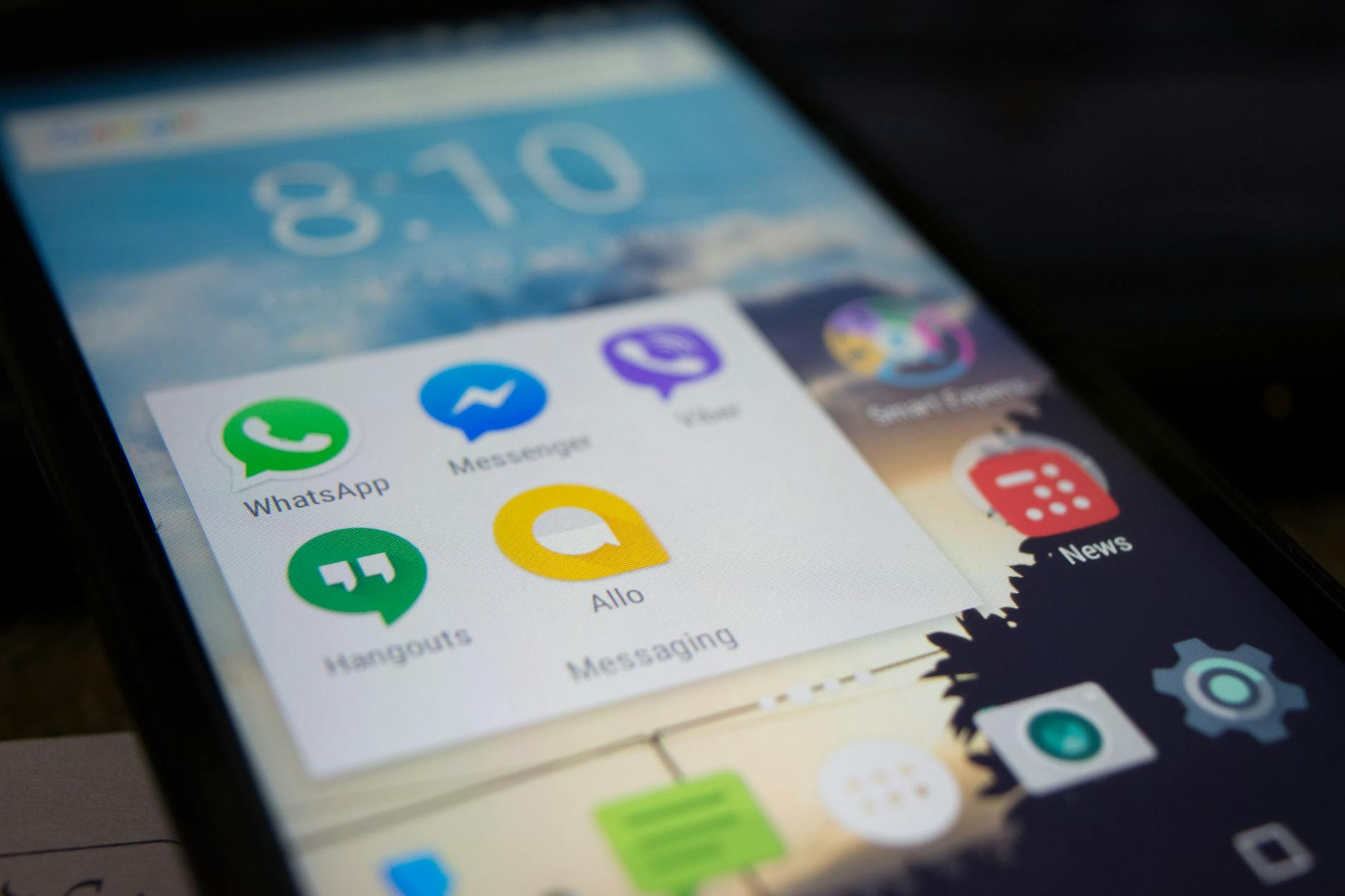 Photo by Alok Sharma
Set default messaging app and enable background data
Setting the default SMS/MMS app on Android ensures all messages route through a trusted pathway, which is crucial when you’re juggling a busy group thread. Start by designating the messaging app you rely on most, then verify background data is allowed so MMS downloads don’t sit idle in the background.
- How to set the default app:
- Open Settings and search for “Default apps” or “Apps & notifications.”
- Tap on “Default apps” then select your preferred SMS app from the list.
- If prompted, confirm that this app should handle SMS and MMS.
- Enable background data:
- Open Settings > Apps > [Your Messaging App] > Mobile data & Wi-Fi or Data usage.
- Ensure “Background data” or “Allow background data usage” is switched on.
- On some devices, you may also need to permit background activity in the battery optimization settings.
- Quick checks:
- Try sending a test MMS to the group after the change. If messages start arriving promptly, you’re back on track.
- If you run into issues, toggle Airplane Mode on for a moment to refresh network connections.
- Why this matters for a smartphone running mixed ecosystems: Android relies on the right app to manage MMS routing, especially when a group includes non-Android users. Ensuring the default app is correct reduces misrouted messages and delivery delays. For additional context, see guidance on changing your default messaging app on Android. https://www.affiliates.bloodstock.uk.com/how-to-change-default-messaging-app-on-android/
Smartphone tip: In weak coverage areas, keeping background data enabled helps MMS retry automatically when a stronger signal returns.
Manage MMS size limits and carrier settings
Carriers place limits on MMS file sizes, and those limits can catch you by surprise in group chats. Tuning size settings and keeping carrier provisions current helps ensure media reaches every participant.
- Check MMS size limits:
- In your messaging app Settings, locate MMS or multimedia messaging options.
- If available, adjust the maximum message size downward for unstable connections, or enable automatic resizing when sending media.
- For Android, look under Settings > Messages > MMS and adjust the size or enable “Resize images before sending” if present.
- Auto download and delivery behavior:
- Enable Auto-download for MMS on stable networks to keep the thread fresh without manual taps.
- If you know you’re on metered data or a constrained plan, consider turning Auto-download off to avoid surprises.
- Verify or reset carrier settings:
- Carrier settings can drift after updates or SIM changes. Check for a carrier settings update in Settings > System or about phone, or contact your carrier support page for the exact steps.
- If MMS continues to fail, reapply the carrier APN settings from the carrier’s official guidance and reboot.
- Real‑world context:
- When the group contains multiple devices on different networks, small size adjustments can unlock delivery across the entire thread.
- If you need a deeper read, this guide explains steps to increase MMS size limits on Android and practical checks. https://www.twilio.com/en-us/blog/insights/cloud-comms/how-to-increase-mms-size-limit-android
Smartphone note: A stable Wi-Fi connection can help with large media. If you’re in a spotty area, try sending over cellular to see if the issue is network related.
External resources and deeper reads
- For practical fixes specific to Android messaging, see 5 Fixes for Google Messages Not Downloading MMS. https://www.guidingtech.com/fix-google-messages-not-downloading-mms-on-android/
- If MMS still won’t come through, a broader Android troubleshooting path can offer quick wins. https://www.twilio.com/en-us/blog/mms-messages-not-sending
- A consolidated guide on enabling MMS and fixing download issues on Android provides step-by-step actions. https://www.twilio.com/en-us/blog/mms-messages-not-sending
Smartphone takeaway: Start with the default messaging app and background data, then tune file sizes and verify carrier settings. These two areas address the majority of group MMS blockers on Android, especially when a mixed-device group is involved.
Microsoft-style, but human-friendly steps help ensure you’re not guessing. If you’ve done these and still face trouble, test with a single contact to isolate group-specific factors and consider a quick reset of the messaging app as a last resort.
Images and captions
- If you’d like an additional visual aid, this photo captures the everyday act of messaging on a smartphone, highlighting the variety of apps people rely on in daily chats. Photo by Alok Sharma.
iPhone and iMessage related fixes for group MMS
Group MMS can feel fragile when conversations cross platforms. When an iPhone user chats with Android friends, messages may stall, photos fail to upload, or bubbles switch color unexpectedly. This section offers practical, device-agnostic fixes that reduce friction in mixed-device groups. You’ll learn when to turn off iMessage for troubleshooting, how to tighten carrier settings, and simple steps to keep group threads moving smoothly. Think of your smartphone as a tool that, with the right nudge, can keep everyone in the loop.
Turn off iMessage for mixed groups and ensure SMS fallback
Disabling iMessage for mixed groups helps ensure messages route as standard SMS/MMS. Start by temporarily deactivating iMessage on the iPhone while you troubleshoot with Android users, then reenable once the group chat behaves as expected. This avoids blue bubbles that can hinder delivery in cross‑platform threads. On the iPhone, go to Settings > Messages and switch iMessage to Off. If you want a quicker detour, deregistering your number from iMessage via Apple’s official deregistration page also works, which forces all messages to go through SMS/MMS paths. After turning iMessage off, confirm that Send as SMS is enabled so iPhone users fall back to SMS when MMS isn’t available. You’ll find this option in Settings > Messages > Send as SMS. If you’re testing with a smartphone in hand, send a photo to the group and verify delivery. For ongoing reliability, keep iMessage off for mixed groups until everyone is on compatible settings. For deeper guidance on this approach, see related notes about switching from iMessage to Android messages and the role of SMS fallback. https://support.google.com/android/answer/6156081?hl=en
Smartphone tip: In spotty coverage, a quick toggle of Airplane Mode refreshes data paths and helps MMS delivery reestablish quickly.
Resolve common iPhone group chat issues when talking to Android users
When iPhone users join groups with Android peers, the chat can swing between iMessage and MMS. Start with the simplest checks and move to more specific fixes. First, ensure all participants have MMS messaging enabled and that device software is up to date. On iPhone, confirm Settings > Messages > MMS Messaging is on and that Group Messaging is enabled. Next, verify carrier settings are current; an update can replace outdated routing rules that block MMS delivery. If the group chat stall persists, remove the affected participant from the thread and readd them, which often resets delivery paths and prompts a fresh MMS fallback. Rejoining the chat is particularly helpful if someone recently updated their OS or carrier profile. If you still see delays, test sending to a single Android contact to confirm the issue is group specific rather than device wide. For more context on cross‑platform dynamics, see practical troubleshooting and cross‑platform considerations. https://twilio.com/en-us/blog/group-mms-texting-for-businesses
Smartphone note: A quick refresh of the chat with a single contact can reveal whether the problem is group-wide or tied to one device.
When to call the carrier or tech support
If MMS problems persist after trying quick fixes, it’s time to escalate to the source. Calling your carrier or a tech support representative can save hours of tinkering, especially when the issue stems from your data plan, a temporary outage, or a hidden MMS size limit. Use the steps below to decide when a call is worth it and how to get the most from the conversation. A clear, calm briefing helps the agent diagnose faster and often yields better next steps for your smartphone.
Check data plan, outages, and MMS limits
Before you pick up the phone, verify three things. First, confirm your plan actually includes MMS, not just SMS. Some low tier or prepaid plans limit multimedia messages or require a specific trigger to enable MMS. Second, check for current outages in your area. Carriers publish status pages that can reveal broader network problems impacting MMS delivery. Third, understand any MMS size limits tied to your plan and device. If your file is large, you may need to compress it or share via a link instead. While you test, keep one smartphone handy to reproduce the issue or to try a fresh MMS attempt after a status change. If you need a quick reference, major carriers provide outage maps and status pages you can consult to separate a network problem from a device problem. For example, you can review network status pages from Verizon, AT&T, and T-Mobile to see if outages match your timing. And if you’re dealing with mixed iPhone and Android users, remember that MMS behavior can differ across ecosystems, which makes this check even more important. Check network status AT&T Service Outage Information Network Outages | T-Mobile Support
Smartphone tip: If you’re in a spotty area, move to a higher signal spot or switch to Wi-Fi to test MMS delivery while you plan your call.
What information to gather before you call
A concise briefing speeds up the call and helps the agent reproduce the problem quickly. Prepare a simple checklist and keep it handy when you reach out. Include your device model, operating system version, steps to reproduce, the exact error text or behavior, and the time and location of the incident. Note whether MMS was attempted with or without Wi-Fi, and whether you recently changed SIMs or updated any apps. Also document SIM status (active or disabled), and any recent changes to your data plan or carrier settings. If you’re coordinating with smartphone users on different networks, capture examples from multiple devices to show whether the issue is isolated to one phone or common across the group. When you call, share these details succinctly and be explicit about what you tried already so the support rep can skip redundant steps. For a clearer understanding of what to expect, carriers often publish step-by-step troubleshooting guides you can reference while you wait for help. Network outages: stay connected
Conclusion
If you’ve followed these steps, most group MMS problems fade away with better data, proper MMS settings, and updated apps. A quick round of checks on both Android and iPhone devices often restores smooth group chats for your smartphone crew. When issues linger, contact your carrier or device support with a concise report of what you tried, the exact error, and the affected devices. Quick preventative tip: keep your OS and messaging apps current, and regularly review APN and carrier settings to prevent future hiccups. If you have another device in the mix, invite them to share what worked for them so the whole group stays connected.