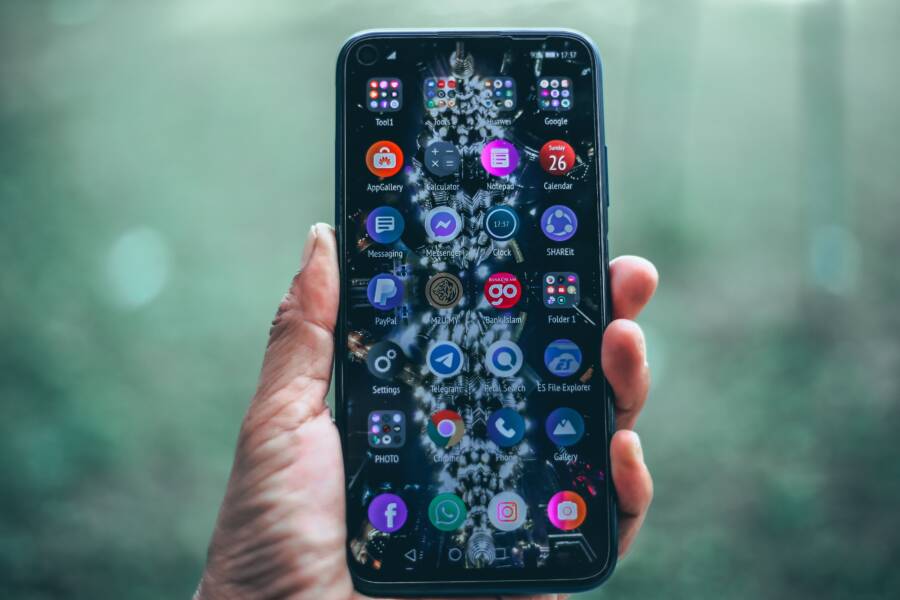
Why do app icons suddenly turn white on a smartphone? This frustrating visual glitch usually happens because the device launcher fails to load the correct image cache, or the operating system is experiencing a temporary memory hiccup. Don’t worry, because your screen isn’t broken and your data is safe. A quick software refresh or a simple cache clear usually brings your missing graphics right back.
Why Do Your Phone App Icons Suddenly Turn White
Understanding Home Screen Launcher Glitches
Your smartphone home screen launcher controls every visual element you see, including app icons, widgets, and background grids. When you unlock your device, the system reads image files stored in a temporary memory cache to display your icons quickly. However, temporary memory issues frequently disrupt this process. If the launcher runs out of RAM or gets bogged down by background tasks, it fails to load the correct graphics. Instead of rendering the actual icon, the system displays a blank white square as a placeholder.
This behavior happens because the operating system prioritizes core performance over visual assets during a memory crunch. When a smartphone runs multiple apps simultaneously, the system cache fills up rapidly. The launcher might drop nonessential image files to free up space. If you restart the device or clear the cache, the launcher rebuilds its icon database. The missing graphics reappear immediately once the system restores normal memory allocation.
Operating System Bugs and Corrupted Data
Recent software updates often introduce hidden bugs that corrupt icon image databases on your smartphone. When a system update installs incorrectly, file paths for installed applications sometimes break. The operating system knows the app exists, but it can no longer locate the specific PNG or JPEG file assigned to that icon. Background process crashes also corrupt data caches. If a system process terminates unexpectedly while writing icon files to storage, the corresponding graphics turn into blank white tiles.
You can usually resolve these data corruption issues through specific troubleshooting steps.
Restart your smartphone to clear temporary cache files and force the system to reload the launcher.
Check for pending system updates because manufacturers frequently release quick patches for known icon bugs.
Clear the cache of the specific launcher app through your system settings menu.
Reinstall affected applications if the white icon persists after a system reboot.
Quick and Easy Steps to Fix White App Icons
Fixing a blank white app icon on your smartphone takes just a few minutes once you know which system components to target. You don’t need advanced technical skills or third-party repair tools to restore your display. Instead, work through the following troubleshooting procedures to clear out temporary glitches and force the device to reload your missing graphics.
Restart Your Device to Clear Temporary Memory
Rebooting your smartphone acts as the first line of defense against visual glitches. When you shut down the device, the operating system wipes the random access memory clean. This process flushes out corrupted cache files and terminates background tasks that interfere with your home screen. After the device boots back up, the system launches fresh processes and rebuilds the icon database from scratch.
To complete a standard reboot on most modern devices, press and hold the power button alongside either volume button until the power slider appears on the screen. Drag the slider to turn off the smartphone, wait about thirty seconds for all internal components to power down completely, and then hold the power button again until the logo appears. Once the home screen loads, check to see if your white icons have returned to their normal appearance.
Refresh the Home Screen Launcher or Restart the Springboard
If a simple reboot fails, forcing the graphical interface to restart usually resolves stubborn icon corruption. Different operating systems handle this interface layer through specific core processes. On Android devices, the home screen launcher runs as a dedicated application that you can reset directly through the system settings. On iOS devices, restarting the Springboard process forces the iPhone interface to redraw every icon and widget on your screen.
You can trigger a fresh reload of your graphical interface by using specific methods depending on your device type.
On Android, open your settings menu, navigate to the applications list, locate your default launcher, and select the option to clear its cache and storage.
On jailbroken iOS devices, use a terminal command or a utility tweak to restart the Springboard process safely.
On standard iOS models, switching your display zoom settings or toggling the reduce transparency feature forces the operating system to rebuild the icon cache automatically.
Clear App Cache and Temporary Data
Sometimes only a single application displays a white tile because its local data files became corrupted during a background update. Clearing the application cache removes damaged temporary files without deleting your personal documents or login credentials. The operating system generates fresh cache files the next time you open the program, which typically restores the missing icon graphic immediately.
To clear cache files for a specific application on Android, open your settings menu and tap on storage or applications. Find the affected program in the complete list, tap on it, and select the option to clear cache. If you use an iPhone, the process requires offloading the app to remove corrupted files while retaining your documents. Open your general settings, select storage, tap the affected app, and choose the offload option before reinstalling it from the app store.
Advanced Solutions When Simple Fixes Fail
When standard reboots and cache clearances fail to restore your missing graphics, you need a deeper intervention to fix a stubborn white app icon on your smartphone. Operating system caches sometimes lock up in ways that resist casual troubleshooting. Persistent visual glitches point to deeper file corruption that requires manual application reinstallation or a full system software refresh.
Reinstalling Affected Apps from the App Store
Deleting and downloading the broken application again forces the system to pull fresh icon files from the developer server. When you uninstall an app, the operating system purges every associated registry entry, local data cache, and leftover thumbnail asset. Installing the program back onto your smartphone creates a clean directory path. The device then assigns a brand-new image file to the application launcher, which instantly replaces the blank white tile with the correct logo.
You should back up any important in-app data before deleting the software if the program lacks cloud syncing. Long-press the broken icon on your home screen, select the removal option, and confirm the deletion. Open your official app store, search for the title, and download it again. This clean installation replaces damaged package components and repairs broken file paths automatically.
Updating Your Smartphone Operating System
Installing the latest software patches resolves known graphic bugs that cause widespread icon corruption. Manufacturers regularly release system updates to fix memory leaks and rendering errors in the user interface. If an underlying code defect in your current build prevents the launcher from reading image assets, an operating system update patches that specific flaw.
Open your device settings menu, navigate to the system or software update tab, and check for pending installations. Download and apply any available packages while your smartphone connects to a stable Wi-Fi network. The device reboots automatically during this process, rebuilding every system cache and restoring normal visual rendering across your entire home screen.
Resetting Home Screen Layout Settings
Restoring default layout settings clears out persistent customization errors that disrupt icon rendering. Third-party themes, custom icon packs, and launcher modifications often alter system file permissions incorrectly. These custom modifications prevent the default interface from displaying standard application graphics properly. Resetting the home screen layout forces the device to wipe custom visual parameters and return all grid properties to factory specifications.
Navigate to your device settings, find the home screen or display management menu, and look for the option to reset layout configurations. Confirm the action to rebuild your app grid using native system defaults. Your icons rearrange into their original alphabetical or installation order, and the missing graphics reappear once the interface clears out the corrupted customization data.
Frequently Asked Questions About White App Icons
Finding blank tiles on your smartphone screen usually triggers immediate concern, but most visual anomalies have simple explanations. Users often worry about malware or permanent data loss when icons fail to render properly. Realizing what actually causes these graphic glitches helps you troubleshoot your smartphone with confidence and peace of mind.
Do White App Icons Mean My Phone Has a Virus
Blank white squares are almost always graphic rendering glitches rather than active malware infections. When an icon turns white, the mobile operating system simply fails to load the correct image file from the temporary memory cache. Mobile operating systems isolate applications within strict security sandboxes. Because of this architecture, malicious software rarely alters home screen icons to display blank tiles. A standard memory hiccup or a minor launcher crash causes this behavior instead of a security threat.
Will I Lose My Saved Data If I Reinstall an App
Removing an application to fix a broken icon does not automatically erase your personal information or saved documents. Modern smartphones utilize cloud backups and local data storage partitions to keep user files secure. When you delete an app, the system removes the program binaries and temporary cache files, but many services retain your account data on remote servers.
You can protect your local files before deleting any application by reviewing these storage principles.
Cloud-synced apps store user data on remote servers, so logging back in restores everything immediately.
Local documents require manual backups if the application lacks cloud integration.
Offloading applications on iOS removes corrupted program files while preserving local documents automatically.
Conclusion
Most visual glitches on a smartphone come down to temporary memory hiccups or minor launcher crashes rather than permanent hardware damage. A simple restart or a quick cache clearance usually restores your graphics without requiring advanced technical skills.
Keep your system software updated to prevent future icon rendering errors and maintain normal display performance. If your app icons turn white again, work through these basic troubleshooting steps to bring your home screen back to normal in minutes.