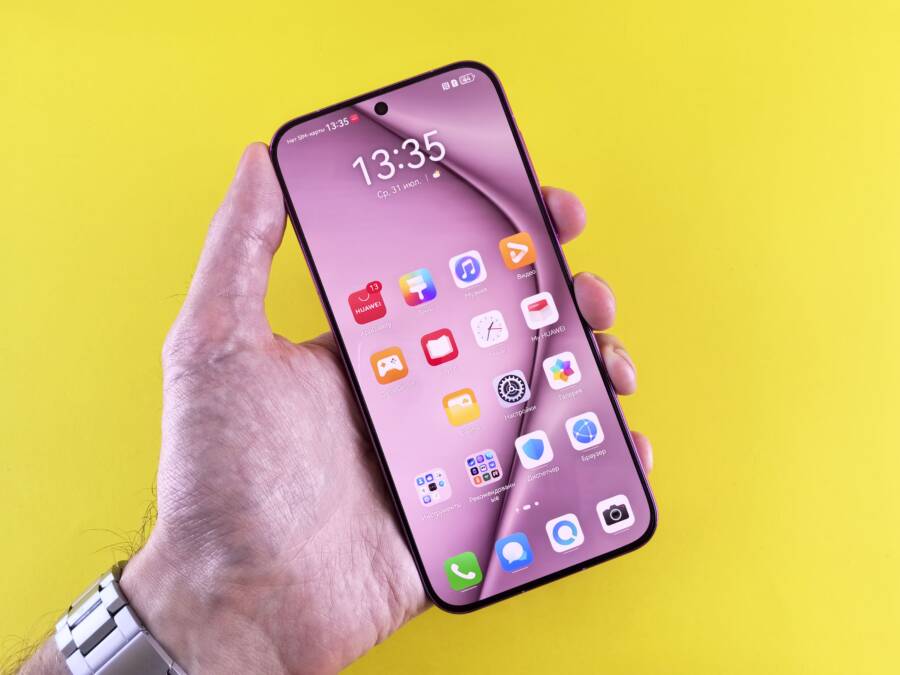
If your smartphone weather app shows the wrong city, you likely need to reset the location permissions or force the GPS to refresh. This common glitch happens when the device software fails to sync your current coordinates with the weather service database.
Fixing this issue usually takes less than a minute of your time. By adjusting your privacy settings or toggling the location services on your smartphone, you can force the app to detect your actual position again.
Follow the steps below to restore accurate local forecasts to your home screen.
Quick Fixes to Get Your Weather App Tracking Properly
If your weather app displays information for the wrong city, your smartphone is likely struggling to pinpoint your current location. This issue stems from minor software glitches or restrictive permission settings that prevent the app from fetching fresh data. You can usually resolve this by auditing your privacy settings or clearing temporary files that might contain outdated location information.
Refreshing Location Permissions for Your Weather App
Your smartphone controls which apps access your precise location to protect your privacy. Sometimes, an update to your operating system or an accidental setting change revokes an app’s access, causing it to fall back on an old or incorrect city. You must ensure the weather application has persistent permission to track you.
On an Android device, open the Settings app and go to the Apps menu. Find your weather application in the list and select Permissions, then tap Location. You should see options like “Allow all the time,” “Allow only while using the app,” or “Don’t allow.” For the best results, choose “Allow all the time” so the app updates even when it is not open in the background.
If you use an iPhone, navigate to Settings and scroll down to locate the weather app in your list of installed applications. Tap Location and ensure the toggle for Precise Location is turned on. You will see a choice between “While Using” and “Always.” Selecting “Always” provides the most consistent experience because it prevents the app from losing your location coordinate data when you switch between different apps on your smartphone.
Clearing Outdated Cache and App Data
Applications often save bits of information, known as cache, to load faster and use less data. Occasionally, this cache becomes corrupted or retains stale location data from a city you visited days or weeks ago. Clearing these temporary files forces the app to discard the old information and perform a fresh request for your current position.
To clear the cache on Android, open Settings, select Apps, and find your weather application. Tap Storage, then select the Clear Cache button. Do not confuse this with Clear Data, as clearing data will reset all your app preferences and saved locations. After clearing the cache, close the app completely and relaunch it to see if it detects your correct city.
On iOS, you cannot clear the cache for individual apps manually in the same way you do on Android. Instead, you must delete the application and reinstall it from the App Store. Deleting the app removes all its associated temporary files and configuration settings from your smartphone. Once you reinstall the app, it will prompt you for fresh location permissions, which usually clears up any persistent tracking errors.
Mastering GPS Settings on Your Smartphone
Your smartphone relies on a constant stream of location data to provide accurate weather updates. When your device is configured to prioritize battery life above all else, it often limits how frequently apps can check your GPS coordinates. This power management behavior is a frequent culprit when a weather app fails to update correctly, leaving you with stale forecasts for the wrong city. By understanding how these power-saving modes interact with your location services, you can regain control over your data accuracy.
Why Battery Saver Modes Can Sabotage Your Weather App
Modern smartphones use aggressive power management to extend battery life throughout the day. When you enable battery saver or low-power modes, the operating system restricts background processes to save energy. These restrictions frequently include preventing apps from waking up to poll your location via GPS. If your weather app cannot request your current coordinates in the background, it defaults to the last known location or an outdated cached entry, which leads to incorrect city reporting.
Most devices offer a way to override these battery restrictions for specific applications that require constant connectivity. To ensure your weather app maintains access to your location even when power-saving features are active, follow these steps to adjust your settings:
-
Open the Settings app on your smartphone and navigate to the battery or power management section.
-
Look for an option labeled “App Battery Usage,” “Battery Optimization,” or “Background Usage Limits.”
-
Locate your specific weather application in the list of installed programs.
-
Select the option that allows background activity or optimizes the app for unrestricted battery usage.
-
Restart your device to apply the change effectively.
By excluding the weather app from these battery-saving limitations, you provide it with the necessary permission to query your location whenever it needs to refresh the forecast. This does not significantly impact your overall battery life, but it fixes the synchronization errors that occur when the operating system suppresses essential data requests. Consistent access to GPS hardware is the only way for your smartphone to provide a precise, location-based weather experience throughout your day.
When Third-Party Apps Are to Blame
Sometimes the issue isn’t with your phone or its internal GPS but with the third-party weather app you installed. Many apps rely on their own servers to determine your location based on your IP address or saved preferences rather than using the raw data from your device. If the app server misinterprets your data, you will see a forecast for a city you aren’t currently in.
The Role of VPNs and Proxy Servers
Virtual Private Networks (VPNs) and proxy servers act as intermediaries between your smartphone and the internet. When you activate a VPN, your traffic routes through a server in a different location. As a result, websites and applications see the IP address of the remote server instead of your actual home or office address. Because many weather apps estimate your current position using this IP information, they incorrectly assume you are located where the VPN server resides.
If you suspect this is happening, you can perform a quick test by turning off your VPN. Most apps refresh their location data immediately once they detect your true IP address. If the weather app corrects itself, you have confirmed that the VPN was the cause of the discrepancy. If you still need to use a VPN for security or privacy, look for a feature in your VPN app called “Split Tunneling.” This setting lets you exclude specific applications, such as your weather app, from the encrypted tunnel. This allows the weather service to see your real connection while keeping the rest of your traffic private.
If disabling the VPN does not work, consider that some third-party apps also allow you to save “Favorite Cities” or “Home Locations” manually. Check the settings menu inside the specific weather application to ensure that your current city is marked as the primary location. Occasionally, an update or an accidental tap can pin an old city as your default, forcing the app to ignore your live location data entirely. Manually removing these saved locations and setting your current city as the active one will often resolve the conflict between your device settings and the app configuration.
Advanced Troubleshooting for Persistent Location Errors
When standard permission checks and cache clearing fail, the issue often resides in the underlying network configuration of your smartphone. Your device relies on a complex handshake between local cell towers, Wi-Fi networks, and GPS satellites to calculate your precise coordinates. If these communication pathways become cluttered or corrupted over time, your weather app receives stale or incomplete location data. Resetting your network settings clears these pathways, forcing your smartphone to re-establish a fresh connection to all external positioning signals.
Resetting Network Settings to Restore Connectivity
Performing a network reset acts as a “factory reset” for your phone connectivity components. It wipes out stored Wi-Fi passwords, paired Bluetooth devices, and custom cellular configurations. This process is a powerful tool because it forces the modem and GPS module to ignore potentially corrupted temporary network profiles. Once the device restarts, it must perform a clean handshake with the nearest cell towers and GPS satellites, which often resolves stubborn location inaccuracies.
To reset your network settings on an iPhone, navigate to Settings, select General, tap Transfer or Reset iPhone, choose Reset, and finally select Reset Network Settings. Your smartphone will reboot automatically. For Android users, the location varies by manufacturer but is generally found under Settings, System, Reset options, and finally Reset Wi-Fi, mobile, and Bluetooth.
Before you proceed, keep these essential details in mind:
-
You must reconnect to your home and work Wi-Fi networks manually, as all saved passwords will be deleted.
-
Paired Bluetooth devices like headphones or smartwatches will require a fresh pairing process.
-
Your cellular data settings, such as APN configurations, will revert to their original carrier defaults.
While this step is slightly more involved than clearing an app cache, it is the most effective way to eliminate deep-seated software conflicts. If your smartphone continues to report the wrong city after a network reset, you can be certain that your connection environment is stable, pointing toward a potential issue with the service provider or a deeper firmware conflict. Most users find that their location-based services function with renewed precision immediately after the device re-establishes these fresh network links.
Conclusion
Fixing a location error in your weather app typically involves refreshing permissions, clearing cached data, or adjusting power management settings. By systematically checking these configurations, you restore the connection between your smartphone and reliable weather data.
Keeping your device software updated serves as the best long-term strategy for preventing these glitches. Frequent updates contain patches for communication errors between the operating system and installed apps.
You now possess the tools to troubleshoot and resolve these location discrepancies independently. Your smartphone will provide accurate, local forecasts once again.