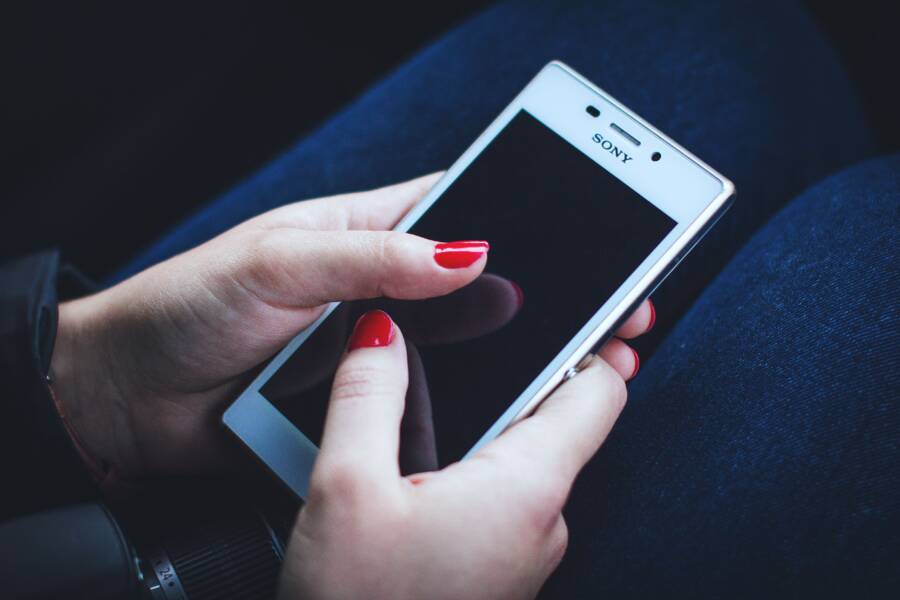
If your smartphone touch screen feels unresponsive after you apply a new protector, you likely have an issue with physical contact or calibration. Most problems occur because of trapped air bubbles, microscopic dust particles, or a protector that is too thick to register your input accurately.
You can often restore full functionality by removing debris or adjusting your device settings to increase touch sensitivity. These small hardware conflicts are frustrating, but they rarely mean your display is damaged.
Follow these steps to diagnose and fix the interference between your screen protector and your display.
Quick Fixes for Touch Sensitivity Issues
When your screen protector interferes with basic navigation, you do not need to discard it immediately. Most modern smartphones have software adjustments that compensate for the physical layer covering the glass. These settings amplify the electrical signal your fingers produce, allowing the display to register touches through thicker materials like tempered glass or plastic films.
Adjusting Touch Sensitivity Settings
Smartphone manufacturers recognize that users often add protective layers to their devices. To accommodate this, many brands include a dedicated mode to boost input detection. Activating this feature is the most efficient way to solve lagging or missed touches without removing your accessory.
For Samsung Galaxy users, you can find this option by opening the Settings menu and selecting Display. From there, scroll down until you see an option labeled Touch Sensitivity. Toggling this switch instructs the digitizer to increase its scanning frequency and gain, which helps it sense input through your screen protector.
On other Android devices, look for similar terminology under the Display or Gestures sections of your system settings. Some models call this feature Screen Protector Mode. If your device lacks this specific setting, you might find a general option for touch performance or pointer speed that achieves a similar effect. Always check your manufacturer website if you struggle to locate these menus, as interface layouts change between different software versions.
Cleaning Your Screen Properly
Even with the correct settings enabled, a poor installation can lead to ghost touches or dead zones. The most common culprit is microscopic debris trapped between the protector and the display. Oils from your skin, lint, and dust particles create tiny gaps that disrupt the connection between your finger and the screen sensor.
Before you reapply or install a new protector, prepare the surface with these steps:
Use a high-quality microfiber cloth to wipe away large dust particles or smudges from the display.
Apply a small amount of isopropyl alcohol to a lint-free wipe.
Clean the surface thoroughly, moving from the center of the display outward to ensure no oils remain near the edges.
Use a dust-removal sticker or a piece of clear adhesive tape to lift any remaining stray fibers that the cloth missed.
If you notice air bubbles after application, they often indicate that dust is trapped beneath the adhesive. If the bubbles persist after you attempt to press them out, remove the protector gently and clean the area again. A clean, perfectly flat surface allows the adhesive to bond completely, which is necessary for consistent touch performance across the entire smartphone surface.
How to Properly Install a Screen Protector to Avoid Glitches
Correct installation is the primary factor in preventing ghost touches and unresponsive zones on your smartphone. When you apply a protector, you are adding a new physical layer between your finger and the digitizer. If this layer sits unevenly, it alters how the device senses electrical impulses. A clean workspace and a steady hand prevent most common input failures before they start.
Removing Trapped Air and Dust
Small particles create uneven pressure points that confuse the screen sensor. When a speck of dust gets trapped under the adhesive, the protector lifts slightly away from the display in that spot. This creates a tiny gap that forces your finger to press harder than usual to reach the digitizer. If the gap is large enough, the phone may register a permanent touch, often called a ghost touch, or simply ignore input in that specific area.
Dust-removal stickers are your best tool for correcting these errors during the initial application. Use these stickers to lift the edge of the protector near the trapped particle without removing the entire piece. Once you lift the edge, use a second sticker to gently tap the underside of the protector and the surface of the display. This technique pulls the debris away from the adhesive surface.
Keep these tips in mind when managing trapped debris:
Work in a well-lit area to see fine dust particles clearly.
Use a static-free environment, such as a bathroom after running a hot shower to settle airborne dust.
Apply light pressure from the center of the screen toward the edges to push out air bubbles once the debris is gone.
Avoid touching the adhesive side of the protector with your fingers, as oils create permanent smudges.
Choosing the Right Type of Protector
Not all screen protectors interact with your smartphone in the same way. The material, thickness, and adhesive quality dictate how effectively your input reaches the underlying hardware. Understanding these differences helps you avoid accessories that require excessive pressure to function.
Tempered glass is a popular choice for durability, but its thickness can interfere with touch sensitivity on some models. Because glass is rigid, it requires a high-quality silicone adhesive to maintain consistent contact across the screen. If the adhesive is low quality, the glass may hover slightly over the display, leading to dead zones near the corners. Always choose tempered glass that specifically matches your model to ensure the cutouts for sensors align perfectly.
PET film is much thinner than glass, which allows it to track your finger movements with high precision. While it provides less impact protection, it rarely creates touch issues because it lays flat against the screen. If you prefer a thinner option, PET film is a safe choice for maintaining factory-level sensitivity.
Liquid screen protectors act as a thin coating rather than a physical shield. They do not create air gaps or pressure points because they bond directly to the glass surface. This makes them ideal for users who experience frustration with the thickness of traditional overlays. If you choose a liquid option, allow for the full curing time recommended by the manufacturer to ensure the surface remains smooth and responsive to your touch.
Common Mistakes That Ruin Your Screen Sensitivity
You often face touch performance issues not because the hardware is faulty, but because of errors made during the application process. These mistakes prevent the screen from registering your finger movements, which forces you to press harder or repeat taps. Recognizing these habits helps you protect your display without sacrificing ease of use.
Using Incompatible Protector Materials
Not every screen protector fits every smartphone model perfectly. If you purchase a generic screen protector, the cutouts for your camera, sensors, or navigation buttons might be slightly misaligned. This misalignment often causes the protective film to press against the bezel or the sensor array, which creates false pressure points. These pressure points confuse the digitizer and lead to erratic behavior, such as apps opening randomly or text failing to input correctly. Always verify that the product specifies your exact model number, as even minor design changes between product generations can render a protector ineffective.
Applying Excessive Adhesive or Liquid
Some users apply extra adhesive or improperly use liquid-based screen protectors, thinking it improves durability. This approach usually backfires. Thick layers of adhesive create a buffer between the screen and your finger, which weakens the capacitive signal your phone needs to register input. Liquid protectors often suffer from similar issues if you use too much solution, as pooling liquid can seep into the edges of the display or damage the ports of your smartphone. A thin, uniform application is essential for maintaining responsiveness. Follow the manufacturer instructions for curing times precisely, because rushing this process leaves a soft or sticky layer that hinders your touch interactions.
Neglecting Screen Curvature
Many modern displays feature curved edges that pose a challenge for flat screen protectors. If you force a rigid, flat protector onto a curved screen, the edges will lift away from the glass. This creates a gap that forces the screen to work harder to sense your finger. You might notice that the middle of the screen responds fine while the edges remain completely unresponsive. If you own a smartphone with a curved display, look specifically for protectors labeled as 3D or curved-fit. These variants use flexible materials or specialized adhesives designed to contour around the curves, preventing the lifting that ruins touch accuracy.
Failing to Re-calibrate After Installation
Some users forget that their smartphone needs a moment to adjust to a new physical layer. While most modern screens auto-calibrate, a significant change in material thickness can cause temporary confusion for the software. If you experience minor lag after adding a new layer, restart your device. This forces the system to re-poll the touchscreen and adjust its gain based on the new input resistance. If you ignore the initial calibration process, you might assume the protector is defective when a simple power cycle would have resolved the issue.
Troubleshooting Persistent Touch Problems
When your smartphone continues to show input lag or unresponsive zones despite proper installation, the issue often stems from hardware interference or software conflicts rather than a defective protector. Most touchscreens rely on capacitive technology, which detects the electrical properties of your fingertips. If a protector introduces too much resistance, or if the screen itself requires a recalibration to account for the added material, your input will feel disjointed. Addressing these persistent glitches requires a systematic approach to isolate the cause.
Identifying Hidden Hardware Interference
Sometimes the protector itself is not the problem, but rather the way it interacts with your case or your phone hardware. Cases that wrap tightly around the edges of the display can push the edge of a screen protector upward, creating a microscopic gap that prevents your finger from making consistent contact with the digitizer. Check your phone case to see if it exerts pressure on the corners or sides of the protector.
If the edge lifting is subtle, try these identification techniques:
Inspect the corners under bright, angled lighting to see if the protector has separated from the screen surface.
Apply light pressure to the areas where touches are missed to determine if the contact returns when the protector sits flush against the glass.
Remove the case temporarily to see if the touch performance improves; if the issue disappears, your case is likely the culprit.
You can often fix these edge issues by trimming a small amount of material from the inner rim of your phone case. Alternatively, switching to a thinner case profile allows the protector to lay flat, which ensures the electrical signals from your fingers pass through to the screen sensor without obstruction.
Evaluating Screen Protector Thickness
The thickness of your protective layer dictates how much signal loss occurs between your skin and the display. High-quality tempered glass protectors usually remain within a tolerance range that smartphones are designed to handle. However, some lower-cost or overly thick options exceed this threshold, forcing the capacitive sensors to struggle for a reading.
If you suspect your protector is simply too thick, consider these realities:
Standard tempered glass is typically 0.3mm to 0.5mm thick, which is generally acceptable for most devices.
If your protector exceeds 0.5mm, it likely requires higher pressure to register touches, leading to the lag you feel during rapid typing or scrolling.
Multi-layered privacy screens or heavy-duty protectors often include extra filters that reduce touch throughput significantly.
If you have tried software adjustments and cleaning but the touch latency remains, replacing the thick protector with a thinner option is the only permanent solution. PET plastic films or ultra-thin tempered glass alternatives offer better sensitivity while still providing adequate scratch protection for your smartphone.
Managing Software Recalibration Cycles
Your smartphone firmware is programmed to recognize specific electrical signatures as touch input. When you add a physical layer, you alter the baseline resistance that the digitizer monitors. While modern operating systems adjust to this automatically, a restart often triggers a more effective recalibration cycle than letting the phone sit idle.
Restart your device after you install or adjust a protector to force the system to poll the hardware. If the problem persists, perform a hard reset or a forced restart, which is often found by holding the power and volume buttons simultaneously on most current smartphone models. This clears the temporary cache and prompts the digitizer to rescan the surface, frequently resolving intermittent dead zones or ghosting that appeared immediately after you changed the physical screen interface.
Conclusion
Most touch sensitivity issues arise from trapped debris or incorrect software settings rather than hardware damage. You can typically restore functionality by cleaning the display surface thoroughly or enabling touch boost modes within your smartphone system menus.
Prioritize high-quality screen protectors that match your exact model to prevent alignment problems or edge lifting. Investing in proper installation accessories helps keep your interface smooth and responsive for the long term.