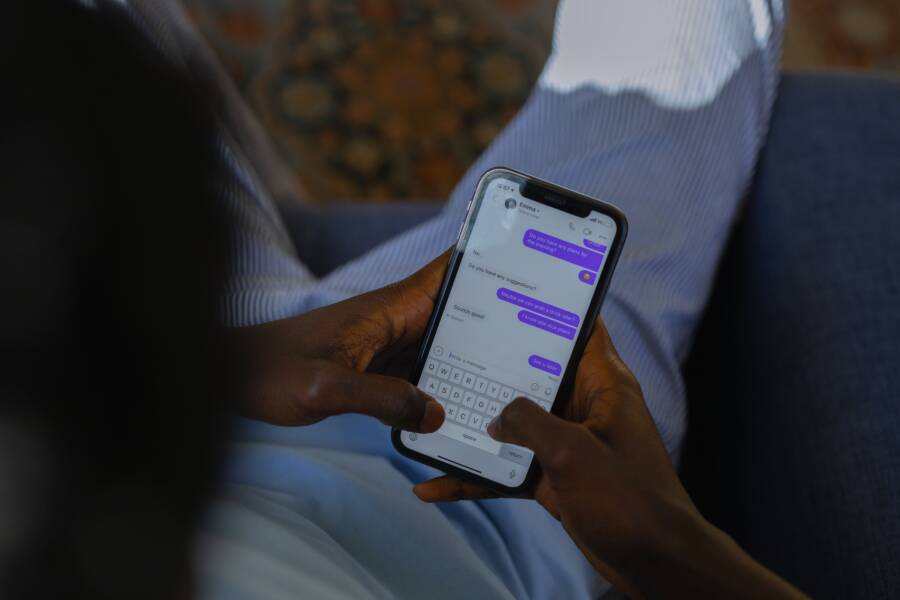
It is frustrating when your text messages arrive out of order, often leaving you to guess the actual timeline of a conversation. This issue is usually a synchronization error between your smartphone network and your device settings.
Most users can resolve this problem by checking their date and time settings or resetting their network connection. Fixing these settings helps your smartphone align with cellular towers and display incoming messages in the correct sequence.
Common Reasons Why Your Messages Get Mixed Up
Text messages often arrive in the wrong order because your smartphone depends on precise data timing. When your device receives a batch of messages, it sorts them based on the timestamp assigned by the network or the phone system. If these signals or internal settings fail to sync, the messages appear out of sequence. Understanding the technical reasons for these interruptions helps you identify the quickest way to resolve the problem.
When Network Delays Disrupt Your Conversation
Your smartphone receives messages as small bundles of data called packets. When your signal is weak or the network is congested, these packets sometimes take different paths to reach your device. A message sent later might arrive at your phone before an earlier one because it traveled through a less crowded route. When this happens, your phone displays the messages based on the time they arrived rather than when they were actually sent.
Network latency frequently disrupts communication in crowded areas like stadiums or during heavy traffic times. You can often test this by moving to a different location with better signal reception. If you notice your messages consistently arrive out of order during phone calls or while using data, your carrier might be experiencing local interference. Switching your phone to airplane mode and back to normal again forces it to re-establish a connection with the nearest tower, which often clears up these synchronization errors.
How Time Zone Settings Impact Message Sorting
Your smartphone relies on internal date and time settings to organize incoming conversations. If your device clock drifts even by a few seconds from the network clock, the phone may sort messages incorrectly. This issue happens frequently when your phone fails to update automatically after you cross time zones or when the manual clock settings are slightly off.
When the system time is wrong, your phone attempts to categorize every incoming packet against an inaccurate baseline. If you suspect your phone is misinterpreting timestamps, follow these simple steps to ensure everything aligns correctly:
- Open the settings menu on your smartphone.
- Select the general or date and time section.
- Enable the automatic update feature provided by your cellular network.
- Restart your device to apply these changes.
Setting your device to use network-provided time prevents manual errors and keeps your phone in sync with the carrier infrastructure. This simple change allows your phone to interpret timestamps accurately, ensuring your conversation history remains in the correct order every time you open your messaging app.
Simple Steps to Fix Messy Text Threads on iPhone
Communication issues often stem from minor glitches in the background processes of your smartphone. When your text messages appear disorganized, the connection between your device and the messaging servers frequently requires a manual reset. Refreshing these settings forces your device to clear out temporary data errors that block accurate message sequencing.
Refreshing Your iMessage Connection
Toggle your iMessage settings to force your device to establish a fresh handshake with Apple servers. This process clears out hung processes that might cause incoming messages to display in the wrong order.
- Open your Settings app.
- Scroll down and tap on Messages.
- Locate the toggle switch labeled iMessage.
- Turn this switch off and wait at least ten seconds.
- Toggle the switch back to the on position.
Wait for the status to show that it is activated before returning to your home screen. Your phone will re-verify your phone number and email address with the server. This simple reset often resolves issues where your smartphone fails to properly timestamp incoming data packets. If your messages remain scrambled after this step, you may need to check for broader system updates.
Checking for iOS System Updates
Software bugs within your operating system can prevent your messaging app from sorting incoming data correctly. Apple releases regular updates to patch these communication errors and improve how your hardware handles network traffic. Running an outdated version of iOS leaves your smartphone vulnerable to glitches that interrupt the logical flow of your text threads.
System updates also improve your connection stability and security protocols. If you notice persistent sorting problems, check your software status:
- Navigate to the General menu within your Settings app.
- Tap on Software Update to see if a newer version is available.
- Follow the on-screen instructions to install any pending updates.
Keeping your software current ensures your device handles network timestamps exactly as intended. These updates fix known bugs that cause threads to appear out of order. If you still face issues after installing the latest version, your network settings might need a more thorough reset. Keeping your device updated remains the most effective way to prevent software-related communication errors on your smartphone.
Troubleshooting Steps for Android Messaging Issues
When your Android smartphone displays messages out of order, the fault often lies in temporary data accumulation or synchronization conflicts. You can typically restore normal message flow by resetting the local environment the app uses to track conversations. These troubleshooting steps address the most common software hurdles that prevent your device from sorting incoming text threads correctly.
Clearing Cache for Your Messaging App
Your messaging app stores temporary files to help it load conversations quickly. Over time, these files can become corrupted or outdated, causing the app to misread the timestamps on incoming messages. Clearing this cache removes the temporary data without deleting your actual text history.
Follow these steps to clear the cache on your Android device:
- Open your device Settings app.
- Tap on Apps or Application Manager.
- Find your default messaging app in the list and select it.
- Tap Storage or Storage and Cache.
- Select Clear Cache.
Do not select Clear Storage or Clear Data unless you have backed up your messages, as this action permanently removes your conversation history. Once you clear the cache, restart your smartphone to allow the app to rebuild its index with fresh data. This simple process frequently corrects display errors by forcing the app to re-evaluate the sequence of your existing threads.
Verifying Date and Time Synchronization
Messaging servers rely on precise coordination between your smartphone and the cellular network. If your device time drifts even a few seconds away from the official network time, the system may struggle to sort incoming messages accurately. Enabling automatic time updates ensures your phone constantly pulls the correct time from the cellular tower rather than relying on its own internal, and sometimes inaccurate, clock.
Check your time settings with these steps:
- Go to your Settings menu.
- Search for Date and Time or System.
- Make sure the option labeled Set time automatically or Use network-provided time is active.
- If it was already on, toggle it off and back on again to force a refresh.
When your phone uses network-provided time, it aligns perfectly with the timestamps attached to every incoming message packet. This synchronization is vital because it provides a single, shared reality between your phone and the messaging gateway. Without this alignment, your smartphone might see a message timestamped at 10:01 AM and accidentally display it after a message that arrived at 10:02 AM. Keeping these settings set to automatic prevents this sorting logic from failing during daily use.
When to Contact Your Carrier for Help
You should contact your carrier if local troubleshooting steps fail to fix your messaging timeline. While your device settings handle internal sorting, your carrier manages the actual delivery and timestamping of data packets as they transit through the network. If your messages remain scrambled after you reset your network and verify your time settings, a broader service issue might exist.
Identifying Carrier-Side Issues
Service disruptions often originate at the tower or server level rather than within your own device. You can verify if a service issue affects your area by checking the official status page for your wireless provider. If the outage maps show localized signal interference, your smartphone cannot accurately receive or order incoming data packets until technicians complete repairs.
Look for these signs that suggest a network problem:
- Multiple people in your location experience similar messaging delays or ordering errors.
- Your phone shows full bars of signal, yet messages arrive in batches or significantly late.
- Your carrier recently performed maintenance in your region that correlates with the start of your issues.
- Other cellular functions, like calls or mobile data, show performance drops along with your messaging errors.
Preparing for a Support Conversation
Gather specific information before you call or chat with customer support to speed up the resolution process. Support agents typically ask for the make and model of your smartphone and the specific timeframe when the sorting problems began. Having this information ready helps them check if your account has a provisioning error or if your local tower requires a manual reset.
Keep a record of these details to provide during your request:
- The exact time and date when the messaging order errors first appeared.
- A list of recent steps you performed, such as resetting network settings or checking for system updates.
- Examples of specific text threads or contacts where the ordering issue happens most frequently.
- Your current location or the name of the nearest major city to help them identify affected network sectors.
When you contact support, ask specifically if there is a pending service ticket for your local tower. Occasionally, your account might need a signal refresh from their end to clear up stuck messages waiting in the queue. If they confirm that the network is healthy, you can then rule out carrier-side factors and focus on potential hardware concerns or deeper software conflicts on your device.
Conclusion
Most messaging synchronization errors occur because of minor mismatches between your device clock and network time. You can fix the majority of these issues by toggling your airplane mode or verifying that your automatic time settings are active. Maintaining a healthy smartphone requires only these basic adjustments to keep your communication flowing in the right order.
If these simple fixes don’t restore your message sequence, check for pending software updates or contact your carrier for deeper technical support. Keeping your software current remains the best way to prevent future glitches from disrupting your daily conversations.