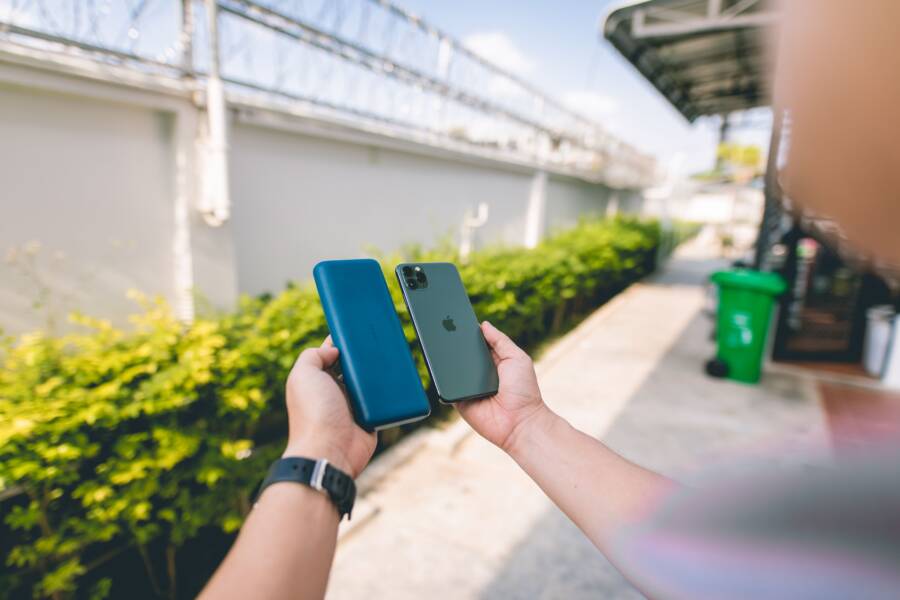
A stuck charging animation is usually a software glitch or a communication error between the battery and the operating system of your smartphone. When your device displays an icon that refuses to move or update, it often creates confusion about whether the power level is actually rising.
Most of the time, this issue occurs because the system interface fails to refresh the battery status data correctly. You don’t need a repair shop to fix it, as a simple reset or cache adjustment often resolves the conflict.
Follow these practical steps to clear the error and get your device displaying the correct battery status again.
Simple Troubleshooting Steps to Fix Your Charging Display
When your smartphone shows a frozen charging icon, the system is likely struggling to sync the actual battery percentage with the visual interface. This minor communication breakdown does not mean your hardware is broken or that your battery is failing. You can often resolve these synchronization errors by refreshing the software state through a few targeted actions.
Performing a Hard Reset on Your Device
A hard reset, also known as a force restart, is the most effective way to clear temporary cache memory without erasing your personal data. This process terminates all background processes and reloads the operating system, which usually forces the charging animation to reset and report the correct status.
Follow these steps based on your specific smartphone type:
For modern iPhones: Quickly press and release the Volume Up button, then quickly press and release the Volume Down button. Finally, press and hold the Power button until the screen goes black and the Apple logo reappears.
For Android devices: Press and hold both the Power button and the Volume Down button simultaneously for about 10 to 15 seconds. The device will vibrate or shut down, indicating the restart process has begun.
This action acts as a hard power cycle for the software. Because it does not trigger a factory reset, your photos, apps, and settings remain completely intact. Once the device boots back up, plug it into a charger to see if the animation updates correctly.
Cleaning the Charging Port Safely
Sometimes the issue is not software-based but physical. Over time, lint, dust, and pocket debris accumulate inside the charging port of a smartphone. This buildup can obstruct the pins, causing the device to detect a connection intermittently or preventing the data exchange required to update the charging display.
Inspect the port carefully under a bright light to check for debris. If you notice any blockage, follow these safety guidelines to remove it:
Use a non-conductive tool such as a thin wooden toothpick or a plastic dental pick.
Avoid using metal objects like needles or paperclips, as these can easily scratch the delicate pins or cause a short circuit.
Gently scrape the bottom of the port to loosen any packed lint, then tip the device downward so the debris falls out.
Do not apply excessive pressure or force, as the internal components are fragile.
After clearing the port, use a small puff of compressed air if available to remove any remaining fine particles. Once the port is clean, reconnect your charging cable firmly to check if the battery icon begins to animate normally.
Understanding Why Your Smartphone Software Gets Glitchy
A frozen charging animation is rarely a sign that your hardware is dying. Instead, the problem usually stems from a breakdown in how your smartphone interprets incoming power data. Software consists of many layers, and when these layers fail to communicate, your interface shows outdated information. Recognizing these common triggers helps you fix the issue without needing professional support.
The Role of System Updates in Battery Management
Your smartphone relies on complex firmware to monitor the state of the battery. This software tracks voltage levels, current draw, and temperature to provide an accurate estimate of your remaining power. When manufacturers release system updates, they often include patches that change how the operating system reads this information. If you delay these updates, your older software might struggle to interpret signals from newer power management hardware or updated charging protocols.
Conflicts arise because the operating system expects specific data packets from the charging controller. When the firmware becomes outdated, it may misread these packets or stop listening for updates entirely. The result is a static icon that fails to reflect the true charge level. Keeping your device updated prevents these communication gaps and ensures the interface displays the most accurate data from your power system.
When Third-Party Apps Affect Charging Icons
Modern smartphones allow various applications to run in the background, which adds utility but introduces potential conflicts. Battery monitoring apps, custom theme engines, and screen overlay utilities often attempt to inject their own information into your status bar. If these apps contain bugs or conflict with your system settings, they may freeze the default charging animation to prioritize their own custom display or to save processing power.
Overlay apps are particularly problematic because they run on top of the native interface. They create a layer that draws your battery icon, meaning the visual indicator you see is not the one generated by the phone software itself. If the overlay app hangs, the icon stops updating while your actual battery continues to charge normally. Consider these points when troubleshooting a frozen icon:
Third-party battery savers often disable background refreshes to conserve energy, which stops the animation from updating.
Screen overlays or widgets that modify the status bar might fail to sync with the system power status.
Excessive background processes consume the memory needed to refresh interface elements, leaving your icons stuck.
Try booting your phone in safe mode if you suspect a specific app is causing the glitch. This disables all third-party software temporarily, allowing you to see if the default charging animation returns to normal. If the icon behaves correctly in safe mode, you likely need to remove or update the conflicting app to prevent future display freezes.
When to Consider Hardware Issues Instead of Software
Sometimes the frozen charging icon on your smartphone is not a software quirk. If you have already performed a hard reset and cleaned the charging port without success, the problem likely resides in the physical components of your power delivery system. Hardware failures often present with subtle symptoms that mimic software glitches, making it easy to overlook the physical source of the trouble. Before you commit to a factory reset or visit a repair shop, look closely at the integrity of your charging accessories and the status of your internal battery.
Signs Your Charging Cable or Brick Is Failing
The connection between your wall outlet and your smartphone relies on a steady flow of electricity. If your cable has internal fraying or a damaged connector, that power delivery becomes inconsistent. Even if the cable looks fine on the outside, microscopic breaks in the wiring can interrupt the handshake protocol required for your device to recognize a charge. When this happens, the system may register a connection, but the intermittent power supply causes the charging animation to stall because the operating system cannot maintain a stable link.
Check your accessories for these common failure indicators:
The cable jacket shows signs of heat damage, such as discoloration, melting, or stiffening near the connectors.
You need to wiggle the cable or hold it at a specific angle to trigger the charging icon.
Your charging brick feels excessively hot to the touch or makes a faint buzzing or clicking sound when plugged in.
The device stops charging and starts again repeatedly while sitting on a flat, stable surface.
If you suspect your cable is the culprit, the most effective test is to try a different, certified cable and power adapter with your smartphone. If the charging animation starts working correctly with new accessories, you have successfully isolated the issue to a failing cable or brick. Using low-quality or damaged charging gear risks damaging the sensitive power management integrated circuit inside your phone, so replace worn components immediately.
Identifying Potential Battery Degradation
Batteries are chemical components with a finite lifespan. Every time you charge and discharge your smartphone, the battery loses a small amount of its total capacity. As a battery reaches the end of its life, it struggles to hold a voltage level that the phone expects. This discrepancy confuses the system, often resulting in erratic battery percentage readings or a charging animation that stops updating because the sensor is unable to read a clear, rising voltage curve.
Most modern mobile operating systems provide built-in tools to check the health of your battery. You should look for a menu option labeled Battery Health or Battery Status in your system settings. If the maximum capacity is below 80 percent, or if the system indicates that the battery needs service, you are dealing with physical degradation.
When a battery is significantly degraded, it can no longer support the rapid power intake of newer chargers. The software might stop the animation or limit the charging speed to prevent internal heat buildup or damage. If your settings indicate your battery has reached the end of its typical cycle life, replacing the battery is the most reliable way to restore normal behavior. If the health report looks fine but the icon remains stuck, consider that the battery sensor itself could have a physical defect requiring a professional hardware diagnosis.
Advanced Solutions and Professional Support
You reach a point where basic troubleshooting fails to resolve the stuck charging animation. If you completed a hard reset, cleared your charging port, and tested different accessories without success, the issue likely sits deeper within the software environment or the hardware foundation of your smartphone. Persistent display errors indicate a conflict that requires more precise intervention or expert diagnostic assistance.
Navigating System Log Conflicts
Sometimes the operating system cache retains corrupted data that prevents the status bar from refreshing. A standard hard reset clears active memory, but it does not remove deep-level system logs or temporary files that store your charging history. You can address this by clearing the system cache partition if your device supports this feature. This action removes temporary files created by the operating system during updates and app installations without deleting your personal data.
Most modern Android smartphones allow access to this recovery menu by holding specific button combinations during startup. If you use an iPhone, you lack a manual cache partition menu, so a full restore via a computer is your primary option to clear deep-seated system bugs. Follow these guidelines to clear stubborn software states:
Back up your important files to a cloud service or local computer before attempting a system-level repair.
Boot your smartphone into Recovery Mode using the manufacturer-specific button sequence.
Select the option to wipe the cache partition and confirm the action.
Reboot the device normally to let the system rebuild its index.
If the animation remains frozen after this step, the configuration file controlling the battery icon might be corrupted. You can reset your system settings to the factory default state, which often resolves conflicts caused by incompatible display preferences or power-saving configurations. This step keeps your photos and apps safe, though you will need to reconfigure Wi-Fi networks and Bluetooth pairings.
Choosing Authorized Professional Repair
When software repairs and accessory swaps do not fix the problem, you should suspect internal hardware failure. The charging controller on the motherboard acts as the brain for power management. If this component suffers damage from liquid exposure or electrical surges, it sends incorrect status data to the operating system. You cannot fix physical motherboard damage through software adjustments.
You have three clear paths when seeking professional help for your smartphone:
Manufacturer support centers offer the most reliable diagnostics because they use proprietary software to read raw battery sensor data.
Independent repair shops often provide faster turnaround times and can handle component-level repairs if you are out of warranty.
Your wireless carrier might offer equipment protection plans that cover the repair costs if the hardware failure is deemed a covered defect.
Avoid unauthorized repair kiosks that use non-certified parts, as these can trigger permanent software locks or compromise the water resistance of your smartphone. Always request an itemized diagnostic report before agreeing to a repair. This document helps you understand if the technician is replacing the battery, the charging port assembly, or the entire logic board. If the repair cost exceeds the current market value of your device, you might find that upgrading to a newer model provides a better long-term return on your investment.
Conclusion
A frozen charging animation is usually a minor software bug rather than a sign of serious hardware failure. Most users can resolve the issue by performing a simple hard reset or clearing physical debris from the charging port of their smartphone.
Keeping your system software updated is the best way to prevent these display glitches from recurring. Regular updates contain necessary patches that ensure your device interprets power data accurately.
If your smartphone still displays a static icon after you have tried these troubleshooting steps, consider inspecting your charging accessories for damage or checking your battery health settings. Persistent errors often indicate that it is time for a professional diagnostic evaluation to protect your device from further power management issues.