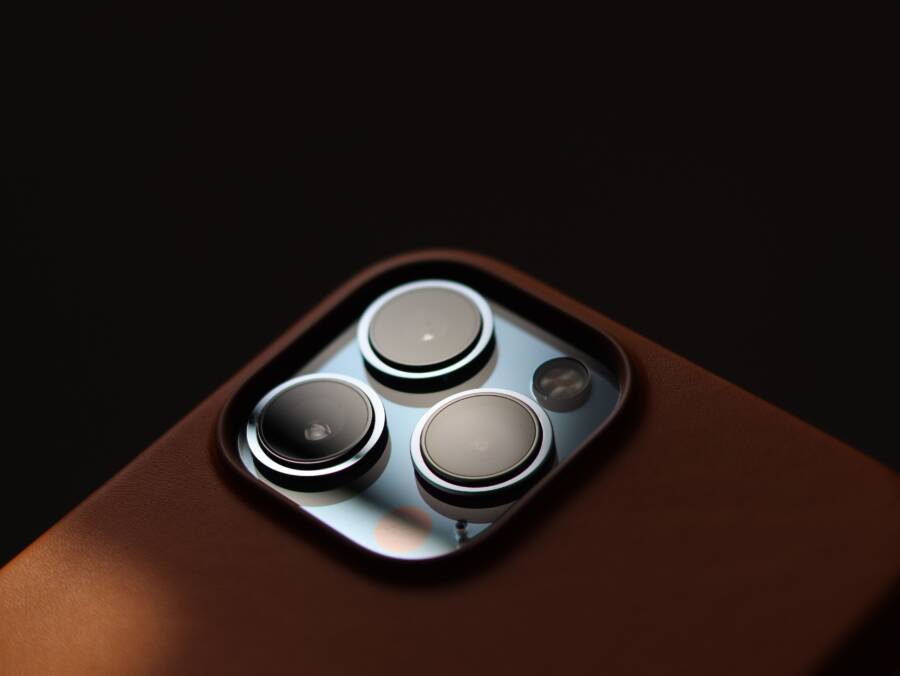
If your ultra wide lens refuses to activate, you likely have a software glitch or a proximity issue rather than broken hardware. Most of the time, your smartphone camera automatically switches modes based on how close you are to your subject or how much light is available.
You can often fix this behavior by cleaning the lens, moving slightly further back from your target, or force-closing the camera app to reset the sensor. Countless users run into this limitation when they accidentally cover the sensor or try to focus too closely.
The following steps provide a clear path to identifying the source of your trouble and restoring full camera function. Follow these instructions to troubleshoot your camera settings and hardware performance.
Why Your Smartphone Ultra Wide Lens Might Not Engage
Modern smartphone cameras rely on complex logic to select the right lens for your scene. When the ultra wide sensor fails to trigger, the device often defaults to the main lens because it cannot satisfy the specific conditions required for the wider angle. This behavior feels like a malfunction, but the camera software frequently makes this choice to protect image quality.
Environmental Light Constraints
Sensors in ultra wide lenses are typically smaller than those found in primary lenses. Because of this physical limitation, they struggle to capture enough light in dim conditions. If your smartphone detects low light, it will prioritize the main sensor to avoid excessive image noise or blur. You can test this by moving to a brightly lit room or moving outdoors; the ultra wide option will often reappear immediately once the sensor detects sufficient exposure.
Minimum Focus Distance
Physics dictates that fixed-focus lenses have limitations regarding how close they can get to a subject. Most ultra wide cameras cannot focus on objects that are extremely close to the lens. If you try to take a macro shot with the ultra wide setting, the smartphone software prevents the switch because the image would appear blurry or distorted. Stepping back a few inches from your subject helps the camera identify a focus point and allows the ultra wide mode to activate properly.
Software Conflict and Glitches
Occasional software bugs can trick the camera app into thinking an ultra wide lens is unavailable. This occurs when the background process managing the lens switch hangs or freezes due to memory pressure from other apps. You can resolve these hiccups using a few simple actions:
Restart your camera app by swiping it away from the recent apps list.
Clear the cache of the camera app through your system settings.
Toggle the camera orientation or switch between photo and video modes to reset the sensor input.
Perform a full device restart to clear temporary system errors affecting hardware drivers.
Hardware Obstruction
Sometimes the issue is physical rather than digital. If you use a bulky phone case or a magnetic attachment, the edge of the accessory might partially block the wider field of view. Sensors near the lens array can interpret this obstruction as a mechanical failure or a lens defect. Inspect the area around your camera lenses for dust, lint, or debris that might interfere with the optical sensor. Keeping the glass clean and ensuring no part of your hand or case covers the frame ensures the camera logic functions as expected.
Quick Software Fixes for Camera Lens Glitches
When your smartphone camera behaves unexpectedly, software conflicts often hide behind the screen. Many users assume hardware failure at first glance, but a simple reset usually restores the ultra wide lens to its normal state. Refreshing your device clears temporary bugs that interrupt communication between the camera sensor and the operating system.
Restarting the Camera App and Your Device
The quickest way to solve a frozen camera lens is to force a complete restart of the application. Apps often hold onto memory in ways that prevent sensors from switching properly. Swiping the app away from your recent tasks menu clears this active cache, allowing the software to initiate a fresh connection with the camera hardware when you open it again.
If the ultra wide lens still fails to activate, a full system restart of your smartphone acts as a harder reset. This process clears the temporary system memory and reloads the camera drivers from scratch.
Follow these steps to perform a thorough refresh:
Close all open applications to prevent background resource conflicts.
Hold the power button on your smartphone until the prompt appears.
Select the restart option or power the device off completely.
Wait for the system to finish its startup sequence before opening the camera app.
Restarting the phone ensures that every system service starts fresh. This eliminates conflicts where a prior app session may have locked the camera sensors in a specific mode. If the issue remains after a reboot, you can verify if a wider software update is necessary to patch lingering bugs.
Updating Software to Improve Lens Performance
Software updates provide essential fixes for the complex interaction between your smartphone operating system and the physical camera modules. Manufacturers frequently release patches that improve how the device manages its various lenses. These updates often resolve compatibility issues where the phone software incorrectly identifies the available light or focus distance for the ultra wide sensor.
Old firmware can cause your camera to ignore the wide angle lens during scenes where it should operate perfectly. Updates also include performance optimizations that allow the system to switch between lenses faster and more accurately. Check your settings menu under the system or software update section to see if a newer version is available.
Installing the latest software version helps in three specific ways:
It updates the camera driver to better communicate with the lens hardware.
It improves the logic used by the software to decide which lens fits your environment.
It removes known bugs from the previous OS version that might interfere with camera switching.
Always ensure your battery has enough charge before initiating an update. Stable power prevents incomplete installations that could lead to further camera instability. Once the device updates and reboots, test the ultra wide lens in a well-lit area to confirm that the software now correctly triggers the wider view.
Physical Factors Affecting Wide Angle Performance
Smartphone camera systems rely on precise hardware alignment to capture high-quality images. When the ultra wide lens fails to produce clear results, physical obstructions or surface contaminants are often the cause. These components occupy a specific space on the rear of your device, and they require a clean, unobstructed view of the scene to function correctly. Minor debris or poorly fitted accessories can confuse the sensor logic, preventing the wide-angle mode from activating as intended.
Cleaning Your Lens Array Safely
A layer of smudge or dust on the outer glass can scatter incoming light. This forces the camera sensor to struggle with focus and contrast, often causing the software to disable the ultra wide lens entirely. You should clean the lens glass with care to avoid scratching the delicate protective coating that prevents glare and reflections.
Use a clean, dry microfiber cloth to gently wipe the lens area.
Avoid using paper towels or tissues, as these materials can leave tiny scratches on the glass surface.
If the glass remains dirty, dampen the cloth slightly with a small amount of distilled water or a dedicated lens cleaning solution.
Wipe the lens in small, circular motions starting from the center and moving outward.
Inspect the lens under a bright light to ensure no streaks or dust particles remain.
Refrain from using household glass cleaners or harsh chemicals on your smartphone. These liquids can strip away the specialized anti-reflective coating applied to the lens, leading to permanent haze or increased ghosting in your photos.
Checking for Obstructions or Case Interference
Many phone cases feature thick bezels designed to protect the protruding camera array. While these cases provide durability, they can also block the extreme edges of the ultra wide field of view. Because ultra wide lenses capture a much broader area than standard lenses, they are highly sensitive to objects sitting close to the lens barrel.
If your case has a thick frame, it might be casting a shadow or physically clipping the corners of your wide-angle frame. You can quickly test this by removing the case and opening the camera app again. If the ultra wide mode functions normally once the case is off, you know the accessory is the culprit. In some cases, a small piece of dirt or lint trapped between the case and the phone body can also press against the lens housing, confusing the sensor. Regularly checking for debris in these narrow gaps keeps your camera clear and ensures the software can always switch lenses without interference from external hardware.
When to Seek Professional Repair for Camera Issues
Most camera problems stem from minor software bugs or external obstructions. You can fix many of these issues at home by following simple troubleshooting steps. However, certain symptoms indicate physical damage that requires professional attention. If your smartphone lens shows persistent failure despite your best efforts, you might need a certified technician to inspect the hardware.
Identifying Internal Hardware Failure
Physical damage often manifests in ways that software resets cannot resolve. You should consider professional repair if you notice specific mechanical signs that persist after you perform a factory reset. These issues usually originate from drops, liquid exposure, or component wear over time.
Look for these signs that suggest the camera module needs a professional evaluation:
The camera app crashes immediately or shows a black screen every time you select the ultra wide mode, even after you clear the system cache.
You see visible cracks, moisture, or condensation trapped underneath the exterior lens glass.
The phone makes an audible clicking or rattling sound when you switch between camera lenses.
Your camera fails to focus across all zoom levels, which suggests a failure in the autofocus motor assembly.
The device runs unusually hot near the camera area, indicating a short circuit or a failing component.
Assessing Warranty and Service Options
If you determine that the problem is physical, check your device warranty status before visiting a repair center. Many manufacturers cover hardware malfunctions that occur without accidental damage. Unauthorized repairs can void your warranty, so you should always contact the official support channel first.
Most manufacturers offer several paths for professional assistance:
Visit an authorized service provider to keep your warranty intact.
Check your carrier or insurance plan for coverage on accidental damage.
Consult the official support app on your smartphone to run a hardware diagnostic test.
Request a mail-in repair service if local support centers are unavailable.
Official service centers use calibrated tools to ensure the lens alignment remains precise. They also use genuine parts that maintain the water-resistance seals of your device. Third-party shops might offer faster turnaround times, but they may lack the necessary equipment to calibrate the ultra wide lens sensor correctly. Weigh these factors carefully before you choose a technician to handle your hardware.
Conclusion
Most ultra wide lens issues on your smartphone stem from simple software bugs or incorrect shooting distances. Start your troubleshooting by force-closing the camera app, cleaning the lens glass with a microfiber cloth, and ensuring you are not too close to your subject. These quick fixes resolve the majority of technical snags without requiring professional help.
If these steps fail to restore your camera functions, check for available system updates or inspect the lens for physical damage. Addressing these minor software and maintenance tasks regularly keeps your smartphone camera in prime condition. Consistent care guarantees that you can capture wide-angle shots whenever the perfect view appears.