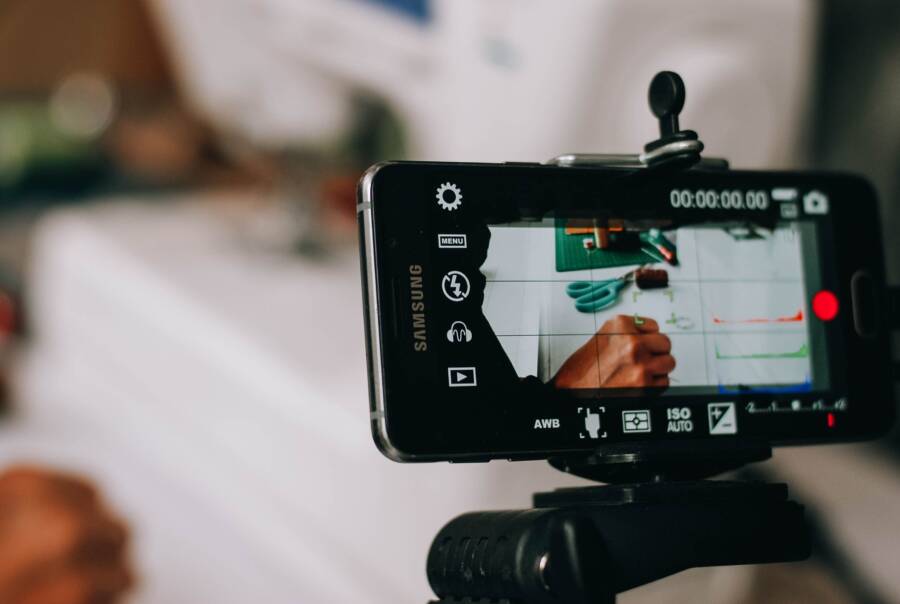
When your smartphone stops recording video without warning, the culprit is usually a lack of storage, overheating, or background app interference. These issues force the camera to shut down to protect your data and hardware.
This guide provides simple, effective steps for iPhone and Android users to fix these interruptions. You will learn how to troubleshoot your device settings so you can capture footage without any more stops.
Check Your Available Storage Space
When your video recording stops abruptly, a full storage drive is the most likely cause. Modern high-definition video files consume space rapidly on any smartphone. Once your device reaches its capacity, it stops new recordings to prevent data corruption or system crashes. You should check your storage settings first to see if this is the source of your problem.
On an iPhone, go to Settings, tap General, and select iPhone Storage. On an Android, navigate to Settings, choose Storage or Device Care, and look for a breakdown of your used space. If you see only a few megabytes remaining, your system cannot sustain a long video recording. You need to free up several gigabytes to ensure the camera functions during long sessions.
Clear Out Old Photos and Videos
Deleting media files is the fastest way to recover large amounts of space. Many people store years of content they no longer need, which clogs the local memory. Before you hit the delete button, however, you must ensure your precious memories are safe elsewhere.
Sync your library to a cloud service like iCloud for iOS or Google Photos for Android. These services offer automated backup features that move full-resolution files to the cloud. Once the upload finishes, the system can replace local files with smaller, optimized versions or remove them from the device entirely.
- Open your cloud app and verify that all recent items appear in the backup.
- Use the “Free up space” feature inside the app settings to remove local copies that are already safely backed up.
- Empty the “Recently Deleted” folder in your gallery app to permanently clear the files from your storage.
Uninstall Unused Applications
Heavy applications and mobile games often occupy more space than a collection of photos. High-end games frequently include large asset files for graphics and audio that sit idle on your storage. When you prioritize long video recordings, these unused apps act as dead weight that prevents your smartphone from saving new footage.
Open your app manager or storage menu to view a list of all installed software, sorted by size. Look for games you have not played in months or utility apps that you no longer need. Uninstalling a few large apps can instantly reclaim gigabytes of storage space. If you decide you need an app later, you can always download it again from your app store. Regular cleanup of your app list maintains your performance and gives your camera the room it needs to operate.
Manage Smartphone Heat and Battery Health
High-performance video recording pushes your smartphone hardware to its limits. The processor works constantly to encode high-resolution data, which generates significant heat. When internal sensors detect temperatures that exceed safe operating limits, the device shuts down the camera to prevent permanent damage to the battery or internal components. Managing these factors helps you record longer clips without unexpected interruptions.
How to Cool Down Your Device Quickly
If your device feels hot to the touch or stops recording, take immediate action to lower its temperature. High heat prevents the phone from functioning at full capacity during intensive tasks.
- Remove the phone case immediately. Most cases trap heat against the chassis and prevent natural cooling through the air.
- Move away from direct sunlight or hot surfaces like a car dashboard. A shaded, well-ventilated area allows the heat to dissipate faster.
- Close all background applications. Even apps you are not actively using consume processing power and contribute to heat buildup.
- Turn on Airplane Mode for a few minutes. This stops the device from searching for cellular or Wi-Fi signals, which lowers the workload on the internal radio components.
Place your smartphone on a cool, solid surface like a marble or granite countertop for several minutes. Do not put the phone in a refrigerator or freezer. The rapid temperature change creates condensation inside the device, which causes more damage than the heat itself. Once the device feels cool, wait another minute before restarting your recording session.
Avoiding Battery Drain During Recording
Video recording consumes more energy than almost any other task on your smartphone. High-resolution settings force the hardware to process and write massive amounts of data per second, which depletes the battery rapidly. This strain often creates stability issues when the charge level drops below a certain point.
Recording at 4K resolution at 60 frames per second requires significantly more power than standard 1080p at 30 frames per second. The higher frame rate captures twice as much data, and the high resolution requires complex encoding work from the processor. When the battery health is low or the current charge level is under 20 percent, the system may throttle performance or kill the recording process to maintain basic device operation.
If you plan to film for an extended time, follow these practices to keep your battery stable:
- Use a lower resolution or frame rate if 4K is not required for your project.
- Keep your smartphone connected to an external power bank during long recording sessions.
- Turn off features like Bluetooth, GPS, and high-brightness screen settings while the camera is active.
- Check your battery health in the device settings. If your battery is aged or worn, the system limits power output during demanding tasks, which triggers automatic shutdowns.
A stable power supply is necessary for long videos. If you notice your battery percentage drops by several points in just a few minutes of recording, your battery may struggle to handle the high power draw. In these cases, reducing the video quality settings serves as the most effective fix for preventing abrupt stops.
Solve Software Conflicts and Glitches
Software conflicts often interrupt video recording sessions on a smartphone. These errors occur when background processes compete for resources or the operating system encounters a temporary logic fault. You can resolve most of these issues by clearing the system memory or applying necessary software updates.
Perform a Simple Restart
Restarting your device clears the random access memory (RAM) and stops all active background processes. When you use your smartphone for long periods, the RAM accumulates temporary data from various applications. This buildup often creates conflicts that prevent the camera app from maintaining a steady recording. A power cycle forces the processor to start fresh and terminates any hung tasks that might interfere with your camera hardware.
Performing a restart takes only a moment and addresses many hidden system hiccups:
- Hold the power button on your device until the prompt appears.
- Slide the icon to turn the device off completely.
- Wait at least 15 seconds to allow the capacitors to discharge fully.
- Press the power button again to turn the device back on.
This process removes residual data from active apps that might fight for priority over the camera. If your smartphone still stops recording after a restart, you should examine your system software version.
Update Your Operating System
Software updates provide critical patches for hardware stability and performance. Both Apple and Google release periodic updates to fix known bugs in the camera driver and system power management. If your operating system is outdated, your smartphone may struggle to handle the high data throughput required for video recording. Manufacturers often optimize the way the processor communicates with the camera sensor in these patches.
You can verify if your device needs an update by following these steps:
- On an iPhone, open Settings, tap General, and select Software Update.
- On an Android, go to Settings, choose System or About Phone, and tap Software Update or System Updates.
Installing the latest version gives your camera app the most stable environment possible. It also improves general battery efficiency, which helps you avoid shutdowns caused by power management triggers. If your device remains updated, you avoid many compatibility issues that affect older software versions. Check your settings frequently to keep your smartphone running at its peak performance.
Adjust Your Camera Recording Settings
Your smartphone camera settings directly impact how long you can record before the system stops. High-quality modes create massive files that push your hardware to its limit. If you notice your recording cuts off during long sessions, adjusting your settings is a practical way to maintain stability. You can often keep your footage clear while significantly reducing the strain on your processor and battery.
Lowering Resolution for Stability
Recording in 4K resolution is tempting for the crisp detail it provides, but it demands heavy processing power. Your smartphone creates 4K files by capturing millions of pixels at a high speed. This generates constant heat and fills your storage drive quickly. If your phone cannot process the data fast enough, the system stops the recording to protect the hardware from overheating or crashing.
Switching to 1080p recording is a reliable way to make your video projects more stable. High-definition (1080p) video still offers excellent clarity for most screens while requiring far less work from the processor. Because the file size is much smaller, your phone writes data more efficiently. This lower intensity prevents the sharp temperature spikes that lead to sudden shutdowns.
Consider the following adjustments to improve your recording experience:
- Reduce your resolution to 1080p if you do not need 4K output for your specific project.
- Lower your frame rate from 60 frames per second to 30 frames per second to further decrease heat generation.
- Use efficient format settings like High Efficiency (HEVC) in your camera menu to shrink file sizes without losing visual quality.
Choosing 1080p settings provides a balance between quality and reliability. You will find that your smartphone handles longer, continuous takes much better when it is not struggling to encode massive 4K files. Test your camera settings in a practice session to see how much longer your device can record before hitting a limit. Even a small change in resolution helps your device run cooler and stay active for your entire shoot.
Conclusion
Consistent video recording failures on your smartphone typically point toward manageable issues like storage limits, thermal stress, or outdated software. You can usually resolve these interruptions by freeing up space, cooling the device, or installing system updates.
Test your camera after applying each fix to isolate the specific cause. If the recording still stops after you address these factors, a hardware fault or a failing battery might require a professional technician to investigate.