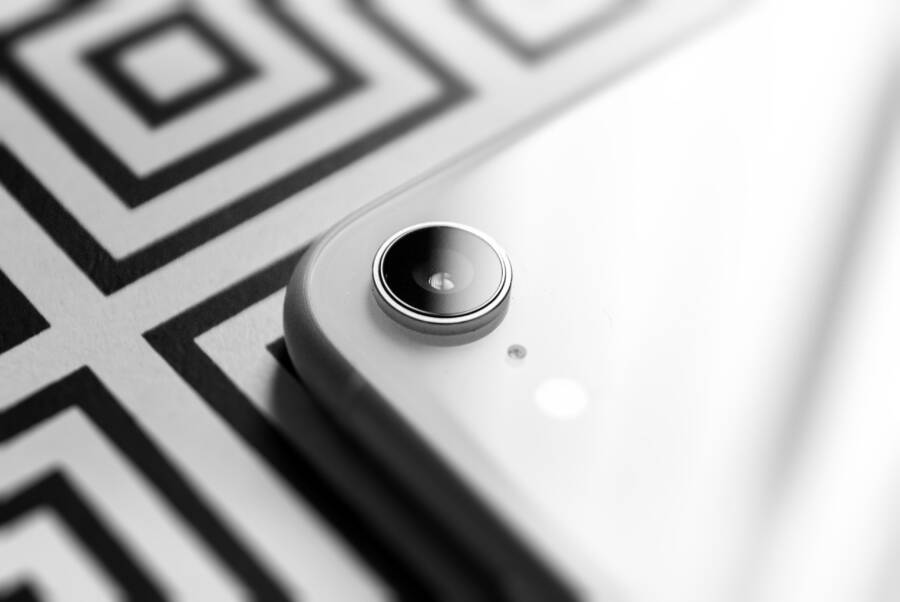
Your smartphone rear camera usually stops working because of a minor software glitch or accumulated debris rather than a permanent hardware failure. You can often restore full functionality by performing a few simple diagnostic checks at home.
These common issues frequently affect both iPhone and Android devices. By following a structured troubleshooting process, you can quickly identify the source of the problem and avoid unnecessary repair costs.
Simple Software Fixes to Try First
Before you assume your hardware is broken, focus on the software that controls your camera. Most issues originate from minor code conflicts or temporary memory errors. These problems prevent the lens or the sensor from activating correctly. By addressing the following areas, you can resolve most common camera errors on your smartphone without visiting a repair shop.
Restart Your Device to Clear Glitches
A hard restart remains the most effective way to eliminate temporary glitches. When you use your smartphone for days without powering it down, background processes and cached data can pile up. These processes sometimes conflict with the camera app, causing it to freeze or display a black screen. A restart forces the system to close all active programs and clears the temporary memory. This action allows the camera firmware to reload from a fresh state when the device turns back on.
To perform a proper restart on most modern devices, hold down the power button and the volume down button simultaneously until the screen goes black. Once the phone shuts down completely, wait about 10 seconds before turning it on again. This waiting period allows the electrical components to discharge fully. If the camera app was simply hanging due to a memory leak, this process fixes it instantly.
Update Your Operating System
Software bugs often arrive with system updates, but manufacturers frequently release patches to correct them. An outdated operating system can cause compatibility errors between the hardware sensors and the camera interface. If your smartphone runs on older firmware, it might lack the instructions required to communicate with the camera hardware after a minor system change. Manufacturers include these updates to improve stability, security, and hardware performance.
Check for available updates by visiting your settings menu. Follow these steps to ensure your device is current:
- Open the Settings app on your phone.
- Select the General or System category.
- Look for Software Update or System Update.
- Download and install any pending packages.
Updating the system replaces corrupted files and aligns your device with the latest hardware drivers. After the installation finishes, the smartphone reboots and attempts to reinitialize all camera components. This simple action frequently resolves issues that manual troubleshooting cannot fix. Keep your system updated to prevent future bugs and maintain long-term device compatibility.
Checking for App and Setting Conflicts
Software conflicts often stop your camera from capturing images. Sometimes, the primary camera app fails while other functions remain intact. You must isolate whether the issue involves the camera hardware or a specific software configuration on your smartphone.
Test with Different Camera Applications
The easiest way to check for a conflict is to use a different application. If you only use the default camera app, you might miss clues about where the fault lies. Open a messaging app like WhatsApp, Instagram, or Snapchat and attempt to take a photo or record a video. These apps interact with the camera sensor through a different set of software instructions than your system camera.
If the rear camera works in these third-party apps, the problem is limited to your default camera app. You should then try to clear the cache for that specific app in your settings. If the camera fails to open or shows a black screen in every application, the issue involves the system firmware or the camera hardware itself. This test provides a quick snapshot of the overall health of your sensor.
Verify App Permissions and Access
Smartphones restrict access to hardware like the camera to protect your privacy. If your camera app lacks the required permissions, it cannot activate the lens or the sensor. You should confirm that your settings allow the camera app to function correctly.
On an Android device, follow these steps:
- Open your device Settings.
- Select Apps or Application Manager.
- Find your Camera app in the list.
- Tap Permissions and ensure Camera is set to Allowed.
If you use an iPhone, the process is slightly different:
- Open Settings on your device.
- Scroll down to Privacy and Security.
- Tap Camera to see a list of every app with permission to access it.
- Verify the toggle switch for your camera app is turned on.
Sometimes, a software update resets these permissions without your knowledge. Checking these menus ensures that no security restriction blocks the hardware. If you see the camera app listed but the permission is denied, toggle it off and back on to refresh the connection. This often resolves sudden failures that occur after an operating system update.
Physical Inspections and Hardware Considerations
Your smartphone camera often fails due to simple physical obstructions or minor hardware shifts. Before you open your device or pay for repairs, inspect the exterior housing. Dirt, grease, or a poorly fitted case can block the sensor and prevent clear image capture. These environmental factors account for a surprising number of camera malfunctions.
Clean the Lens and Remove Obstructions
A smudge on your camera lens creates blurry photos or prevents the autofocus system from locking onto a subject. Over time, oils from your skin and dust from your pockets accumulate on the glass. Use a soft, microfiber cloth to wipe the lens surface gently. Avoid paper towels or rough fabrics, as these can scratch the protective coating. If the lens is very dirty, apply a small amount of lens cleaning fluid directly to the cloth instead of the phone.
Bulky or misaligned cases also cause issues. Some heavy-duty cases feature thick plastic cutouts that partially cover the camera sensor. If your case is not perfectly aligned, it can cast a shadow over the lens or block the infrared sensors used for focusing. Remove your case entirely and test the camera again. If the device functions properly without the case, you know the housing is the problem. You might need to buy a thinner case or ensure your current one is snapped into place correctly.
When to Seek Professional Repair
Sometimes the issue is deeper than a dirty lens. You must recognize when a problem points to permanent hardware failure that requires a technician. If you notice a crack across the glass lens cover, the damage is likely already affecting the optics. Dust and moisture will enter through the crack and destroy the delicate internal components. Do not attempt to fix a shattered lens yourself because you risk damaging the sensor underneath.
Listen for unusual sounds coming from your device. If you hear a faint rattling noise when you move the phone, a component has likely come loose inside the camera module. This often happens after a hard drop or a significant impact. Furthermore, if you see permanent dark spots or lines on every photo you take, the image sensor is likely damaged or burnt.
Bring your device to a certified repair shop if you encounter these signs:
- Physical cracks or deep scratches on the external lens glass.
- Audible rattling sounds inside the phone body.
- Persistent spots or artifacts in every single image taken.
- The camera app refuses to open even after a factory reset.
Professional technicians have the specific tools to open your smartphone safely. They can replace the camera module or the rear housing without compromising the water resistance of your device. Trying to force the phone open yourself often leads to broken ribbon cables or damaged adhesive seals.
When to Reset Your Phone Settings
Resetting your settings is a final option when minor fixes fail to restore your camera. This process returns system preferences to their original factory state without erasing your personal files or photos. You should consider this step only if the camera continues to malfunction after you have cleared the cache, updated the software, and verified all permissions.
What a Settings Reset Actually Changes
A settings reset targets the configuration files that control how your smartphone interacts with its hardware and networks. It restores defaults for Wi-Fi passwords, Bluetooth connections, keyboard dictionaries, home screen layouts, and location privacy settings. You will not lose your documents, apps, or images during this process. However, your device will require you to rejoin saved networks and reconfigure your notification preferences.
This action is effective because it clears out corrupted configuration data that might be blocking the camera hardware. Sometimes a hidden background setting or a conflicting network profile prevents the camera app from initializing correctly. By returning these settings to factory defaults, you remove the barrier preventing the software from talking to the camera sensor.
Executing a Reset on Your Device
Each operating system requires a specific path to trigger a reset. You should proceed with caution and verify that you have your Wi-Fi passwords stored elsewhere before you begin.
For an Android device, follow these instructions:
- Open the Settings app.
- Navigate to System or General Management.
- Select Reset or Reset Options.
- Choose Reset All Settings or Reset App Preferences.
If you are using an iPhone, follow these steps:
- Open the Settings app.
- Select General.
- Tap Transfer or Reset iPhone.
- Choose Reset and then select Reset All Settings.
After the device restarts, your camera should function if software misconfiguration caused the initial failure. Test the camera app immediately before you spend time reconfiguring your preferences. If the camera still displays a black screen or shows an error, the problem likely resides within the physical hardware. At this stage, you have ruled out every possible software conflict, which confirms that a technician needs to inspect your smartphone.
Conclusion
Most rear camera failures originate from minor software conflicts or simple obstructions. Start your troubleshooting with a restart, verify app permissions, and wipe the lens to address these common culprits. These quick checks restore functionality for most users.
If your camera remains unresponsive after these steps, your smartphone likely requires professional hardware repair. Avoid further damage by contacting a certified technician to inspect the internal components if symptoms persist.