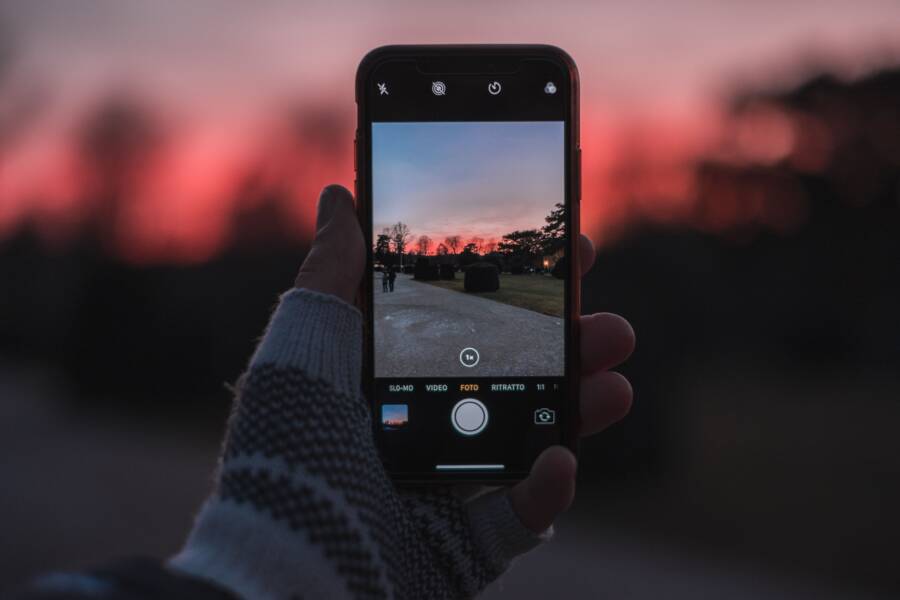
Your photos look weird because your smartphone camera is trying to balance light and shadows too aggressively. This software process, known as HDR, creates an unnatural glow or flat, high-contrast look when it misinterprets a scene.
You can fix this by adjusting your exposure settings or turning off the automatic HDR feature. This guide helps you regain control over your image quality on both iPhone and Android devices.
Why Your Smartphone Photos Sometimes Look Artificial
Modern devices process images using complex algorithms that frequently trade natural aesthetics for perfect exposure. While these systems aim to mimic professional gear, they often fail to account for the nuances of human perception. You end up with photos that appear overly processed, flat, or strangely luminous instead of capturing the scene as you remember it.
The Science Behind HDR Processing
High Dynamic Range (HDR) photography relies on your smartphone taking multiple frames simultaneously. When you press the shutter, the camera captures at least three distinct versions of the same scene. One exposure is bright to pull detail from deep shadows, one is medium for balanced lighting, and one is dark to prevent the sky from looking like a white void.
The software then merges these files into a single image. It maps the best parts of each exposure into one frame, which forces light and dark areas into a narrow range. The goal is to make every pixel visible, from the darkest corner to the brightest sunlit clouds. However, this process often removes the natural fall-off of light. Instead of realistic shadows, you get a scene where every object appears evenly lit, causing your smartphone photos to look staged or synthetic.
Recognizing the Signs of Over-Processed Images
You can usually spot aggressive software correction by looking for specific visual artifacts that do not occur in natural light. These cues suggest your device worked too hard to fix a scene that did not need such heavy intervention.
Check your photos for these common issues:
- Halo effects: Look for thin, light outlines surrounding dark subjects like buildings or tree branches against a bright sky. This happens when the software creates a sharp contrast boundary that does not exist in nature.
- Lack of realistic contrast: The image may appear flat or muddy because the software compressed the dynamic range too aggressively. It pulls shadows up so high that the image loses its sense of depth.
- Unnatural color saturation: The camera might push colors to the extreme, making grass look like neon green or turning a soft sunset into an aggressive, deep orange.
- Plastic skin tones: Portraits often suffer when the processor attempts to smooth out textures. This removes natural skin pores, making faces appear blurry or like wax, which is a major sign that the camera settings prioritised digital cleanup over authenticity.
If your images frequently show these traits, the automatic processing system on your device is likely overriding your intent. Identifying these errors is the first step toward manual adjustment and better photography.
How to Turn Off or Adjust HDR on iPhone
Taking control of your images on an iPhone often requires changing how the device processes light. While the automatic system works well for casual snapshots, it frequently over-processes high-contrast scenes. You can adjust or disable these features to achieve a more natural look.
Locating Smart HDR in Camera Settings
Apple hides the manual controls for Smart HDR deep within the primary settings menu on your smartphone. Newer hardware makes it difficult to disable this feature entirely because the processor expects to balance every frame. However, you can toggle the behavior on specific models.
Follow these steps to find your current configuration:
- Open the Settings app on your iPhone.
- Scroll down until you find the Camera option.
- Tap on Camera to see your available preferences.
- Look for the toggle labeled Smart HDR.
If you don’t see this switch, your device uses an automated processing pipeline that remains active by default. On these units, the camera firmware performs fusion tasks regardless of your settings. You may need to use exposure compensation instead of a full toggle. To do this, tap the screen while in the camera app, then slide the yellow sun icon down to reduce the brightness before you capture the shot. This action forces the sensor to prioritize darker tones, which often limits the aggressive brightening effect caused by the HDR software.
Using Third-Party Camera Apps for Manual Control
Default camera software prioritizes ease of use over technical precision. If you want full control, you should use professional apps like Halide or ProCamera. These tools allow you to bypass the standard processing pipeline on your smartphone.
These apps offer several benefits for photographers seeking authentic image quality:
- RAW format support: By saving files in RAW, you retain the original data from the sensor. This ignores the internal HDR software entirely, giving you a blank canvas for editing.
- Manual exposure sliders: You can lock your shutter speed and ISO independently. This prevents the phone from automatically brightening shadows or lowering highlights during the capture phase.
- Focus peaking and histograms: These tools help you judge light levels accurately before you press the shutter. You can see if your highlights are clipping or if your shadows are too deep without relying on the software to guess for you.
Switching to a third-party app gives you the raw output you need to create a natural aesthetic. You remain in command of the final look because the app does not apply artificial contrast, sharpening, or saturation filters. Use these apps when you want to capture a scene exactly as your eyes see it, rather than how the software interprets it.
Adjusting HDR Settings on Android Devices
You can take control of your photos by digging into the settings of your smartphone. Android manufacturers often hide these controls to keep the main camera interface simple for casual users. Adjusting these hidden preferences helps you stop the software from over-processing your shots.
Finding the HDR Toggle in Common Camera Apps
Most manufacturers move HDR settings away from the main viewfinder to reduce screen clutter. You will typically find these options inside the general Settings or Advanced menus of your camera app. Look for a gear icon in the corner of your screen to access this list.
Some companies remove a dedicated HDR toggle entirely, replacing it with persistent AI optimization. If your device lacks an HDR switch, the software performs this balancing act automatically every time you snap a photo.
You should look for these labels to identify your current HDR state:
- Auto HDR or HDR: These settings indicate if the camera forces high dynamic range processing on your images.
- Advanced settings: Check here if the main menu seems too sparse.
- Professional or Pro mode: Switching to this mode often disables automatic software processing, allowing you to control the exposure manually.
If you cannot find a specific HDR menu, your smartphone might use a different name for the same function. Manufacturers frequently rename these features to sound more descriptive, so search for terms related to high dynamic range or exposure balancing in your camera manual.
Managing Scene Optimizer and AI Enhancements
AI-driven enhancements often cause the same issues as aggressive HDR settings. Features like Scene Optimizer or AI Scene Detection analyze your framing in real time to adjust colors and contrast. While this helps with food or landscape photos, it often leads to overly saturated colors or crushed shadows.
Turning off these AI features helps you see if the artificial look comes from automatic scene analysis. You can usually find a toggle for Scene Optimizer within the camera settings under a section labeled Intelligence or AI. Disabling this feature forces the sensor to record the scene without adding digital filters or saturation boosts.
Test your camera with these settings turned off to compare the results:
- Open your camera settings and identify the AI or Scene Optimizer toggle.
- Switch the feature to the off position.
- Take a test photo of a subject with natural lighting, such as a garden or a person indoors.
- Review the image to see if the colors look more accurate and less synthetic.
If your images still look strange after disabling these features, the sensor itself may be struggling with high contrast. Use manual exposure controls to balance the scene before you press the shutter button. You can tap your screen and move the brightness slider until the photo matches your natural vision. This step ensures you retain control over the output, regardless of the software running in the background.
Best Practices for Capturing Natural Photos Without HDR
You can avoid the processed, artificial look of software-driven HDR by taking manual control over your smartphone camera before you release the shutter. When you rely on automated systems, the camera often flattens the image to show everything at once. Manual adjustments allow you to preserve the natural contrast and mood of a scene.
Mastering Manual Exposure Compensation
Most smartphone camera apps allow you to adjust exposure manually with a simple touch. This feature is your best tool for avoiding the heavy-handed processing that triggers automatic HDR. By setting the brightness yourself, you signal to the camera that it does not need to merge multiple frames to fix the lighting.
Open your camera app and tap the primary subject on your screen. A small brightness slider, often represented by a sun icon, will appear next to the focus box. Slide this bar down if the scene is too bright or up if you need more light in the shadows.
Adjusting this before you shoot achieves two main goals:
- It prevents the software from overexposing bright areas that might otherwise trigger HDR intervention.
- You maintain a realistic balance between light and shadow that keeps the photo looking authentic.
If you find that your smartphone still forces an HDR look, try locking the exposure. On many devices, you can long-press the focus point until an AE/AF Lock indicator appears. Once locked, the camera stops recalculating exposure as you move, keeping your manual settings constant throughout the session.
The Benefits of Shooting in RAW Format
If you want to move beyond the limitations of standard smartphone software, you should start shooting in RAW format. When you choose this mode, your device saves the unprocessed data directly from the camera sensor. This file format ignores the internal algorithms that create the artificial HDR glow.
Professional photographers favor RAW because it provides a blank canvas for editing. Standard JPEG or HEIF files have contrast and sharpening baked into the image by the smartphone processor. In contrast, a RAW file keeps the full dynamic range captured by the sensor, including hidden details in dark shadows and bright highlights.
Working with RAW files offers several technical advantages:
- You retain complete control over white balance and exposure during post-processing.
- There is no unwanted noise reduction or digital sharpening applied to the image.
- You can recover details in bright skies or dark corners without creating the harsh halo effects common in HDR.
Switching to RAW requires a third-party app, as most native camera software limits this feature to Pro or Manual modes. Once you start using RAW, you stop fighting against the automated processing of your smartphone. You instead become the final editor of every pixel, ensuring your images look natural rather than like a digital composite.
Conclusion
High Dynamic Range software acts as a tool for your camera, not as a mandatory requirement for every shot. You retain the freedom to disable or adjust these settings to match your personal aesthetic preferences. By experimenting with manual exposure and third-party apps, you regain control over how your smartphone captures light and shadow.
The most effective camera is the one you command to produce the results you want. Take time to test different modes in various lighting conditions to find your balance. You now have the knowledge to move beyond automatic processing and capture images that appear clear, authentic, and true to your vision.