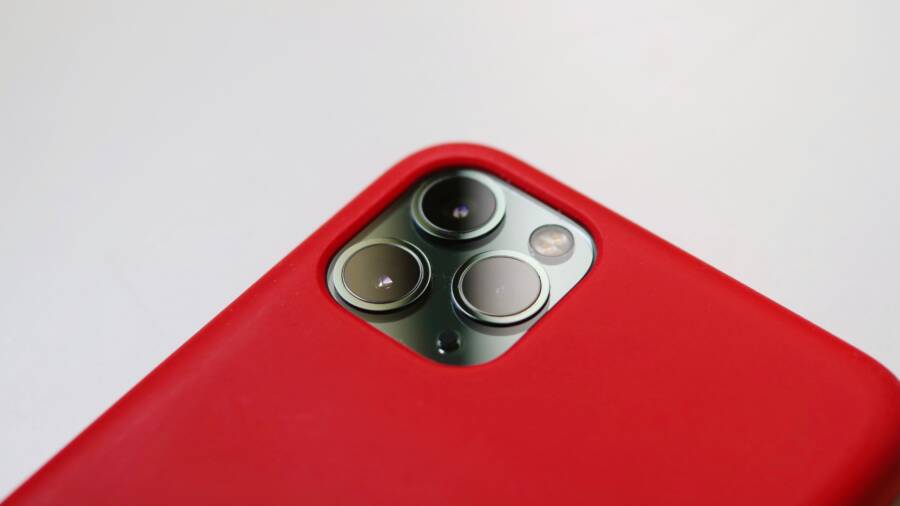
Your smartphone camera freezing while you zoom is usually a temporary software glitch or a lack of available system memory. When your device struggles to process the high data demands of a digital zoom, the application may lock up to prevent a crash.
Most camera freezes are fixable without specialized tools or professional help. You can often restore normal functionality by clearing the application cache, checking your storage space, or performing a simple restart.
These steps help you identify the root cause and get your camera working again right now.
Quick Fixes for Camera Glitches on Any Smartphone
When your camera freezes while you zoom, the issue often stems from temporary data errors. These glitches happen when the camera app struggles to manage the sudden transition between lenses or digital zoom levels. Most of the time, the fix involves clearing out the digital clutter that accumulates during daily use. By refreshing the app or the entire system, you can usually stop the lag and get back to taking photos.
Restart Your Camera App and Clear Temporary Files
Sometimes the camera app simply hangs because it holds onto corrupted data from a previous session. Forcing the app to quit clears this temporary memory and allows it to restart fresh. This process does not delete your photos or videos.
To perform this on an Android smartphone:
- Open the Settings menu and tap on Apps or Application Manager.
- Find your camera app in the list and select it.
- Tap the button labeled Force Stop to end all active processes.
- Select Storage and then tap Clear Cache to remove the temporary files that often cause freezes.
On an iPhone, the process requires closing the app through the multitasking view:
- Swipe up from the bottom of your screen and pause near the middle to open the app switcher.
- Find the Camera app by swiping left or right.
- Swipe the app preview up and off the screen to close it completely.
- Relaunch the camera from your home screen to see if the zoom functions properly.
Perform a Hard Restart on Your Device
If the camera app continues to freeze after you clear the cache, the problem might reside within the core system. A hard restart, also known as a force restart, clears the random access memory and resets the connection between your hardware and software. It provides a clean slate without erasing your personal files.
For modern iPhone models, follow these steps:
- Press and quickly release the volume up button.
- Press and quickly release the volume down button.
- Press and hold the side power button until the Apple logo appears on your screen.
Android devices vary by manufacturer, but the most common method works across many models:
- Press and hold both the power button and the volume down button simultaneously.
- Continue holding them for about 10 to 15 seconds until the device screen turns off.
- Release the buttons once the manufacturer logo reappears to signal that the phone is booting up.
A fresh system state resolves many handshake issues between the zoom software and the camera sensor. If the camera works after this restart, you have confirmed that the issue was a temporary conflict in your smartphone system memory.
Managing Storage and Memory to Stop Zoom Crashes
Your smartphone relies on internal storage and active memory to handle the complex data generated when you zoom into a photo or video. When these resources hit their limit, the system struggles to keep up, which often results in a frozen camera app. Clearing unnecessary files and managing your active tasks prevents these crashes.
Freeing Up Internal Storage Space
The camera app needs extra room to write data quickly while you adjust your zoom level. If your internal storage is near capacity, the phone cannot save temporary image files or video clips. This bottleneck forces the camera app to stall or close entirely to protect the system.
You should aim to keep at least 3 to 5 gigabytes of free space on your device. Check your available storage in the settings menu under Storage or General settings. If you find your phone is almost full, start by clearing the following items:
- Delete large video files you no longer need.
- Remove apps that you have not opened in months.
- Back up your photos to a cloud service and then delete the local copies.
- Clear the cache for large social media or streaming apps.
Keeping a buffer of free storage allows the operating system to move data smoothly. Your camera performs better when it has enough space to buffer high-resolution frames during a zoom operation.
Closing Background Apps to Save RAM
Random Access Memory, or RAM, acts as the short-term workspace for your smartphone. When you run multiple heavy applications simultaneously, they compete for this memory. If the camera app lacks sufficient RAM, it freezes because it cannot process the input from the camera sensor in real time.
High-demand apps often consume most of your available memory even when they sit in the background. Games, video editors, and web browsers with many open tabs are common culprits. Before you start a session that requires heavy zooming, close all other applications.
You can clear your RAM by using the app switcher to close everything except your camera. On most devices, simply swiping away the background tasks releases that memory instantly. This provides your camera app with the full resources of your processor and memory, which helps it remain stable during high-zoom shots. If your phone still freezes after closing other apps, a quick restart often finishes the job by flushing out lingering background processes that might be stuck in the memory.
Software Updates and Bug Fixes for Your Camera
Outdated software is a frequent cause of camera freezes during zoom. Manufacturers release regular updates for your smartphone to patch glitches, improve hardware communication, and optimize performance. These updates often include critical drivers that govern how the camera sensor interacts with the zoom lens mechanism. Installing the latest version of your system software can resolve conflicts that cause the app to hang or crash.
Checking for Operating System Updates
Your smartphone runs on an operating system that manages every component, including the camera. If this system contains bugs, they often manifest as performance issues in high-demand apps like the camera. Checking for updates is a simple process that addresses these underlying software defects.
To check for updates on an iPhone:
- Open the Settings app.
- Select General.
- Tap Software Update.
- If an update is available, tap Download and Install to begin the process.
On an Android smartphone, the steps vary slightly by brand but usually follow this pattern:
- Open the Settings menu.
- Scroll down and select System or Software Update.
- Tap Check for updates or Download updates manually.
- Follow the prompts on the screen to install any pending patches.
These updates contain security fixes and driver patches that allow your hardware to function correctly. A outdated operating system may struggle to interpret zoom commands, leading to a frozen viewfinder. Keeping your device up to date ensures your hardware has the latest instructions for processing images.
Updating the Camera App and Third-Party Tools
While the operating system controls the core hardware, individual apps depend on their own code to function. If you use the stock camera app or rely on third-party photography tools, these apps need their own updates to stay compatible with new system versions. Developers frequently push updates to fix bugs that specifically cause freezes during zoom or post-processing tasks.
You can update your camera and photo apps through your device store:
- Open the App Store on your iPhone or the Google Play Store on your Android device.
- Search for the specific camera or photo editing app that is freezing.
- Look for an Update button next to the app name.
- Tap the button to install the latest version, which often includes stability patches for camera sensors.
Many users overlook these app-specific updates, yet they are just as important as system-wide changes. If a third-party app crashes when you zoom in on a photo, the problem is likely an incompatibility between that app and your current phone software. Developers update their tools to ensure they can handle high-resolution image data without overloading your memory. Keeping these tools current allows your smartphone to manage camera operations more efficiently.
When to Consider Hardware Issues and Expert Support
Software troubleshooting resolves most camera freezes, but physical damage requires a different approach. If your camera continues to fail after you reset your device and clear the cache, the problem likely sits within the camera components themselves. Recognizing these hardware symptoms early helps you avoid unnecessary software repairs and prevents further damage to your smartphone.
Identifying Physical Damage Symptoms
Hardware failure often produces physical signs that software updates cannot fix. The camera system inside a modern smartphone is a delicate collection of lenses, motors, and sensors. If these parts suffer impact or wear, they may show specific warning signs during a zoom operation.
Watch for these physical indicators of hardware distress:
- Strange sounds like clicking, grinding, or buzzing noises coming from the camera module when you initiate a zoom.
- Visible misalignment of the camera lens, which might appear tilted or stuck in one position.
- Dark spots or persistent blurriness on the images that do not disappear when you clean the outer glass.
- A physical obstruction, such as a trapped grain of sand or dust inside the lens mechanism, preventing the zoom motor from moving.
- Unexpected screen flickering or a completely black viewfinder, even after a full system reboot.
Motors that control your zoom functionality are precise. If you dropped your phone, the internal motor might have lost its calibration. This causes the app to freeze because it waits for a signal from the lens that never arrives. If you hear a grinding noise, stop using the zoom feature immediately. Continued use can force the motor to burn out or cause further damage to the internal optics.
If you confirm these physical symptoms, software solutions will not work. In these cases, contacting an authorized service center is the correct path forward. Attempting to fix a stuck camera motor or a misaligned lens without proper tools often destroys the delicate ribbon cables connected to the logic board. Professional technicians possess the specialized equipment needed to open the device, assess the camera module, and replace broken hardware without compromising the rest of your smartphone.
Conclusion
Most camera freezes on your smartphone are temporary software glitches caused by memory constraints or background process conflicts. You can typically restore smooth performance by clearing your app cache, closing unnecessary background applications, or restarting the device.
Regularly updating your operating system and camera software ensures that your device maintains the necessary drivers for stable zoom functionality. Keeping sufficient free internal storage also prevents the system from stalling during high-demand photography tasks.
If these software steps do not resolve the issue, you should inspect your device for signs of physical hardware damage. Professional service is the safest route if your camera module requires repair or component calibration.