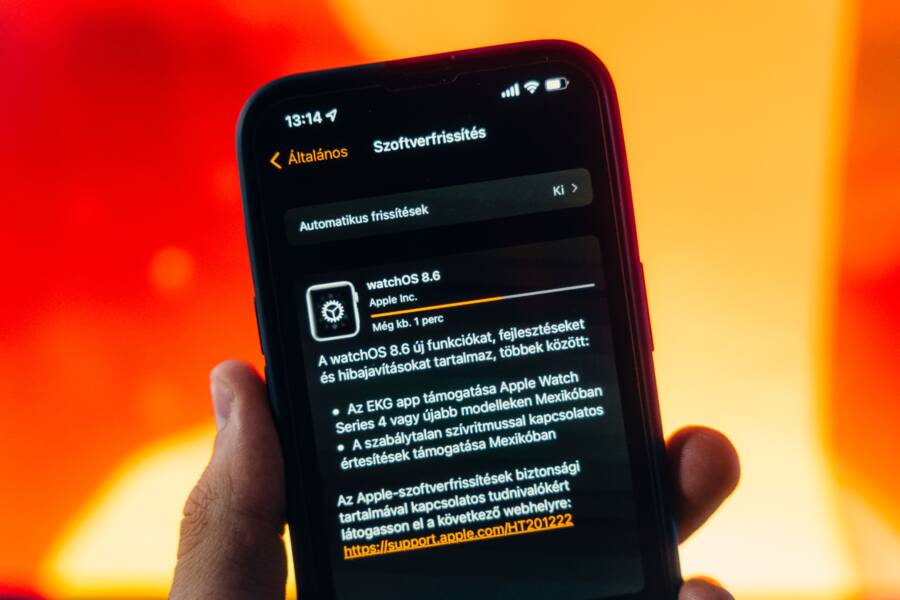
System updates fail repeatedly on mobile devices because of temporary storage blocks, corrupted installation files, or unstable network connections during the download process. Seeing that familiar update failed notification pop up again and again is frustrating, especially when you just want your smartphone running smoothly and securely. You do not need to deal with a broken software loop or factory reset your device to fix this issue. This guide walks you through clear steps to clear cache partitions, free up internal storage, and force your smartphone to complete the system update successfully.
Why Your Phone Cannot Keep the System Update from Showing as Failed
System updates fail repeatedly on a smartphone because leftover data blocks the installation process or the device lacks the necessary breathing room to unpack new software. When a smartphone downloads an update package, it stores temporary files in a dedicated partition while waiting for authorization to reboot. If that download process encounters a minor network interruption, those files become corrupted and sit silently in the background. Your smartphone tries to read the damaged data during every subsequent installation attempt, hits a software roadblock, and displays the same frustrating error message.
Corrupted Temporary Files and Cache
Leftover installation packages create invisible traffic jams in your device memory. When a previous download breaks halfway through, the smartphone saves the broken fragments instead of deleting them. Subsequent update checks point to these lingering files, assuming a valid package is already waiting on the disk. Because the data is unreadable, the installation sequence aborts before it even begins.
Clearing this persistent software loop requires wiping the system cache partition through recovery mode. Alternatively, you can clear the system update manager data from your application settings.
Open the settings menu on your smartphone and navigate to the application manager.
Select the option to show system applications from the menu.
Locate the system update service in the list and open its storage settings.
Tap the button to clear cache and clear data.
Restart your smartphone and check for the update again.
Storage Space Limitations on Your Device
A modern system update package often requires several gigabytes of free internal memory just to download, decompress, and apply the new firmware safely. If your smartphone storage is nearly full, the operating system cannot unpack the necessary installation files.
Users often assume that having enough space for a photo or an app is enough, but update tools demand a large contiguous block of free memory. The system installer halts the process immediately when it detects insufficient breathing room to prevent permanent data corruption.
Moving large media files to cloud storage or an external memory card frees up the required headroom. Deleting unused applications and clearing browser caches also helps recover vital megabytes. Once your smartphone has adequate free space, the installation utility successfully unpacks the update package without throwing another error.
Simple Steps to Clear Out Bad Update Files
Cleaning out corrupt download fragments gets your smartphone back on track. When the update manager holds onto broken data, wiping those directories manually solves the problem.
Clearing the System Cache Partition
Recovery mode is a built-in diagnostic environment that operates independently of your main operating system. Accessing this environment lets you wipe temporary system files without touching your photos, contacts, or downloaded apps.
Power down your smartphone completely before starting. Press and hold the power button and the volume down button at the same time until the manufacturer logo appears on the display. Use the volume keys to highlight the recovery mode option and press the power button to select it. When an android robot icon appears with an exclamation mark, hold the power button and tap the volume up button once to reveal the main recovery menu. Scroll down to the wipe cache partition command using the volume buttons, press the power button to execute it, and then select the reboot system now option.
Deleting Partially Downloaded Update Packages
Smartphones store downloaded update archives in hidden directories that standard file managers cannot see. Finding these stuck files requires navigating deep into your application settings.
Open the main settings menu and select apps or application manager. Tap the filter icon or the menu dots in the top corner to show system processes. Search for software update or system update in the application list. Tap storage, choose clear cache, and then select clear data. Restart your smartphone to force the system to request a fresh, uncorrupted update package from the server.
Checking Network and Storage Requirements Before Trying Again
System updates fail repeatedly on your smartphone when the device lacks enough physical headroom or a steady connection to download the full package. Before you tap that retry button again, you need to verify that your hardware meets the baseline demands of modern mobile operating systems.
Freeing Up Essential Internal Storage
Modern operating system upgrades require massive blocks of continuous free memory just to unpack and install the new software safely. If your smartphone sits near maximum capacity, the installer aborts immediately to protect your existing files from corruption. You can create the necessary breathing room by offloading large media files, removing unused apps, and clearing local cache data.
Move your high-resolution photos and videos to cloud storage or an external computer.
Uninstall heavy applications that you haven’t opened in months.
Clear cached data from streaming apps and web browsers to reclaim hidden gigabytes.
Switching to a Stable Internet Connection
Cellular data networks frequently drop packets or experience micro-outages during large file downloads. A reliable broadband Wi-Fi network provides the uninterrupted data stream required for multi-gigabyte system files. If your home network struggles with interference, move closer to the router or restart your networking equipment before downloading the update package again.
Comparing Methods for Forcing Successful Updates
When standard over-the-air updates stall repeatedly, basic reboots and cache clearances rarely suffice. Persistent failure loops require heavier intervention to replace corrupted system binaries and bypass local software blocks on your smartphone.
Using Computer Software to Bypass Mobile Errors
Desktop companion applications bypass on-device download errors by pulling clean, uncompressed firmware packages straight from official manufacturer servers. Programs like Samsung Smart Switch, Apple Finder, or Sony Xperia Companion download the complete operating system image directly to a computer instead of relying on the limited memory of your smartphone.
The desktop utility verifies every single byte of the downloaded firmware before pushing the installation files across a wired USB connection. Because the computer handles the heavy processing and storage demands, your smartphone only needs to receive and apply the verified code.
Download the official manufacturer management suite on a Windows PC or Mac.
Connect your smartphone using a certified USB data cable and trust the connection on screen.
Open the device maintenance menu in the desktop application and check for software updates.
Select the option to initialize or repair the device software if a standard update prompt is unavailable.
Keep the smartphone connected without interruption while the desktop tool transfers and installs the clean firmware.
When a Factory Reset is the Last Resort
A factory reset becomes necessary when deep system registry corruption or broken partition tables block every standard installation attempt. Lingering configuration files from previous major Android or iOS upgrades often break the update path permanently.
Wiping the device completely erases the user data partition, clears out conflicting system settings, and restores the base operating system to a pristine state. Once the smartphone boots up fresh, the system update manager can finally download and apply the latest patches without stumbling over old configuration data. Always back up your photos, contacts, and important documents to cloud storage before initiating a full wipe, because this process removes everything stored in internal memory.
Frequently Asked Questions About Persistent Update Failures
Troubleshooting a stubborn software installation often raises a few specific questions. Most users run into the same hurdles when a smartphone refuses to apply a new patch. Here are the answers to the most common questions about these persistent update errors.
Why does my phone say the update downloaded successfully but fails during installation?
The download process and the installation process use two completely different parts of your smartphone storage. Your device can pull down the raw package over a fast connection, but unpacking that package requires a temporary workspace. If that workspace lacks enough empty blocks, the installer crashes right before it writes the new files to the system partition.
Will clearing the cache partition delete my personal photos and messages?
Wiping the system cache removes only temporary temporary installation files and residual logs left behind by old apps. Your personal data, photos, contacts, and downloaded applications reside on a completely separate user partition. The recovery mode menu explicitly isolates system maintenance tasks from user storage to prevent accidental data loss.
How much free space do I actually need for a major operating system upgrade?
Major Android and iOS upgrades demand much more room than the raw file size indicates. A two-gigabyte update package typically requires at least six to eight gigabytes of contiguous free space to decompress safely. The operating system refuses to start the installation if it detects storage levels sitting too close to maximum capacity.
What should I do if my smartphone enters a boot loop after a failed update?
A smartphone caught in a continuous reboot cycle usually suffers from corrupted system partition tables. You need to force the device into recovery mode by holding the correct button combination during startup. From that menu, wiping the cache partition or performing a factory reset breaks the loop and restores a stable operating environment.
Can a faulty battery cause system updates to abort repeatedly?
Modern mobile operating systems monitor battery health and voltage stability constantly during critical firmware modifications. If your smartphone battery degrades past a certain threshold, the system halts the update process to prevent unexpected shutdowns that could permanently brick the device. Replacing a failing battery or keeping the phone plugged into a wall outlet during the entire procedure solves this hardware conflict.
Conclusion
Persistent system update failures usually stem from corrupt temporary files, a crowded storage drive, or a minor software glitch in the background. Wiping the cache partition or clearing the update manager data removes these invisible roadblocks and restores normal download operations.
Your smartphone depends on a clean software environment to download new security patches and feature updates safely. Taking a few minutes to manage your storage and clear broken data keeps your smartphone running efficiently for years.