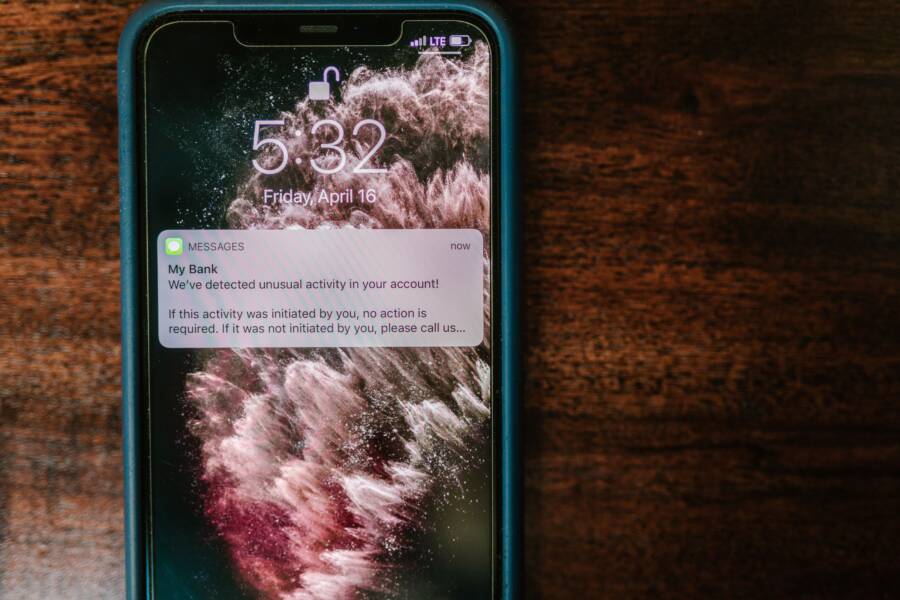
Disorganized notifications are usually caused by specific software settings or app behavior, rather than a hardware failure with your smartphone. When your phone fails to stack similar alerts, it fills your lock screen with a cluttered mess. This lack of order hurts your productivity by making it harder to spot urgent messages among trivial updates.
Keeping your alerts neat reduces stress and helps you manage your attention throughout the day. You can often restore this order by adjusting system preferences or checking individual app settings. Follow these steps to clean up your notification center and regain control of your mobile experience.
Understanding How Notification Grouping Works
Modern smartphone operating systems use notification grouping to prevent your lock screen from becoming a wall of scattered alerts. This feature automatically bundles messages from the same source, such as email threads or group chats, into a single expandable stack. When this process functions properly, it keeps your phone organized and makes it easier to scan for important updates.
The Difference Between App-Level and System-Level Settings
System settings act as the master control for your notifications. These global preferences determine how the operating system handles alerts across all your installed software. If you disable grouping at the system level, your phone will ignore individual app preferences and display every single notification as a separate entry on your screen. You should check these primary menus first to ensure the grouping feature is active for your device as a whole.
Individual app settings function as fine-tuned controls for specific notification delivery. You can override global settings for a particular app by navigating to its specific notification menu. This approach allows you to group alerts for a busy messaging app while leaving a high-priority utility app to display every alert individually. Adjusting these settings gives you granular control over exactly how and when information appears on your display.
Common Software Glitches That Break Grouping
Sometimes your smartphone stops grouping alerts because of minor internal errors rather than user configuration. A corrupted cache is one frequent culprit. If the system processes responsible for notification management fail to read temporary data correctly, the grouping logic breaks down. Clearing the system cache or specific app cache can often resolve this communication failure and restore normal order.
Outdated software versions also trigger inconsistent alert behavior. Developers frequently release patches to fix bugs that interfere with how apps interact with the system notification center. If you ignore available updates for too long, your device may struggle to maintain current grouping standards. Installing the latest operating system update often provides the necessary fixes to align app behavior with system requirements.
You should also monitor for background process restrictions. Some battery-saving modes prioritize power consumption over system background tasks, which can prevent the notification manager from bundling incoming data correctly. Disabling power-saving restrictions for specific apps usually fixes this issue if you find that only certain alerts remain ungrouped.
Step-by-Step Guide to Fixing Notification Clutter
You can regain control of your lock screen by modifying how your smartphone handles alerts. If your device displays every single notification individually, it creates visual noise that distracts you from important tasks. Modern mobile operating systems provide built-in tools to bundle these messages together. Adjusting these settings helps you scan your updates quickly without feeling overwhelmed.
Adjusting Notification Stacking on Android
Android allows you to manage notification density through the main system menu. When notifications appear as a long, chaotic list, you should verify if the grouping feature is active. This setting forces apps from the same category to cluster under one header, which saves significant screen space.
To change your current configuration, open the Settings app on your smartphone and select the Notifications menu. Look for the Notification history or App settings section to find the list of your installed software. Tap on any app that is currently spamming your lock screen with individual alerts. Inside that app’s specific notification settings, you will often find an option labeled Group notifications or Notification categories. Toggle this switch to the active position to ensure the system collects these alerts into a single stack. If you do not see this option, check your main notification settings menu for a global grouping toggle. Turning this on enables the system to manage alerts automatically for all apps that support the feature.
Configuring Notification Summaries on iPhone
Apple offers a specific tool called Scheduled Summary to keep your lock screen clean. This feature holds back non-urgent notifications and delivers them to you at set times during the day. It prevents your smartphone from buzzing constantly while you work or sleep.
Open the Settings app and scroll down to the Notifications menu to start the setup. Tap on the Scheduled Summary option to see the configuration screen. Switch the toggle to on, then choose the specific times of day you want to receive your summary. You can select multiple time slots, such as once in the morning and once in the evening. After you set the schedule, choose which apps you want to include in the summary. Apps you add here will stop sending alerts immediately to your lock screen. Instead, they wait until your selected time to show up in a neat, grouped list. This method is effective if you want to stay focused while still reviewing your updates on your own terms. Your lock screen remains clear for high-priority alerts like phone calls or direct messages while the rest waits for the summary window.
Advanced Tips for Keeping Your Lock Screen Clean
A cluttered lock screen often stems from a mix of aggressive app settings and unmanaged data. Once you master the basic grouping features, you can take extra steps to maintain a quiet, organized smartphone display. These minor adjustments prevent noise from accumulating while you remain focused on your daily tasks.
Prioritizing Essential App Notifications
Not every notification deserves the same visual space on your screen. You can dictate which alerts demand your attention by assigning priority levels within your smartphone settings. When you rank notifications, the system places your most urgent alerts at the top and bundles less important messages into a smaller, secondary stack.
Most modern devices allow you to set notification channels or importance levels. Access this by long-pressing an app icon and selecting the notification settings or the information icon. Look for categories like “Alerting” versus “Silent.” Setting an app to “Silent” ensures its notifications still arrive but do not pop up on your lock screen or play a sound.
You can also use these settings to control how these stacks appear. If you have an app that sends too many frequent updates, lower its importance level to keep those alerts grouped at the bottom of your feed. By shifting trivial apps into the silent category, you prevent them from pushing your important messages off the screen. This simple hierarchy keeps your essential communications visible at a glance.
When to Clear Your App Cache
Sometimes an app stops grouping notifications even when you have verified that all settings are correct. This behavior often happens because the app has stored corrupted temporary data, which prevents the system from recognizing which alerts belong together. Clearing the cache provides a quick fix for these stubborn software bugs.
To clear the cache, open your phone settings and navigate to the Apps menu. Select the specific app that displays disorganized alerts. Find the storage or cache options and tap the button labeled “Clear Cache.” This action removes temporary files without deleting your account data or personal settings.
The smartphone will rebuild these cache files cleanly once you reopen the app, which usually triggers the notification manager to resume normal grouping. If the problem persists after clearing the cache, check for an app update in the store. Developers often push patches to address these exact communication errors between the app and the operating system. Regularly clearing cache for high-volume apps keeps your notification center responsive and tidy.
When to Seek Professional Help
Most notification issues on a smartphone respond well to standard troubleshooting. However, persistent glitches sometimes point to deeper hardware or software damage that regular settings menus cannot fix. Knowing when to stop troubleshooting prevents further stress and protects your device.
Signs of Persistent Software Corruption
You might find that your phone settings reset themselves every time you restart the device. This pattern suggests a deep failure within the operating system core that prevents permanent changes. If you have already reset your notification preferences multiple times without success, the system files likely contain errors that require professional intervention.
Another indicator is a complete loss of notification functionality across all apps. When your smartphone fails to display any alerts despite having permissions enabled, the internal notification service has likely crashed or become unresponsive. Factory resets often resolve these deep errors, but you should contact support if a full reset still fails to bring your alert system back to life.
Hardware-Related Notification Failures
Physical damage to your smartphone sometimes interferes with software performance. If you dropped your device or exposed it to liquid, internal components responsible for background processes might be failing. Notifications often depend on consistent power management and internal connectivity, both of which can falter if hardware parts sustain damage.
Look for these physical symptoms before seeking professional repair:
Unexpected screen flickering or unresponsive touch zones.
Constant device overheating when running simple apps.
Battery levels dropping rapidly even when the device is idle.
If you notice these hardware symptoms alongside broken notification grouping, a repair technician is your best option. Trying to force software fixes on damaged hardware may lead to data loss or further performance degradation. Authorized service centers have access to diagnostic tools that can verify whether a specific internal chip is malfunctioning.
When to Contact Manufacturer Support
Manufacturer support teams are your best resource when software updates fail to resolve known bugs. Some smartphone models have documented issues where specific system versions break notification behavior entirely. Checking official support forums can reveal if others with the same device model face identical problems.
Reach out to official support channels if you encounter the following:
A recent system update caused the notification grouping to stop working immediately.
You tried clearing the cache and resetting app preferences without any positive result.
The device displays persistent error messages related to the system UI or background processes.
Providing specific information to the support team helps them diagnose your issue faster. Note the version of your operating system, the name of the apps involved, and the steps you already took. This preparation saves time and ensures you receive the correct guidance for your specific hardware.
Conclusion
Most notification issues arise from minor software bugs or outdated settings rather than permanent damage. You can usually restore order by verifying your system preferences and clearing temporary app data on your smartphone.
Test these changes by monitoring your lock screen over the next few days. Keeping your system and apps updated prevents these glitches from returning and ensures your device manages alerts exactly as you prefer.