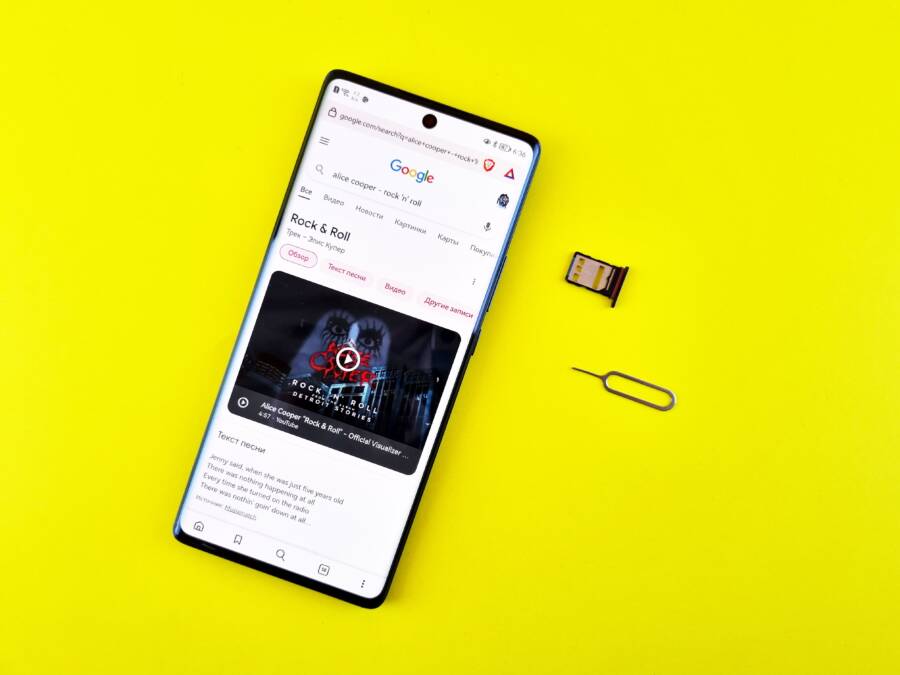
When your smartphone stays stuck in a searching loop, it often disconnects you from the world at the worst possible moment. You can usually fix this common issue by toggling your Airplane Mode on and off, which forces the device to re-establish a fresh connection with nearby cell towers.
If this quick reset doesn’t restore your service, the problem might stem from a temporary software glitch, an outdated system setting, or even a localized carrier outage. This guide helps you identify the root cause of the error so you can get your connection back online without unnecessary frustration.
Quick Fixes for Your Smartphone Search Loop
When your smartphone fails to find a network, the problem often resides in a minor communication breakdown between the device and the local cell tower. You can resolve most of these hang-ups by resetting the handshake protocol your phone uses to identify and connect to a signal. These manual adjustments force your device to perform a clean scan of the available frequencies, which usually clears the search loop immediately.
Toggling Cellular Settings for a Fresh Start
You can force a re-connection by manipulating the way your smartphone manages its radio bands. When you toggle Airplane Mode, the device cuts off all wireless transmissions, including cellular, Wi-Fi, and Bluetooth. Waiting about ten seconds before turning this mode off forces the modem to perform a hard reboot and re-scan for the strongest available tower signal. This often resolves minor glitches that keep the phone stuck in a perpetual search cycle.
If that fails, manually switching your cellular network mode provides another effective path. Modern phones often default to an “Auto” mode that cycles through 5G, 4G, and 3G signals. Manually forcing the device to a specific, lower-speed band can sometimes help it latch onto a stable signal that the auto-scan process keeps skipping.
-
Open your device settings and navigate to the Cellular or Mobile Data menu.
-
Select Voice and Data or Network Mode.
-
Switch from 5G (or Auto) to LTE or 4G temporarily.
-
Observe the status bar for a few moments to see if a signal bar appears.
-
If the connection stabilizes, you can switch the setting back to Auto.
Checking Your SIM Card for Physical Damage
If your signal issues persist after adjusting software settings, the physical SIM card might be the culprit. Over time, the gold contact points on the card can accumulate a thin layer of dust or microscopic oxidation. This debris prevents the smartphone from reading the authentication data required to join a mobile network, leaving the device trapped in a search loop.
To verify the hardware, you need a SIM ejector tool or a small, sturdy paperclip. Follow these steps to clean and reseat the card:
-
Power down the device completely to prevent any short circuits during the removal process.
-
Locate the tray on the side of your smartphone and insert the tool into the small hole, pressing firmly until the tray pops open.
-
Remove the SIM card carefully and inspect the gold contact plate for dark spots, scratches, or visible dust.
-
Clean the surface by gently wiping the gold contacts with a soft, dry, lint-free cloth or a microfiber material.
-
Reinsert the tray into the device until it sits flush, then power the phone back on to allow it to initialize the network credentials again.
Avoid using liquids, solvents, or abrasive materials like erasers on the gold contacts, as these can strip the plating or leave residue that worsens the connection. If the card appears bent or shows deep scratches across the circuitry, contact your service provider to request a replacement. A fresh SIM card is often the only permanent fix for a card that has physically degraded from thermal expansion or frequent swapping.
Deep Software Troubleshooting Steps
When basic hardware checks and simple toggles fail, the issue likely resides in the complex communication between the operating system and the network modem. Software bugs, corrupted configuration files, or conflicting background processes often prevent your smartphone from registering with a tower. Addressing these deep-level variables requires a methodical approach that cleans out old network cache files and resets communication handshakes to their factory default state.
How to Reset Network Settings Without Losing Data
The network settings reset acts as a master refresh for all wireless connectivity protocols on your device. This process clears out stored Wi-Fi networks, saved passwords, Bluetooth device pairings, and custom APN settings that might contain corrupted data. It does not touch your personal photos, apps, or contacts, but it returns the cellular configuration to a “clean slate” state.
You should consider this the primary solution for persistent searching issues because it forces the smartphone to ignore potentially faulty cached carrier configurations. Over time, these files can become misaligned due to minor system errors or incomplete update installations. By wiping these configurations, the phone must re-fetch fresh connection data directly from your carrier, which often corrects the mismatch keeping your device in a loop.
To perform a network settings reset on most devices, navigate through these menu paths:
-
Open the main Settings application.
-
Select System or General Management.
-
Tap on Reset or Transfer/Reset.
-
Choose Reset Network Settings and confirm your choice with your passcode.
Your smartphone will restart immediately after the process finishes. Once it reboots, you will need to reconnect to your home Wi-Fi and pair your Bluetooth accessories again. This brief inconvenience is a small price for restoring a stable cellular signal.
Identifying Interference from Recent Updates or Apps
A major software update or a newly installed application sometimes creates unintended conflicts with your cellular radio. If your network search loop began shortly after a system update or the installation of a new utility, software interference is a likely culprit. You can verify this by checking for any pending patches in the system menu, as carriers often release small “carrier settings updates” specifically designed to fix connectivity bugs.
When a third-party app disrupts your connection, Safe Mode provides the fastest way to confirm the cause. In this environment, the smartphone boots using only the essential system software, disabling all downloaded apps. If your network connection works perfectly while in Safe Mode, you know for certain that an app you installed is the source of the blockage.
Follow these steps to isolate the interference:
-
Enter Safe Mode by holding the power button to reach the shutdown menu, then long-press the Power Off icon on the screen until the Safe Mode prompt appears.
-
Observe the status bar for a few minutes while the device operates in this restricted mode.
-
If the cellular signal returns, identify the recently installed apps that manage Wi-Fi, VPN services, or data monitoring and remove them one by one.
-
Restart your smartphone normally to exit Safe Mode once you remove the problematic software.
Keeping your device updated remains the best defense against these recurring conflicts. Manufacturers regularly issue firmware patches that refine how the modem communicates with local towers. If the issue remains after testing Safe Mode, ensure your phone is running the latest available version of its operating system to avoid known compatibility errors.
Evaluating Carrier and Location Factors
Signal issues often stem from environmental hurdles or account-level restrictions rather than hardware failure. Before you assume your smartphone needs a repair, you must investigate whether your service provider has placed a block on your line or if your immediate surroundings are preventing a successful connection.
Verifying Your Service Status with Your Provider
When your device remains stuck in a search loop, it might be unable to authenticate with the network due to an inactive account or a billing hold. If you have access to a stable Wi-Fi connection, you can bypass the need for cellular data to confirm your status. Most carriers allow you to log in to their official website or mobile app to check for any service suspensions or billing flags.
If your account looks active, use the carrier’s live chat support feature. This allows you to speak with a representative without a functioning voice line. Ask them to verify if your device IMEI is currently blacklisted or if there is a known outage affecting your specific area. They can also perform a remote signal refresh, which pushes a new set of network credentials to your smartphone. This simple step clears out configuration errors that prevent your phone from handshake-negotiating with local towers.
Understanding Dead Zones and Building Signal Blockage
Sometimes the technology is working perfectly, but the physical environment blocks the radio waves required for a connection. Cellular signals rely on line-of-sight communication with nearby towers, and solid obstacles create significant interference. Dense materials like thick concrete, steel beams, or underground geography act as physical barriers that weaken or completely stop the signal from reaching your smartphone.
Buildings with energy-efficient windows often contain metallic films that function like a Faraday cage, shielding the interior from outside radio frequencies. Similarly, basements, elevators, and interior rooms without windows frequently suffer from poor reception. If you notice your signal bars drop or disappear entirely as you move into a specific part of your home or office, you have identified a local dead zone. In these environments, the modem inside your device consumes more battery power while it aggressively searches for a signal that cannot penetrate the structure. Moving closer to a window or stepping outside often solves this issue instantly, confirming that the problem is purely environmental.
When to Seek Professional Repair Services
You should consider professional assistance if software resets, SIM card maintenance, and carrier verification fail to resolve the issue. Sometimes, the problem resides deep within the hardware components of your smartphone, requiring specialized tools for an accurate diagnosis. While many fixes are possible at home, persistent failure indicates a mechanical fault that you cannot resolve with a menu setting or a simple reboot.
Signs of Permanent Hardware Failure
Internal components such as the baseband chip or the antenna cable can degrade over time. If your smartphone suffers a hard drop, physical damage to these components often breaks the link between your modem and the cellular network. You might notice the device becomes unusually hot while searching for a signal, or it fails to recognize any SIM card despite your cleaning efforts.
These indicators often point to a hardware malfunction:
-
Your phone displays “No SIM” even after you have inserted a confirmed working card from another device.
-
The device overheats consistently during a network search cycle.
-
There is visible damage to the charging port or frame near the antenna lines.
-
You experience frequent, unexplained power cycles alongside the network search error.
If you encounter these symptoms, avoid attempting repairs that require opening the chassis yourself. Modern smartphones contain tightly packed components, and improper disassembly often results in torn ribbon cables or damaged seals.
Selecting a Reliable Repair Provider
Choosing a repair technician requires as much care as picking the right device. You should prioritize authorized service centers if your warranty remains valid. These shops use original manufacturer parts, which ensures that your device maintains its intended performance and water resistance ratings. Unauthorized repairs might fix the immediate network issue but could leave your phone vulnerable to future failures or void your remaining manufacturer coverage.
When you visit a repair shop, ask these specific questions before handing over your device:
-
Do you use original equipment manufacturer (OEM) parts for repairs?
-
Does the repair include a warranty period for the work performed?
-
Can you perform a diagnostic test to confirm if the antenna or baseband chip is at fault?
-
How long will the repair take, and do you require a backup of my data beforehand?
A professional technician will provide a clear estimate and explain the necessity of any hardware replacement. If a shop suggests a repair without first testing the connection with a known good component, look for a second opinion. You want a service that identifies the exact point of failure rather than one that suggests replacing the entire motherboard without evidence.
Conclusion
Most connectivity loops are temporary glitches that respond well to simple resets. Toggling Airplane Mode, performing a network settings reset, or re-seating your SIM card resolves the majority of these persistent search cycles. These steps allow your smartphone to clear outdated cache files and establish a fresh connection with local towers.
Always back up your personal data before attempting a full factory reset, as this is a more drastic measure to take if basic troubleshooting fails. If the issue remains after exhausting these software and hardware fixes, consult your service provider or a professional technician to investigate potential baseband chip or antenna damage. You can usually restore your connection by methodically narrowing down the source of the interference.