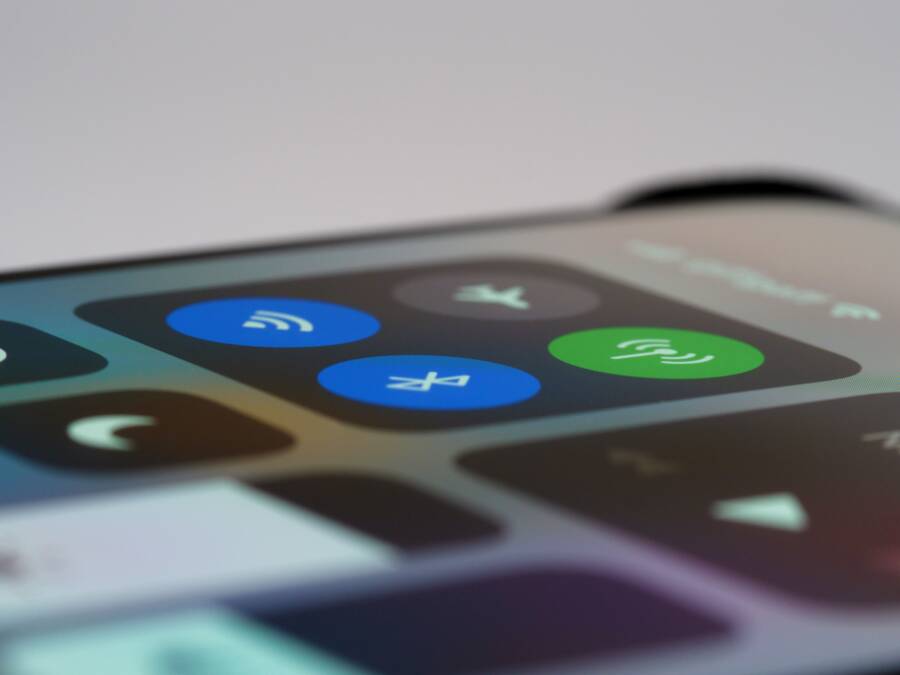
When your smartphone fails to update its location, the problem usually stems from disabled network settings, restricted location permissions, or aggressive battery saving features. These issues prevent the device from syncing its current coordinates to the cloud.
Fortunately, fixing location tracking errors on your smartphone is a quick and straightforward process. Most users restore full functionality by adjusting a few internal settings.
Check the following solutions to get your device back on track.
Check the Basics for Your Smartphone
Troubleshooting location errors starts with your phone settings. Many tracking issues occur because the device cannot communicate with satellite networks or the central server. Before you change complex configurations, verify these three essential areas.
Verify Internet Connection Status
Your smartphone needs a reliable data connection to report its location to your account. When the device loses its connection, it stops sending live coordinate updates to the cloud. You should check if you have an active Wi-Fi signal or a stable cellular data plan.
If your device is currently offline, the last known location might be the only data available. Try opening a web browser to confirm your internet access works. If pages fail to load, toggle your airplane mode on and off to reset the network radios. This action often clears temporary connection glitches that prevent your smartphone from broadcasting its position.
Confirm Location Services Are Enabled
GPS tracking depends on global positioning sensors that require specific system permissions. If these permissions are off, the tracking service cannot access the necessary hardware data. You need to verify that your privacy settings allow the find-my-device app to use your GPS.
- Open your device Settings menu.
- Select the Privacy or Location section.
- Check the list of apps to see if the tracking service has permission to access location data.
- Ensure the setting is set to “Always Allow” rather than “Only while using.”
Sometimes a recent software update resets these permissions without notice. Regularly checking this menu ensures your smartphone remains visible to your security account at all times.
Disable Battery Optimization Features
Modern smartphones include aggressive battery saving modes to extend daily usage. These modes often restrict background processes to save power, which directly impacts location services. If your phone enters a deep power-saving state, it may stop reporting your coordinates to conserve energy.
You should locate the battery optimization settings and exclude your tracking application from these restrictions. Look for terms like “Battery Saver” or “Background Usage Limits” within your device settings. By setting your tracking app to “Unrestricted,” you allow it to run in the background without interference from the power management system. This configuration change keeps the location relay active even when your smartphone is not in use.
Technical Troubleshooting Steps to Fix Tracking
If standard settings adjustments fail to resolve location errors, you may need to address deeper software conflicts. Your smartphone relies on background services that occasionally hang or store corrupt data. These technical steps clear those blockages and force the system to establish a fresh connection to tracking servers.
Restart Your Device to Clear Cache
A simple reboot often solves persistent tracking errors. When your smartphone runs for weeks without a break, background processes can become bloated or stuck in a loop. These services manage your location data and hardware sensors.
Restarting the device forces the operating system to dump temporary cache files. This action stops all background tasks and allows the phone to reload core services from scratch upon startup. Most users find that their location accuracy improves immediately after a clean boot. If the tracking service was hung in a state of suspended animation, this process provides the necessary reset to get it running again.
Update Your Operating System
Outdated software frequently contains bugs that interfere with GPS reporting and cloud syncing. Developers release patches for your smartphone to fix known issues with location frameworks and communication protocols. Running an old version of the software means your device may struggle to handshake with updated server requirements.
Check your system settings to see if a newer version of the operating system is available for download. Installing these updates replaces corrupted system files with stable code. Manufacturers often include specific fixes for Find My Device features in these updates. Once the installation completes, your smartphone will likely communicate more reliably with the network, as the software will align with the latest security and location standards.
Sign Out and Sign Back Into Your Account
Sometimes the link between your smartphone and your cloud account becomes desynchronized. This happens when authentication tokens expire or become corrupted, which prevents the device from sending updated location data. Refreshing this connection forces the system to verify your credentials and establish a new, valid link.
- Navigate to your device account settings.
- Select your main Google or Apple account.
- Choose the option to remove or sign out of the account.
- Restart your phone to ensure all session data is cleared.
- Sign back into the account to re-establish the connection.
This process triggers a fresh sync request across the server. It effectively clears out any ghost data that might block your smartphone from updating its current coordinates. Once you reconnect, wait a few minutes for the system to populate the updated location information on your dashboard.
Comparing Find My vs Find My Device Functionality
Apple and Google offer location tracking systems built directly into their operating systems. While both aim to locate a lost smartphone, they operate with different network technologies and device dependencies. Understanding these differences helps you identify why your specific smartphone might fail to report an accurate location.
How Apple Find My Network Works
Apple uses a crowd-sourced network for its tracking service. When your iPhone is offline, it emits a secure Bluetooth signal that nearby Apple devices detect. These devices report the location of your lost item to the Apple servers anonymously.
This system relies on the massive global base of Apple hardware. Because almost every iPhone, iPad, and Mac participates in the network, you receive location updates even when your own smartphone has no cellular or Wi-Fi signal. This design provides high accuracy and broad coverage in populated areas.
How Google Find My Device Functions
The Google version of this service operates similarly but depends heavily on the Android ecosystem version. Older versions of Android require an active internet connection on the target smartphone to report coordinates. If the device loses its network access, the tracking capability often stops entirely.
Recent updates to the Google ecosystem introduced a crowd-sourced tracking network comparable to the Apple model. This system uses Bluetooth signals to ping other nearby Android devices. However, this feature requires a compatible smartphone and specific privacy settings to function correctly. If your phone runs an older software version, it remains reliant on active data connections to sync its position.
Key Differences in Tracking Capabilities
The primary difference lies in how each platform handles offline devices. Apple integrates this functionality into the hardware level across all modern devices. Google is still rolling out its equivalent network, which means older hardware often lacks the ability to report locations without an active network handshake.
If you switch platforms, you may notice these variations in responsiveness. Apple users often find consistent results regardless of network status. Android users should verify their specific system version and enable offline finding settings to match that level of reliability. Knowing your device capabilities prevents confusion when the dashboard fails to update your current location.
Frequently Asked Questions About Location Accuracy
Many users have common concerns when their smartphone reports incorrect location data. These issues often arise from simple environment factors or software settings that require minor adjustments. Understanding these mechanics helps you troubleshoot errors faster.
Why does my phone show me in a different city?
This error usually happens when your smartphone connects to a distant Wi-Fi access point or cell tower. Your device occasionally guesses your position based on the IP address provided by your internet service provider. If that provider routes traffic through a central hub in another region, your maps may reflect that location instead of your actual spot. You can resolve this by turning off Wi-Fi briefly to force a refresh through cellular triangulation.
Do cases and screen protectors affect GPS signals?
Physical accessories rarely block GPS signals unless they contain metal components. Metal interferes with the radio waves your smartphone needs to communicate with satellites. If you use a rugged metallic case, try removing it to see if your tracking accuracy improves. Most plastic, rubber, or silicone covers do not cause any signal degradation.
Does turning off Wi-Fi improve location precision?
Contrary to common belief, keeping Wi-Fi enabled often improves your location accuracy. Smartphones use Wi-Fi scanning to identify nearby networks and triangulate your position even when you are not connected to a specific router. Disabling this feature forces the device to rely solely on GPS hardware, which consumes more power and works slower inside buildings. Keep both Wi-Fi and Bluetooth active to ensure your device maintains a precise fix.
Can weather conditions disrupt my location?
Heavy cloud cover or severe storms can obstruct the signals between your smartphone and orbiting satellites. GPS works by receiving weak signals from space, so dense environmental barriers reduce accuracy. If you are in a deep valley or surrounded by tall buildings, the signal may bounce off surfaces and create a position offset. Moving to an open area or waiting for better weather conditions usually restores full accuracy.
Is my location data constantly being recorded?
Your device only reports your position when an authorized application requests it. You control these permissions within your privacy settings for every app installed on your smartphone. The Find My Device feature only polls your coordinates when you initiate a request or when the system performs a routine sync. You can audit these permissions at any time to see which apps have access to your historical or live location data.
Conclusion
Restoring location updates often involves simple adjustments to your smartphone settings. Most tracking issues disappear after you verify your network connection, update your software, or reset your account permissions.
Check these configuration settings periodically to keep your device visible. Proactive maintenance prevents small software glitches from blocking your location data when you need it most.