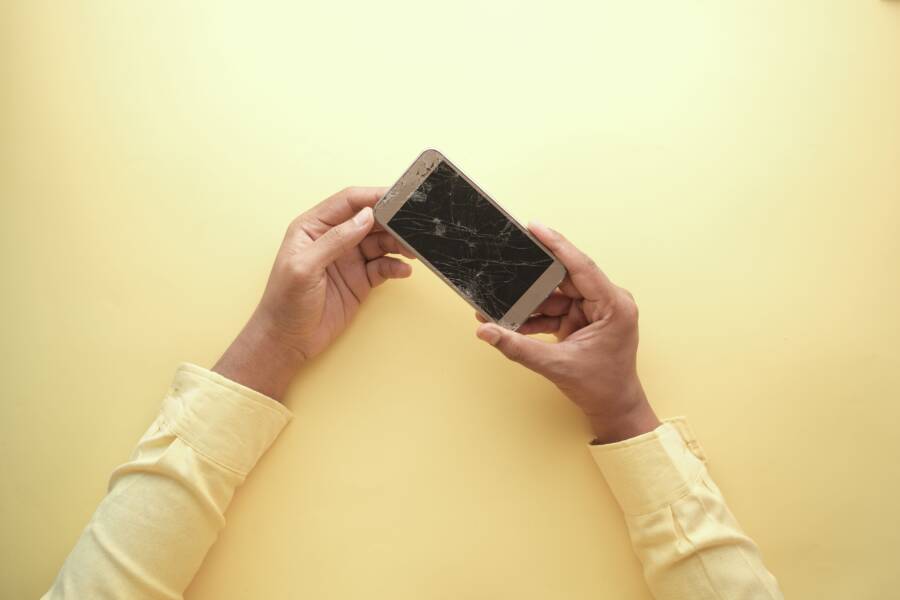
Why is your smartphone gallery suddenly filled with solid black boxes instead of your actual photos? This frustrating glitch usually happens because the media cache is corrupted, storage is running too low, or the thumbnail index file is damaged. Clearing out the corrupted cache, freeing up space, or rebuilding the media index usually solves the issue quickly.
Why Your Smartphone Gallery Suddenly Shows Black Squares
When your smartphone gallery starts displaying solid black boxes instead of your actual photos, the problem usually stems from an invisible breakdown in how your device processes images. Your operating system constantly catalogs every picture file on your internal storage and SD card, building a separate database of small preview icons so the gallery opens instantly. If that background process crashes, the database becomes corrupt, and the system fails to map the original files to their visual previews.
What Causes Media Indexing Glitches
Your smartphone relies on a hidden system service to scan storage directories and catalog media files. Every time you take a photo, download an image, or receive a picture through a messaging app, this service updates an internal database file.
However, unexpected shutdowns, interrupted software updates, or failing storage sectors often corrupt this database. When the index table breaks, the operating system still knows a file exists at a specific file path, but it loses the mapping required to render the preview.
As a result, your gallery app attempts to load an image, fails to read the corrupted index entry, and defaults to displaying a blank black square. Repairing this issue requires forcing the operating system to rebuild the media index from scratch so it can re-scan your actual photo files and generate fresh previews.
How Low Memory Triggers Missing Image Previews
Your smartphone needs a buffer of free storage space to handle everyday tasks like rendering image thumbnails. When your drive fills to maximum capacity, the operating system and gallery app lose the temporary workspace required to decode high-resolution images into smaller preview icons.
Generating thumbnails requires writing temporary cache files to storage. If the operating system finds zero free bytes available, it simply stops trying to create these previews, leaving you with empty black squares where your pictures should be.
Freeing up space instantly restores the necessary environment for the thumbnail generator to function properly. Once you delete unneeded files and clear the cache, the smartphone gallery can resume normal operations and display your photos correctly.
Simple Steps to Fix Broken Image Previews on Android and iOS
Fixing missing image previews requires targeting the underlying file corruption directly. You can restore your smartphone gallery without losing precious memories by following a few straightforward recovery methods.
Clear the Gallery App Cache and Storage Data
Your smartphone gallery builds temporary cache files to load image previews quickly. Over time, these temporary files become corrupted, which causes solid black boxes to appear instead of your actual photos. Clearing this corrupted data forces the gallery application to rebuild its temporary files from scratch. Your actual photo files stored on the device remain completely safe during this process.
Open the settings menu on your smartphone and navigate to the application manager or apps list.
Scroll down until you find your default gallery application or the Google Photos app, then tap on it.
Select storage or storage usage from the app details page.
Tap the clear cache button to delete temporary preview files.
Tap the clear storage or clear data button if clearing the cache alone does not fix the black thumbnails.
Clearing storage data resets application preferences and removes cached previews, but it does not touch your original image files. After completing these steps, open your gallery again and give the system a few moments to generate fresh previews for your pictures.
Restart Your Device to Reset the Media Scanner
Background software glitches often cause the smartphone operating system to stop indexing media files correctly. A standard reboot interrupts frozen background processes and forces the device to run a fresh system check upon startup.
When your smartphone boots back up, the internal media scanner automatically inspects every storage directory. This scanning process identifies all image files on the device, maps their exact locations, and generates new thumbnail previews to replace the broken black squares. Power down your smartphone completely, wait ten seconds, and turn it back on to trigger this automated recovery scan.
Delete and Recreate the Hidden Thumbnail Database
Stubborn display glitches often hide inside system files that regular app resets cannot reach. You can manually delete the corrupted thumbnail database using a file manager application so the operating system builds a clean replacement.
Download or open a reliable file manager app on your smartphone that allows access to hidden system folders.
Navigate to your internal storage, locate the folder named DCIM, and open it.
Look for a hidden folder named .thumbnails. You may need to enable the show hidden files setting in your file manager menu to see it.
Delete the entire .thumbnails folder along with any files inside it.
Restart your smartphone immediately after deleting the folder to prompt the system to generate a brand new thumbnail database.
Comparing Built in Gallery Apps Versus Third Party Photo Viewers
Default stock gallery programs often struggle when managing massive photo libraries on a smartphone. Because manufacturers design these built in applications to handle general media consumption, they frequently fail under heavy loads. Switching to an alternative photo viewer often resolves persistent thumbnail rendering errors instantly.
Stock Gallery Apps and Their Common Flaws
Default gallery software works well for casual users, but these preinstalled programs often break down when processing tens of thousands of image files. Stock applications frequently load every thumbnail into active system memory all at once instead of utilizing lazy loading techniques.
When your smartphone has a massive photo library, this heavy memory demand causes the application to crash or time out. As a result, the user interface fails to generate previews, leaving solid black boxes in their place.
Manufacturers also tie default apps tightly to proprietary cloud services and aggressive battery saving routines. If the operating system pauses the background indexing service to conserve power, the gallery application stops receiving updated thumbnail data.
Bloated codebases and heavy feature sets make stock viewers prone to database corruption over time. When an update fails or storage gets fragmented, these heavy programs cannot repair their internal indexes automatically. Users are left with broken previews until they manually clear application data or install a dedicated alternative.
Using Alternative Apps to Bypass Thumbnail Bugs
Downloading a lightweight photo viewer from the app store offers an immediate workaround for persistent thumbnail loading failures. Unlike bloated stock software, third party gallery alternatives use efficient rendering engines that bypass the corrupted system cache entirely.
Independent databases: Alternative viewers build their own internal catalog of image previews instead of relying on the broken system index.
On demand loading: These apps decode images only when they appear on the screen, which prevents memory overload on older smartphones.
Minimal resource usage: Lightweight codebases run smoothly even when storage drives approach maximum capacity.
Popular alternatives like Simple Gallery or F-Stop Media Gallery scan raw directory paths directly without depending on background operating system services. When default applications fail to display image previews, opening the same folder inside a third party viewer forces the device to render correct thumbnails on the spot.
Frequently Asked Questions About Gallery Thumbnail Problems
Dealing with broken image previews on a smartphone creates unnecessary panic, especially when precious family memories appear as solid black boxes. You can resolve these rendering errors easily once you understand how the mobile operating system processes image databases. Clear answers to common questions about missing image previews will help you troubleshoot your device with total confidence.
Will Clearing App Data Delete My Personal Photos
Clearing the cache or application data for your gallery removes temporary preview files rather than your actual image library. Your smartphone stores camera pictures in separate system directories that remain untouched during an application reset.
The operating system simply deletes the corrupted index table and forces the device to generate fresh previews. You won’t lose any photos stored in your main storage folders when you clear app data. The application rebuilds its internal database within a few minutes after you reopen the gallery.
How Do I Stop Black Thumbnails From Happening Again
Preventing broken image previews requires maintaining healthy storage habits and keeping your mobile software up to date. You can avoid future thumbnail glitches by following a few practical maintenance steps.
Keep at least ten percent of your total smartphone storage free so the operating system has enough space to write temporary cache files.
Install system software updates promptly because manufacturers patch media indexing bugs regularly.
Avoid moving thousands of image files into storage directories all at once, which overwhelms the background media scanner.
Restart your device once a week to clear temporary memory and refresh background system processes.
Conclusion
Restoring a smartphone gallery requires clearing corrupted thumbnail indexes and freeing up clogged storage space. Routine device reboots and regular cache maintenance keep image previews visible and stop black squares from returning.
Take a few moments today to check your available storage and clear out old cache files so your photo library loads correctly.