When your smartphone fails to recognize your fingerprint on the first try, you are dealing with a common annoyance rather than a broken device. This issue usually stems from minor software bugs, accumulated oils on the sensor, or outdated biometric data.
You can often fix the problem in minutes without leaving your house. By cleaning the surface, re-registering your prints, or updating your system, you restore the fast performance you expect.
The following sections explain how to troubleshoot these settings and get your sensor working correctly again.
Quick Hardware Fixes for Better Recognition
Many smartphone fingerprint sensors struggle because of simple physical interference rather than internal component failure. When your device fails to read your fingerprint consistently, you can often restore full functionality by addressing the exterior surface of the display. Before you consider a factory reset or a trip to a repair shop, perform these hardware checks to see if you can resolve the issue at home.
Cleaning Your Sensor Properly
Oils from your skin, dust particles, and residue from hand lotions create a thin barrier that confuses biometric sensors. Because modern under-display sensors rely on optical light or ultrasonic waves to map your print, even a thin layer of grime prevents the scanner from seeing your skin clearly.
Use a clean, dry microfiber cloth to wipe the display area where the sensor sits. Avoid using paper towels or abrasive napkins, as these materials contain wood fibers that cause microscopic scratches on your screen coating over time. You should also stay away from household glass cleaners, bleach, or ammonia-based sprays. These harsh chemicals strip away the oleophobic coating that keeps your smartphone screen resistant to fingerprints and smudges.
If the sensor remains unresponsive after a dry wipe, dampen your microfiber cloth with a small amount of distilled water. Gently polish the area in a circular motion, then immediately dry it with a separate, clean microfiber cloth. Ensure the area is completely dry before you attempt to unlock the device again, as moisture creates ghost patterns that interfere with accurate reading.
Checking Your Screen Protector
Screen protectors provide valuable protection, but not all of them play nicely with integrated biometric sensors. Thick tempered glass protectors often create too much physical distance between your finger and the sensor, which leads to slow response times or complete reading failures. Low-quality glass can also introduce internal light refraction or distort the ultrasonic waves used by your phone.
When you install a new screen protector, your smartphone might require a re-calibration of the biometric data. The sensor learns the specific characteristics of your skin through the material of your screen protector; therefore, changing the protector often leaves the sensor with outdated mapping information.
Follow these steps to ensure your setup functions correctly after applying a new protector:
Remove any old or cracked screen protectors that might be trapping dust or air bubbles over the scanner area.
Access the security settings on your smartphone and delete all currently saved fingerprints.
Apply your new protector while ensuring no debris exists between the adhesive and the glass.
Clean the screen surface thoroughly again to ensure the sensor has a clear view.
Re-register your fingerprints, pressing down firmly to ensure the system captures the ridges of your skin through the new layer of protection.
If you continue to experience failures despite a clean surface and a high-quality protector, the thickness of the glass may be incompatible with your device. Some smartphones offer a specific setting to increase touch sensitivity, which can help if you choose to use a thicker tempered glass shield. Check your display settings to see if this option exists, as it often bridges the gap for finicky scanners.
Optimizing Software for Better Accuracy
Even when your hardware is clean, your smartphone may fail to recognize your fingerprint due to software misconfiguration or outdated data. Sensors rely on digital maps of your unique ridges, and if that map does not match your current finger positioning, the unlock process will stumble. You can address these common software issues by refreshing your biometric profile and ensuring your operating system is current.
How to Re-register Your Prints for Better Success
If the sensor acts inconsistently, your saved fingerprint data might be incomplete or poorly captured. A fresh registration often solves the problem by forcing the sensor to learn your finger at different angles, ensuring it captures the edges and tips of your print rather than just the center.
Follow these steps to reset your biometric profiles for better performance:
Open your settings menu and locate the Biometrics, Security, or Lock Screen section.
Select Fingerprint Unlock and enter your backup PIN or password.
Remove all existing fingerprints from the list to clear the cache.
Restart your smartphone to ensure the system clears any temporary glitches.
Add a new fingerprint, but rotate your finger during each scan.
Press the tip of your finger, then the sides, and then the base to record a comprehensive image.
Repeat the process for your other fingers if the system allows for multiple profiles.
When you scan your finger, avoid pressing too hard or too light. A firm, consistent pressure helps the sensor capture a clear, high-resolution image of your skin ridges. If you find the sensor still struggles, try registering the same finger twice as two separate profiles. This method creates redundant data for the system to reference, which significantly improves the likelihood of a successful match on the first try.
Updating System Software to Patch Bugs
Manufacturers frequently release software updates to refine biometric performance. These patches often contain adjustments to the sensor algorithms, which help the phone distinguish between valid skin patterns and background noise or minor smudges. If you skip these updates, you may be using an outdated version of the recognition software that ignores hardware improvements or recent security fixes.
Check for updates by navigating to the System or Software Update section within your settings menu. If an update is available, download and install it immediately. A restart usually follows this process, which allows the phone to calibrate the sensor firmware to the new software environment.
Beyond standard security, these updates often include optimization for specific screen protectors or changes to how the sensor reacts to low light and temperature. If your model specifically struggles with under-display recognition, check the manufacturer support forum or the update notes for any mention of biometric improvements. Keeping your smartphone running on the latest version of its operating system is the most effective way to address persistent software-related authentication errors.
Advanced Troubleshooting Steps
When basic cleaning and re-registration fail, software conflicts or corrupted system files often cause persistent sensor errors. These issues exist deeper within the operating system than simple user settings. Addressing these requires targeted interventions that reset the background processes responsible for handling biometric data.
Clearing the Biometric System Cache
Your smartphone runs a background service specifically dedicated to managing biometric authentication. Sometimes, this service stores temporary data or corrupted cache files that interfere with the recognition engine. You can force the system to rebuild this database by clearing the app data for the biometric service.
Open your settings menu and go to the Apps or Application Manager section.
Tap the three-dot menu icon in the corner and select Show System Apps.
Search for “Biometrics” or “Fingerprint” in the list of installed applications.
Select the entry, tap Storage, and choose Clear Cache or Clear Data.
Restart your smartphone immediately after clearing the data.
This process removes the temporary learning files the sensor has collected over time. Your smartphone will not lose your saved fingerprints, but the reset forces the sensor to re-initialize its connection to the secure enclave. This often resolves minor glitches where the sensor stops responding or hangs during the recognition process.
When to Consider a Factory Reset
A factory reset is the final option for addressing sensor failure. You should only consider this if you suspect deep software corruption or if a major system update caused the sensor to stop working entirely. Because this process erases every piece of data on your smartphone, you must perform a full backup before proceeding.
Confirm that you have synced your photos, contacts, and app data to a cloud service or an external drive. Once you wipe the device, you cannot recover files that you failed to back up. Navigate to the System or General Management menu in settings, locate the Reset option, and select Factory Data Reset.
The phone will return to its original out-of-the-box state. During the initial setup, avoid restoring a full system backup immediately if you suspect that backup contains the software bug causing the sensor issue. Instead, set the device up as new and test the fingerprint sensor before reinstalling your apps. If the sensor works correctly on a fresh install, you can safely move your data back. If the sensor still fails after a complete reset, the problem is likely a hardware defect requiring professional repair.
When Physical Damage Requires Professional Repair
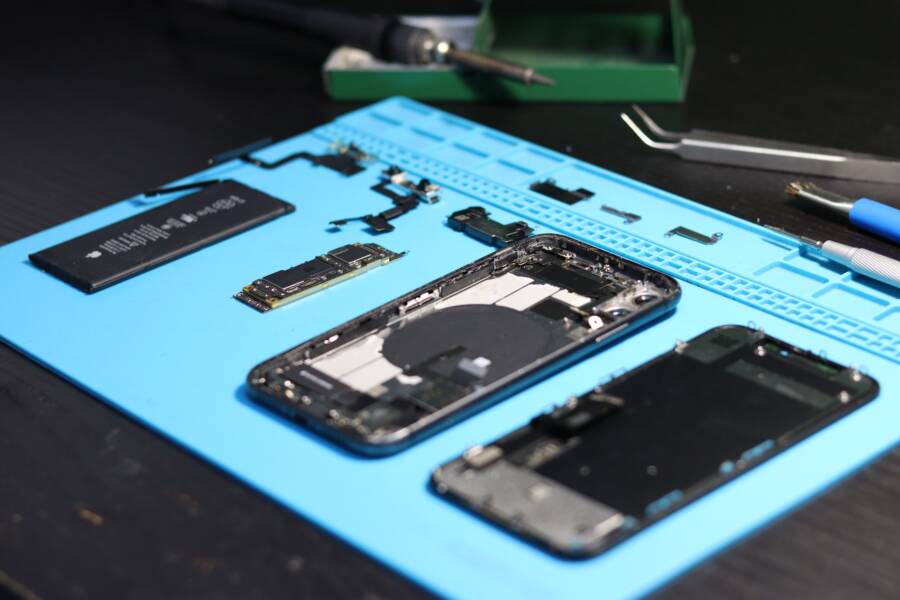
Sometimes the fingerprint sensor on your smartphone stops working because of internal hardware failure rather than a software glitch. If you have exhausted all troubleshooting steps, including cleaning the surface, updating your system software, and performing a factory reset, you likely have a faulty component. Professional intervention becomes necessary when the hardware itself can no longer communicate with the phone processor or has suffered physical impact.
Identifying Signs of Internal Hardware Failure
Hardware failure usually manifests in ways that software fixes cannot address. For instance, if the biometric sensor menu completely disappears from your security settings, the operating system is failing to detect the scanner as a connected device. This points to a loose internal cable or a damaged connection on the motherboard.
Another indicator is a visible hardware flaw. If the screen area over the sensor has a spiderweb crack, internal delamination, or dark spots, the optics or ultrasonic sensors underneath might be physically compromised. Even if the screen still displays images correctly, a crack directly over the scanning zone often distorts the light or sound waves required for accurate biometric reading.
If your smartphone screen was recently replaced by a third-party shop, that repair could be the source of your trouble. Improper installation of the display panel often creates a microscopic gap between the sensor and the glass. Because these scanners require precise alignment to function, even a millimeter of separation causes persistent failure.
Evaluating Repair Costs and Practicality
When you confirm that the issue is mechanical, compare the cost of a professional repair against the current market value of your smartphone. Official service centers usually require a full display assembly replacement to fix a faulty under-display sensor because the scanner is integrated into the screen structure.
You should consider these factors before booking a repair appointment:
Warranty status is the most important factor. If your device is still under the manufacturer warranty, a hardware failure often qualifies for a free repair or replacement.
Third-party repairs might be cheaper, but they often void your existing warranty. Only choose this route if your device is well outside its coverage period.
Consider if other parts of the phone are aging. If the battery health is low or the charging port is failing, spending a significant amount of money to replace the screen and sensor might not be cost-effective.
A professional technician can run diagnostic tests to verify if the sensor hardware is dead or if the connection is simply loose. If you decide to pursue a repair, always back up your data beforehand, as technicians often need to wipe the device or replace the mainboard to perform the service. In many cases, if the repair cost exceeds half the price of a newer model, upgrading your smartphone is the more logical path.
Conclusion
Reliable biometric access starts with basic maintenance. You can resolve most sensor issues by cleaning the screen surface to remove oils and verifying that your screen protector does not interfere with the scanner.
If the problem persists, refresh your data by deleting and re-registering your fingerprints at multiple angles. You should also check for system updates and clear the biometric cache to remove potential software bugs.
Test your smartphone sensor immediately after performing each step to identify which fix restores your preferred performance level. If these adjustments fail to produce a consistent response, consult a professional to rule out internal hardware damage.