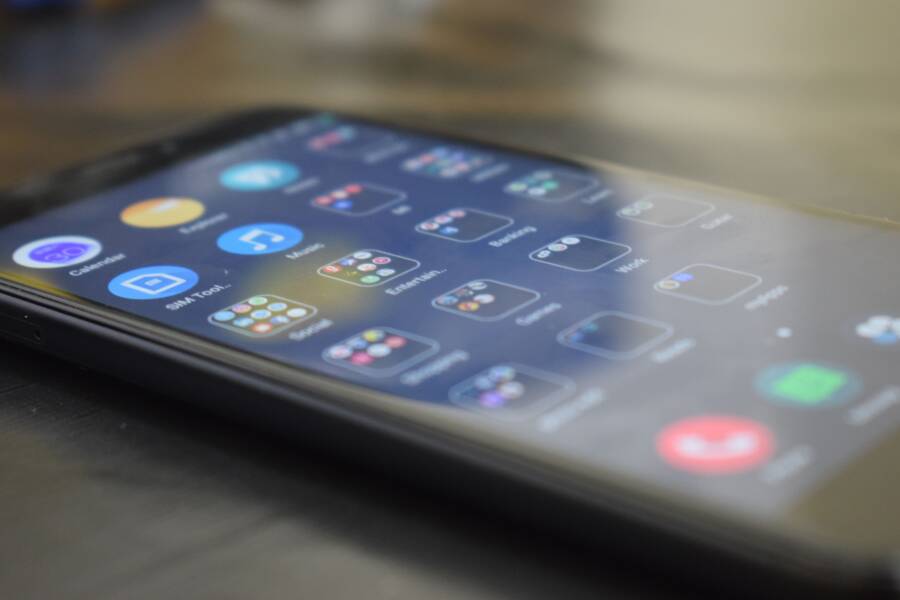
When your smartphone apps stop updating and get stuck in a pending loop, it usually points to a network connection issue, a shortage of storage space, or corrupted cache files. These three areas cover the vast majority of cases where downloads hang indefinitely.
You don’t need to be a technical expert to resolve this, as most fixes only take a few minutes of troubleshooting. By addressing these settings directly, you can clear the blockage and get your software running smoothly again.
Follow the steps below to identify the specific cause of your update failure and restore normal function to your device.
Why Does Your Smartphone Keep Getting Stuck on App Updates?
Most app update errors happen because the communication path between your device and the app store is blocked. When a download hangs, your smartphone often struggles to negotiate a stable connection with the server or lacks the necessary space to unpack new files. Identifying the exact bottleneck usually saves you from a full factory reset.
Network Instability Interrupts Data Packets
Updates require a consistent stream of data to complete. If your connection flickers or drops, the download process stalls and fails to resume automatically. Many users experience this when switching between cellular data and Wi-Fi networks during a large update.
Weak signals often trigger timeout errors in the App Store or Google Play Store. Your smartphone prioritizes stability, so it will pause the download rather than risk corrupting the application files with incomplete data. Always check your signal strength before initiating updates to ensure the connection remains steady throughout the process.
Storage Constraints Prevent Installation
Your device requires extra room to download, extract, and install new versions of your applications. If your internal storage reaches capacity, the operating system cannot perform these tasks even if the download itself finishes. The update stays in a pending state because there is no workspace available for the new software.
Check your current storage status in your settings menu to confirm if you are low on space. Sometimes your phone reports a small amount of available memory, but that is insufficient for the update package. Freeing up a few gigabytes of space often resolves the issue instantly.
Corrupted Cache and Temporary Files
The system keeps temporary data to make app stores load faster. Over time, these cache files become corrupted or outdated, which creates a conflict when the store tries to verify the newest version of an app. This conflict causes the update button to spin indefinitely without progress.
You can clear the app store cache to force a fresh connection. This process deletes the temporary files associated with the store but does not remove your installed apps or personal data. It effectively resets the communication layer, allowing your smartphone to communicate with the update servers as if it were performing a brand-new task.
Account Syncing Errors
Sometimes the issue resides with your user profile rather than the phone hardware. If the store cannot verify your account credentials or payment information, the system blocks new downloads as a security measure.
Sign out of your store account and log back in to refresh your credentials. This action triggers a re-authentication process that clears minor synchronization glitches. If you have multiple accounts signed into your device, ensure the account associated with the specific app purchase remains active and verified.
Check Your Internet Connection and Network Settings
Your smartphone relies on a steady data stream to fetch update packages from app store servers. When this connection fluctuates or drops, the system naturally pauses the download to prevent file corruption. Even if your signal bars appear full, temporary interference or localized bandwidth congestion can stall the process.
Troubleshooting Wi-Fi and Cellular Stability
A stable connection acts as the foundation for successful app updates. If your smartphone detects high latency or frequent packet loss, it will stop the installation to avoid saving incomplete or damaged files. You can test your connection quality by visiting a speed test website or simply observing how quickly pages load in your mobile browser.
If you use Wi-Fi, the distance between your device and the router often affects performance. Move closer to the source to rule out signal interference caused by walls or other electronic devices. For cellular users, environmental factors like building materials or heavy network traffic in your area may force the connection to time out repeatedly.
Toggle your connection modes to reset the handshake between your device and the network:
Turn on Airplane Mode for 10 seconds to force the radio hardware to disconnect from all signals.
Disable Airplane Mode and wait for the connection to re-establish.
Attempt the app update again to see if the status changes from pending.
Why Switching Networks Helps the Process
Sometimes the network you are currently using simply struggles to maintain the persistent link required for background updates. Public Wi-Fi networks in coffee shops or airports frequently limit bandwidth or block the ports necessary for app store communication. These networks often prioritize basic web browsing, which makes large application updates sluggish or impossible to finish.
If you find yourself on a slow public network, switch to your personal cellular data if your plan allows for the extra usage. Conversely, if your mobile signal is weak and you have access to a reliable, private home network, prioritize that Wi-Fi connection immediately.
Avoid using low-power modes while updating, as these settings often restrict background data usage on both Wi-Fi and cellular connections. Your smartphone saves battery life by disabling background syncs, which directly prevents app updates from moving forward. Ensure your device is plugged into a power source and that you have disabled low-power settings before you switch networks to attempt the download once more.
Clearing Out Junk to Make Room for Updates
Sometimes your smartphone struggles to finish updates because its temporary storage areas become clogged. When the system lacks enough breathing room to process new installation files, the update process stalls. You can resolve most of these conflicts by purging unnecessary temporary data and managing your available storage capacity.
Clearing the App Store Cache and Data
The App Store and Google Play Store store temporary files to speed up browsing and navigation. Over time, these files can become outdated or fragmented, creating a logic error that prevents the store from recognizing new update requests. Resetting this cache forces your smartphone to establish a fresh connection with the update servers.
To clear the cache on Android devices:
Open your device settings and navigate to the Apps or Application Manager menu.
Select Google Play Store from the list of installed applications.
Tap on Storage or Storage & Cache.
Select Clear Cache, then try the update again. If that fails, repeat the steps and select Clear Data or Clear Storage.
Clearing the data will reset the store to its factory state, which means you might need to re-accept the terms of service or adjust your download preferences. Your personal data and installed apps remain completely safe during this process.
On iOS devices, the system manages cache automatically. However, you can force a refresh by toggling your connection or signing out of your Apple ID. If the app icon remains stuck, delete the app entirely and reinstall it from the store to ensure a clean installation of the latest version.
Managing Your Internal Storage Space
Applications require more than just the size of the update to install properly. During an update, your smartphone must download the new file, extract it, and swap it with the old version. If your storage is nearly full, the system cannot find enough temporary workspace to complete these tasks.
Review your current usage by checking the Storage menu in your settings. If you have less than a few gigabytes free, your phone may struggle with even minor updates. Prioritize clearing out these common space hogs to make room for your software:
Unused applications: Scroll through your app list and remove programs you haven’t opened in months.
Large media files: Videos often consume the most space. Back up your photos to a cloud service or computer, then delete the local copies from your device gallery.
Downloaded files: Check your Downloads folder for old documents, PDF files, or installers that you no longer need.
Message attachments: Older messaging apps often store high-resolution photos and videos in their own internal folders. Clear the media history within those apps to reclaim significant capacity.
After you delete these items, restart your smartphone. This action refreshes the operating system’s file index and ensures the storage report accurately reflects the new, available capacity for your updates.
Advanced Steps to Resolve Persistent Update Issues
When common fixes fail, your smartphone might require more surgical intervention. Persistent update loops often stem from deep-seated software conflicts or account authentication errors that basic toggles cannot reach. These advanced methods reset the handshake between your device and the server, clearing out stubborn blocks that prevent progress.
Restarting Your Smartphone to Flush Temporary Processes
A simple reboot performs a hard sweep of your device memory. During normal operation, your smartphone accumulates background processes that occasionally lock up critical system tasks, including the app update manager. When you turn your device off and back on, you clear these volatile memory buffers and stop any hung background services.
This action is more thorough than putting the device into sleep mode. Shutting down the power forces the operating system to unload all active applications and clear the temporary workspace the processor uses for background maintenance. Once you power the device back up, the operating system reinitializes these services from a clean state.
Perform a full power cycle by following these steps:
Hold the physical power button until the shutdown prompt appears on your screen.
Select the option to power off the device completely and wait at least 30 seconds for all internal hardware to drop power.
Turn the smartphone back on and wait for the system to load completely before checking your store for pending updates.
If a standard restart does not resolve the issue, perform a forced restart. This method varies by model but typically involves holding a specific combination of physical buttons for several seconds until the manufacturer logo appears on the screen. A forced restart interrupts the operating system kernel, which can be useful if a background process is frozen in a way that prevents a normal, graceful shutdown.
Signing Out and Back Into Your App Store Account
Sometimes the update failure is an authentication issue rather than a hardware or network problem. Your smartphone maintains a security token that verifies your identity with the app store servers. If this token expires or encounters a glitch, the server will reject update requests from your device, leaving your apps in a pending state without a clear error message.
Signing out clears this session token entirely. When you log back in, you force the device to request a fresh authentication key from the server. This new key often fixes sync errors that were previously invisible to the user.
Follow this process to refresh your store account:
Open your account settings within the App Store or Google Play Store application.
Locate the option to sign out of your current account profile.
Close the application completely from your recent apps list.
Reopen the store and sign back in with your credentials.
After re-authenticating, wait for the store to refresh its connection to your library. It might take a few moments for the service to verify the status of your existing apps. If your updates remain stuck, ensure your payment method on file is current, as expired billing information sometimes prevents the store from verifying your license for premium applications. This refresh often acts as the final push needed to get your download queue moving again.
When to Contact Support or Seek Further Help
Most app update issues on your smartphone resolve with basic troubleshooting. If you have cleared your cache, verified your storage space, and confirmed your network stability, you should generally expect success. However, technical glitches sometimes persist despite your best efforts. You should consider reaching out for professional assistance if these standard methods fail to trigger the update process.
Recognizing When Software Conflicts Require Expert Intervention
Internal software bugs occasionally prevent your operating system from communicating with the application store. If your phone remains stuck on updates after you perform a factory reset, the issue likely resides in the system firmware rather than your personal settings. Persistent error codes during the update phase often indicate a deeper conflict that requires specialized diagnostic tools.
Support teams can review your account logs to determine if there is a block on their end. They can also provide information about known outages affecting specific device models or regional servers. You should contact the manufacturer or your mobile service provider if you notice other system functions, like email syncing or web browsing, failing alongside your app updates.
Preparing for a Support Interaction
Before you contact a support representative, collect information to speed up the process. A technician will likely ask for your smartphone model, the current operating system version, and the specific error message you see when an update stalls. Providing this data early prevents the agent from repeating steps you have already completed.
Keep the following details ready for your support call:
Your exact device model number and software version.
The names of the specific applications that refuse to update.
Any error codes or numeric notifications that appear on the screen.
A brief summary of the troubleshooting steps you already performed.
Providing these details helps the technician move past basic scripts and focus on complex hardware or account-level solutions. If the representative suggests a procedure you already tried, mention that you have completed it to save time. Documenting your efforts effectively demonstrates that the problem is a persistent technical error, which may prompt the technician to escalate your case to a higher tier of support.
Utilizing Manufacturer and Carrier Resources
If you suspect a hardware defect or a widespread software bug, your manufacturer is the best resource for a resolution. Most brands offer online chat services, community forums, and dedicated help lines. These official channels have access to internal repair status updates and service center locations if your device requires a physical inspection.
Your cellular carrier can also help if the issue is tied to your data plan or network restrictions. Sometimes carrier-specific software updates create compatibility issues with the app store. Contact them if you suspect your account data usage limits or network settings are preventing your phone from downloading large files. Many carriers maintain a list of known service interruptions that may explain why your updates are failing in specific geographic areas.
Conclusion
Most app update errors on your smartphone stem from a few predictable bottlenecks. Prioritizing consistent network stability and adequate storage space solves the majority of these interruptions without requiring complex software changes.
Regularly auditing your installed apps and media files helps maintain the system workspace required for background processes to finish. If you still face issues, perform a full restart or refresh your account authentication before you contact technical support for a deeper diagnostic.