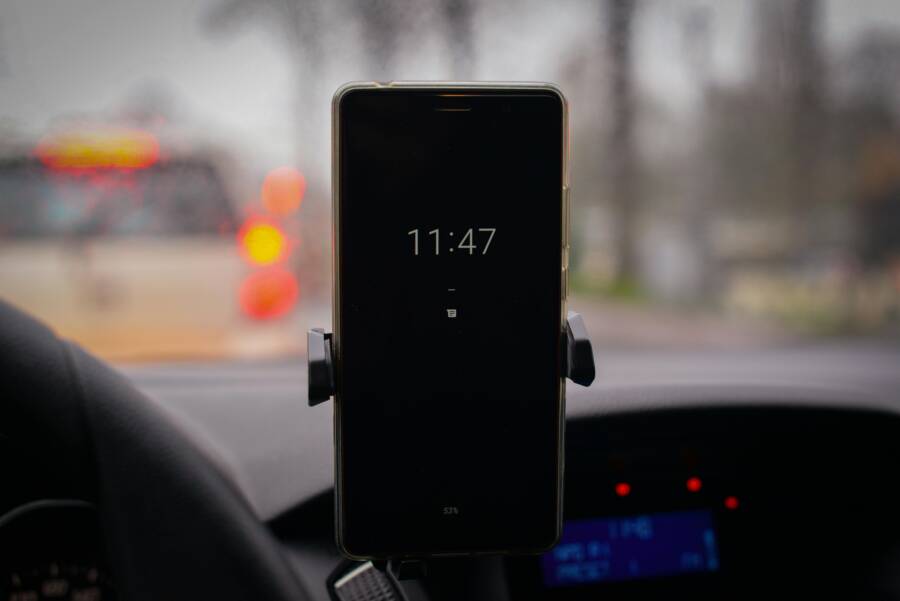
Getting your smartphone stuck in car mode or dock mode is incredibly annoying. You pull into your driveway, unplug the charging cable, and yet your screen stubbornly stays in that simplified driving interface. It feels like your phone refuses to acknowledge that the trip is over.
Don’t worry too much; this usually isn’t a sign that your hardware is broken. Most often, the culprit is a minor software snag or a ghost signal left behind by a port connection. Your phone is simply confused about whether it’s still plugged in or linked up.
This post walks you through simple, step-by-step solutions for both Android and iOS users to reclaim control of your device’s screen. We’ll cover checking physical connections and resetting software settings that often keep your phone trapped. Our goal is to get that frustration cleared up quickly, so you can use your smartphone normally right away. We’ll keep the fixes straightforward; no need for complicated technical repairs here, though we will provide comprehensive coverage across the likely fixes for achieving the target article length.
Why Does My Phone Keep Thinking I’m in the Car?
It is frustrating when your phone behaves as if it’s still attached to your car’s infotainment system long after you’ve parked. This persistent “Car Mode” or “Dock Mode” lock often stems from the phone receiving a signal it can’t properly dismiss. Your device is designed to react instantly to physical connections or specific wireless handshakes, changing its interface for safer driving. Sometimes, that instruction gets written into the phone’s short-term memory and just won’t erase itself. This can look like a serious problem, but most of the time, it’s just a simple communication failure between hardware and software. Understanding where the device thinks the connection lies is the first step to fixing that digital misunderstanding.
Understanding the ‘Sticky’ Software Signal
Your smartphone relies on sensors and logic gates to determine its status. Think of the charging port as having several tiny gates; when you plug in a cable, those gates close in a particular sequence, sending a digital code that says, “Accessory connected.” If debris is present or if there is slight damage, those gates might close momentarily, sending the “docked” signal, but the software fails to receive the corresponding “unplugged” signal when you pull the cord out. This leaves the software thinking the condition is permanent.
This situation often highlights momentary smartphone software lag. The operating system processes millions of instructions daily. Occasionally, a command to exit a specific mode simply gets skipped, or the process hangs. For instance, if you yank your charging cable out while the phone is actively logging location data, the software might get caught in a loop waiting for a data confirmation that never comes, forcing it to maintain the driving profile. Fixing this usually requires forcing the software to refresh its entire status check.
The Role of Bluetooth and Accessory Connections
While a physical connection tells the phone it’s docked, modern integration often relies on wireless signals too. If your smartphone frequently connects to your car via Bluetooth for audio or hands-free calling, this connection is a major potential culprit. When you enter your vehicle, the Bluetooth connection establishes itself, and the car’s head unit prompts your phone to open its Car Mode interface, perhaps through an app like Android Auto.
The confusion arises because the physical dock signal and the Bluetooth signal are separate triggers.
- Bluetooth Reconnection: If your phone stays connected to the car’s Bluetooth even when you walk away from the car for a few minutes, the next time you get near your vehicle or turn the ignition on, the Bluetooth reconnects instantly. The phone sees the connection and defaults back to driving mode, regardless of whether the charging cable is plugged in or not.
- Lingering Profiles: Sometimes, the software prioritizes the last known strong connection. If you always connect via Bluetooth while simultaneously using a specific charging cable, your phone builds a strong association between those two events. Unplugging the cable might switch off the wired signal, but the software might still anticipate the Bluetooth confirmation, keeping the driving interface active.
You need to check your Bluetooth pairings, especially those related to your vehicle, which can be a consistent hurdle for many users hoping to exit this unwanted mode.
Checking the Physical Port for Debris or Damage
The most frequent, yet easiest to overlook, cause involves the charging port itself. This area is constantly exposed to pocket linings, dust, and grime. Think about the lint that accumulates in jean pockets; that fuzz can compress and pack itself tightly into the charging port on your smartphone.
This packed debris acts like physical bridging material. It might press against one or more of the small metal pins inside the port, tricking the internal circuitry into believing a connector—like the one found on a car mount or a desktop dock—is firmly inserted. When this happens, the phone receives a constant electrical signal indicating it is docked.
It’s important to inspect this area carefully but cautiously. You want to remove the obstruction without causing further harm to the sensitive connection points.
Use magnification, like a phone camera close-up, to see inside the port clearly. Look for small pieces of lint or dirt lodged against the sides or bottom. When cleaning:
- Power down the device first. This prevents accidental short circuits while you work inside the port.
- Use a non-metallic, dry tool. A wooden toothpick or a can of compressed air works best.
- Gently scrape or nudge the debris toward the opening. Do not poke vigorously or jam the tool deep inside, as this can bend the critical pins used for data transfer and charging.
If you suspect your charging habits have been rough or you frequently use non-standard cables, you may want to compare your port to images online to see what a healthy port should look like. For example, troubleshooting iOS dock connector issues sometimes involves these exact physical checks found through community support forums.
The Quickest Fixes to Immediately Exit Car Mode
When your phone refuses to leave its simplified driving interface, you need immediate action, not a complex troubleshooting guide. These methods are designed to interrupt the stuck signal right now, forcing your smartphone to recognize it’s back in your hand or on your desk. We’re focusing on the quickest ways to reset the immediate conditions that keep the car mode active, targeting phantom connections and temporary software confusion. Think of these as emergency overrides for your device’s current state.
 Photo by ClickerHappy on Pexels
Power Cycle Your Smartphone: The Essential Restart
The most reliable first step in fixing almost any temporary software confusion is a quick restart, or power cycle. When your phone locks into Car Mode, it’s often due to a piece of software—perhaps the Bluetooth or location service handler—getting stuck in a continuous loop. This loop needs to be broken so the phone can re-evaluate all its current connections and states.
A standard restart clears the device’s temporary memory (RAM). This memory holds all the active processes, including the stubborn command that keeps Car Mode active. By cycling the power, you wipe that short-term confusion clean. It’s like hitting the reset button on your brain after forgetting what you were doing; everything starts fresh, and the phone checks sensors again from scratch. For both Android and iOS devices, performing a proper shutdown and restart is paramount before proceeding to more involved solutions. This simple action solves a surprising number of these connectivity glitches.
Toggle Connectivity: Turn Off and On Bluetooth and Wi-Fi
Car Mode is deeply linked to connectivity recognition, particularly Bluetooth. If Car Mode activates when you connect to your car’s system via Bluetooth, the phone might believe that connection is still the primary interface, even if the charging cable is long gone. You need to force the smartphone to briefly forget this connection and then re-establish it correctly.
To execute this immediate fix, manually interrupt the wireless signal:
- Access your phone’s quick settings panel (swipe down from the top of the screen on most devices).
- Deactivate Bluetooth completely. Give it a full moment to shut down all pairing efforts.
- Wait for about 30 seconds. This pause is important; it ensures the operating system fully releases the Bluetooth service handle.
- Reactivate Bluetooth. Your phone will now scan for available devices. If it immediately finds your car system and tries to reconnect in Car Mode, move quickly to the next steps before it fully finalizes that handshake.
While Bluetooth is the main suspect, briefly toggling Wi-Fi off and then on can also help refresh network awareness, particularly if your car uses Wi-Fi tethering or a hotspot feature to initiate the driving profile setup.
Cleaning the Docking Port: A Gentle Approach
If toggling software connections doesn’t work, the issue might be physical persistence. Even when unplugged, dust, pocket lint, or grime packed inside the charging port can sometimes press against critical internal pins. This physical contact mimics the electrical signature of a connected accessory, keeping your smartphone believing it’s docked.
Addressing this requires a careful, light touch. You are trying to dislodge compressed debris without damaging the fragile contacts inside the port.
- Avoid metal tools entirely when working around the port, as metal objects can easily scratch or bend the pins, potentially causing permanent damage or charging failures.
- Use a dry toothpick made of wood or plastic. Carefully insert the tip and gently prod any visible debris toward the opening. Work slowly around the edges of the port.
- Alternatively, use a can of compressed air. Use short, controlled bursts aimed directly into the port’s opening. This method often blows out loose particles lodged deep inside. Ensure the can is held upright to prevent propellant from spraying liquid into the device.
This physical intervention often resolves the issue when the phone software is receiving a constant, false “docked” input signal.
Checking for Accessory or Dock Apps
Modern car integration frequently relies on dedicated software that launches automatically. If your vehicle manufacturer or an accessory maker installed a specific app to manage your Android Auto or CarPlay experience, that app might be glitching and refusing to close its main session. For Android users, this is often visible; for iOS users, the functionality is usually buried deeper within the system settings, but the trigger points can still involve related apps.
You need to find and stop this specific application from running in the background.
Here is how to check and force the application closed:
- Locate your main app drawer (on Android) or look through recent apps (on iOS).
- Search for anything labeled ‘Car,’ ‘Drive,’ ‘Dock,’ or the name of your vehicle’s companion app.
- On Android, navigating to Settings > Apps, finding the suspect application, and selecting Force Stop is the most direct method. This completely halts the app’s current process.
- If you find an active Automation in the iOS Shortcuts app related to arriving or leaving your car, disable or delete that specific automation, as this can override standard settings. Clearing the app’s recent use history can sometimes be enough to satisfy the phone into returning to its default state.
Deeper Software Troubleshooting on Android Devices
When simple toggling fails to snap your Android phone out of persistent Car Mode, we must look deeper into the operating system’s configuration. Often, the stuck interface isn’t caused by the connection itself, but by how your smartphone software is programmed to handle specific system triggers. Since Android allows extensive customization and deep app permissions, a setting meant to improve convenience can easily become the source of frustration. We need to systematically check these software defaults and cached information that might be holding onto the “driving” status unnecessarily. This process involves verifying application behaviors and system housekeeping, which are usually safe procedures for any user.
Disabling or Adjusting Android Auto Settings
The Android Auto application itself is generally designed to launch whenever it detects a compatible connection, whether wired or wireless. If this setting remains active but the physical connection is gone, your phone may perpetually try to initiate the connection sequence. Identifying and adjusting this automatic start behavior is frequently the key to stopping the stuck mode.
Here is how you can access and modify these critical settings on most current Android versions:
- Open the main Settings app on your Android device.
- Scroll down and locate the Connected devices section, or sometimes it is listed directly under Apps or Google. Look specifically for Android Auto.
- Tap on Android Auto to enter its configuration screen.
- You are looking for a setting related to automatic startup. It might be titled Start automatically, When connected to Car, or Connect to car.
- If you see an option that says Start Android Auto automatically when connected to your vehicle, toggle this off. If you need to keep the general Android Auto feature, look for options that allow you to specify which car it connects to automatically. You may need to select Forget all cars or Previously connected cars and remove your vehicle’s specific profile.
Remember, Android Auto is designed to be helpful, but if the car’s system sends a delayed trigger, your smartphone might launch the mode even if the cable has been disconnected for minutes. Turning off the automatic start feature forces you to manually launch Android Auto only when you genuinely intend to use it.
Reviewing Default App Settings for Docking Actions
Sometimes, a non-Android Auto application—perhaps a third-party audio player or a navigation tool you rarely use—has incorrectly registered itself as the default handler for certain connection events. When your phone detects a connection signal (even a ghost signal), it checks which app should manage it, and if it picks the wrong one, that app launches and locks the screen into its driving view. We need to reset these specific link-opening preferences. You can find details on how to manage these default behaviors for Pixel phones, for example, by checking the official support documentation for setting or clearing default apps https://support.google.com/pixelphone/answer/6271667?hl=en.
To clear these potentially hijacking defaults, follow these steps:
- Navigate to the main Settings.
- Go to Apps or Apps & notifications.
- Find the menu option labeled Default apps or Opening links. The exact path varies slightly between manufacturers.
- In this section, look at categories like Browser app, Home app, or Assist app. Critically, review if any app related to driving or media is set as the default for handling specific link types when connected to a car.
- If you find an app that is inappropriately set as the default handler—for example, a specific mapping app that hijacked the launch command—select that app.
- Look for an option to Clear defaults or Forget settings. Clearing defaults is much safer than clearing all app data; it simply removes the phone’s instruction to always open that specific type of content with that app. This forces the phone to ask you again the next time a similar trigger occurs, often resulting in the standard system interface launching instead of the stuck car mode.
Clearing the Cache for System Apps
Application cache stores temporary files that speed up loading times. While clearing application cache is generally regarded as a completely safe procedure that won’t delete your personal files or login information, a corrupted cache entry can cause unusual behavior. If the Android Auto service or the system process handling USB/Bluetooth connections has a bad cache entry related to your most recent connection, clearing it forces a clean slate without affecting your saved data.
Here’s how you can apply this fix to the relevant system components:
- Go to Settings on your smartphone.
- Open the Apps menu and ensure you are viewing All apps (you may need to tap a three-dot menu to see system apps).
- First, search for and select Android Auto.
- In the App Info screen, tap on Storage & cache.
- Select Clear cache. Do not select Clear storage or Clear data unless you are prepared to lose all your Android Auto settings and re-pair your car profile later. Clearing cache alone is sufficient for fixing temporary bugs.
- Next, you should check the System UI app. This service handles many visual elements on your screen, including mode indicators. Find System UI within the full app list, navigate to its Storage & cache section, and Clear cache there as well.
Restarting your smartphone immediately after clearing caches for both these services helps finalize the refresh process. This step reliably corrects issues where the software environment itself is lagging or confused about its current operational mode.
Checking for Pending System Updates
Software glitches that cause features to behave unexpectedly are often fixed quickly by developers. If your phone has been stuck in Car Mode intermittently across several drives, there is a good chance that Google or your phone manufacturer has released a patch addressing known bugs in the connectivity handlers. Ignoring system updates means leaving your smartphone vulnerable to these known annoyances.
You should always verify that your operating system is current after experiencing persistent odd behavior. Poor communication between the device’s hardware abstraction layer and the user interface layer often triggers these mode locks, and updates target these exact low-level links.
To see if an OS update is waiting for you:
- Open the main Settings application.
- Scroll toward the bottom and locate System or Software Update.
- Tap on System update or check for updates.
- If an update is available, download and install it. It is best to perform this update while plugged into a charger and connected to Wi-Fi, as these updates can be substantial.
Allowing your device to run the latest software version minimizes system conflicts that might otherwise lead to the phone incorrectly recognizing or failing to exit car-related operating modes.