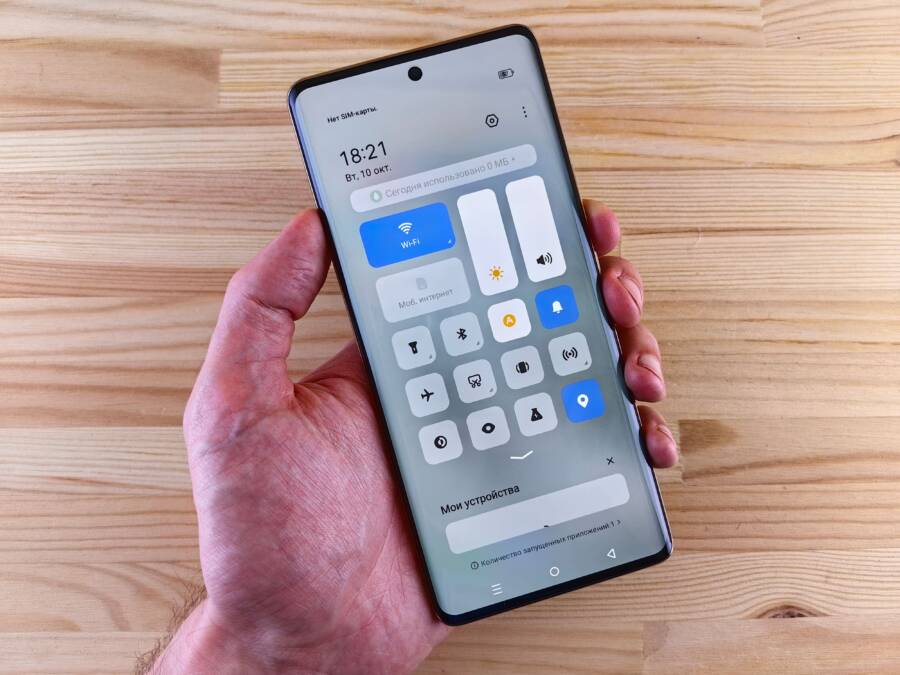
Split-screen mode on your smartphone usually fails because of third-party app restrictions, outdated operating system software, or insufficient RAM. When an app suddenly refuses to stay pinned in a multi-window view, you don’t need to replace your device.
Fixing this issue usually involves clearing app caches, updating your software, or enabling developer settings that force activities to resize. Let’s look at the exact steps you can take to restore reliable multitasking on your smartphone.
Why Your Smartphone Suddenly Closes Split Screen Mode
Split screen mode on your smartphone fails when applications clash with system rules or when the hardware runs out of breathing room. Software developers design specific multi-window parameters into their programs, and the operating system enforces these limits automatically. Understanding these underlying triggers helps you keep your active windows stable and prevents sudden crashes during daily multitasking.
Unsupported Apps and Developer Restrictions
Some applications block multi-window views by design. Developers often code their software to run exclusively in full-screen mode because complex user interfaces break down when resized. Banking apps, media players, and demanding mobile games frequently disable split-screen capabilities for security or performance reasons. When you drag an unsupported app into a multi-window layout, the operating system immediately terminates the session.
You can bypass this restriction on Android devices by tweaking hidden developer options.
Open your system settings and locate the build number inside your about phone menu.
Tap that build number seven times to unlock developer options.
Scroll down inside the new menu to find the setting that forces activities to be resizable.
Enable that toggle and restart your smartphone to let unsupported apps run in split-screen mode.
Low RAM and Background Process Limits
Your smartphone drops one half of a split screen when memory runs low. Running two heavy programs simultaneously demands significant hardware resources, and physical RAM fills up quickly. When available memory drops below a safe threshold, the operating system steps in to protect device stability. It closes the background process of whichever app requires the most memory.
Background limits also play a major role in unexpected window closures. If you leave a split-screen session idle for a few minutes, the system suspends the inactive window to conserve battery power. Heavy resource usage by one app starves the other, forcing a crash that leaves only a single app active on your display. Clearing out unnecessary background tasks before you launch a multi-window session gives your smartphone the memory buffer it needs to keep both apps open.
Step by Step Fixes for Split Screen Glitches
When your smartphone freezes or kicks you out of a multi-window view, you can usually restore normal operation with a few targeted troubleshooting steps. Minor temporary bugs, outdated application data, or missing system permissions often cause these disruptions. You can work through these practical methods to get your split-screen layout working again.
Restart Your Device to Clear Temporary Glitches
A simple reboot often solves unexpected software bugs that freeze multi-window layouts. Background processes sometimes conflict with each other, which temporarily disables split-screen capabilities on your smartphone. Turning the device off and on again clears the system memory and stops rogue background tasks.
Press and hold your smartphone’s power button and volume down key simultaneously until the power menu appears on your display.
Tap the restart option on your screen and wait a minute for the device to shut down and boot back up.
Unlock your smartphone, open two compatible apps, and test the split-screen feature again to verify the fix worked.
Enable Force Activities to Resize in Developer Options
Many applications lack native multi-window support because developers code them to run only in full-screen mode. Your smartphone enforces this rule by default, so it closes the app when you try to open a second window. You can bypass this limitation by activating hidden developer settings on your device.
Open your system settings, tap about phone, and tap your build number seven times to unlock developer access.
Go back to your main settings menu, open the new developer options section, and scroll down until you find the window settings.
Turn on the toggle that forces activities to be resizable, and then restart your smartphone to apply the changes across all installed apps.
Clear App Cache and System Storage
Corrupted cache files frequently cause crashing split-screen sessions because temporary data conflicts with fresh system updates. When an application stores too much junk data, the operating system struggles to allocate enough memory for two active windows. Clearing out this accumulated cache gives the app a clean slate and stops sudden multi-window failures.
Open your phone settings and navigate to your application manager or storage menu.
Select the specific app that keeps crashing during your multi-window sessions.
Tap storage and choose clear cache to delete the temporary files causing the freeze.
Comparing Android and iOS Split Screen Behaviors
Split-screen multitasking behaves differently depending on the operating system of your smartphone. Android offers a flexible, open environment where almost any application can run side by side, while Apple restricts multi-window views to specific hardware tiers and strict interface guidelines. Knowing how each platform handles screen real estate helps you understand why your favorite applications might act differently when you try to run them together.
Android Split Screen Implementation and Settings
Android handles split-screen multitasking with native system code that divides the display into two resizable panes. Samsung Galaxy devices use the One UI interface to let you drag apps directly from the Edge Panel or recent apps menu. Google Pixel phones rely on a similar gesture, requiring you to tap the app icon in the task switcher and select the split-top option.
Because Android is an open platform, manufacturer skins change how you access these features.
Samsung devices allow you to save split-screen pairs to your home screen for quick access later.
Google Pixel models focus on a clean stock experience, letting you resize the dividing bar right in the middle of the screen.
Most Android phones let you rotate the device horizontally to give wide screens more breathing room for both active windows.
iOS Slide Over and Split View Limitations
Apple handles multi-window workflows through Split View and Slide Over features, but these options face strict hardware and software boundaries. You can run split-screen modes easily on an iPad, but iPhones do not support traditional side-by-side app multitasking. iOS on a standard smartphone limits you to Picture-in-Picture mode for videos and FaceTime calls.
Apple restricts true window splitting to iPads because small phone screens cannot comfortably render two complex user interfaces at once. If you own an iPad, you can drag a second app from the dock to create a split view. iPhone users must rely on fast app switching instead, because the operating system suspends background applications to save battery life and maintain high performance.
Frequently Asked Questions About Multi Window Mode
Troubleshooting split-screen issues on a smartphone raises many practical questions about system compatibility and performance limits. Finding quick answers helps you resolve unexpected window closures without wasting time on guesswork.
Why does my split screen keep disappearing on certain apps?
App compatibility issues cause most unexpected window closures on a smartphone. Software developers often design their programs to run exclusively in full-screen mode because complex user interfaces break down when resized. Banking applications and demanding mobile games frequently disable multi-window capabilities for security reasons. When you drag an unsupported app into a split-screen layout, the operating system immediately terminates the session. You can bypass this restriction on Android devices by turning on the force activities to resizable toggle inside your hidden developer options.
Does updating my operating system fix multitasking issues?
System software updates resolve many persistent multi-window bugs because manufacturers patch known performance glitches with every new release. Running an outdated operating system leaves your smartphone vulnerable to memory leaks and interface freezes that break split-screen functionality. Installing the latest firmware package ensures your device handles background processes efficiently and keeps both active windows stable during heavy multitasking sessions. Check your system settings regularly to see if a fresh patch is available for your specific smartphone model.
Conclusion
Fixing split-screen issues on your smartphone usually requires basic maintenance, such as restarting the operating system, clearing cached app data, or enabling hidden developer settings for unsupported apps. Because physical RAM limits and strict software rules often force multi-window sessions to close, keeping your device updated helps maintain stable performance.
Review your installed applications and system memory limits if a multi-window view fails again.